
Quick Answer
The installation error 0x800F0950 often occurs when installing .NET Framework 3.5 or a language pack in Windows 11 or 10.
It is usually caused by a blocked Windows Update service, missing system component files, or incomplete Windows updates. It can be fixed by:
- Clear Windows Update cache
- Check Group Policy settings
- Repair corrupted system files
- Force installation via DISM commands
What Is Error Code 0x800F0950 Windows 11/10
When Windows 11/10 fails to download and install required components, 0x800F0950 is often triggered, usually during .NET Framework 3.5 or language pack installation.
This means that the operating system cannot connect to the server to download the required installation files.
The following table lists common causes:
| Cause | Description |
| Blocked Windows Update service | Prevents Windows from downloading required installation files |
| No or unstable internet connection | Fails to connect to Microsoft servers |
| Group Policy restrictions | Disables optional feature or language pack downloads via system policies |
| Incomplete Windows updates | Causes installation conflicts or prevents package retrieval |
| Corrupted system files | Blocks Windows from successfully unpacking and registering features |
| WSUS restrictions | Blocks a PC from downloading optional features from Microsoft |
Case 1: .NET Framework 3.5 Error 0x800F0950
This error indicates that Windows 11/10 fails to connect to Windows Update to download or install the necessary files for .NET Framework 3.5.
To fix .NET Framework 3.5 Error 0x800F0950:
- Install Windows updates
- Enable .NET Framework via Windows Features
- Use DISM with Windows installation Media
- Create a custom installation script
Method 1: Install Windows Updates
Installing pending Windows updates is the simplest option to fix 0x800F0950.
Here we take Windows 11 as an example.
Step 1: Press Win + I to access Settings.
Step 2: In the Windows Update tab, click Check for updates.
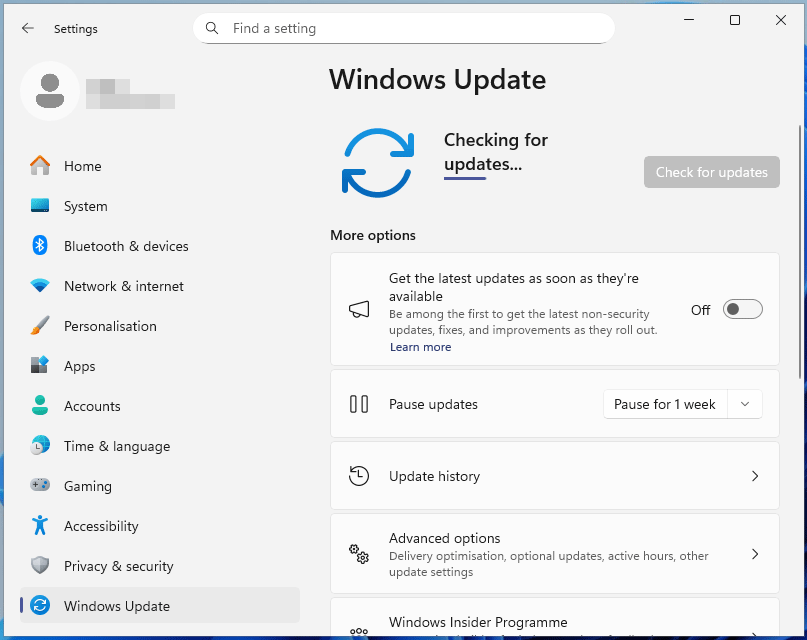
Step 3: Download and install the available updates.
Try to install .NET Framework 3.5 and check if the error is resolved.
Method 2: Install .NET Framework from Windows Features
If you do not have .NET 3.5 Framework installed on your computer, you will encounter the 0x800f0950 error when you launch an application. If so, start the installation from the Windows Features screen.
Step 1: Go to Control Panel and view its items by icons.
Step 2: Click Programs and Features.
Step 3: In the new screen, select Turn Windows features on or off from the left panel.
Step 4: In the new popup, choose .NET Framework 3.5 (includes .NET 2.0 and 3.0) and click OK.
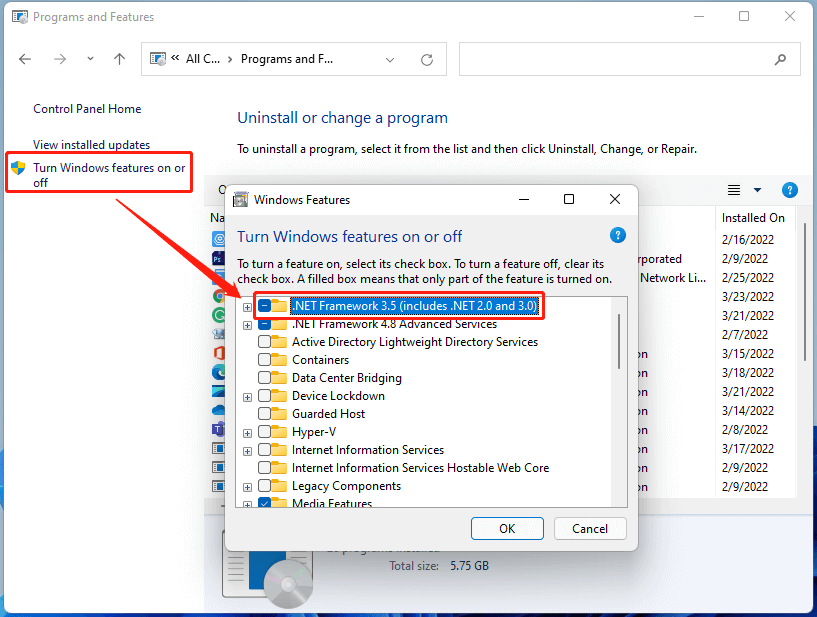
Step 5: Confirm the operation and wait for its success.
Step 6: Restart your machine and relaunch the target process to see whether the problem has been solved or not.
Method 3: Use DISM Installation Media
If your Windows Installer component is corrupted, you will also get the above error.
If that is true, you can rely on an installation media via DISM (Deployment Image Servicing and Management), to complete the .NET framework installation.
Step 1: Plug compatible installation media (e.g., USB flash drive) into your computer. If you are using an ISO, just mount it as a drive.
Step 2: Open Command Prompt (CMD) or PowerShell as an administrator.
Step 3: Type dism /online /enable-feature /featurename:NetFX3 /All /Source:G:\sources\sxs /LimitAccess into the command platform (replace G with the drive letter of the installation media) and press Enter.
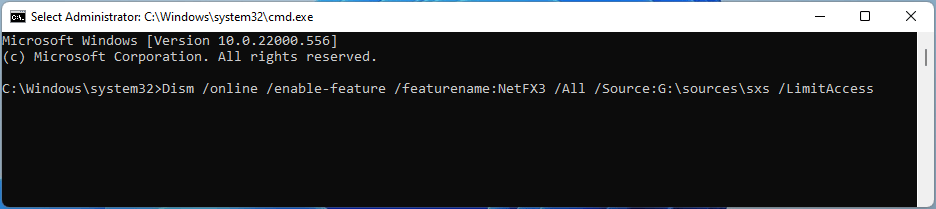
Step 4: Restart your computer to see whether you still receive the 0x800f0950 error.
Method 4: Create a Custom Installation Script (Windows 10 Only)
If the DISM component is also affected, you can create a custom installation script and run it.
Step 1: Connect your system installation media to your computer or mount your installation ISO as a drive.
Step 2: Open Notepad and copy the following code into your notepad.
@echo off
Title .NET Framework 3.5 Offline Installer
for %%I in (D E F G H I J K L M N O P Q R S T U V W X Y Z) do if exist “%%I:\\sources\install.wim” set setupdrv=%%I
if defined setupdrv (
echo Found drive %setupdrv%
echo Installing .NET Framework 3.5…
Dism /online /enable-feature /featurename:NetFX3 /All /Source:%setupdrv%:\sources\sxs /LimitAccess
echo.
echo .NET Framework 3.5 should be installed
echo.
) else (
echo No installation media found!
echo Insert DVD or USB flash drive and run this file once again.
echo.
)
pause
Step 3: Save your notepad as netfx.cmd.
Step 4: Right-click on it and select Run as administrator.
Then, it will start installing .NET Framework 3.5 automatically.
Case 2: Language Pack Error 0x800F0950
In addition to the .NET framework installation error, error code 0x800f0950 may also refer to the language pack installation problem in Windows 11. For such a situation, the below methods may help.
- Check network connection
- Check Date & Time Settings
Method 1: Check Network Connection
The 0x800f0950 language pack issue happens mostly on computers using Wi-Fi. So, if your failure occurs when you are on Wi-Fi, you can switch to a cable connection and try to download the language again.
Also, you can try to power cycle your router or modem; try to connect to another WiFi or network, try a mobile hotspot, disconnect all other devices that share the network…
Method 2: Check Date and Time Settings
Make sure your computer’s date and time settings are correct. If not, Microsoft’s servers will block the connection request and show error code 0x800f0950 for security reasons.
Step 1: Move to Start > Settings > Time & Language > Date & time.
Step 2: Let Windows set up the date and time automatically.
Step 3: Reboot the system and check whether you can install the language pack or not.
Universal Fixes for 0x800F0950 (Works for Both Cases)
Additionally, you can try the following fixes to resolve .NET Framework 3.5/language pack error 0x800F0950.
- Clear Windows Update cache
- Check Group Policy settings
- Run DISM/SFC scans
Method 1: Clear Windows Update Cache
The Windows Update cache is likely corrupted, resulting in error code 0x800F0950. Follow these steps to clear the cache:
Step 1: In Search, type cmd and click Run as administrator.
Step 2: Stop the update services by running these commands (press Enter after each one):
net stop wuauserv
net stop cryptSvc
net stop bits
net stop msiserver
Step 3: Go to C:\Windows\SoftwareDistribution in File Explorer and delete the Download folder.
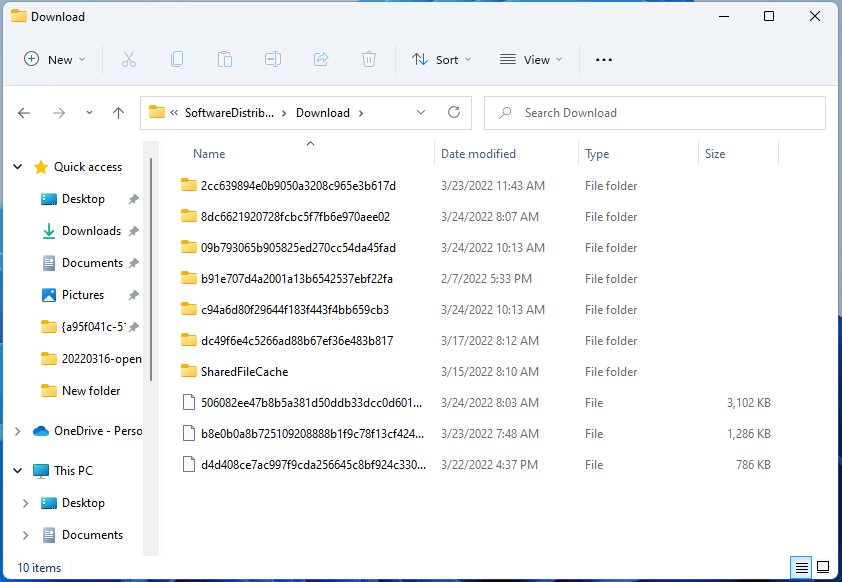
Step 4: Restart the stopped services via these commands.
net start wuauserv
net start cryptSvc
net start bits
net start msiserver
Method 2: Check Group Policy Settings
0x800F0950 can be triggered by incorrect system policy settings that block Windows 11/10 from downloading or installing optional features.
Check the Group Policy settings now:
Step 1: Type gpedit.msc in the Search and press Enter to open Local Group Policy Editor.
Step 2: Navigate to Computer Configuration > Administrative Templates > System.
Step 3: Locate Specify settings for optional component installation and component repair, and choose Enabled.
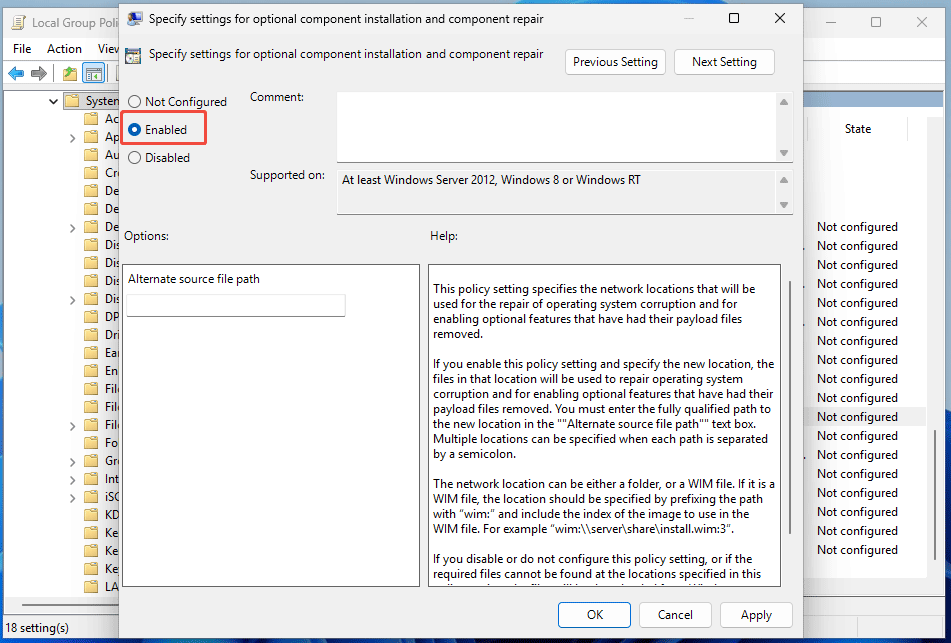
Step 4: Click Apply > OK.
Method 3: Run DISM & SFC Scans
Corrupted system files may block Windows from installing .NET Framework 3.5 or a language pack. To fix the error code, run DISM and SFC scans.
Step 1: Run Command Prompt with admin rights.
Step 2: Type DISM /Online /Cleanup-Image /RestoreHealth and press Enter.
Step 3: Execute the sfc /scannow command.
Important: Back Up Your System
The error code 0x800F0950 is common in Windows 10/11 and can take time to fix. To ensure your PC can be restored easily if issues occur again, it is recommended to back up your system.
MiniTool ShadowMaker, professional Windows backup software, can help create a full system image backup and back up files & folders.
MiniTool ShadowMaker TrialClick to Download100%Clean & Safe
Step 1: Connect an external drive to your PC.
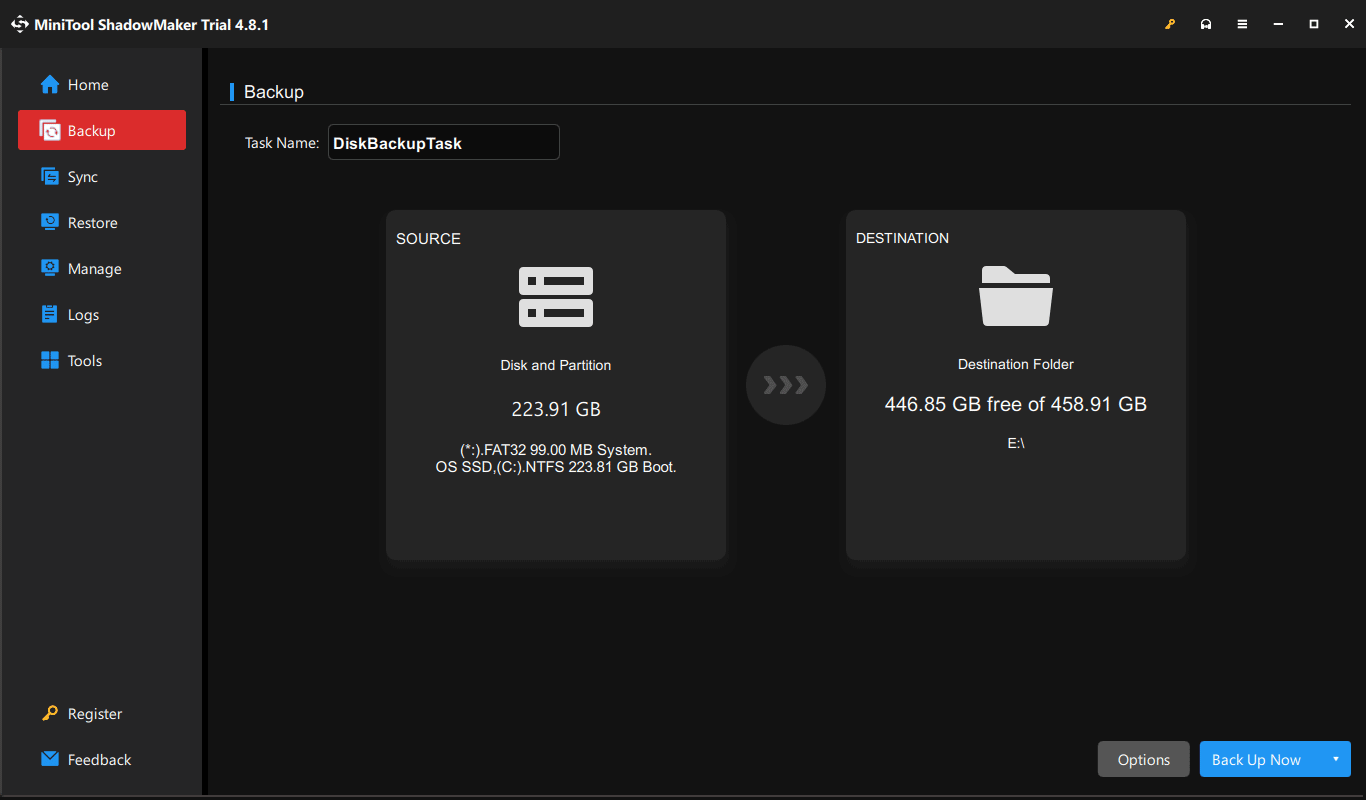
Step 2: Launch MiniTool ShadowMaker and navigate to Backup.
Step 3: By default, system drives are selected. To proceed, click DESTINATION to choose the external drive to save the system image file.
Step 4: Click Back Up Now to begin the backup task.
Bottom Line
The 0x800F0950 language pack and .NET Framework 3.5 error can be solved easily through the above methods. If you are encountering such an error code, follow the instructions.
While experiencing issues with MiniTool ShadowMaker, contact our support team at [email protected].
0x800F0950 FAQ
1. Run the official .NET Framework Repair Tool
2. Turn Windows Features on
3. Repair corrupted system files
4. Reset Windows Update components
5. Install Windows updates
About The Author

Position: Columnist
Vera has been working at the MiniTool Team for over 10 years as a technical editor and content writer. She mainly focuses on disk and partition management, data recovery, Windows backup and restore, and PC troubleshooting. Through in-depth software testing and hands-on experience, she has helped users solve a wide range of computer problems and better protect their data on Windows devices.
User Comments :