
Quick Answer: 3-2-1 Backup Strategy Definition
The 3-2-1 backup rule is the optimal strategy for ensuring files are stored in multiple locations to prevent data loss. It requires 3 copies of data, stored on 2 different storage devices, with 1 copy kept offsite.
Why Is the 3-2-1 Backup Strategy Important
This backup rule helps protect your data against common data loss scenarios, including human error, malware attacks, hardware failures, system crashes, and natural disasters.
By storing multiple copies of your files across different storage locations, you can significantly reduce the risk of permanent data loss.
Even if one backup copy is deleted, damaged, or inaccessible, you can restore your files from another backup. This ensures a much higher chance of successful recovery.
The key benefits of this backup strategy include:
- Eliminates single points of failure
- Offers complete protection against physical disasters and cyber risks
- Ensures business continuity by reducing downtime after system failures
3-2-1 Backup Strategy Best Practices for Data Protection
For small businesses, the 3-2-1 backup strategy is a great method in the IT world since it is simple and effective. Right now, follow the principles below to customize your own strategy to satisfy your needs.
In practice, the 3-2-1 backup rule follows these principles:
- 3 copies of your data
- 2 local copies on 2 different media
- 1 offsite backup
Now, let’s look at how the 3-2-1 data principle works.
#1. Make Sure You Have at Least 3 Copies of the Data
You may have heard that the more copies you have, the less risk of data loss you face. You can choose to create as many copies as you can.
The minimum number of copies you own is usually three. That is to say, you have two backups and the original data.
Once one backup goes wrong, an additional backup can be used to restore your computer to the previous state.
#2. Store Copies on Different Storage Media
Obviously, it is not logical to keep backups of your data on the same computer. We are sure that many of you have heard the “all eggs” theory. If you put all eggs in the same basket, you may lose all eggs once something happens.
In the same way, if you put all the computer copies in one place where the original data exists, you are facing the risk of losing your precious data.
Therefore, keep at least two copies on a second device, which can be a network-attached drive, an external hard drive, or a cloud service.
#3. Keep One Copy Offsite
You should know that some threats, like a flood, fire, and earthquake, can happen. To avoid PC data loss, making offsite backups is a good option. Remember to put one copy as far away as possible.
Commonly, cloud backup is selected by many people. Google Drive, Microsoft OneDrive, Dropbox, etc., are common cloud services.
How to Implement 3-2-1 Data Backup Strategy
Use MiniTool ShadowMaker for Local Backup
To follow the 3-2-1 rule efficiently, the local backup is often the most critical step. The professional backup software, MiniTool ShadowMaker, can make the process much easier and automatic.
With it, you can easily back up your files, the system, partitions, and disks. During the backup process, this tool helps compress the source drive data into an image file – this is called image backup.
Importantly, it supports multiple backups, including scheduled backups, differential backups, and incremental backups, which can keep your data in a flexible way.
To run the local computer backup according to the second part of the 3-2-1 approach, download and install MiniTool ShadowMaker on your PC now.
MiniTool ShadowMaker TrialClick to Download100%Clean & Safe
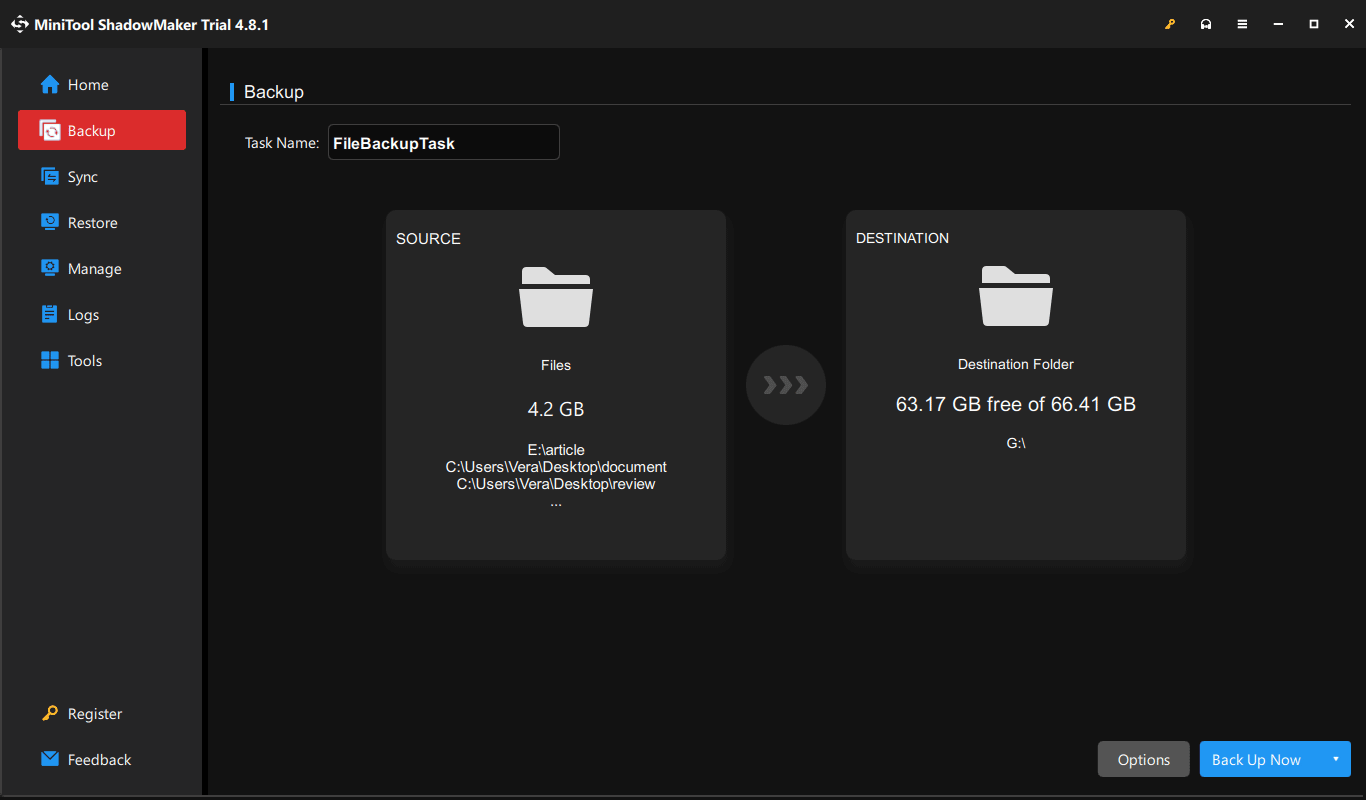
Step 1: Launch MiniTool ShadowMaker and tap on Keep Trial to continue.
Step 2: To back up your important files, go to Backup > SOURCE > Folders and Files, choose what you need to back up, and click OK.
Step 3: Select a destination path to save the image file. To follow the 3-2-1 data principle, choose an external drive.
Step 4: Click Back Up Now to start the PC backup.
Create the Third Copy Offsite
As for the 3-2-1 backup plan, one requirement is to create the third copy and put it offsite. Here, offsite means as far away as possible. Usually, you choose an online backup service since it is the easiest method to keep your data offsite.
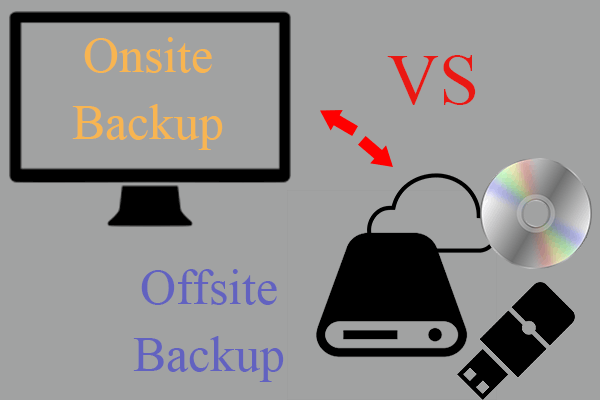
Generally, cloud backup services include Google Drive, Microsoft OneDrive, Amazon Drive, Dropbox, etc. Now, get one to do an online backup that is suitable for small businesses.
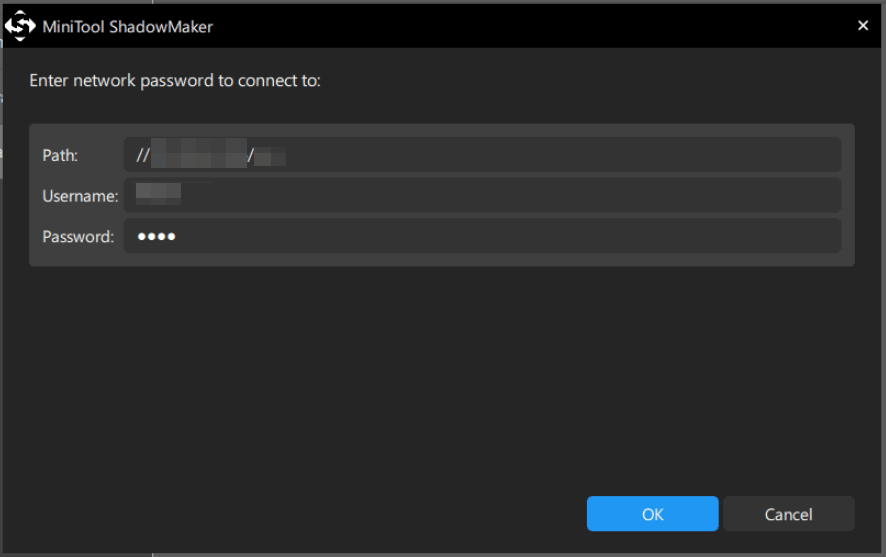
In addition, you have a choice to back up your data to a remote computer over the internet, which is similar in principle to cloud backup. But the computer should be in a secure location, such as a friend’s home or a relative’s house.
MiniTool ShadowMaker allows you to perform this job by inputting the corresponding path, user name, and password during the backup process.
To know many details on the setup, refer to this help document – How to Back up Files on Win11/10/8/7 Using MiniTool ShadowMaker and scroll down to the Shared section.
3-2-1-1-0 Backup Strategy
For a higher level of data protection, consider upgrading from the traditional 3-2-1 backup strategy to the 3-2-1-1-0 backup rule.
This updated edition adds:
- 1 immutable or air-gapped backup copy that cannot be modified or deleted.
- 0 backup errors, achieved through regular testing and verification.
The table below compares the 3-2-1 and 3-2-1-1-0 backup strategies.
| Strategy | Description | Protection Level |
| 3-2-1 | Used for basic backup rule | Good |
| 3-2-1-1-0 | Adds backup verification and immutability | Advanced |
3-2-1 Backup Strategy FAQ
You can use Windows built-in tools or backup software such as MiniTool ShadowMaker for local backups, and cloud storage services for offsite backups.
Verdict
After reading this post, you know the 3-2-1 backup strategy is the best data protection strategy for home computers & small businesses.
To follow this rule, free download and install MiniTool ShadowMaker to create a local computer backup and use a cloud service for a cloud backup.
If you have some questions while using our software, feel free to contact us at [email protected].
About The Author

Position: Columnist
Vera has been working at the MiniTool Team for over 10 years as a technical editor and content writer. She mainly focuses on disk and partition management, data recovery, Windows backup and restore, and PC troubleshooting. Through in-depth software testing and hands-on experience, she has helped users solve a wide range of computer problems and better protect their data on Windows devices.
User Comments :