
The Acer laptop won't turn on issue is often caused by power issues, system freeze, faulty RAM, or internal hardware failures. To fix it, MiniTool offers some useful solutions, including performing a power reset on the Acer laptop and reinserting the CMOS battery.
Quick Answer
- If there is no power at all: Check your charger and power outlet, or perform a power reset.
- If the power light is on but the screen is black: Test the display by using an external monitor or reseat the RAM stick.
- If the Acer laptop turns on and immediately shuts down: Clean the vents or perform a power drain.
Common Symptoms of Acer Laptop Not Turning On
Before using methods to fix the issue, identify your situation first. Different symptoms usually due to different causes:
# 1. No Power at All
- Symptoms: No lights, no fan, no sound
- Causes: Power supply failure
# 2. Power Light on but Black Screen
- Symptoms: Blue/power light is on, but the screen remains black
- Causes: Display issue, loose RAM, or graphics problem
# 3. Turns on Then Shuts off
- Symptoms: Laptop starts briefly, then powers off
- Causes: Overheating, RAM issue, or motherboard fault
# 4. Only Works When Plugged In
- Symptoms: Laptop won’t start on battery, but works with charger
- Causes: Dead or degraded battery

Back Up Data Before Fixing an Acer Laptop That Won’t Turn On
It is recommended to back up important files before troubleshooting the issue to avoid accidental data loss.
For file backup, consider using the professional backup software, MiniTool ShadowMaker. It enables you to create bootable media for PC backup, even when Windows cannot boot.
MiniTool ShadowMaker TrialClick to Download100%Clean & Safe
Step 1: Connect a USB drive to a normal PC.
Step 2: Launch MiniTool ShadowMaker and go to Tools > Media Builder, select your USB drive, and create a bootable drive.
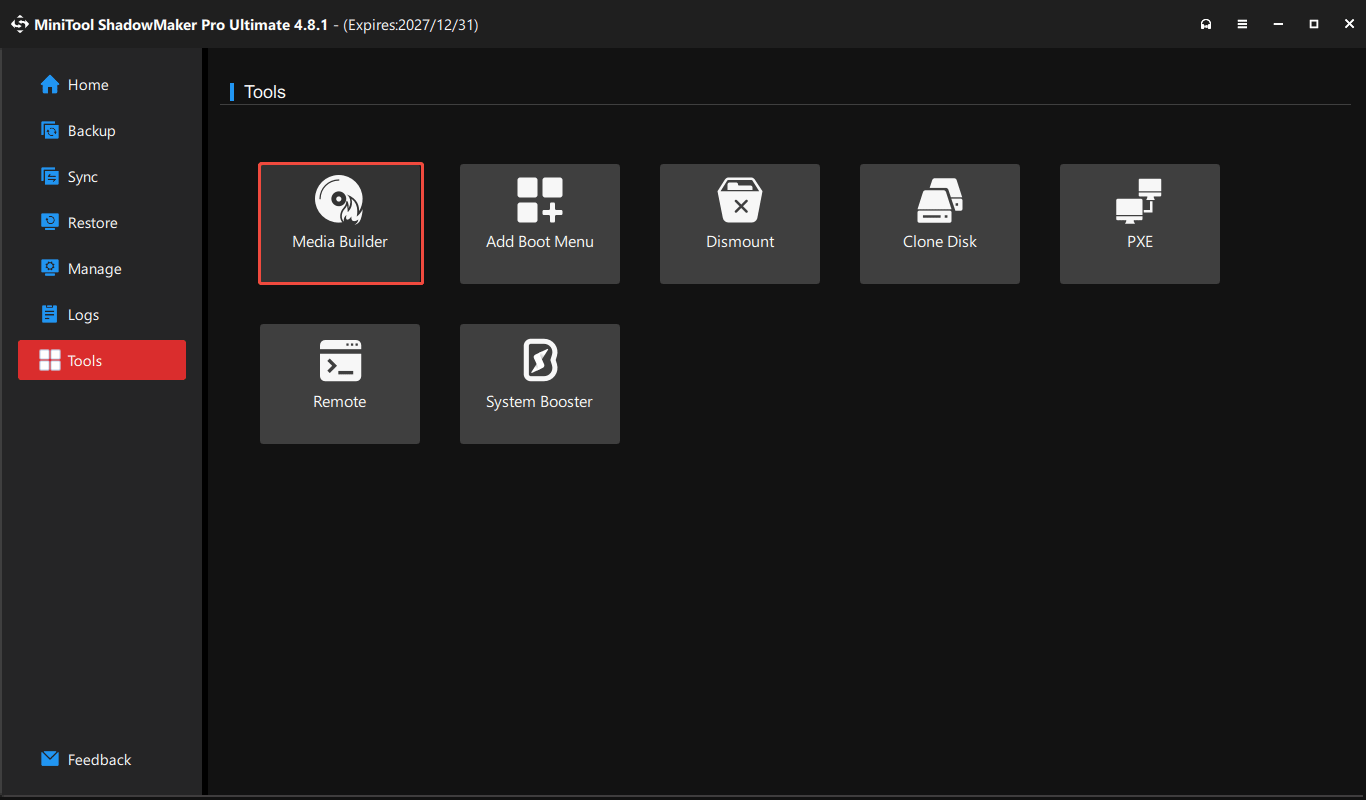
Step 3: Connect the USB drive to your Acer laptop that won’t turn on and boot it from this USB drive. Besides, prepare another external drive and plug it into the laptop.
Step 4: Open MiniTool ShadowMaker in the MiniTool recovery environment and go to Backup.
Step 5: Go to Source > Folders and Files and choose the vital files that you need. Then, choose a path like an external hard drive to save the image file.
Step 6: Click Back up Now.

After that, it’s time to take measures to fix the Acer laptop that fails to turn on via multiple ways below.
How to Diagnose the Problem
Before trying any fixes, take a moment to identify your laptop’s behavior. This will help you apply the right solution faster. Use the quick reference below:
- No lights at all – Check charger and power connection first
- Lights on, no display – Check screen or RAM
- Starts then shuts down – Check overheating or hardware
- Only works on AC power – Replace battery
How to Fix an Acer Laptop That Won’t Turn On
Basic Fixes
Fix 1. Check the Power Supply
The first thing you should do to fix the Acer laptop won’t turn on issue is to check the power supply. Here are some tips you should do:
- Ensure the charger is properly connected
- Try a different outlet
- Use another compatible adapter
If there’s no charging light, the charger or port may be faulty.
Fix 2. Perform a Battery Reset to Drain Residual Power
Step 1: Unplug all the external devices connected to your PC, including docking stations, external hard drives, USB devices, printers, and scanners.
Step 2: Use a screwdriver to remove all the screws on the back panel of the laptop, open the back casing, and remove your battery. Besides, disconnect your AC adapter.
Step 3: Hold and press the Power button for at least 30 seconds to drain residual electricity and then release this button.
Step 4: Reassemble everything and connect the charger back, open the laptop, and see if it can turn on.
Fix 3. Test Without the Battery
Sometimes your battery or charger goes wrong, leading to Acer laptop not turning on.
To check if the charger has an issue:
1. Perform a power drain as stated above.
2. Put the battery in but don’t connect a power cord.
3. Try to open your laptop.
If it can boot, your laptop and battery work as expected. This also indicates your power cable has an issue and you need to replace it with a new one.
To troubleshoot your battery:
1. Do a power drain.
2. Connect the machine to a power cord without inserting the battery.
3. Restart the device.
If your laptop can boot, your battery may be malfunctioning. Then, replace it.
Advanced Fixes
Fix 1. Check BIOS Settings
Your Acer laptop may fail to turn on the Windows operating system due to some operations, for example, the incorrect BIOS settings. To fix the issue, go to access the BIOS menu for a check.
Step 1: Restart your Acer laptop and then press F2 when the first logo screen appears to access BIOS.
Step 2: In the BIOS menu, make sure the PC is set to boot up from your primary hard drive under the Boot tab.
Besides, disable Fast Boot under Main. Also, you can choose to reset BIOS to factory settings: press F9 and then Enter to load the default configuration or go to Exit > Load Setup Defaults > Yes.
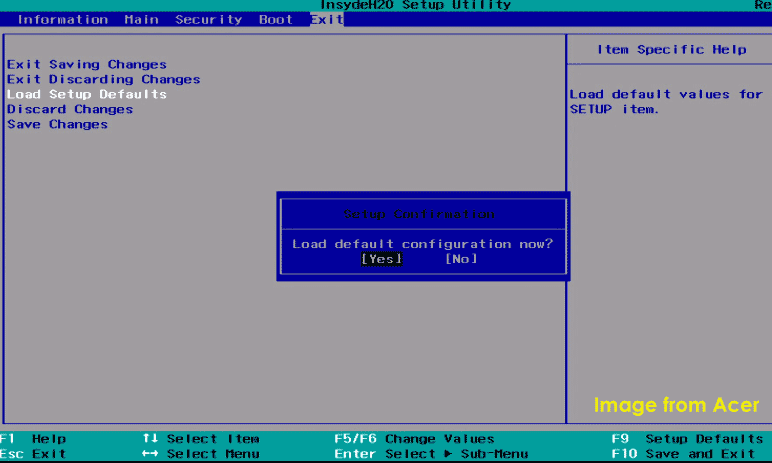
If this cannot fix Acer laptop not turning on Windows 11/10, go to try some fixes in Safe Mode.
Fix 2. Boot to Safe Mode
If you can access BIOS when the Acer laptop won’t turn on, the issue may lie in the software – specifically the operating system itself, for example, updates go awry, system files are damaged, or incompatible software causes the PC to crash.
Then, you can access Windows boot options in WinRE and boot the PC to Safe Mode for troubleshooting.
Step 1: Restart your Acer laptop several times when you see the Acer logo screen. Then, Windows 10/11 will enter the Automatic Repair mode. Click Advanced options on the Automatic Repair screen.
Step 2: Go to Choose an option > Troubleshoot > Advanced options.
Step 3: You can tap on Startup Repair to fix problems that block Windows from loading.
Or, go to Startup Settings > Restart and press F4 to enter Safe Mode or F5 to enable Safe Mode with Networking.
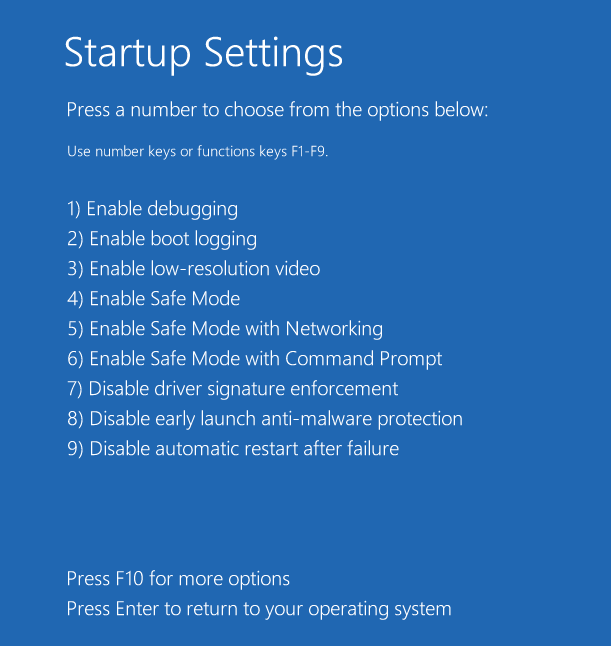
Step 4: If your PC can enter Safe Mode, undo recent changes you have made to your Acer laptop. Or, open Command Prompt and run sfc /scannow to fix corrupted system files.
Fix 3. Check Your Monitor
Sometimes you may run into the situation – Acer laptop won’t turn on but the power light is on. In this case, your PC may work well but the monitor or screen fails to work.
Check the monitor by connecting the laptop to an external display to check. Or, you can turn on the volume and see if you can hear the starting sound of your laptop with a black screen. If yes, the monitor goes wrong.
Fix 4. Check Your RAM Stick
Faulty RAM sticks can block the motherboard from communicating with the Windows system.
To fix your issue, go to check your RAM sticks when your Acer laptop won’t turn on:
1. Open your laptop back case.
2. Remove the RAM sticks.
3. Try one RAM stick at a time.
If you are using a faulty one, the laptop can turn on but cannot pass POST. If your laptop has only one RAM stick, use a new RAM module to check.
Fix 5. Disconnect External Devices
Sometimes, improperly connected external devices can prevent startup.
Step 1: Try removing USB drives, the mouse, and the keyboards.
Step 2: Restart the laptop to see if the issue is resolved.
If the Acer laptop can turn on normally, it may be the culprit.
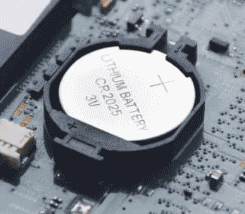
Fix 6. Reinsert CMOS Battery
On the motherboard of a laptop, there is a small circular battery called a CMOS battery. It is conducive to offering power to the BIOS (basic input/output system) to control the laptop’s basic operations. If the CMOS battery is loose, you may run into the startup issue.
So, try to reinstall this battery via these steps:
Step 1: Open your laptop back case, locate the CMOS battery, and remove it from the motherboard.
Step 2: After a few seconds, reinsert the battery to your laptop and make sure it is seated firmly in place.
Step 3: Reassemble the back plate and turn on the Acer laptop to see if it can boot.
Fix 7. Let Your PC Cool Down & Clean
You may run into CPU overheating or hard drive overheating. In computing, overheating issues are serious since chances are that your PC malfunctions now and then. When your Acer laptop is overheated, it may shut down accidentally or not turn on at all.
Follow these steps:
Step 1: Wait some time until the machine cools down.
Step 2: Try to power it on to see if it can boot up.
Step 3: Clean the machine using a can of compressed air.
Fix 8. Change Thermal Paste
There may be a dried-up thermal paste on the CPU. In this case, nothing can transfer heat from the chip to the heatsink, leading the Acer laptop to get overheated. As a result, the PC shuts down abruptly and cannot turn on for a few hours.
To solve the Acer laptop not turning on issue, change the thermal paste:
Step 1: Open the back case of your laptop.
Step 2: Unplug the power cord and remove the battery.
Step 3: Remove any cables that connect the fan to the motherboard and remove the heatsink to access the CPU.
Step 4: Clean the previously applied thermal paste from the CPU chip and heatsink.
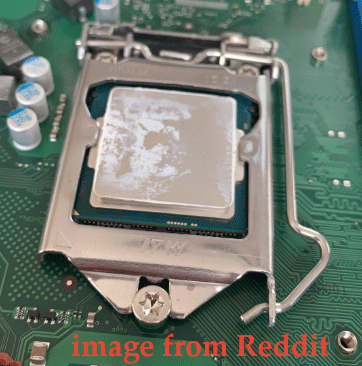
Step 5: Apply the new thermal paste.
Step 6: Assemble all the parts you have removed again and turn on your PC to see if it can start up.
Related post: How Much Thermal Paste Do You Need & How to Apply Thermal Paste?
Bottom Line
If your Acer laptop won’t turn on, identify the specific issue and apply targeted solutions. Most problems—like no power, a black screen, or boot failure—can be resolved with basic troubleshooting.
If the problem continues, it may signal hardware failure; professional repair is advised. Always back up important data to prevent loss.
Acer Laptop Won’t Turn on FAQ
If it’s still stuck and has a non-removable battery, unplug the charger and use a paperclip to press the battery reset pinhole on the bottom for 10 seconds before restarting.
For older models with a removable battery, remove the battery, hold the power button for 30 seconds to drain energy, then reassemble and restart.
Additionally, deeply discharged batteries may take 10 to 20 minutes to start up, and in rare cases, several hours.
About The Author

Position: Columnist
Vera has been working at the MiniTool Team for over 10 years as a technical editor and content writer. She mainly focuses on disk and partition management, data recovery, Windows backup and restore, and PC troubleshooting. Through in-depth software testing and hands-on experience, she has helped users solve a wide range of computer problems and better protect their data on Windows devices.
User Comments :