
Quick Fixes for Aptio Setup Utility Stuck
| Causes | Solutions |
| SSD/HDD is not detected | Reconnect the storage drive |
| Incorrect BIOS settings | 1. Reset BIOS to default settings 2. Disable Secure Boot in BIOS 3. Enable CSM |
| Dead CMOS battery | Replace the battery |
| Corrupted Windows system | Reinstall Windows |
What Causes Aptio Setup Utility
Aptio Setup Utility is a BIOS/UEFI firmware interface designed by American Megatrends and commonly found on Asus PCs to manage hardware configurations.
However, the computer may be stuck in this setup utility every time the system restarts, resulting in a never-ending loop.
The possible causes include:
- The SSD or HDD is not connected properly.
- Windows boot files get corrupted.
- The BIOS or UEFI settings are incorrect.
- The hard drive is failing.
- Asus PCs have a damaged CMOS battery.
Fixes for Aptio Setup Utility Stuck or Loop
Method 1: Restart Your Asus Computer
When to use:
- Aptio Setup Utility appears only once or occasionally.
- The issue happens after an unexpected shutdown or forced restart.
- Windows previously booted normally before the problem started.
Sometimes, the simplest method is the best one. According to several users, the problem with Aptio Setup Utility can be fixed by simply restarting your computer. This sounds like an obvious method and you can also try it out.
Just restart your computer and see if Aptio Setup Utility stuck is disappeared. If your PC still boots up to the setup utility instead of booting in the operating system, try other solutions to check.
Method 2: Make Sure Your Hard Drive Is Connected Correctly
When to use:
- Your PC fails to find the bootable drive.
- The SSD/HDD doesn’t appear in BIOS.
- The loop starts after moving or dropping the laptop.
In some cases, if your computer gets stuck in Aptio Setup Utility and cannot load the Windows operating system, one of the reasons is if the connection between your computer and your hard drive is loose, resulting in that the computer fails to detect its hard disk. Now, go to check this.
- Open the computer casing if it is a desktop. If the PC is a laptop, unscrew and remove its bottom.
- Locate and disconnect the disk’s connection from the motherboard.
- Plug the drive back into the socket on the motherboard. Make sure it is seated correctly and firmly.
- Close the computer up and restart it to see if the issue of the Asus Aptio Setup Utility loop is fixed.
Method 3: Disable Secure Boot
When to use:
- The SSD/HDD is connected, but Windows 10/11 still cannot boot.
- Aptio Setup Utility occurs after system updates.
The computer may still access the setup utility, though your hard drive is connected properly. This case can happen after installing Windows updates that may corrupt boot settings.
To get rid of the setup utility, you need to follow these instructions below:
Step 1: Boot your Asus computer and wait for it to the Aptio Setup Utility window.
Step 2: Go to Security, expand the Secure Boot Control menu and ensure the secure boot option is disabled.
Step 3: Save and exit the tab, then restart your PC and wait for it to load Aptio Utility settings once again.
Step 4: Navigate to the Boot tab, disable these two options – Secure Boot and Fast Boot.
Step 5: Besides, enable CSM (Compatible Support Module).
Step 6: Save the change and restart the Asus computer. It should boot to the Windows operating system instead of Aptio Setup Utility.
Method 4: Reset BIOS to Default Settings
When to use:
- The issue appears after changing BIOS settings.
- The PC enters the loop after a BIOS update.
If the above methods are not working for you to fix Aptio Setup Utility stuck, you can try to reset the PC’s BIOS. This is very useful to fix the issue you are encountering and other issues caused by incorrect BIOS configuration.
If you don’t know how to reset BIOS, here is a detailed instruction below:
Step 1: Reboot the Asus PC and the Aptio Setup Utility window will appear.
Step 2: Go to Settings and look for the option like Reset Configuration Data or Factory reset.
Step 3: Reset BIOS to factory settings and save the change.
Step 4: Exit the setup utility and restart your computer.
If you fail to access these settings, here is another way to do the thing – remove CMOS battery from your computer’s motherboard to restore BIOS to factory values and resolve your issue. Moreover, it is an easy process and just follow these steps:
Step 1: Power off your computer.
Step 2: Turn off the power switch on the back and disconnect the power cord. Also, ensure to remove the battery if you are using an Asus laptop.
Step 3: Press and hold the power button for a minute to completely discharge the computer.
Step 4: Touch metal surface to discharge the body static electricity before continuing with hardware meddling.
Step 5: Remove the CMOS battery that should be a standard wristwatch flat battery.
Step 6: Wait for a while and put the battery back.
Step 7: Reboot the PC and see if it can boot to the Windows operating system.
Method 5: Replace CMOS Battery
When to use:
- Restoring BIOS to default settings doesn’t work.
- The computer is old, and the CMOS battery may be depleted.
A failing CMOS battery may prevent BIOS settings from being saved properly, causing recurring boot issues.
To exit Aptio Setup Utility loop, try to replace the CMOS battery.
Method 6: Reinstall Windows 11/10
When to use:
- None of the above methods works.
- Windows system files are severely corrupted.
Reinstalling Windows can replace corrupted system files to resolve serious boot issues.
Back up Files
Before Windows reinstallation, you should know this operation can erase your data if you haven’t backed up the documents on the desktop or you delete the entire disk for reinstallation. Thus, ensure your important files are protected.
How can you create a backup for your critical data in Windows 11/10/8/7? Using a professional file backup software – MiniTool ShadowMaker. It is designed to back up files & folders, partitions, disks, the operating system and sync files to other locations for backup.
When the computer boots to Aptio Setup Utility rather than the operating system, you can use the bootable edition of this software to back up the PC data. Just get its Trial Edition, create a bootable USB drive with Media Builder and boot the PC to MiniTool Recovery Environment. Then, start the backup.
MiniTool ShadowMaker TrialClick to Download100%Clean & Safe
Related article: How to Boot from Burned MiniTool Bootable CD/DVD Discs or USB Flash Drive?
Step 1: After running MiniTool ShadowMaker Bootable Edition, go to Source > Folders & Files and choose files to back up.
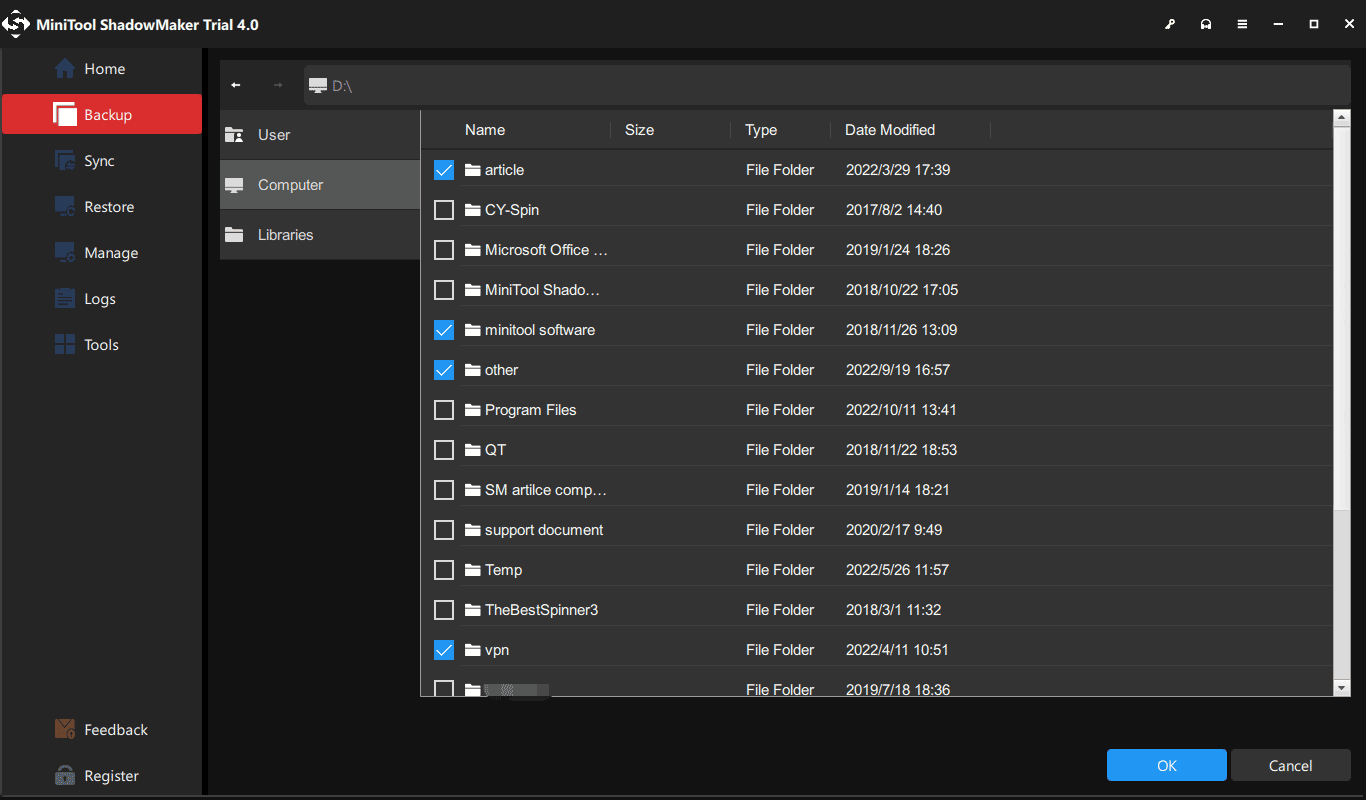
Step 2: Go to Destination and choose a storage path that can be a USB flash drive, external hard drive, etc.
Step 3: Click the Back Up Now button to start the file backup.

After finishing backup, now it is time to start reinstalling your Windows.
Reinstall Windows OS
How can you reinstall the Windows operating system? It is easy to operate and we will show you some detailed instructions below.
Step 1: Do to download a .iso file of Windows 11/10/8/7 from the Internet and then burn it to your USB flash drive.
Step 2: Boot the PC that always encounters Aptio Setup Utility stuck from the bootable drive.
Step 3: Choose a language, keyboard and time & currency format.
Step 4: Click Install now to continue.
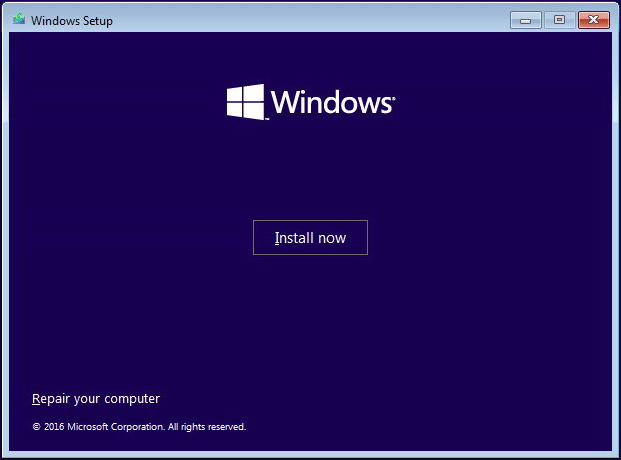
Step 5: Choose I don’t have a product key since the copy of Windows 10/11 will be activated later if you once activated it.
Step 6: Choose a version of the Windows operating system.
Step 7: Accept license terms and choose to install Windows instead of an upgrade.
Step 8: Delete your original system drives and then install Windows to that unallocated space.
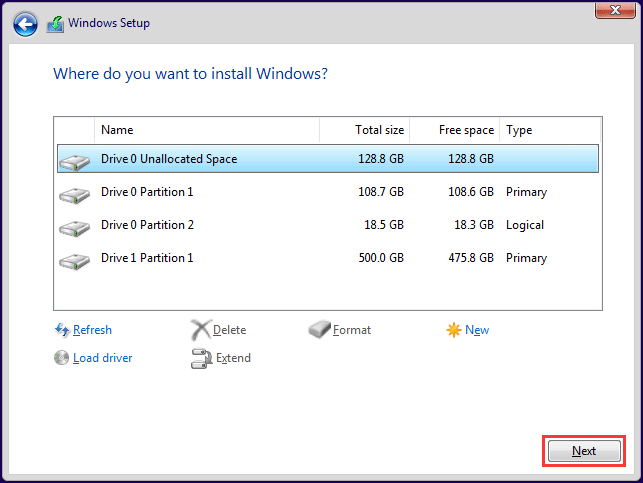
Step 9: Then, the setup program will start the installing process. After finishing that, custom your Windows and you can use it normally.
What Is Aptio Setup Utility? How to Fix If Asus Stuck in It?Click to Tweet
Bottom Line
After reading this post, you know what Aptio Setup Utility is and how to fix the issue if your computer gets stuck in Aptio Setup Utility in Windows 11/10/8/7. We hope that it is useful for you.
On the other hand, you can share them with us if you have any other ideas on how to get out of Aptio Setup Utility or have a problem when using MiniTool software. Sending an email to [email protected] or leaving a comment below is available.
Aptio Setup Utility FAQ
About The Author

Position: Columnist
Vera has been working at the MiniTool Team for over 10 years as a technical editor and content writer. She mainly focuses on disk and partition management, data recovery, Windows backup and restore, and PC troubleshooting. Through in-depth software testing and hands-on experience, she has helped users solve a wide range of computer problems and better protect their data on Windows devices.
User Comments :