
ASUS stuck on logo in Windows 11/10 usually indicates a hardware detection failure, an external device conflict, or misconfigured BIOS settings. This guide explains the common causes and provides 9 solutions to fix it, from simple fixes to advanced troubleshooting steps.
Quick Answer
An ASUS laptop (including ROG, ZenBook, VivoBook, and TUF models) can be stuck on the logo screen with a spinning circle. It is usually caused by corrupted system files, failed Windows updates, incorrect BIOS settings, and hardware issues.
To quickly fix this, follow these steps:
- Force restart the device
- Enter Safe Mode
- Run Startup Repair
- Reset BIOS if needed
- Use recovery media if required
Why ASUS Gets Stuck on Logo Screen
This issue occurs when the system fails to complete the boot process.
Common causes include:
- Corrupted Windows system files
- Failed or interrupted Windows updates
- Incorrect BIOS boot order
- Peripheral hardware conflicts
- Damaged boot configuration data (BCD)
- Hardware issues, such as a failing SSD, loose RAM modules, or a dead CMOS battery
How to Fix ASUS Laptop Stuck on Logo Screen
Fix 1. Perform a Hard/Force Restart (No Data Loss)
A forced restart can clear temporary boot errors and reset stuck startup processes. Thus, use this when ASUS freezes immediately on the logo screen. Here are the steps:
- Hold the Power button for 10–15 seconds.
- Wait until the device shuts down completely.
- Disconnect everything: Unplug the charger, external mouse, USB drives, headphones, and external monitors.
- Hold the power button down continuously for 40 seconds.
- Plug the charger back in and press the power button once to turn it on.
Fix 2. Remove Peripherals
Sometimes unplugging your external devices can fix the issue if peripherals interfere with the boot process.
Ensure you remove printers, external hard drives, thumb drives, and extra monitors. Then, restart your laptop to check whether it can boot normally.
If the issue is resolved, reconnect the devices one by one to identify the problematic hardware.
Fix 3. Reset CMOS
According to some users on some forums, clearing CMOS is a good option to help fix ASUS stuck on logo. CMOS, short for complementary metal-oxide semiconductor, is a chip on the computer motherboard to store BIOS (Basic Input/Output System) settings. Clearing CMOS can help to reset your BIOS settings to the factory default state. When removing the CMOS battery, there is no power on the motherboard and all the settings will be removed.
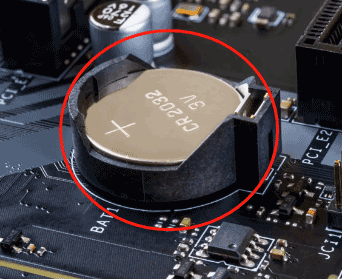
How to clear CMOS? Follow the guide here:
Step 1: Power off your ASUS laptop and remove the AC adapter.
If you are running ASUS laptops TP420IA and UX425IA, don’t remove the adapter since these models require you to plug in the AC adapter for the hard reset process.
Step 2: Open your computer case and remove the CMOS battery. Wait at least 1 minute.
Step 3: Put the battery back in, close the computer cover, and power the laptop on.
Then, check if ASUS laptop stuck on logo screen is fixed. If not, continue troubleshooting.
To clear CMOS, you can choose to move the jumper. Just go to read this related post - How to Clear CMOS? Focus on 2 Ways to know more details.
Fix 4. Boot ASUS to Safe Mode via WinRE
When your PC cannot boot in normal mode but gets stuck on the logo screen, you can try to start it to Safe Mode to run some potential fixes. See what you should do now:
Step 1: Since your laptop cannot boot, you can prepare a bootable USB flash drive with an ISO file of Windows and run it from that drive. Then, click Repair your computer in the Setup interface to enter Windows Recovery Environment (WinRE).
For Windows 10/11, you can restart the PC several times abnormally every time you see the ASUS logo to enter the Automatic Repair page. Then, click Advanced options to go to access WinRE.

Step 2: In WinRE, go to Troubleshoot > Advanced options > Startup Settings > Restart.
Step 3: Press F4, F5, or F6 to enable Safe Mode (with Network or Command Prompt).
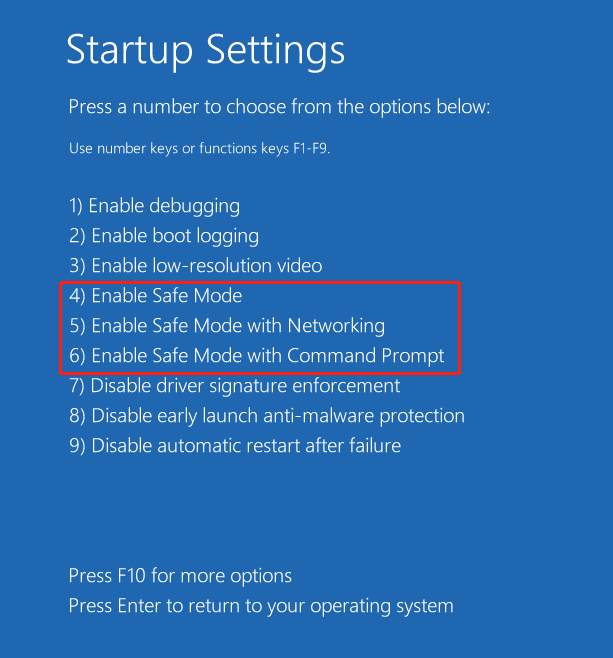
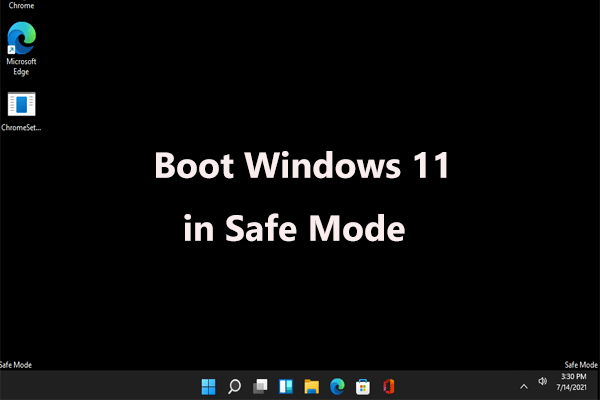
In Safe Mode, you can install a third-party antivirus program to see if there are some viruses or malware infections. Then, remove them. Besides, go to uninstall some problematic apps you think are causing the issue of ASUS stuck on logo. Then, restart the machine to see if it can pass the ASUS screen.
Fix 5. Run Startup Repair
Startup Repair automatically repairs corrupted boot files and system configuration. Therefore, use this when Safe Mode still cannot load properly.
- Enter WinRE.
- Select Troubleshoot > Advanced options.
- Click Startup Repair.
- Wait for the automatic repair process.
Fix 6. Update BIOS
If your ASUS laptop won’t boot past ASUS screen, a BIOS update could help and this way is recommended by many users although this is a bit riskier than other software updates. Be careful during the BIOS update since a mistake can stop the motherboard from working correctly and potentially block the machine from running as expected.
Before you do:
- Make sure you back up your important files to avoid data loss caused by any unexpected issues. To do this work, use the professional file backup software – MiniTool ShadowMaker. Just follow the guide – How to Back up Data without Booting Windows? Easy Ways Are Here.
- Keep connecting your power cord during the BIOS update.
- It is not allowed to downgrade the BIOS version.
Next, start updating the BIOS in some steps – download the BIOS file from the ASUS support site for the defective model on a working ASUS PC, save the BIOS file to a portable storage device like a USB flash drive, and use EZ Flash to update BIOS in UEFI mode. To know more details and instructions, refer to the ASUS help document – [Notebook/AIO] How to update BIOS with EZ Flash.
In addition, there is a simple way for BIOS update and it is to use the MyASUS app. Just download it to check for an available BIOS update - How to Download, Install and Use MyASUS App for Windows 10. If there is an available BIOS version, download it and then follow the above-related post to finish the update in the BIOS menu.
Fix 7. Load BIOS Optimized Defaults
This way is given by ASUS to fix ASUS motherboard stuck on logo. You need to go to the BIOS menu to see if the boot order is correct.
Step 1: Power off your laptop. If your ASUS laptop won’t boot past ASUS screen and gets stuck on it, force shut down – press and hold the Power button for 15 seconds until the power light is off. Then, wait for few seconds.
Step 2: Press the Power button to turn it on and then press the F2 key until the BIOS screen displays.
Step 3: In the BIOS menu, go to the Save & Exit screen and choose Restore Defaults to load BIOS optimized defaults.

Step 4: Under the Boot screen, make sure the boot option is set correctly.
Step 5: Save the change and exit. Then, your ASUS laptop may boot properly to the desktop.
Based on different laptops, the BIOS menu may vary and perform the change based on your PC.
Fix 8: Check Your SSD or RAM
Hardware issues such as a loose M.2 SSD or faulty RAM stick can result in ASUS stuck on logo.
Reseating the SSD can restore normal startup. If your PC has multiple RAM sticks, only keep one to identify the problematic stick. Then, replace it.
Fix 9. Reset Your ASUS Laptop
If the situation of ASUS laptop stuck on ASUS logo still appears, you can choose to reset your PC to its factory settings. Follow the steps below to reset the system without losing any data:
Step 1: Go to access Windows Recovery Environment. In the last method (Step 1), we have shown you how to access it. Just follow the instructions.
Step 2: Go to Troubleshoot > Reset this PC.
Step 3: In the popup, choose Keep my files. This option can remove all the apps and settings but your personal files won’t be deleted. If you want to remove everything including your files, choose the second option. Before you do, make sure you have backed up your critical files. Here, we strongly recommend using the first option.

Step 4: Choose Cloud download to download and reinstall Windows from the Microsoft server or click Local reinstall to reinstall the system from this device. To know details about these two options, refer to our previous post – Cloud Download vs Local Reinstall: Differences on Win 10/11 Reset.
Step 5: Finish the resetting process by following the instructions on the screen.
After trying all the fixes above, ASUS laptop stuck on logo screen should be solved and it can enter the desktop. And you can also share them on Twitter to let more people know.
Suggestion: Back up Your ASUS
ASUS stuck on logo, ASUS laptop stuck on black screen, etc. always happen on your machine due to some software issues, not hardware issues. After fixing the issue, you can choose to create a backup for the PC so that quick disaster recovery can be done when the system goes wrong next time.
To do this work, we recommend using MiniTool ShadowMaker – professional and free Windows backup software for Windows 11/10/8/7, to create a system image and back up your important files. Importantly, you can run it to back up data regularly and create differential backups & incremental backups for only changed or newly added data. Besides, this program also supports file sync and disk cloning.
Step 1: Download MiniTool ShadowMaker Trial Edition by clicking the download button below and then install it on your ASUS PC. Note that this version supports a 30-day free trial.
MiniTool ShadowMaker TrialClick to Download100%Clean & Safe
Step 2: Navigate to the Backup page, backup source – system-related partitions are chosen by default. And a destination path is also selected. You can click DESTINATION to re-choose an external hard drive or USB drive to store the system image file.
If you want to back up your important files or folders, go to Source > Folders and Files to choose the ones you want to back up. To know more about file backup, refer to this post - How to Backup Files on Windows 10? Try These Top 4 Ways.
Step 3: Click Back Up Now to start the backup task at once.
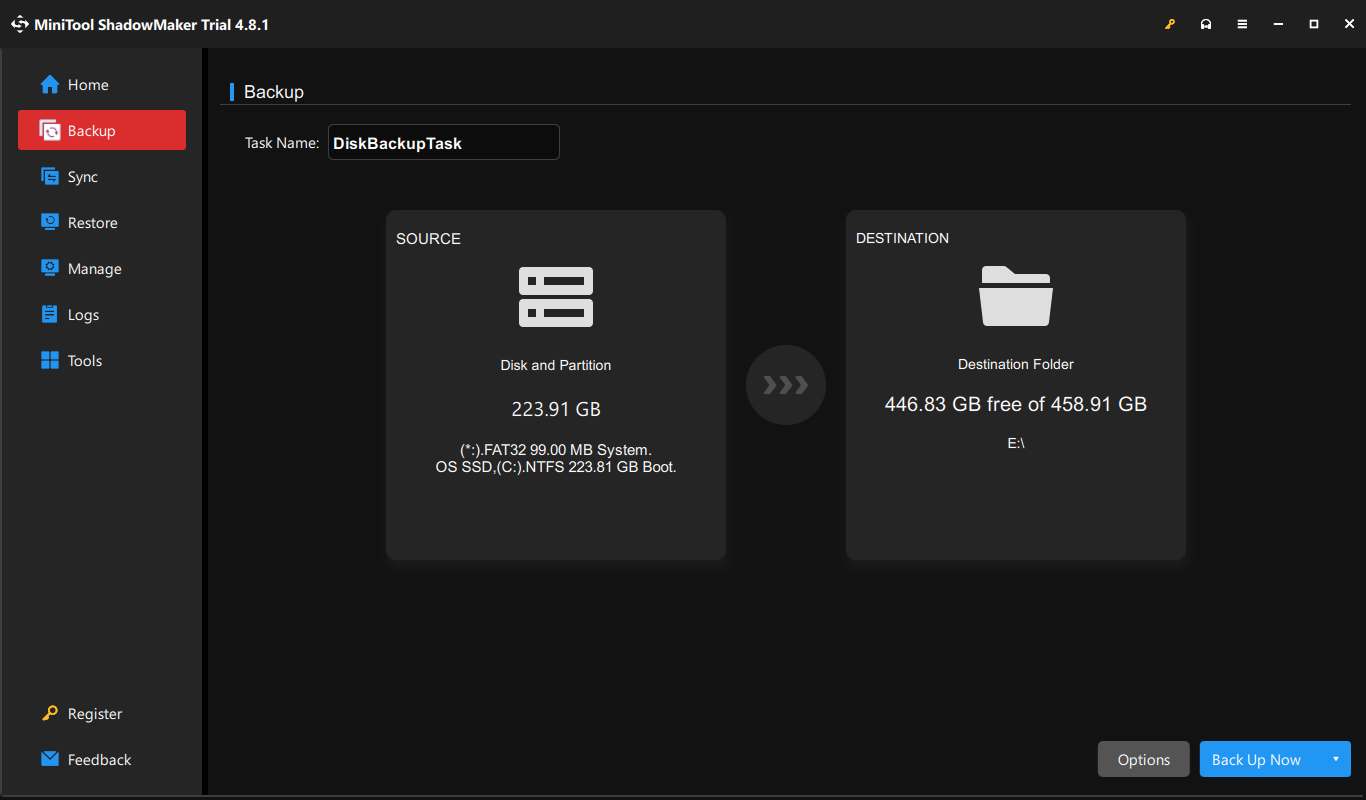
After finishing the backup, you had better go to Tools > Media Builder to create a bootable USB drive/hard drive/CD/DVD so that you can boot the failed PC for recovery in the interface of MiniTool ShadowMaker.
ASUS Stuck on Logo FAQ
- Rapid charge depletion
- Sudden unexpected shutdowns
- Erratic percentage jumps
- Working only when plugged in
- Swollen chassis (requires immediate replacement)
Alternatively, performing a hard reset via clearing the CMOS by removing the motherboard battery can resolve persistent boot failures.
Summary
An ASUS device stuck on the logo screen usually indicates a boot failure, which may be due to system corruption, incorrect BIOS settings, or failed updates.
In most cases, this issue can be resolved by using Safe Mode, Startup Repair, or resetting the BIOS. Recovery media or a complete system reinstall should be considered only as a last resort.
Additionally, a suggestion to back up ASUS is given to you. If you encounter issues or have any suggestions while using MiniTool ShadowMaker, contact us via [email protected].
About The Author

Position: Columnist
Vera has been working at the MiniTool Team for over 10 years as a technical editor and content writer. She mainly focuses on disk and partition management, data recovery, Windows backup and restore, and PC troubleshooting. Through in-depth software testing and hands-on experience, she has helped users solve a wide range of computer problems and better protect their data on Windows devices.
User Comments :