
RAM, short for random-access memory, is one of the most important components of your computer. RAM is aimed at providing fast read and write access to storage devices. Usually, it is more durable than all other components on a computer since it uses very little power and doesn’t have moving parts.
Though rate, sometimes RAM can go bad. Due to its significance, any issues can manifest themselves in strange and confusing ways at once. Most PCs have multiple RAM chips and not all of them will fail immediately, so it is hard for you to diagnose a problem as an RAM issue.
What are the symptoms of bad RAM? How to tell if RAM is bad? You can get a lot of information from the following paragraphs.
8 Common Bad RAM Symptoms
Faulty or unstable RAM causes a wide range of system issues. However, it doesn’t always mean that the memory is defective. The following are common signs of bad RAM.
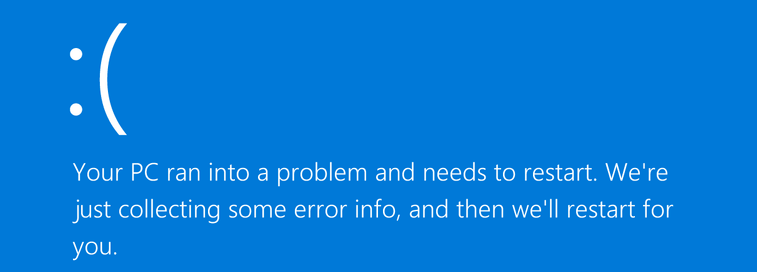
1. Frequent Blue Screens (BSODs)
Frequent blue screens are a common sign of potential RAM problems. Memory-related errors, such as MEMORY_MANAGEMENT, may point to faulty RAM.
However, blue screens can also result from bad drivers, storage issues, or other failing hardware.
2. PC Freezes
Your keyboard and mouse may become unresponsive abruptly. The PC also freezes without any warning, and sometimes Windows freezes for minutes no matter what app you are using. Even it takes 2 minutes to open Word, or 3-4 minutes to open Internet Explorer.
3. Programs Crash or Behave Unexpectedly
Sometimes you may notice your applications that previously worked normally suddenly close, refuse to load, or fail to launch.
This issue is more common when running memory-intensive software and may indicate a RAM problem.
4. Random Reboot
Your PC keeps randomly restarting while you are performing a task. In addition, the computer just sometimes restarts. This symptom doesn’t always indicate a RAM problem. A hard drive problem can also cause a random reboot.
However, if your computer reboots almost immediately after the desktop initializes, this could be a bad RAM symptom.
5. Files Get Corrupted
You may notice that files, particularly the ones you frequently accessed and save, appear to be corrupted inexplicably. Perhaps this is a sign of bad RAM. Even RAM issues could worsen over time.
6. Less RAM Is Detected Than Installed
Your Windows operating system may show you less RAM than you actually have installed on the motherboard. Usually, you go to Control Panel > System and Security > System to see the computer’s statistics, including RAM.
If you find the amount of RAM is not different, make sure your RAM chips are properly seated on the motherboard or you switch the slots that the RAM sticks sit in.
7. Beep Codes During Startup
Some motherboards use diagnostic LEDs or beep codes to indicate RAM or other hardware problems. Beep codes vary by manufacturer and motherboard, so check your device’s documentation. This helps identify if the reported code indicates a memory-related problem.
Other Bad RAM Symptoms
In addition to these symptoms of bad RAM, you can experience other signs of faulty RAM:
- Video card fails to load
- No sound
- RAM isn’t recognized by your computer
How to Tell if RAM Is Bad: Check Symptoms and Perform TestsClick to Tweet
Suggestion: Back up Your Important Files Immediately
If you are experiencing some signs of bad RAM mentioned above, it is recommended to create a backup for your important files right away to keep your data safe. This is because things may worsen if the PC problems are caused by RAM issues.
To back up your crucial files in Windows 10/11, use MiniTool ShadowMaker, a free and professional backup software.
It can help back up the Windows system, files & folders, disks, and partitions. When computer accidents happen unexpectedly and cause data loss, you can perform fast disaster recovery to get files back.
MiniTool ShadowMaker TrialClick to Download100%Clean & Safe
The following are steps to back up files or folders.
1. Run MiniTool ShadowMaker Trial Edition on your Windows 11/10/8/7 computer.
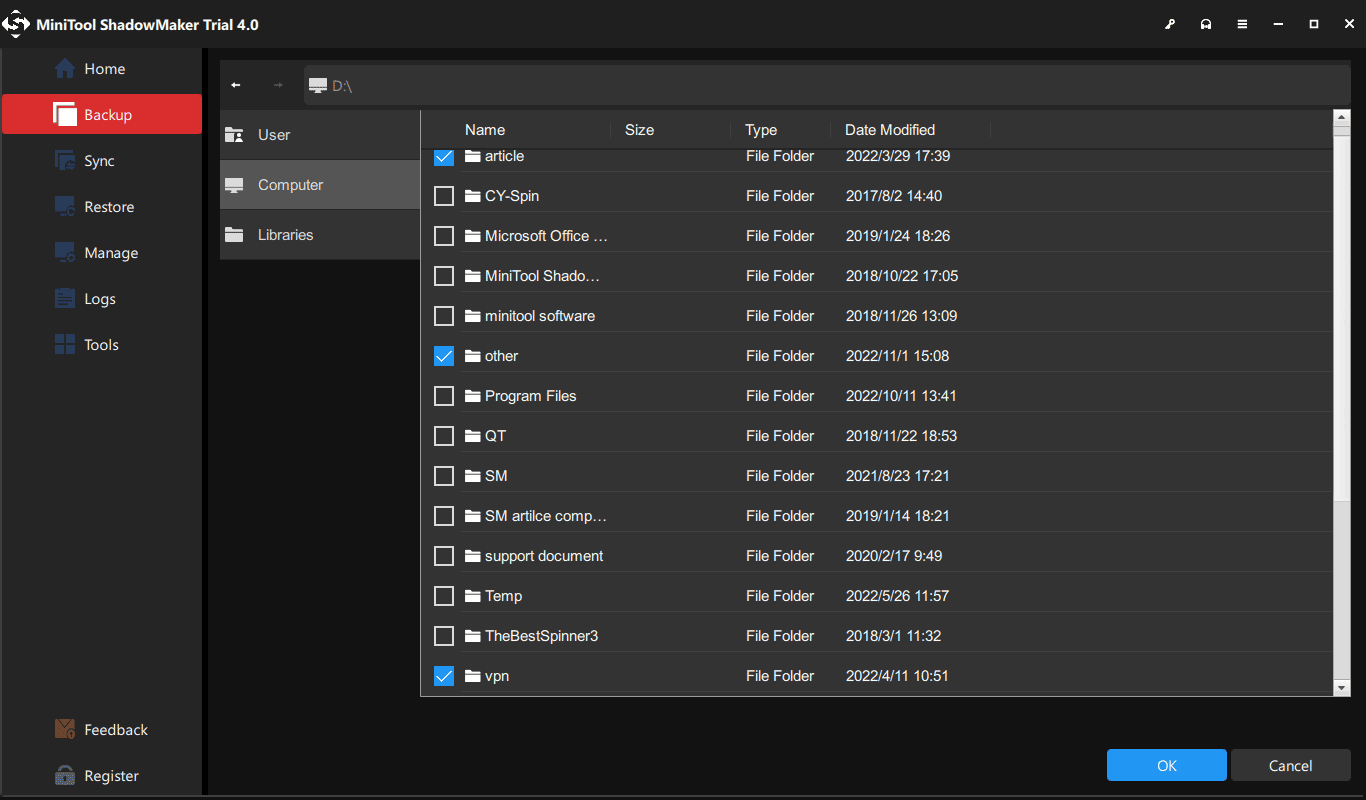
2. Go to the Backup window and click Source to choose files or folders that you need to back up.
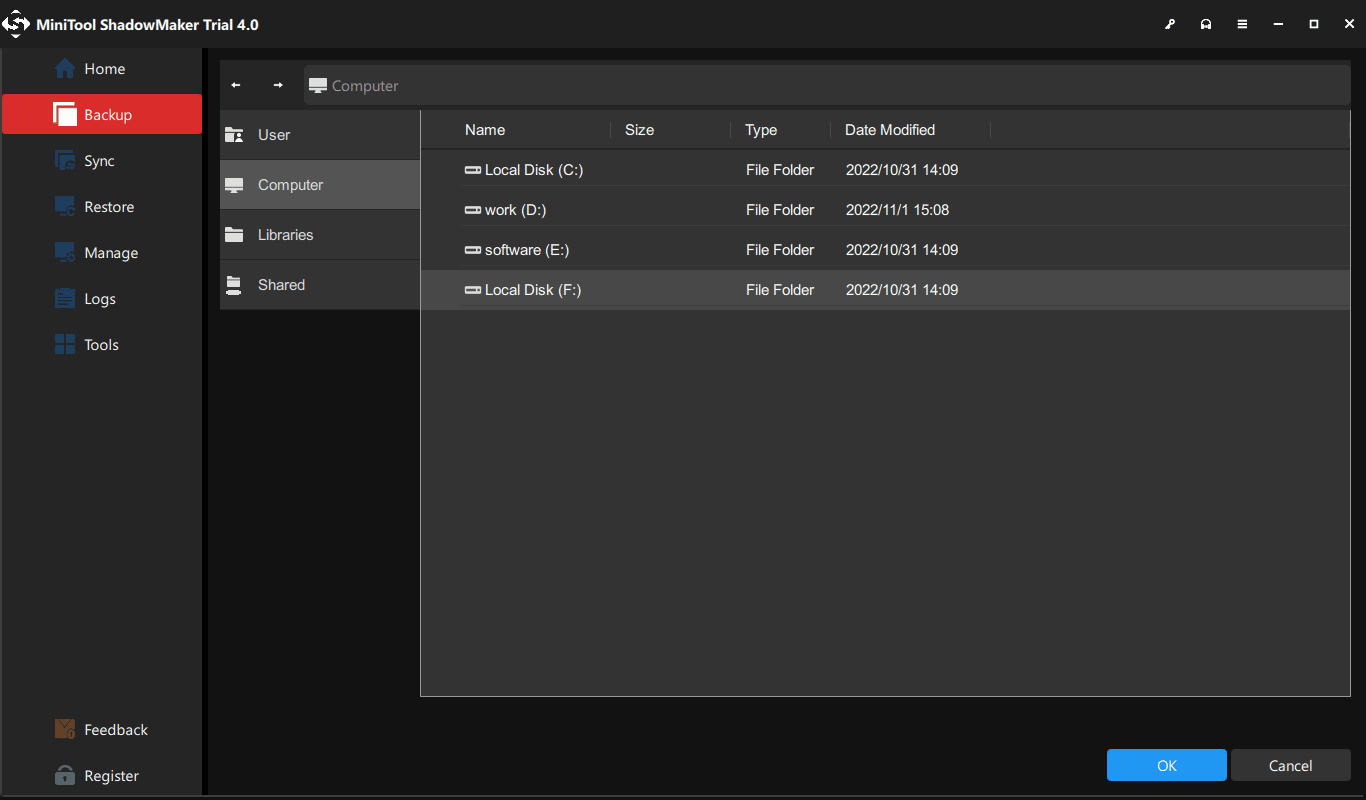
3. Click Destination to choose a path to save the backed up files, for example, a USB flash drive, external hard disk, SSD, HDD, NAS, etc.
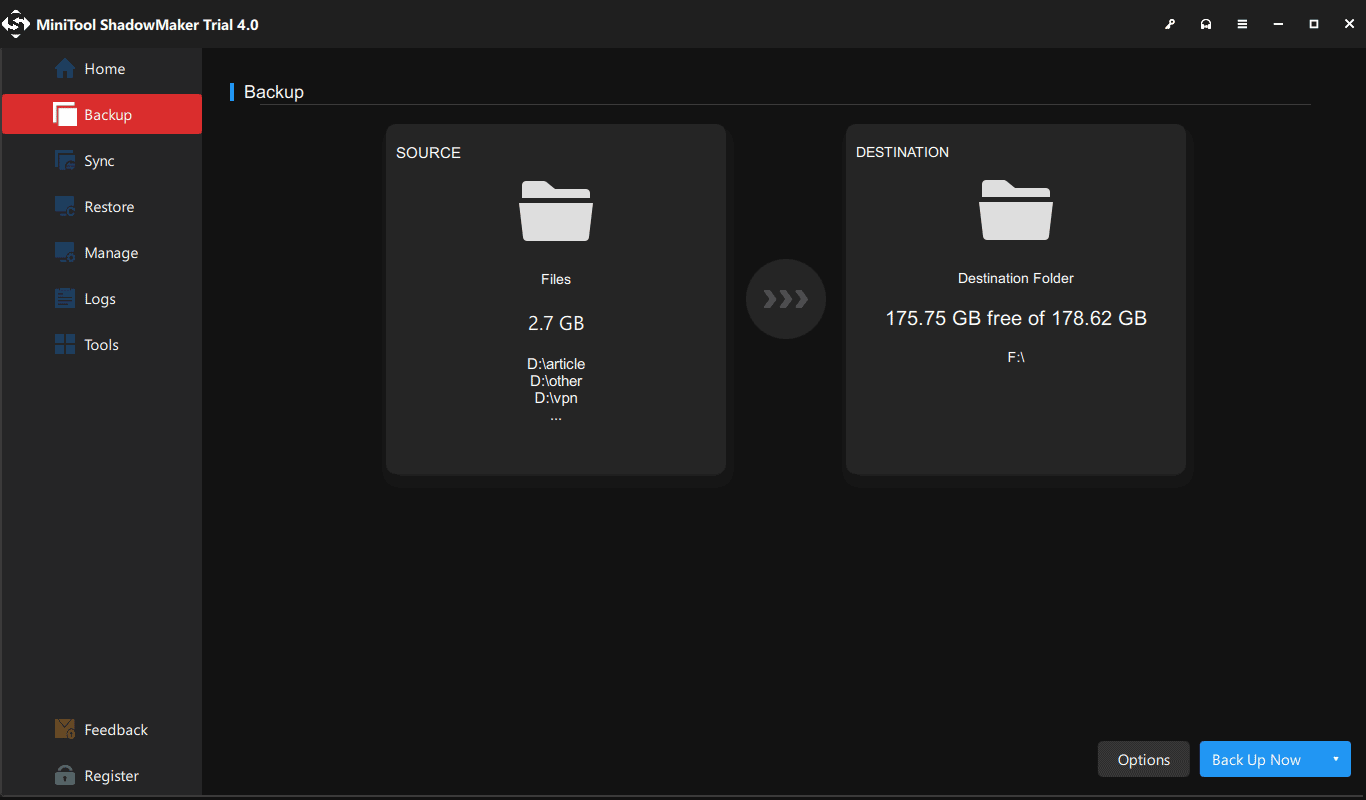
4. Click Back Up Now right away to perform the file backup task.
How to Tell if RAM Is Bad: Check Symptoms and Perform TestsClick to Tweet
How to Tell if RAM Is Bad (Diagnose RAM Problems)
If you encounter some of the bad RAM symptoms, you may wonder if the issue is really caused by RAM. Now, the thing you should do is to diagnose RAM problems.
How to know if RAM is bad? Follow the guide below.
Windows Memory Diagnostics Tool
In Windows, there is a built-in tool called Windows Memory Diagnostics Tool. If you suspect a memory error, you can use it to have a check.
- Press Windows + R to open the Run window.
- Type exe and press Enter.
- Choose Restart now and check for problems.
Then, the tool will start diagnosing during the reboot process.
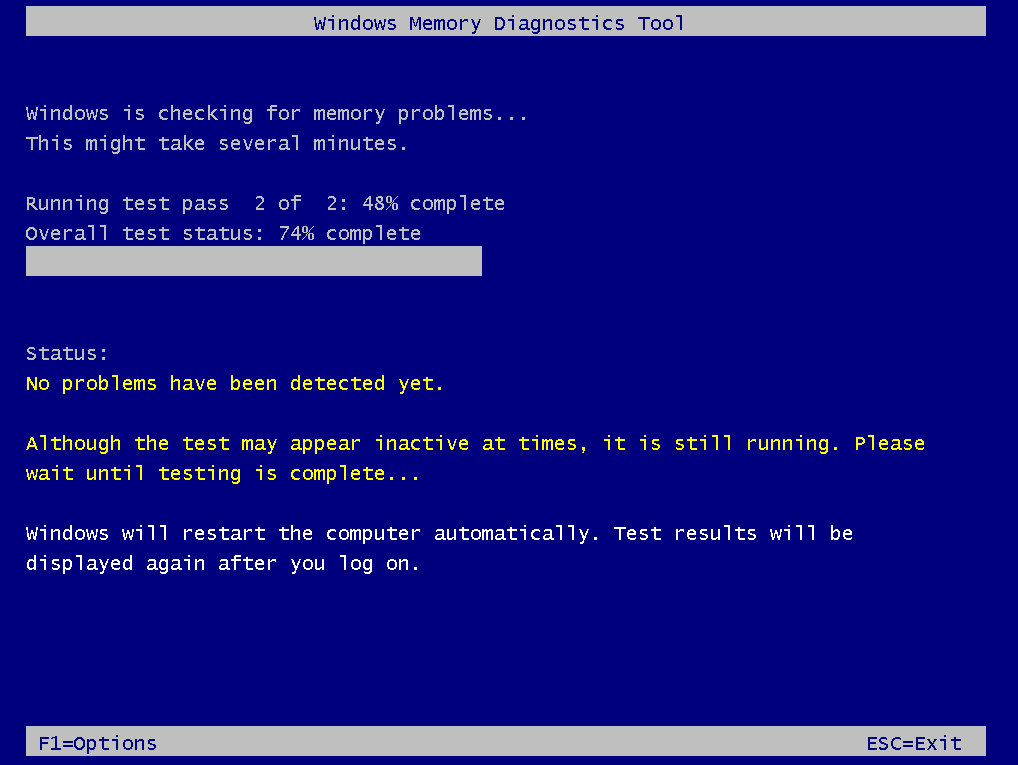
The process will take some time. After finishing the test, Windows will restart and test results will be reported to you after logging on to Windows. If some memory errors are detected, one or more RAM modules may be unstable or faulty.
To see the check results, you can also do these steps via Event Viewer:
- Go to the search box, input eventvwr.exe and run this command.
- Expand Windows Logs, right-click System and click Find.
- Input MemoryDiagnostics-Results to find it.
- If you see at least one error, this means one of the RAM modules may have problems and you need to replace it.
Memtest86
MemTest86 is a professional tool to test RAM for hardware errors. Compared to Windows Memory Diagnostic, it can perform more extensive RAM tests.
To use it, you need to download it from its official website. You can burn it to a CD or USB flash drive and configure the computer to boot from the device. Then, you can use it to do a deep test.
If this tool finds some RAM errors, it will show you the result in red. If errors appear at the same or nearby addresses, it’s likely that the RAM stick is defective. You need to replace your faulty RAM.
Physical Test
Additionally, you can actually determine whether it is a physical RAM issue that is causing bad RAM symptoms. An ideal method is to take out one stick of RAM at a time from your computer and see if PC issues go away.
If you have two sticks, take out one and restart the PC. If you still encounter some issues, turn off your computer, put back the one and take another stick out. If you have installed multiple sticks of RAM, follow the same process to check.
After ensuring which RAM is causing the PC issues, replace it with a new one. Just purchase the correct RAM chip for your computer, open the computer and add it to the empty slot used for RAM chips or remove the old one and replace it.
How to Tell if RAM Is Bad: Check Symptoms and Perform TestsClick to Tweet
How to Deal with Faulty RAM
When RAM problems are confirmed, try the following methods.
Reseat the RAM
- Turn off your computer.
- Disconnect the power.
- Remove the RAM modules.
- Clean visible dust or debris and reinstall the modules.
Reset XMP or EXPO Settings
An unstable XMP or EXPO profile can cause memory-test errors even when the RAM modules are healthy. Try restoring the memory settings in BIOS/UEFI to their default values.
Try a Different RAM Slot
A faulty memory slot can mimic bad RAM. Move the module to another compatible slot and re-perform the test. If it works there, further check the original slot or motherboard.
Test Each RAM Module Individually and Replace It
If you have multiple RAM sticks, test them one at a time using the same memory diagnostic tool. If only one module consistently causes errors, it may be faulty. Try replacing it.
Bad RAM Symptoms FAQ
Conclusion
Faulty RAM can cause BSODs, freezes, random restarts, corrupted files, and other abnormal system behavior. To tell if your RAM is bad, run Windows Memory Diagnostic or MemTest86 to check for RAM errors. Then, follow the above ways to deal with the faulty RAM.
If you encounter issues with MiniTool ShadowMaker for data backup, contact [email protected].
About The Author

Position: Columnist
Vera has been working at the MiniTool Team for over 10 years as a technical editor and content writer. She mainly focuses on disk and partition management, data recovery, Windows backup and restore, and PC troubleshooting. Through in-depth software testing and hands-on experience, she has helped users solve a wide range of computer problems and better protect their data on Windows devices.
User Comments :