
What Does Boot from LAN Mean?
Booting from LAN (Local Area Network), also known as booting from network, is a process that enables a computer to start up and load an operating system (OS) or other applications directly from the LAN without any local storage device such as CD-ROM, DVD-ROM, USB flash drive, or floppy disk.
What Is Network Boot?
Network booting, shortened as netboot, is the process of booting up a computer from a network instead of a local disk. This booting method can be applied to centrally managed computers (thin clients) like public machines in Internet café or schools, diskless workstations, as well as routers.
The following table provides a quick overview of Boot from LAN.
| Item | Description |
| Also known as | PXE boot, network boot |
| Boot source | A network server |
| Requirement | LAN connection and PXE server |
| Common users | Businesses, schools, IT departments |
| Home users | Usually, unnecessary |
When to Boot from LAN
Booting from LAN is commonly used in the following scenarios:
- Deploy software updates and Windows to multiple computers from a central server simultaneously.
- Install an operating system without a USB drive or CD/DVD on dozens of new machines.
- Boot diskless computers over the network.
- Load recovery environments or hardware diagnostic tools on corrupted computers.
Hardware Support of Netboot
Almost all modern desktop and laptop computers offer an option to boot from LAN in their BIOS or UEFI through PXE (Preboot Execution Environment). Post-1998 PowerPC (G3 – G5) Mac systems can also boot from their New World ROM firmware to a network disk via NetBoot. As for the older personal computers that have no network boot firmware, they can rely on a flash drive or floppy disk, which contains software, to boot from network.
Requirements for Booting from LAN
Before booting your computer from the LAN, make sure that it meets these requirements:
- You use a working Ethernet connection.
- A PXE server is configured.
- Network Boot is enabled in BIOS/UEFI.
- Your computer must support PXE (Preboot Execution Environment) boot. Most modern Ethernet adapters include built-in PXE support.
- The computer and server are on the same network.
How to Boot from LAN
After preparing everything, follow these steps to configure your computer to boot from LAN.
Step 1: Prepare a PXE boot server.
1. Connect the client computer to the same network as the host computer.
2. Assign an IP address to the client computer.
3. Deliver the PXE boot program to the client.
4. Prepare a boot image that contains Windows PE or another operating system used for booting or deployment.
Step 2: Enter BIOS or UEFI settings.
The key to enter the BIOS/UEFI may vary by manufacturer.
Command keys include:
| BIOS brand | Common boot menu key |
| Dell | F12 |
| HP | F9, F10, or Esc |
| Lenovo | F12 or Fn + F12 |
| ASUS | F8, F2, or Esc |
| Acer | F12 or F2 |
Step 3: Enable PXE or Network Boot.
1. Navigate to the Boot, Advanced, or Network menu.
2. Enable PXE Boot, LAN Boot, Network Stack, or a similar one.
3. Save the changes. Windows will boot from the network.
Boot from LAN with MiniTool ShadowMaker PXE
MiniTool ShadowMaker is a professional and reliable backup software that also enables you to boot client computers within LAN from a host PC using its PXE feature. Let’s see how it works.
MiniTool ShadowMaker TrialClick to Download100%Clean & Safe
1. Download, install, and launch MiniTool ShadowMaker on the host machine.
2. If it asks for purchase, click the Keep Trial option.
3. Then, it will enter into its main user interface (UI). There, move to the Tools tab.
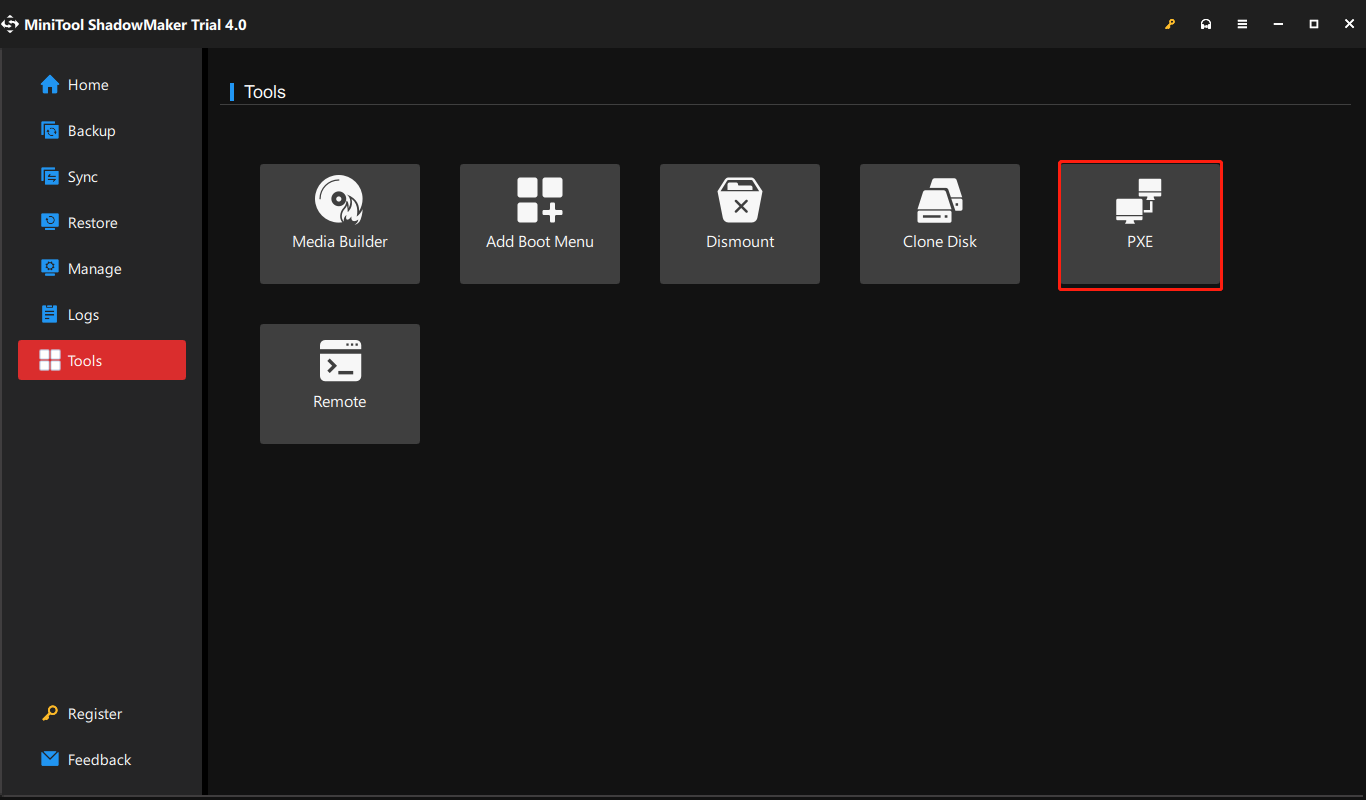
4. In the Tools tab, select PXE.
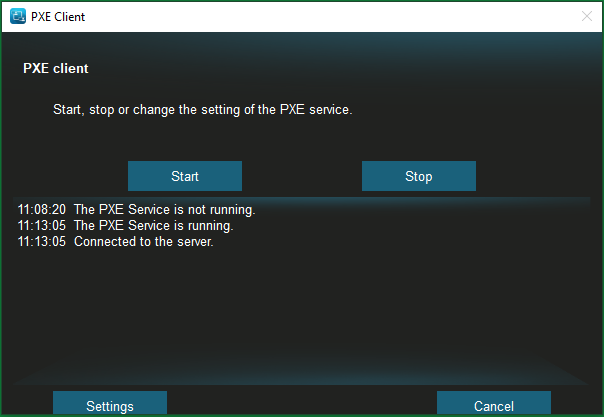
5. In the next PXE Client window, click the Start button to start the PXE service.
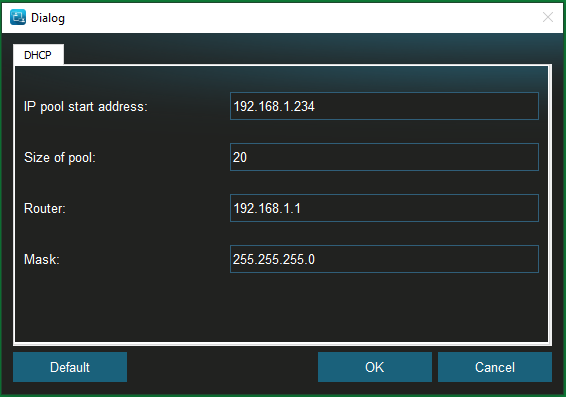
6. You can use the Settings button to specify the start IP address of the clients, how many clients can be started from this boot service, the router IP, as well as the mask.
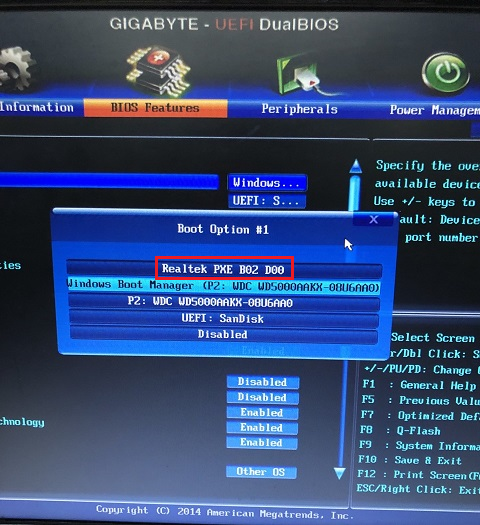
7. Boot the client computer within the same LAN as the host machine into BIOS and change its first boot service to PXE.
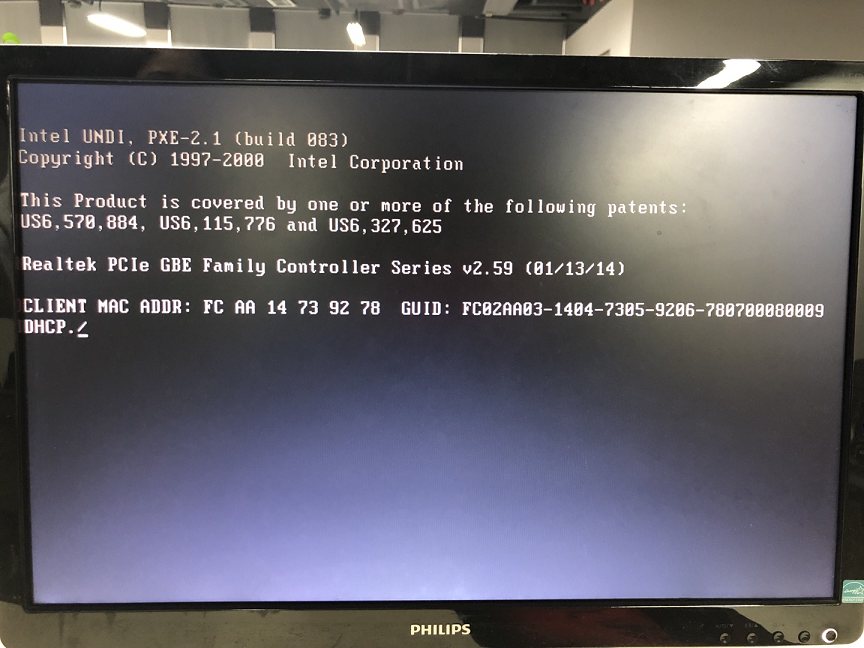
8. Reboot the client and it will start up from LAN into the Windows Recovery Environment (WinRE) with MiniTool ShadowMaker included. And, it will automatically open MiniTool ShadowMaker after the timer counts down for 15 seconds. If you don’t want to launch the program, just click Cancel.
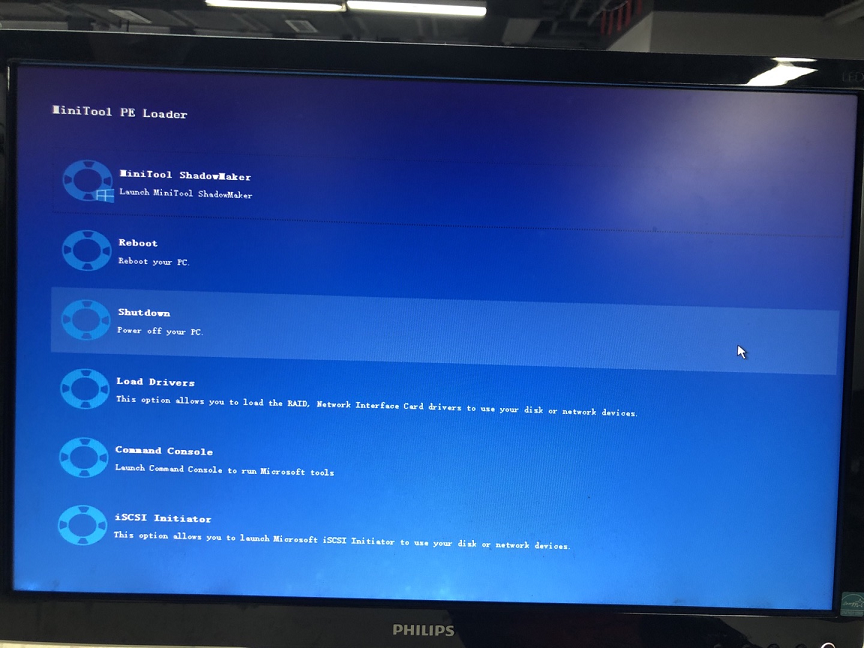
9. Finally, you will arrive at the screen of the MiniTool PE Loader. There, you can launch MiniTool ShadowMaker, reboot your PC, turn off your PC, load drivers, use the command console, and launch Microsoft iSCSI Initiator.
10. Go to boot up other clients with the same instruction starting from step 7.
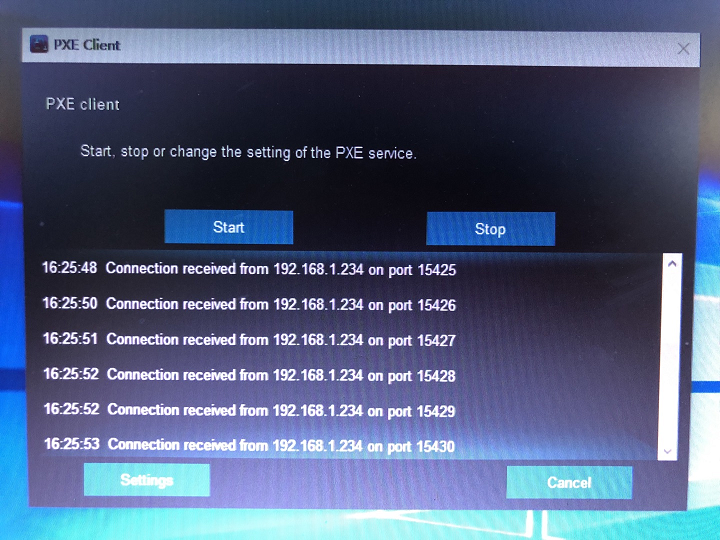
Return to the host computer, you will see how many clients have been booted up from this PXE service and their temporary IP addresses and ports.
How to Install OS Through Network Boot?
If the client computer is bare mental or its original system is damaged, you can rely on network booting to install systems on it. The following guide applies to Windows 7/8/8.1/10/11.
If you have a Windows installation media, just connect it to the target client computer, boot it from LAN, and install the operating system on the client with the installation media.
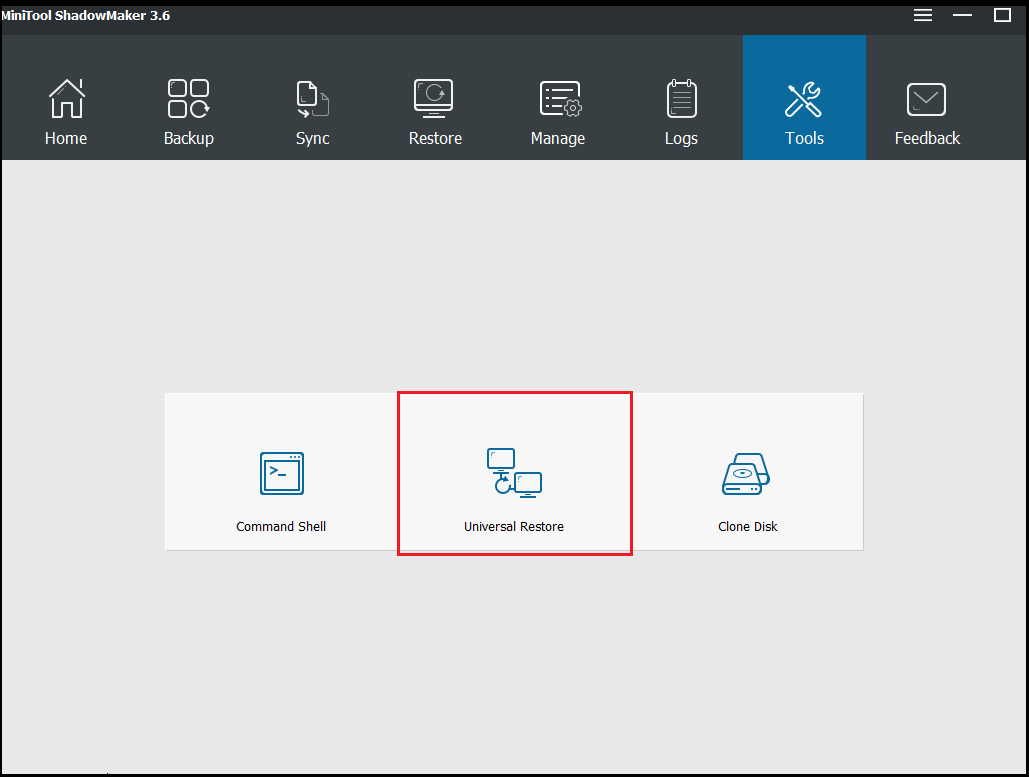
If you don’t have an installation disk, you can create a system backup with MiniTool ShadowMaker on a working computer and save the backup image into a portable disk. Then, connect the portable disk to the client and boot up the client with the MiniTool ShadowMaker PXE service following the steps above. Finally, on the destination client, restore the system to its hard disk using the Universal Restore utility of MiniTool ShadowMaker.
MiniTool ShadowMaker TrialClick to Download100%Clean & Safe
Wake on LAN Boot
Wake-on-LAN (WoL) is an Ethernet or Token Ring computer networking standard that enables a computer to be awakened or turned on by a network message. typically, the message is sent to the target computer by a program executed on a device connected to the same LAN. It is also possible to initiate the message from another network using subnet-directed broadcasts on a WoL gateway service.
Equivalent terms include wake up on LAN, power up by LAN, power on by LAN, resume on LAN, resume by LAN, remote wake-up, and wake on WAN (Wide Area Network). If the PC being awakened is communicating via Wi-Fi, a supplementary standard called Wake on Wireless LAN (WoWLAN) must be employed.
Both WoL and WoWLAN standards are usually supplemented by vendors to offer protocol-transparent on-demand services such as the Apple Bonjour wake-on-demand (Sleep Proxy) function.
Boot from LAN FAQ
Conclusion
Boot from LAN is a specialized feature for mass deployment, diskless workstations, and PC recovery. If needed, follow the instructions to prepare a PXE server, configure BIOS settings, and boot the machine from the network.
If you have issues with MiniTool ShadowMaker for PXE boot, contact us at [email protected].
About The Author

Position: Columnist
Vera has been working at the MiniTool Team for over 10 years as a technical editor and content writer. She mainly focuses on disk and partition management, data recovery, Windows backup and restore, and PC troubleshooting. Through in-depth software testing and hands-on experience, she has helped users solve a wide range of computer problems and better protect their data on Windows devices.
User Comments :