
A Dell laptop or desktop may get stuck in a boot loop, repeatedly restarting instead of loading Windows. This guide explains possible causes and provides several effective solutions to fix this issue in Windows 11/10.
Quick Answer
Dell boot loop means your Dell PC keeps restarting without loading Windows 11/10. Corrupted system files, BIOS/UEFI misconfigurations, driver issues, and hardware problems can cause this issue.
To fix it, perform a hard reset, run Startup Repair, enable Safe Mode for troubleshooting, disable automatic restart, and reset your PC.
What Causes Dell Boot Loop Windows 11/10?
Your Dell computer may get stuck repeating the startup process over and over again and fail to access the desktop.
Common causes include:
- Corrupted Windows system files
- Faulty RAM or hard drive
- Problematic drivers or recent software
- Incorrect BIOS/UEFI settings
Also see: The Full Guide to Fix the Dell Laptop Black Screen Issue
How to Fix Dell Boot Loop Windows 11/10?
Fix 1: Hold the Fn Key
According to Dell, holding the Function (Fn) key can help resolve the boot loop.
Step 1. Hold the Fn key down while turning on the computer.
Step 2. Still hold this key and tap the Windows key to bypass the issue.
This may let the PC reach the login screen.
Fix 2: Disconnect External Devices and Perform a Hard Reset
Certain pieces of hardware might negatively impact the boot process of Windows, resulting in Dell boot loop. In this case, you can consider performing a hard reset. Hard reset can re-initialize the core hardware components of the system to end all current software operations. To do so:
Step 1. Shut down your computer and unplug all external devices from your computer such as USB flash drives, printers, scanners, media card readers, and more.
Step 2. Unplug the power cable (for Dell laptops, remove the battery) and then press the Power button for about 15 seconds.
Step 3. After that, plug the power cable or insert the battery and then power on your PC.
Fix 3: Check the RAM
When the memory or memory slot on your computer is faulty, your computer might also crash. Follow these steps to check your RAMs and RAM slots:
Step 1. Power off your computer.
Step 2. After a while, open the computer case and remove the RAMs from the memory slots.
Step 3. Clean both your RAMs and RAM slots.
Step 4. Insert only one RAM at a time and start your computer. If your Dell cannot boot with one or more RAMs, they are the cause of Dell boot loop. To check if some RAM slots are faulty, remove the modules and place them in different slots. Reinstall or change the computer memory if necessary.
Fix 4: Enable Safe Mode
Safe Mode is a diagnostic mode that helps you to solve computer problems like virus infection, outdated hardware drivers, hardware conflicts, and more. To do so:
Step 1. Turn on and off your computer three or more times to boot into Windows Recovery Environment (WinRE).
Step 2. Go to Troubleshoot > Advanced Options > Startup Settings > Restart.
Step 3. When your computer restarts, it will enter the Startup Setting menu, you can press F4 to start your Dell with Safe Mode, or press F5 to enable Safe Mode with Networking.
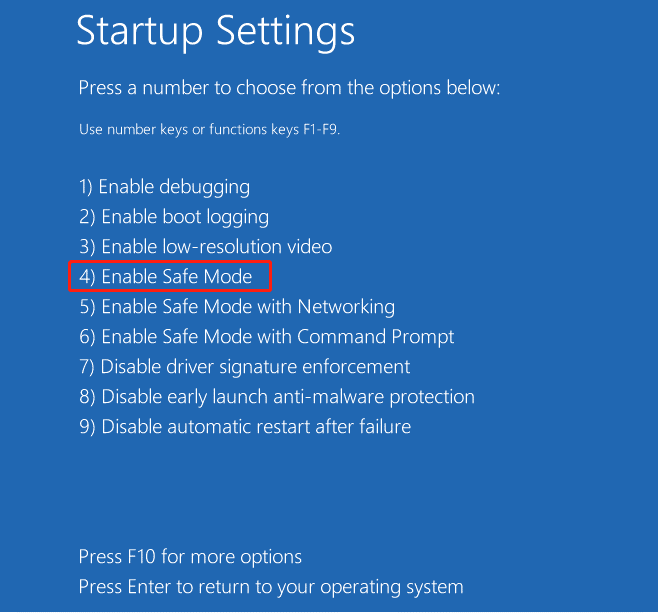
In Safe Mode, you can install third-party antivirus software to check if your computer is infected with malware or viruses. If you encounter Dell boot loop after downloading some programs, uninstalling them might also do the trick.
Fix 5: Check BIOS Settings
Incorrect BIOS settings can sometimes prevent Windows 11/10 from loading properly. Follow these steps to check the Secure Boot and boot settings:
Step 1. Restart your PC and press the F2 key repeatedly to enter the BIOS menu.
Step 2. Press the arrow keys to locate Secure Boot and enable it.
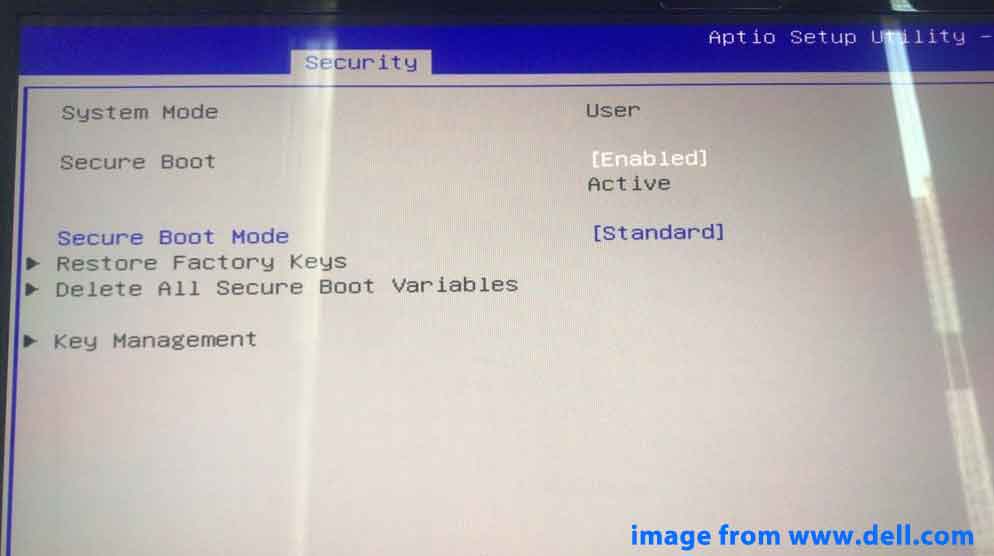
Step 3. Find the option labeled Load Defaults, Restore Settings, or Reset to Defaults, and apply changes.
Step 4. Press F10 to save the changes and exit the BIOS Setup screen.
Fix 6: Disable Automatic Restart
Windows 10/11 comes with a feature that will automatically restart the computer when running into issues. Sometimes, this feature might also lead to some boot issues like Dell boot loop. Therefore, you need to boot into Safe Mode to change this setting.
Step 1. Boot your computer into Safe Mode.
Step 2. Press Win + R to open the Run box.
Step 3. Type system.cpl and hit Enter to launch System Properties.
Step 4. In the Advanced section, click on Settings under Startup and Recovery.
Step 5. Under System failure, check Write an event to system log and uncheck Automatically restart.
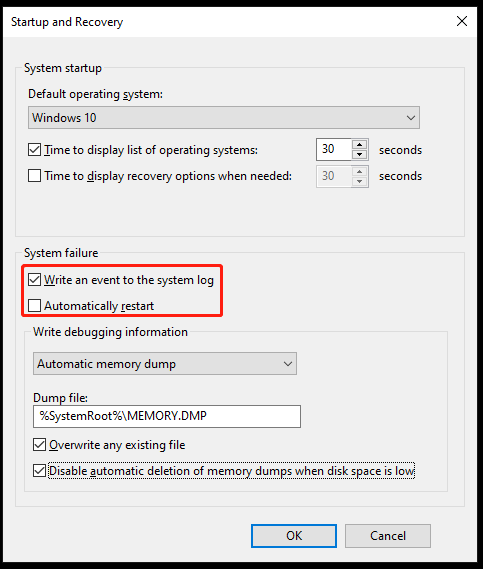
Step 6. Save the changes.
Fix 7: Perform Startup Repair
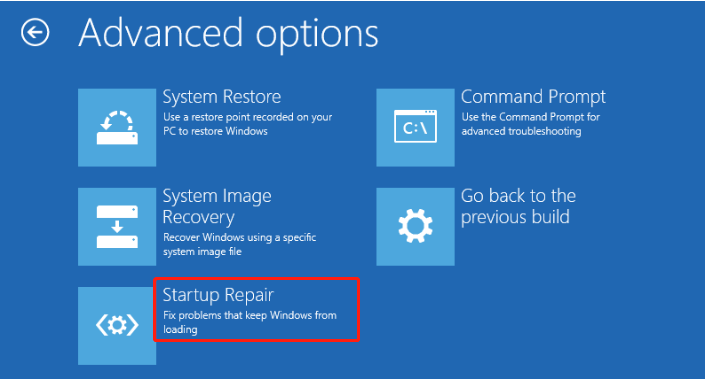
Startup Repair is a built-in Windows recovery tool that can fix the most common issues such as corrupted boot configuration data, registry entries, system files or drivers. To run Startup Repair, follow these instructions:
Step 1. Reboot your computer three or more times until prompted by the Automatic Repair screen.
Step 2. Click on Troubleshoot > Advanced options > Startup Repair. Then, this tool will start diagnosing and fixing some startup problems for you.
Fix 8: Reset Your PC
If the previous methods fail, resetting Windows 10/11 can be a final option to fix the Dell boot loop. This can quickly restore Windows to its factory default configuration. Compared with reinstalling your system from scratch, it is much faster and more convenient.
Step 1. Boot your Dell machine into Windows Recovery Environment.
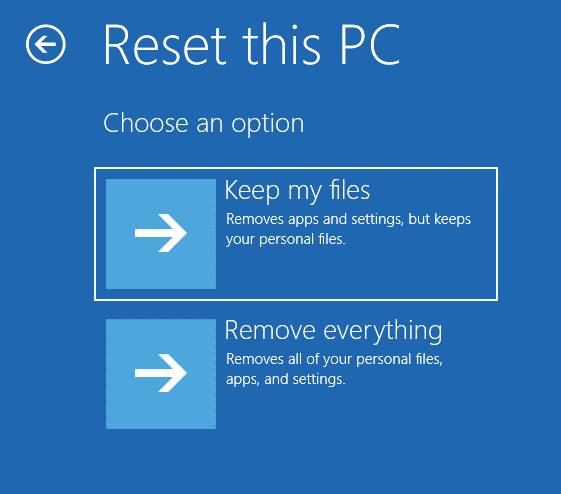
Step 2. Under Choose an option, click on Troubleshoot > Reset this PC.
Step 3. In the following screen, you can select Keep my files or Remove everything.
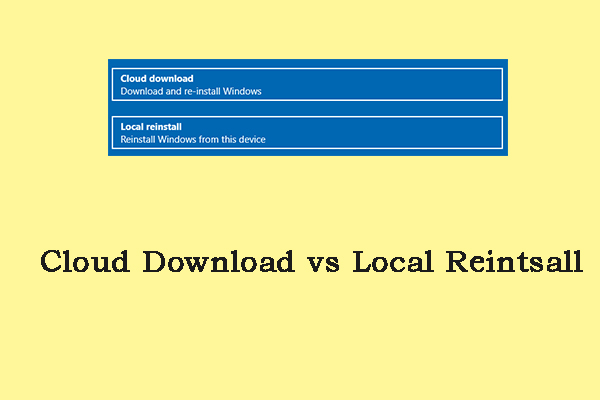
Step 4. Choose Cloud Download or Local Reinstall.
Step 5. Select your account, enter the password, and then hit Reset to start the factory resetting process.
Suggestion: Back up Your System with MiniTool ShadowMaker
After fixing Dell laptop boot loop, you can choose to create a system image for your Windows device so that quick disaster recovery can be done when there is something wrong with your operating system in the future.
To do this work, MiniTool ShadowMaker can satisfy your demand. This PC backup software allows you to create image backups for systems, partitions, disks, files, and folders on Windows devices.
To backup system, MiniTool ShadowMaker offers a one-click system backup solution. With just a few clicks, all the data on the system drive including applications, drivers, computer settings, system files, and boot files will be imaged.
Step 1. Download, install, and launch MiniTool ShadowMaker Trial Edition.
MiniTool ShadowMaker TrialClick to Download100%Clean & Safe
Step 2. In the Backup page, the system is selected by default in the SOURCE, so you just need to select an external hard drive or USB flash drive as a destination path in DESTINATION.
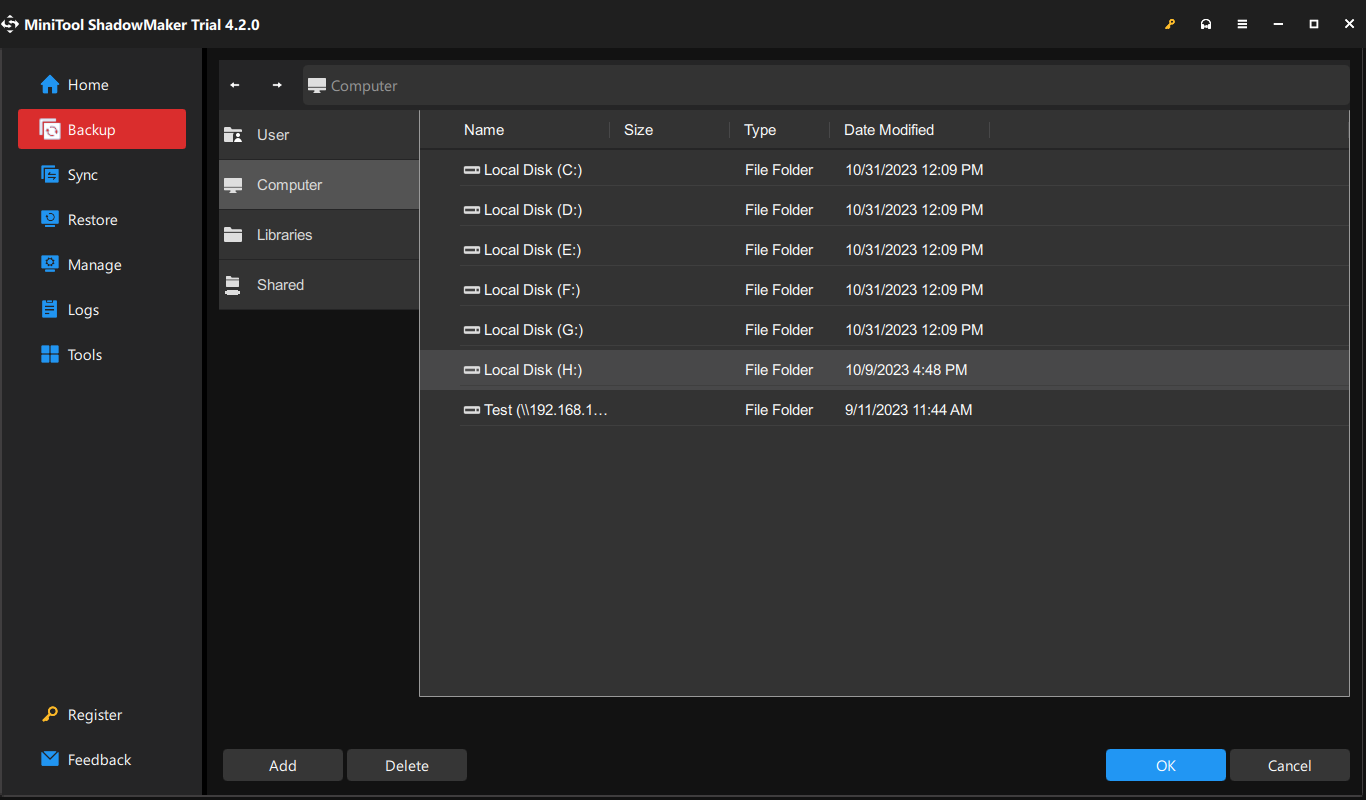
Step 3. Click Back Up Now to start the task immediately.
When your system crashes the next time, you can use this system image to restore your Dell computer to a normal state.
We Need Your Voice
There are 7 effective solutions provided in this article to help you get free from Dell laptop boot loop. You can try them in sequence to find which one works out.
To avoid data loss, use MiniTool ShadowMaker to back up critical files. After fixing the issue, you can also use it to create a system image for disaster recovery in the future.
Any suggestions or problems about our product will be appreciated. To contact us, just send an email via [email protected]. We will reply to you as soon as possible.
Dell Boot Loop FAQ
1. Restart the PC and press F12 repeatedly to open the boot menu.
2. Highlight Diagnostics and press Enter.
3. Follow the prompts to run the built-in SupportAssist Pre-boot System Assessment to test your hardware.
About The Author

Position: Columnist
Vera has been working at the MiniTool Team for over 10 years as a technical editor and content writer. She mainly focuses on disk and partition management, data recovery, Windows backup and restore, and PC troubleshooting. Through in-depth software testing and hands-on experience, she has helped users solve a wide range of computer problems and better protect their data on Windows devices.
User Comments :