
Quick Answer
If your Dell laptop won’t turn on, the problem may be due to a drained battery, a faulty charger, hardware failure, or BIOS corruption.
To fix the startup issue, first identify the symptom:
- There is no power
- The power light is on, but the screen is black
- The laptop gets stuck on the Dell logo
Then, you can apply the appropriate fix, such as performing a hard reset, checking the adapter and battery, restoring BIOS settings, or resetting the PC.
Why Is My Dell Laptop Not Turning On
Laptops are not always running as expected. In some cases, Dell XPS, Inspiron, and other models may not turn on after pressing the Power button.
The following table lists the common symptoms and potential causes.
| Symptom | Possible Cause | Recommended Fix |
| Power light blinking | Power management issue | Perform a hard reset |
| No power at all | Battery or charger failure | Check the charger and battery |
| Black screen after startup | Display or RAM issue | Test the monitor and RAM |
| Stuck on the Dell or Windows logo | BIOS corruption | Reset BIOS |
Back Up Important Files Before Fixing the Issue
If you are experiencing Dell laptop screen not turning on, avoid repeated restart attempts to prevent file corruption. To protect your data, it is recommended to back up important files before fixing the issue.
MiniTool ShadowMaker is a reliable backup solution that allows you to:
- Back up files and folders even when Windows 11/10 fails to boot.
- Restore data after a crash.
- Create bootable rescue media to perform backup and recovery.
Step 1: Since the Dell laptop isn’t turning on, you need to create a bootable USB drive with Media Builder, boot the machine from it and open MiniTool ShadowMaker Bootable Edition.
Step 2: Under the Backup page, click the SOURCE section and then click Folders and Files to choose items that you want to back up.
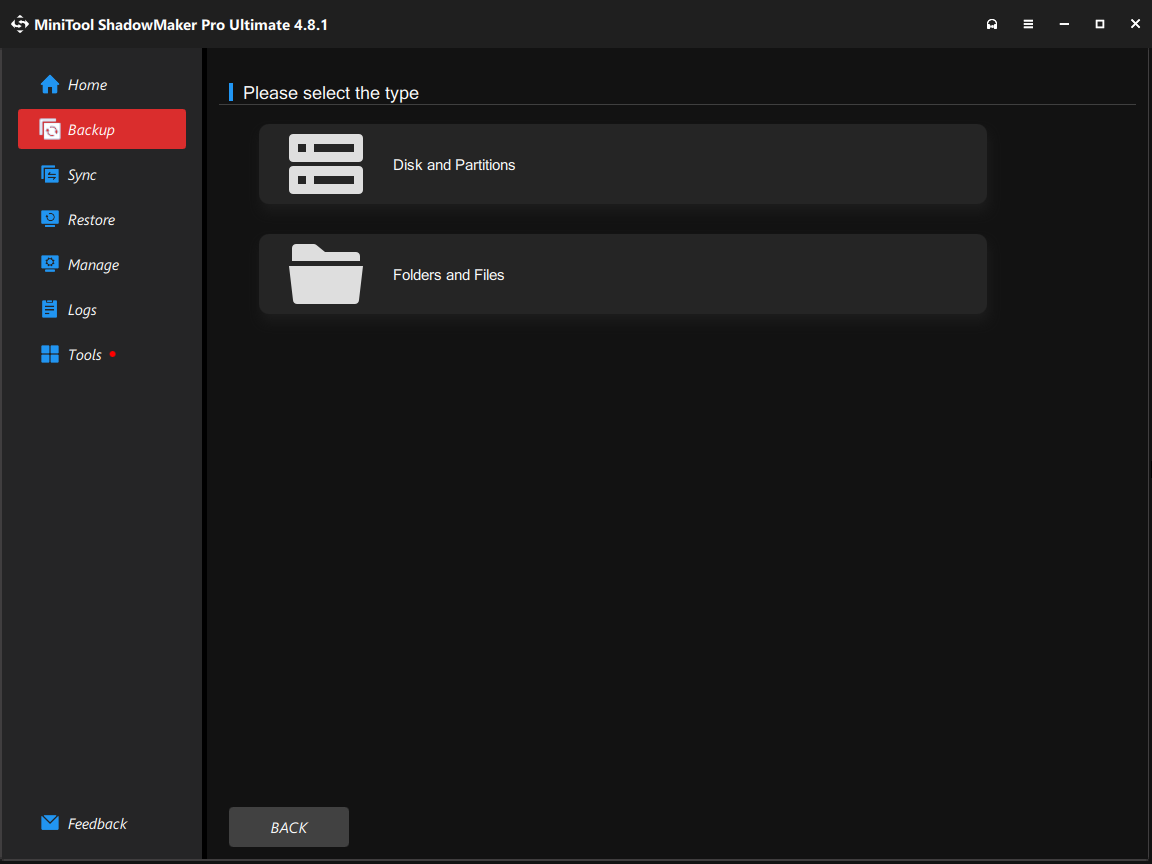
Step 3: Click the DESTINATION section under the Backup window and then select a path for saving the backed-up data. Usually, an external drive or USB flash drive is recommended.
Step 4: Start the file backup by clicking the Back up Now button and the task will be completed on the Manage page.
After finishing data backup, follow the step-by-step solutions to get your Dell laptop working again.
Case 1: Dell Laptop Won’t Turn on Power Light Just Flashes
This usually means the system is in a power protection state, receiving power but failing to complete startup initialization.
In this case:
- Perform a hard reset
- Check your adapter
- Check the battery
Perform a Hard Reset
Usually, a hard reset is helpful to fix many problems and it also drains any residual power that may be causing the issue of laptop like Dell Inspiron screen won’t turn on. Just follow these steps below:
Step 1: Turn off your Dell laptop.
Step 2: Disconnect the power cord or AC adapter, and remove the battery from the laptop.
Step 3: Unplug all the external devices or peripherals including printer cables, media cards (SD or xD), USB drives and more.
Step 4: Press and hold the power button for 15-20 seconds to drain residual power.
Step 5: Connect the charger and battery to your Dell laptop.
Step 6: Try to power on the laptop and see if it can turn on.
If the residual power is causing the issue, your laptop should work fine now. If Dell laptop won’t turn on after these steps, try other things.
Check AC Adapter
Connect the AC adapter to your Dell PC and check whether the LED is on. If it is on, the adapter is OK. Otherwise, replace the power cord since it is damaged.
Check the Battery
- Power off the Dell laptop and remove the battery.
- Connect the AC adapter to the laptop.
- If the battery is causing Dell laptop not turning on power light blinking, the laptop should turn on.
Case 2: Dell Laptop Won’t Turn on No Power
This indicates the laptop is not receiving power from the battery or AC adapter.
You may notice the following symptoms:
- No signs of power.
- All LEDs are off, the monitor is black and the PC cannot start.
- No fan noise.
To resolve Dell laptop not turning on no power, try these solutions from Dell’s troubleshooting guide for no power issues:
- Check power cables
- Test with a Different Power Outlet
- Check the power supply
- Reset the Real-Time Clock (RTC)
Case 3: Dell Laptop Won’t Turn on No POST
The system can fail the Power-On Self-Test (POST), indicating that hardware components are not initializing properly.
When pressing the power button, you may find your Dell laptop has these symptoms:
- LEDs blink (usually in a pattern or amber in color).
- A laptop is stuck at the Dell logo during POST.
- The display is black with blinking LEDs or beep codes.
- Fan noise is heard but LEDs are blinking or beep codes are heard.
To get rid of Dell laptop not turning on no POST, try to identify the no POST codes, confirm the error, troubleshoot using the error code or without the error code.
To get more information, you can also refer to the troubleshooting a No POST Issue guide from Dell.
Besides, in our previous article – Computer Won’t Post? Follow These Methods to Easily Fix It, we also show some specific methods you can do.
Case 4: Dell Laptop Won’t Turn on No Boot
Sometimes the Dell laptop completes the POST process (You see a Dell logo screen with a bar at the bottom and the bar fills up completely and disappears.) after pressing the power button and perhaps these symptoms appear:
- The status of LEDs like power LED, hard drive activity LED, etc. are normal.
- Fan noise is heard.
- Laptop hangs on the Windows logo screen.
- An error message appears before booting into the operating system.
- Black screen with a blinking cursor is on the screen.
If your Dell laptop won’t boot or turn on to the desktop along with one of these symptoms, how can you troubleshoot? Try the following methods now.
Perform a Hard Reset
A piece of hardware may be interfering with the normal Windows boot process. Try disconnecting all devices from your Dell laptop and then perform a hard reset. The detailed steps have been described in Case 1.
Check for Specific Error Messages
When your Dell laptop won’t turn on or boot to the Windows desktop, error messages may appear and the solutions are different based on different errors. Just go to Google and try searching for solutions on the web.
If your Windows 10/11 Dell laptop has a blue error, refer to this post – Quickly Solve Your PC Ran into a Problem and Needs to Restart and it introduces many blue screen error codes.
If you are encountering Dell laptop not turning on black screen, get solutions from our previous post – How Do I Solve Windows 10 Booting to a Black Screen with Ease.
Reset BIOS to Default Values
If your Dell laptop like Inspiron 15 is set to first attempt to boot to another device, Windows 10/11 may fail to boot successfully. Resetting the BIOS to default values is helpful.
Step 1: Restart the laptop.
Step 2: Tap F2 repeatedly on the Dell logo screen until you see Entering Setup at the top-right corner of the screen.
Step 3: You may need to press a key listed at the bottom of the screen to load default settings depending on the different BIOS.
Step 4: Save the change and exit the BIOS.
Perform a Clean Boot in Safe Mode
Use a minimal set of drivers and startup programs to start Windows to eliminate software conflicts. Besides, you can know what is causing the boot issue of Dell laptop.
Perform a clean boot to identify the problem app.
Virus and Malware Troubleshooting
If your Dell laptop is affected by a virus or malware, it may not turn on or boot up. Dell recommends strengthening your laptop against malicious attacks by keeping the antivirus program up to date.
Reset Your Laptop
If your Dell Inspiron won’t turn on or other series are not booting up, you can choose to reset the operating system to factory settings. Here are the ways offered by Dell:
- Perform a system restore in Windows 10/11
- Reset this PC without losing data
- Reset Windows 10/11 using Push-Button reset
- Use Dell OS Recovery Tool to reinstall Windows
- Use a USB drive for Windows reinstallation
Run a Computer Diagnostic
If Dell laptop still fails to turn on, perhaps it is a hardware issue and you can follow the Resolving Hardware Issues With Built-in and Online Diagnostics guide to run a diagnostic.
Bottom Line
Is your Dell laptop not turning on or booting up? Take it easy and you can easily fix it. Just troubleshoot the problem depending on your actual situations.
On the other hand, if you have any ideas or have any questions during using MiniTool ShadowMaker, don’t hesitate to tell us by sending an email to [email protected] or leaving a comment below.
Dell Laptop Won’t Turn on FAQ
About The Author

Position: Columnist
Vera has been working at the MiniTool Team for over 10 years as a technical editor and content writer. She mainly focuses on disk and partition management, data recovery, Windows backup and restore, and PC troubleshooting. Through in-depth software testing and hands-on experience, she has helped users solve a wide range of computer problems and better protect their data on Windows devices.
User Comments :