
“Your device is missing important security and quality fixes” can leave your PC vulnerable to security threats. In this guide, you will find the possible causes and some practical ways to fix the update issue in Windows 11/10.
Quick Answer
“Your device is missing important security and quality fixes” can occur in Windows 11/10 due to corrupted update files, disabled services, or a stale Windows Update cache.
To quickly fix this error, follow these steps:
- Manually install updates
- Run Windows Update troubleshooter
- Restart update-related services
- Adjusting telemetry settings
- Perform DISM & SFC scans
What Does “Your Device Is Missing Important Security and Quality Fixes” Mean?
Windows updates can deliver security patches, fix bugs, and bring new features & improvements. Installing these updates is crucial to maintain the overall security, performance, and stability of the computer.
However, the installation process is not always as straightforward as it sounds. On the Windows Update page, the following error message may display:
- In Windows 10: “Your device is missing important security and quality fixes.”
- In Windows 11: “Your device is missing important security updates.”
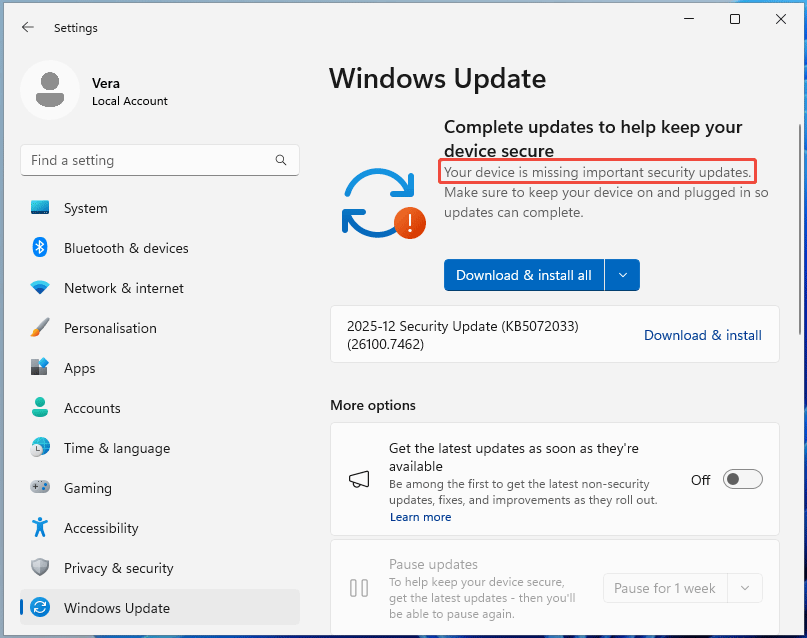
This error indicates the system fails to install some critical updates, which can leave the device vulnerable to threats such as malware and bugs. Moreover, this error may lead to system instability and performance issues, which the updates are intended to resolve.
Causes of Device Missing Important Security and Quality Fixes
This annoying issue can stem from a variety of reasons, as shown:
- Stuck or pending updates: An update is downloaded but fails to install, leaving the system in a broken state.
- Corrupted update components: Windows update services are not running, or the update cache is corrupted.
- Damaged system files: Core Windows system files required for the update process may be corrupted, which prevents the update from proceeding.
- Software conflicts: Antivirus software can block updates.
- Incorrect settings: Telemetry settings can inadvertently block the delivery of certain quality fixes or security updates.
- End of Windows version support: Windows 10 stops receiving regular security updates, resulting in update-related warnings.
Prerequisite: Back Up Your Files to Avoid Data Loss
Before executing system-level changes to fix the issue, backing up your important files is recommended to avoid losing them. Unexpected interruptions during system repairs can result in system crashes or permanent data loss.
To back up files, use the PC backup software, such as MiniTool ShadowMaker. It is designed for Windows 11/10/8/7, enabling you to effectively create a disk/partition/folder/system backup & recovery.
Here is how to back up your computer data to an external drive.
Step 1: Connect an external hard drive to the computer.
Step 2: Download, install, and run MiniTool ShadowMaker.
MiniTool ShadowMaker TrialClick to Download100%Clean & Safe
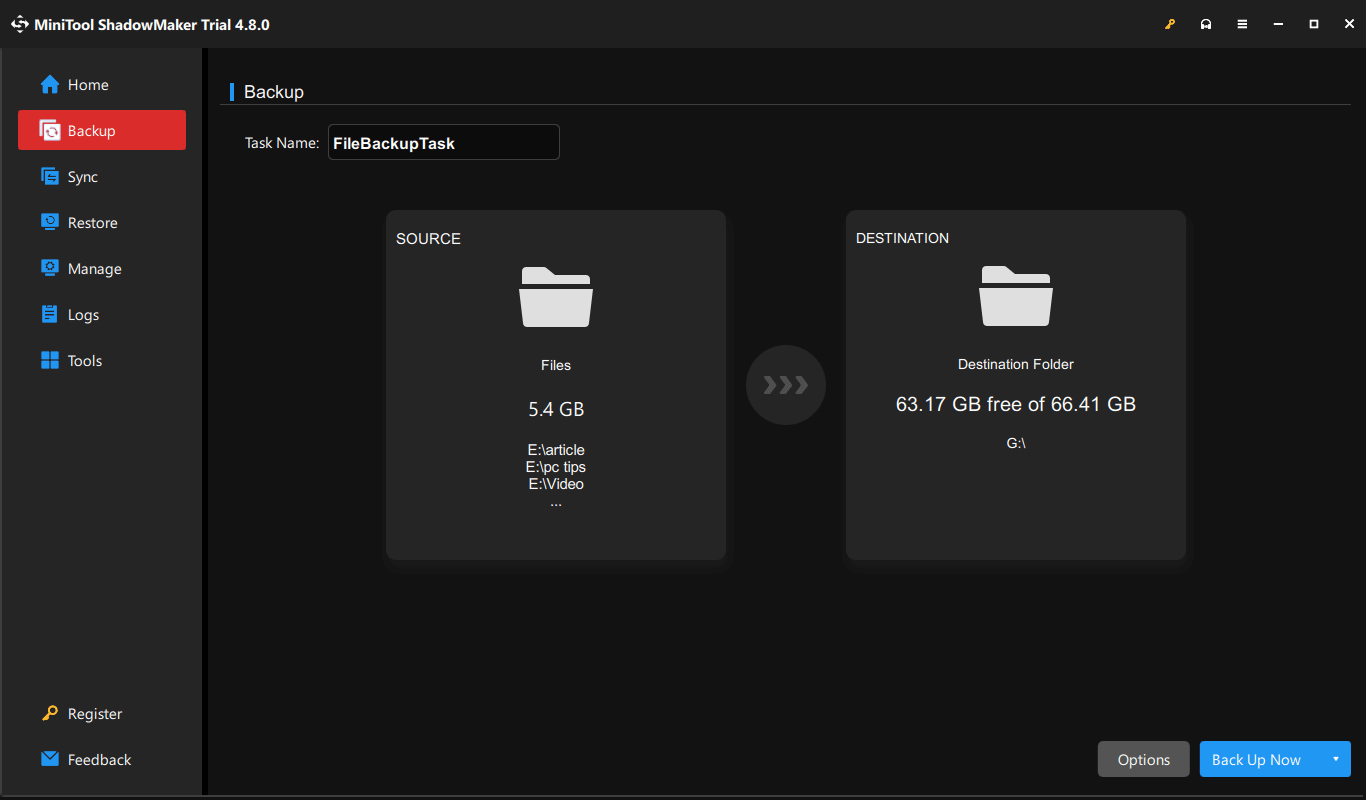
Step 3: Navigate to the Backup tab in the left pane, and choose the backup source & destination.
- Source: Click the SOURCE section, select Folders and Files, browse your computer to choose files and folders you wish to back up, and click OK to confirm.
- Destination: Head to the DESTINATION section, select the connected external drive, and click OK to proceed.
Step 4: If necessary, select Options and follow the prompts to configure the backup plan & scheme.
Step 5: Click Back Up Now > OK to begin the process.
After keeping data safe, explore the effective solutions that can seamlessly address the update issue.
How to Fix Your Device Is Missing Important Security and Quality Fixes
| Method | Best for |
| Manually check for updates | Checking for pending Windows updates to install |
| Uninstall the problematic update and install new ones | Fixing issues caused by a recently installed buggy patch |
| Install updates with Microsoft Update Catalog | Installing a specific Windows update manually |
| Run Windows Update Troubleshooter | Fixing common update problems |
| Reset Windows Update components | Restarting update services and clearing corrupted update cache (SoftwareDistribution folder) to force a fresh download |
| Adjust telemetry settings | Resolving update issues related to telemetry settings that prevent certain updates from being offered |
| Run DISM & SFC | Repairing corrupted Windows system files |
| Use Update Assistant/Media Creation Tool | Updating Windows when Windows Update repeatedly fails |
#1. Manually Check for Updates
You may see the Check for updates or Download & install all button under the error message. Clicking that button can sometimes install the available updates on the device.
If this doesn’t work, try other troubleshooting steps.
#2. Uninstall the Problematic Update and Install New Ones
In some cases, the recently installed update triggers the “your device is missing important security and quality fixes or security updates” error. Uninstalling the problematic update and installing any available updates may help.
Try this method:
Windows 10
Step 1: Head to Settings and choose Update & Security > Windows Update.
Step 2: Click View update history > Uninstall updates. This opens a Control Panel window.
Step 3: Right-click on the latest update and choose Uninstall.
Windows 11
Step 1: In Settings, select Windows Update.
Step 2: Click Update history > Uninstall updates.
Step 3: Locate the recent update and click Uninstall twice to initialize the process.
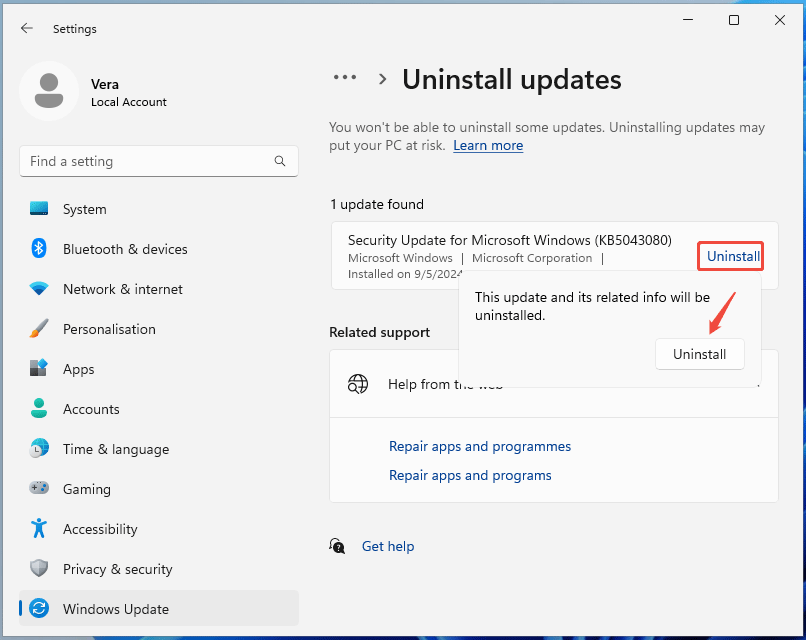
After the uninstallation, check for updates and download & install available ones. If the error persists, proceed with other methods.
#3. Install Specific Updates with Microsoft Update Catalog
If Windows Update always displays the device missing important security updates error, try another approach. Microsoft Update Catalog is highly recommended.
It is a website that serves as a central library for specific Microsoft updates, including drivers, security patches, and service packs. The website offers users manual control, allowing for searches by KB number, product, or hardware ID to find the specific updates.
Follow these steps to install the updates:
Step 1: Open your browser and visit the Microsoft Update Catalog website.
Step 2: Type in the latest security update, like KB5074109 (a cumulative update for Windows 11), and click Search.
Step 3: Locate the product that is compatible with your Windows version and download the package.
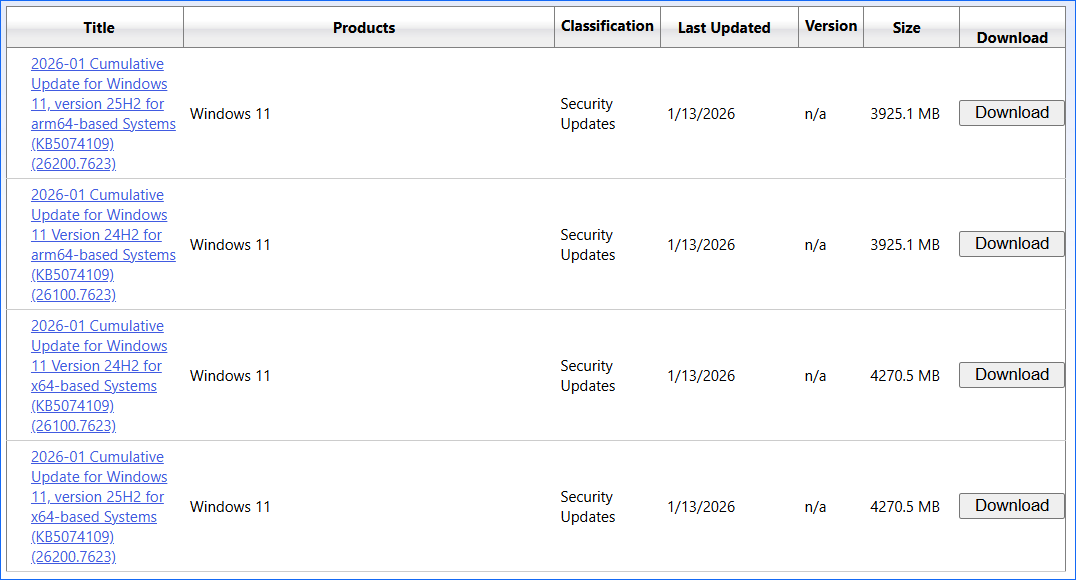
Step 4: Download all the delivered .msu files and run them to finish the installations.
The “your device is missing important security and quality fixes but no updates” issue should be fixed.
#4. Run Windows Update Troubleshooter
Windows 11 and 10 have many built-in troubleshooters designed to resolve common issues with the computer, including Windows Update Troubleshooter. It can diagnose and fix problems preventing updates from downloading and installing correctly.
Try this tool if your PC misses important updates.
Windows 10
Step 1: Head to Settings > Update & Security.
Step 2: In the Troubleshoot tab, select Additional troubleshooters.
Step 3: Choose Windows Update and click the Run the troubleshooter button.
Step 4: Follow the instructions to finish the scan and fix.
Windows 11
Step 1: Go to Settings > System > Troubleshoot.
Step 2: Click Other trouble-shooters.
Step 3: Locate Windows Update and click the Run button next to it.
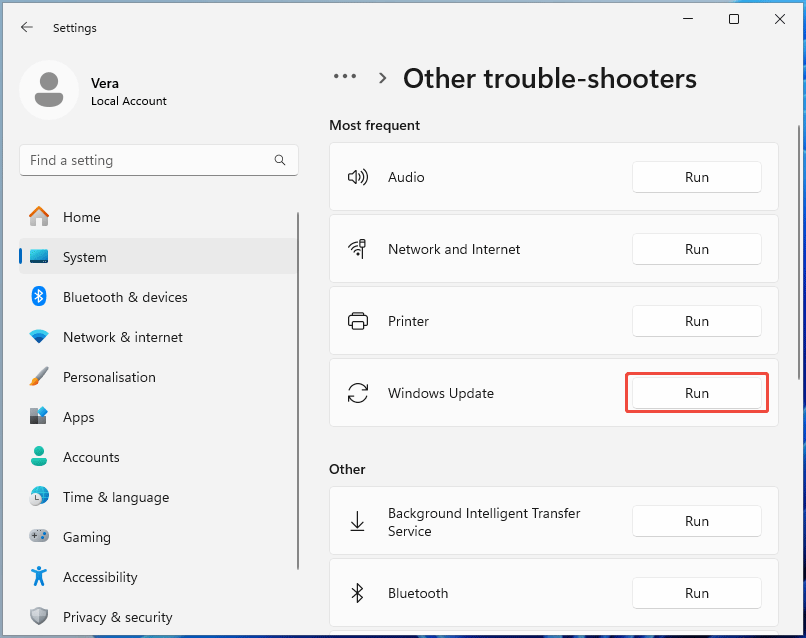
Step 4: This tool begins to detect update issues. Once found, apply any suggested fixes.
After finishing, restart the system and check for updates to see if “your device is missing important security updates or security and quality fixes” is resolved.
![[Full Guide] How to Fix Windows Update Troubleshooter Not Working](https://images.minitool.com/minitool.com/images/uploads/2023/03/windows-update-troubleshooter-not-working-thumbnail.png)
#5. Reset Windows Update Components
Resetting Windows Update components can effectively resolve the missing security and quality fixes or security update error.
This process involves stopping & resetting update services, clearing corrupted update caches, and re-registering update files. Then, downloads and installations of essential updates are refreshed.
Here is how to reset the update components:
Step 1: Type cmd into the search box and click Run as administrator from the right pane to run Command Prompt with admin rights.
Step 2: Stop update-related services using the following commands. Press Enter after each command.
net stop bits
net stop wuauserv
net stop cryptsvc
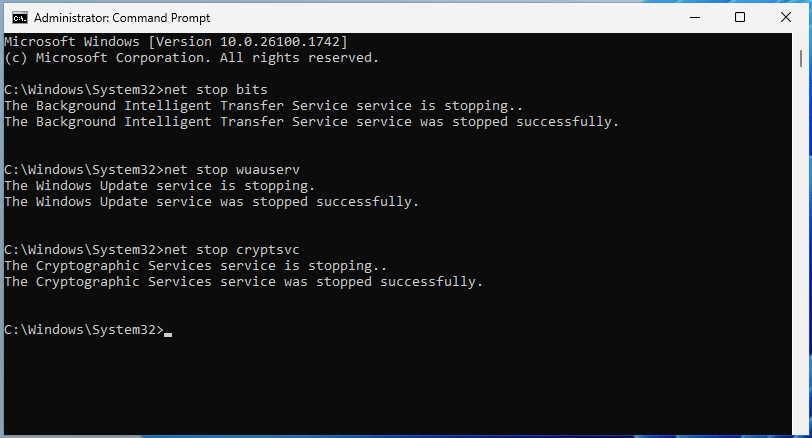
Step 3: Delete the qmgr*.dat files by executing the command:
Del “%ALLUSERSPROFILE%\Application Data\Microsoft\Network\Downloader\qmgr*.dat”
Step 4: Rename Windows update folders using the commands one after another.
Ren %Systemroot%\SoftwareDistribution\DataStore DataStore.bak
Ren %Systemroot%\SoftwareDistribution\Download Download.bak
Ren %Systemroot%\System32\catroot2 catroot2.bak
Step 5: Execute the following command to reset the BITS service and the Windows Update service to the default security descriptor:
sc.exe sdset bits D:(A;CI;CCDCLCSWRPWPDTLOCRSDRCWDWO;;;SY)(A;;CCDCLCSWRPWPDTLOCRSDRCWDWO;;;BA)(A;;CCLCSWLOCRRC;;;IU)(A;;CCLCSWLOCRRC;;;SU)
sc.exe sdset wuauserv D:(A;;CCLCSWRPLORC;;;AU)(A;;CCDCLCSWRPWPDTLOCRSDRCWDWO;;;BA)(A;;CCDCLCSWRPWPDTLOCRSDRCWDWO;;;SY)
Step 6: Type the cd /d %windir%\system32 command and press Enter to proceed.
Step 7: Reregister the BITS and Windows Update files by running the commands below:
regsvr32.exe atl.dll
regsvr32.exe urlmon.dll
regsvr32.exe mshtml.dll
regsvr32.exe shdocvw.dll
regsvr32.exe browseui.dll
regsvr32.exe jscript.dll
regsvr32.exe vbscript.dll
regsvr32.exe scrrun.dll
regsvr32.exe msxml.dll
regsvr32.exe msxml3.dll
regsvr32.exe msxml6.dll
regsvr32.exe actxprxy.dll
regsvr32.exe softpub.dll
regsvr32.exe wintrust.dll
regsvr32.exe dssenh.dll
regsvr32.exe rsaenh.dll
regsvr32.exe gpkcsp.dll
regsvr32.exe sccbase.dll
regsvr32.exe slbcsp.dll
regsvr32.exe cryptdlg.dll
regsvr32.exe oleaut32.dll
regsvr32.exe ole32.dll
regsvr32.exe shell32.dll
regsvr32.exe initpki.dll
regsvr32.exe wuapi.dll
regsvr32.exe wuaueng.dll
regsvr32.exe wuaueng1.dll
regsvr32.exe wucltui.dll
regsvr32.exe wups.dll
regsvr32.exe wups2.dll
regsvr32.exe wuweb.dll
regsvr32.exe qmgr.dll
regsvr32.exe qmgrprxy.dll
regsvr32.exe wucltux.dll
regsvr32.exe muweb.dll
regsvr32.exe wuwebv.dll
Step 8: Run the netsh winsock reset command to reset Winsock.
Step 9: Restart the stopped update services:
net start bits
net start wuauserv
net start cryptsvc
Step 10: Restart Windows 11 or 10, and the update error message may disappear.
#6. Adjust Telemetry Settings
Microsoft Compatibility Telemetry is a Windows process that gathers technical data on how your device and app work. It can help Microsoft improve future updates and ensure compatibility.
However, if its level is set to “Security only”, security updates cannot be offered.
To fix “your device is missing important security and quality fixes”, adjust the telemetry level.
Step 1: Type gpedit.msc in the search box and press Enter to open Local Group Policy Editor.
Step 2: Head to Computer Configuration > Administrative Template > Windows Components > Data Collection and Preview Builds.
Step 3: Double-click on Allow Telemetry to open its properties window.
Step 4: Select Enabled and choose any option except 0 – Security [Enterprise Only] from the Options section.
Step 5: Click Apply > OK to save the change.
Check if the problem is addressed.
#7. Run DISM & SFC
“Your device is missing important security and quality fixes/security updates” can be caused by corrupted system files. Running DISM and SFC can easily detect and repair the damage in Windows system files to resolve the issue.
Follow these steps:
Step 1: Launch Command Prompt as an administrator.
Step 2: Type the DISM.exe /Online /Cleanup-image /Restorehealthcommand and press Enter to perform a DISM scan.
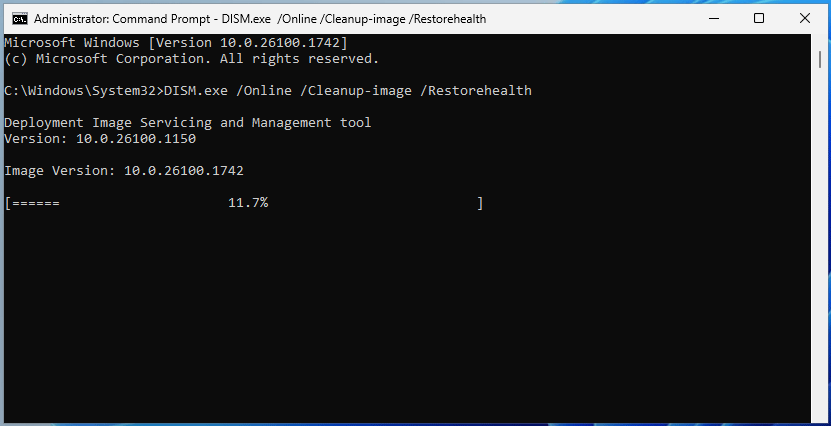
Step 3: Type the sfc /scannow command and press Enter to execute an SFC scan.
Wait until the scan finishes. Then, restart Windows 11/10 and install Windows updates again.
#8. Use Update Assistant/Media Creation Tool
If you need to install major Windows updates but run into the device missing important security updates error, consider other installation methods.
Windows Update Assistant and Media Creation Tool are two recommended methods for Windows updates. They don’t rely on the Windows Update service to download and install Windows updates.
Step 1: Download one of these two tools from Microsoft’s website.
Step 2: Run it on the computer.
Step 3: Follow the on-screen instructions to upgrade the device.
Conclusion
This post introduces the potential causes and solutions to “your device is missing important security and quality fixes”. If you are struggling with this frustrating update issue, try the methods above.
Moreover, ensure you back up crucial PC data with MiniTool ShadowMaker before fixing the error.
When experiencing issues during the backup process, contact us at [email protected].
Your Device Is Missing Important Security and Quality Fixes FAQ
1. An update didn’t install completely.
2. Another required Windows update is pending.
3. Windows Update components are still not working properly.
About The Author

Position: Columnist
Vera has been working at the MiniTool Team for over 10 years as a technical editor and content writer. She mainly focuses on disk and partition management, data recovery, Windows backup and restore, and PC troubleshooting. Through in-depth software testing and hands-on experience, she has helped users solve a wide range of computer problems and better protect their data on Windows devices.
User Comments :