
Quick Answer
No, Microsoft OneDrive is not required for Windows to work properly. It’s helpful if you want cloud storage, automatic file syncing, and access to your files across multiple devices. However, if you primarily store files locally or use another backup solution, you can safely disable or uninstall OneDrive without affecting Windows.
Quick Comparison: Do You Need Microsoft OneDrive
| Your Need | Do You Need OneDrive? | Reason |
| Sync files across devices | Yes | Keeps files available on multiple devices. |
| Share or collaborate on files | Yes | Works well with Microsoft 365 and online sharing. |
| Store files locally only | Not necessarily | Local storage may be enough. |
| Protect your entire PC | No | OneDrive does not create full system backups. |
What Is Microsoft OneDrive
Developed by Microsoft and launched in August 2007, OneDrive is a cloud-based file hosting and synchronization service, rather than a full system backup solution.
It allows Microsoft account owners to securely store personal files, sync system and browser settings, and easily share content via generated links.
Users receive 5GB of cloud storage free of charge, with paid options available for additional space.
Is OneDrive Safe
When it comes to a program, security would be a key factor to consider. So, there is no exception for OneDrive. OneDrive is a piece of Windows built-in software and it is a 100% safe program. Hence, you can use it to save your files and data.
Apart from that, OneDrive comes with the OneDrive Personal Vault, a new layer of security coming to your OneDrive personal account to further protect your most sensitive and important files. With this technology, it is able to keep your files and data safe.
So, is OneDrive Secure? Yes, it is. It is a piece of 100% safe program and is also able to safeguard your personal files.
Although OneDrive encrypts data in transit and at rest, users should still follow good security practices such as enabling multi-factor authentication.
Do I Need Microsoft OneDrive
Whether you need Microsoft OneDrive depends on your workflow. If you regularly work across multiple devices, collaborate with others, or want automatic cloud syncing, OneDrive can be a convenient choice.
However, if you mainly keep files on one computer, prefer local storage, or already use another cloud or backup solution, OneDrive may not be necessary.
Here, we list some pros and cons of OneDrive.
Pros:
- You can store several different kinds of the file on OneDrive, and then access them from any of your Windows PCs or mobile devices.
- Anyone who is the owner of a Microsoft account can use it for free within 5GB of storage space.
- It enables you to share your files with ease. Other people can visit your shared files with the link.
- With the OneDrive sync client, users are able to download content to their local workstations and work content without having to remain connected to the Internet. So, it is important for you if there is no internet available.
- Files on-demand syncing. Users do not have to sync the entire OneDrive, but they can choose to sync the files they are demanded.
- OneDrive enables you to works closely with other Microsoft Office applications since it comes from the Microsoft platform. When you launch one of these applications, you will see a list of recent documents, including those saved to the OneDrive.
Cons:
- The free storage space of OneDrive is small. If users want to save more files, they need to purchase more storage space.
- There are some limitations when using it to share files with colleagues or clients.
- Some users concern about the privacy issues since Microsoft has reserved the right to scan files saved in OneDrive to look for what it calls objectionable content.
- After syncing, the files become corrupted or cannot be opened.
- Sync issues. When syncing files, you may come across the errors such as syncing pending.
- You may also come across some other problems, such as OneDrive won’t sign in.
- After syncing, the files may be disorganized.
- Microsoft OneDrive always starts when booting the computer and it may slow down your computer.
- Some standard OneDrive users say that the data is encrypted in transit using SSL but it will remain unencrypted at rest.
So, do I need Microsoft OneDrive? Or is Microsoft OneDrive necessary? You may already have the answers. When using it, you may come across some errors. Do I need Microsoft OneDrive on startup? The answer would be negative. If it starts on startup, it may slow down your computer. Besides, there is a lot of third-party file sync software on the market. So, you can choose to try them and disable or remove OneDrive from your computer.
OneDrive vs Backup Software: What’s the Difference
| Feature | OneDrive | Backup Software |
| Main Purpose | Syncs files online | Creates backup copies |
| Protection Scope | Selected files and folders | Files, disks, and systems |
| Recovery | Restores synced files | Restores files or entire systems |
| Best For | Cloud access and sharing | Data protection and disaster recovery |
How to Remove OneDrive from Your Computer
From the above part, you know that OneDrive is not necessary on your computer. Therefore, you can choose to remove or uninstall OneDrive from your computer.
Now, here is the tutorial.
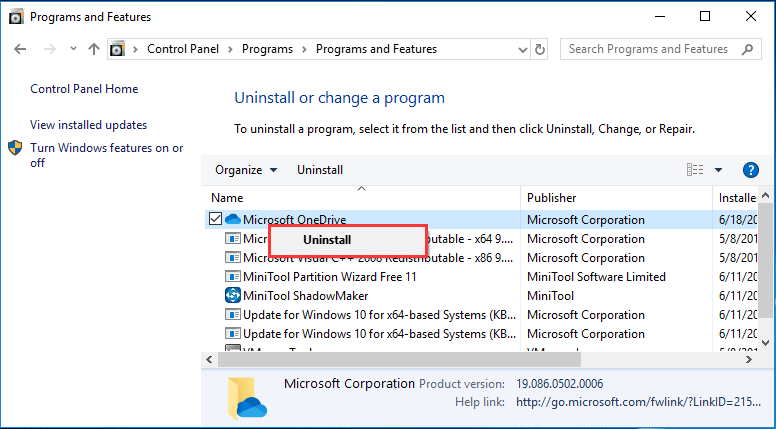
- Type Control Panel in the search box of Windows and choose the best-matched one.
- Then choose the Uninstall a program button under the Programs section.
- In the pop-up window, choose Microsoft OneDrive and right-click it.
- Then choose Uninstall to continue.
- It will start to remove Microsoft OneDrive from your computer.
Once all steps are finished, Microsoft OneDrive has been removed from your computer. If you do not want to remove it or just want to disable it, you can read the post: Solved – How to Disable or Remove OneDrive in Windows 10.
Do I Need Microsoft OneDrive? A Complete Windows User GuideClick to Tweet
How to Protect Files Without OneDrive
After removing OneDrive from your computer, you may ask how you can keep your files safe or safeguard your files and data. As a matter of fact, there are a lot of ways. You can use an OneDrive alternative, such as Google Drive, or Dropbox, etc. Or you can choose to back up your files in another way.
OneDrive enables you to sync your files to the Cloud services, but its free storage space is limited and small. If you have a lot of files to back up, you need to purchase storage space. In this case, you can choose to back up your files to a partition or an external hard drive for free.
To do that, the professional backup software – MiniTool ShadowMaker is recommended. It is designed to backup files, folders, disks, partitions, and even the operating system. After backing up, the image file can’t be opened unless you restore it with MiniTool ShadowMaker. So, it will effectively keep your files safe.
Now, we will show you how to use MiniTool ShadowMaker to back up files.
1. Download MiniTool ShadowMaker from the following button, install it and launch it.
MiniTool ShadowMaker TrialClick to Download100%Clean & Safe
2. Click Keep Trial.
3. After entering its main interface, go to the Backup page.
4. Then click the SOURCE module to choose the backup source. In order to back up files, choose Folders and Files.

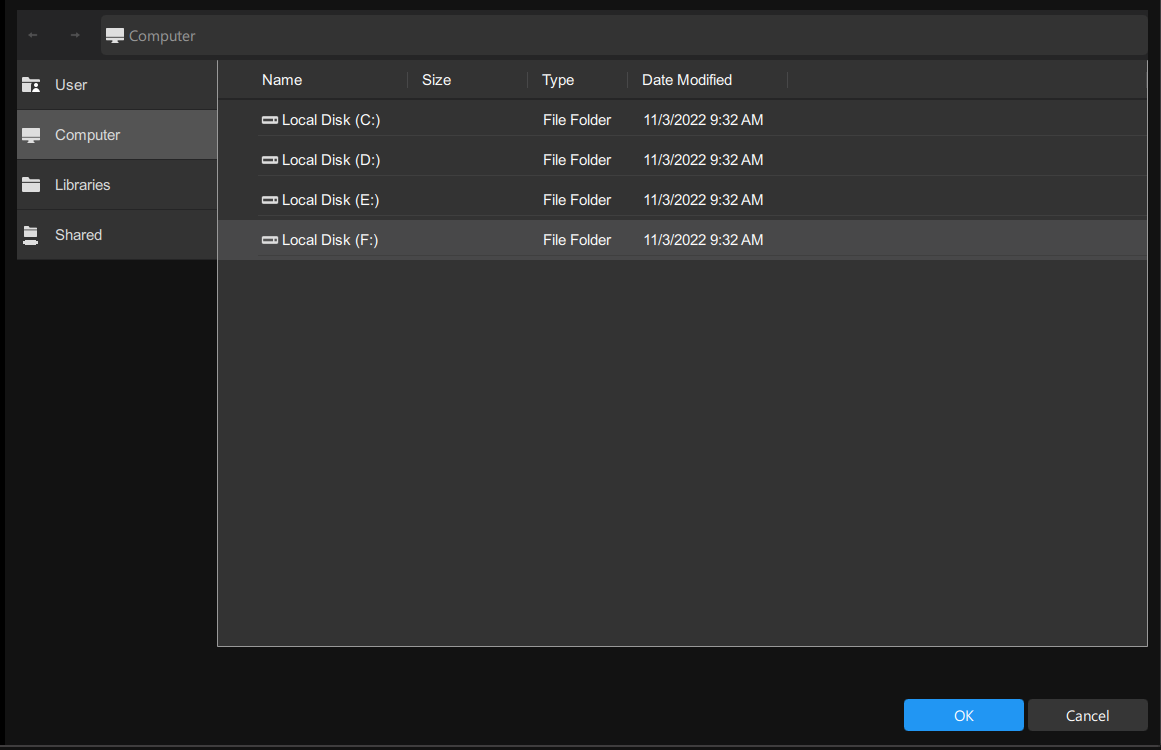
5. Then select files you want to back up and click OK to continue.
6. Next, click the DESTINATION module to select a target disk to save the backup image. It is recommended to choose an external hard drive. Then click OK to continue.
1. You can set an automatic backup by clicking Options > Schedule Settings so that you can back up your files regularly.
2. You can also encrypt the backup images by going to Options > Backup Options > Password. After that, other people could access the image file with the password.
7. After selecting the backup source and destination, you can click Back Up Now to perform the backup task immediately.
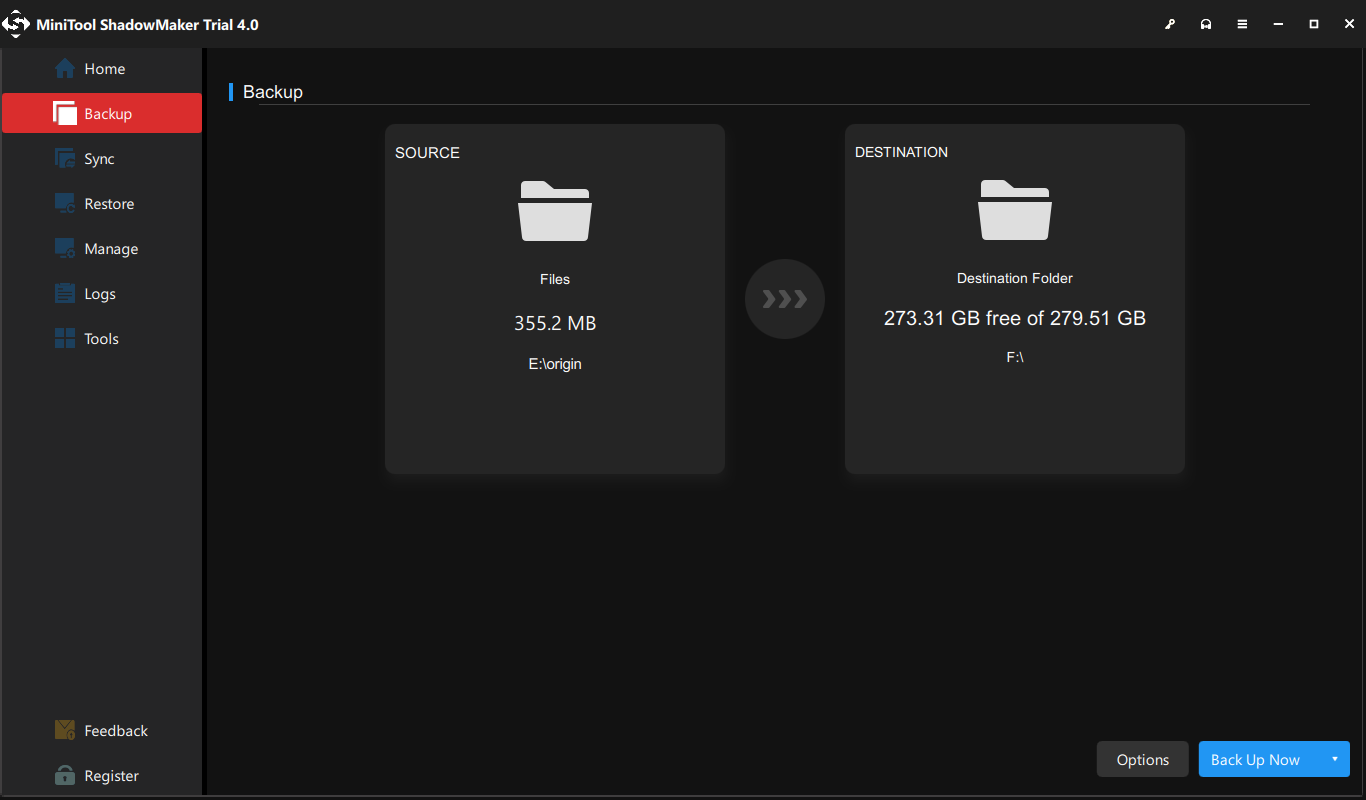
After all steps are finished, you have backed up your files and they are in a safe state. If some accidents happen, you can restore the image and recover your lost files. What’s more, other people can’t access the content of the image file unless using MiniTool ShadowMaker to restore them.
Besides this Backup feature, MiniTool ShadowMaker also provides another feature for you to sync files and safeguard your files. It is the Sync feature. It allows you to sync your files to another location so as to keep them safe.
In addition, MiniTool ShadowMaker is designed to back up the operating system. It allows you to create a system image. If your computer has some problem such as a system crash, you can restore your computer to an earlier state with the system image.
So, do I need OneDrive? You may already have the answers. OneDrive only allows you to sync some files, photos, Windows settings, or the files but you can’t use it to back up the operating system. And the free storage space is limited. In other words, OneDrive is not necessary on your computer. For backing up files, you can choose MiniTool ShadowMaker which has more features than OneDrive.
Of course, MiniTool ShadowMaker is a piece of 100% safe backup software. It comes with no bundles and no advertisements. MiniTool ShadowMaker is easy to use even for those inexperienced people.
Bottom Line
Microsoft OneDrive is optional for most Windows users. It works well for cloud storage, file synchronization, and Microsoft 365 integration, but it isn’t required to run Windows.
If cloud syncing doesn’t fit your workflow, you can safely disable or remove OneDrive and use another backup solution that better matches your needs.
Additionally, if you encounter issues or have any suggestions while using MiniTool ShadowMaker, contact [email protected].
Do I Need Microsoft OneDrive FAQ
About The Author

Position: Columnist
Charlotte is a technology columnist with a strong focus on the Windows operating system, specializing in disk management, backup, and data recovery. She is passionate about analyzing computer errors, identifying root causes, and delivering practical solutions. In her free time, she stays updated on the latest developments in computer systems and hardware while continuously learning new technologies to broaden her expertise. Her writing style is clear and easy to understand, making complex technical topics accessible even to users with limited computer knowledge.
User Comments :