
FAULTY HARDWARE CORRUPTED PAGE can be triggered by software-related issues and hardware-related issues. To fix it, try performing a memory test, running SFC and DISM scan, scanning for viruses, and other methods. To know more, read this post from MiniTool.
What Is FAULTY HARDWARE CORRUPTED PAGE
The FAULTY_HARDWARE_CORRUPTED_PAGE error is a Blue Screen of Death (BSOD) issue that occurs in Windows 10 and 11, with a bug check value of 0x0000012B. It often indicates a serious problem with your computer’s hardware.
This critical error can appear without any warning, causing your system to stop functioning in order to prevent further damage. When this error occurs, your PC can display a message indicating that it has encountered a problem and needs to restart.
What Causes FAULTY HARDWARE CORRUPTED PAGE in Windows 10/11
Various reasons may cause the stop code FAULTY HARDWARE CORRUPTED PAGE, including:
- Faulty RAM: There is something wrong with the computer’s random-access memory (RAM), such as defective or poorly seated RAM sticks.
- Corrupted or outdated drivers: Outdated or incorrect drivers can cause memory corruption and conflicts, such as the Intel Management Engine Interface (IMEI) driver.
- Hard drive issues: Hard drive errors, such as bad sectors or corruption, can also lead to this error.
- Overheating: Overheated components may become unstable, increasing the risk of errors.
- Corrupted system files: Corrupted system files may also trigger the error.
- Malicious software: Malicious software or a virus can damage system files. This may also cause the error.
- Corruption in Registry: Corruption in the Windows registry occurs due to a recent software change.
- Problematic Windows Update: A Problematic Windows update may cause problems while installing or after installing, resulting in a BSOD error.
- Corrupted program installation/uninstallation: An improperly installed or uninstalled program or application may cause errors in the PC, including a BSOD error.
- Hardware issues: There is something wrong with the Graphics Processing Unit (GPU) or other hardware.
- Enabled Fast Startup: The enabled Fast Startup may trigger the error sometimes.
Suggestion: Back Up Important Data
BSOD is a critical system error that can unexpectedly halt operations, potentially corrupting or deleting unsaved files. It can also indicate a failing hard drive, which may lead to permanent data loss.
Therefore, you must back up your important data when you first encounter the BSOD error on your computer. To do that, it is highly recommended to use MiniTool ShadowMaker. It is Windows backup software that can help you perform data backup and recovery with ease.
If you are unable to boot into the normal Windows desktop, do the following steps to back up your important files:
Part 1. Create MiniTool Bootable Media
Step 1. Download and install MiniTool ShadowMaker on another normal Windows PC.
MiniTool ShadowMaker TrialClick to Download100%Clean & Safe
Step 2. Connect a USB flash drive to this PC. Then, launch MiniTool ShadowMaker, register for a Pro or higher edition, and then enter its main interface.
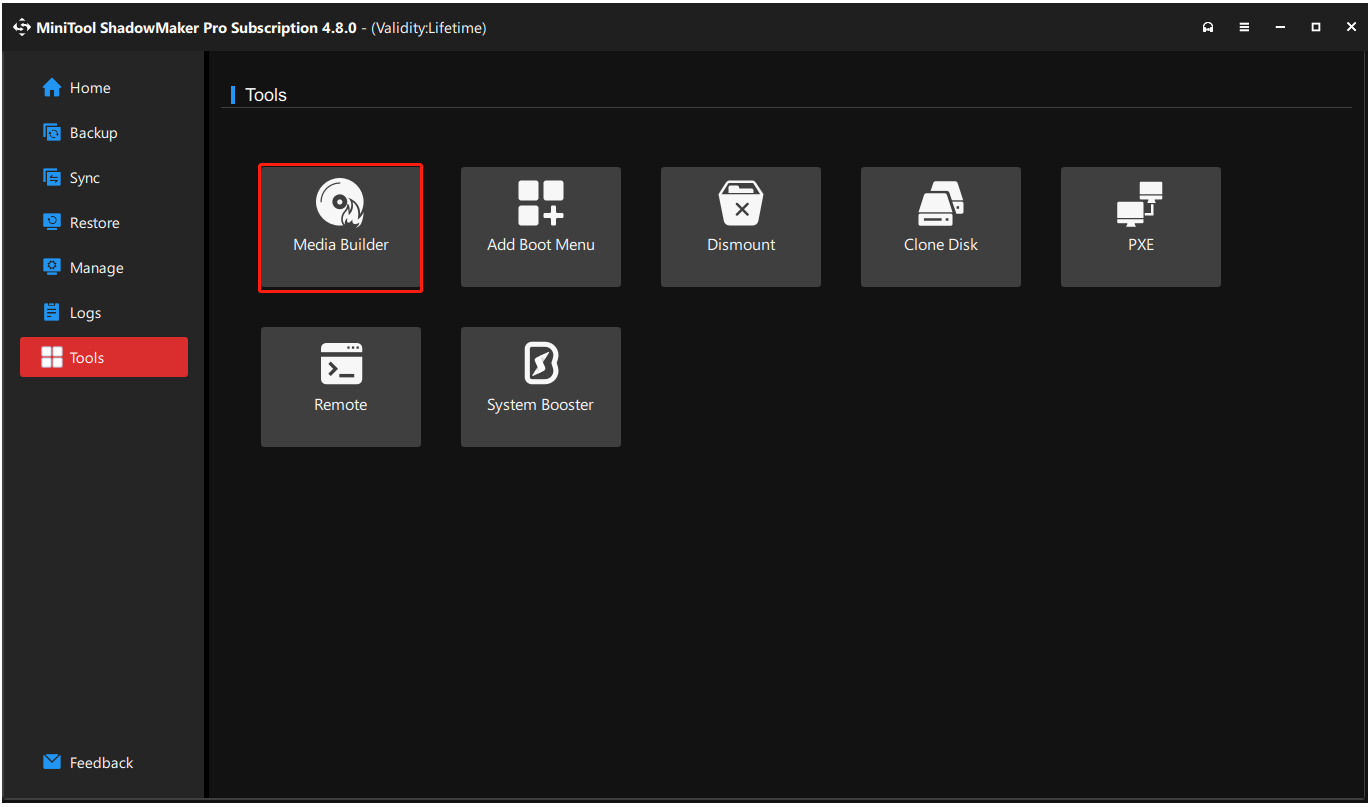
Step 3. Navigate to the Tools tab and select Media Builder.
Step 4. In the MiniTool Media Builder window, click WinPE-based media with MiniTool plug-in.
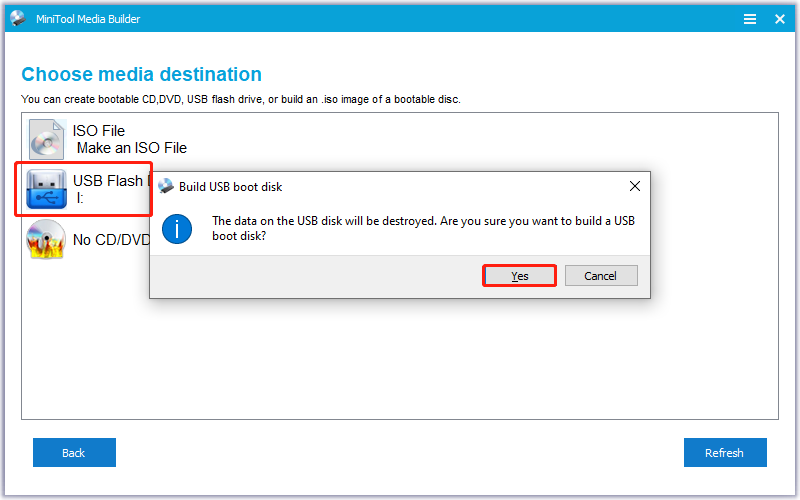
Step 5. Select USB Flash Disk from the list and click Yes in the prompt window to confirm to create a bootable USB drive.
Step 6. Once the process is complete, click Finish to exit the window.
Part 2. Boot with the Created USB Bootable Drive
Step 1. Connect the newly created USB bootable drive to your computer.
Step 2. Boot your PC into the BIOS menu.
Step 3. Go to the Boot tab and make your PC boot from the USB drive. To adjust that, use the arrows to select the target drive, and then press F10 or another specific key to save the changes. Next, press Enter to confirm.
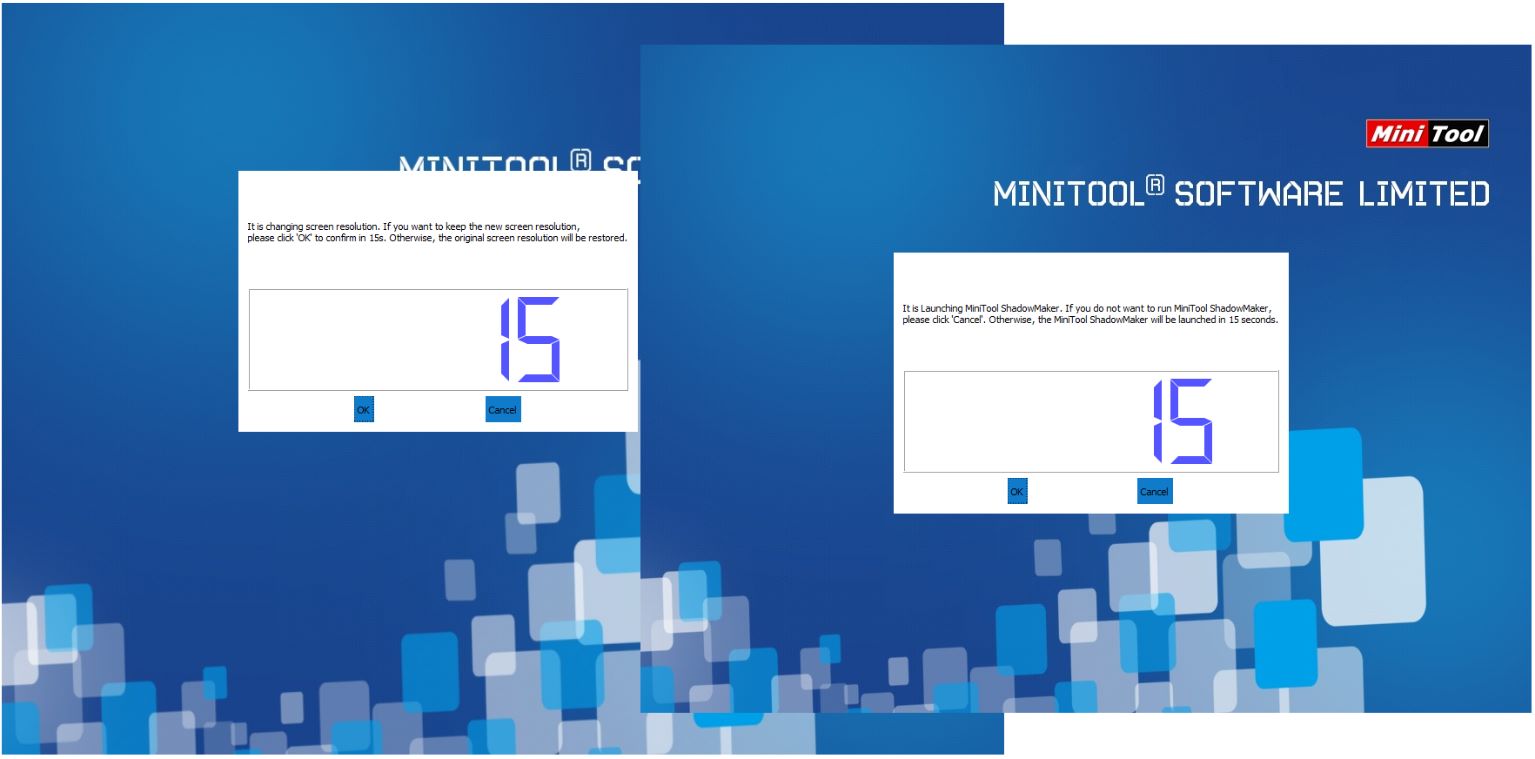
Step 4. When your PC is in the startup process, a window will pop up asking if you want to change your screen resolution. Do nothing if you don’t want any change.
After that, a prompted window appears and says it is going to launch MiniTool ShadowMaker. Click OK or do nothing to confirm to open it.
Part 3. Back up Important Data
Step 1. In MiniTool ShadowMaker’s main interface, select Backup from the left panel.
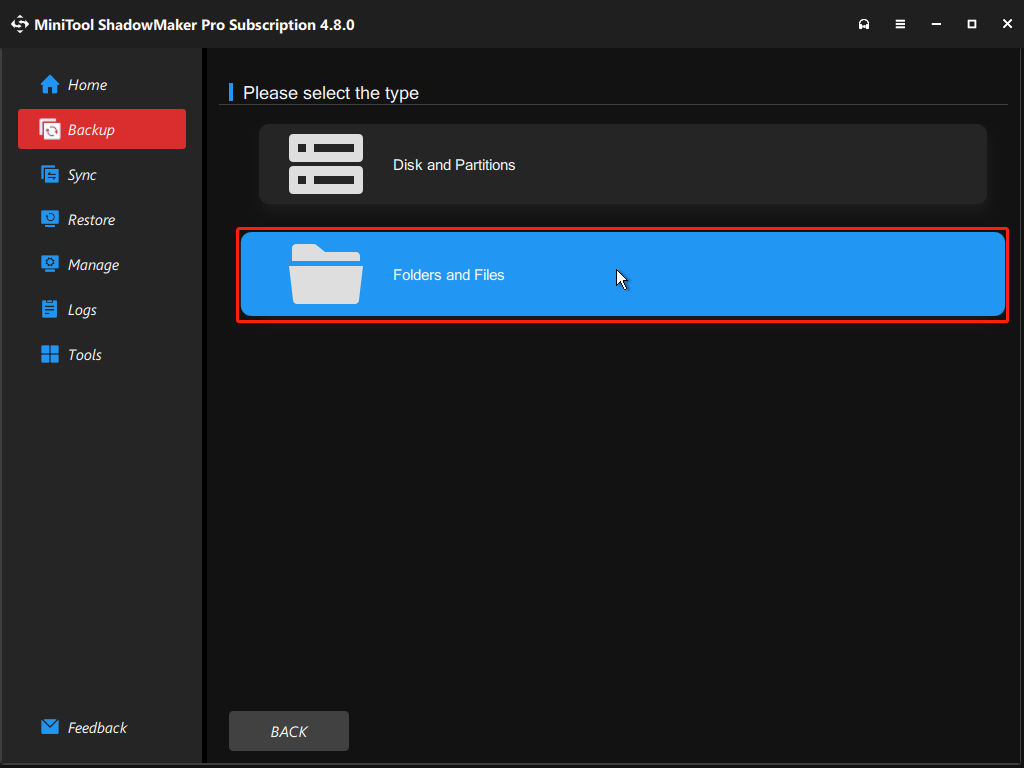
Step 2. Go to SOURCE and select Folders and Files.
Step 3. Choose the files that you want to back up and click OK.
Step 4. Go to DESTINATION, select a target location to save the backup file, and then click OK.
Step 5. Click Back Up Now and OK sequentially to confirm to execute the backup operation.
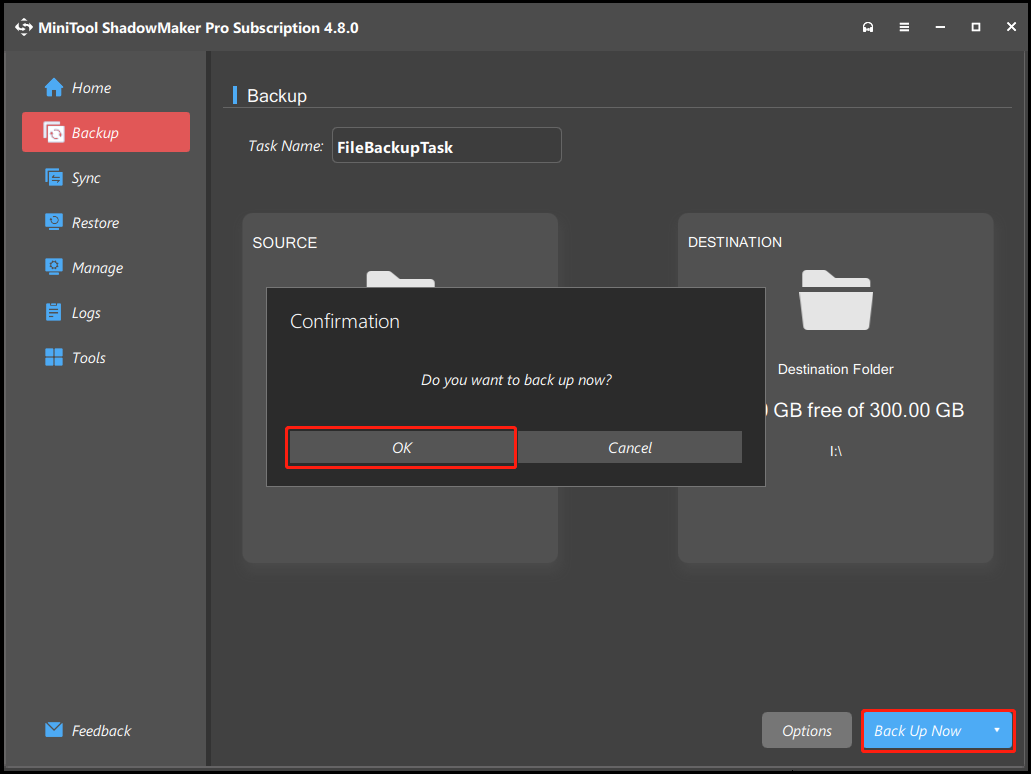
Once done, all the selected important data are backed up successfully.
How to Fix FAULTY HARDWARE CORRUPTED PAGE in Windows 10/11
To fix the FAULTY HARDWARE CORRUPTED PAGE blue screen error, focus on two aspects: software and driver, and hardware. If the error persists, try resetting your PC.
Here’s the detailed breakdown:
Software and Driver Solutions
When you encounter the FAULTY_HARDWARE_CORRUPTED_PAGE error on your PC, try the fixes related to software and driver first.
Boot into Safe Mode
If your computer is unable to access the normal Windows interface after FAULTY HARDWARE CORRUPTED PAGE BSOD, booting into Safe Mode is necessary. Here are the detailed steps:
Step 1. Hold down the Power button for 10 seconds to turn off your PC.
Step 2. Press the Power button to turn on your PC. As soon as the PC starts to power up, hold the Power button to turn it off again. Repeat this step two or three times.
Step 3. Windows will automatically start into the Windows Recovery Environment (WinRE).
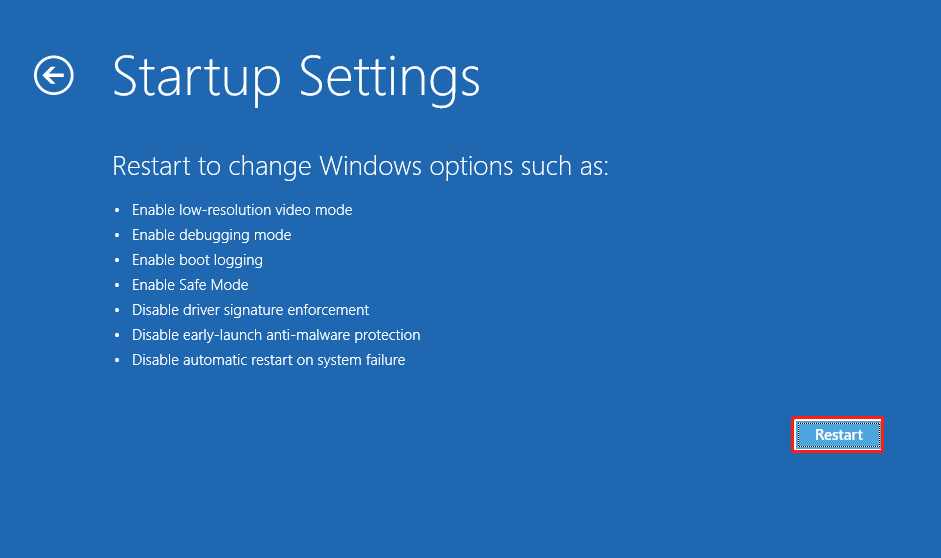
Step 4. Select Troubleshoot > Advanced options > Startup Settings and click Restart.
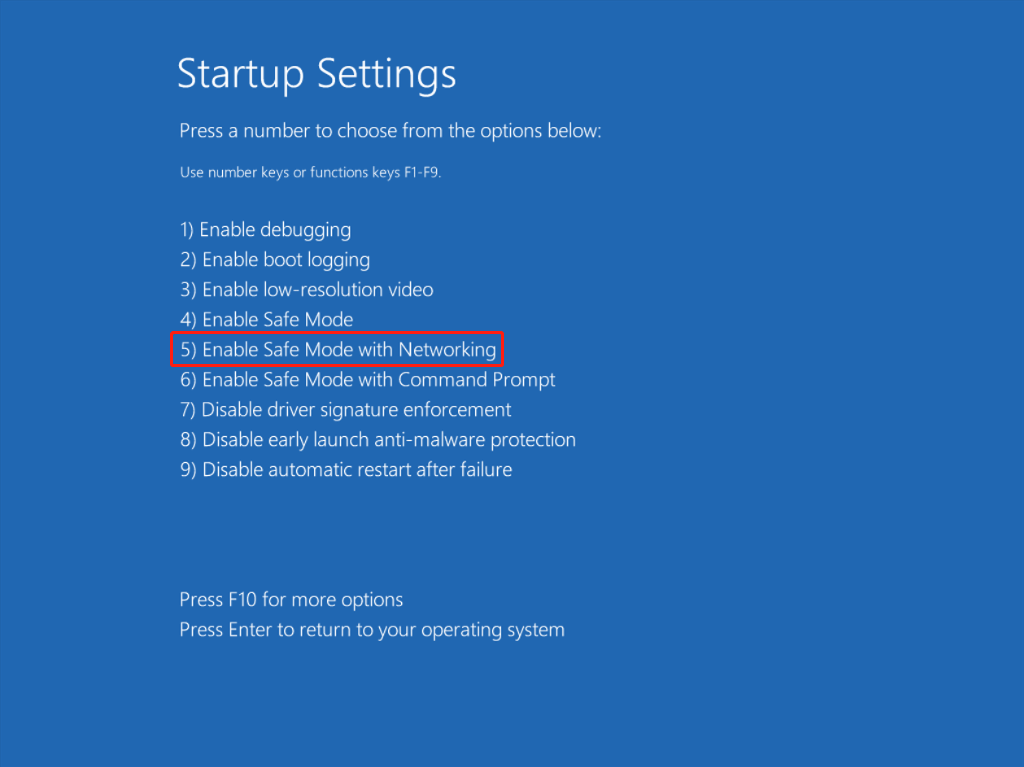
Step 5. In the next screen, press the 5 or F5 key for Safe Mode with Networking.
# 1. Update Intel Management Engine Interface (IMEI)
An outdated Intel Management Engine Interface (IMEI) is one of the main causes of FAULTY HARDWARE CORRUPTED PAGE blue screen error. If this driver on your PC is outdated as well, try updating the IMEI driver to fix the error. Here’s the guide:
Step 1. Open Microsoft Edge and navigate to your computer or motherboard manufacturer’s official website.
Step 2. Find the correct download page for your specific model.
Step 3. Look for the “Drivers & Utilities” or “BIOS and Firmware” section.
Step 4. Find and download the latest Intel Management Engine (ME) or Intel Management Engine Interface (IMEI) file for your computer.
Step 5. Extract the downloaded file and run the update tool, which is often named something like MEUpdateTool.exe.
Step 6. Follow the on-screen guide to perform the update.
Step 7. Once the process is complete, restart your computer to finalize the update.
# 2. Update All Outdated Drivers
If updating the Intel Management Engine Interface (IMEI) driver does not help you fix the FAULTY HARDWARE CORRUPTED PAGE BSOD error, try using Device Manager to update all other outdated drivers easily. Here’s how to do that:
Step 1. Press Win + R to open Run, type “control panel” in the box, and press Enter.
Step 2. Set View by to Large icons, and select Device Manager from the feature list.
Step 3. Check any driver with a triangle icon. Right-click that driver and select Update driver.
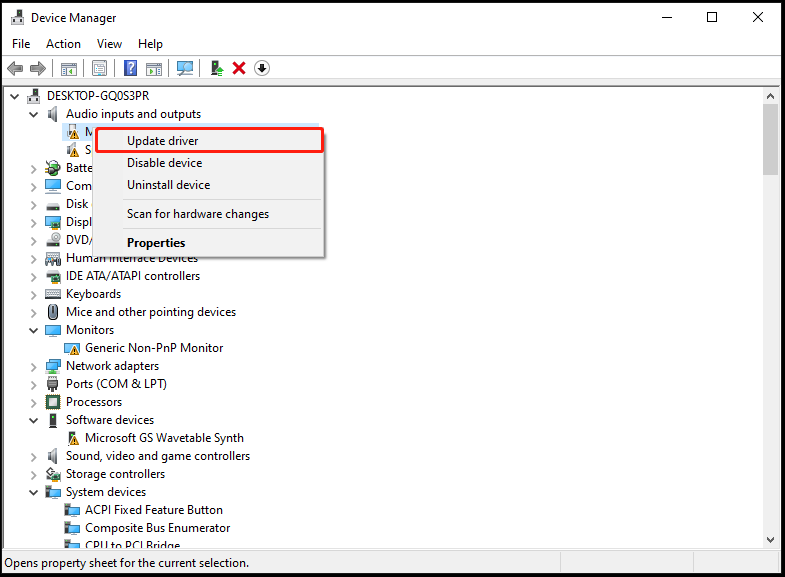
Step 4. In the Update Drivers window, select Search automatically for drivers. Then, follow the on-screen instructions to complete the update process.
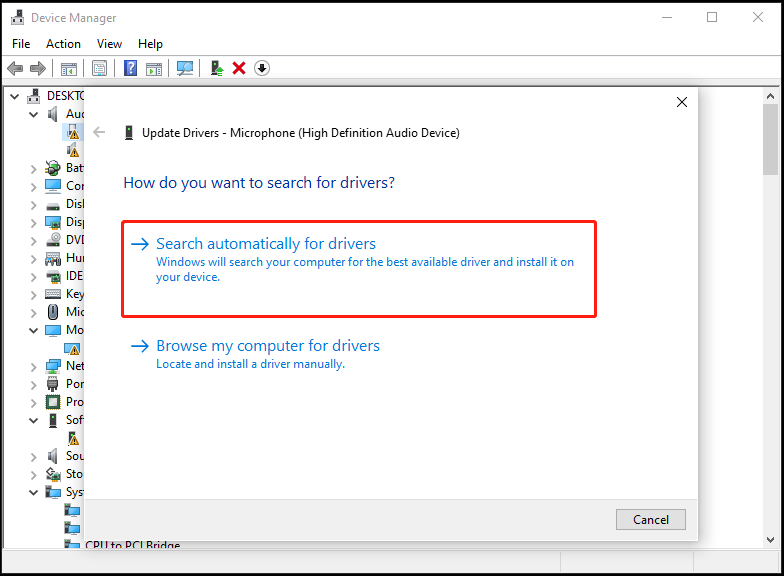
Step 5. Repeat the above steps to update all the drivers with a triangle icon.
If you encounter the error after updating drivers, try rolling back the driver to fix the error. Here’s the tutorial:
Step 1. Open Device Manager.
Step 2. Expand the category that contains the driver you want to roll back.
Step 3. Right-click the target driver and select Properties.
Step 4. Go to the Driver tab and click Roll Back Driver. Then, follow the on-screen guide to complete the process.
# 3. Uninstall the Latest Installed Update
In rare cases, the newly installed update may conflict with the software that you have installed on your PCs, leading to FAULTY HARDWARE CORRUPTED PAGE BSOD error.
If you encounter the blue screen issue after installing the latest update, try uninstalling it to fix the error. Here’s how to perform that:
Step 1. Open Control Panel, set View by to Large icons, and select Programs and Features.
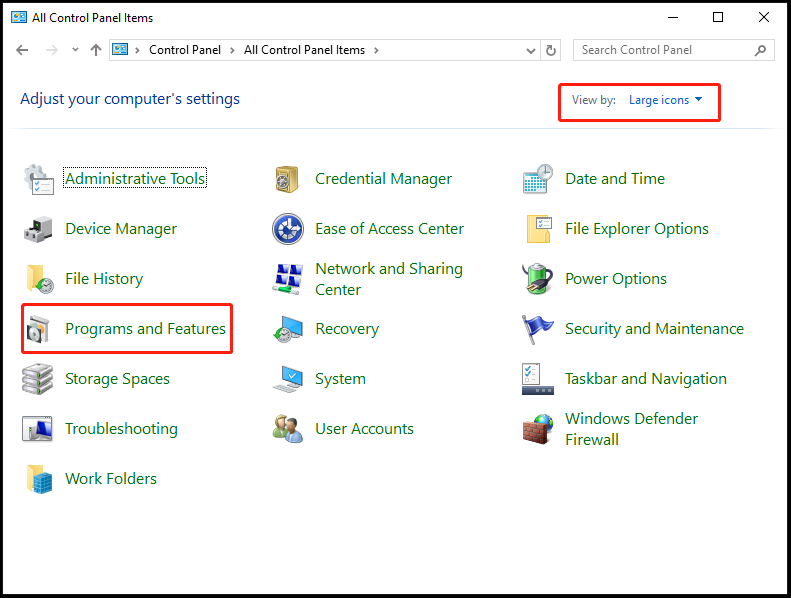
Step 2. On the next page, select View installed updates from the left panel.
Step 3. In the Installed Updates page, select the latest update, and click Uninstall. Then, click Yes in the pop-up window.
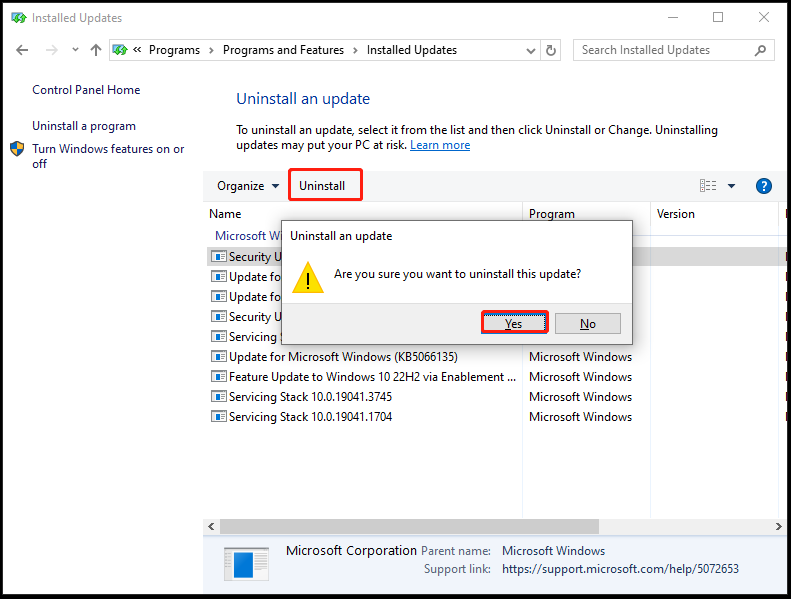
Once done, the newly installed update has been uninstalled successfully.
# 4. Use SFC and DISM
Corrupted system files may also lead to the Windows 10/11 FAULTY HARDWARE CORRUPTED PAGE error. In this circumstance, try using SFC and DISM commands to solve the error. Here’s how to do that:
Step 1. Open the Run window, type “cmd” and press Enter.
Step 2. In the elevated Command Prompt window, type “sfc /scannow” and press Enter to run the scan.
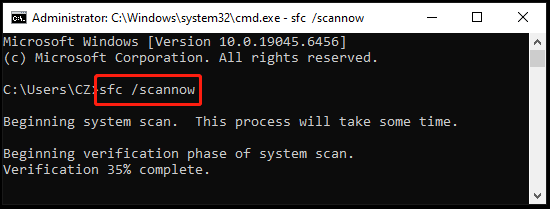
Step 3. After that, run the following DISM commands:
- DISM.exe /Online /Cleanup-Image /CheckHealth
- DISM.exe /Online /Cleanup-Image /ScanHealth
- DISM.exe /Online /Cleanup-Image /RestoreHealth
# 5. Run CHKDSK
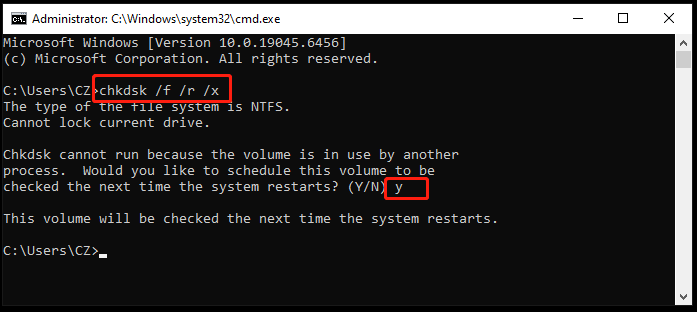
Hard drive errors can also trigger the FAULTY HARDWARE CORRUPTED PAGE blue screen error. In this situation, run the CHKDSK command to check and fix the disk errors. Here are the detailed steps:
- Run Command Prompt as administrator again.
- Type “chkdsk /f /r /x” and press Enter.
- Type Y and press Enter.
- Exit the window and restart your PC. CHKDSK will run before Windows loads.
- During the scan, CHKDSK will display its progress and any errors it finds on the screen.
Other Tips for Normal Windows
If your computer can boot into the normal Windows interface after experiencing the FAULTY HARDWARE CORRUPTED PAGE BSOD error, here are some basic tricks you should try to fix and avoid the BSOD error:
1. Disable Fast Startup
The enabled Fast Startup feature may also result in the Windows 10/11 FAULTY HARDWARE CORRUPTED PAGE error. In this case, try disabling the Fast Startup feature to fix the error. Here’s the process:
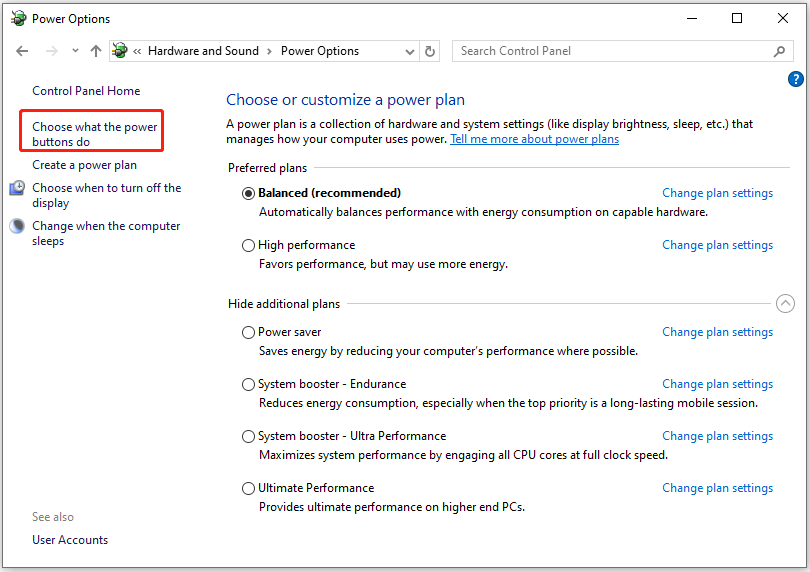
Step 1. Open the Control Panel, set View by to Category, and select System and Security > Power Options.
Step 2. Select Choose what the power buttons do from the left panel.
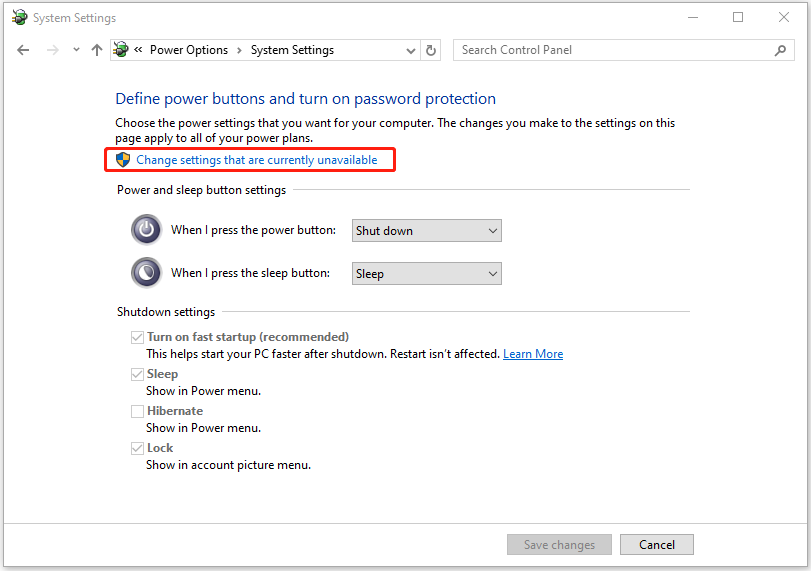
Step 3. On the next page, click Change settings that are currently unavailable.
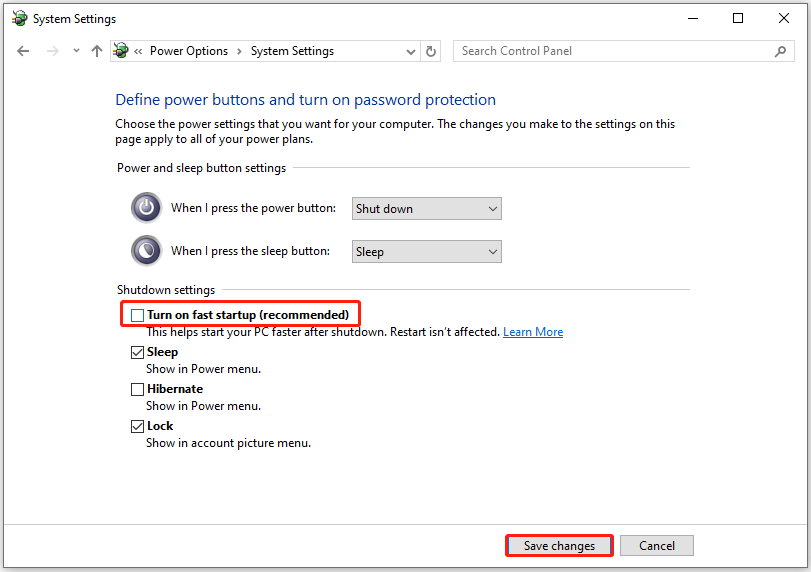
Step 4. Uncheck the box of Turn on fast startup (recommended) and click Save changes.
2. Scan for Malware
Viruses and other malicious software can corrupt system files and lead to the FAULTY_HARDWARE_CORRUPTED_PAGE error. If you suspect the error on your PC is caused by a virus or malware infection, try a full scan with the following steps:
Step 1. Press Win + S to open the Search window, type “virus & threat protection” in the box and press Enter.
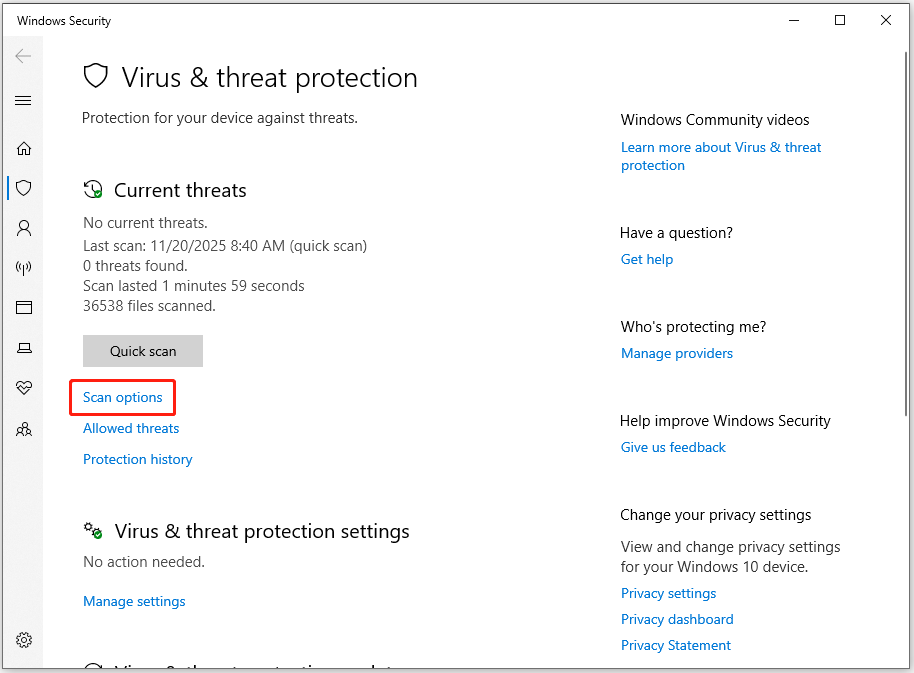
Step 2. Click Scan options in the prompted Virus & threat Protection page.
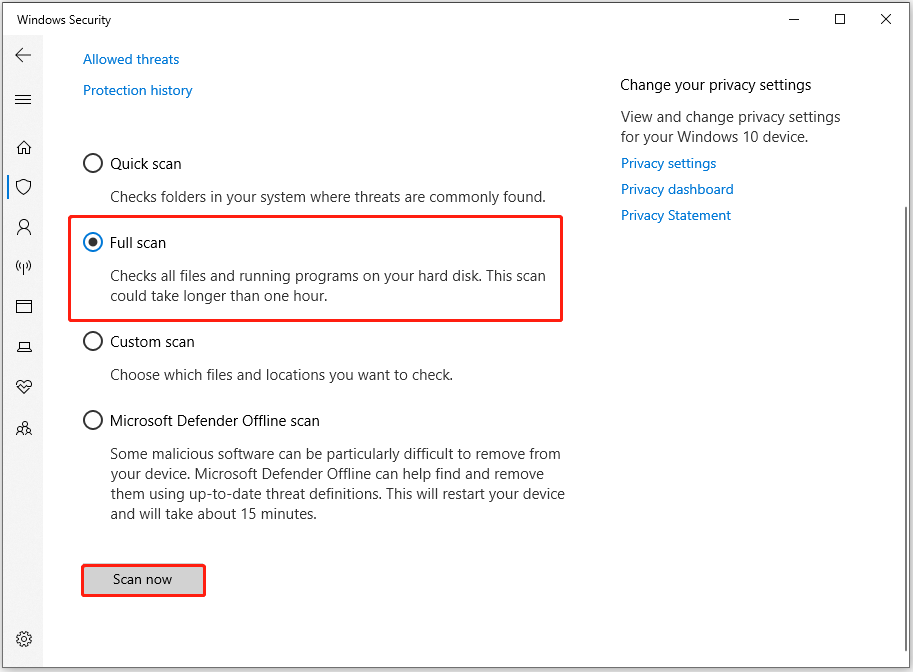
Step 3. On the next page, select Full scan and click Scan now.
3. Update Windows
Sometimes, outdated Windows may also cause errors, including the stop code FAULTY HARDWARE CORRUPTED PAGE. In this circumstance, update Windows to solve the error. Here’s the guide:
- Press Win + I to open Settings.
- Navigate to Update & Security > Windows Update.
- Click Check for updates.
- If there are updates available, update them.
Hardware Solutions
If you still encounter the FAULTY HARDWARE CORRUPTED PAGE error in Windows 10/11 after trying all the solutions above, try checking and fixing hardware issues to solve the error.
Method 1. Remove Recent Hardware
If you run into the FAULTY HARDWARE CORRUPTED PAGE error after connecting some hardware to your computer, try removing recent hardware to troubleshoot the error. To find out the culprit, do the following steps:
- Remove all the recent hardware.
- If the error is fixed, connect one device at a time to check if the error occurs again.
- Once the error occurs again, the culprit is found and consider removal.
Method 2. Run the Windows Memory Diagnostic Tool
Faulty RAM may also cause the FAULTY HARDWARE CORRUPTED PAGE blue screen error. In this situation, run the built-in Windows Memory Diagnostic Tool to check RAM issues. Here’s the guide:
Step 1. Press Win + R to open Run, type “mdsched.exe” in the box, and press Enter.
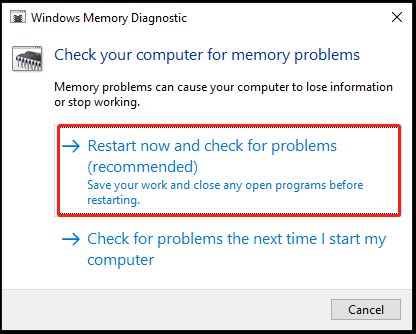
Step 2. Select Restart now and check for problems (recommended) in the prompted Windows Memory Diagnostic window.
Step 3. Once the test is complete, the PC will restart automatically. Then, check the results in Event Viewer. If there are any serious errors with the RAM, consider replacing it.
Method 3. Check for Overheating or Overclocking
Overheating or overclocking can also cause the faulty hardware corrupted page BSOD error. For an overclocking PC, revert the settings to their default values to fix the error. For an overheating PC, do the following:
- Clean the dust from fans and vents
- Improve airflow
- Reduce the workload
- Turn off the PC
- Lower screen brightness or graphics settings
- Clean internal components
- Reapply thermal paste
- Upgrade your cooling system
If the Problem Persists
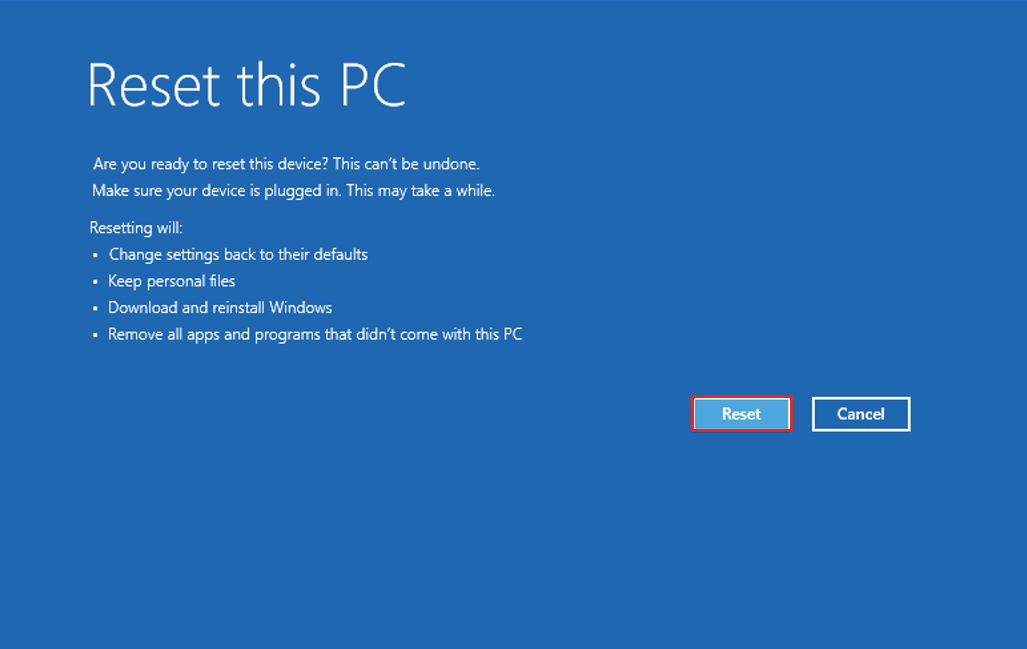
Resetting the PC can fix many software and configuration issues, including the FAULTY_HARDWARE_CORRUPTED_PAGE error. If none of the above methods can help you fix the error, please do the following steps to reset the PC:
Step 1. Boot your computer into the WinRE environment.
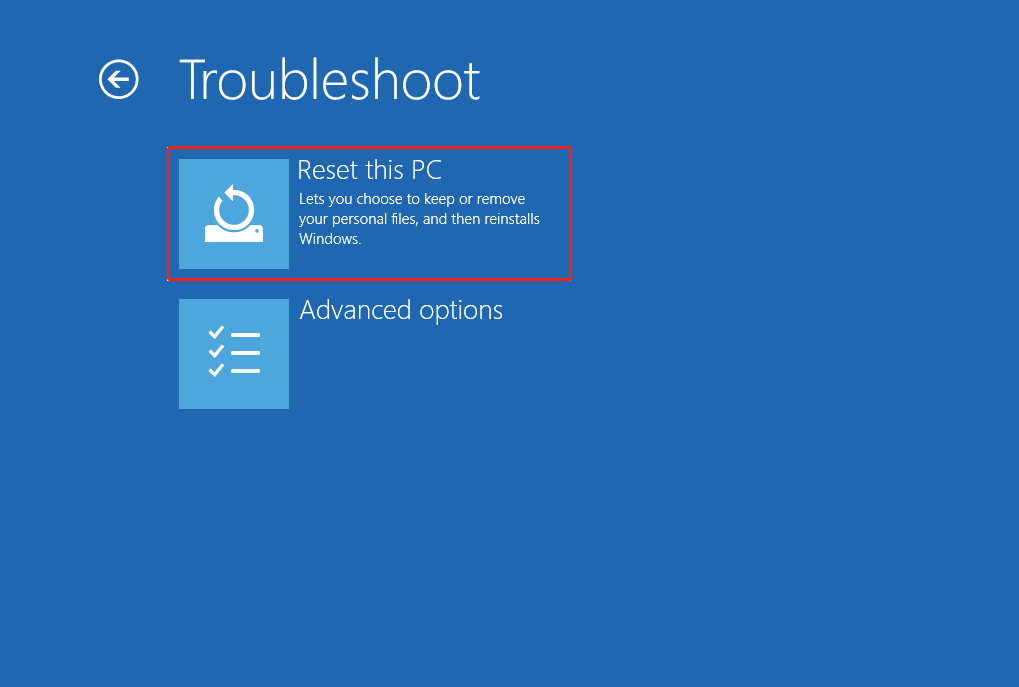
Step 2. Select Troubleshoot > Reset this PC.
Step 3. In the Choose an option screen, choose from Keep my files and Remove everything according to your needs.
- Keep my files: Removes apps and settings, but keeps your personal files.
- Remove everything: Removes all your personal files, apps, and settings.
Step 4. Select your account and enter a password. Then, choose Local Reinstall or Cloud Download. Cloud Download is a good option if you have a stable internet connection.
Step 5. Confirm your choice and click Reset to begin the process. It may take some time, and your PC will restart.
In Conclusion
After reading this post, you may already know the causes of the FAULTY HARDWARE CORRUPTED PAGE BSOD error and get some effective solutions. Before trying the mentioned methods to fix the error, back up important data to avoid data loss by using MiniTool ShadowMaker.
When facing an issue with this MiniTool software, contact us by sending an email to [email protected].
FAULTY HARDWARE CORRUPTED PAGE FAQ
If the problem persists, utilize built-in or third-party diagnostic tools to test individual components such as RAM and hard drives, and replace any that are malfunctioning.
However, some older motherboards may not boot up without the battery installed.
About The Author

Position: Columnist
Charlotte is a technology columnist with a strong focus on the Windows operating system, specializing in disk management, backup, and data recovery. She is passionate about analyzing computer errors, identifying root causes, and delivering practical solutions. In her free time, she stays updated on the latest developments in computer systems and hardware while continuously learning new technologies to broaden her expertise. Her writing style is clear and easy to understand, making complex technical topics accessible even to users with limited computer knowledge.
User Comments :