
This guide explains why games keep crashing on Windows 11/10 and shows several practical ways to resolve this issue. Start with basic troubleshooting steps, then move on to advanced fixes to restore a smoother gaming experience.
Quick Answer
Games may keep crashing on Windows 11/10 because of corrupted game files, outdated graphics drivers, overheating, or insufficient system resources.
If only one game crashes, check the game files and system requirements. If several games crash, check the GPU driver, free up system resources, stop overclocking, and update Windows.
All Games Crashing on PC Windows 11/10
When playing games on Windows 11/10, one or multiple games may keep crashing. As a result, you may lose game progress and achievements. This is not fresh news. Sometimes a simple restart could solve the issue, however, that wasn’t always the case.
Before finding solutions to PC games crashing, it is necessary to figure out the possible reasons for this.
- PC has been overclocked
- PC specifications are too low and cannot meet the system requirements of games
- Game settings are not correct
- The graphic card requires too much power
- The graphics card driver is outdated
- Games are running in the wrong mode
- Windows operating system is outdated
- The internet connection is slow
- Digital Rights Management (DRM) issues
- Too many open browser tabs
- Your antivirus is crashing games
Next, you should take some measures to fix PC games crashing on PCs. How to stop a game from crashing depends on what is causing the game to crash. Let’s jump right in!
What should you do if your computer keeps crashing when you play games? Take it easy and find solutions from our previous post - Computer Crashes When Playing Games! – Here Are Solutions.
Fixes: Games Keep Crashing Windows 10/11
Before trying all the fixes, check the table below and start with the fix that best fits your situation.
| Situation | Recommended Fix |
| A specific game crashes repeatedly | Verify game files, update the game, or reinstall the game |
| Games crash after a driver or Windows update | Roll back the driver or uninstall recent updates |
| Games freeze, close, or crash during gameplay | Update GPU drivers, free up system resources, and check temperatures |
#1. Restart Your Computer
When games keep crashing on high-end PCs or low-end PCs, the first thing you can try is to restart the machine. If the crash is caused by high CPU usage or a random error, a restart could solve the issue. Then, play your game again and see if it can run correctly. If not, go on troubleshooting.
#2. Verify the Game Files
Corrupted game files are a common reason why games keep crashing. Try to verify your game files if this only happens with one specific game.
Take Steam as an example:
Step 1: Right-click the game in the Steam library and choose Properties > Installed Files.
Step 2: Click Verify integrity of game files.
#3. Disable Overlays and Background Apps
Overlays from Discord, Steam, NVIDIA, MSI Afterburner, and RivaTuner may interfere with games, causing them to crash after launching or during gameplay.
Try disabling overlays temporarily and check if the issue is resolved. Additionally, turn off some unnecessary background apps.
#4. Check Internet Connection
If your internet connection is slow or unstable, there may be a delay in the game client update by the remote server. As a result, PC games crashing happen, especially online games. To get the best online gaming experience, you can directly connect your PC to a router via Ethernet instead of Wi-Fi.
In some cases, internet connection issues can cause Digital Rights Management (DRM) to impact the game performance or remote server status, leading to all games crashing on PC.
In this situation, you can play a game offline if it offers the available option. This operation can block DRM from checking with the remote server for suspicious activity in the account or game.
MiniTool System Booster TrialClick to Download100%Clean & Safe
#5. Ensure Your PC Meets Game System Requirements
If your PC specifications cannot meet the minimum system requirements of your game, chances are that games keep crashing on Windows 10/11 during scenes that require heavy resources. Thus, do some checks.
You can go to the official documentation or FAQs of games to verify the minimum requirements. If you buy a steam game or buy a game on a similar platform, you can read the game’s description to check the requirements. To buy a video game from a brick-and-mortar store, the minimum and recommended system requirements can be found on the back of a video game box.
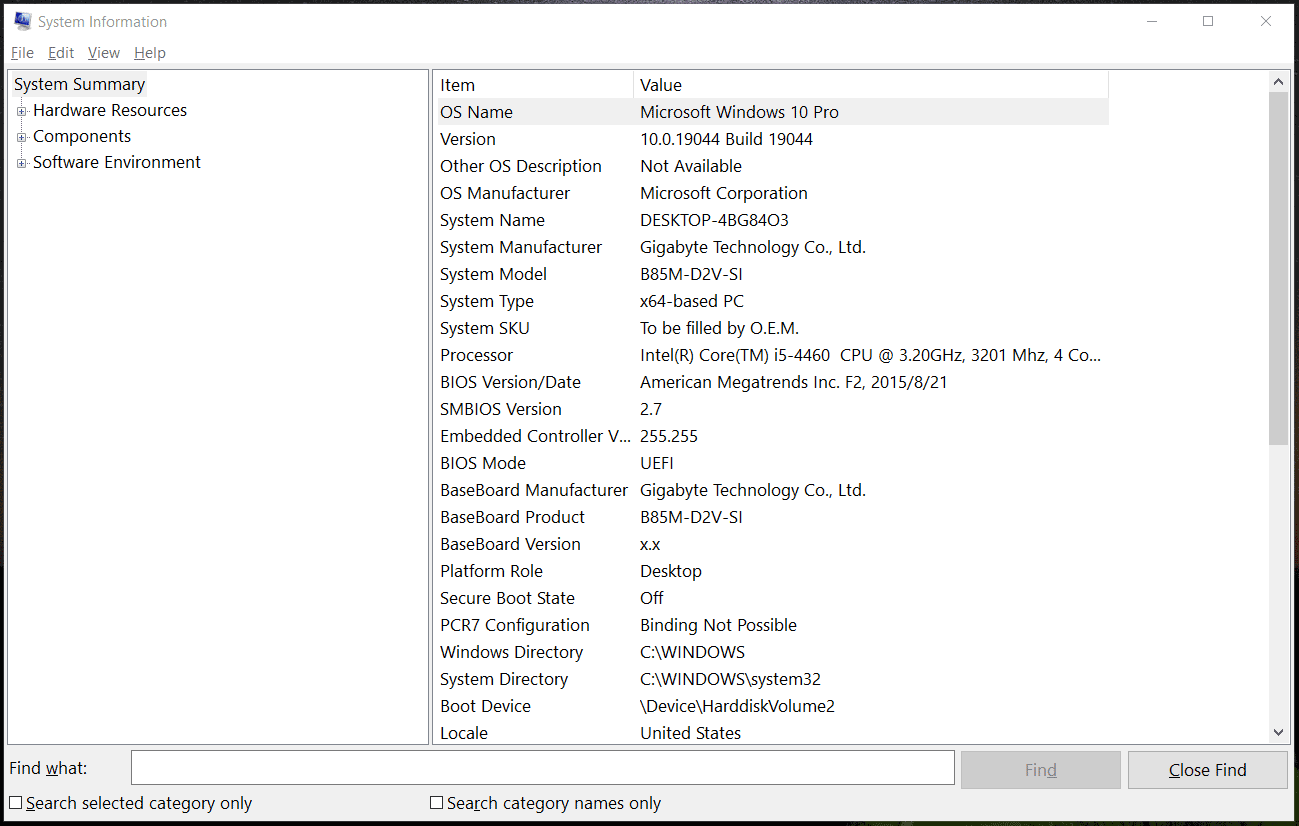
Besides, you can check your PC specifications. Just go to click the search bar, type in System Information, and choose the result to open this app. Under the System Summary page, you can find much information about your PC.
#6. Stop Overclocking
CPU and GPU overclocking can help to observably improve game performance when coupled with good ventilation and cooling. Even so, overclocking isn’t a perfect way to boost performance since the game could crash.
If you overclock your CPU or GPU, reverse the change you have made depending on the overclocking software you are using. Then, restart your PC to check if the crash issue is addressed. If not, all games crashing on PC is caused by other things.
Related post: Is It Good to Overclock Your CPU? Let’s Figure It out
#7. Update Windows 10/11
Games keep crashing due to an incompatible Windows operating system and keeping Windows up-to-date could be a good option since this may bring many bug fixes. So, have a shot – update Windows 10/11 to its latest version.
Step 1: Press Win + I to open Settings.
Step 2: Navigate to System > Windows Update.
Step 3: Check for available updates. If some are detected, download and install them on your computer.
After that, run a game to see if it still crashes.
#8. Update Or Roll Back Graphics Card Driver
Games run on your PC primarily with graphics capabilities besides CPU and RAM. This means the GPU decides how smoothly a game can run on the PC. If the graphics card driver is outdated or corrupted, PC games crashing could happen unexpectedly. Therefore, it is necessary to update your graphics card driver.
To do this work, you can go to Device Manager, expand Display adapters, right-click on your GPU, and choose Update driver. Choose Search automatically for drivers and Windows will search your computer for the best driver and install it.
Alternatively, you can visit the official website of your GPU’s manufacturer, search for the latest graphics card driver, and download & install it on your PC.

If games started crashing after a driver update, rolling back to the previous stable driver instead of installing a new version can help.
#9. Run Games in Game Mode
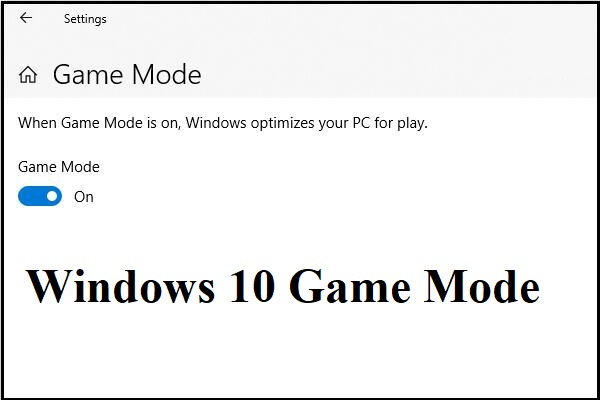
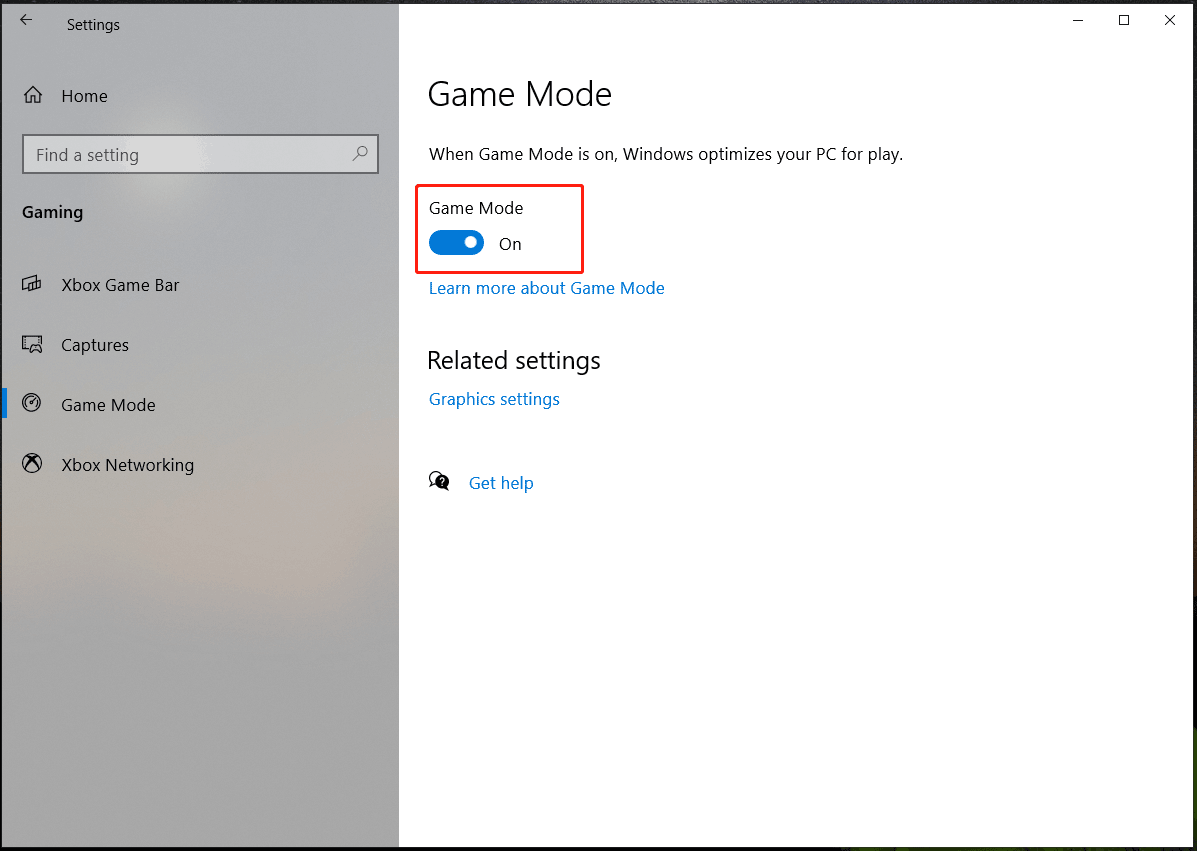
In Windows 10/11, there is a feature called Game Mode. Once it is enabled, Windows can optimize your PC for play. Thus, if Steam games keep crashing, you can enable this feature.
Step 1: Open Windows Settings by pressing Win + I.
Step 2: Then, go to Gaming > Game Mode. Switch the toggle to On.
#10. Check Your Antivirus Software
Any programs and services running in the background could impact game performance and your antivirus software is not an exception. But there is a bit of difference – the antivirus program is actively looking for suspicious files. Sometimes these files are scanned, leading to PC hanging or freezing. Sometimes a legitimate game file is identified as harmful and quarantined, as a result, PC games crashing appears.
How to stop games from crashing in this case?
- Disable or reduce the level of scanning files when gaming.
- Use security software that has a game mode.
- If games keep crashing again, disable your antivirus program.
Besides, PC games may crash if the PC is infected by malware or viruses. Thus, keep the antivirus software up-to-date and perform a system scan automatically.
#11. Create an Exclusion in Windows Defender
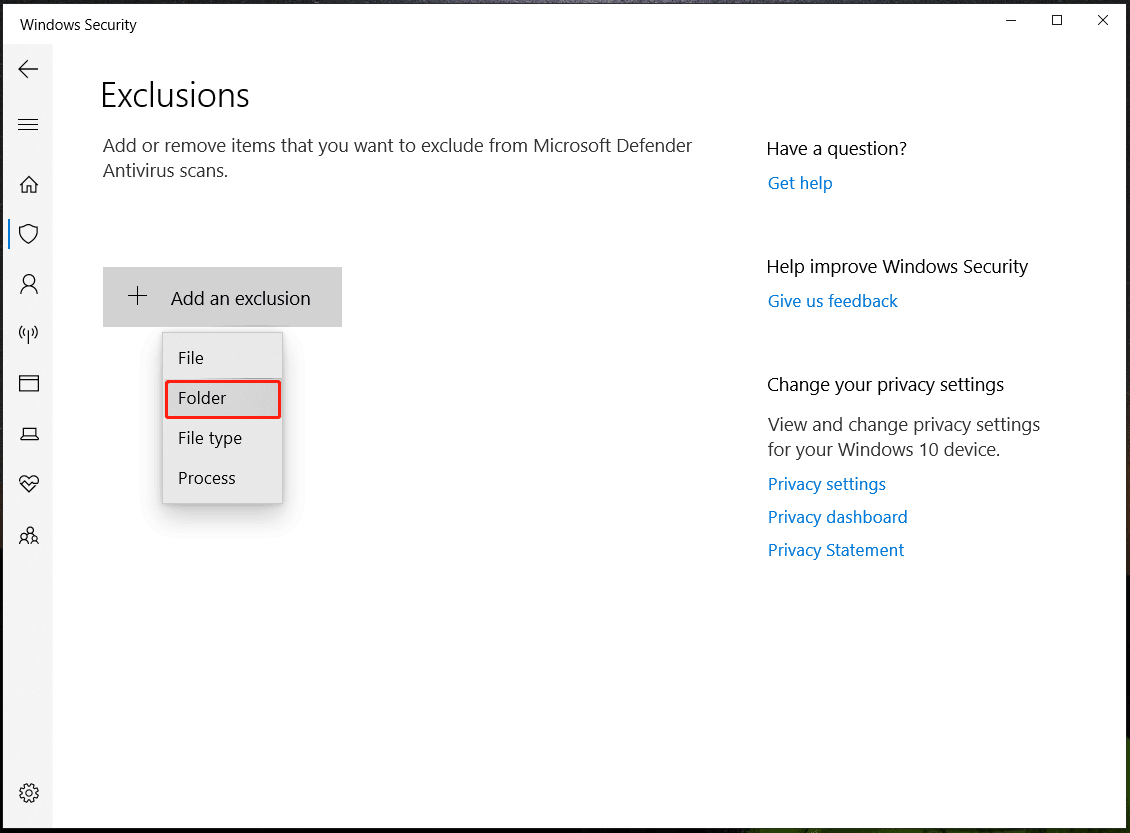
If you are using Windows Defender, you can add an exclusion to prevent the antivirus program from flagging the game files as malware, causing PC games to crash. How to fix games crashing on PCs in this way? See the steps below.
Step 1: In Windows 11/10, open the search box, type Windows Security into the text, and open this app by clicking the result.
Step 2: Click Virus & threat protection and choose Manage settings under Virus & threat protection settings.
Step 3: Under the Exclusions section, click Add or remove exclusions.
Step 4: Tap on Add an exclusion, choose Folder and select the game directory from your PC.
#12. Check Temperature and Power Supply
Overheating or unstable power delivery may cause games to crash or freeze during gameplay.
Check your CPU/GPU temperatures and ensure the PC has proper airflow.
If needed, you can upgrade to a PSU that can offer enough power to play games.
Besides, make sure there is no dust on the graphics card and PC interior since dust or particles could cause high temperature and additional load on the GPU and CPU, leading to performance issues like PC games crashing. What’s more, check if there are loose or frayed PSU cables.
In addition to these ways, you can also try some tips to stop a game from crashing:
- Run game with admin rights
- Try a faster VPN
- Avoid using a VPN to access a specific server
- Check game graphics settings, for example, lower the game settings in the video configuration screen
Back Up Important Game Data
Repeated crashes can put your game saves at risk, so backing them up is important. MiniTool ShadowMaker can help easily back up your important game data.
This tool is designed to create a backup for files, folders, selected partitions, disks, and Windows operating systems including Windows 11/10. Automatic backup, incremental backup, and differential backup are supported. Besides, you can use MiniTool ShadowMaker to sync files and folders, as well as clone a hard drive to another disk for disk backup or upgrade.
To back up your crucial data in Windows 11/10 when games keep crashing on PC, follow the steps below.
Step 1: Click the following button to download MiniTool ShadowMaker and use the installer to finish the installation.
MiniTool ShadowMaker TrialClick to Download100%Clean & Safe
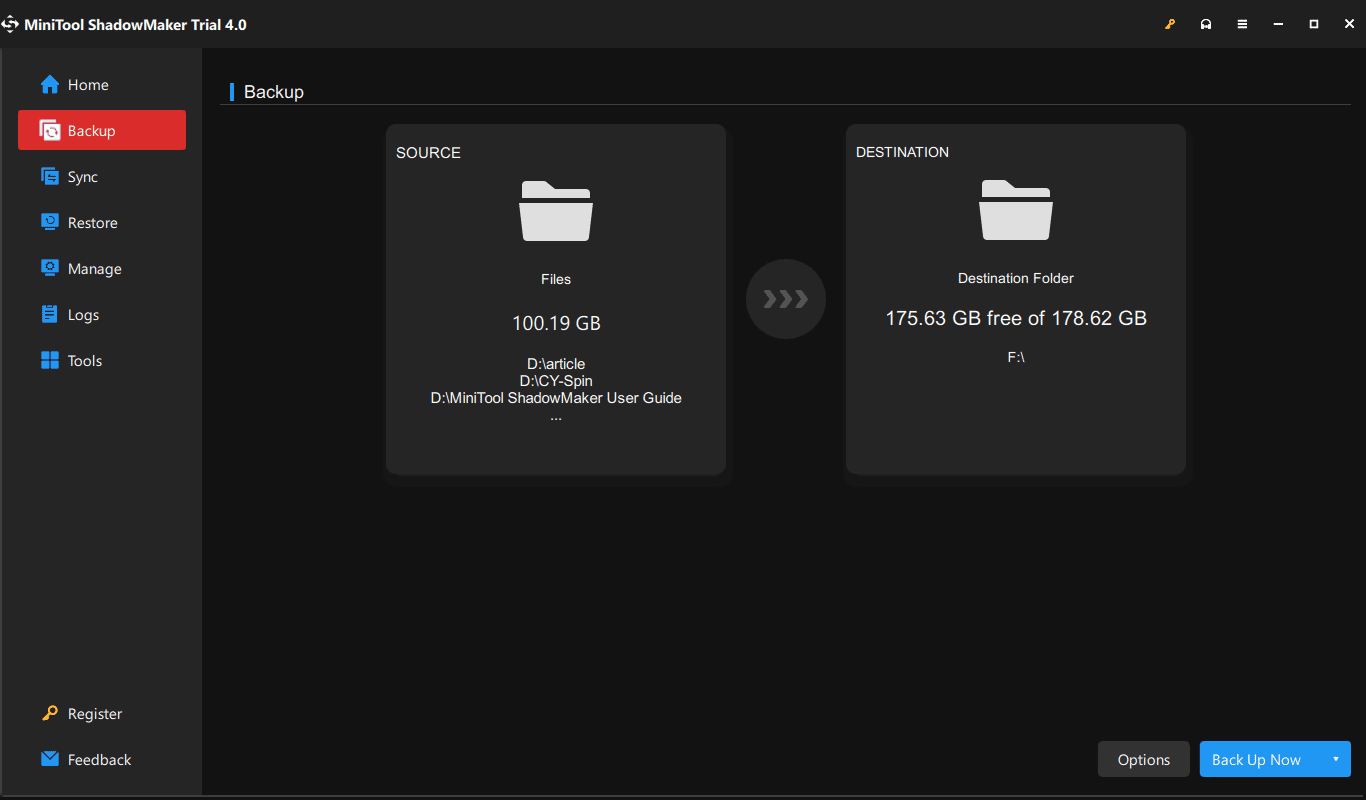
Step 2: Launch this backup software and click Keep Trial.
Step 3: Go to Backup, click SOURCE > Folders and Files to choose items to back up.
Step 4: Click DESTINATION to choose a target to save the backed-up file. An external hard drive or USB flash drive is recommended.
Step 5: Click Back Up Now.
In addition to the prevention measure – backup when games keep crashing on Windows 11/10, there is a remedial measure. If you don’t back up data but lost it after PC games crash, you can recover lost files with MiniTool Power Data Recovery.
The End
Why does my game keep crashing? How to stop a game from crashing on a PC? If you run into the case – games keep crashing Windows 10/11, you come to the right place and here potential reasons & solutions are introduced. Try one or more to easily get rid of the crashing issue during games.
If you have any idea on how to fix games crashing on PC, welcome to leave a comment below to let us know. Of course, additional ways to address this annoying issue are welcome.
Game Keeps Crashing on PC FAQ
About The Author

Position: Columnist
Vera has been working at the MiniTool Team for over 10 years as a technical editor and content writer. She mainly focuses on disk and partition management, data recovery, Windows backup and restore, and PC troubleshooting. Through in-depth software testing and hands-on experience, she has helped users solve a wide range of computer problems and better protect their data on Windows devices.
User Comments :