
The getting Windows ready stuck issue is often caused by unfinished updates, corrupted system files, disk errors, or startup problems. This guide from MiniTool explains why the problem occurs and provides step-by-step solutions to help Windows boot normally again.
“Getting Windows Ready. Don’t turn off your computer” is a familiar message during Windows updates. While this process usually wraps up in a few minutes, getting stuck on this screen for hours means something has gone wrong, and Windows is likely trapped in an update loop.
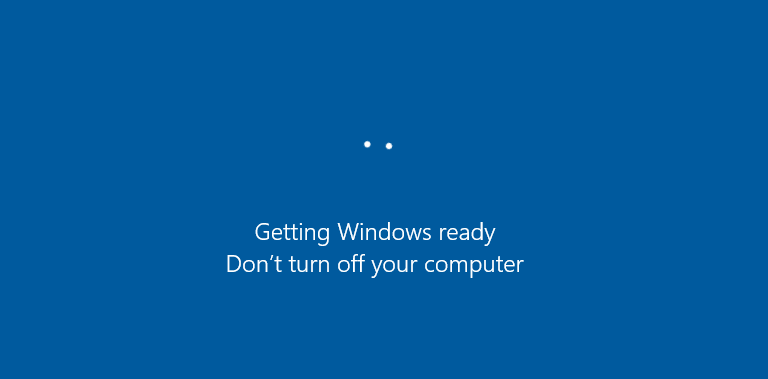
In this guide, we will break down the root causes behind this issue and provide several proven solutions to get your Windows 11 or Windows 10 system back up and running.
Quick Answer
If Windows remains stuck on the getting Windows Ready screen for more than 2 hours, the issue is usually related to:
- Windows update problems
- Corrupted system files
- Disk or storage issues
- Network connectivity problems
- Startup or hardware issues
- Software or device conflicts
In many cases, the problem can be resolved by restarting the PC, running Startup Repair, repairing system files, checking the disk, or uninstalling problematic updates.
How Long Should Getting Windows Ready Take
The time Windows remains on the “Getting Windows Ready” screen varies depending on the update being installed, your system hardware, and your network speed.
Below are the estimated wait times for several common update scenarios:
| Update Type | Typical Duration |
| Security update | 5-30 minutes |
| Monthly cumulative update | 15-60 minutes |
| Major feature update | 30 minutes to 2 hours |
What Causes the Getting Windows Ready Screen to Get Stuck
Windows may become stuck on the getting Windows ready screen because of update errors, corrupted system files, disk problems, or startup issues.
The following are common causes of getting Windows ready stuck:
| Cause | Symptoms | Recommended Fix |
| Failed Windows update | Stuck after restart | Startup Repair |
| Corrupted update cache | Repeated update failures | Reset update components |
| Damaged system files | Boot issues | SFC and DISM |
| Disk errors | Freezing or slow startup | CHKDSK |
| Insufficient storage | Update installation stalls | Free up disk space |
| Driver conflicts | Boot loop or crashes | Safe Mode troubleshooting |
Back Up Files Before Fixing the Issue
Before troubleshooting, backing up important files is essential due to 3 factors:
- Files can become corrupted if the system is interrupted during a major update.
- Windows may not load once an update fails at a critical point, blocking you from accessing files.
- Some fixes, such as reinstalling Windows, can erase existing personal data.
For file backup, use the third-party backup software, MiniTool ShadowMaker.
It is designed for Windows 11/10/8/7 and Server 2025/2022/2019/2016 to create a system image and back up files, folders, disks, and partitions.
In terms of data backup, it supports scheduled backups and differential/incremental backups, saving much time and storage space.
Follow these steps to rescue vital files:
Create Bootable Drive
Step 1: Download, install, and launch MiniTool ShadowMaker on a working computer.
MiniTool ShadowMaker TrialClick to Download100%Clean & Safe
Step 2: Upgrade to the Pro edition or above and go to Tools > Media Builder.
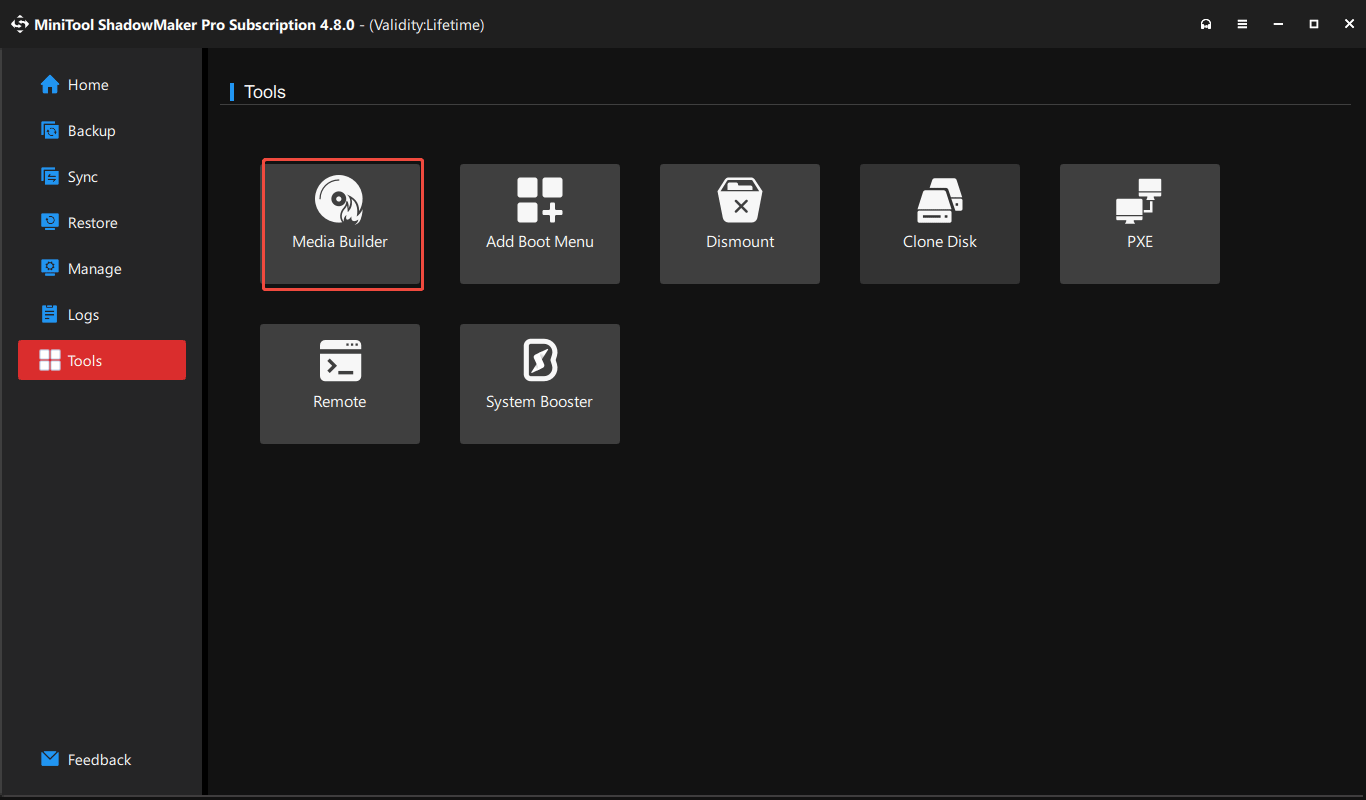
Step 3: Click WinPE-based media with MiniTool plug-in to proceed.
Step 4: Connect a USB drive to the computer, refresh the window, and choose that drive.
Step 5: Follow the on-screen wizards to create a bootable USB drive.
Boot the Stuck PC
Step 1: Insert the USB drive into the computer that is stuck on getting Windows ready. Also, connect an external hard drive or another USB drive to that PC to store backups.
Step 2: Restart it and press Del, F2, F10, or Esc to access the BIOS/UEFI menu. The exact key may vary depending on the manufacturer.
Step 3: Configure to boot Windows from that USB stick.
Back Up Data
Step 1: In the MiniTool recovery environment, follow the prompts to launch MiniTool ShadowMaker.
Step 2: Head to the Backup tab, click SOURCE > Folders and Files > Computer, and choose what you want to back up.
Step 3: Click DESTINATION and select the external drive or USB drive for backups.
Step 4: Choose Back Up Now to begin the backup task.
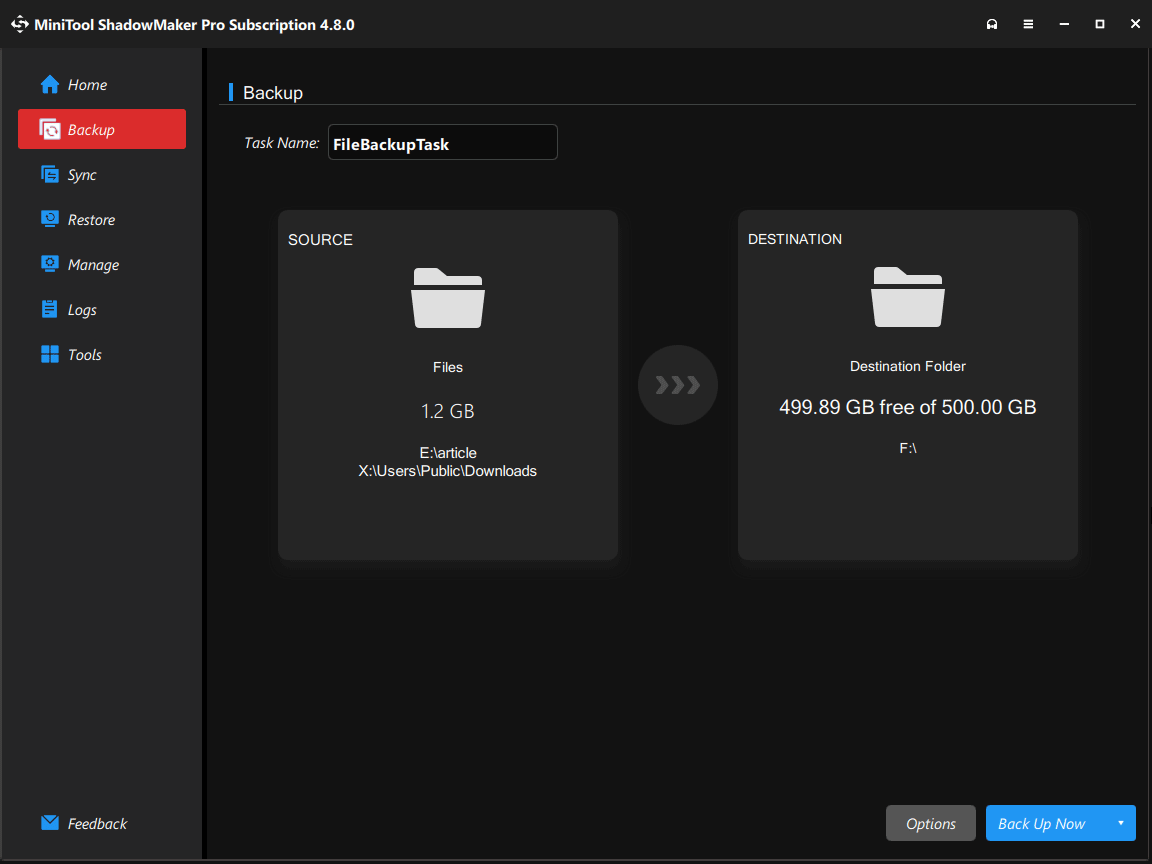
Upon the backup, proceed with the troubleshooting steps below to address the stuck issue, without worrying about data loss.
How to Fix Getting Windows Ready Stuck for Hours
To resolve the issue, first wait at least 2-3 hours to finish installing a large update.
If the computer remains stuck, force a shutdown, run Startup Repair, perform a system restore, uninstall a recent system update, and run DISM and SFC scans.
The following are detailed troubleshooting steps.
#1. Wait Patiently
The getting Windows ready screen may remain if updates are not fully installed.
You should wait patiently. It is strongly recommended to wait for at least 2-3 hours, as large updates require significant time to finish.
Additionally, if you haven’t updated Windows for more than a few months or use a low-end processor and HDD, it can take longer.
If the screen persists for over 3 hours, a force shutdown is necessary.
#2. Press Ctrl + Alt + Del to Cancel Updates
This method, recommended by a Reddit user, can effectively fix the computer stuck on getting Windows ready issue.
Try it with the step: press Ctrl + Alt + Delete on the keyboard and choose Cancel in the new interface. This action helps cancel the update temporarily.
According to users, sometimes Windows shows the update percentage after pressing Ctrl + Alt + Delete.
However, if there is no Cancel button or nothing appears after pressing the keys, the system is hanging. Try other solutions.
#3. Force a Shutdown
A hard shutdown refers to forcing power off the computer, usually performed by pressing and holding the physical power button for 5-10 seconds.
This can instantly cut power to the hardware, bypassing the operating system’s normal closing procedures, such as saving system files and closing apps.
Try this only when the device is unresponsive, completely frozen, or stuck in a loop.
Step 1: Press and hold the power button for about 5-10 seconds until the device completely turns off.
Step 2: Unplug the power cord.
Step 3: If possible, remove the battery from a laptop.
Step 4: Reinsert the power cable and battery.
Step 5: Power on the computer and check if it can pass the getting Windows ready screen.
#4. Unplug Peripherals
External devices, including USB flash drives, SD cards, hard drives, printers, and headphones, can conflict with the update process.
To resolve the getting Windows ready stuck issue, disconnect all peripherals.
#5. Check the Internet Connection
Windows updates rely on an internet connection. If you use a slow and unstable connection, the system may be stuck. Windows may be waiting for a stable network to complete the updates.
If you use Wi-Fi, ensure other devices can connect without any problems. If they don’t function properly, switch to a wired connection or restart the modem/router.
Whereafter, Windows updates proceed and start configuring files to complete updates.
#6. Run Startup Repair
Windows 10 and 11 provide a diagnostic tool called Startup Repair that can fix issues preventing the system from booting properly.
Usually, if the boot issue is caused by missing and damaged system files or corrupted boot configuration data (BCD), this utility is particularly useful.
Follow the steps below to run Startup Repair and fix the issue.
Step 1: Access Windows Recovery Environment (WinRE).
- Shut down the computer and turn it on.
- As soon as the Windows logo appears, press and hold the power button to force a shutdown before the system finishes loading.
- Turn on the PC again and repeat the forced shutdown process.
- On the third restart, the Automatic Repair screen will appear.
- Click Advanced options to enter WinRE.
Step 2: Navigate to Troubleshoot > Advanced options > Startup Repair. The tool will begin checking for problems and fixing them.
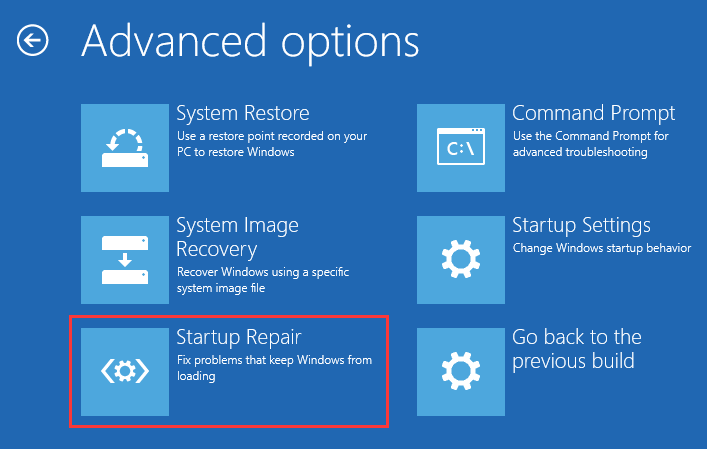
After completing the repair, restart the computer and check if the Windows getting ready loop is resolved.
#7. Perform a System Restore
With a restore point, it is feasible to run a system restore to revert Windows to an earlier point at which it was functioning properly.
This can be an effective method to fix a stuck issue.
Follow these steps:
Step 1: Access WinRE by interrupting the boot process or booting from a Windows installation USB drive.
Step 2: Click Troubleshoot > Advanced options > System Restore.
Step 3: In the System Restore window, click Next to proceed.
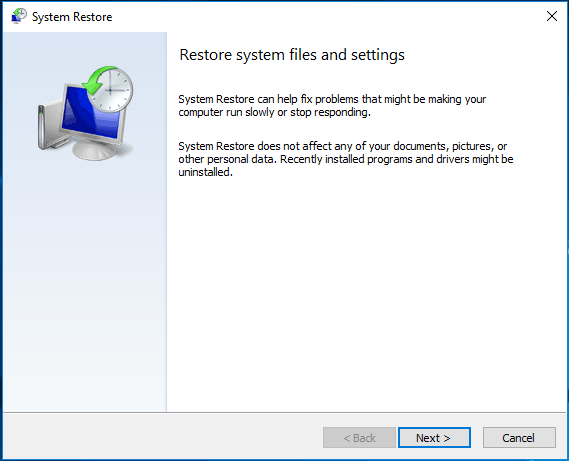
Step 4: Check the creation date and select a proper restore point from the list. For details, double-click on this restore point.
Step 5: Follow the on-screen instructions to begin a system restore.
Now, the PC won’t stay on the getting Windows ready screen.
#8. Run DISM & SFC
Issues with Windows system files can cause many problems, including a Windows getting ready loop. To repair missing or corrupted system files, perform DISM and SFC scans.
DISM, short for Deployment Image Servicing and Management, helps repair Windows images and operating system files.
SFC, namely System File Checker, can scan system files for corruption or changes. Once found, it replaces the corrupted or missing system files with the correct version from a cached folder.
Run these two tools with the following steps:
Step 1: Go to the WinRE menu.
Step 2: Head to Troubleshoot > Advanced options > Command Prompt.
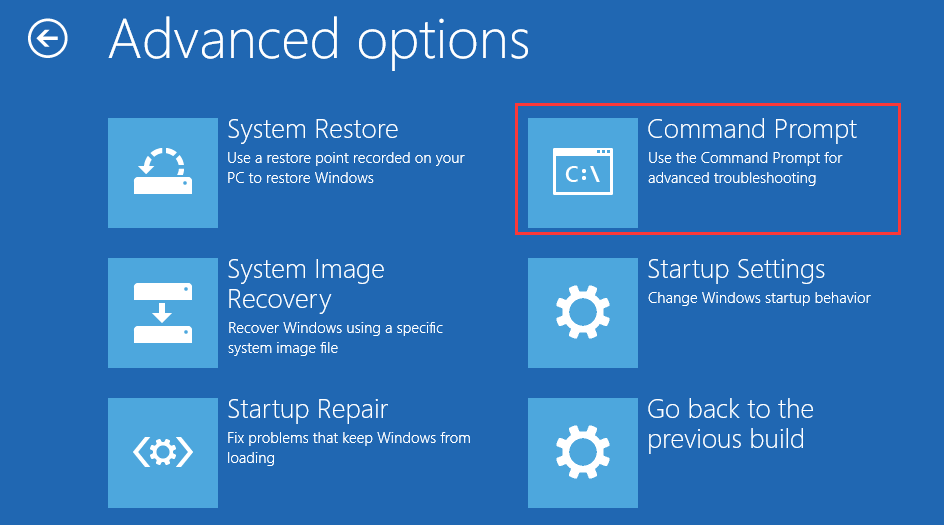
Step 3: Type the dism /image:C:\ /cleanup-image /restorehealth command and press Enter. Replace C with the drive letter of your system partition.
Step 4: After finishing the DISM scan, execute the SFC scan by using the command:
sfc /scannow /offbootdir=C:\ /offwindir=C:\Windows
#9. Uninstall Recent Windows Update
A faulty update or improper installation may cause Windows to enter an update loop.
In this case, uninstall the recent Windows update to fix the issue.
Follow these uninstallation steps:
Step 1: In WinRE, head to Troubleshoot > Advanced options > Uninstall Updates.
Step 2: Click Uninstall latest quality update or Uninstall latest feature update.
Step 3: Follow the on-screen directions to implement the uninstallation process.
Check if the stuck issue persists.
#10. Reinstall Windows
If none of the above solutions resolve the issue, reinstalling Windows may be the final option.
Before proceeding, back up important data, as a clean installation will erase files on the system drive. For this purpose, use MiniTool ShadowMaker, as stated above.
Then, proceed with reinstalling Windows.
There are 2 options:
- Reset this PC: Reinstalls Windows while keeping personal files, but removes installed applications.
- Clean install Windows 11/10: Deletes everything from the system drive, including personal files.
To reset your PC, go to WinRE, choose Troubleshoot > Reset this PC > Keep my files, and follow the on-screen instructions to complete the reset process.
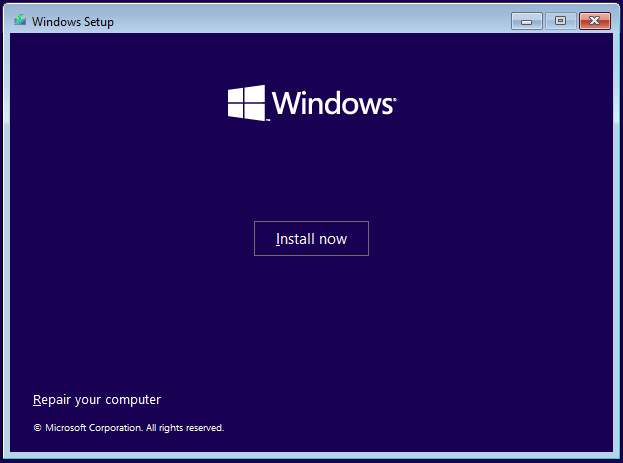
To clean install Windows, download an ISO file, run Rufus to create a bootable drive, and boot the system from it. Next, configure a language and keyboard format, then click Install now and follow the instructions to begin the process.
For details, refer to the Windows 11 reinstallation guide.
Bottom Line
A computer stuck on the getting Windows ready screen can be frustrating, especially when urgent tasks need to be completed. Hopefully, the above solutions can effectively fix the stuck issue.
For security, run the backup software, such as MiniTool ShadowMaker, to back up vital files before troubleshooting.
If you encounter issues when using the software, contact us at [email protected]. We will reply to you as soon as possible.
Getting Windows Ready Stuck FAQ
If the screen remains unchanged for several hours, you can then consider troubleshooting or performing a forced shutdown.
About The Author

Position: Columnist
Charlotte is a technology columnist with a strong focus on the Windows operating system, specializing in disk management, backup, and data recovery. She is passionate about analyzing computer errors, identifying root causes, and delivering practical solutions. In her free time, she stays updated on the latest developments in computer systems and hardware while continuously learning new technologies to broaden her expertise. Her writing style is clear and easy to understand, making complex technical topics accessible even to users with limited computer knowledge.
User Comments :