
How long does it take to install Windows 10? Many users are looking for the answer to this question on the Internet. If you are wondering about this topic, now you come to the right place since MiniTool Solution will give you a detailed answer after the analysis. At the same time, some related information will be described.
Quick Answer
Generally, installing Windows 10 takes 15 to 30 minutes on modern computers with an SSD. If you use an older traditional HDD, it may take 45 minutes to 1 hour or longer.
The exact times depend on your hardware, internet speed, and whether you perform a clean install or an upgrade.
Introduction
When referring to “how long does Windows 10 take to install”, you may analyze this topic and find it has some meanings. Windows 10 installation is a necessary operation when you perform a clean install, update the system or reset the PC. So, we will break this topic into three sections:
- How long does it take to install Windows 10 from scratch?
- How long does Windows 10 update take?
- How long does it take to install Windows 10 after reset?
The table below shows estimated time ranges for common scenarios.
| Installation Type | Estimated Time | Main Factors |
| Clean installation from USB (SSD) | 10–30 minutes | Different SSD types (NVMe M.2 SSD or SATA SSD) |
| Clean installation from USB (HDD) | 40 to 60 minutes or longer | Disk read/write speed (7200/5400 RPM) |
| Windows 10 upgrade | 30 minutes–1 hour | Internet speed, drive type, and upgrade method |
| Installation after reset | 20 minutes–3 hours | Drive type and the reset method |
Part 1: How Long Does Windows 10 Take to Install from Scratch?
To install Windows 10 from scratch, you need to download an ISO file of Windows 10 via the Internet and then install the operating system. So, this part will show you two aspects.
How Long Does It Take to Download Windows 10?
The download time depends on two main variables – the Internet speed and the size of the download file.
According to Microsoft’s official Windows 10 download page, the recommended way to download an ISO file is to use Media Creation Tool. Make sure your PC meets the minimum system requirements to ensure a smooth installation process.
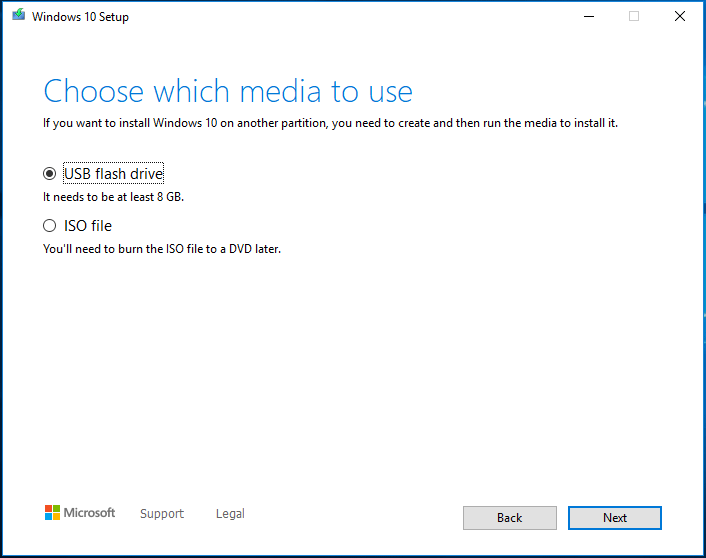
After opening this tool, Windows 10 Setup will take 1-2 minutes to get things ready. Then, create installation media (USB flash drive, DVD or ISO file) to install Windows 10 on another PC. Next, choose a USB drive to directly download and burn ISO to it. If you choose ISO file, you need to burn it to a DVD later, which will extra take some time.
Downloading the ISO file typically takes 10-30 minutes or more. (In my case, I take 30 minutes to download the ISO file to my USB drive.)
Additionally, some of you choose to directly download an ISO file of Windows 10 from the Internet rather than Media Creation Tool. The download time can be calculated by Download Time Calculator if you enter the Internet speed and the ISO file size.
How Long Does It Take to Do a Clean Install of Windows 10
After finishing downloading the Windows 10 operating system, you need to install it on your computer. How long does it take to install Windows 10? You couldn’t know the exact time. Some users say it can take around 20-30 minutes to perform a clean install without any issues while some say Windows 10 takes about 1 hour to install.
Simply speaking, Windows 10 installation time depends on the hardware of your computer, for example, CPU and the disk speed. Suppose that you have an SSD that is installed on the latest high-end computer, it will take less than 15 minutes to finish the installation. However, it can take more time because of the slow or damaged hard drive if you are using an old computer.
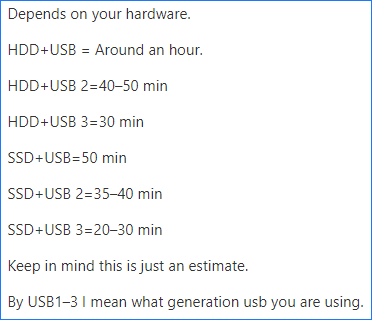
Additionally, some of you may be wondering about “how long does it take to install Windows 10 from USB or DVD”. Actually, the time is not exact since the speed of this drive also comes into play when installing Windows 10 from a USB/DVD drive.
Here is an answer from a forum user:
Part 2: How Long Does It Take to Upgrade to Windows 10?
Windows update is a totally different story. If you upgrade your computer to Windows 10 from Windows 8/7/XP/Vista, you may choose to download the ISO file and perform a clean install. Just refer to the above part to get a lot of information.
If you upgrade Windows 10 to a newer version, you may choose to use Media Creation Tool to perform an in-place upgrade. This may take more time than a clean install because Windows will have to back up current stuff, move files around, etc. This won’t take more than 3 hours unless your system horribly goes wrong.
In most cases, you check for updates via Settings. Windows will automatically download available updates, without bothering you. You only need to take action like restarting the PC. It is easy to install the update since everything will be done automatically and what you need to do is to restart the computer.
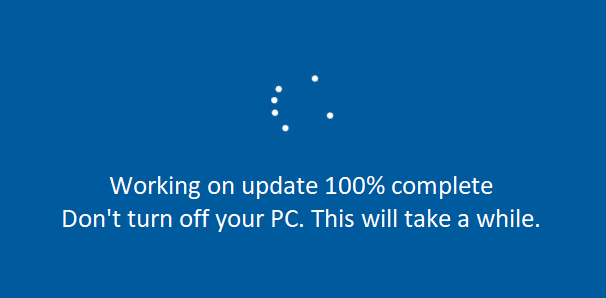
Typical updates like KB won’t take much time. But as for the Windows 10 build update, it takes a long time compared to KB updates. If you are using an older version, it can take hours and even all day since it updates Windows during the installation and may have to load many cumulative updates.
In short, Windows 10 update time also depends on the Internet, hardware (computer configuration like disk speed) and upgrade channels (the time to download the image and install it is different from Microsoft’s push).
Part 3: How Long Does It Take to Install Windows 10 after Reset?
If your computer goes wrong, you may choose to reset it to fix some system problems if some fixes don’t work. Resetting lets you keep personal files or remove them and then reinstalls Windows.
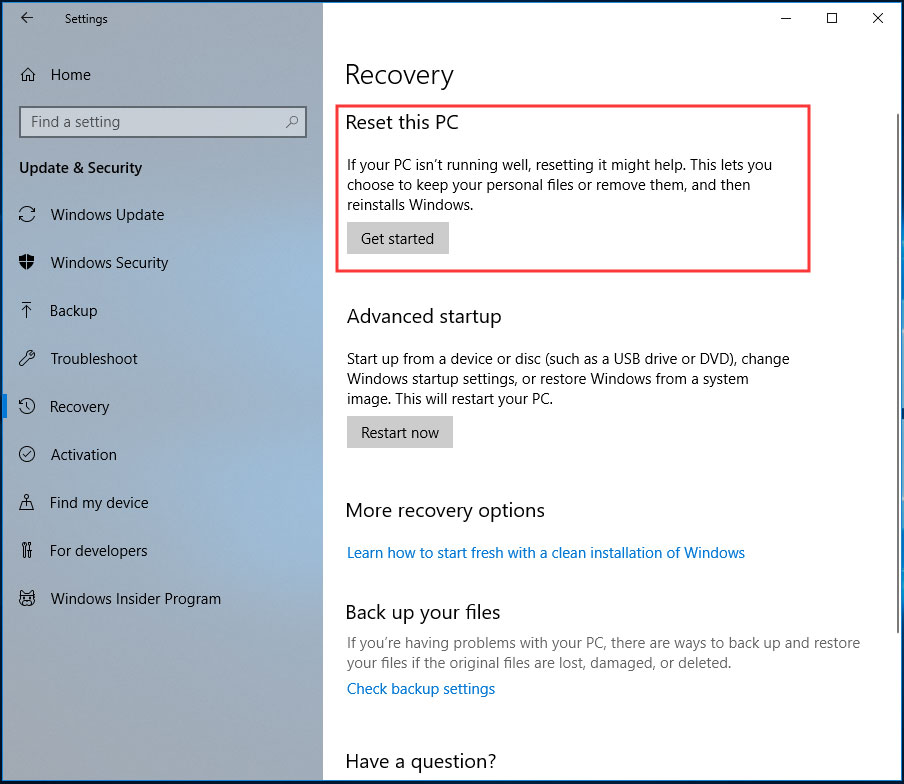
You may ask “how long does it take to install Windows 10 after reset”. Actually, this also depends on your disk speed. Some users say PC resetting takes 30 minutes on an SSD but a few hours (2 hours, 3 hours, 4 hours or a long time) on an HDD.
Some users say keeping files during resetting Windows takes a longer time than removing everything. Even some say it is faster to perform a clean install.
Now, all the information on the topic – “how long to install Windows 10” is described here. In conclusion, Windows 10 download time is determined by the Internet speed and the file size. Windows 10 installation time can take anywhere from 15 minutes to 3 hours depending on the device configuration.
To let more people know the answer to this question of “how long does Windows 10 take to install”, you can share this post on Twitter. It is a helpful document.
After knowing the time to install Windows 10, now you should take action. In the following part, we will show you how to perform a clean install, update Windows 10 and reset your PC.
Windows 10 Clean Install
During the installation process, your personal files will be deleted. Thus, we strongly recommend you to back up your important data before the clean install. To do this work, MiniTool ShadowMaker, a piece of professional PC backup software can be a good helper.
It is developed by MiniTool and can be used to back up files, folders, Windows operating system, disks, and partitions. Additionally, you can use it to sync folders & files to other locations for backup and clone a hard drive to another hard drive for disk upgrade.
Now, get MiniTool ShadowMaker by clicking the following download button and install it on your Windows 10 PC.
MiniTool ShadowMaker TrialClick to Download100%Clean & Safe
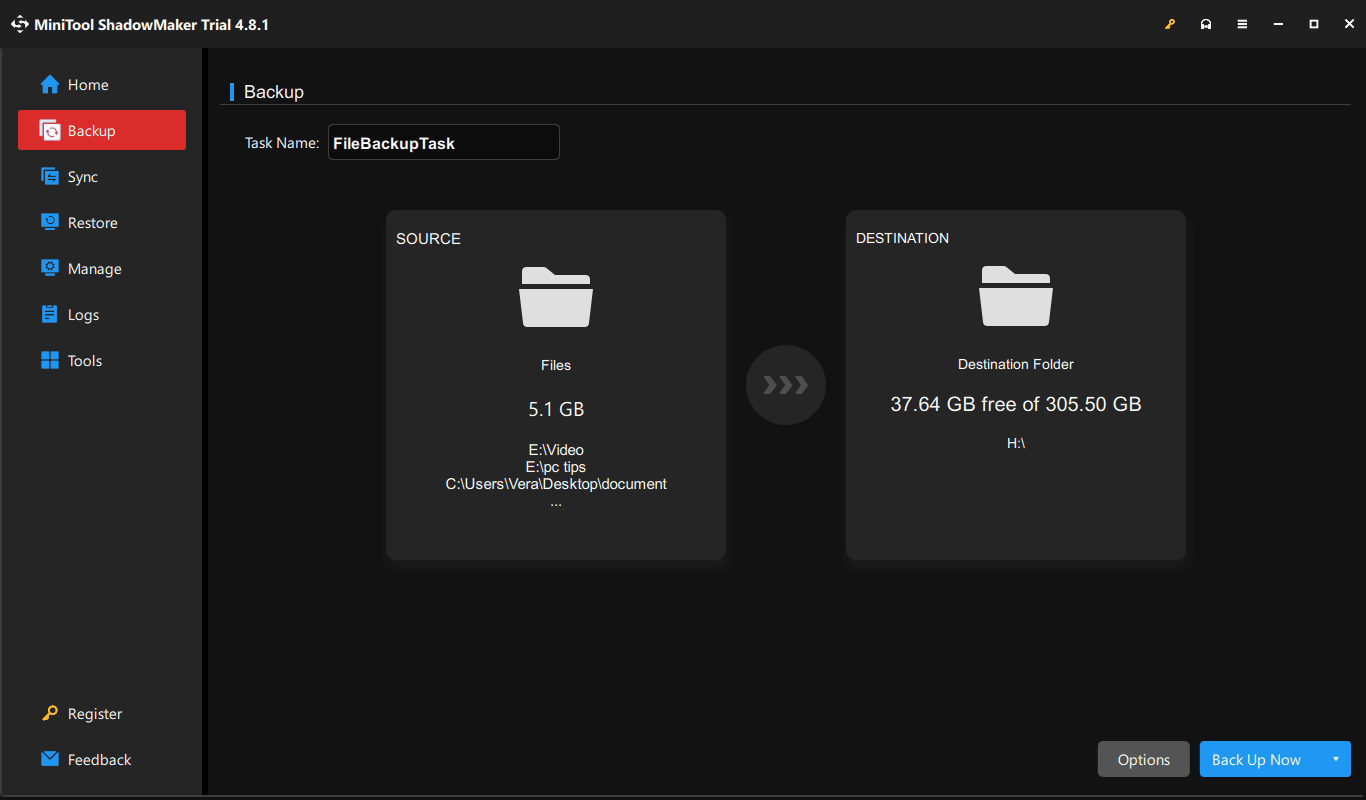
Here is how to back up files with the Backup feature:
Step 1: Run MiniTool ShadowMaker Trial Edition.
Step 2: Go to the SOURCE section to choose files you need to back up.
Step 3: Select a destination path by clicking the DESTINATION section. Here, we take the external hard drive G as an example.
Step 4: Execute the file backup operation by clicking Back Up Now.
Now, it is time to perform a clean install of Windows 10. Just follow the guide below to do this thing:
1. Go to download Media Creation Tool from Microsoft’s website.
2. Use it to create a bootable USB flash drive. This post – How to Create a Bootable USB from ISO Windows 10 for Clean Install shows you how to do the job.
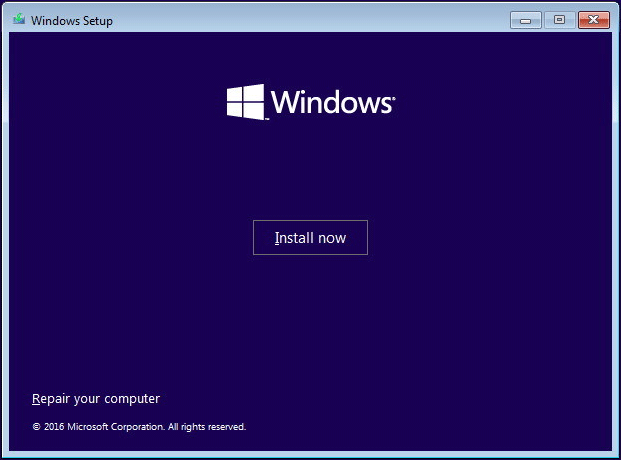
3. Restart your PC from the created USB drive by changing the boot order in BIOS and then enter the Windows Setup interface.
4. Configure the language, time, and keyboard.
5. Click Install now.
6. Enter the Windows 10 key.
7. Determine which version you want to install.
8. After accepting license agreements, choose to install the Windows only.
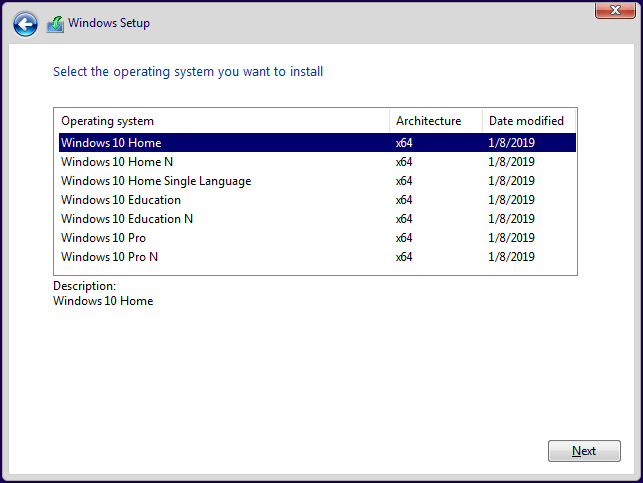
9. Decide where you want to install Windows 10. Usually, choose Drive 0 unallocated space that is got by deleting the original system partition.
10. Windows Setup is installing Windows 10. After that, configure some settings for the system and restore files from the created backup.
Update Windows 10
After learning information on “how long does Windows 10 update take”, now you may want to take action. How can you upgrade your PC to Windows 10?
As mentioned above, if you need to upgrade to Windows 10 from an older version, you need to perform a clean install with the ISO file of Windows Vista/XP/7/8.
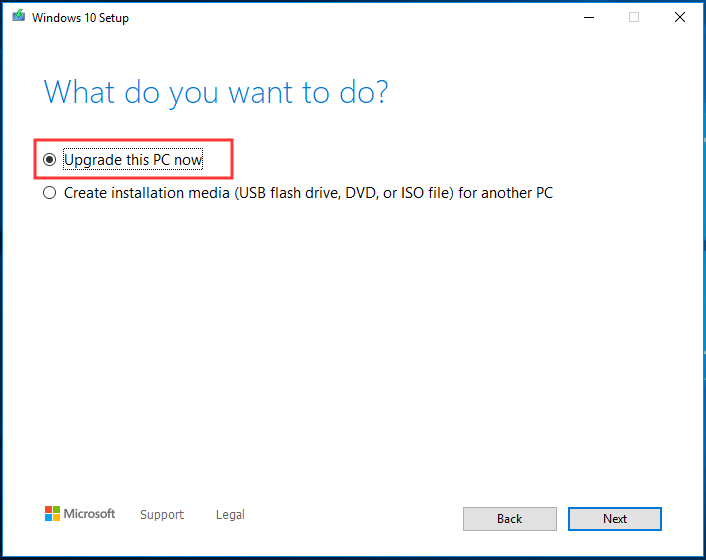
To perform an in-place upgrade, use Media Creation Tool. Just get this tool and run it. After accepting license terms, get things ready, choose the Upgrade this PC now option and then follow the on-screen instructions to upgrade Windows 10.
In addition, you can go to Start > Settings > Update & Security to enter the Windows Update page. Then, click Check for updates to look for available updates. If it finds some, Windows will download them automatically and then you need to restart the computer to finish the Windows 10 update installation.
Reset This PC
You may have learned the information on “how long does it take to install Windows 10 after reset”. Then, you start to reset your computer by following the wizard below.
1. Go to Start > Settings > Recovery and click Get started under the Reset this PC section.
2. Choose Keep my files or Remove everything.
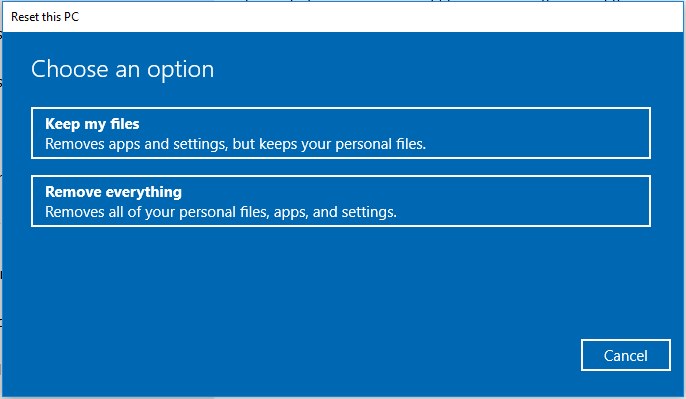
3. Finish all the operations by following the instructions on the screen.
Further Tip:
Right now, almost information on “how long does it take to install Windows 10” and how to install Windows 10 are told to you. Clean install and resetting PC are time-consuming to fix your computer problems.
To help you out of troubles, we suggest backing up the Windows operating system in advance. In case the system crashes, you can use the image to restore the computer to its previous state without spending much time on reinstalling Windows 10. This post – Use Best Ghost Image Software to Ghost Windows 10/8/7 shows you how to create a system image with MiniTool ShadowMaker.
Fixes for Windows 10 Installation Stuck
Sometimes, the Windows 10 installation process may take longer than expected. Wait at least 2–3 hours to see if it completes.
If there is no progress after that, it may be stuck, and you can try the following solutions to fix the issue.
- Remove any unnecessary external devices, including printers, extra accessories, and external hard drives.
- Disconnect your internet to stop the installer from trying to download updates during setup.
- Use a different USB port, such as the USB 2.0 port on the back of the computer.
- Recreate the bootable USB drive and install Windows.
How to Reduce Windows 10 Installation Time
Although several factors can affect the installation speed, you can take some measures to reduce installation time and improve the overall experience.
- Use an SSD instead of an HDD if you have the budget.
- Use a 3.0 or faster USB flash drive and plug it into a USB 2.0 or 3.0 port.
- Unplug all non-essential external hardware.
- Disconnect from Wi-Fi or unplug your Ethernet cable during the initial offline setup process.
- Ensure you have enough free disk space.
Bottom Line
If you are looking for the answer to this question of how long does Windows 10 take to install, this post is pretty much useful for you. It focuses on three different sections: install Windows 10 from scratch, update Windows or install Windows 10 after PC resetting. Just take action!
Suppose that you have any questions when using MiniTool software or any suggestions of Window 10 installation time, let us know by leaving a comment below or contacting [email protected].
How Long Does It Take to Install Windows 10 FAQ
About The Author

Position: Columnist
Vera has been working at the MiniTool Team for over 10 years as a technical editor and content writer. She mainly focuses on disk and partition management, data recovery, Windows backup and restore, and PC troubleshooting. Through in-depth software testing and hands-on experience, she has helped users solve a wide range of computer problems and better protect their data on Windows devices.
User Comments :