
Quick Answer
To stop OneDrive from syncing, you can pause syncing temporarily, stop syncing specific folders, turn off folder backup, unlink your account, disable OneDrive startup, or uninstall OneDrive.
Choose a method depending on whether you want to temporarily stop syncing or permanently disable OneDrive on Windows 11/10.
Why Does OneDrive Keep Syncing?
OneDrive may keep syncing because automatic folder backup is enabled, files are added to the OneDrive folder, or the app is running in the background. In some cases, slow internet connections or large files can also make syncing appear stuck.
It can also happen if your account needs you to sign back in, or if settings were reset after an app or Windows update. If you want to stop unwanted syncing, you can pause OneDrive, disable folder backup, or unlink your account.
How to Stop OneDrive from Syncing on Windows 11/10
Pause OneDrive
If you only want to temporarily stop the sync work even if it’s actively syncing something, pausing is a good option. Three intervals are offered and you can pause OneDrive for 2, 8 or 24 hours.
Here is what you do:
Step 1: In Windows 10/11, click on the OneDrive icon from Taskbar. If the icon isn’t available, go to the search box, type in OneDrive and have a search to launch this app.
Step 2: In the popup, click the gear icon (Help & Settings) and click Pause syncing. Then, choose 2 hours, 8 hours or 24 hours to stop OneDrive from syncing photos or other folders. To reopen OneDrive for file sync, you can click the Resume syncing button.
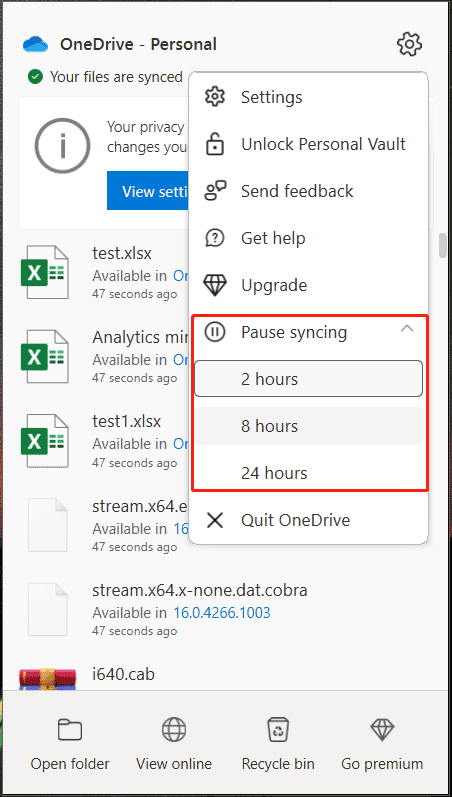
How to stop OneDrive from syncing via the Pause option on Mac? The steps are similar to the operation in Windows 11/10 and you can also choose to pause it for 2, 8 or 24 hours.
Quit OneDrive
It is allowed to stop OneDrive from syncing everything indefinitely by closing the app. This is another quick yet effective method and have a shot.
Step 1: Also, click the OneDrive icon from the top-right corner of your screen.
Step 2: Go to Help & Settings > Quit OneDrive.
Step 3: Click the Close OneDrive button to confirm the operation. After that, files in your OneDrive folder won’t sync with your files online.
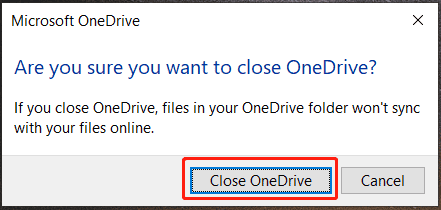
How to stop OneDrive from syncing permanently via the Quit option on Mac? Go to settings menu and click Quit OneDrive 2 times.
Stop Syncing OneDrive Folders
As mentioned above, OneDrive helps to automatically sync your folders and files on your PC. But you are allowed to only choose some folders that you want to sync and remove the other remaining files. See how to stop OneDrive from syncing photos or some other files.
See the step-by-step guide below:
Step 1: In Windows 10/11, click on the OneDrive icon and choose Help & Settings > Settings.
Step 2: Under the Account tab, click on the Choose folders button.
Step 3: In the pop-up window, uncheck the box of folders that you don’t want to sync. Alternatively, you can stop OneDrive from syncing everything by checking and unchecking Make all files available.
Step 4: Click OK to save the change.
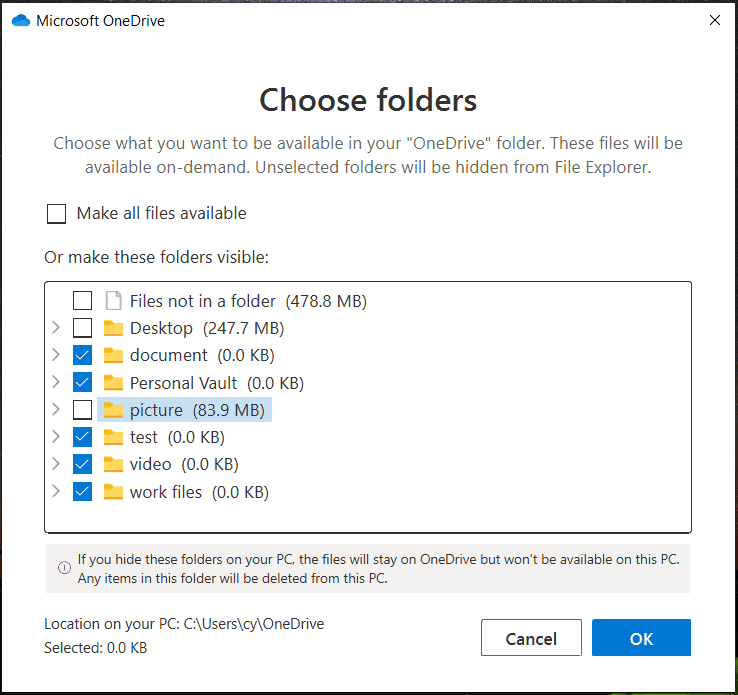
The folders you have unchecked will be hidden in File Explorer and won’t be available on the PC. Any items in the folders will be deleted from the machine.
If you are running a Mac, how to stop OneDrive from syncing via this way? Go to click the gear icon after clicking the OneDrive icon and select Preferences, go to Account > Choose Folders.
Manage OneDrive Backup Folders
How to stop OneDrive from syncing Desktop? If you wonder about this topic, the way is to manage the OneDrive backup folders. By default, OneDrive backs up folders – Photos, Desktop, and Documents.
Step 1: Go to click the icon of OneDrive, click the gear icon and then choose Settings to open the Microsoft OneDrive window.
Step 2: Under the Backup tab, click Manage backup.
Step 3: Uncheck the folder that you don’t want OneDrive to sync. To stop OneDrive from syncing Desktop, you can uncheck the Desktop folder.
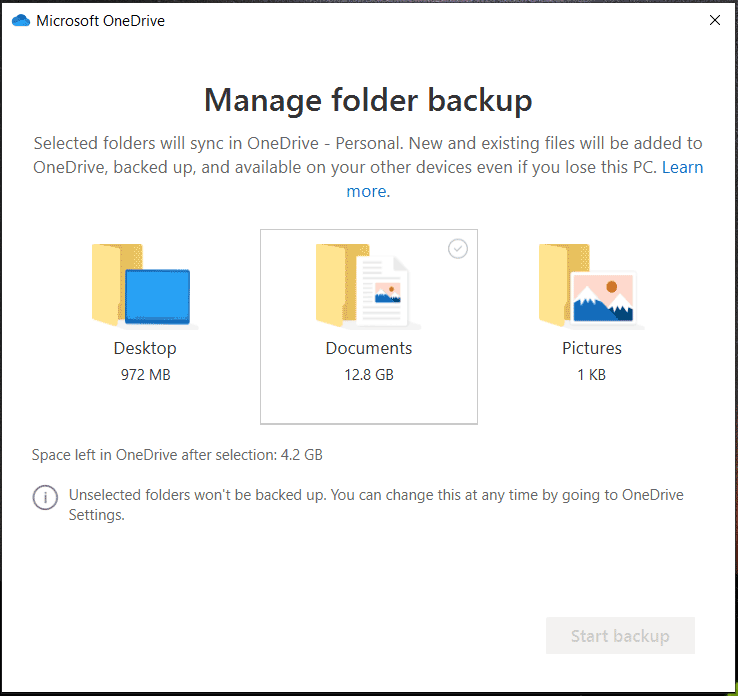
OneDrive can automatically upload and save your screenshots, photos and videos. If you don’t want any of that, you can go back to the Backup tab, uncheck the boxes of Automatically save photos and videos to OneDrive whenever I connect a camera, phone or other device to my PC and Automatically save screenshots I capture to OneDrive.
Permanently Disable OneDrive on Windows 10/11
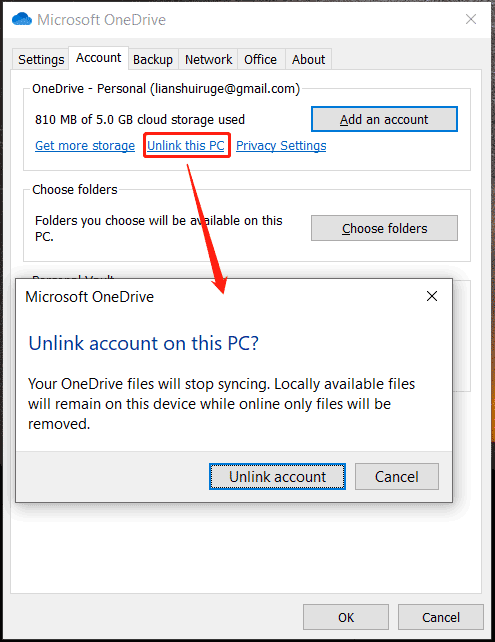
If you don’t OneDrive to sync files and folders anymore, you can unlink the account. How to stop OneDrive from syncing everthing in this way?
Step 1: Go to open the Microsoft OneDrive window.
Step 2: Go to the Account tab, click the Unlink this PC option.
Step 3: Click Unlink account to confirm the operation.
Disable Office Applications from Syncing
If you want to stop Microsoft Office applications from syncing files to OneDrive, what should you do? See how to stop OneDrive from syncing office documents.
Step 1: Also, access the Microsoft OneDrive window.
Step 2: Go to the Office tab and uncheck the box of Use Office applications to sync Office files that I open.
Step 3: Save the change.
Uninstall OneDrive
How to stop OneDrive sync permanently? One direct way is to uninstall the OneDrive app from your Windows 10/11 PC. So, how to do this work? See the guide below.
Step 1: Launch Control Panel via the search box and view all the items by Category.
Step 2: Click the Uninstall a program link from the Programs section.
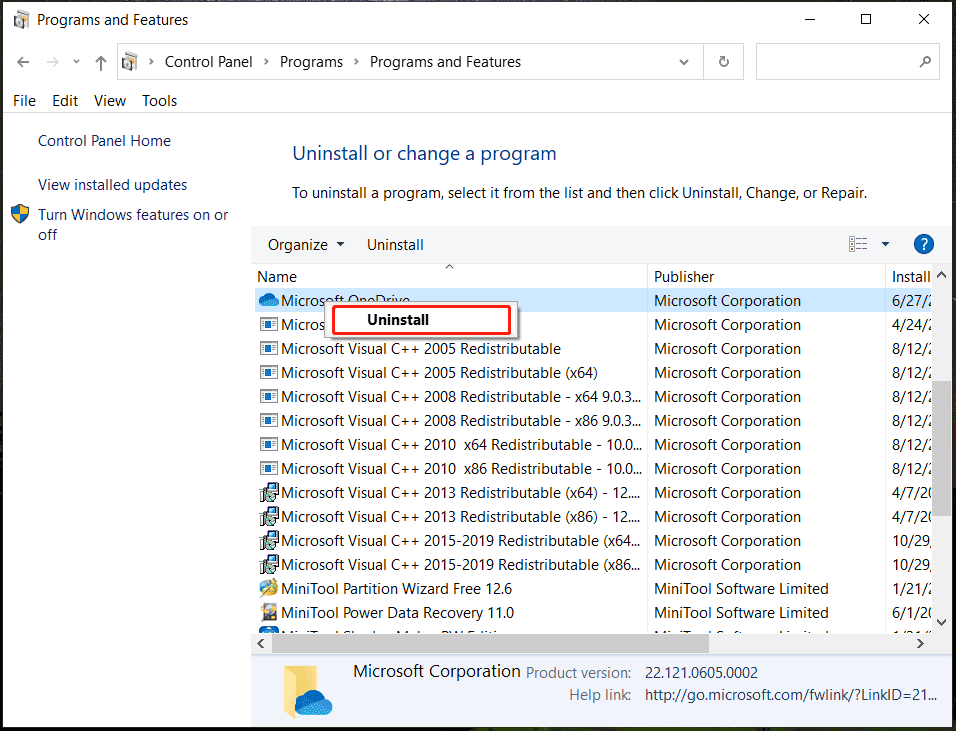
Step 3: In the Programs and features interface, right-click on Microsoft OneDrive and select Uninstall.
Step 4: Confirm the operation to remove the app.
Alternatively, you can go to Windows Settings via the Win + I shortcuts, click Apps > Apps & features, locate Microsoft OneDrive and click the Uninstall button. In addition, there are some other ways to uninstall OneDrive and see the related post to know more – Four Perfect Ways – How to Uninstall Programs in Windows 10.
Enable Battery Mode to Stop OneDrive from Syncing
You should know, adequate battery levels on your PC are required for a successful sync in OneDrive. If you enable the battery mode, this can automatically stop the sync process. So, see how to stop OneDrive from syncing in this way.
Step 1: Access Windows 11/10 Settings.
Sometimes the Settings app cannot open and work. To get rid of the trouble, try solutions in this post - What to Do When Windows 10/11 Settings App Is Not Opening.
Step 2: Go to System > Power & Battery (Windows 11) or Battery (Windows 10).
Step 3: Under the Battery saver section, turn this feature on.
When the battery is lower than 20%, this mode can enable automatically. If you are running a Mac, click the Apple logo, go to System Preferences, click the Battery icon, navigate to Power Adapter and check the box of Low power mode.
Now almost ways to stop a folder from syncing to OneDrive or stop OneDrive from syncing to your PC are introduced in this post. Choose one way if you don’t want to sync or back up your files with OneDrive. To keep your PC data safe, you can try another way – using a PC backup software to make a local backup without making a cloud backup.

OneDrive Can’t Stop Syncing Folder? Try These Fixes
OneDrive may sometimes fail to stop syncing a folder, even after you’ve unselected it. This can occur due to temporary glitches, outdated versions, connection issues, or incorrect folder locations.
To fix the sync issue, try these solutions:
- Restart or pause OneDrive
- Update or reconnect OneDrive
- Move the OneDrive folder location
- Reset OneDrive settings
After fixing the issue, check the OneDrive sync settings again and confirm that the unwanted folder is no longer syncing.
Better Alternative to OneDrive: Back Up Files Locally
If you stop using OneDrive for file protection, consider creating a local backup with dedicated backup software. Unlike cloud sync, a backup keeps an independent copy of your files and allows you to restore data after accidental deletion, hardware failure, or system problems.
MiniTool ShadowMaker can help back up files, folders, disks, partitions, and Windows systems to local drives, external hard drives, or other storage devices.
MiniTool ShadowMaker TrialClick to Download100%Clean & Safe
Step 1: Run MiniTool ShadowMaker Trial Edition in Windows 10/11 and click Keep Trial to continue.
Step 2: Move to the Sync tab, click the SOURCE tab, select all the items you want to back up, and click OK.
Step 3: Click the DESTINATION tab to specify another storage path.
Step 4: Click the Sync Now or Sync Later button to start the sync task now or later. To find the data you have synced, go to the Restore tab, find the sync task and click Locate.
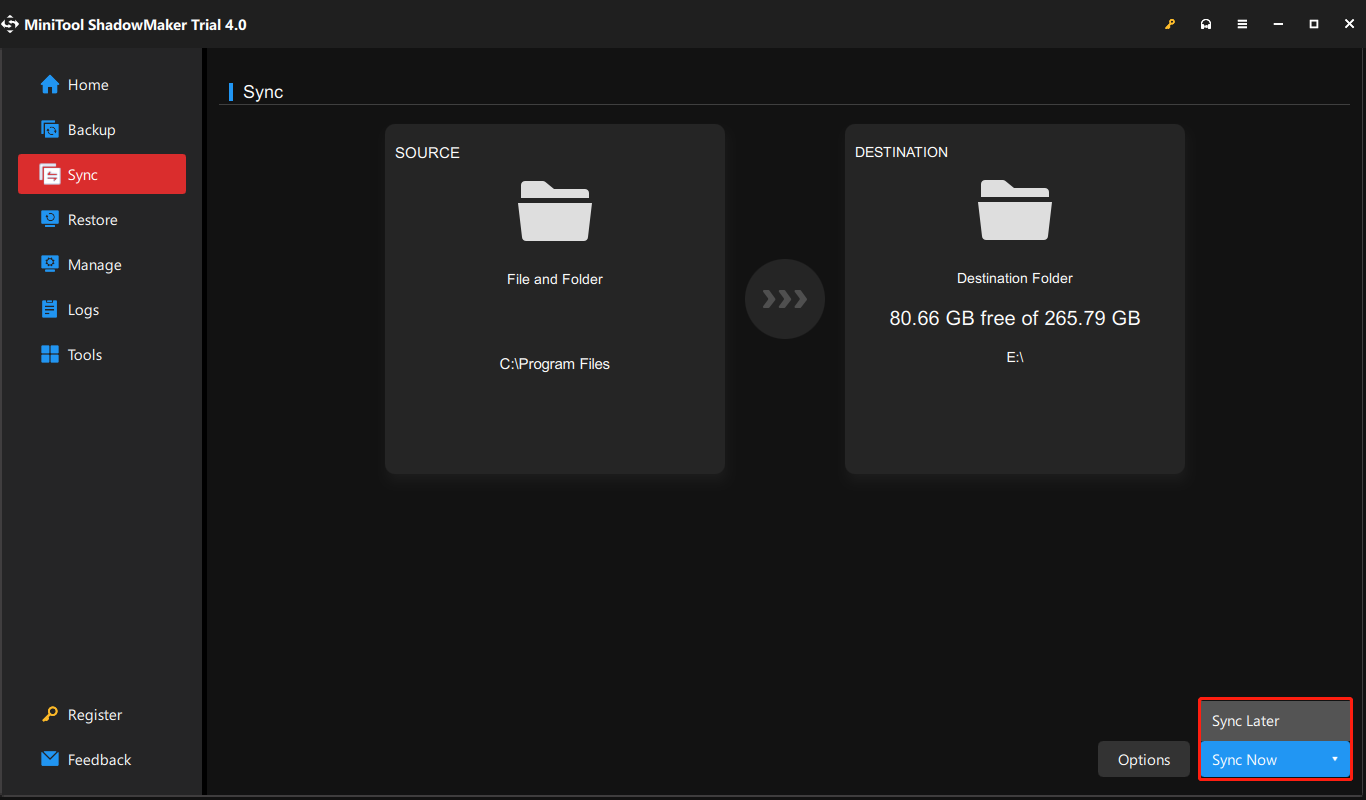
If you want to automatically sync files, you can go to Options > Schedule Settings, enable it, specify a time point and run the sync task on a regular basis.

How to Stop OneDrive from Syncing FAQ
Before disabling OneDrive, make sure important files are saved locally or backed up to another location.
Bottom Line
Stopping OneDrive syncing is simple. You can pause it temporarily, stop syncing specific folders, disable backup, unlink your account, or uninstall OneDrive from Windows 11/10.
However, disabling OneDrive doesn’t substitute for proper data protection. A dedicated backup tool is essential for creating independent copies of your important files and recovering data in case of unexpected issues.
What’s more, if you encounter issues while using this MiniTool ShadowMaker, contact us via [email protected].
About The Author

Position: Columnist
Charlotte is a technology columnist with a strong focus on the Windows operating system, specializing in disk management, backup, and data recovery. She is passionate about analyzing computer errors, identifying root causes, and delivering practical solutions. In her free time, she stays updated on the latest developments in computer systems and hardware while continuously learning new technologies to broaden her expertise. Her writing style is clear and easy to understand, making complex technical topics accessible even to users with limited computer knowledge.
User Comments :