
It is pretty annoying to encounter the “Netwtw06.sys failed” BSOD. MiniTool provides multiple solutions, such as updating/rolling back/reinstalling the network driver, running SFC and DISM, performing a system restore, and other workarounds.
What Is Page Fault in Nonpaged Area Netwtw06.sys
Blue screen of death (BSOD) is a common problem that you often encounter in Windows 11 and 10, making users very frustrated. “Netwtw06.sys failed” is such a BSOD error.
The screen turns blue with an error message during the system startup:
“What failed: Netwtw06.sys”.
Typically, the netwtw06.sys error is accompanied by a stop code, like PAGE_FAULT_IN_NONPAGED_AREA and SYSTEM_THREAD_EXCEPTION_NOT_HANDLED.
What is netwtw06.sys?
It is a driver file for Intel wireless network adapters, responsible for Wi-Fi connectivity. The netwtw06.sys error indicates an issue with that network driver.
What Causes Netwtw06.sys Blue Screen
Several factors can trigger “Netwtw06.sys failed”, including:
- Driver issues: The most frequent cause is a problem with the Intel wireless driver. It can be outdated, corrupted, or incompatible with the current Windows version.
- Corrupted system files: Damage to core Windows system files can lead to system instability and blue screen errors.
- Software conflicts: Other software, such as a third-party antivirus, conflicts with the network driver, triggering netwtw06.sys BSOD.
- Hardware failure: Faulty hardware, such as the wireless adapter, RAM, or hard drive, can also cause the BSOD error.
- Malicious threats: Viruses or malware can corrupt the driver or system files, triggering this blue screen error.
After understanding the causes, proceed with common solutions to fix the issue.
But before proceeding, it is recommended to back up data to avoid loss.
Back up Data Before Troubleshooting
Some repair methods, like reinstalling Windows, are complex and could erase your data. Even if you don’t reinstall, the failed repair could make files inaccessible.
Backing up your data is an effective way to avoid data loss.
How can you create a file backup?
Use MiniTool ShadowMaker, a professional and reliable PC backup software.
This powerful tool can help you easily backup files and folders to an external hard drive, USB flash drive, or another storage device, even after a system crash. Moreover, it supports system/disk/partition backup and recovery.
Steps to use MiniTool ShadowMaker for file backup:
Step 1: Create MiniTool bootable media.
1. Download, install, and launch MiniTool ShadowMaker on a working computer.
MiniTool ShadowMaker TrialClick to Download100%Clean & Safe
2. Register the software and navigate to Tools > Media Builder.
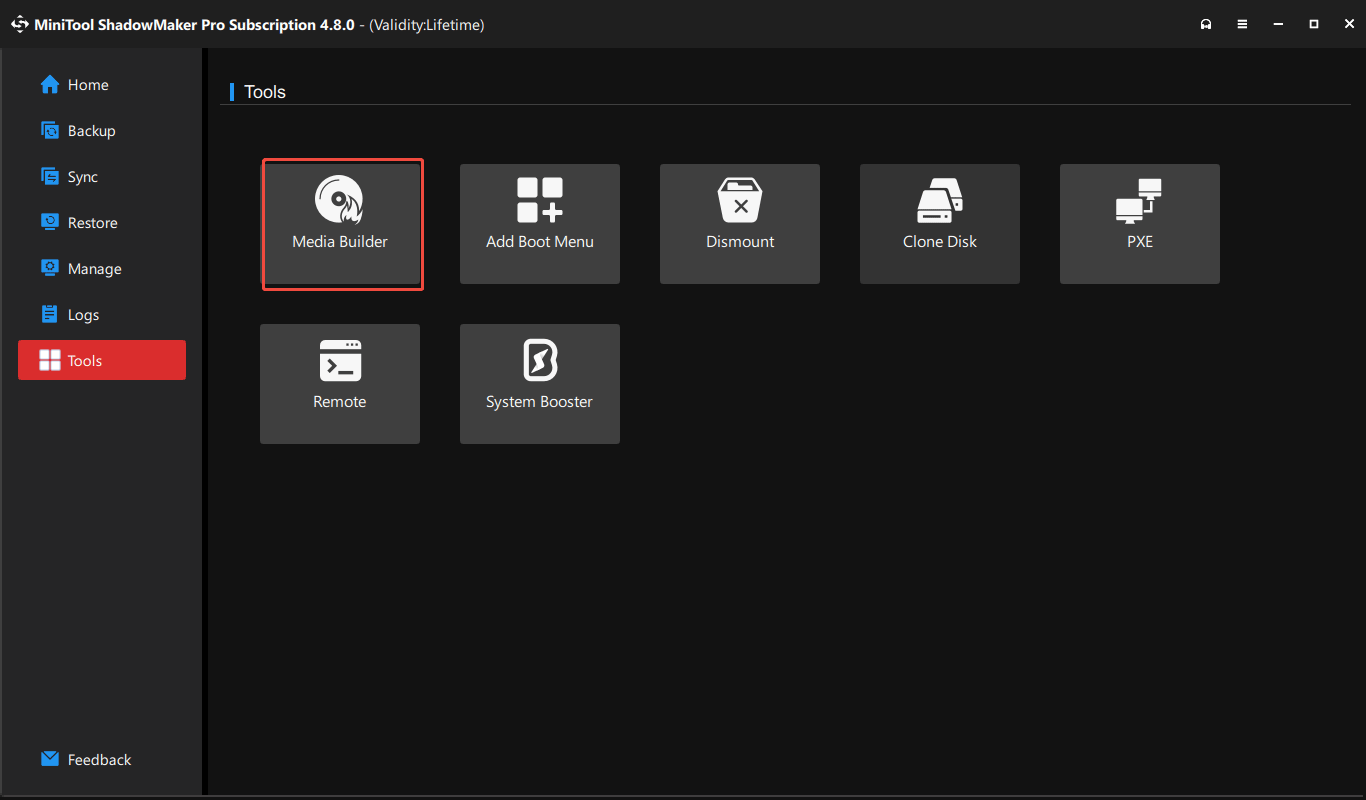
3. Connect a USB drive, USB external hard drive, or CD/DVD to the PC and follow the on-screen instructions to create bootable media.
Step 2: Boot the PC that meets netwtw06.sys blue screen from bootable media.
1. Connect the bootable media to the non-working PC.
2. Restart it and press F2, Del, or another key specified by the manufacturer to access BIOS.
3. Configure the device to run from the bootable drive or disc.
4. Follow the prompts to enter the MiniTool recovery environment.
Step 3: Connect another drive to your PC and make a data backup.
1. Launch MiniTool ShadowMaker.
2. On the Backup page, choose SOURCE > Folders and Files, select the items you wish to back up, and click OK.
3. Click DESTINATION and pick a drive to save the backup.
4. Start the backup by clicking Back Up Now.
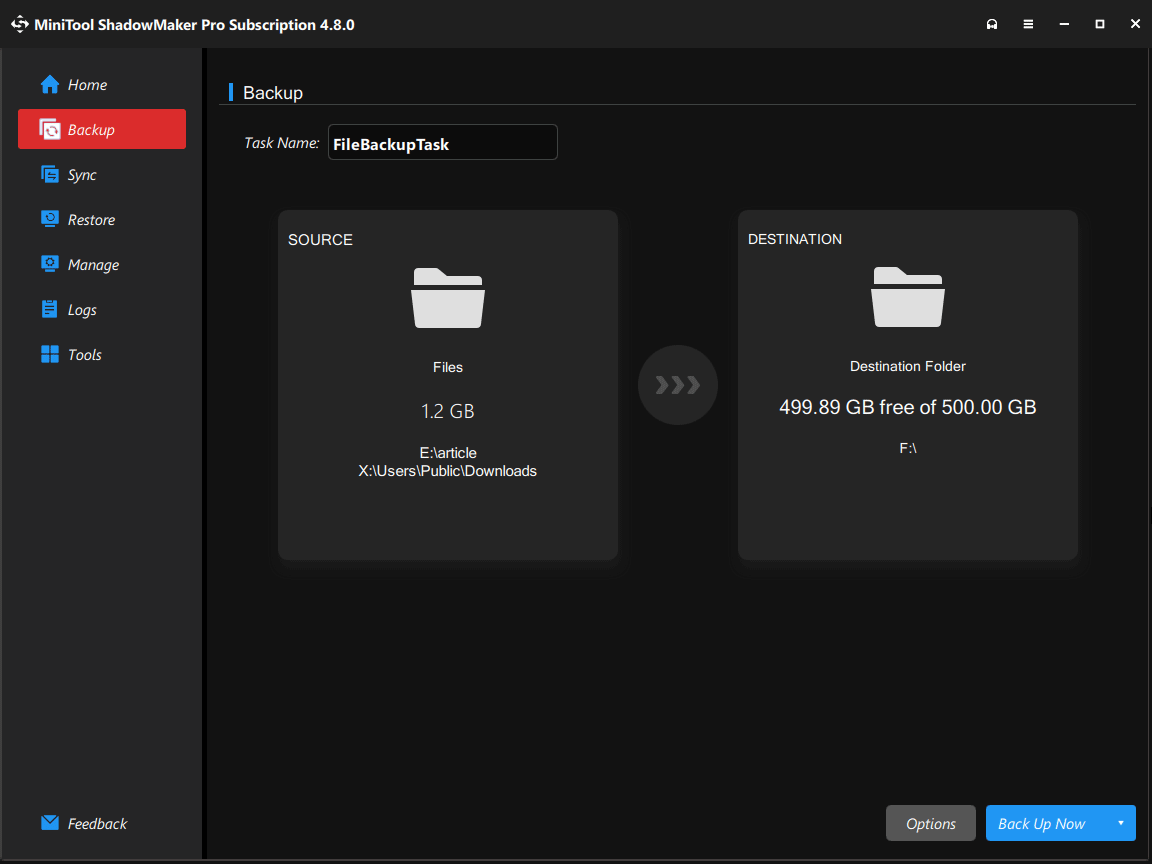
Once you finish the backup, let’s dive into the various solutions to fix your issue.
How to Fix Netwtw06.sys Blue Screen
To solve the netwtw06.sys error, update, roll back, or reinstall the Intel wireless driver. If the issue persists, check for corrupted system files to repair, run CHKDSK, disable third-party antivirus software, and try other workarounds.
Driver-Related Fixes
#1. Update the Network Driver
The netwtw06.sys failure primarily stems from an outdated wireless network driver. Thus, updating the driver can help you resolve the issue.
Here are the steps:
Step 1: Right-click on the Start button and choose Device Manager from the context menu.
Step 2: Expand Network adapters, right-click on the Intel wireless adapter, and choose Update driver.
Step 3: Choose Search automatically for drivers, and Windows will search your computer for the best available driver and install it.
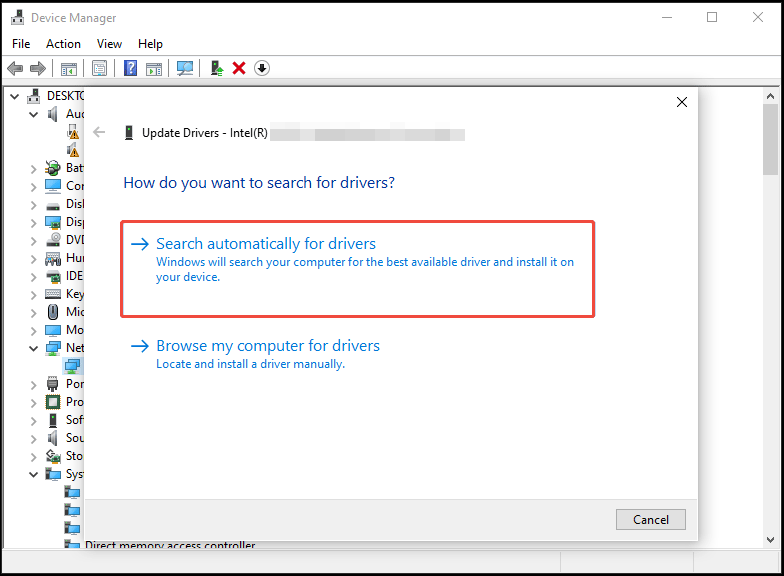
Alternatively, you can download the latest version of your wireless driver from Intel’s website. Then, run the .exe file and follow the on-screen instructions to install it on your device.
Additionally, it is recommended to use Intel Driver Support Assistant to automatically update your drivers, including the network drivers. This method is recommended by many users in some forums, like Microsoft.
#2. Roll back the Network Driver
If the blue screen issue started after a recent driver update, rolling back the driver to a previous version is an excellent option.
Take these steps:
Step 1: In Device Manager, right-click on your wireless adapter and select Properties.
Step 2: In the Driver tab, check if the Roll Back Driver button is available. If yes, click that button.
Step 3: Select a reason why you roll back the driver and click Yes.
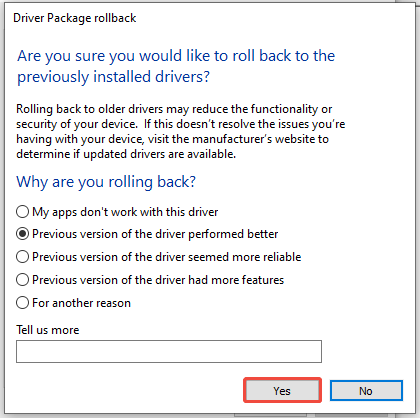
#3. Reinstall the Network Driver
Sometimes, drivers provided by Microsoft or Intel are not compatible with specific computer hardware, triggering “netwtw06.sys failed”.
We recommend that you uninstall the current wireless driver and reinstall it.
Step 1: Download, install, and launch Display Driver Uninstaller (DDU) to thoroughly uninstall that driver.
Step 2: Visit the website of Intel and download the proper driver depending on the Intel wireless adapter you are using.
Step 3: Double-click on the downloaded package to install the driver on your device.
After updating, rolling back, or reinstalling the Intel wireless network driver, your computer may successfully boot without a blue screen.
If the issue still appears, proceed with the following troubleshooting steps.
System-Level Fixes
#1. Run System File Checker
System File Checker, known as SFC, is a built-in Windows tool to check for system file corruption and repair it. It may be able to resolve the netwtw06.sys blue screen error if the issue is caused by damaged system files.
Here is how to run SFC:
Step 1: In the Search box, type cmd and choose Run as administrator from the right side.
Step 2: In the elevated Command Prompt window, type sfc /scannow and press Enter.
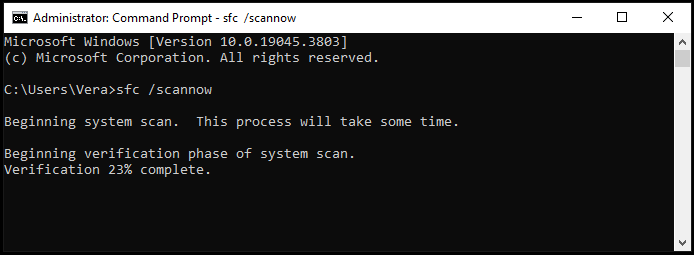
Step 3: Wait for the scan process to complete without interrupting it.
After the scan completes, restart your computer and check if you still receive a blue screen.
#2. Use DISM
If SFC fails to resolve your issue, try another command-line tool, DISM (Deployment Image Servicing and Management).
It can also scan for and repair corrupted or missing system files. Typically, DISM replaces those system files with a clean Windows image by downloading files from Windows Update or a specified repair source.
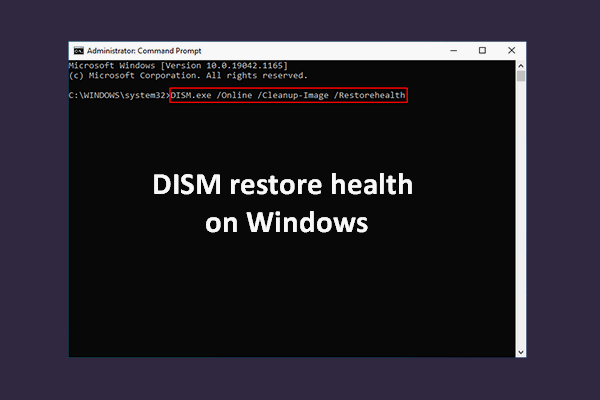
To perform a DISM scan:
Step 1: Launch Command Prompt as an administrator.
Step 2: Type DISM /Online /Cleanup-Image /RestoreHealth and press Enter.
Wait until the process completes, then restart your computer.
#3. Run a System Restore
If “netwtw06.sys failed” BSOD started occurring recently, the System Restore feature may be helpful.
On your computer, there may be some restore points created automatically or manually. You can perform a system restore to revert your computer to a previous point in time when it was working correctly.
Here is how:
Step 1: In Safe Mode, press Win + R to invoke the Run dialog.
Step 2: Type rstrui.exe, click OK to open System Restore, and click Next to proceed.
Step 3: Carefully check the created date for restore points and select a proper one from the list to continue.
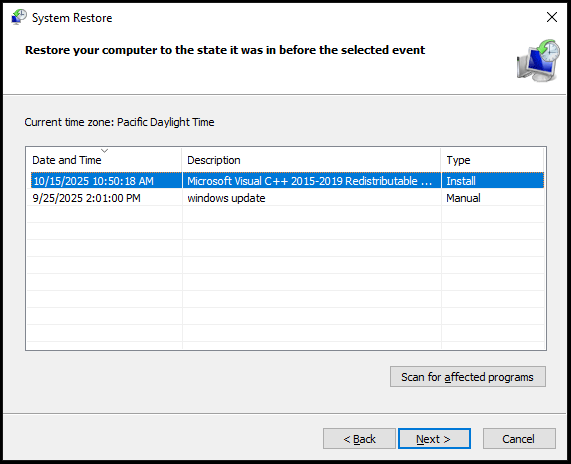
Step 4: Click Finish > Yes to begin restoring your system.
Once started, do not interrupt the process.
Other Potential Solutions
#1. Run CHKDSK
CHKDSK, a Windows command-line utility, can help identify if there are file system errors or bad sectors on your hard drive and fix those errors or mark bad sectors as unusable.
If you suspect the netwtw06.sys error results from the disk problems, try running this tool.
Here is a quick guide:
Step 1: Open an elevated Command Prompt.
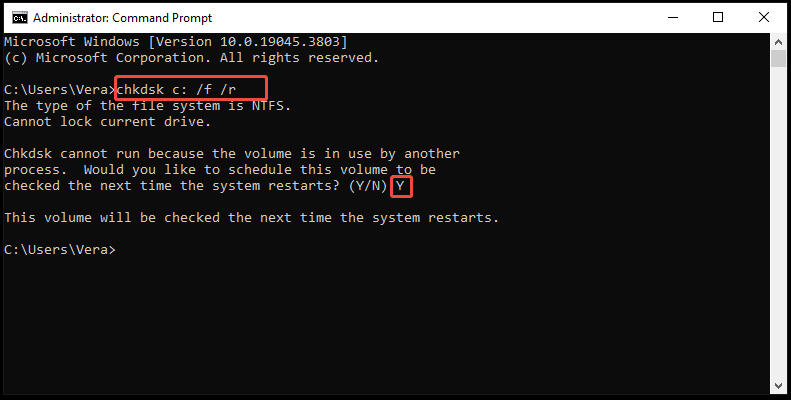
Step 2: Type chkdsk c: /f /r and press Enter. Replace c: with the drive letter of your system drive.
- /f: checks a drive for file system errors and attempts to fix them.
- /r: scans a drive for file system errors and bad sectors, then fixes errors and recovers readable information from bad sectors.
Step 3: Type Y to schedule the scan to be performed the next time the system restarts if the drive is in use.
#2. Uninstall Third-Party Antivirus Software
Sometimes, third-party antivirus software can interfere with network drivers, resulting in “page fault in nonpaged area netwtw06.sys”. Uninstall that program in Safe Mode and check if the error is resolved.
Step 1: Type control panel in the Search box and select the best match.
Step 2: Set View by to Category.
Step 3: Under Programs, choose Uninstall a program.
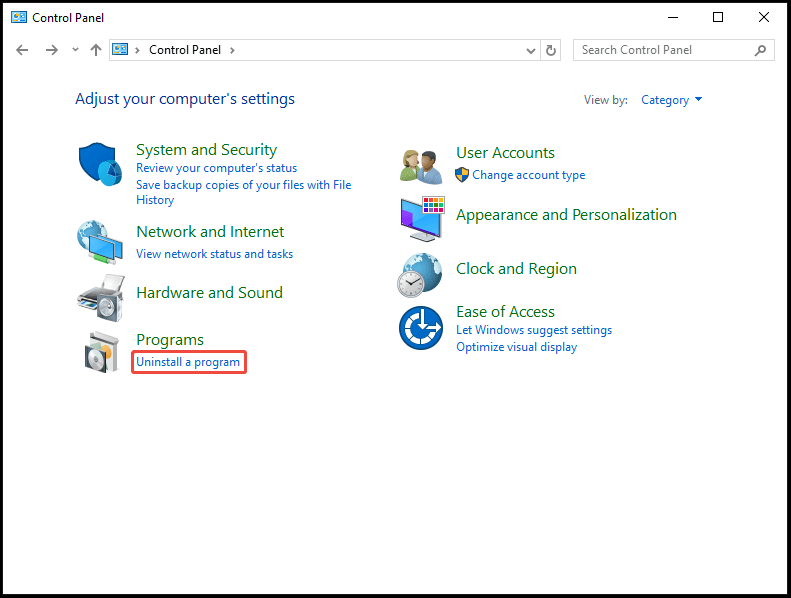
Step 4: Right-click on your antivirus program and select Uninstall. If needed, confirm the uninstallation.
#3. Check for Windows Updates
Some users recommend checking for Windows updates and installing them. Windows updates often include driver patches and other bug fixes that can resolve various issues.
In Safe Mode, you cannot do this task. If your PC can load correctly after a blue screen, try this method.
Step 1: Access the Settings page by pressing Win + I.
Step 2: Navigate to Windows Update.
Step 3: Click Check for updates, and Windows begins downloading and installing available updates.
#4. Reinstall OS
Netwtw06.sys BSOD can still occur in Windows 11/10 after applying all these methods. In this case, a complete reinstallation of the operating system is a last resort.
MiniTool ShadowMaker TrialClick to Download100%Clean & Safe
Without further ado, let’s focus on how to reinstall your system.
Step 1: Download an ISO file of Windows 11 or Windows 10 from Microsoft and run Rufus to create a bootable USB drive. Alternatively, directly get Media Creation Tool to create a bootable drive.
Learn the details from the guide on how to create Windows 11 installation media.
Step 2: Connect the drive to your PC.
Step 3: Restart the machine and press F2, Del, or another boot key to enter the BIOS menu.
Step 4: Run the computer from that bootable drive.
Step 5: Configure the keyboard and language.
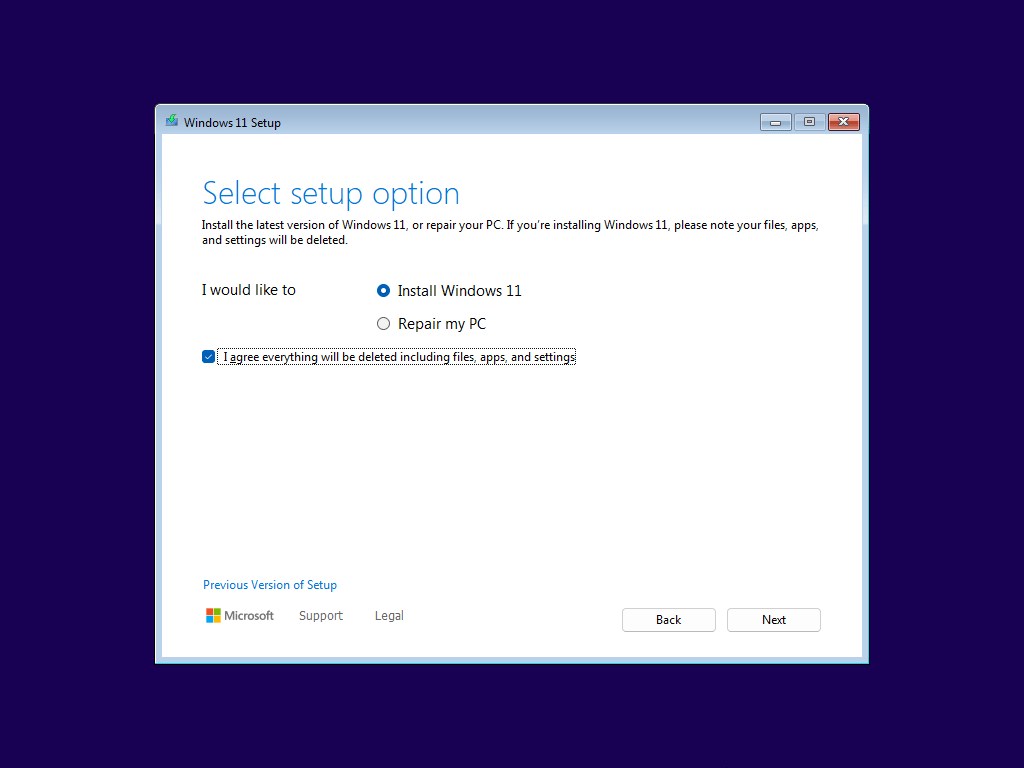
Step 6: Click Install now or select Install Windows 11 and follow the instructions on the screen to finish the installation.
Upon the reinstallation, you have a fresh Windows.
Conclusion
When encountering “netwtw06.sys failed” BSOD, don’t worry. In this post, we have offered potential reasons for this error and several useful methods. Follow the instructions above to resolve your issue.
If you have better advice to fix this blue screen error or experience some issues when using our backup software, send an email to [email protected].
Netwtw06.sys Failed FAQ
2. Rebuild BCD
3. Run SFC and DISM
4. Run CHKDSK
5. Check RAM
6. Uninstall BitDefender and Webroot
1. Update network drivers
2. Run SFC and DISM
3. Check your disk
4. Run Windows Memory Diagnostic
5. Uninstall third-party network-related software
1. Update, roll back, or clean install the NVIDIA graphics card driver
2. Disable overclocking
3. Turn off Fast Startup
4. Run SFC and DISM
5. Enable user permissions to full control for nvlddmkm.sys in system32
About The Author

Position: Columnist
Vera has been working at the MiniTool Team for over 10 years as a technical editor and content writer. She mainly focuses on disk and partition management, data recovery, Windows backup and restore, and PC troubleshooting. Through in-depth software testing and hands-on experience, she has helped users solve a wide range of computer problems and better protect their data on Windows devices.
User Comments :