
Optional features may not install on Windows 11 due to Windows update issues, a metered connection, corrupted system files, and disabled services. To fix it, disable the metered connection, restart the Windows Modules Installer service, run Windows Update Troubleshooter, and run DISM & SFC.
What Causes Windows 11 Optional Features Not Installing
Optional features in Windows are additional features that are not included in the core installation of the operating system but can be added later. For example, you can install different font packs or older Windows utilities such as Paint and WordPad.
Go to Settings > Apps > Optional Features to find and install the optional features. However, you may fail to install optional updates.
Common factors include:
- No internet or blocked connection
- Corrupted system files
- Damaged Windows Update components
- Group policy or WSUS restrictions
- Windows Modules Installer not running
- Outdated Windows version
How to Fix Optional Features Not Installing
Fix 1: Disable Metered Connection
To save data, a metered connection can prevent your computer from downloading files needed to install optional features. Therefore, you can disable metered connections to fix the Optional features not showing on Windows 11 issue.
Step 1: Press the Windows + I keys together to open the Settings app.
Step 2: Go to Network & internet > Ethernet.
Step 3: Scroll down to find Metered connection and turn it off.

Fix 2: Restart the Windows Module Installer Service
To fix Optional features not installing on Windows 11, you can choose to restart the Windows Module Installer service.
Step 1: Press the Windows key and R key together to open the Run dialog.
Step 2: In the pop-up window, type services.msc in the box and click OK to continue.
Step 3: Find out the Windows Moduler Installer service and right-click it to choose Restart.
Step 4: Click Apply and OK to confirm the changes.
Fix 3: Disable Hide Windows Features
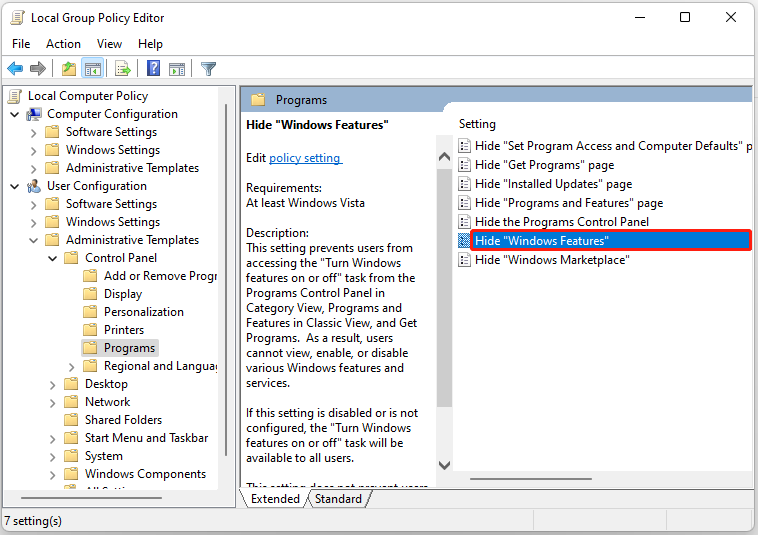
If the “Hide Windows Features” policy is active, you won’t find the optional features. You need to disable the Hide Windows Features option in Local Group Policy Editor.
Step 1: Type Local Group Policy Editor in the Search box and open it.
Step 2: Go to the following path:
User Configuration\Administrative Templates\Control Panel\Programs
Step 3: Find the Hide “Windows Features” option and double-click it to choose Disabled and click Apply.
Fix 4: Run the Windows Update Troubleshooter
Then, you can try to run the Windows Update Troubleshooter tool to remove the Optional features not installing on Windows 11 issue.
Step 1: Press Windows + I to open the Settings window. Then, go to System > Troubleshoot.
Step 2: Click Other troubleshooters and click Run next to the Windows Update section.
Step 3: Now, this troubleshooter will scan issues associated with the Windows Update components. If any fixes are identified, click Apply this fix and follow the on-screen instructions to complete the repair.
Fix 5: Reset the Windows Update Components
At times, it is useful to fix Optional features not installing on Windows 11 by resetting Windows Update components. Follow the instructions blew to do so:
Step 1: Run Command Prompt with admin privileges.
Step 2: In the CMD popup, type the following commands in turn and press Enter after each one to execute the operations:
net stop bits
net stop wuauserv
net stop appidsvc
net stop cryptsvc
Del “%ALLUSERSPROFILE%\\Application Data\\Microsoft\\Network\\Downloader\\*.*”
rmdir %systemroot%\\SoftwareDistribution /S /Q
rmdir %systemroot%\\system32\\catroot2 /S /Q
regsvr32.exe /s atl.dll
regsvr32.exe /s urlmon.dll
regsvr32.exe /s mshtml.dll
netsh winsock reset
netsh winsock reset proxy
net start bits
net start wuauserv
net start appidsvc
net start cryptsvc
Fix 6: Enable the Optional Feature with PowerShell
If the feature does not install from Settings, you can use PowerShell to check its exact feature name and enable it manually.
Step 1: Open Windows PowerShell as an administrator.
Step 2: Type and execute the following command to list available optional features:
Get-WindowsOptionalFeature -Online
Step 3: Copy the FeatureName of the feature you want to enable.
Step 4: Type and execute the following command to enable a specific feature:
Enable-WindowsOptionalFeature -Online -FeatureName FEATURENAME
Replace FEATURENAME with the feature name you copied earlier.
Step 5: Restart your computer for the changes to take effect.

Fix 7: Run DISM and SFC
Corrupted system files can prevent optional features from installing properly. To fix this issue, run DISM and SFC to repair the corruption.
Step 1: Type cmd in the search box on the taskbar, and then right-click the Command Prompt app and select Run as administrator.
Step 2: Type DISM /Online /Cleanup-Image /RestoreHealth and press Enter.
Step 3: Execute the sfc /scannow command.
Once done, reboot your PC and check if the Optional features not installing on Windows 11 issue gets fixed.
Suggestion: Back up Your System
Regular system backups can help protect your Windows system, files, and settings from unexpected problems. With a system backup available, you can restore your PC to its normal state quickly.
To do the backup task, you can try the professional backup software – MiniTool ShadowMaker. It can be used to back up the operating system, disk, partition, file, and folder. This backup software offers a Trial Edition that allows a 30-day free trial for all backup features.
MiniTool ShadowMaker TrialClick to Download100%Clean & Safe
Step 1: Launch MiniTool ShadowMaker Trial Edition in Windows 11.
Step 2: Go to the Backup interface, you can see system partitions are selected as the backup source.
Step 3: You only need to click Destination to choose a path to save the system image file.
Step 4: Click Back up Now to execute the backup task immediately or click Back Up Later to delay the backup task.

Conclusion
When optional features are not installing on Windows 11, start with the simplest checks, such as your network connection and the Windows Modules Installer service. Then, repair corrupted system files or enable the feature through PowerShell.
Additionally, it is recommended to create a system image with MiniTool ShadowMaker for quick recovery in case of unexpected issues. Please contact us at [email protected] if you have issues with our software.
Windows 11 Optional Features Not Installing FAQ
About The Author

Position: Columnist
Vera has been working at the MiniTool Team for over 10 years as a technical editor and content writer. She mainly focuses on disk and partition management, data recovery, Windows backup and restore, and PC troubleshooting. Through in-depth software testing and hands-on experience, she has helped users solve a wide range of computer problems and better protect their data on Windows devices.
User Comments :