
Quick Answer
To perform a Samsung laptop boot from USB via the boot menu:
- Connect the bootable USB drive to the machine.
- Restart your laptop.
- Press F10 to access the boot menu.
- Choose the USB drive and press Enter.
Why Boot Samsung Laptop from USB
Booting a Samsung laptop from USB means starting the computer through a bootable USB drive instead of the internal drive. It is necessary in certain situations, especially when Windows fails to start normally.
Below are some common cases where this method can be useful.
- Clean install Windows 11 or 10 using a bootable USB drive.
- Perform system repairs using some recovery tools such as Startup Repair, Command Prompt, Reset this PC, etc.
- Roll back a broken system update in WinRE.
- Recover files from a dead hard drive using a WinPE-based bootable drive.
- Clean deep-rooted malware or stubborn viruses.
Advantages & Disadvantages of Booting Samsung Laptop from USB
There are several benefits to do Samsung boot from USB compared with other boot devices like CD/DVD.
- No need to buy a new DVD/CD since most people have a USB.
- Quickly make a USB bootable with an ISO file.
- Faster read and write speed.
- Convenient and portable.
- Reusable.
- More capacity.
However, every coin has two sides, a bootable USB also has some drawbacks.
- Booting from USB is BIOS, motherboard, flash drive model, connection port, etc. dependent.
- Bootable CD has a wider support and USB boot utility isn’t available for some OSes.
How to Boot from USB Drive Samsung Laptop
Use the table below to choose the best method based on your situation.
| Method | Best for | Difficulty | When to use |
| Boot Menu (F10) | Quick USB boot | Very Easy | You want to boot from USB temporarily. |
| BIOS Settings | USB not showing in Boot Menu | Medium | You need to change boot order. |
| Windows Settings | System fails to start normally | Easy | You need to access recovery tools. |
Method 1: Boot Samsung Laptop from USB Using Boot Menu
If you want to start up a Samsung laptop from USB drive or other bootable media, you need to shut down your computer all the way and then press F10 when it is booting up. The details are as below.
Step 1. Shut down Your Laptop
The boot selection menu won’t be available when the PC is turned on from sleep or low power mode. So, if you want to access the boot selection menu, you have to shut your device down all the way completely.
Step 2. Connect the USB Bootable Drive
Once been properly configured with an operating system or similar application and the files necessary for booting the computer, all external storage devices are supported including bootable USB disks, CDs, DVDs, and SD Cards.
Also read: How to Boot Windows from SD Card [A Step-by-Step Guide]
Step 3. Get Samsung Laptop Boot Menu
In general, you can take advantage of the F10 key on your keyboard to trigger the computer boot menu. In detail, press the power button to turn on your machine and immediately and repeatedly tap F10 until the boot menu appears.
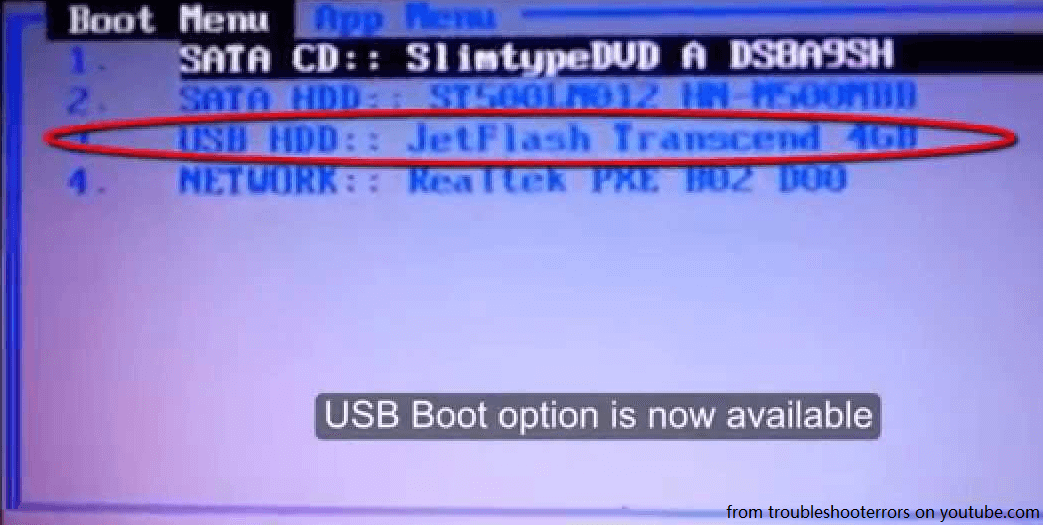
If you fail to reach the PC boot menu and it boots normally into the Windows system, you can try it again by repeating the above process. Or alternatively, you can immediately press and hold F10 when computer boots up to get the menu boot.
If you try several times without success, you may consider your bootable USB drive is not properly configured. Thus, you need to contact the manufacturer of the USB flash drive.
Step 4. Choose Boot Device
After you have successfully displayed the boot menu on your Samsung laptop, you can further select the boot device you want from the list. Just use the up and down arrow for selection and press Enter key to confirm.
If you want to Samsung laptop boot from USB, just choose the target attached USB hard drive. Its name showing in the boot list may vary but it will most relate to the hardware name or the system it contains. If you want to still boot into the normal Windows operating system, just pick up the Windows Boot Manager option!
Method 2. Change BIOS Settings to Boot from USB
The following guide helps you to figure out how to boot up your Samsung computer from a USB flash disk by changing the settings in BIOS.
1. Power on your machine and tap the F2 key quickly to enter BIOS.
2. Navigate to the Advanced tab.
3. In the Advanced tab, find and disable Fast BIOS Mode to enable the BIOS to recognize connected USB hard disk.
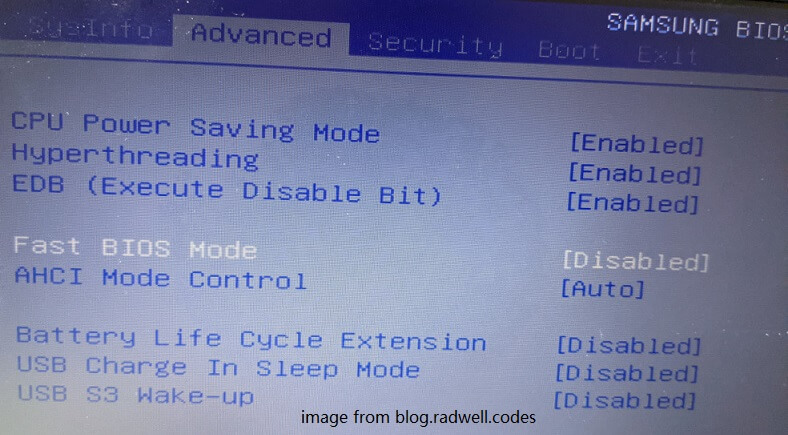
4. Go to the Boot tab.
5. In the Boot tab, change the Boot Device Priority to make the USB HDD as the first boot device.
6. Save changes and exit BIOS.
Reboot your Samsung laptop and it will automatically boot from the plugged USB.
- You may need to switch the Secure boot method from UEFI to CSM (Compatibility Support Mode) or EZ Boot Mode in the Advanced tab or enable Legacy USB support.
- You may need to turn off Secure Mode in the Boot tab of BIOS.
- You may also need to disable Fast Startup in Control Panel.
Method 3. Boot Samsung Laptop from USB via Windows Settings
If your computer can detect your bootable USB hard drive, you can directly boot it up without configuring your BIOS settings.
1. Navigate to Windows Settings > Update and Security > Recovery in Windows 10.
2. Under Advanced startup, click on the Restart now button.
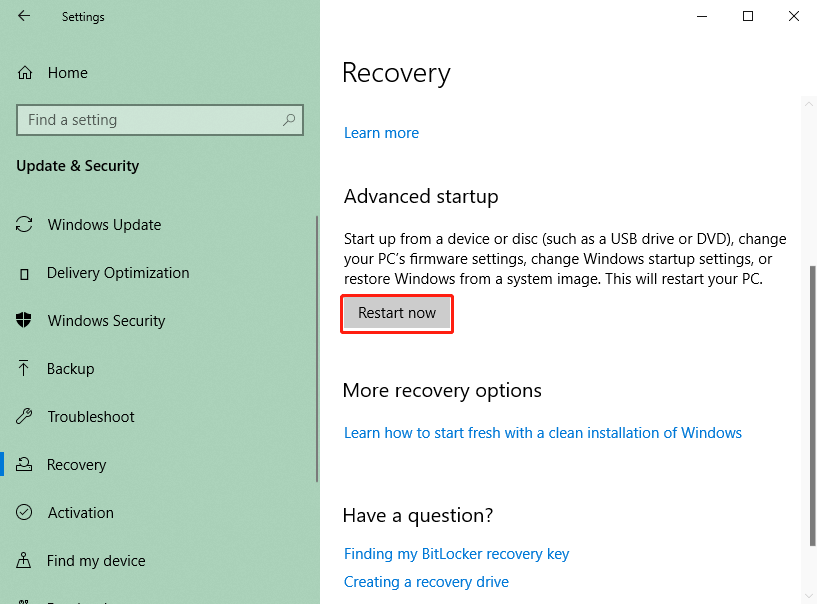
3. Then, it will restart to this Choose an option page.
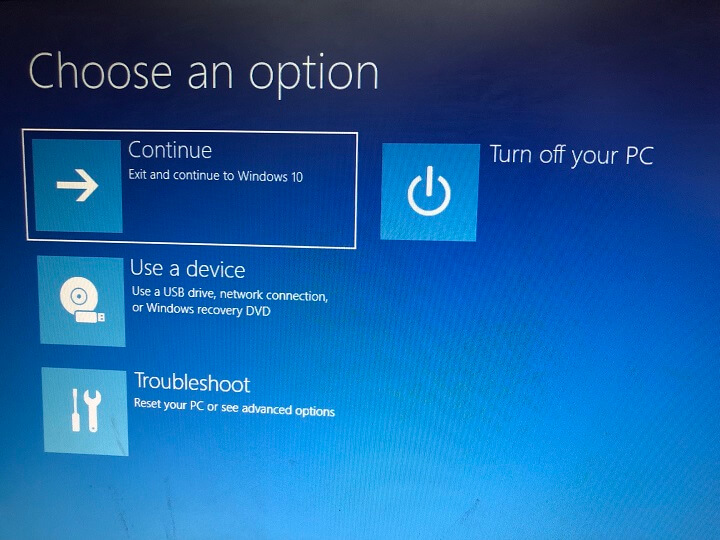
4. Select the Use a device option to continue.
5. You will see a list of available devices that you can boot from. Just pick up the target USB drive. If you can’t find it directly, click on the View other devices option.
6. Then, your computer will do Samsung laptop boot from USB.
Take your patience and wait until the process is done.
Which Models of Samsung Laptop Can Boot from USB?
Until here, many of you may wonder which Samsung laptop models are able to boot from bootable devices such as bootable USB sticks. Actually, most Samsung laptops can start themselves from bootable media. Some of them require the USB drive to be present or even be enabled in the BIOS before they boot.
The following is part of the list of compatible Samsung laptops (maybe including notebooks and Chromebooks).
- Series 9: NP900X3C
- Series 7: Chronos
- Series 5: NP550P5C, NP550P7C
- Series 3: NP350V5C, NP300E5V, NP300E5X, NP300E5C, NP300E5A
- XE500TLC
- ATIV: Book 9, 700T, 500T
- Chromebook: 1, 2, 3
Can’t Boot from USB Samsung Laptop?
However, sometimes, you may encounter a problem that prevents you from booting with a USB. Generally, your laptop will not detect USB when you try to boot from it. There are mainly six solutions to deal with this problem.
#1 Change BIOS Settings
Firstly, your BIOS settings may lead your USB invisible. If so, just configure your BIOS following the above content.
#2 Reformat USB
Secondly, you may come across an incorrect partitioning scheme that is common for USB with recorded Windows 7. Also, the file system of an eligible USB should be FAT32. If yours is NTFS or other formats, it can’t be detected by your machine. Thus, you need to convert NTFS to FAT32 with a reliable partition tool like MiniTool Partition Wizard.
MiniTool Partition Wizard DemoClick to Download100%Clean & Safe
#3 Check Integrity of the USB
If your Samsung laptop cannot boot normally because of disk errors, you can use MiniTool Partition Wizard to check disk health. Just launch this software, select the drive, and run Surface Test.
If some bad sectors are found, open Command Prompt and run the chkdsk G: /f /r command. Replace G with your drive letter.
#4 Recreate USB Bootable Media
Fourthly, if the boot-related files have been written to your USB incorrectly, your PC can’t read those files and can’t treat the USB as a bootable drive. If this is the case, you need to rebuild your bootable USB with the ways that will be introduced next.
#5 Change Connection Port
Also, a simple wrong USB slot can result in the USB device being undetectable. Just check the USB connection. If there is a problem, you can just use another USB port. Both USB 3.0 and 2.0 are supported.
#6 Update/Reinstall USB Driver
Sometimes, your system fails to find the plugged USB for the related USB drivers are out-of-date. So, you need to make sure all USB-related drivers are the latest ones by updating them or just reinstalling them.
[3 Ways] How to Create a Bootable USB Flash Drive?
Finally, let’s see how to make a bootable USB disk in multiple ways. Before starting, you should know that the estimated amount of internal memory of a portable drive for a successful system boot should be no less than 8GB and the file system should be FAT32.
#1 Create Bootable USB/CD/DVD/ISO with MiniTool ShadowMaker
MiniTool ShadowMaker is a powerful and reliable data backup software that also enables you to create a WinPE-based bootable device to boot up crashed computers.
MiniTool ShadowMaker TrialClick to Download100%Clean & Safe
- Download, install, and launch MiniTool ShadowMaker.
- If it asks for purchase, just click the Keep Trial option.
- In its main interface, go to the Tools tab.
- On the Tools page, select Media Builder.
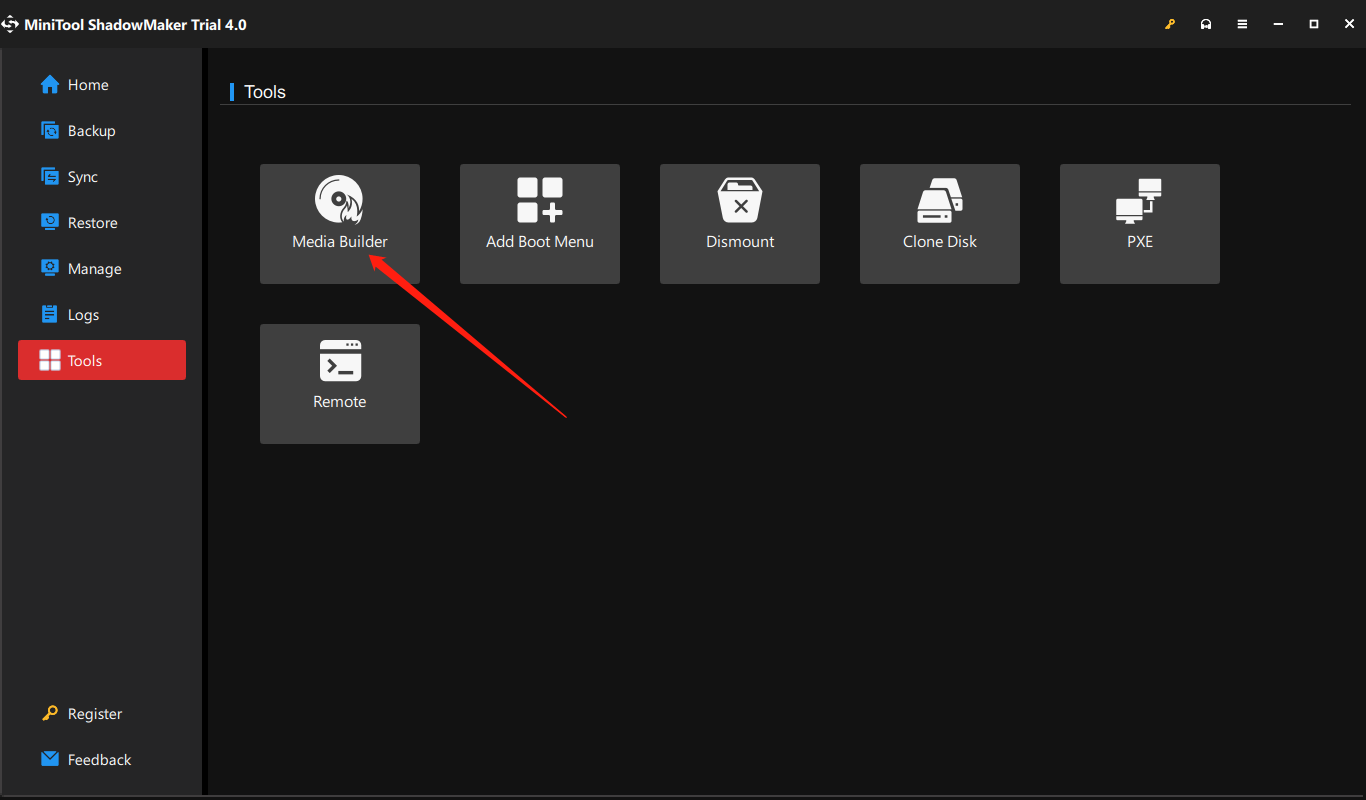
Then, just follow the on-screen guide to complete the task.
#2 Build Bootable USB by Windows Media Creation Tool
Windows Media Creation Tool is another program that can help you make a bootable USB device in Windows 10. For Windows 11, the corresponding application is called Windows 11 Installation Assistant, but it seems can’t create bootable media.
- Download the software on your computer.
- Double-click on the MediaCreationTool.exe.
- In the popup, Accept the applicable notices and license terms.
- Next, choose Create installation media.
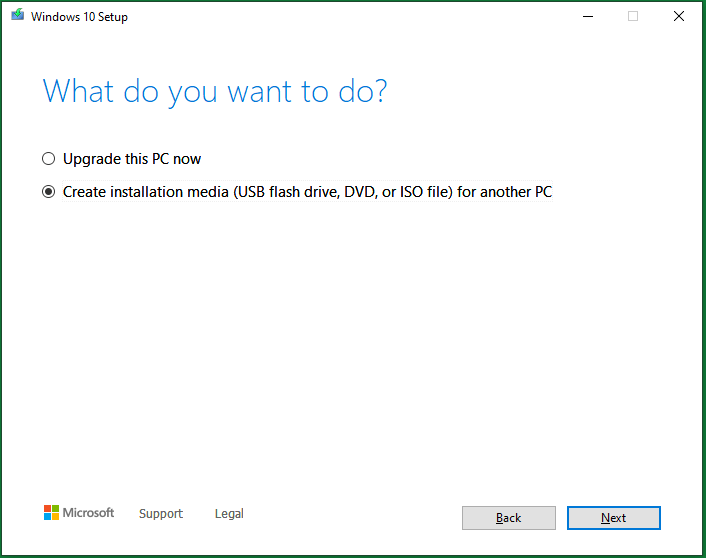
Then, obey the instruction to finish.
#3 Make Bootable CD/DVD via Windows Backup and Restore
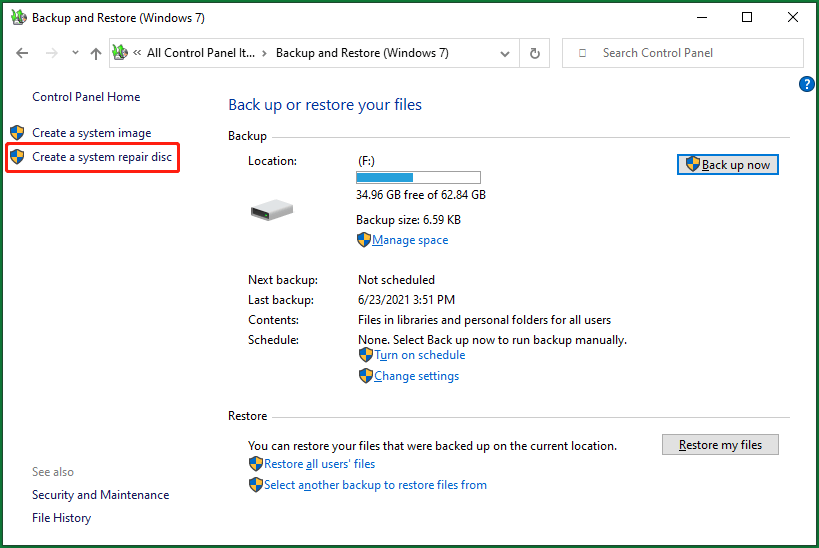
Lastly, you can create a bootable disc relying on the Backup and Restore app. Just go to its main UI and click on the Create a system repair disc option in the left panel. Yet, this utility doesn’t support a USB flash disk.
Conclusion
OK, that is all about the Samsung laptop boot from USB key that we’d like to share in this article. Hope you have everything you need and get your problem solved! Otherwise, just leave a comment below or contact [email protected]. Have a good day!
Samsung Laptop Boot from USB FAQ
About The Author

Position: Columnist
Helen is a tech writer with over 10 years of experience. She specializes in creating easy-to-follow guides for video editing, media file conversion, and computer performance. Helen doesn't just write—she tests every software herself and listens to feedback from users and experts. Her goal is to make complex programs simple so that everyone can solve their tech problems with confidence.
User Comments :