
There are 3 pieces of Seagate backup software: Seagate Toolkit, Dashboard, & DiscWizard. Which one should you use to back up PC data? In this post on MiniTool, you can find details and make a choice after a comparison. Also, try additional backup options like MiniTool ShadowMaker.
Why Backup Computer to Seagate Hard Drive
As is well known, files, pictures, documents, and other data can be deleted by cyber attacks, power outages, system crashes, hard drive failures, etc. The loss is immeasurable. However, with a backup in hand, this doesn’t matter.
Data backup is crucial to protect against unexpected data loss & data breaches and ensure business continuity. Usually, backing up PC data to an external hard drive is a popular choice. This is because it offers portability, larger storage capacity, easy control, and affordability.
Seagate, the leading provider, offers several hard drives for backups. Their high capacity, user-friendly software, and reliable performance make them a popular choice.
If you have ever purchased a Seagate hard drive, you can run Seagate backup software for data backup. We list 3 common tools for you: Seagate Toolkit, Seagate Dashboard, and DiscWizard. Now, learn their features and pros & cons, then choose the proper one.
Seagate Backup Plus Software: Seagate Dashboard
Seagate Dashboard is a powerful and easy-to-use utility, allowing you to easily manage and back up computer data. In its earlier versions, you can back up mobile content and save & share media (photos and videos) on social networks.
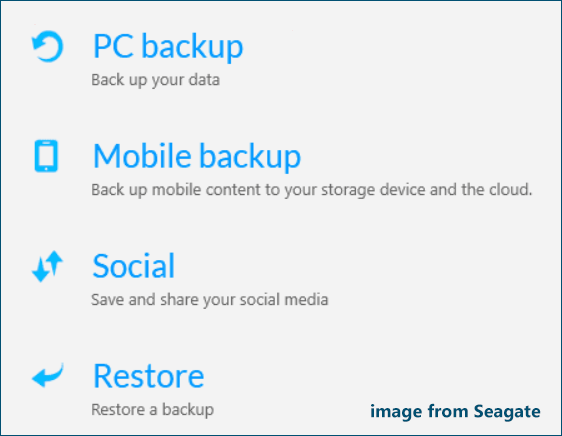
However, according to Seagate, some Dashboard sections were removed in 2018, including
- Mobile Backup
- Social (Save and Share)
- Cloud Backup
That’s to say, you can only use the section of PC backup and Restore now.
Features
- You can back up all your non-system files to Seagate storage drives whenever they change.
- It enables you to customize a backup plan. For example, you can back up personal folders, including User, Documents, Music, Pictures, and Videos.
- You are allowed to select specific folders to back up.
- Seagate Dashboard allows you to choose how often to back up. It provides several options, such as monthly, weekly, daily, hourly, etc.
- This Seagate backup software lets you store multiple versions of files. When needed, choose the version you want to restore.
- It offers options to you for local backup and cloud backup under PC backup.
Availability
Seagate Dashboard is compatible with Windows and macOS. But in the user manual of Seagate Dashboard, Seagate recommends using Apple Time Machine for Macs to back up files.
How to Use
Dashboard offers a user-friendly interface to back up important data. To use it, follow the instructions.
Step 1: Seagate Backup Plus Software Download & Install
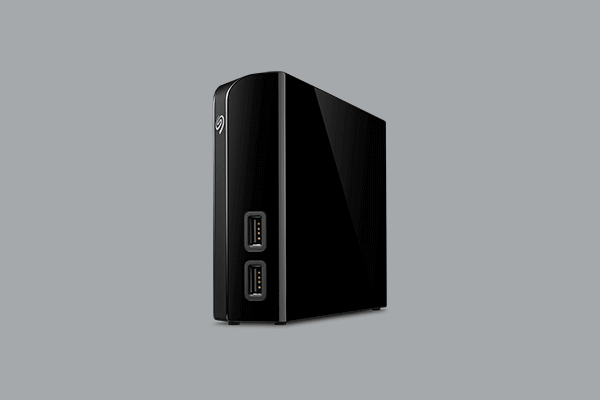
Typically, the software is preloaded on Seagate Backup Plus external drives. It isn’t automatically installed on the computer. But you can find the installer file on the drive. This is why we call it Seagate Backup Plus software.
Of course, you can manually download Dashboard and install it.
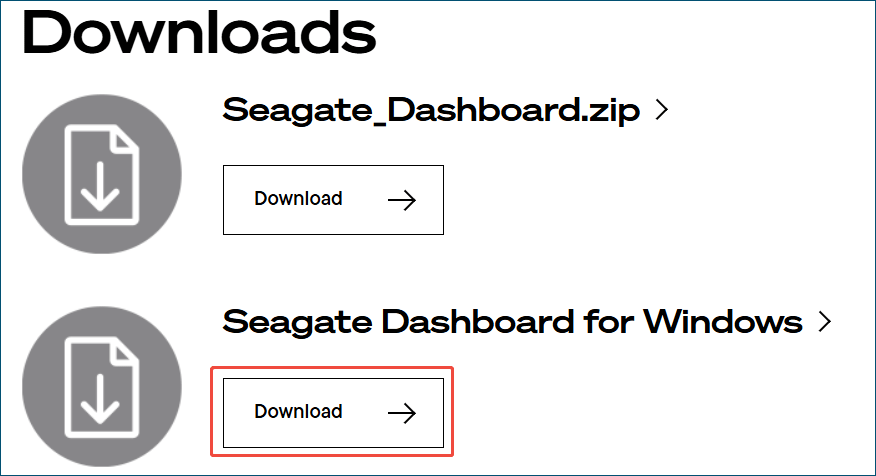
- Visit the Seagate Dashboard website.
- Scroll down to the Downloads part.
- Hit Download to get this Seagate backup program for Windows.
- Run the .exe file and finish the installation by following the prompts.
Step 2: Back up data to a Seagate Backup Plus Drive
1. Connect your external hard drive to your computer.
2. Launch this Seagate backup software.
3. Click PC backup for data backup.
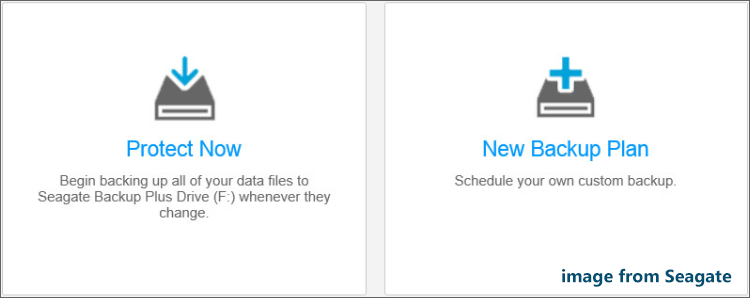
4. To begin backing up all non-system files now, click Protect Now.
5. To schedule your custom backup, click New Backup Plan. Here we take this as an example.
6. Choose files that you would like to back up: personal folders or specific folders.
7. Select the connected Seagate external drive to save backups.
8. Specify the frequency that backups will occur.
- Snapshot: It is a one-time backup of your data. Just choose it if you need to manage the backups manually.
- Monthly: It backs up selected files every month.
- Weekly: It backs up data once a week.
- Daily: The tool backs up data every day.
- Hourly: With this schedule, you should select the minute of each hour you want the backup to occur.
- Continuously: As the name implies, backups run continuously. Once the software monitors any change in the files, it automatically backs up.
9. Click Start backup to begin backing up selected files to an external drive.
Pros & Cons
Pros:
- Back up PC easily in a friendly user interface
- Automate backups (several options)
- Back up to Seagate storage devices and cloud
Cons:
- Lack of updates, outdated
- Lack of advanced options
- No support for the system backup
- Only used for older Seagate drives, like Backup Plus
Seagate Backup Software Windows 10: Seagate Toolkit
Another Seagate backup program we recommend is Seagate Toolkit. It is designed to back up files, manage security, mirror folders, and so on. With easy-to-use tools, you can make the most of your storage solution.
Seagate Toolkit is the current generation of backup software, replacing the older Dashboard.
Features
- Toolkit enables you to create backup plans for PC data, allowing automated and custom backups.
- You can customize to back up all files on internal drives, including personal files and files in the library folders.
- Like Seagate Dashboard, Toolkit provides several backup schedules: continuously, hourly, daily, weekly, monthly, and snapshot.
- This Seagate backup software allows mirroring folders to keep data synced. This means the created folders on your computer and drive are mirrors of one another.
- Seagate Secure keeps Seagate and LaCie drives safe using AES 256-bit encryption. It requires you to set up an 8-character password to protect the drive data. Also, you should set a password to unlock the drive.
- It also helps you easily configure the RAID level and formatting for compatible drives. The supported drives are LaCie 2big Dock, 2big RAID, Rugged RAID Pro, and Rugged RAID Shuttle.
Availability
Seagate Toolkit runs well in:
- Windows 10 and higher
- macOS 12 (Monterey) and higher
It supports most Seagate and LaCie external drives.
How to Use
Let’s explore how to run this Seagate backup program to back up data.
Step 1: Seagate Toolkit Download & Install
Some external hard drives come with this tool pre-installed. You can directly skip to the next step for backup.
If it is not installed, install it:
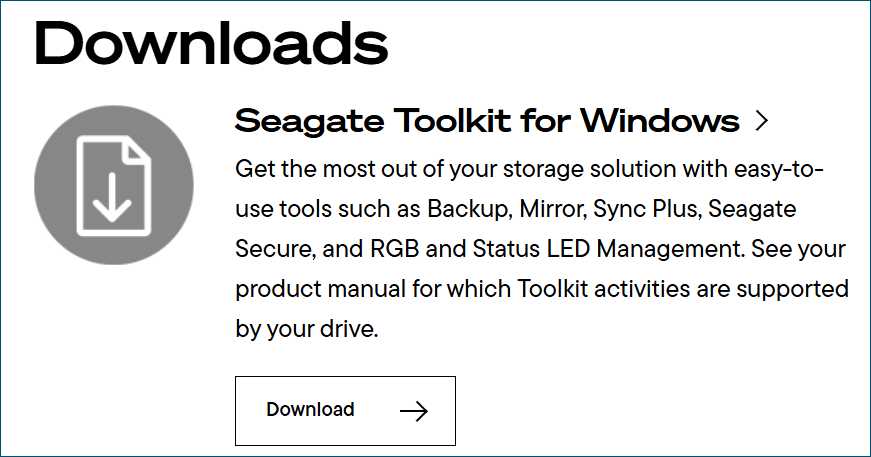
- Visit the Toolkit website.
- Download it for your computer.
- Run the installer and finish the installation.
Step 2: Connect your external drive to the computer and launch Toolkit.
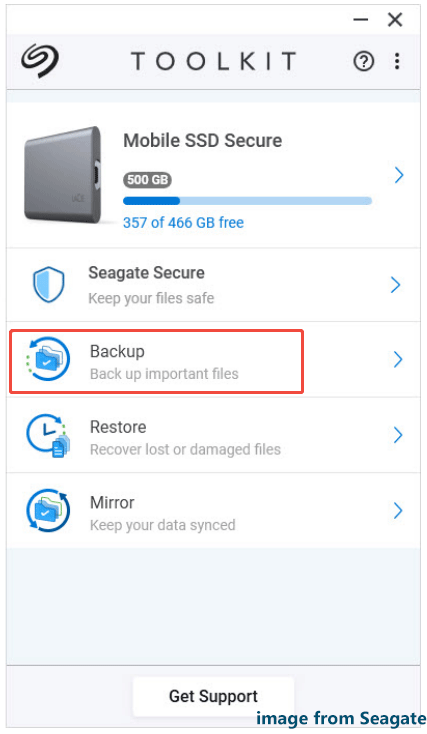
Step 3: In the main interface, click Backup to continue.
Step 4: Protect your data via 2 options:
Back Up Now: Automatically creates a new backup plan and quickly backs up personal files.
Custom: Allows you to choose the files or folders to back up.
We take the second as an example.
Step 5: Choose the content to include in your backups.
BASIC: Tick the boxes of files you want to back up.
| All files | On your internal drives |
| Personal files | User folders |
| Documents | Documents library |
| Music | Music library |
| Photos | Photo library |
| Videos | Videos library |
ADVANCED: Manually choose folders for backup.
Step 6: Select the Seagate external drive as the destination.
Step 7: Schedule a plan for automatic backups.
Step 8: Hit Start Backup.
Pros & Cons
Pros:
- Schedule automatic backups for regular data protection
- Mirror folders for real-time synchronization
- Set up RAID
Cons:
- Require a live internet connection for the initial setup and activation of the software
- Not compatible with drives from other manufacturers
- Lack of advanced backup options
- No support for system backup
Seagate Backup Software for Windows 11: Seagate DiscWizard
Seagate DiscWizard is a free application, an OEM version of Acronis True Image. It is tailored for Seagate hard drives and SSDs. Essentially, it functions as a stripped-down version.
This Seagate backup software offers you features like data backup, system recovery, disk cloning, etc.
Features
- It supports multiple backup sources: system, disk, partition, file, and folder. Also, it can back up the data on your NAS.
- You can use it to create disk image backups, saving storage space.
- Seagate DiscWizard enables you to regularly back up your computer.
- This Seagate hard drive software offers options to set a backup scheme, like full, incremental, and differential.
- It supports cloning a hard drive to another disk. That way, you can easily migrate the PC to a new or larger drive or replace a failing disk.
- DiscWizard can create a rescue bootable USB drive or CD for system recovery.
- Advanced backup settings are supported, such as email notification, file exclusion, backup protection, etc.
Availability
Seagate DiscWizard functions well in many Windows systems:
- Windows 11
- Windows 10
- Windows 8/8.1
- Windows 7
How to Use
Step 1: Visit the DiscWizard download website and hit Download to get a .zip folder.
Step 2: Extract all the files from that folder and run the .exe file to begin installing the backup software.
Step 3: Plug a Seagate external drive into your computer and launch DiscWizard.
Step 4: In the BACKUP tab, hit Select source, and choose what you want to back up.

Step 5: Click Select destination and choose the connected external drive for backups.
Step 6: Hit Back up now to start the backup process.
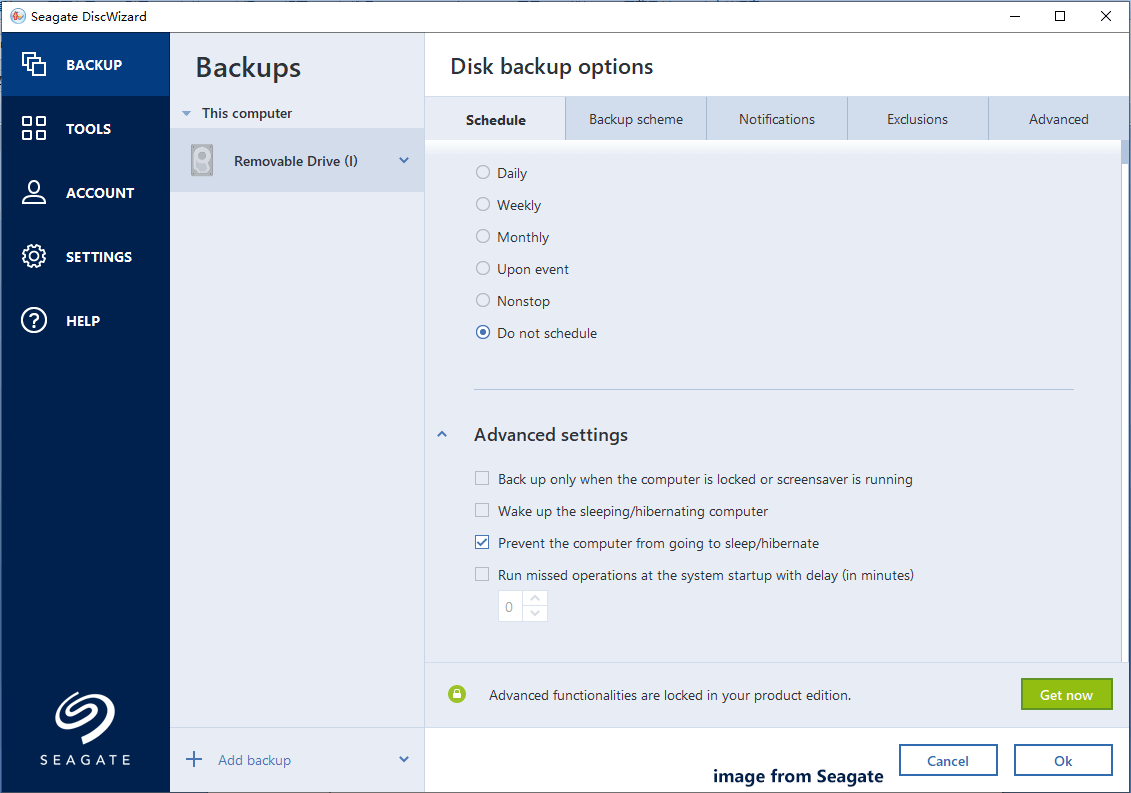
Before the last step, you can make some advanced settings for backups. Just click Options to do this task.
- Schedule: Set a plan to automatically back up your computer, such as daily, weekly, monthly, upon event, and nonstop.
- Backup scheme: Choose a backup scheme like incremental, differential, or full to create backups for only the changed data.
- Notifications: Send an email to tell you that the disk space is insufficient or what the operation state is.
- Exclusions: Exclude some files to be backed up.
- Advanced: Set the software for sector-by-sector backup, enable protection for backups, etc.
Pros & Cons
Pros:
- Free for Seagate users
- User-friendly interface
- Powerful features, including backup and cloning
- Automated, incremental, and differential backups
- Advanced backup options
Cons:
- Dependence on Seagate products
- Lack of cloud backup
- Software often not detecting drives
Seagate Toolkit VS Dashboard VS DiscWizard: Which One to Use
Comparison
These 3 Seagate backup software are helpful for computer backup, but they are different. Let’s see a simple comparison table.
| Features | Seagate Dashboard | Seagate Toolkit | Seagate DiscWizard |
| File backup | Yes | Yes | Yes |
| Automated backup | Yes | Yes | Yes |
| Backup scheme | No | No | No |
| System backup | No | No | Yes |
| Disk cloning | No | No | Yes |
| Cloud backup | Yes | No | No |
| Mirror folders | No | Yes | No |
| Supported OS | Windows 7/8/8.1/10 and OS X10.10-10.13 | Windows 11/10 & macOS 12 (Monterey) and later | Windows 11/10/8.1/8/7 |
Other tips to notice
- Toolkit is the current generation of backup software. It is shipped with most Seagate external drives (from 2018 to present).
- Dashboard is the previous generation of backup software. It is shipped with most Seagate external drives (from 2012 to 2017).
- Both offer the same backup options for scheduled backups and a manual backup (Snapshot).
Which One to Use
- Choose Toolkit if you use a newer Seagate drive and need to mirror folders or back up PC data and keep backups secure.
- Use Dashboard if you use an old Seagate drive and an old system, and need to back up PC data.
- Run DiscWizard if you want to create a system image backup, clone a hard drive, and back up files/folders flexibly.
Other Backup Software for Windows 11/10
In addition to these 3 backup software from Seagate, you have additional options. You can run a third-party backup program like MiniTool ShadowMaker or Windows’ built-in backup software.
They support a range of hard drive brands beyond just Seagate, such as Toshiba, Samsung, WD, and others.
Run MiniTool ShadowMaker
MiniTool ShadowMaker, free backup software, offers reliable disk imaging backup and recovery & disk cloning solutions. It has many highlighted features, making it stand out.
Features
- You can use it to backup files, folders, partitions, and disks. In case of system crashes or data loss, it is easy to perform recovery from backups.
- The software offers various backup types: full, differential, and incremental backup.
- It also enables you to schedule backups to automatically occur.
- Backing up a system on a working PC and restoring it to another PC can be done. Its Universal Restore feature can fix compatibility issues to ensure a bootable system.
- The tool supports data sync. Also, it supports cloning HDD to SSD, moving Windows to a drive, transferring an SD card to another one, etc.
- The Media Builder feature enables you to create a bootable USB drive, CD, or DVD. Even if the system fails to boot, you can back up data and restore the PC.
- Advanced options are offered, such as adding a comment for a backup, sending an email notification, changing a compression level, and more.
- Remote backup, adding a boot menu, verifying backups, and PXE boot are supported.
Availability
MiniTool ShadowMaker is compatible with several systems:
- Windows 11, 10, 8, 8.1 & 7
- Windows Server 2022, 2019, & 2016
It supports most of the modern hard drives, SSDs, and other storage devices from several brands:
- Seagate
- WD
- Toshiba
- Samsung
- ADATA
- SanDisk
- …
How to Use
Step 1: Connect a USB drive or external hard drive to your computer for backup.
Step 2: Download, install, and launch MiniTool ShadowMaker Trial Edition. You can freely use it within 30 days.
MiniTool ShadowMaker TrialClick to Download100%Clean & Safe
Step 3: Choose a backup source and target.
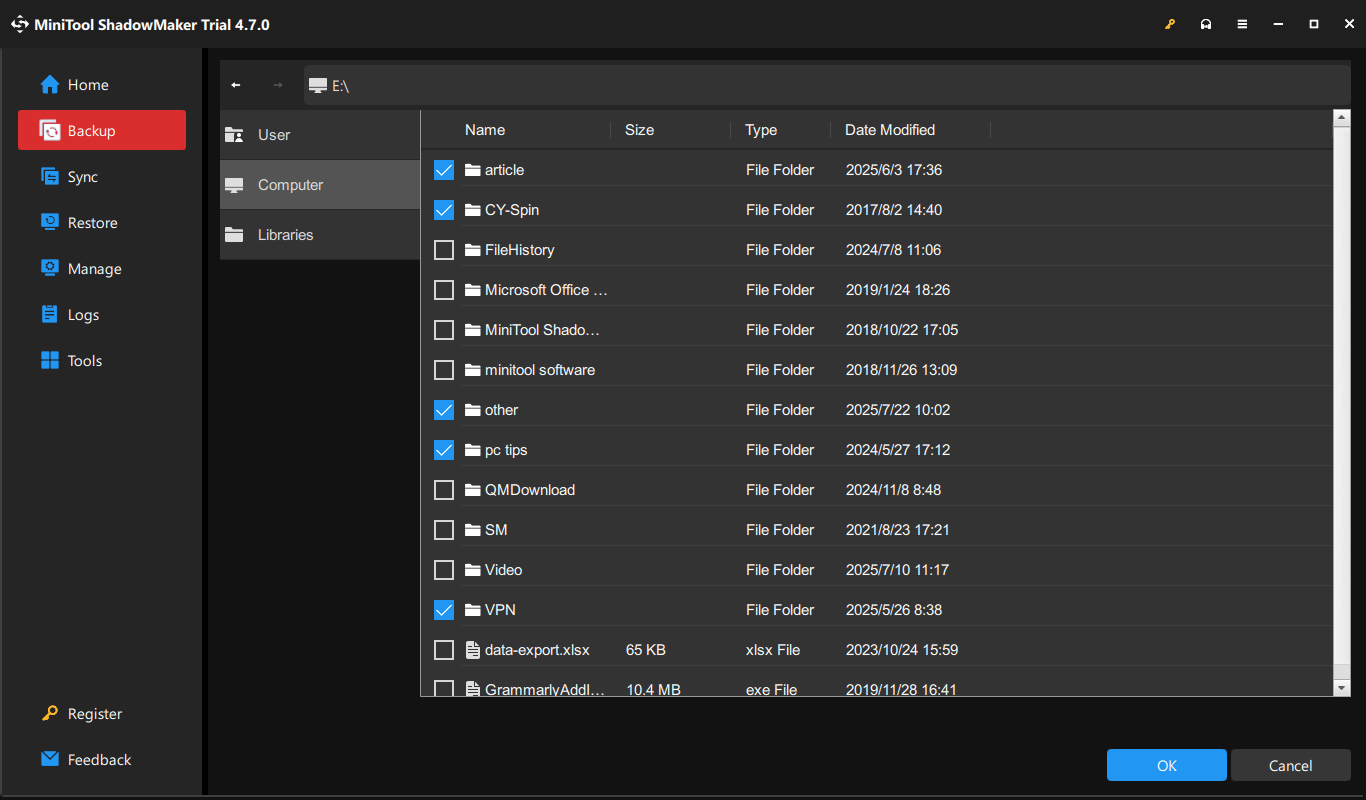
- To create a system image, navigate to Backup. You don’t need to choose the system drives in SOURCE since they have been selected. Just hit DESTINATION to choose the connected external or USB drive. Additionally, you can choose a NAS device or network drive to store backups.
- To back up data, hit SOURCE > Folders and Files. Then, choose the files or folders you wish to back up. Next, select a target drive.
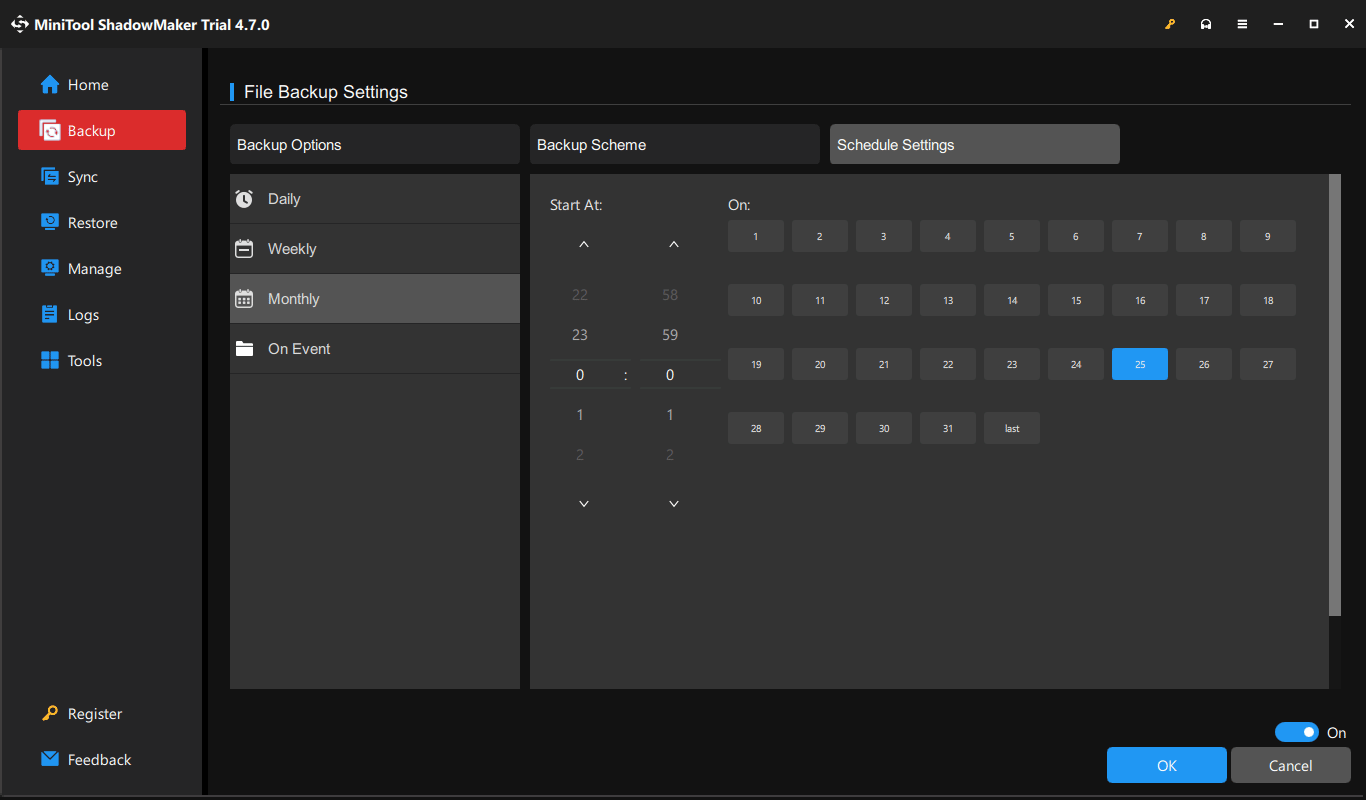
Step 4: Make advanced settings by hitting Options under Backup.
- Backup Options: It allows you to add a comment, enable encryption protection, configure sector-by-sector backup, etc.
- Schedule Settings: MiniTool ShadowMaker offers 4 options, including Daily, Weekly, Monthly, and On Event. Set a backup plan as per your needs.
- Backup Scheme: This configures the software to create incremental or differential backups for your computer. Meanwhile, it can delete old backup versions.
Pros:
- Powerful features, such as backup, recovery, sync, and disk cloning
- Automatic, full, differential, and incremental backups
- Advanced backup options
- Not limited to disk brands
- Various supported backup locations, including a USB drive, external drive, NAS, etc.
Cons:
- Lack of cloud backup
- Lack of system and partition clone
Built-in Windows Backup Tools
In addition to the third-party software, the following 3 backup tools offered by Windows help you.
- Backup and Restore (Windows 7): It easily creates a system image and automatically sets up data backup. This program supports all the hard drives that are detected by the system.
- File History: In Windows 11 and 10, File History automatically backs up files in the folders of the library. Usually, use an external hard drive as the backup target.
- OneDrive: It syncs files and folders to the cloud, making them accessible across devices.
To learn details about them, see this guide on the best way to back up Windows 11.
Final Words
Backing PC data to a Seagate hard drive is so easy. You can follow the above instructions to run Seagate Dashboard, Toolkit, DiscWizard, MiniTool ShadowMaker, etc.
The backup tools from Seagate only depend on Seagate hard drives. If you use such a disk, choose the proper Seagate backup software.
Want to back up the system and data without any limitations? We strongly recommend MiniTool ShadowMaker. By contrast, its reliable and powerful features make it an ideal choice.
Please contact us by sending an email to [email protected] if you have a suggestion or issue with our software.
Seagate Backup Software FAQ
2. Under Backup, choose backup source and target.
3. Hit Back Up Now.
About The Author

Position: Columnist
Vera has been working at the MiniTool Team for over 10 years as a technical editor and content writer. She mainly focuses on disk and partition management, data recovery, Windows backup and restore, and PC troubleshooting. Through in-depth software testing and hands-on experience, she has helped users solve a wide range of computer problems and better protect their data on Windows devices.
User Comments :