
Surface Pro random shutdowns can occur for various reasons, depending on the timing and manner of the issue. This guide systematically breaks down the problem by scenario and provides step-by-step solutions to fix it.
Quick Answer: Why Does My Surface Pro Keep Shutting Down?
If your Surface Pro keeps shutting down randomly, the most common causes include:
- Windows update conflicts or system bugs
- Misconfigured power settings
- Hardware problems
- Battery/power supply aging or malfunction
- Outdated driver or system
- Overheating due to dust or heavy usage
To resolve the issue, first determine when the shutdown occurs (while idle, on battery, or during active use), and then implement the specific solutions below.
Common Reasons Your Surface Pro Keeps Shutting Down
# 1. Surface Pro Shuts Down Randomly During Use
If your Surface Pro shuts down unexpectedly while in use, it typically indicates:
- Driver conflicts
- System instability
- Firmware issues
# 2. Surface Pro Turns Off When Idle
If your Surface Pro turns off while it’s idle, there are several possible causes:
- Power-saving settings
- Sleep mode misconfiguration
# 3. Surface Pro Shuts Down on Battery
If your Surface Pro shuts down while on battery power, the likely reasons are:
- Battery degradation
- Incorrect battery calibration
# 4. Surface Pro Overheating and Shutting Down
If your device gets hot before shutting down, it suggests that the internal thermal protection is triggered.

Suggestion: Back up Files Before Proceeding
When your Surface Pro keeps shutting down, your data is at risk of losing for potential reasons. Hence, we recommend having a backup of the crucial files. Speaking of data backup, MiniTool ShadowMaker, one of the best backup software stands out from many similar products.
It enables you to automatically back up files at a configured time point and create backups for only changed & newly added data. Right now, get this backup program and then use it to create file backups in Windows 11/10 before fixing the random shutdown issue.
MiniTool ShadowMaker TrialClick to Download100%Clean & Safe
How to back up files on Surface Pro 10/8/7+/7/6:
Step 1: Connect your target drive to a PC, launch MiniTool ShadowMaker on your Surface Pro and tap on Keep Trial.
Step 2: Head to Backup and click SOURCE > Folders and Files. Then, check the files you want to back up and click OK.
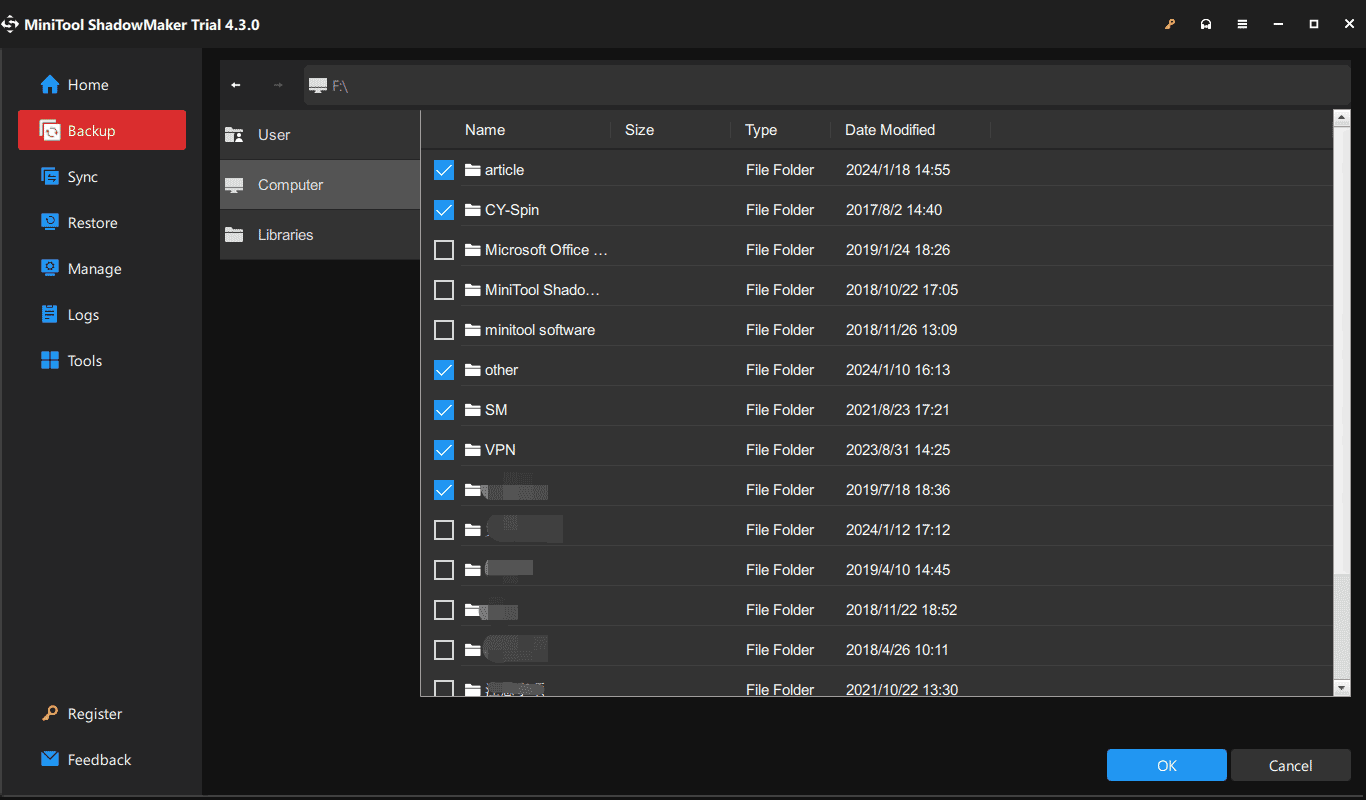
Step 3: Click DESTINATION and choose a USB drive or external drive to save the backed-up image file.
Step 4: Start file backup by clicking Back Up Now.

After creating a backup for your significant files, start troubleshooting your issue.
How to Fix Surface Pro Random Shutdown (Step-by-Step)
Here are effective solutions you can apply based on your specific situation.
Fix 1. Force the Surface Pro to Shut Down
Best for Surface Pro shuts down randomly or freezes.
When a Surface Pro keeps shutting down, you can force this device to shut down. This process will reset your PC hardware and clear cache & memory to solve some issues. So, have a try.
Step 1: Press the Power button until this device turns off and then restarts. This will take around 20 seconds.
Step 2: Release this button until you see the Windows logo on the screen.
If Surface Pro random shutdown still happens, continue troubleshooting.
Fix 2. Update Windows 11/10
Best for Surface Pro shuts down due to system bugs.
Make sure your Surface device runs the latest operating system since sometimes the updates offered by Microsoft include bug/issue fixes.
MiniTool ShadowMaker TrialClick to Download100%Clean & Safe
Try this way when your Surface Pro shuts down randomly:
Step 1: Click the Start button and choose Settings.
Step 2: Go to Update & Security > Windows Update (Windows 10) or go to Windows Update (Windows 11).
Step 3: Check for updates and see if there are some available updates. If yes, download & install them on the Surface Pro.
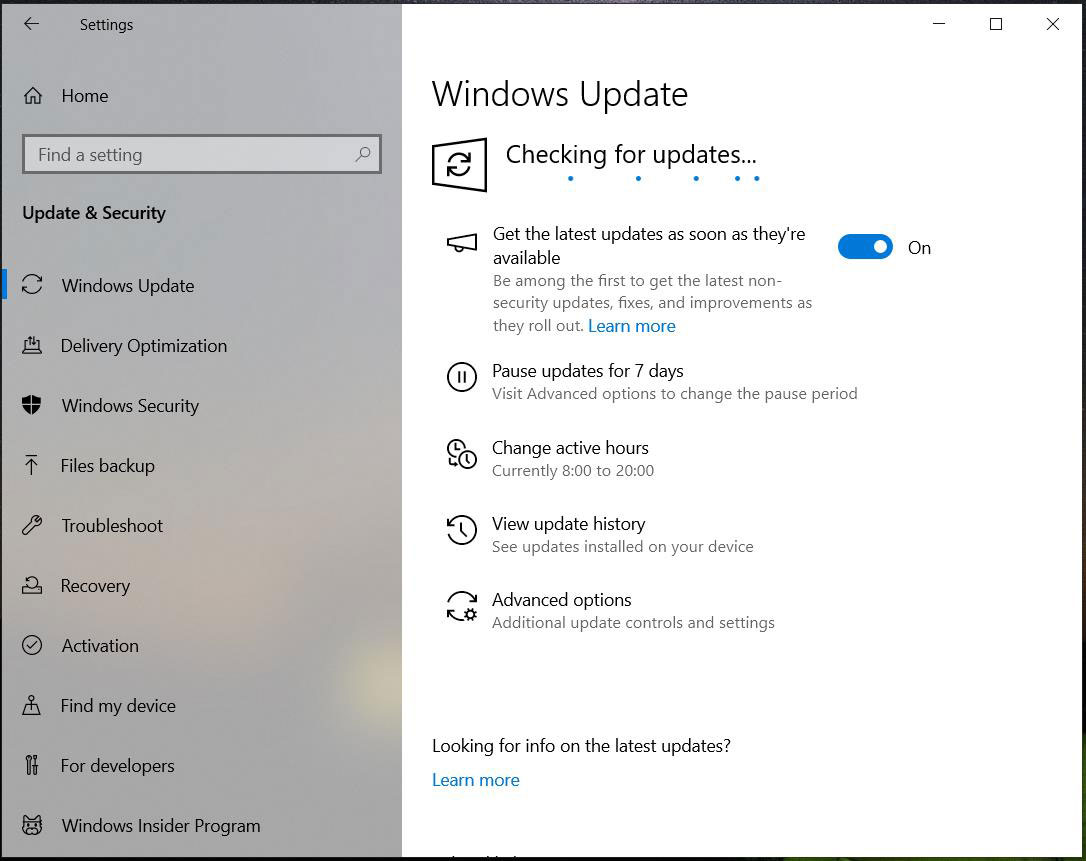

Then, check if random shutdowns happen on your Surface Pro. If this cannot do the trick, try other fixes.
Fix 3. Update Your Firmware and Drivers
Best for random or frequent shutdowns.
Another thing you should do is checking for updates of Surface’s firmware and drivers. As stated above, outdated device drivers could cause issues with a Surface device including unexpected shutdowns. Make sure to keep your PC with the latest drivers and firmware updates in addition to Windows updates when a Surface Pro keeps shutting down.

Step 1: Get your Surface device model – type surface to the search box and view Device Information, then note down the value of Surface model.
Step 2: Check the Windows version by going to Settings > System > About.
Step 3: Visit the page of Download drivers and firmware for Surface, and then you will find some ways to update device drivers and firmware. Scroll down to the Manually update Surface drivers and firmware section and choose your Surface device model.
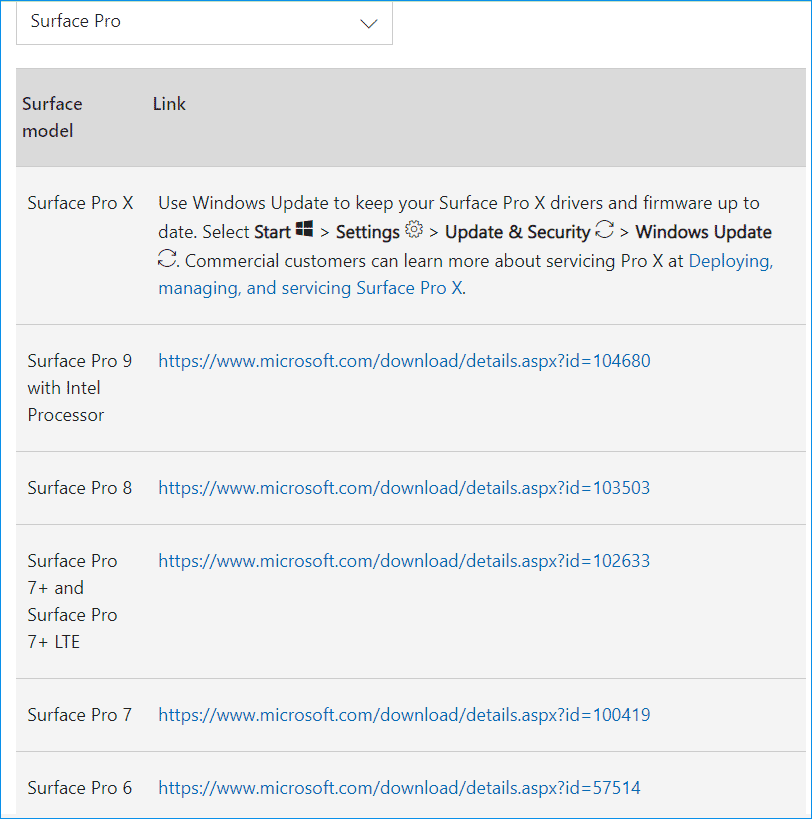
Step 4: Tap on the given link based on your Surface Pro model, then enter the Download Center details page, and click the Download button.
Step 5: Choose the proper .msi file to download based on your Windows version.

Step 6: Run the downloaded file and follow the prompts to complete the update installation.
After that, restart the Surface and see if it still keeps turning off.
Fix 4. Adjust Power Settings
Best for Surface Pro shuts down when idle.
When Sleep Mode works as intended, it is a good way to economize the PC battery. At the same time, you can access your PC in seconds when needed. However, it doesn’t always work in this manner and can trigger random shutdowns.
In some cases, enabling Sleep Mode can let the device fully shut down rather than put it in brief hibernation. To address your issue, adjust the power settings to disable Sleep Mode.
Here is how to do it:
Step 1: In Windows 11, navigate to Settings > System > Power & battery > Screen and sleep. In Windows 10, go to Settings > System > Power & sleep.

Step 2: Then, choose Never under Sleep.
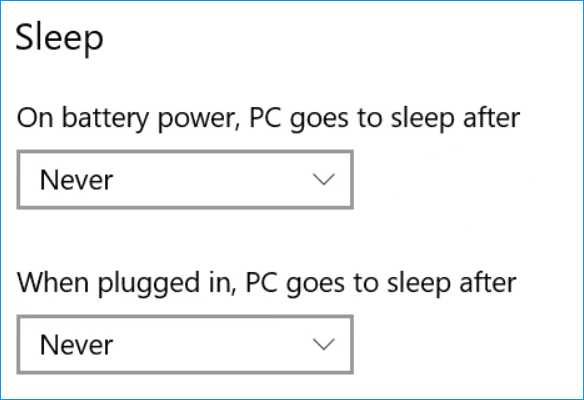
Fix 5. Cool Down Surface Pro
Best for Surface Pro shuts down during heavy use.
Too overheated Surface Pro usually shuts down suddenly. This overheating issue can be caused by many reasons like running too many processes & apps, dust, and other debris clogging up the fans and vents, putting the device on the bed, etc.
The important thing is to cool down this device. You can clear the dust, use a cooling pad, or put it in a cooler location. Note that whether you use a Surface Pro 9 or any other model, random shutdowns will continue to occur if the device is overheated. So, be careful where, when, and how you use it.

Fix 6. Disable Fast Startup
Best for Surface Pro shuts down unexpectedly.
A complete shutdown can clear corrupt driver states, update pending tasks, and prevent driver conflicts. Therefore, try disabling fast startup to get a full shutdown to fix the issue.
- Open Control Panel.
- Go to Power Options > Choose what the power button does.
- Disable Turn on fast startup.
Fix 7. Run a Full Scan for Malware
Best for Surface Pro shuts down due to malware.
Your computer shutting down randomly (seemingly out of nowhere) may derive from malware. Malicious software may perform several negative things, e.g., delete files, steal various login credentials, and even turn off your PC. In most cases, you don’t know you face a virus or malicious software.
Thus, run a full scan of the device when Surface Pro keeps shutting down. Windows 11/10 comes with an excellent antivirus app called Windows Security, also known as Windows Defender. It works greatly in scanning the full system and removing threats.
Do this, as follows:
Step 1: In the Windows 11/10 Search Box, type Windows Security and press Enter to open this tool.
Step 2: Navigate to Virus & threat protection > Scan options.
Step 3: Choose a scan option like Full scan and tap on Scan now. Or, you can choose Microsoft Defender Offline scan since some malware can be particularly hard to remove from your device and this scan option can help find and remove malware using up-to-date threat definitions.

Step 4: The scan begins. Then, remove the detected various threats.

Fix 8. Check Your Battery
Best for Surface Pro shuts down on battery.
Sometimes your Surface Pro shuts off when plugged in. The culprit behind this case could be issues with the battery.
You can check the battery status by going to Settings > System > Battery. Or, you can open Command Prompt as an administrator and execute the command – powercfg /batteryreport to get a detailed battery report, then open the HTML file via a web browser to view details.
If the battery health is poor, consider replacing the problematic battery.
Fix 9. Run Intel Graphics Command Center
Best for Surface Pro shuts down during graphics tasks.
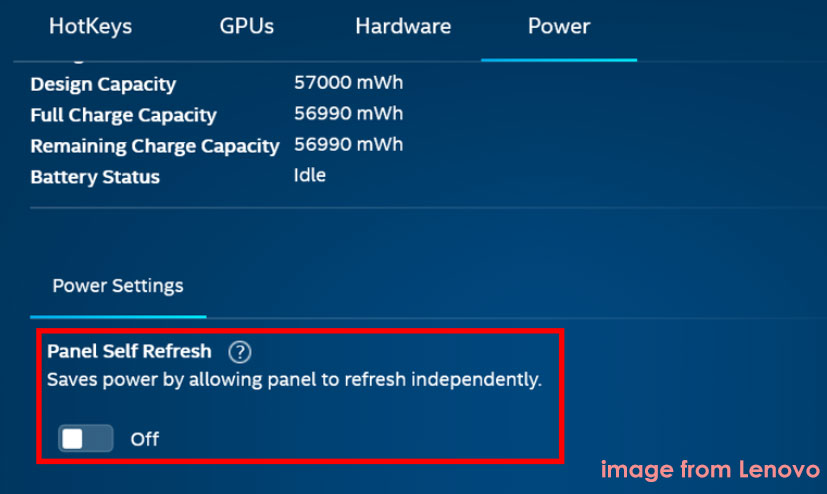
When Surface Pro 9, 8, 7+, 7, or 6 keeps turning off randomly, you can choose to install Intel Graphics Command Center and disable the Panel Self Refresh setting. This way has been proven to help remove random shutdowns.
Step 1: Open Microsoft Store in Windows 11/10, search for Intel Graphics Command Center, and install it on your laptop.
Step 2: After the installation, open this app and then navigate to System > Power > Power.
Step 3: Then disable the option of Panel Self Refresh.
Fix 10. Run Surface Diagnostics
Best for unknown causes.
The Surface Diagnostic Toolkit is a Microsoft app that helps diagnose and fix device issues through automated repairs and hardware tests. Therefore, use this tool to identify issues with the following steps:
- Plug your Surface into a power outlet and ensure it is connected to Wi-Fi.
- Search for Surface Diagnostic Toolkit and launch it. (If it isn’t installed, download it from the Microsoft Store.)
- Select Diagnostic and click Continue.
- Choose Run all tests for a full evaluation (roughly 15–20 minutes) or Select tests for specific components like the battery, screen, or keyboard.
- Follow the on-screen instructions to complete the process.
Fix 11. Reset or Reinstall Windows 11/10
Best for Surface Pro shuts down persistently.
If all of the above solutions cannot address Surface Pro random shutdowns, the only way you can resort to is resetting or reinstalling your Windows operating system.
When we say “reset/reinstall”, it means reinstall the Windows system and applications. If you choose Remove everything as the resetting option or clean install Windows, your personal files are also erased besides the system and programs. This is why we advise you to create a full backup for your files before proceeding.

Back up Files
As mentioned in part 2, MiniTool ShadowMaker is a good assistant in PC backup. With this free backup software, you can easily backup files, folders, Windows, disks, and partitions. Also, disk cloning and file/folder sync are supported. Get it now and start the file backup before Windows reset/reinstallation.
MiniTool ShadowMaker TrialClick to Download100%Clean & Safe
Step 1: Open MiniTool ShadowMaker Trial Edition.
Step 2: Go to Backup, choose the files you want to back up, and select a drive to save the backup image.
Step 3: Start the backup by clicking Back Up Now.
Reset/Reinstall the System
After the backup, follow the steps below to reset Windows:
Step 1: In Windows 10, move to Settings > Update & Security > Recovery and click Get started under Reset this PC.
In Windows 11, go to Settings > System > Recovery and click Reset PC next to Reset this PC.
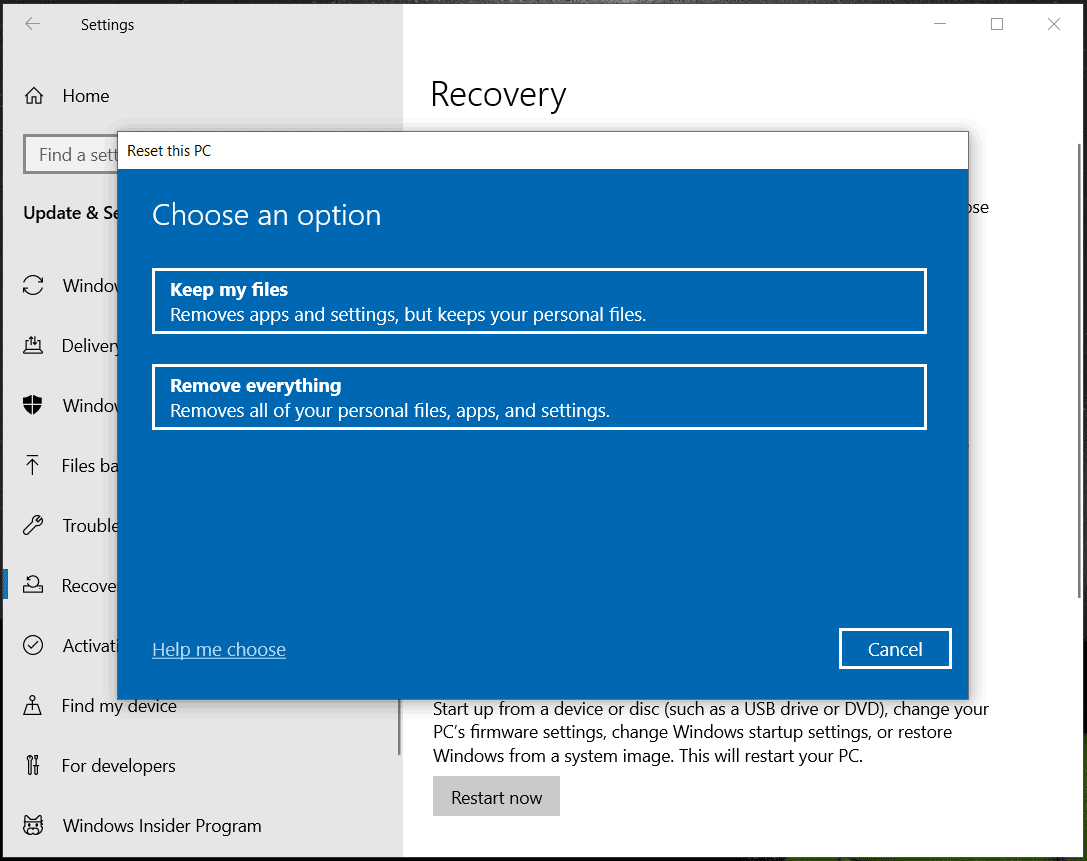
Step 2: Choose an option – Keep my files or Remove everything.
Step 3: Decide how you would like to reinstall Windows – Cloud download or Local reinstall.

Step 4: Complete the resetting process by following the instructions on the screen.
If the issue still exists after trying 9 fixes, contact Microsoft support for help.
That’s all.
Surface Pro Model-Specific Issues
Some models have known issues:
- The Surface Pro 7 may experience random shutdowns due to firmware bugs.
- Older models may suffer from battery degradation.
Ensure your device is fully updated to prevent these problems.
Pro Tip: How to Diagnose the Problem Quickly
Use this quick guide:
- Shuts down during heavy use – overheating issue
- Shuts down on battery – battery issue
- Shuts down randomly – driver or system issue
- Shuts down when idle – power settings issue
Surface Pro Keeps Shutting Down FAQ
- Persistent performance issues
- Selling or giving away
- Forgotten passwords
- Startup failures
Resetting may erase all data. Ensure files are backed up to OneDrive or an external drive.
Conclusion
If your Surface Pro is frequently shutting down, it is often due to overheating, battery issues, or system errors. By accurately identifying the situation and implementing the appropriate solution, you can quickly resolve the problem and prevent future shutdowns.
About The Author

Position: Columnist
Charlotte is a technology columnist with a strong focus on the Windows operating system, specializing in disk management, backup, and data recovery. She is passionate about analyzing computer errors, identifying root causes, and delivering practical solutions. In her free time, she stays updated on the latest developments in computer systems and hardware while continuously learning new technologies to broaden her expertise. Her writing style is clear and easy to understand, making complex technical topics accessible even to users with limited computer knowledge.
User Comments :