
When logging in Windows operating system, you may receive the error message saying “C:\Windows\system32\config\systemprofile\Desktop is unavailable”. This error could happen on many Windows versions. This tutorial provides you with multiple solutions.
Quick Answer
The “C:\Windows\System32\config\systemprofile\Desktop is unavailable” error means Windows cannot load the Desktop folder for the local system account. It may occur due to a Windows update, an improper shutdown, or a corrupted user profile.
To fix this issue:
- Restore the Desktop’s default path
- Recreate the missing Desktop folder
- Check the Desktop path in the Windows Registry
- Run DISM and SFC to repair corrupted system files
- Create a new user profile
- Reinstall Windows 11/10
C:\Windows\system32\config\systemprofile\Desktop Is Unavailable Windows 11/10
When signing into Windows, you may see the error “C:\Windows\System32\config\systemprofile\Desktop is unavailable”. The desktop is blank, and you cannot find any previously saved files.
This means your system files have been corrupted in some way. As a result, the default desktop profile isn’t found in the specified location and the desktop cannot be loaded.
The error usually happens after a Windows update, a sudden system crash, unexpected shutdown, or user profile change.
It can be caused by various reasons, such as:
- Corrupted user profile
- Missing Desktop folder path
- Incorrect registry configuration
- Corrupted system files
Solutions to Fix system32\config\systemprofile\Desktop Is Unavailable
Method 1: Restore the Default Path
When the issue – system32 config systemprofile desktop is unavailable Windows 10/11 happens, the system isn’t able to link to its default location. In this case, resetting the location can be helpful to help you out.
Here is what you should do:
1. Press the Win + E keys at the same time on your keyboard to open Windows Explorer.
2. Click This PC to expand the list, right-click Desktop and choose Properties.
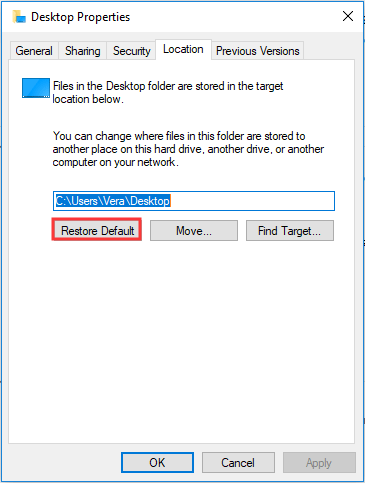
3. Go to the Location tab, click the Restore Default button.
4. Click Apply and then OK to save the change.
Method 2: Recreate the Missing Desktop Folder
If the Desktop folder is missing from the system profile, creating it manually may fix the error.
- Launch Windows Explorer by pressing Win + E.
- Go to the View tab and check the box of Hidden items.
- Go to C:\Windows\System32\config\systemprofile and check if the Desktop folder exists.
- If it is missing, right-click an empty area, choose New > Folder, and name it Desktop.
- Alternatively, access C:\Users\Default and copy the Desktop folder to the systemprofile folder.
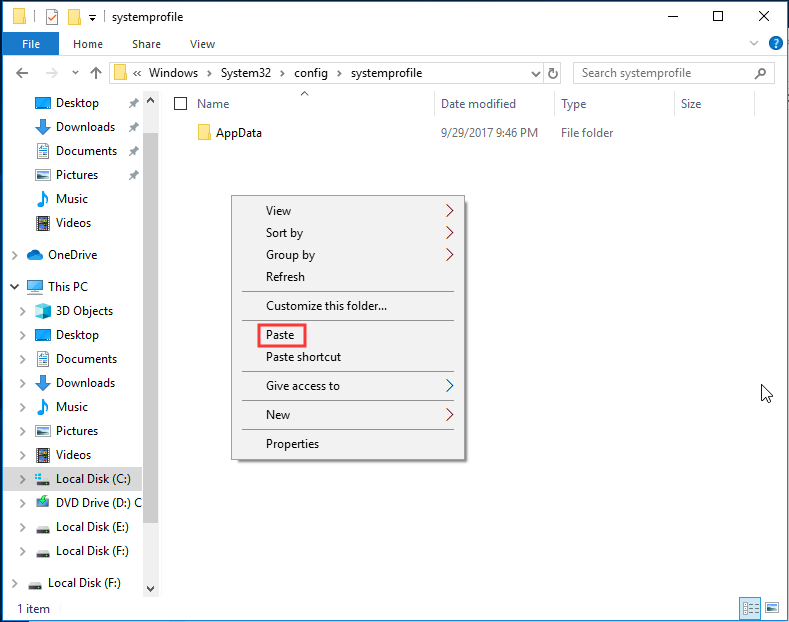
After that, restart your PC and see if the error – C:\Windows\system32\config\systemprofile\Desktop is unavailable has been fixed.
Method 3: Check the Desktop Location Through Registry Editor
If the methods above are not working to fix the unavailable desktop location in Windows 10/11, you can check the location via Windows Registry Editor.
Follow the instructions below:
- Hit Win + R to get the Run dialog box.
- Input regedit to the text box and click OK to open Registry Editor.
- Go to this path: Computer\HKEY_CURRENT_USER\Software\Microsoft\Windows\CurrentVersion\Explorer\User Shell Folders.
- Double-click Desktop and ensure its value data is C:\Users\%USERNAME%\Desktop or %USERPROFILE%\Desktop.
- Click OK. Restart your PC to check if the issue still persists.

Method 4: Create a New User Account
To fix C:\Windows\system32\config\systemprofile\Desktop is unavailable, you can try creating a new account and copy your old data to the new account.
Take Windows 10 as an example:
1. Open the Run window by hitting Win + R.
2. Input cmd and press Ctrl + Shift + Enter to run Command Prompt with administrative rights.
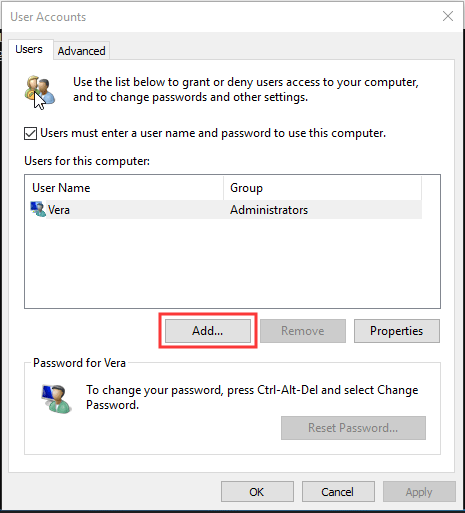
3. In the CMD window, input control userpasswords2 and press Enter.
4. In the pop-up window, click the Add button.
5. Click Sign in without a Microsoft account (not recommended) from the new window.
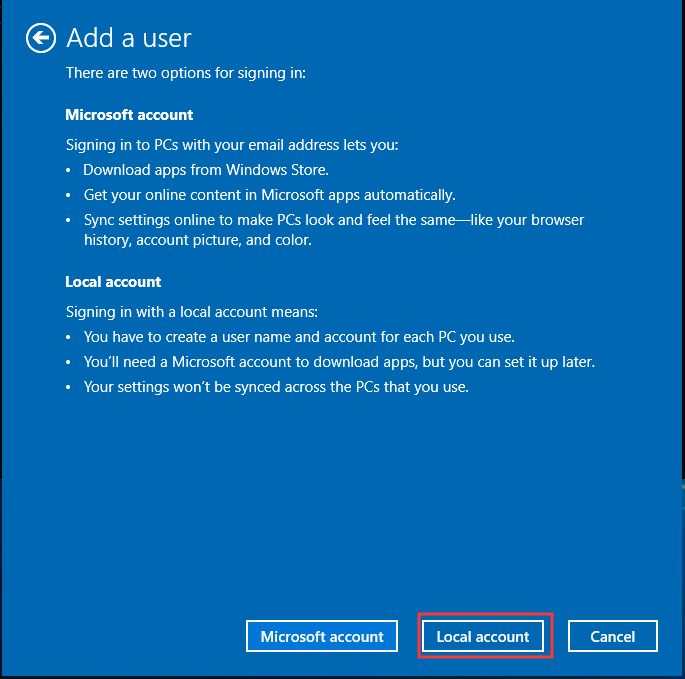
6. Click Local account.
7. Type user name, password and password hint.
8. Click Finish.
9. To assign the new account admin rights, click it and choose Properties.
10. Under Group Membership, choose Administrator and save the change.
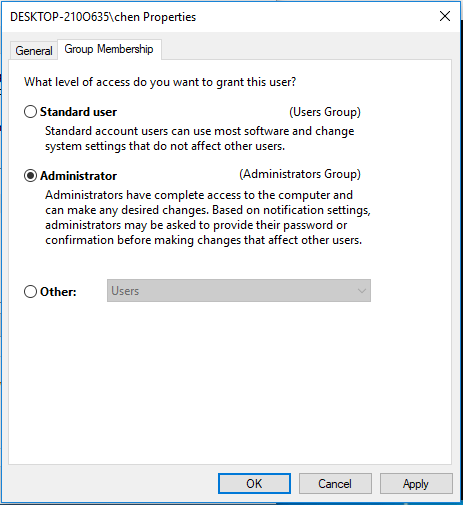
11. Restart your PC and log in to the system with the new account.
The issue – C:\Windows\system32\config\systemprofile\Desktop is unavailable won’t appear. Then, you can move files from the old account to a new account.
Method 5: Run DISM & SFC
As mentioned above, the error “desktop refers to a location that is unavailable” or the issue of systemprofile desktop is unavailable happens due to corrupted system files. So, you can run DISM & SFC to scan for corruption and fix damaged system files in Windows 10/11.
- Open Command Prompt as administrator by inputting cmd to the Run box and pressing Ctrl + Shift + Enter.
- Type DISM /Online /Cleanup-Image /RestoreHealth and press Enter.
- Input sfc /scannow and hit Enter.
- Wait a few minutes. Then, exit the CMD window after the scan finishes.
Method 6: Fix Unavailable Desktop via an In-Place Upgrade
The issue – C:\Windows\system32\config\systemprofile\Desktop is unavailable may appear since the Windows update installation isn’t completed yet or it isn’t finished successfully. So, you can perform a system update manually.
If the error started after a failed or incomplete Windows update, an in-place upgrade may help in most cases. It can repair Windows while keeping your personal files and installed apps.
- Download Windows 11 ISO from Microsoft.
- Right-click the ISO file and choose Mount.
- Open the virtual drive and run the exe file.
- Accept the license terms.
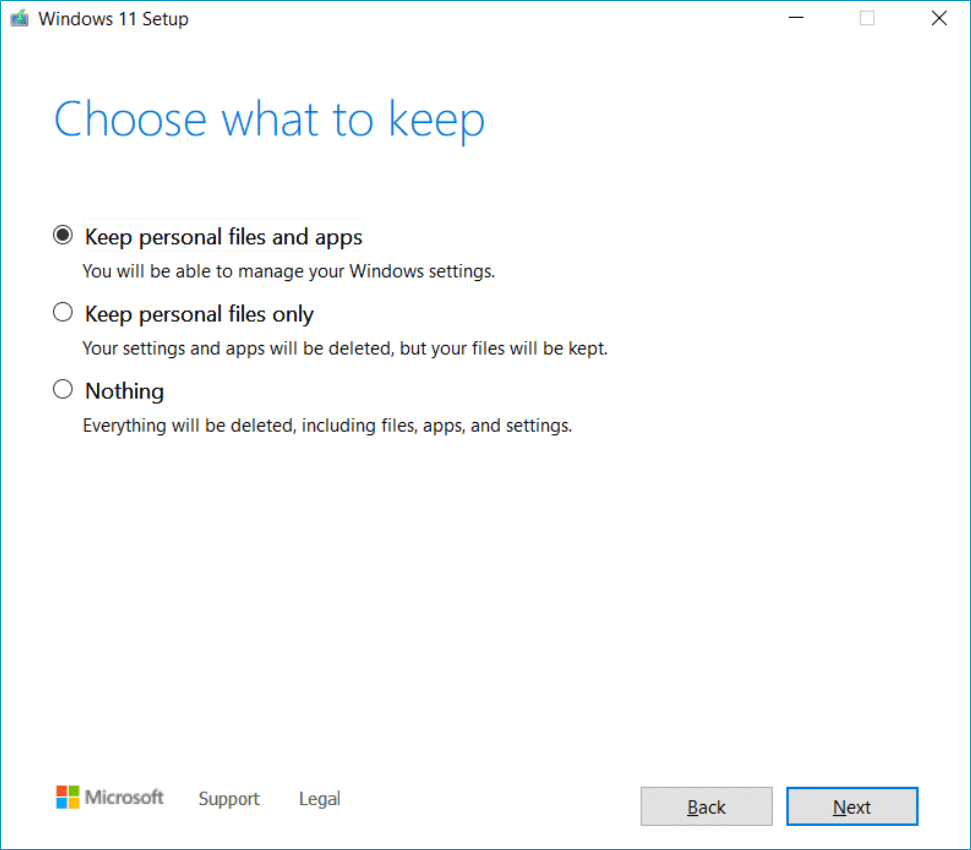
- Choose what to keep and follow the on-screen instructions to finish the upgrade.
Method 7: Reinstall Windows 11/10
If none of the previous methods work, reinstalling Windows 11/10 may fix the unavailable systemprofile desktop error.
Back up files
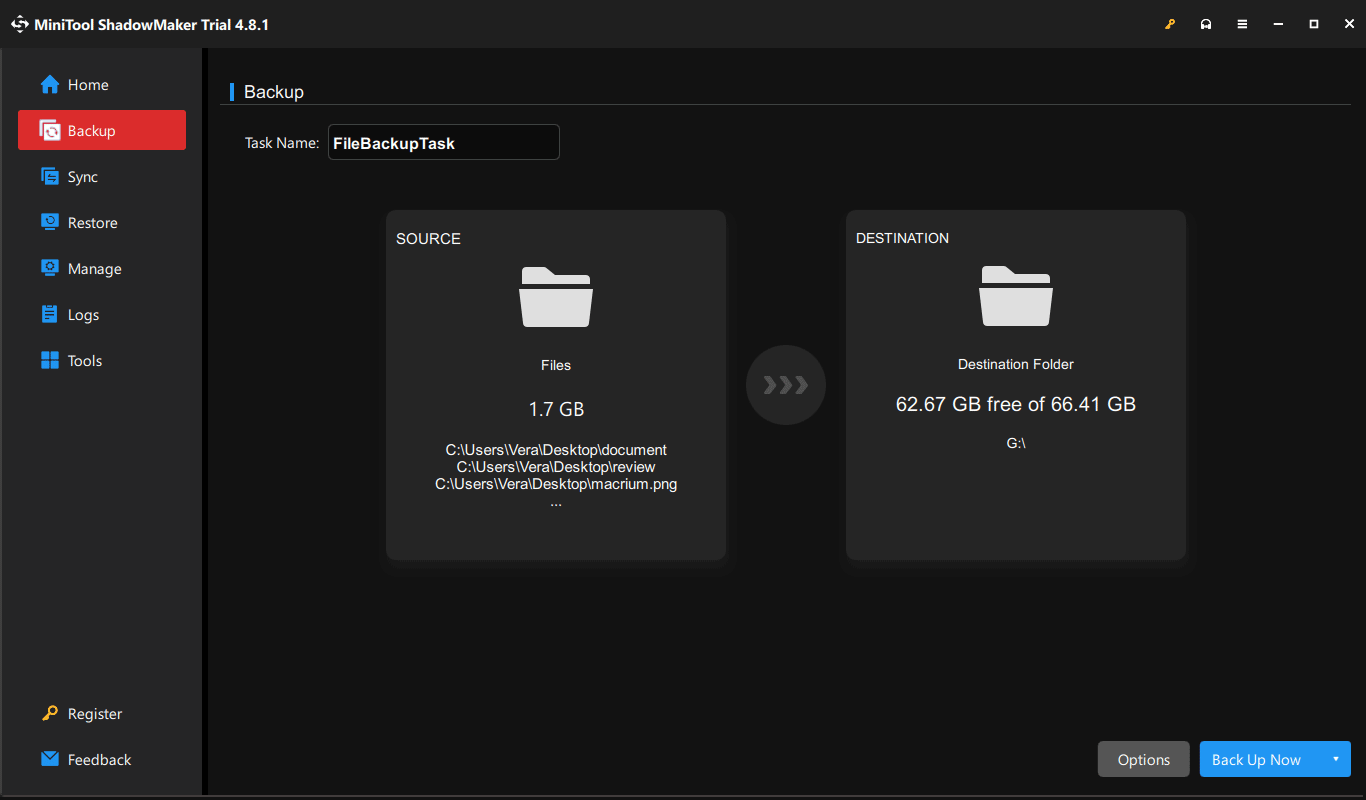
Since the installation process can delete your personal files, back up important data to avoid loss. For data backup, consider using MiniTool ShadowMaker, a reliable PC backup software.
It supports disk/partition/system/folder/file backup and recovery in Windows 11/10 and Windows Server 2025/2022.
MiniTool ShadowMaker TrialClick to Download100%Clean & Safe
Step 1: Launch MiniTool ShadowMaker.
Step 2: Navigate to Backup > SOURCE > Folders and Files and select the files or folders you want to back up.
Step 3: Go to DESTINATION to choose a drive to save the backup image.
Step 4: Click Back Up Now to begin file backup.
Reinstall Windows
Step 1: Create a bootable USB drive from ISO.
Step 2: Boot the PC from that drive.
Step 3: In the Windows Setup interface, choose Install Windows.
Step 4: Follow the on-screen instructions to complete the installation process.
Conclusion
The “C:\Windows\System32\config\systemprofile\Desktop is unavailable” error can be easily fixed in Windows 11/10. Start by checking the Desktop path and recreating the missing folder, then edit the Windows Registry and create a new user profile.
If all methods fail, back up important files with MiniTool ShadowMaker and reinstall Windows.
When meeting issues with our software, contact us at [email protected].
System32\config\systemprofile\Desktop Is Unavailable FAQ
About The Author

Position: Columnist
Vera has been working at the MiniTool Team for over 10 years as a technical editor and content writer. She mainly focuses on disk and partition management, data recovery, Windows backup and restore, and PC troubleshooting. Through in-depth software testing and hands-on experience, she has helped users solve a wide range of computer problems and better protect their data on Windows devices.
User Comments :