
You can transfer operating system from one computer to another without reinstalling Windows from scratch. This guide covers two methods: disk cloning and system backup and restore. After the transfer, a universal restore may be required to resolve hardware compatibility issues.
When replacing an old PC, you can transfer your existing Windows environment to the new one instead of reinstalling Windows and applications. This operation can preserve your installed programs, system settings, and personal files.
However, OS transfer is different from simply copying files. You should take hardware compatibility problems and Windows activation issues into consideration.
This guide shows how to move Windows from one computer to another step by step.
How to Transfer Operating System from One Computer to Another
To transfer Windows from a PC to another PC, try two methods:
- Disk cloning: Copies everything, including system settings, apps, registry keys, and files, from the old computer to the new one. It offers a direct old-PC-to-new-PC migration.
- Backup & restore: Transfers a system image to a new computer.
The professional Windows backup software, MiniTool ShadowMaker, can perform these two tasks. It offers powerful features such as Clone Disk and Backup, to clone a hard drive and back up your disks/partitions/files/systems.
Additionally, its Universal Restore feature can also help resolve boot problems caused by different hardware.
MiniTool ShadowMaker TrialClick to Download100%Clean & Safe
Let’s see how to transfer operating system to a new computer in these two ways.
Method 1: Transfer Windows by Cloning the System Disk
Disk cloning can transfer all the information on the system disk of your old computer to the disk of the new one which includes important personal files like documents & pictures, system settings, and programs, etc.
Next, let’s explore how to clone one computer to another.
Step 1: Connect the destination PC hard drive to your old PC and launch MiniTool ShadowMaker Trial Edition.
Step 2: Start MiniTool ShadowMaker and use a key to activate it for system disk cloning.
Step 3: Go to Tools > Clone Disk.
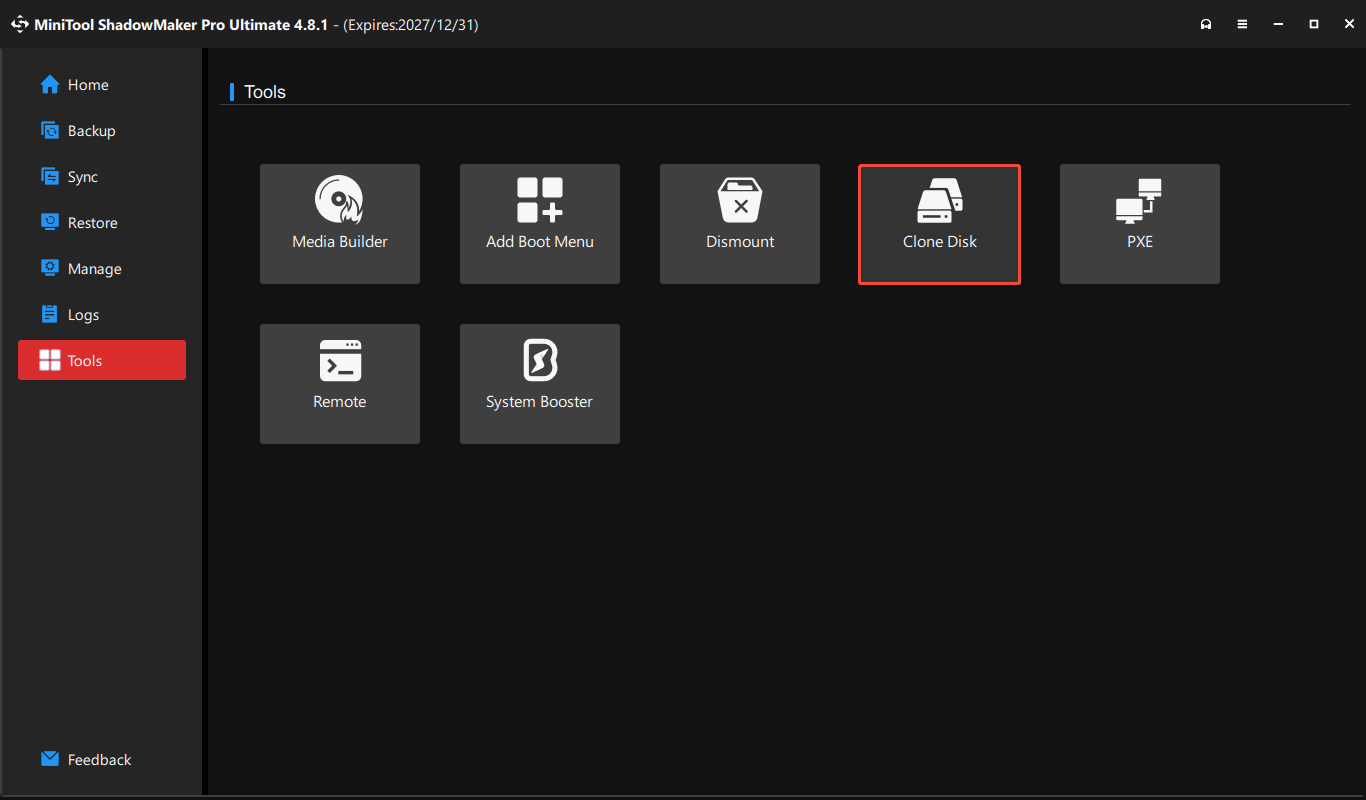
Step 4: Choose the source and destination disks and then start the cloning process.
In addition, you can try another piece of hard drive cloning software, MiniTool Partition Wizard to clone computer to computer to keep things the same as your old PC. To only move Windows to another drive, try its Migrate OS to SSD/HD Wizard.
Method 2: Transfer Windows with Backup and Restore
In addition to cloning one computer to another, you can try the second method to transfer Windows to new computer. MiniTool ShadowMaker is a disk image tool that can backup files, folders, systems, and disks/partitions within a few clicks and restore your PC to its previous state on Windows 11/10/8/7.
MiniTool ShadowMaker TrialClick to Download100%Clean & Safe
Now, let’s view how to transfer operating system from one computer to another via backup & restore.
Step 1: Create a system or disk backup for your old computer.
- Connect an external drive to the old PC.
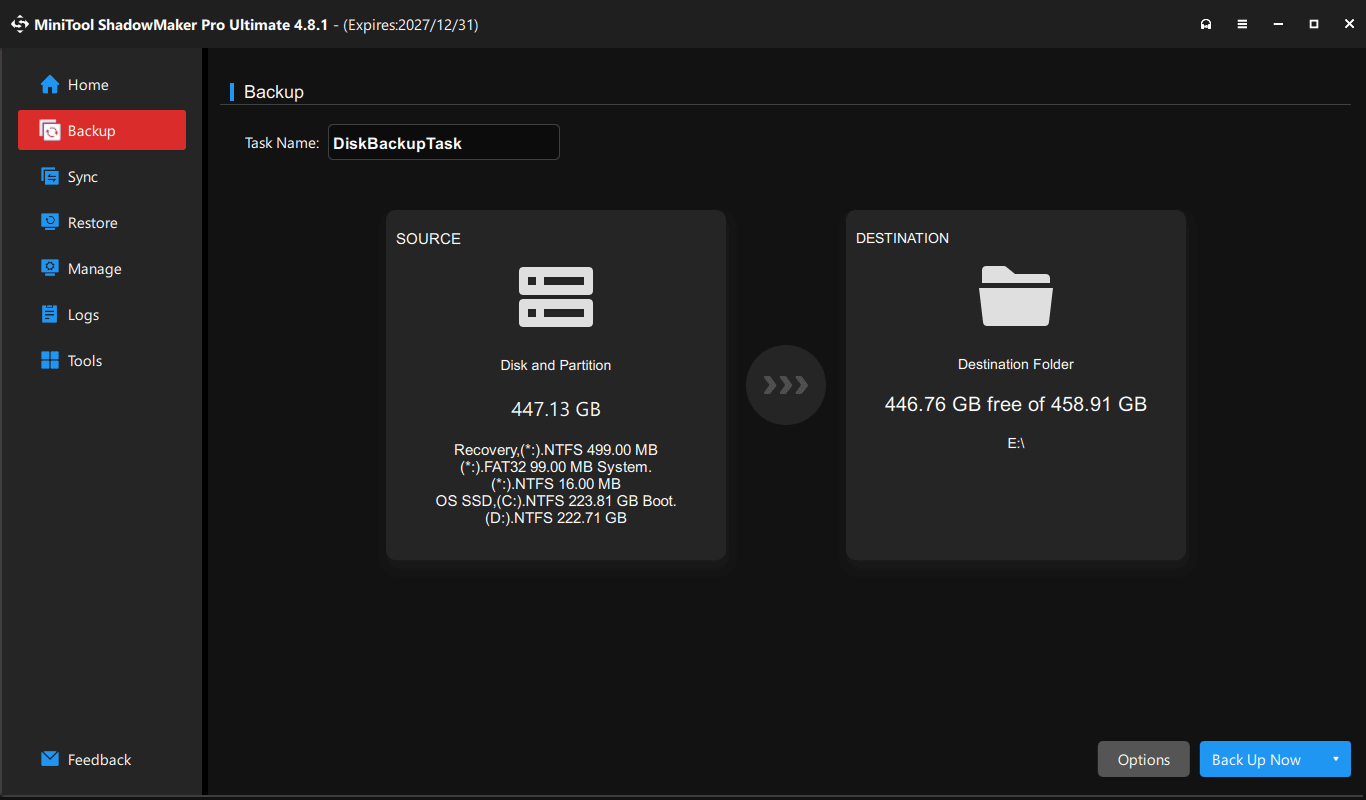
- Launch MiniTool ShadowMaker and go to Backup.
- Click SOURCE > Disk and Partitions and select all partitions on your system disk. Alternatively, select only the system drives to back up.
- Navigate to DESTINATION and choose your external drive to save the image file.
- Click Back Up Now to begin the backup.
Step 2: Go to Tools > Media Builder to create a WinPE bootable USB drive for system restoration in the recovery environment.
Step 3: Restore the system or system disk image to the new PC.
- Connect the external storage device that contains the disk image file to your target computer.
- Boot your new PC from the created boot drive, and run MiniTool ShadowMaker.
- Navigate to the Restore tab, locate the backup you created, and click the Restore button to proceed.
- Select a backup version to go on.
- Select partitions to restore from the selected backup image file.
- Choose the target disk you want to restore the system image to.
Now, you successfully transfer operating system from one computer to another.
Windows Won’t Boot After Moving the OS to Another PC?
If Windows fails to boot after you transfer the OS to another computer, the new PC may have different hardware from the original one. In this case, use Universal Restore in MiniTool ShadowMaker to fix the compatibility issues.
Step 1: Boot the new computer from the created bootable USB drive.
Step 2: Launch MiniTool ShadowMaker.
Step 3: Click Tools > Universal Restore.
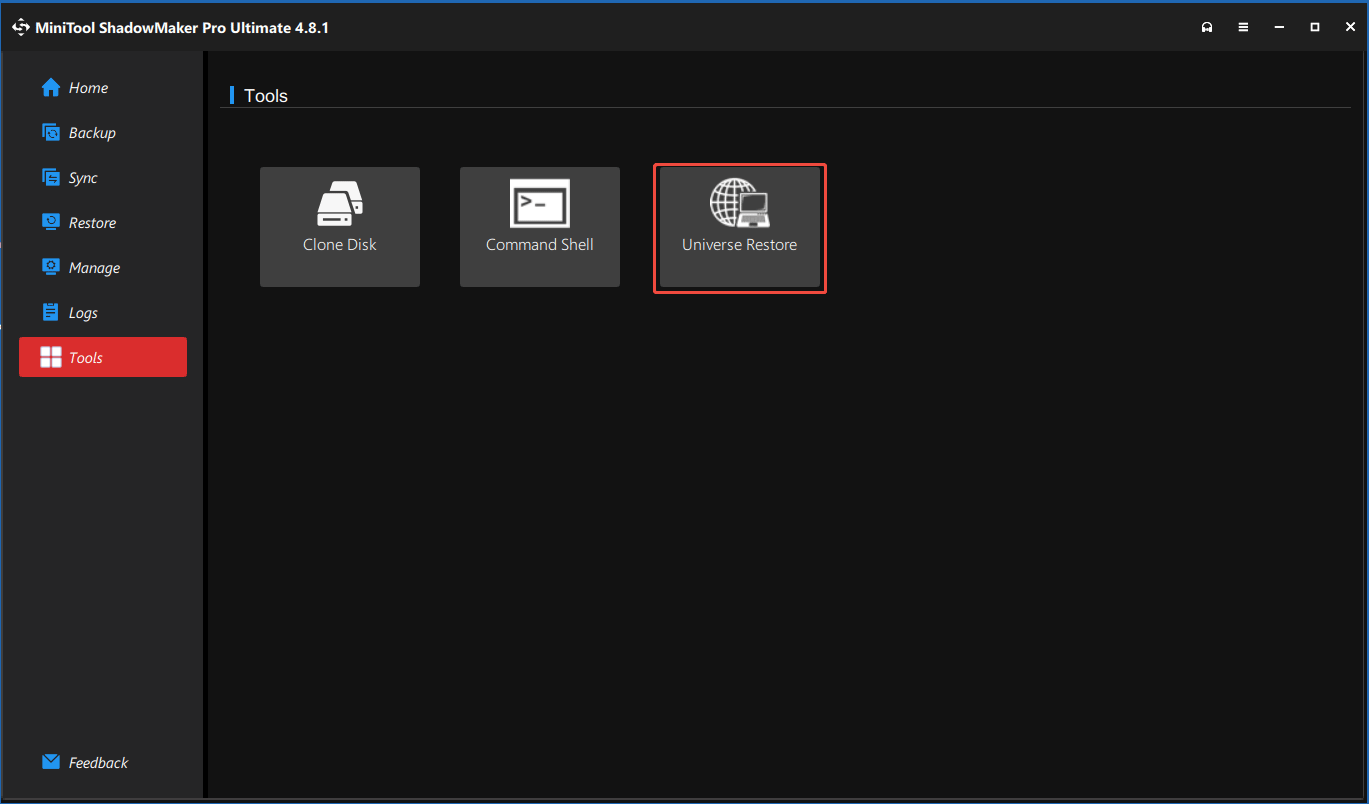
Step 4: MiniTool Universal Restore will automatically detect and list the operating systems installed on the hard drive for you to choose. Select the operating system to be restored and press the Restore button.
When the process is finished, you can exit WinPE and boot Windows on dissimilar hardware successfully.
Transfer Operating System from One Computer to Another FAQ
Conclusion
It is simple to transfer Windows from an old computer to a new one by cloning the system disk or using backup and restore.
MiniTool ShadowMaker can help you easily finish the transfer. If Windows cannot boot because of different hardware, use its Universal Restore feature to fix the compatibility issues.
If you have issues with this software, contact us at [email protected].
About The Author

Position: Columnist
Vera has been working at the MiniTool Team for over 10 years as a technical editor and content writer. She mainly focuses on disk and partition management, data recovery, Windows backup and restore, and PC troubleshooting. Through in-depth software testing and hands-on experience, she has helped users solve a wide range of computer problems and better protect their data on Windows devices.
User Comments :