
Quick Answer
If Windows 10 Settings won’t open, try restarting your PC, running SFC and DISM scans, updating Windows, or re-registering the Settings app. Advanced fixes include creating a new user profile, performing System Restore, or resetting Windows.
Why Is Windows 10 Settings Not Opening
The Settings app may fail to open because of:
- Corrupted system files
- Failed Windows updates
- Damaged user profiles
- Broken Settings app packages
- Registry errors
Before You Start: Back Up Your System
Before attempting advanced fixes like System Restore or reinstalling components, create a backup of important files or the entire system. This ensures you can restore your PC if issues arise.
MiniTool ShadowMaker is a reliable backup solution that allows you to create system images, back up files, and restore Windows. It offers scheduled and incremental backups, along with bootable media creation for added protection before troubleshooting.
Here’s how to use this software to create a system image:
1. Get its Trial Edition by hitting the following button and following the on-screen instructions to install it.
MiniTool ShadowMaker TrialClick to Download100%Clean & Safe
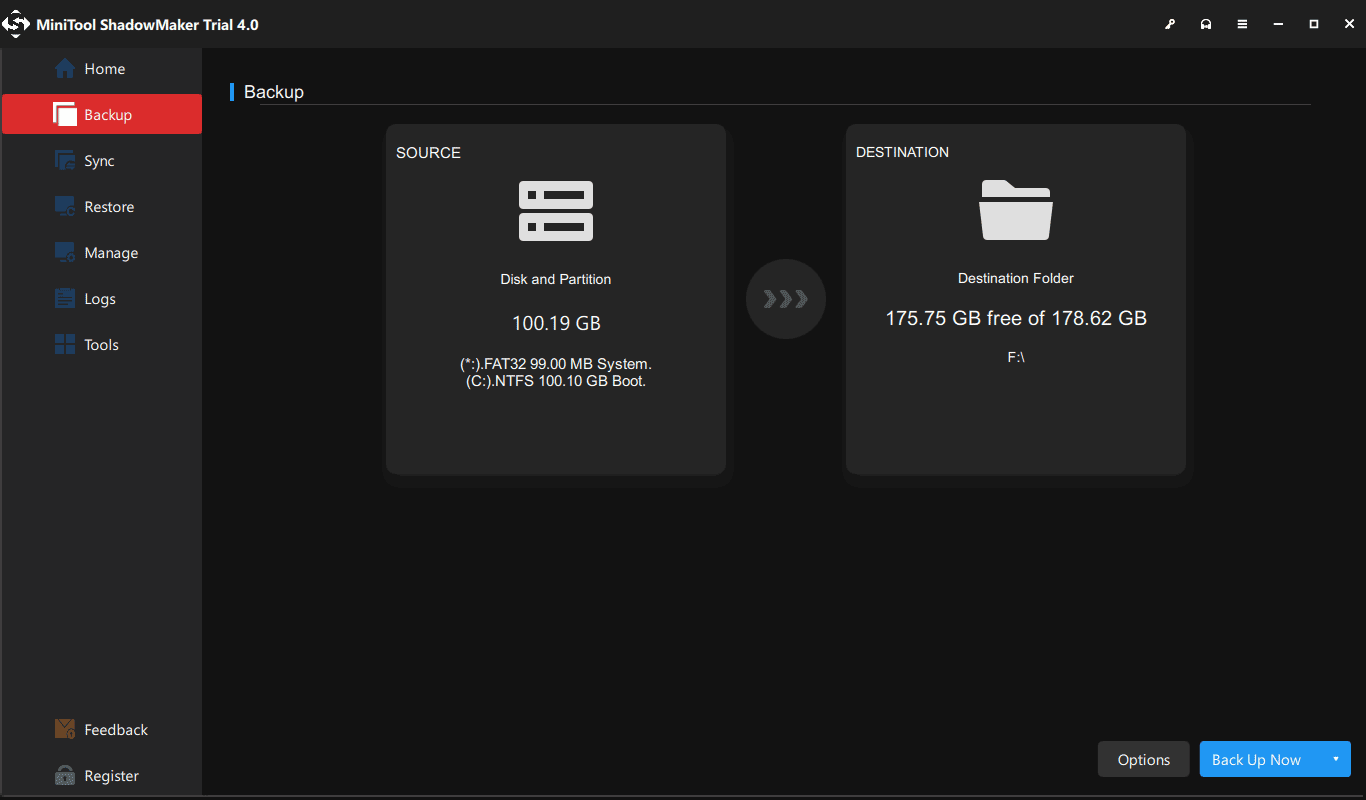
2. Launch it and choose Backup from the toolbar.
3. By default, MiniTool ShadowMaker selects system partitions from the Source section, for example, the system reserved partition and C drive.
4. Sometimes, the destination path is also selected by this software. If not, you can specify a place for the system image.
5. Finally, click Back up Now and Yes.
After creating a backup, continue with the fixes below to repair the Windows 10 Settings app.
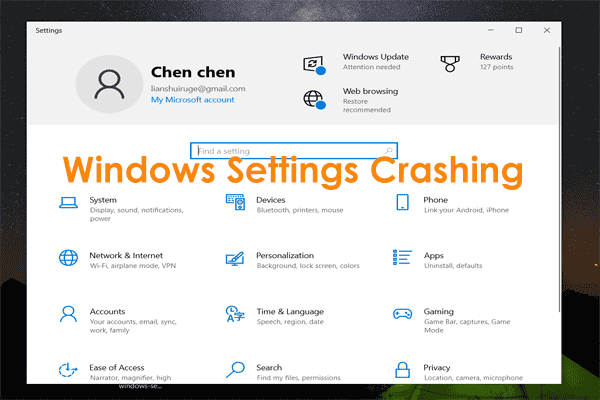
How to Fix Windows 11/Windows 10 Settings Not Opening
How do you fix Windows 10/11 Settings not opening? If Windows 10/11 can’t open Settings, you can try to reboot your computer to check if the issue is solved. If this fails, you can try other methods below.
Solution 1: Alternative Ways to Open Settings
Best for: When the Settings app won’t open but Windows itself still works normally.
Usually, you open the app by clicking the Windows logo and choosing Settings. If this doesn’t work, you can open it in other ways. Then, you ask – how do I open Settings in Windows 10/11? It is easy by following the guide.
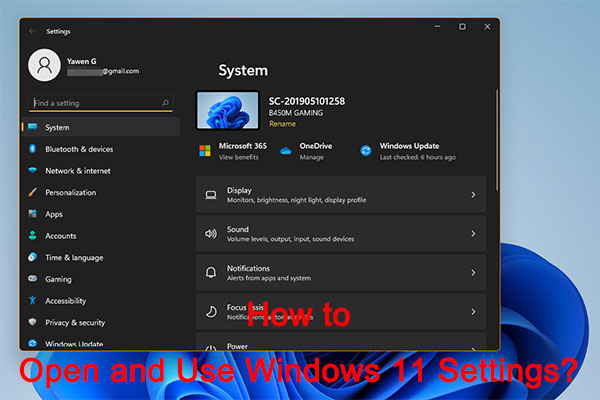
- Input settings in the search box and click the result.
- Press the Win + I keys to launch Windows 10/11 Settings.
- Go to the Action Center and click All settings.
- Press Win + R, input ms-settings: in the Run window and press Enter.
If Windows 11/Windows 10 Settings won’t open all the time after you try these ways, now it’s time to try something else.
Solution 2: Check If the Settings App Is Enabled
Best for: When Windows Settings has been blocked or disabled by system restrictions.
Due to some reasons, you may have disabled Windows Settings via Windows Registry Editor or Group Policy, so the issue of Windows 11/Windows 10 Settings not opening happens. Having a check is a good idea.
Registry Editor
- Input regedit.exe in the search box and click the result to open Registry Editor.
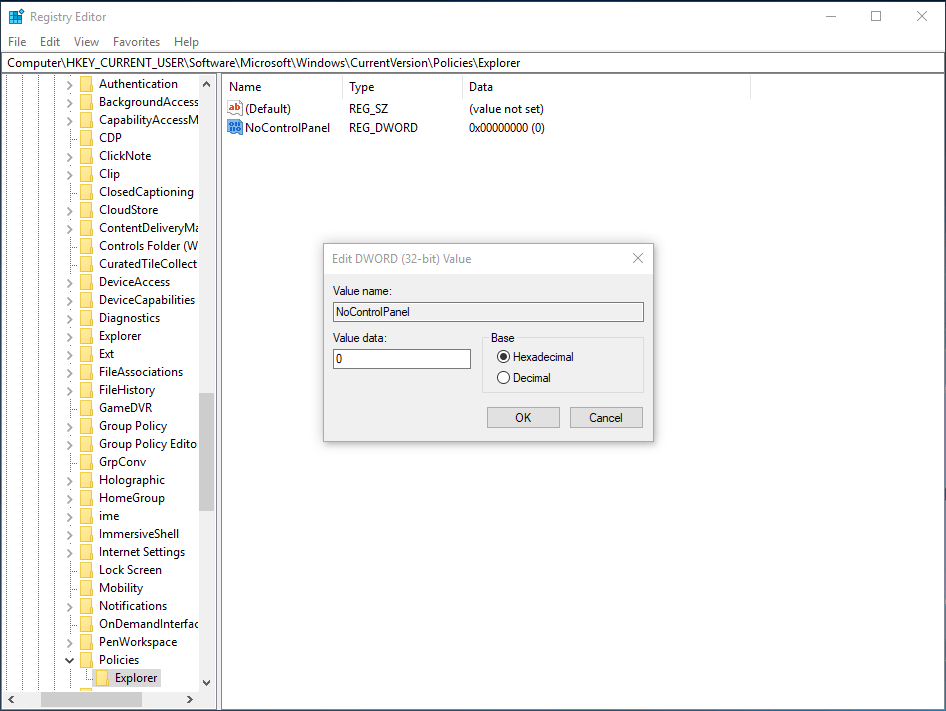
- Head to HKEY_CURRENT_USER\Software\Microsoft\ Windows\CurrentVersion\Policies\Explorer. If Explorer doesn’t exist, right-click on Policies and choose New > key to create it.
- Right-click on the right empty area, choose New > DWORD (32-bit) Value and name it NoControlPanel.
- Double-click the key and ensure its value is 0 (enable Settings).
Group Policy
- Type gpedit.msc to the search box and click the result to open Local Group Policy Editor.
- Head to User Configuration > Administrative Templates > Control Panel.
- Double-click Prohibit access to Control Panel and PC Settings from the right panel and change its setting to Disabled.
- Click Apply and OK.
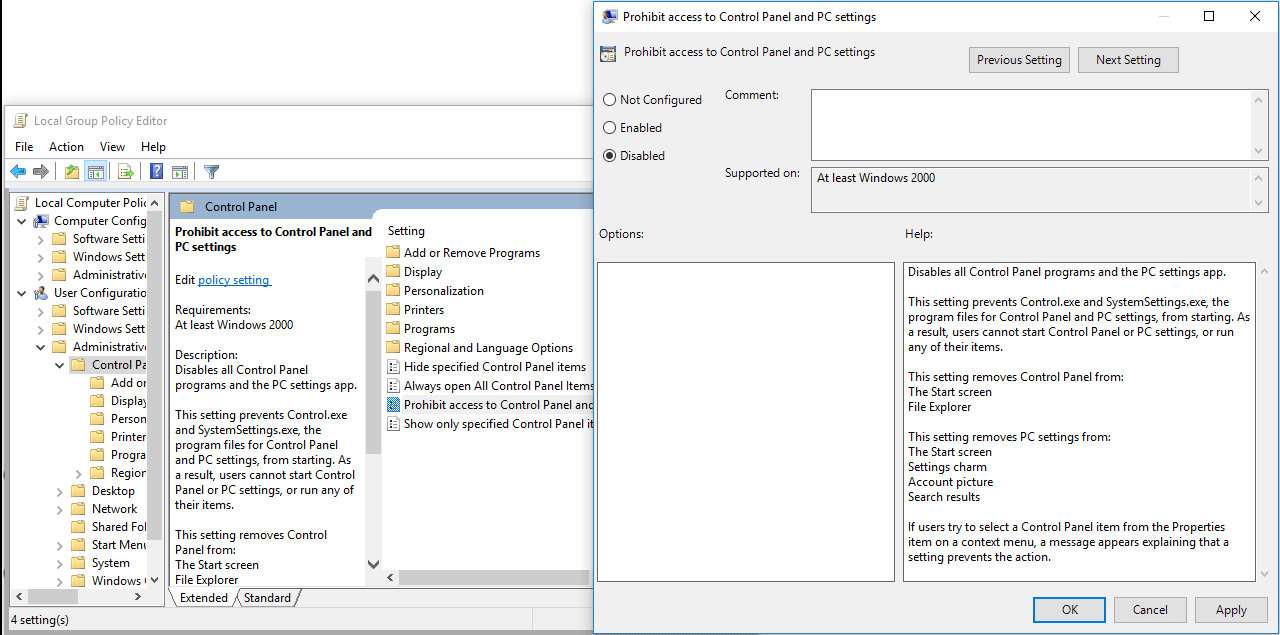
After trying this way, if the Windows 11/Windows 10 Settings not working issue persists, continue using other methods to fix it so as to let it open and work properly.
Solution 3: Run System File Checker
Best for: Repairing corrupted or missing Windows system files that prevent Settings from opening.
If there are some corrupted system files, perhaps Windows 10/11 can’t open Settings, so running a SFC scan could be helpful. SFC, short for System File Checker, is a tool that comes with Windows operating system. It can be used to scan for system and restore corruptions in Windows system files.
Here is how to do it:
- Open Command Prompt in admin mode via Search.
- Input SFC /scannow and hit Enter. This will take some time, so wait patiently.
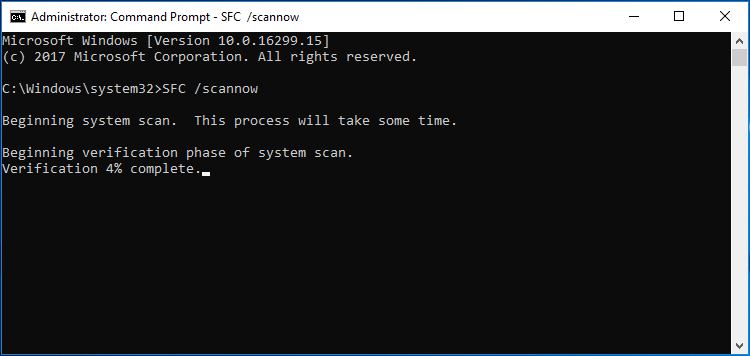
After finishing the scan, check if the issue of Windows Settings not opening is resolved. If not, try another solution.
Solution 4: Run the Windows Update Troubleshooter
Best for: Resolving Settings issues caused by failed Windows updates or update-related errors.
As mentioned above, a Windows update could give rise to Windows Settings not working. To let the app open and work normally, you can try the Windows Update Troubleshooter.
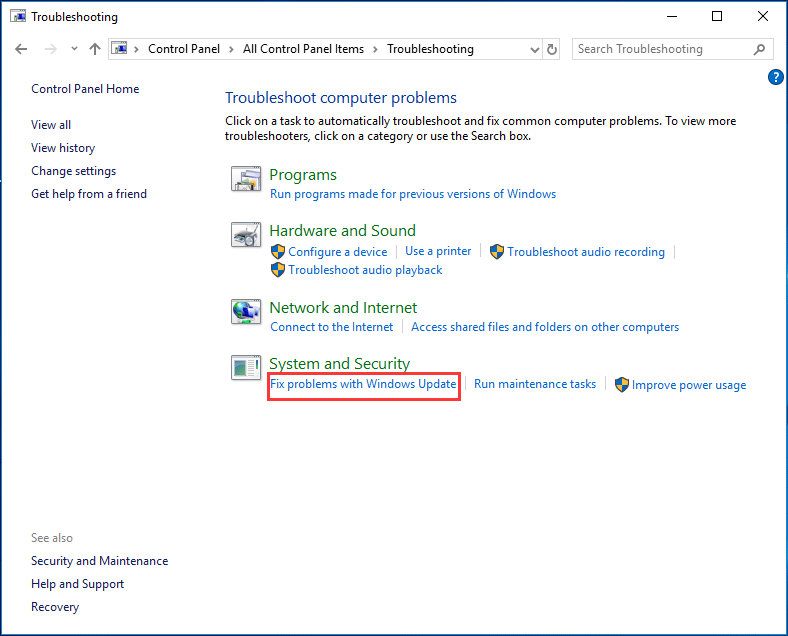
- Open Control Panel, view all items by large icons and choose Troubleshoot.
- In the new window, click the Fix problems with Windows Update link under the System and Security Then, follow the on-screen guide to finish fix.
Solution 5: Reinstall the Settings App
Best for: Fixing a damaged or corrupted Windows Settings app package.
How to reinstall the app if Windows 11/Windows 10 Settings won’t open? Do as the following guide:
1. Launch Command Prompt with the rights of administrator by searching for cmd, right-clicking the result and choosing Run as Administrator.
2. Copy and paste the following command to the open the CMD window and press Enter.
Get-AppXPackage | Foreach {Add-AppxPackage -DisableDevelopmentMode -Register “$($_.InstallLocation)AppXManifest.xml”}
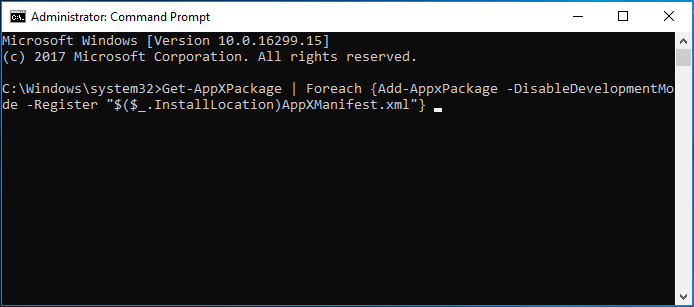
If this couldn’t work, you should log on to the system as another valid user with admin rights.
Solution 6: Create a New Windows User
Best for: Troubleshooting Settings problems caused by a corrupted user profile.
Because of the Windows 11/Windows 10 Settings app not working, you can’t create a new account via the app. If you are running Windows 10/11 Pro, use Command Prompt instead.
1. Open the Command Prompt window with admin privileges.
2. Run the command: net user newusername newpassword /add and hit Enter. Then, you will get a message saying the command completed successfully.
3. Next, type the command: net localgroup administrators newusername /add and hit Enter to make the new user be an administrator.
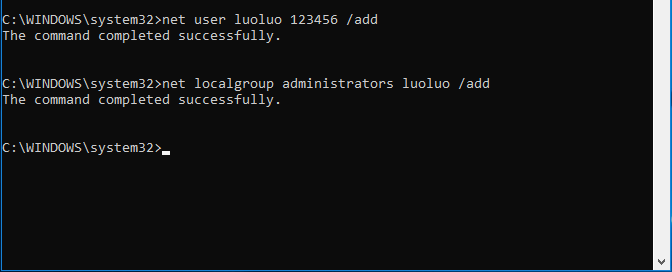
4. Sign out of your current account and log into the new account.
Solution 7: Reinstall Windows 10/11
Best for: Fixing persistent Settings problems when other troubleshooting methods fail.
If Windows 10 can’t access Settings after you try all of the above methods, maybe you need to reinstall the operating system, which is the last resort.
Next, start reinstalling the OS. This post – How to Reinstall Windows 10 without CD/USB Easily (3 Skills) gives you many methods and just choose one based on your actual situations.
Windows 10 Settings Not Opening? Try These Proven FixesClick to Tweet
Bottom Line
If Windows 10 or 11 Settings won’t open, try alternative methods to access it, check if the app is enabled, and run the System File Checker. If issues persist, consider repairing the app, creating a new user account, or reinstalling Windows as a last resort.
Always back up your important files or create a system image to prevent data loss. Following these steps can help restore access to the Settings app. For questions about MiniTool software, contact [email protected].
Windows 10 Settings Not Opening FAQ
About The Author

Position: Columnist
Charlotte is a technology columnist with a strong focus on the Windows operating system, specializing in disk management, backup, and data recovery. She is passionate about analyzing computer errors, identifying root causes, and delivering practical solutions. In her free time, she stays updated on the latest developments in computer systems and hardware while continuously learning new technologies to broaden her expertise. Her writing style is clear and easy to understand, making complex technical topics accessible even to users with limited computer knowledge.
User Comments :