
Windows 11 may freeze due to outdated drivers, corrupted system files, insufficient RAM, disk errors, and overheating. To fix it, disable fast startup, update your GPU driver, run DISM & SFC, use CHKDSK, and perform a memory check.
My Laptop Freezes Randomly Windows 11
Windows 11 can freeze randomly, become unresponsive on startup, or stop responding after an update. Common causes include:
Outdated or incompatible drivers, especially for the graphics driver
- Corrupted Windows system files
- Insufficient memory
- Disk errors or low storage space
- Overheating
- Hardware instability
MiniTool System Booster TrialClick to Download100%Clean & Safe
How to Fix Windows 11 Freezing after Update/on Startup
To resolve this issue, start with simple fixes such as updating the GPU driver and clearing temporary files.
If the problem persists, use DISM, SFC, CHKDSK, or Windows Memory Diagnostic to repair system, disk, or memory problems.
Fix 1: Update GPU Drivers
Outdated, corrupted, or incompatible GPU drivers can cause Windows 11 to freeze, especially after a Windows update or graphics driver change.
Step 1: Open Device Manager via the Win + X menu.
Step 2: Expand Display adapters, right-click on your graphic card driver and choose Update driver.
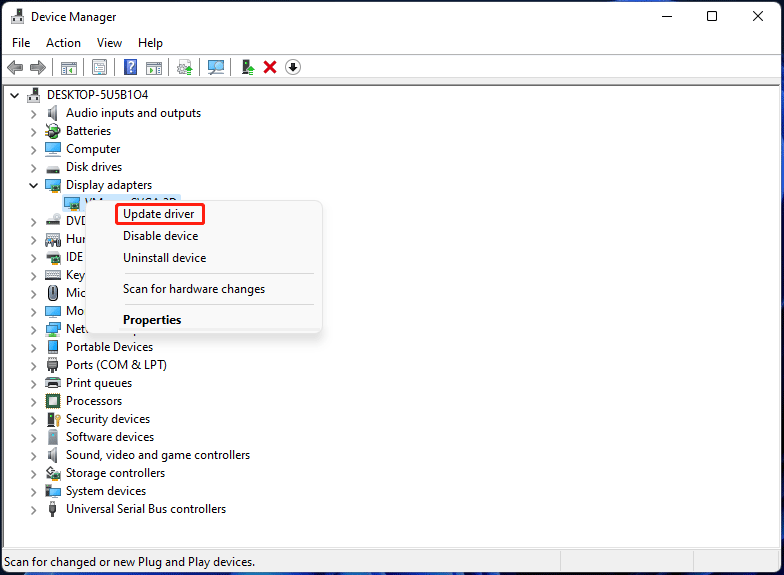
Step 3: Choose Search automatically for drivers. If there is an available driver, Windows will install it on your PC automatically.
Fix 2: Clear Your Temp Files
Some temporary files are always left behind when deleting or uninstalling apps on the system. These files pile up and may affect the system’s performance. If there is not enough space to store temporary files, the system can slow down and freeze.
To delete temporary files in Windows 11, follow the instructions below:
Step 1: Launch Windows Settings and go to System > Storage.
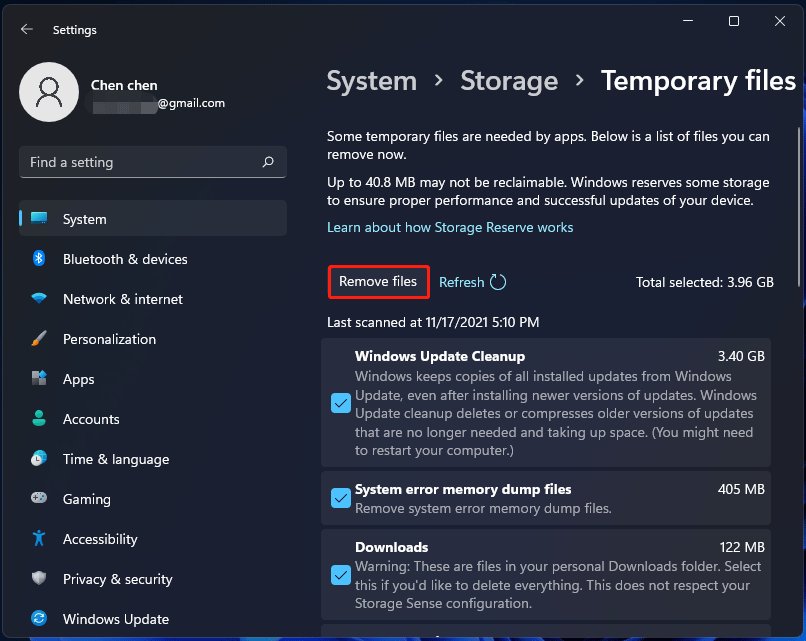
Step 2: Locate the Local Disk section and click Temporary files.
Step 3: Check all the boxes of the temporary files you want to delete and click Remove files.
Fix 3: Run DISM and SFC
Sometimes Windows 11 system freezes randomly after update since the update skips, loses, or damages some system files. To fix this issue, you can try to scan your system for the system files and fix them using DISM and SFC.
Step 1: Run Command Prompt with admin privileges.
Step 2: Type in the command – DISM /Online /Cleanup-Image /RestoreHealth and press Enter.
Step 3: Type sfc /scannow and press Enter.
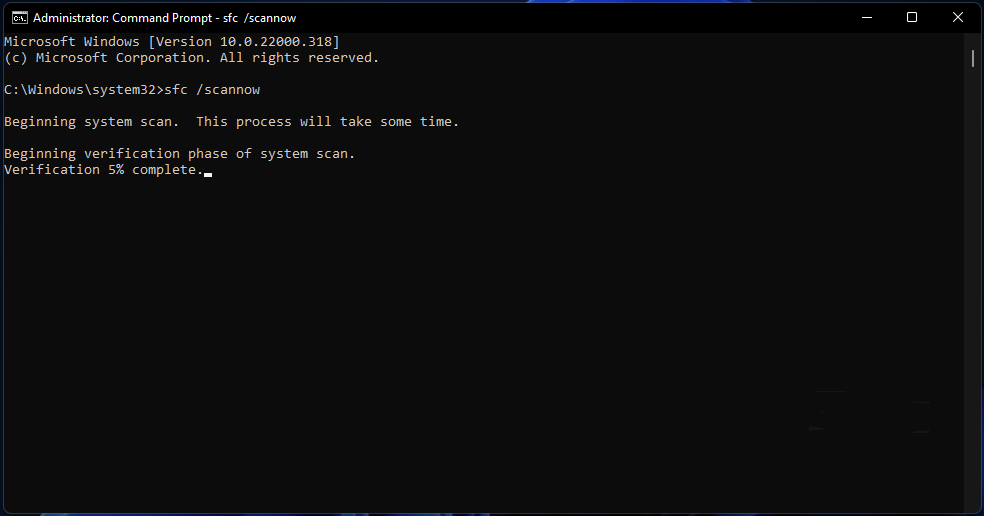
After completing all steps, restart your PC and check if the issue is resolved.
Fix 4: Run Disk Check
If there are some errors on your hard drive, perhaps Windows 11 freezes randomly. So, you can perform a disk check with the CHKDSK command.
Step 1: Launch Command Prompt as an administrator in Windows 11.
Step 2: Type in chkdsk n: /f /r and press Enter.
Replace N with your drive letter.
This tool will start to check the system for disk errors and fix them, as well as to detect bad sectors and recover the readable information.
Fix 5: Perform a Windows Memory Test
According to users, performing a Windows memory test can be a fix if Windows 11 freezes randomly.
Step 1: Press Win + R, type mdsched.exe and click OK.
Step 2: Choose the first option – Restart now and check for problems (recommended) in the pop-up window.
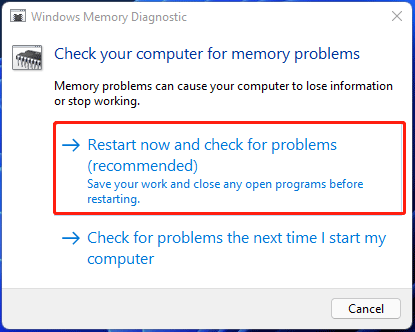
Step 3: Windows 11 will reboot and perform the check task.
If Windows Memory Diagnostic reports errors, your RAM may be faulty or unstable. Reseat it or replace the faulty one with a new stick.
Fix 6: Change Screen Resolution
As it turns out, an unlikely reason for random Windows 11 freezing is the improper screen resolution. If you use a low-end graphic card but handle resource-intensive tasks, Windows 11 freezes after update randomly.
To fix your issue, you can try to reduce the screen resolution.
Step 1: Click Start > Settings to open the Windows Settings app.
Step 2: Click System in the left pane and go to Display > Scale & layout.
Step 3: Under the Display resolution section, choose the resolution you want.
Step 4: Keep the change at last.

Fix 7: Switch External Display to a 16:9 Aspect Ratio
According to users who use an ultrawide external display, Windows 11 always freezes randomly. If you are also using such a monitor and having such an issue, you need to switch the display to a 16:9 aspect ratio.
Here are all the resolutions that maintain a 16:9 aspect ratio: 3840×2160, 2560×1440, 1920×1080, 1600×900, 1366×768, 1280×720, 1152×648, and 1024×576. Just follow the instructions in method 6 to adjust the resolution.
Fix 8: Adjust Virtual Memory
Most times, if you find your apps run slowly and become unresponsive, this is caused by insufficient memory. If you only have available 4GB of RAM, and you are handling resource-intensive tasks like playing games, video editing, rendering, etc., perhaps Windows 11 freezes and even BSOD (black screen of death) appears.
In this situation, you can choose to increase virtual memory, which can increase the space reserved for RAM overflow to fix the freezing issue on Windows 11 screen.

The following is how to increase virtual memory:
Step 1: Press Win + I to open Windows 11 Settings.
Step 2: Type performance in the search box of this app and press Enter.
Step 3: Click Adjust the appearance and performance of Windows to open the Performance Options window.
Step 4: Under the Advanced tab, click the Change button.
Step 5: In the Virtual Memory window, compare the Recommended paging file size and the Currently allocated value.
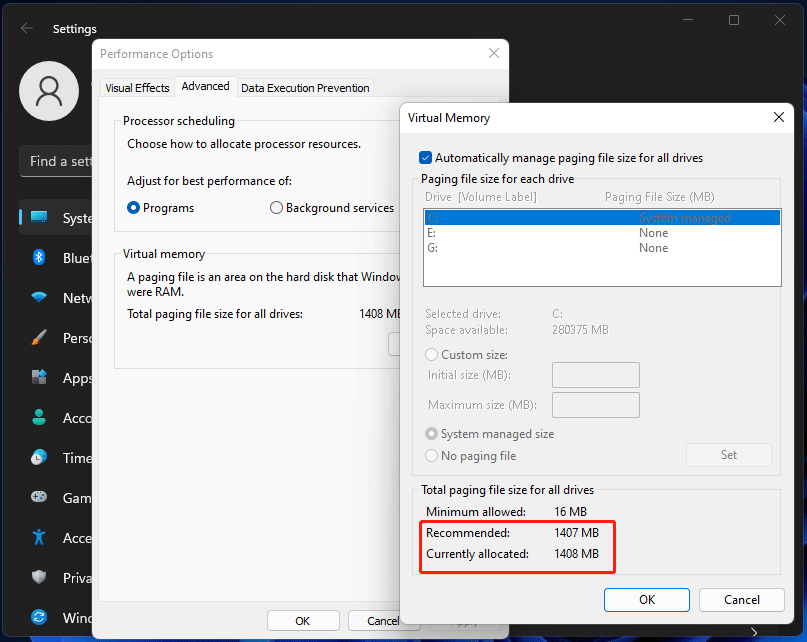
- If the value of Currently allocated is lower than the value of Recommended, uncheck the box of Automatically manage paging file size for all drives, click Custom size, enter the Recommended value into the Initial size box, enter a larger value in the Maximum size box and click OK to save the change.
- If the value of Currently allocated is higher, skip the rest steps and go to the next solution.
Other Tips for Windows 11 Freezing after Update
In addition, there are some other solutions you can try if Windows 11 freezes randomly.
- Reset BIOS to default settings. This is a possible solution and you can follow the way in this post – How to Reset BIOS/CMOS in Windows 10/11 – 3 Steps for this task.
- Run a command – reg delete HKCU\SOFTWARE\Microsoft\Windows\CurrentVersion\IrisService /f && shutdown -r -t 0 in CMD if Windows 11 freezing on startup happens.
- Reset or reinstall Windows 11 if you try all the solutions but Windows 11 still freezes randomly. To know much information, refer to this post – How to Reinstall Windows 11? Try 3 Simple Ways Here Now!
Windows 11 Freezes or Crashes Randomly? 8 Methods to TryClick to Tweet
Suggestion: Back up Windows 11
System breakdowns like the Windows freezing issue always happen unexpectedly due to some reasons. Once you get a system problem, looking for solutions to fix it is time-consuming and it is likely to fail to fix it eventually. If you have a system backup beforehand, you can easily perform a disaster recovery when the PC goes wrong like Windows 11 screen freezes.
To back up your system, use the professional backup software, MiniTool ShadowMaker. It can not only create a system image, but also back up files, folders, disks, and partitions. Once the PC goes wrong or data is lost, you can quickly perform the recovery operation.
MiniTool ShadowMaker TrialClick to Download100%Clean & Safe
Step 1: Launch MiniTool ShadowMaker by clicking the icon on your desktop.
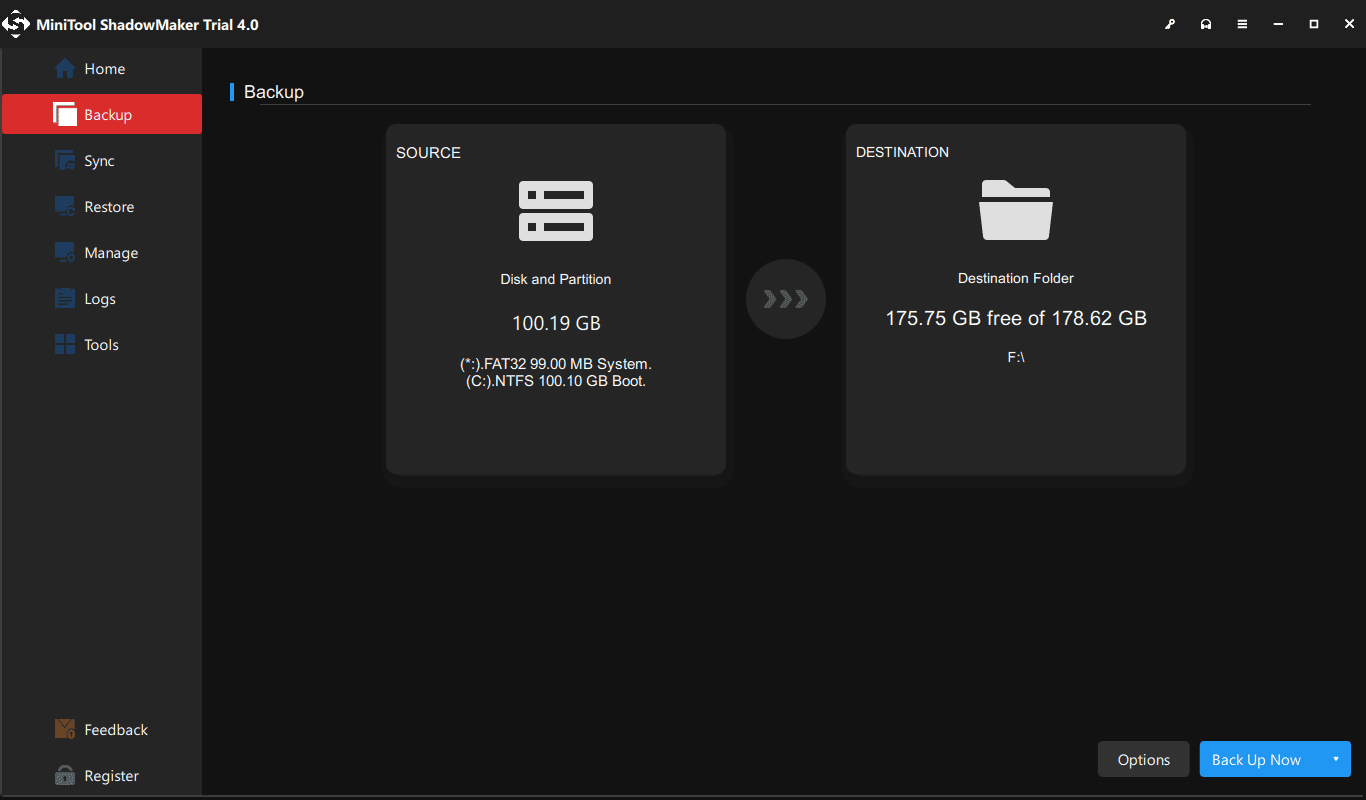
Step 2: Under the Backup page, you can find this software will back up the system partitions by default. You only need to choose a destination to save the system image.
Step 3: Click the Back Up Now button for system backup at once.
After finishing creating a system image, you should go to Tools > Media Builder to create a bootable drive so that you can perform a system image recovery in case of system corruption.
Final Words
If Windows 11 freezes randomly after update, you can try these solutions above to easily fix it. Just have a try. Besides, it is better to create a system backup for Windows 11 for quick disaster recovery. If you have any suggestions or ideas, you can leave a comment in the following section or send an email to [email protected].
Windows 11 Freezes FAQ
About The Author

Position: Columnist
Vera has been working at the MiniTool Team for over 10 years as a technical editor and content writer. She mainly focuses on disk and partition management, data recovery, Windows backup and restore, and PC troubleshooting. Through in-depth software testing and hands-on experience, she has helped users solve a wide range of computer problems and better protect their data on Windows devices.
User Comments :