
Windows Defender Offline Scan is a built-in security feature in Windows that scans your PC before the operating system fully loads. It is designed to detect and remove malware that may be hard to identify during a standard Windows scan.
However, some users may find that Windows Defender offline scan not working, fails to start, or gets stuck at 92% or 93% on Windows 11/10. To troubleshoot these problems and restore functionality to the offline scan, follow the solutions outlined below.
Quick Answer: Why Is Windows Defender Offline Scan Not Working
Windows Defender Offline Scan can fail due to issues with Windows Recovery Environment (WinRE), corrupted system files, outdated Microsoft Defender definitions, disabled security services, conflicts with third-party antivirus programs, or insufficient disk space.
To resolve this, verify Defender settings, update security components, enable WinRE, repair Windows system files, and try running the offline scan again.
Initial Checks Before Fixing Windows Defender Offline Scan
Before applying advanced fixes, perform these basic checks.
1. Check Windows Defender Offline Scan Settings
First, verify whether the scan can be started correctly.
- Press Win + I to open Settings.
- Go to Privacy & security > Windows Security.
- Open Virus & threat protection.
- Click Scan options.
- Select Microsoft Defender Offline scan.
- Click Scan now.
If the scan option is missing, unavailable, or fails to start, continue with the fixes below.
2. Disable or Remove Third-Party Antivirus Software
Other antivirus programs may interfere with Microsoft Defender Offline Scan. If you use any of the following programs, temporarily disable or completely uninstall them before trying the scan again:
- Avast
- McAfee
- Norton
- Bitdefender
How to Fix Windows Defender Offline Scan Not Working
Try the following fixes if Windows Defender Offline Scan fails to start, does not run after restarting, or gets stuck during scanning.
Fix 1. Restart Windows Defender Offline Scan
Sometimes the offline scan fails because of a temporary system issue. Try restarting your PC and running the scan again. If the scan still fails, continue with the next fixes.
Fix 2. Run Offline Scan via Command Prompt
If Windows Defender offline scan stops at 93/92 or any other % via the Windows Defender app, you can try another way to check if it is still not working. Command Prompt is a command-line tool that allows you to do many operations including performing an offline scan.
How to run Windows Defender offline scan from Command Prompt? Follow the steps below.
Step 1: Open Command Prompt with admin rights in Windows 10/11.
Step 2: In the CMD interface, type PowerShell Start-MpWDOScan and press Enter.
Step 3: Then, you get a message saying “You’re about to be signed out” and Windows will restart in less than a minute to run the offline scan.
Step 4: Microsoft Defender Offline starts loading and a command window appears to show you “Your PC is being scanned”, as shown below.
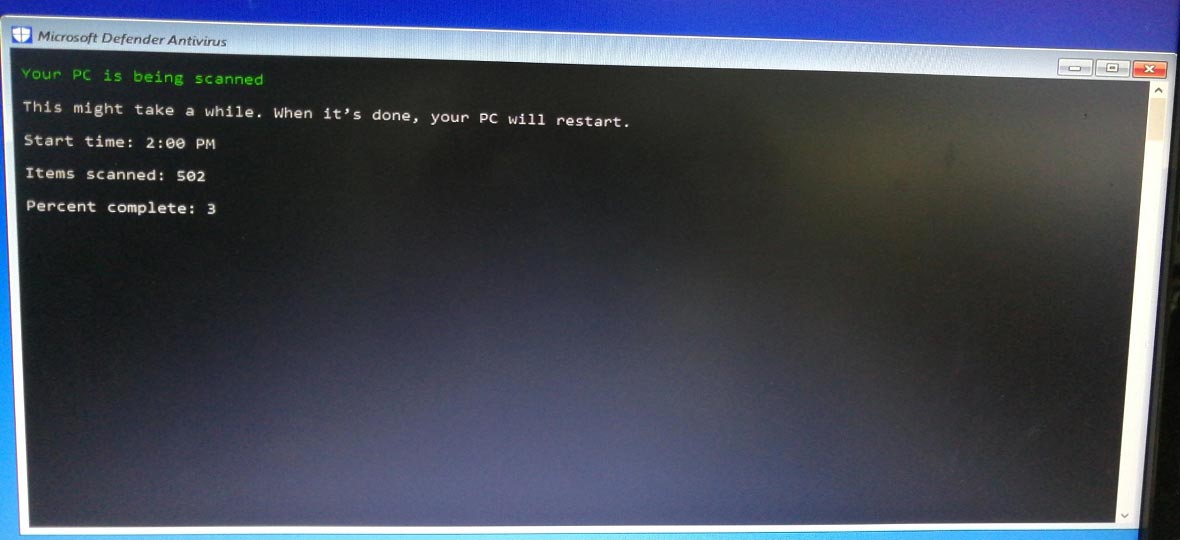
This process will take a few minutes and you should wait patiently until the scan finishes. After that, the PC will automatically load to the desktop.
If Windows Defender offline scan not working still appears via Command Prompt or PowerShell, you can continue the troubleshooting.
Fix 3. Check and Enable Windows Recovery Environment
Windows Defender Offline Scan depends on Windows Recovery Environment. If WinRE is disabled, the scan may fail or restart without scanning.
To check WinRE status:
- Open Command Prompt as administrator.
- Run: reagentc /info.
- If you see Windows RE status is Disabled, enable it with: reagentc /enable.
- Restart your PC and try the offline scan again.
Fix 4. Update Microsoft Defender Security Intelligence
Outdated Defender definitions may prevent the offline scan from working correctly.
To update Defender:
- Open Windows Security.
- Go to Virus & threat protection.
- Click Protection updates.
- Select Check for updates.
After updating, run Microsoft Defender Offline Scan again.
Fix 5. Remove Windows Defender Exclusions
According to users, the issue can be triggered if the entire C drive is added to the exclusion list without their knowledge. To fix this problem, try to remove exclusions. You can also have a try to see if this can function.
Step 1: Under the Windows Defender or Windows Security tab in Settings (how to enter this tab has been mentioned in part 1), click Virus & threat protection.
Step 2: Click Manage settings under the Virus & threat protection settings section.
Step 3: Scroll down to find Exclusions and click Add or remove exclusions.
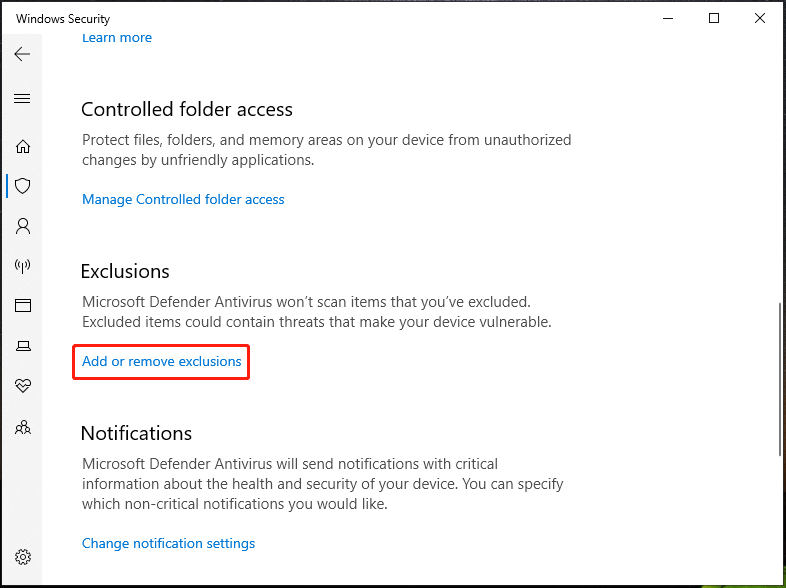
Step 4: In the popup, choose the exclusions and click Remove. After removing all the exclusions included in the C drive, check if the issue – Windows Defender stopped scanning in the offline scan mode is fixed.
Fix 6. Restart Windows Defender Services
Disabled security services may cause Defender Offline Scan problems.
Follow these steps:
Step 1: Press Win + R, type services.msc, and press Enter.
Step 2: Find these services:
- Microsoft Defender Antivirus Service
- Security Center
Step 3. Make sure they are running.
Restart your computer and try the scan again.
Fix 7. Run SFC, DISM, and CHKDSK Scans
Corrupted Windows files can cause Windows Defender Offline Scan problems.
Step 1: Run DISM:
- Open Command Prompt as administrator.
- Run: DISM /Online /Cleanup-Image /RestoreHealth
- Wait until the process completes.
Step 2: Then run SFC:
sfc /scannow
Step 3: Restart your computer after the scan finishes.
Besides, some users recommend running a CHKDSK scan, and here is what you should do:
In the CMD window, type in chkdsk /f N: and press Enter. Here N is the driver letter. If you want to scan the C drive, you need to type Y to restart your PC after executing the first command.
Fix 8. Check Disk Space
Windows Defender needs enough free space to create temporary scan files. Open File Explorer, check your system drive, and free up space if needed. Then run the offline scan again.
Fix 9. Remove Windows Security Updates (Advanced)
According to reports, this may be helpful to fix your issue that is caused by installed Windows security updates. Just follow the steps below to try this way:
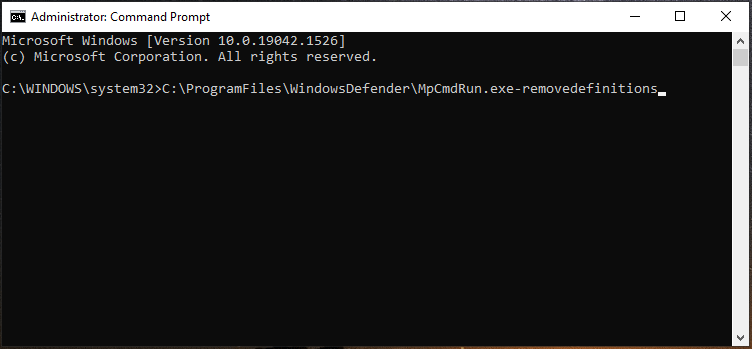
Step 1: In Windows 11/10, type cmd to the search bar, right-click on Command Prompt, and choose Run as administrator.

Step 2: In the CMD window, type in the command – C:\ProgramFiles\WindowsDefender\MpCmdRun.exe–removedefinitions and press Enter.
Fix 10. Recreate Recovery Partitions (Advanced)
When Windows Defender offline scan stops at 92/93 or other %, this method is effective. Usually, you resort to a clean install of Windows and then deleting recovery partitions, which may lead to Windows Defender stopping working.
In this case, you can try to perform an in-place upgrade repair installation. This can also recreate the deleted partition.
Step 1: To do this work, download an ISO file of Windows 10/11 and mount this ISO file to get a drive.
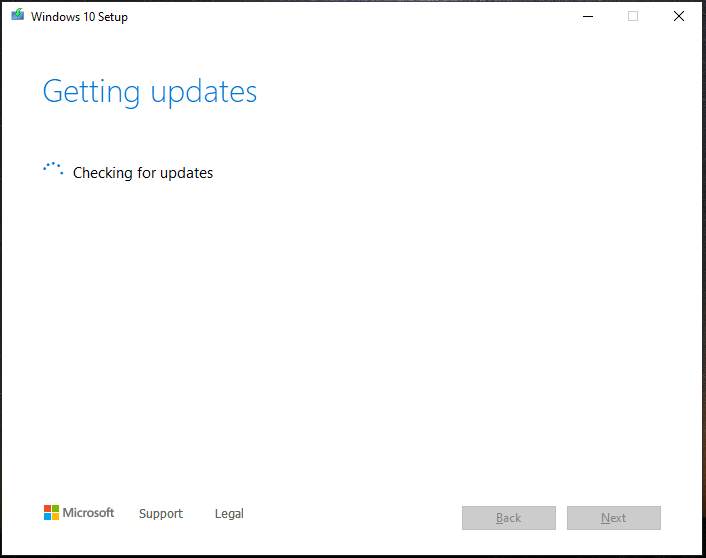
Step 2: Open this drive, double-click on the setup.exe file to start the in-place upgrade.
Or, you can download Media Creation Tool and run it to upgrade this PC.
To know more information about the specific operations, you can refer to these articles:
Fix 11. Run a System Restore
If you have a restore point that is created beforehand, you can perform a system restore to revert the PC to a normal state.
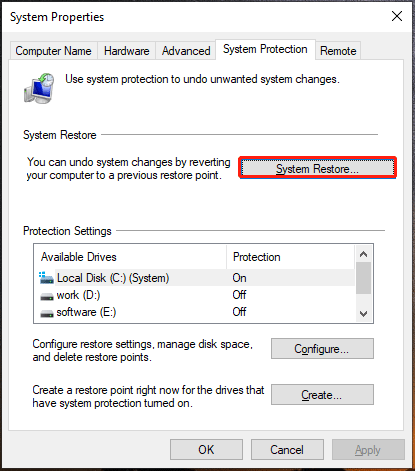
Step 1: Type in create a restore point in the search bar and click the result.
Step 2: Under the System Protection tab, click System Restore.
Step 3: Choose a proper restore point based on the created time and click Finish.
After trying these ways, the issue of Windows Defender offline scan not working should be fixed easily. Your PC is protected well by this antivirus program.

Windows Defender Offline Scan Stuck at 93% or 92%
Some users report that Windows Defender Offline Scan gets stuck at 92% or 93%. This does not always mean the scan has failed. It may happen when:
- Defender is scanning too many files.
- Defender definitions are outdated.
- Windows system files are corrupted.
- Windows Recovery Environment has problems.
Try these solutions:
- Wait a few minutes.
- Restart the offline scan.
- Update Microsoft Defender.
- Run DISM and SFC scans.
- Check WinRE status.
Suggestion: Back up Your Files or System
Sometimes only running Windows Defender is not enough to keep your PC safe, especially data gets lost unexpectedly and the system crashes suddenly due to viruses or malware. Thus, we recommend creating a backup for your PC.
To do this work, you can ask a professional backup software for help. Here, we strongly recommend using MiniTool ShadowMaker. It is designed to back up files/folders, disks, partitions, and systems. Automatic backup, differential, or incremental backup are supported. Besides, file sync and disk cloning can also be realized by this software.
If you are interested in it, click the following download button to get its Trial Edition to enjoy the full features in 30 days.
MiniTool ShadowMaker TrialClick to Download100%Clean & Safe
Then, follow the instructions to start a backup.
Step 1: Double-click this software to open it.
Step 2: Click Keep Trial to continue.
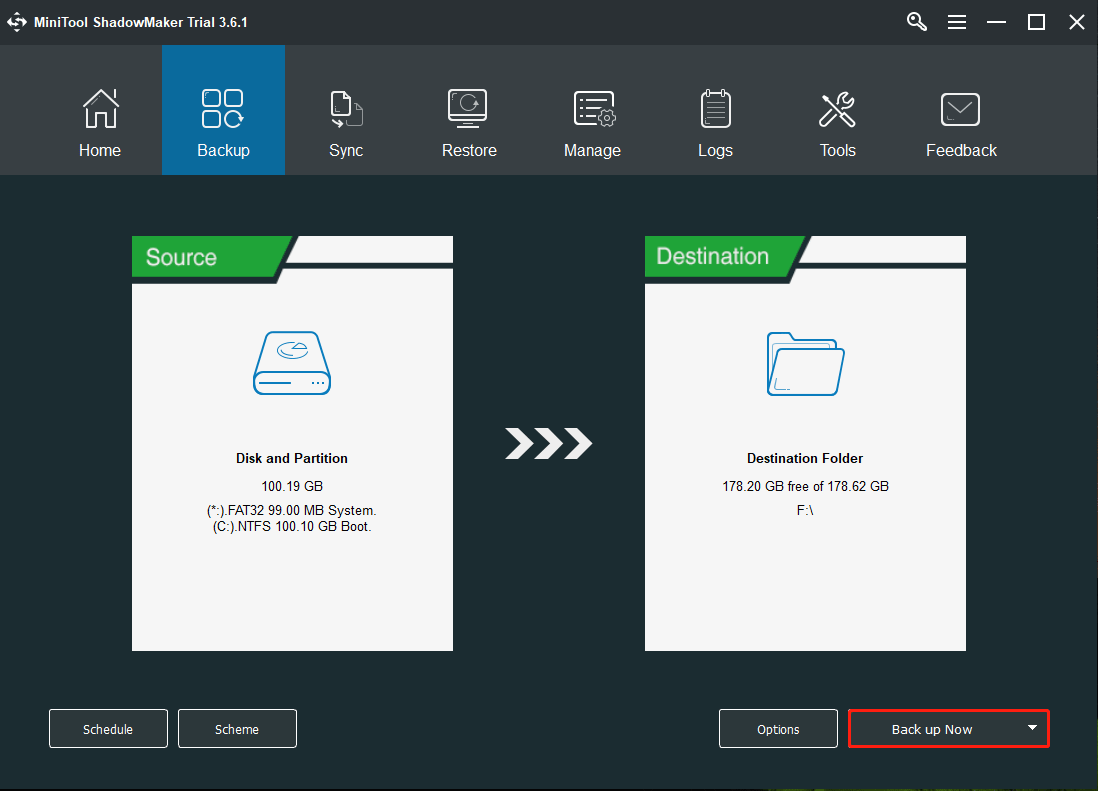
Step 3: In the Backup interface, MiniTool ShadowMaker has chosen system partitions as the backup source. If you want to back up files, go to Source > Folders and Files to check items and click OK.
Step 4: Select a destination to save the image file by clicking Destination.
Step 5: Click Back up Now to execute the backup task at once.

How to Prevent Windows Defender Offline Scan Issues
To avoid this issue in the future:
- Keep Windows and Defender fully updated.
- Avoid disabling Windows security services.
- Free up sufficient disk storage space.
- Use only one active antivirus program.
- Back up important files regularly.
Windows Defender Offline Scan Not Working FAQ
Conclusion
Windows Defender Offline Scan not working is usually caused by incorrect settings, outdated definitions, or WinRE issues. Start by checking Windows Security and updating Microsoft Defender. If the issue continues, enable WinRE and repair system files using DISM and SFC.
It is recommended to back up your system with MiniTool ShadowMaker. For support, contact [email protected].
About The Author

Position: Columnist
Charlotte is a technology columnist with a strong focus on the Windows operating system, specializing in disk management, backup, and data recovery. She is passionate about analyzing computer errors, identifying root causes, and delivering practical solutions. In her free time, she stays updated on the latest developments in computer systems and hardware while continuously learning new technologies to broaden her expertise. Her writing style is clear and easy to understand, making complex technical topics accessible even to users with limited computer knowledge.
User Comments :