
To fix the problem where SD card cannot be read by PCs or phones, follow this MiniTool guide. Possible solutions include unlocking the drive, updating the card driver, changing the drive letter, repairing file system errors, or formatting the card. Additionally, this guide shows you how to recover data from an unreadable/formatted SD card.
SD cards are commonly used in phones, cameras, computers, and various other digital devices due to their convenience and portability.
Sometimes, you may encounter the “SD card cannot be read” issue on your PC or phone, which will prevent you from using the card normally.
We will show the detailed instructions to resolve this vexing problem.
First, learn about the reason why your PC or phone can’t read the SD card.
Part 1. Why Can’t the SD Card Be Read by PCs/Phones?
The possible causes of the “SD card won’t read” problem include the following:
- Physical damage: Damage such as cracks, bent pins, or exposure to water can prevent proper connection and function of the card.
- Poor connection: Sometimes, worn metal contacts on the SD card or card reader issues can lead to connectivity issues.
- Severe file system corruption: The entire file system structure is so damaged that the operating system cannot recognize it as a valid storage device.
- Driver issues: Outdated or corrupted drivers for the card reader may obstruct communication.
- Incompatible file system: An SD card formatted with an unsupported file system may not be recognized by the operating system.
- Write protection: The physical lock switch on some SD cards can block data writing or deletion, affecting how the card can be read.
After learning the reasons, proceed to the effective methods to fix the SD card unreadable issue on the PC.
Part 2. How to Fix – SD Card Can’t Be Read by PCs
Before trying advanced approaches, perform some basic troubleshooting steps:
- Reboot the Device and Reinsert the SD Card: Remove and reinsert the memory card to see if the error persists. Restarting the device can also help resolve the issue.
- Check Your SD Card Reader: Check the card reader for any noticeable signs of wear or damage that might prevent the SD card’s readability by devices.
- Use a Different USB Port: The SD card reading issue may stem from a faulty USB port. To troubleshoot, try using a different USB port to see if the SD card is detected.
If these basic solutions fail to work, try the following workarounds to fix this SD card reading issue on Windows.
Fix 1. Remove the Write Protection
Standard-sized cards (as opposed to microSD cards) generally feature a small switch labeled “Lock” or “Unlock” located on the left side.
If the switch is in the “Lock” position, write protection is activated, which prevents the SD card from being written to or formatted.
In this case, slide the switch to the “Unlock” position, and then try accessing the SD card on your phone or computer.
If your SD card lacks a physical switch and you still encounter write protection on your SD card, follow these steps:
Step 1. Press Win + S to open the Windows search bar, type cmd, right-click the Command Prompt, and select Run as administrator. In the UAC window, select Yes.
Step 2. Type diskpart in the Command Prompt and press Enter.
Step 3. Type the following commands one at a time and press Enter after each one.
- list disk (It will list all disks on your computer)
- select disk 2 (replace 2 with the disk number of the SD card)
- attributes disk clear readonly
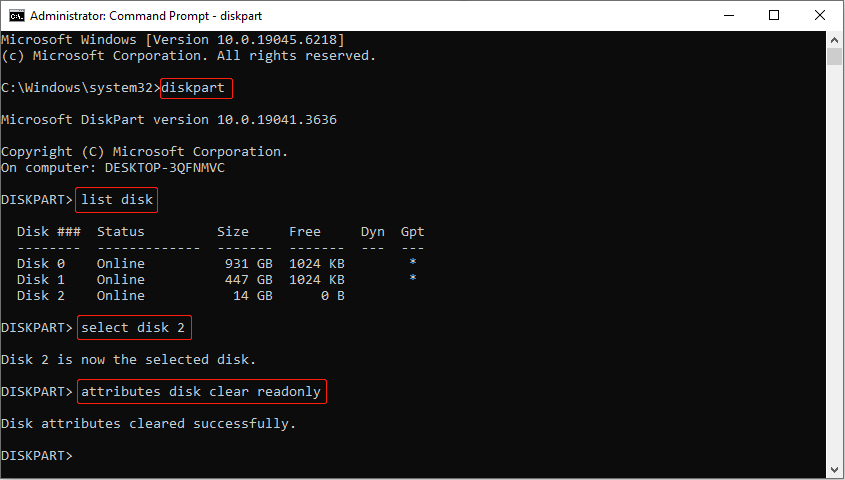
If you have received an error message saying “DiskPart failed to clear disk attributes”, try the next solutions.
Fix 2. Assign a Drive Letter to the SD Card
Press Win + X and select Disk Management from the list. Then check whether your SD card is displayed here.
If it is visible but lacks a drive letter, your PC will not be able to access it, causing the “SD card cannot be read” issue.
To resolve the problem, consider assigning a new drive letter to the SD card by following these steps:
Step 1. In Disk Management, right-click your SD card, and choose Change Drive Letter and Paths….
Step 2. Highlight the SD card and click the Change button.
Step 3. In the appearing window, select a drive letter from the drop-down menu next to the Assign the following drive letter: section.
Step 4. Click OK to apply the change.
If your SD card has an available drive letter, continue reading to check if the unreadable issue is caused by driver issues.
Fix 3. Reinstall/Update the Driver
Most of the time, the problems with an SD card are not due to the card itself, but rather to the card reader and the driver.
An outdated or corrupted reader driver may cause the SD card reading issue. To fix this issue, consider updating or reinstalling the driver.
Here’s how to do it:
>> Update the driver:
Step 1. Press Win + X to open the Power User menu and select Device Manager.
Step 2. In the pop-up window, expand the Disk drives, Memory Technology Devices, or a similar category. Right-click on the SD card reader, and then choose Update driver.
Step 3. Select Search automatically for drivers and follow the on-screen instructions to complete the update.
Windows will proceed to search for updated drivers. If it finds any available updates, it will install the driver.
>> Uninstall the driver:
Step 1. Open Device Manager.
Step 2. Expand Disk drives or Memory Technology Devices, right-click the SD card reader, and then choose Uninstall device.
After uninstalling, reboot your PC, and it will automatically reinstall the driver.
Fix 4. Run CHKDSK
When file system issues or bad sectors happen on your SD card, it may cause the card to be inaccessible on Windows.
Running CHKDSK can help fix file system errors and isolate bad sectors that may cause the SD card to be incorrectly read.
Follow the breakdown to run this error-checking tool:
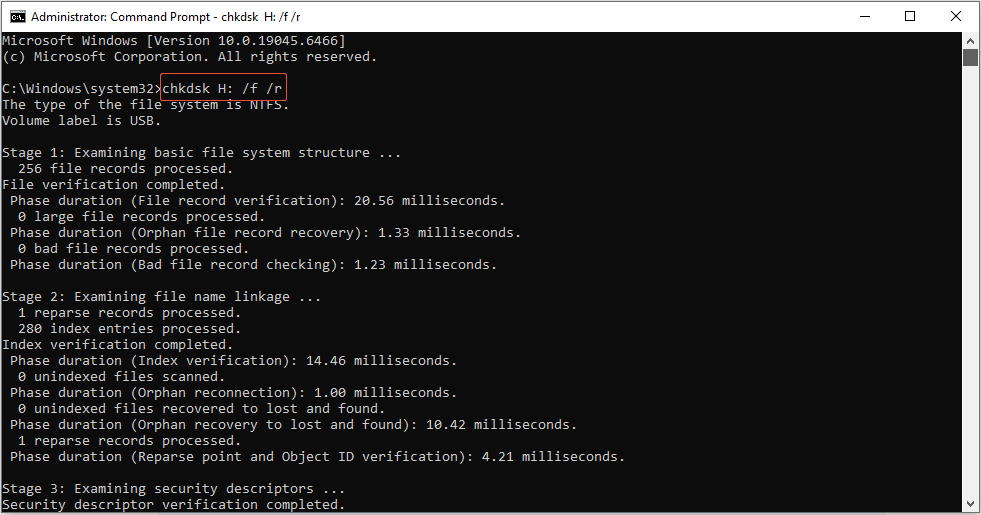
Step 1. Type cmd in the Windows search box, right-click on Command Prompt, and select Run as administrator. When prompted by UAC, click Yes to proceed.
Step 2. Type chkdsk H: /f /r in the window and press Enter. Be sure to replace H with the actual drive letter of your SD card.
- H indicates the drive you wish to check.
- /f fixes errors.
- /r identifies bad sectors and retrieves recoverable data.
Fix 5. Format the SD Card
If the above solutions don’t fix the “SD card cannot be read” issue on Windows, formatting the SD card should be the last method.
Formatting the unreadable SD card will fix the issue of it not being readable and will also restore the storage device’s usability.
Here are two methods to format the SD card safely.
Option 1. Use File Explorer:
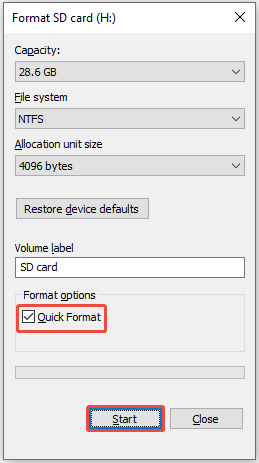
Step 1. Press Win + E to launch File Explorer, right-click on the SD card, and choose Format.
Step 2. Set the required configurations, including the file system and allocation unit size, check the Quick Format option, and click Start.
Option 2. Use MiniTool Partition Wizard:
Sometimes, you may receive an error message saying “Windows was unable to complete the format” when trying to format a drive in File Explorer.
In such cases, using a reliable SD card formatter can be a good solution to format the disk. MiniTool Partition Wizard is an excellent option for this purpose.
Step 1. Download, install, and open MiniTool Partition Wizard Free.
MiniTool Partition Wizard FreeClick to Download100%Clean & Safe
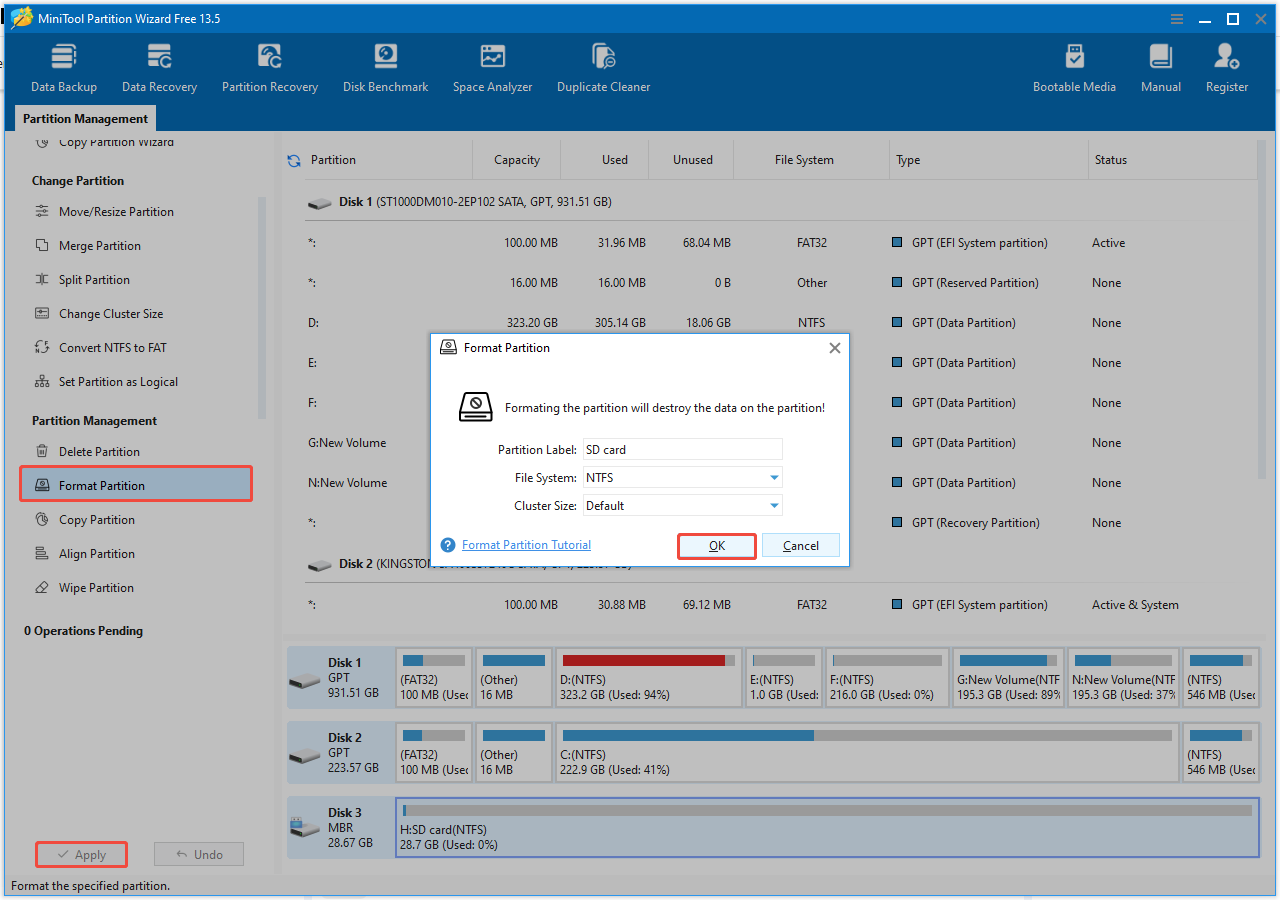
Step 2. Choose the SD card and then select the Format Partition option from the left panel.
Step 3. Configure the partition label, file system, and cluster size. Then, click OK.
Step 4. Click the Apply button to implement all the changes.
Part 3. How to Fix – SD Card Can’t Be Read by Phones
This part outlines how to fix the unreadable SD card on your phone with three workarounds, including remounting the card, cleaning the slot, factory resetting, and formatting the card.
Method 1. Clean the SD Card Slot & Remount the SD Card
If your phone frequently resides in your bag or pocket, dirt may obstruct the SD card slot.
To clean an SD card reader, follow these steps:
Step 1. Power off the device and take out the card.
Step 2. Use a can of compressed air to blow out any loose dust and debris from the slot. Use short bursts for optimal results.
After cleaning, if your phone still doesn’t read the SD card, try remounting it.
Below shows how to remove the memory card in a Samsung phone:
Step 1. Before taking out the memory card, make sure to unmount it to ensure safe removal. From the Apps screen, select Settings.
Step 2. Select Device maintenance > Storage > More options > Storage settings > SD card > Unmount.
Step 3. Place the ejection pin into the hole on the tray to loosen it.
Step 4. Gently pull the tray out from the tray slot.
Step 5. Take out the memory card.
Step 6. Reinsert the tray into the tray slot.
Method 2. Perform a Factory Reset
A software error on your phone may cause the SD card reading issue. In this situation, try carrying out a factory reset to resolve underlying software problems.
To factory reset your Android phone, go to Settings > System > Reset options > Erase all data (factory reset).
Confirm the action, and follow the prompts to erase everything and restart, returning the phone to its original state.
If you can’t access settings, use the hardware button method (Power + Volume Down/Up) to enter Recovery Mode and perform the reset.
Method 3. Format the SD Card in Your Phone
In addition to a factory reset, consider formatting the SD card in your phone to fix the SD card issue.
Here’s how to format an SD card on a Samsung device running Android OS.
Step 1. Power on the Android device.
Step 2. Go to Settings > Device Care > Storage.
Step 3. Tap on the Advanced option, and the SD card should appear. Select it to continue.
Step 4. Press the Format option and choose Format SD Card in the confirmation window.
Once you complete these steps, wait for the formatting process to be completed.
Part 4. How to Recover Data From an Unreadable/Formatted SD Card on Windows
If all the methods above fail, consider using a data recovery tool to rescue your data from the unreadable SD card.
Additionally, if you have formatted your SD card and did not back it up, you will also need a data recovery tool to perform file recovery.
MiniTool Power Data Recovery is a free data recovery tool that can recover files in various data loss scenarios, such as accidental deletions, formatting, and file system corruption.
It is compatible with Windows 11/10/8.1/8 and securely supports many file types, including picture, video, audio, document, and more.
Now, download the free edition of this tool and use it to recover 1 GB of files for free.
MiniTool Power Data Recovery FreeClick to Download100%Clean & Safe
Step 1. Connect your SD card to your PC using a card reader, and then open MiniTool Power Data Recovery.
Your SD card will be displayed with a USB icon under the Logical Drives tab. Select it and click the Scan button.
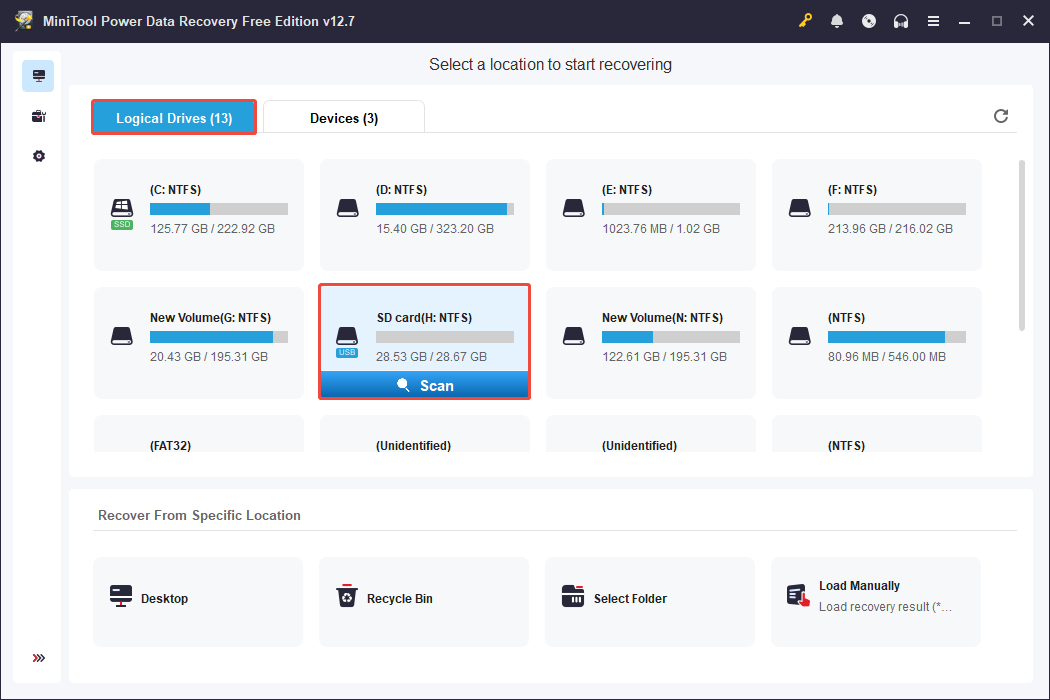
To ensure complete scan results, allow the scanning process to complete.
Step 2. Once the scan is completed, open folders in the Path section to view files in their original layout.
The Type section organizes files by category, which helps find specific formats like photos, documents, audios, or videos.
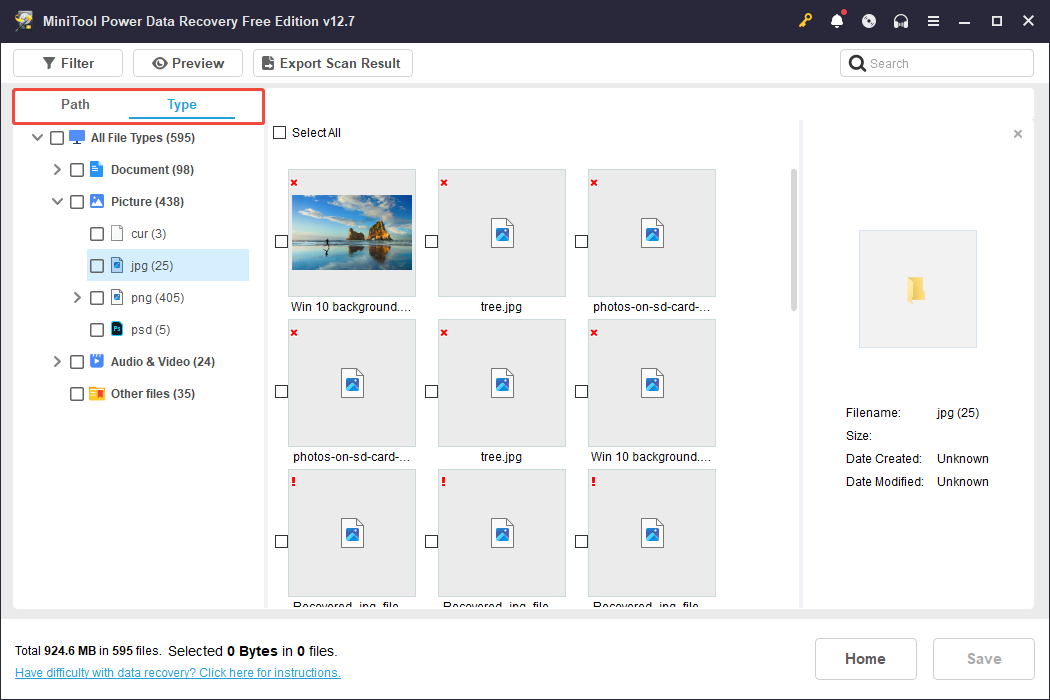
Moreover, consider using these two features:
- The Filter feature allows you to narrow down results by file type, modified date, or file size, simplifying the process of locating wanted files.
- The Search function enables you to locate files by typing keywords or file extensions and pressing Enter.
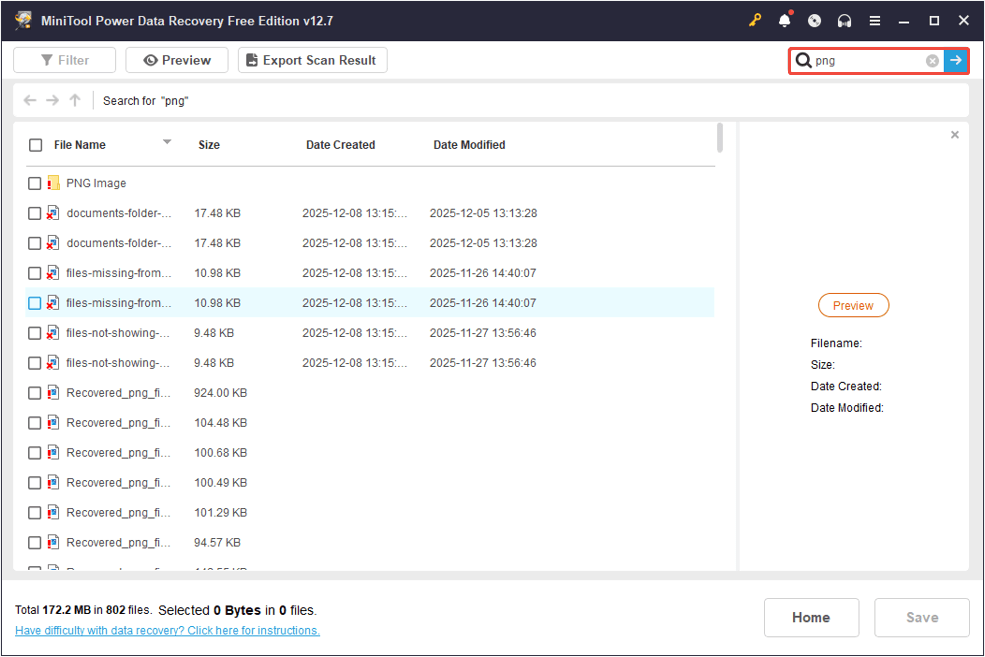
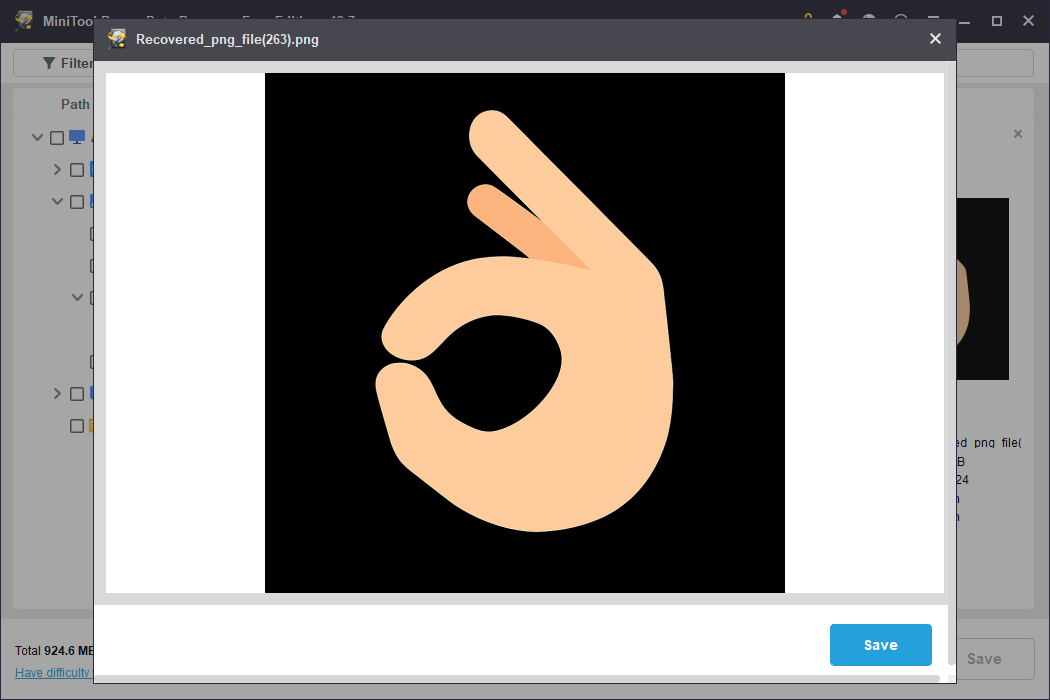
The Preview feature allows you to verify whether the files are needed, facilitating selective recovery and helping you manage your free recovery capacity efficiently.
Most file types can be previewed, although there is a 100 MB limit for certain files.
To preview a file, double-click on it.
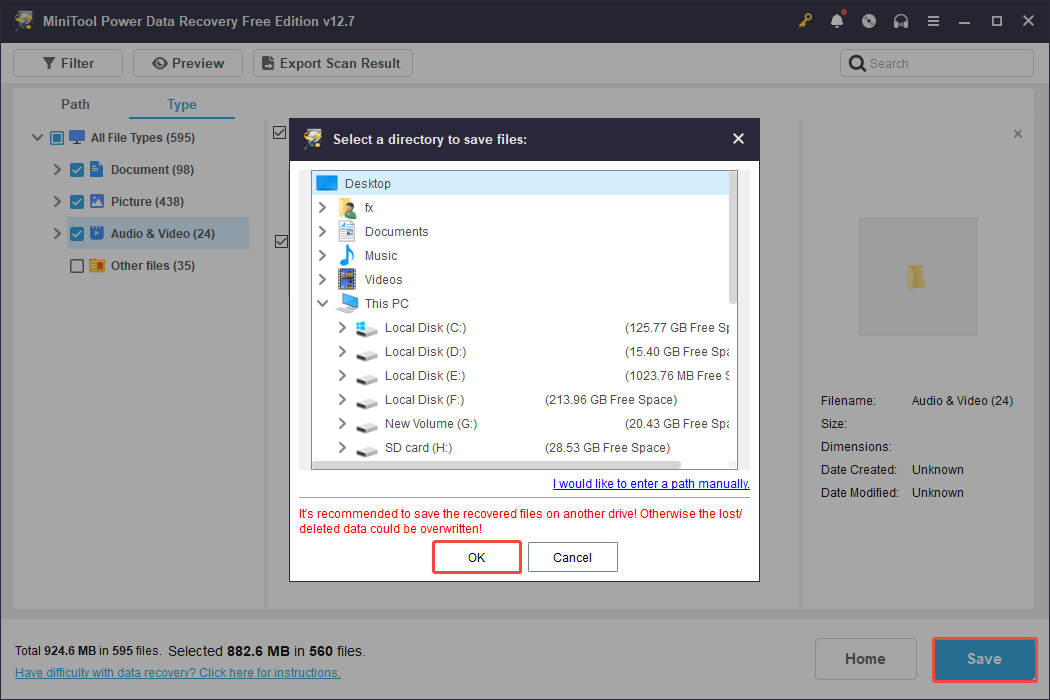
Step 3. Select the desired files and click the Save button in the lower right corner. Then you will be asked to select a directory to store the recovered files.
Select one separate from the original location to avoid data overwriting, and click OK.
Bottom Line
To sum up, this guide covers practical methods to resolve the “SD card cannot be read” issue on both PCs and Android phones.
If the SD card is formatted or the issue isn’t fixed, use reliable data recovery software such as MiniTool Power Data Recovery to scan your storage device and recover the files.
If you encounter any issues or have any questions when using MiniTool’s products, please send an email to the support team via [email protected].
User Comments :