
Check this MiniTool post to learn how to fix error code 0xc000000e by adjusting BIOS settings, running Startup Repair, rebuilding BCD, and running DISM and SFC. If these methods fail, make sure your files are restored and then reinstall Windows.
Your PC Needs to Be Repaired Error Code 0xc000000e
When a Windows system fails to boot and displays error code 0xc000000e, it may disrupt normal use.
This article provides a comprehensive explanation of the problem and its solution. First, we will explain what this error code is.
What Is Error Code 0xc000000e
Error code 0xc000000e is a critical error that occurs during the Windows startup process. It indicates that the system cannot access the devices or boot files required for startup.
This error usually occurs without any warning. You will be faced with a blue recovery screen and a message indicating that the required devices cannot be accessed. Continue reading to learn why this happens.
Why Does 0xc000000e Occur
This error typically stems from problems in the boot process. Here are some common causes.
- Hard drive or connection problem: The system disk is damaged, the cable is loose, or the controller is malfunctioning.
- Corrupted boot configuration: Boot Configuration Data (BCD) file is missing or corrupted.
- Incorrect boot device: System attempts to boot from a non-existent or inaccessible disk.
- Partition table incompatibility: MBR/GPT format is incompatible with BIOS/UEFI boot mode.
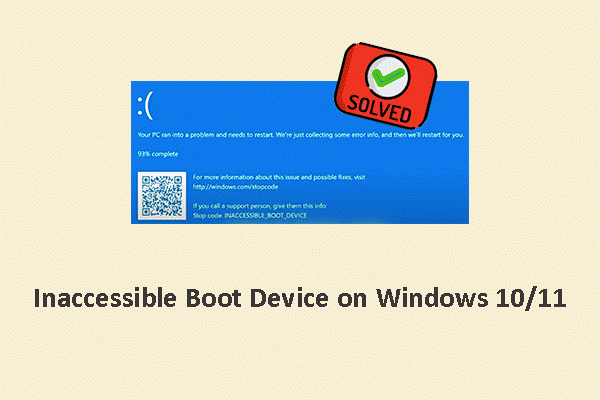
Important: Recover Your Data First from the Unbootable Computer
Repairing boot errors often requires modifying the boot record, partition table, or reinstalling the system, which may corrupt existing data. Therefore, it’s essential to safely transfer the data out before attempting any repairs.
MiniTool Power Data Recovery is recommended to recover data from a non-bootable computer. It boasts several key advantages:
- Supports the WinPE boot environment. MiniTool provides a function that allows you to create bootable media (such as a USB or CD). Even if the system cannot boot into Windows, it can also load software and access hard drive data through the WinPE environment.
- Supports multiple file types. This tool is capable of recovering almost all file types, such as documents, pictures, audios, videos, and more.
- Provides wide compatibility. It supports a variety of storage devices such as HDD, SSD, external hard drive, USB flash drive, and SD card. This makes it suitable for data recovery needs in different devices.
- Handles various data loss scenarios. It can not only handle system startup failures, but also deal with problems such as accidental deletion, formatting, virus attacks, and disk errors.
After knowing about this software, the next step is to recover files.
When your computer won’t start normally, the first step is to prepare a bootable disk to create an independent environment for recovery.
Phase 1: Build a bootable disk on a working PC
Step 1: Install MiniTool Power Data Recovery on a functional computer.
MiniTool Power Data Recovery FreeClick to Download100%Clean & Safe
Step 2: Launch the program and click the Bootable Media icon in the top-right corner.
Step 3: Insert a blank USB drive or CD/DVD, then select the WinPE-based media with MiniTool plug-in option.
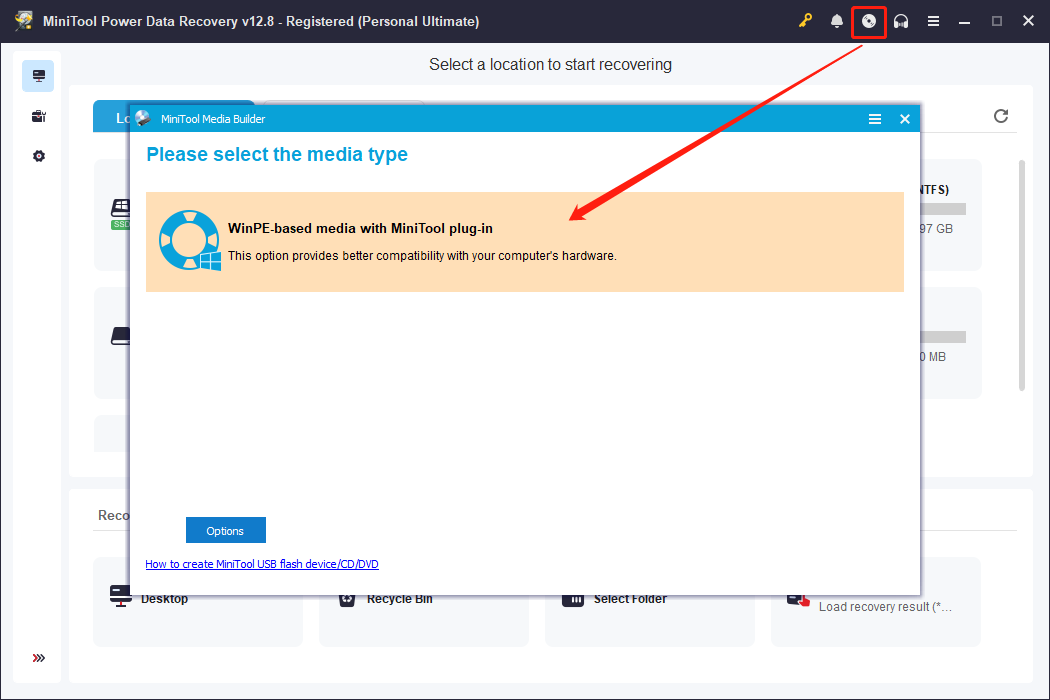
Step 4: Follow the on-screen instructions to finish creating the bootable disk.
Once the bootable disk is ready, use it to access and recover files from the system that won’t boot.
Phase 2: Recover data from the non-booting computer
Step 1: Launch MiniTool Power Data Recovery
1.1. Plug the bootable disk you just created into the problematic computer.
1.2. Restart the PC and press the BIOS entry key (commonly F2, F12, Delete, or Esc) during startup.
1.3. In the Boot menu, set the USB as the first boot device.
1.4. Press F10 to save and exit. The system will now load into the WinPE environment.
1.5. Select MiniTool Power Data Recovery to open the recovery tool.
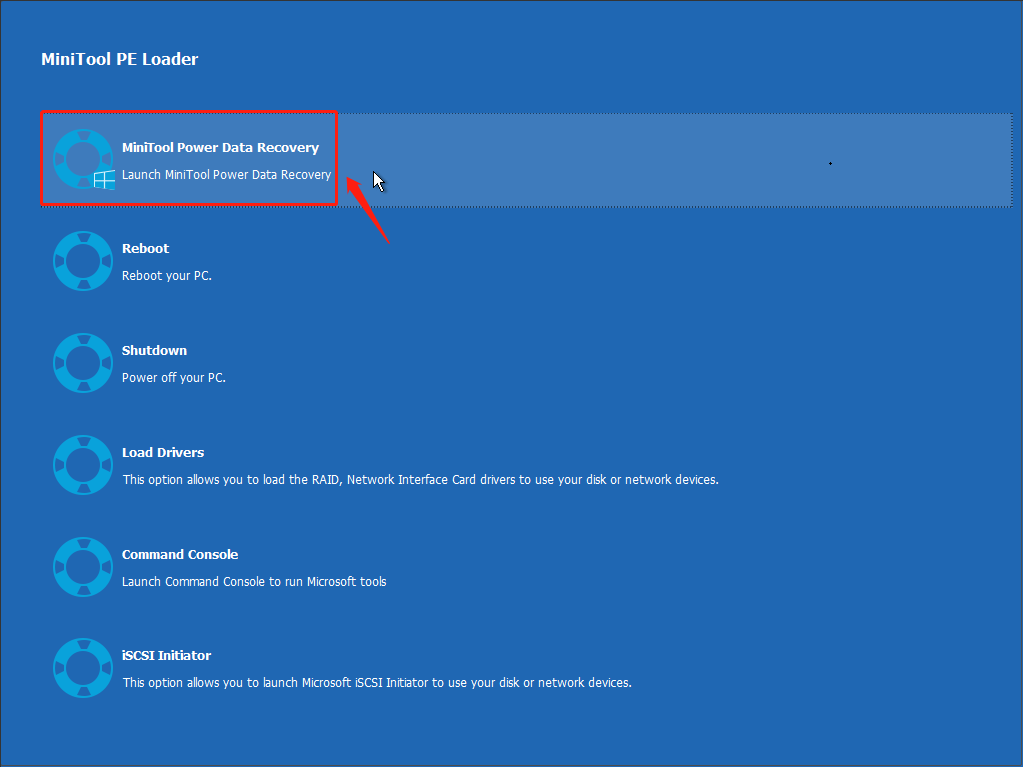
Step 2: Scan the target drive where the files are stored
2.1. Inside the recovery software, find the target scan location under the following sections:
- Logical Drives: shows all partitions (existing, lost, or unallocated).
- Devices: lists all connected disks.
2.2. When finding the target partition or disk, select it and click Scan, and wait for the process to complete.
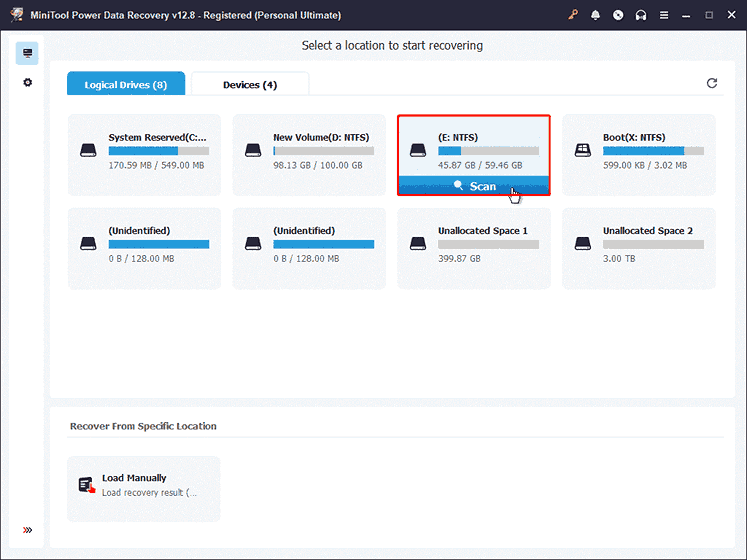
Step 3: Find the target files and preview them
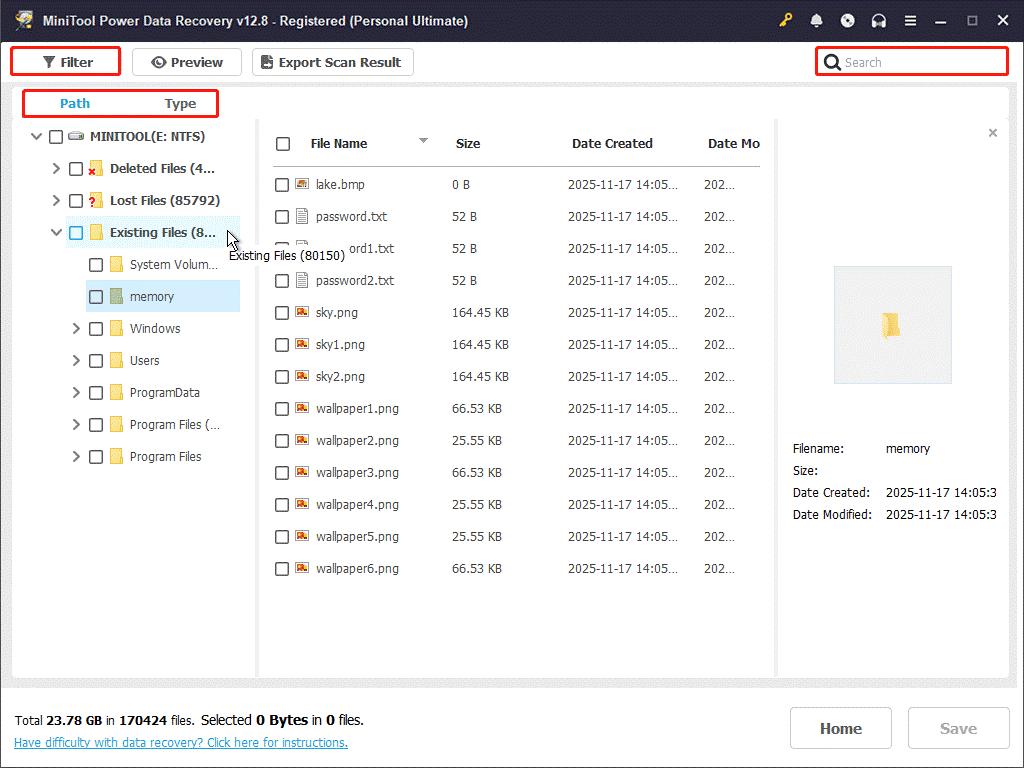
3.1. This process will take some time. When it ends, use the following tools to refine the search results:
- The Path feature displays the scan results according to the original folder structure. You can expand the folders layer by layer to quickly locate the path to the lost file.
- The Type feature categorizes scan results based on file type, such as documents, pictures, audios, and videos.
- The Filter feature offers multi-dimensional filtering options, including file type, modification date, file size, and file category. By combining these criteria, you can precisely filter the target files.
- The Search feature allows you to enter a full or partial file name to locate the specific file.
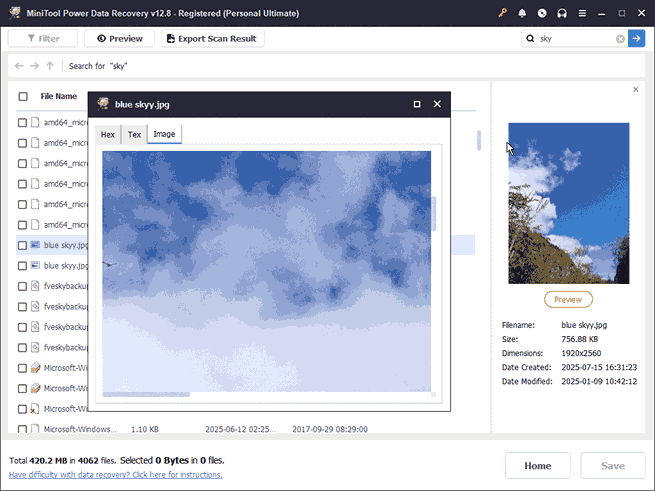
3.2. After finding the files, double-click them to preview their contents.
Step 4: Save the required files to a safe location
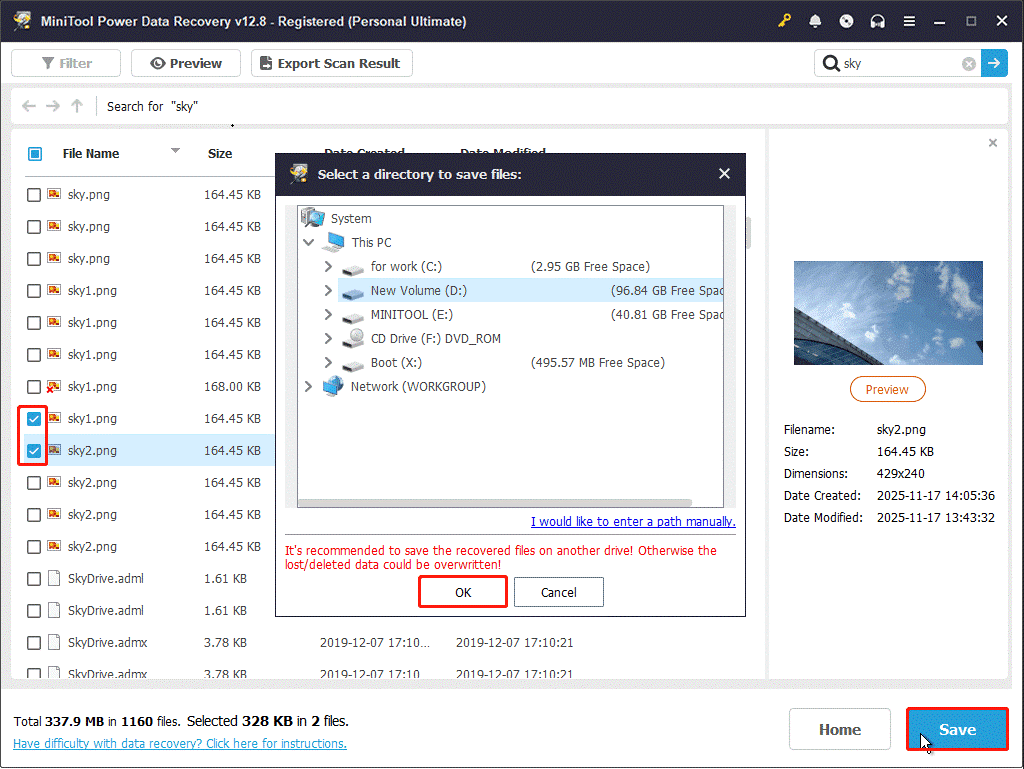
4.1. Select the confirmed files, then click the Save button.
4.2. In the new window, choose a safe destination and confirm with OK.
When the Recovery Completed message appears, access and check your restored files.
When the data is safe, the next step is to fix the error code 0xc000000e.
How to Fix Error Code 0xc000000e on Windows 11/10
This section explains how to fix code 0xc000000e on Windows. Attempt each of these solutions in turn until the issue is fixed.
Approach 1: Check Disk Connection
Error code 0xc000000e means that Windows cannot access the device required for startup. Therefore, checking the disk connections is the most critical first step.
Refer to the following operations to check it.
- Check cables: Ensure the hard drive power and data cables are securely connected and not loose.
- Try a different port: Try plugging the hard drive into a different SATA/USB port on the motherboard.
- Check BIOS: Enter the BIOS after powering on and confirm that the system drive is recognized.
Approach 2: Adjust BIOS/UEFI Boot‑Related Settings
Error code 0xc000000e often stems from the system attempting to boot from the wrong device or in the wrong mode (Legacy/UEFI). In this case, try adjusting the BIOS/UEFI boot settings.
Ensure that the boot order, boot mode, and controller settings are configured correctly.
Step 1: Restart your PC and press F2, F12, Delete, or Esc during startup to enter BIOS/UEFI.
Step 2: Navigate to the Boot tab, select the boot disk as the first option, and change the boot mode to UEFI.
Step 3: Press F10 to apply changes. The system will restart with the new configuration.
Approach 3: Enable Windows 8.1/10 WHQL Support in BIOS
If you are using Windows 8.1/10, enabling the WHQL support in the BIOS is feasible. This helps restore normal system access to the EFI partition and BCD.
Step 1: Restart your PC and enter the BIOS.
Step 2: Navigate to the Boot or Advanced tab, find the Windows 8.1/10 WHQL Support setting, and enable it.
Step 3: Press F10 to save and exit. Then, the system restarts with WHQL enforcement.
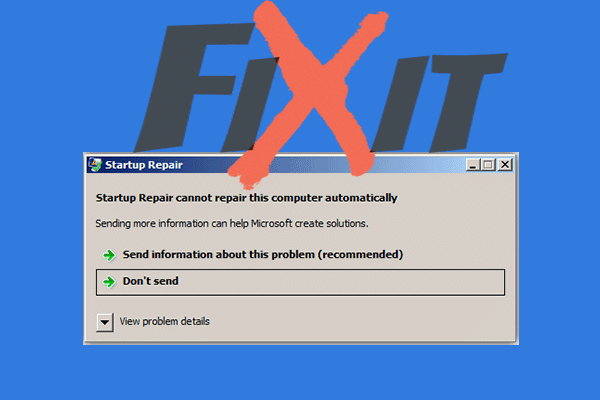
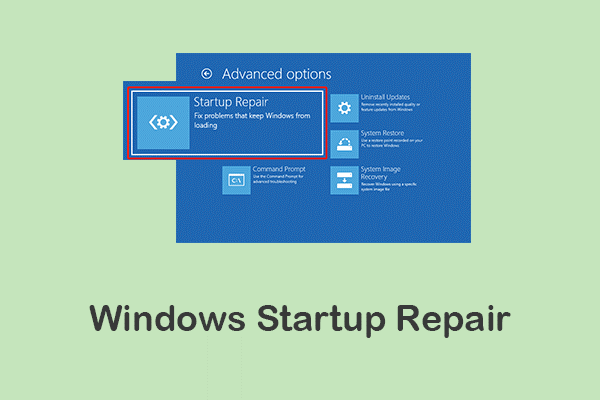
Approach 4: Run Startup Repair
Startup Repair can automatically detect and repair core boot problems that cause error code 0xc000000e. This can restore normal system access to the boot partition and system files.
Step 1: Power on the computer, then press and hold the Power button for about 10 seconds to shut it down. Repeat this process twice.
Step 2: On the third startup, Windows will automatically enter the Windows Recovery Environment (WinRE).
Step 3: Select Troubleshoot > Advanced options > Startup Repair.
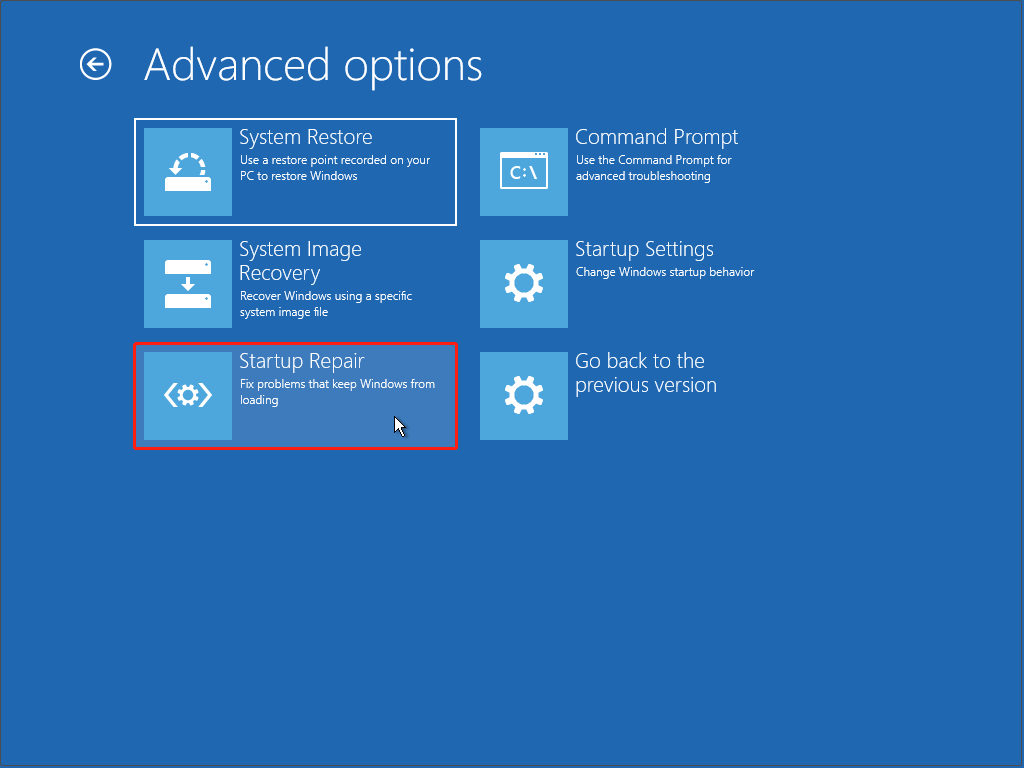
It will automatically scan and repair startup file errors, attempting to restore Windows to normal startup.
Approach 5: Rebuild the Boot Configuration Data
If the Boot Configuration Data is corrupted or missing, the system will encounter errors such as 0xc000000e.
Rebuilding the BCD can repair or rebuild the Windows boot configuration file. This allows the system to be recognized and start normally again.
Here is how to rebuild the BCD using the bootrec command:
Step 1: In WinRE, select Troubleshoot > Advanced options > Command Prompt.
Step 2: In Command Prompt, type bootrec /rebuildBcd and press Enter. After completion, type Yes and press Enter.
Step 3: If the boot problem persists, export the BCD store and then enter the following commands one by one, pressing Enter after each command:
- bcdedit /export C:\BCD_Backup
- c:
- cd boot
- attrib bcd -s -h -r
- ren c:\boot\bcd bcd.old
- bootrec /rebuildBcd
Step 3: Close Command Prompt, select Restart, and check if the computer can start normally.
Approach 6: Run DISM and SFC
Running DISM and SFC is also an effective method. SFC can scan for and replace corrupted system files, restoring a normal operating environment. DISM can repair the system image and component store, ensuring the integrity of core Windows files.
Here is how to troubleshoot startup issues with SFC and DISM in WinRE:
Step 1: Launch Command Prompt in WinRE.
Step 2: Type notepad and press Enter.
Step 3: Click File > Open to pop up the new window. Then, go to the This PC section to locate the system drive and identify the drive letter.
Step 4: Type SFC /scannow /offbootdir=#:\ /offwindir=#:\windows and press Enter. (# needs to be replaced with the drive letter of your system partition.)
Step 5: If any errors are listed, continue typing DISM /image:#:\ /cleanup-image /restorehealth and press Enter. (# should be replaced with the letter you identified before.)
Wait for it to complete. If any issue is found and fixed, repeat step 2.
Approach 7: Set the Boot Disk to Online Status
If the boot disk is offline, the operating system cannot access its partitions and files. This may cause the 0x000000e error code.
Setting the boot disk to Online allows the system to access and load the boot files within it.
Step 1: Open the Command Prompt in WinRE.
Step 2: Type diskpart in the window and press Enter.
Step 3: Input the commands step by step, and press Enter after each entry.
- list disk
- select disk # (The # should be replaced by your target boot disk number.)
- online disk
Step 4: Type exit and press Enter to close the window.
Approach 8: Reinstall Windows
When system files or boot configurations are severely corrupted, the above methods may be ineffective. In this case, reinstalling Windows is recommended. It can thoroughly eliminate potential errors and provide a fresh, stable system environment.
Step 1: Create installation media
Insert a blank USB drive into a working computer. Next, download the Media Creation Tool, and then run it to create a Windows installation disk.
Step 2: Boot from the installation disk
Insert the installation USB drive into the computer that cannot boot. Press the corresponding key during startup to enter the BIOS. Set the USB drive as the preferred boot device and press Enter.
Step 3: Set installation options
After entering the installation interface, complete the personalization settings and click Next. On the Choose installation options page, select Install Windows 10 > I agree to delete everything, including files, apps, and settings, and click Next.
Step 4: Perform installation
In the Choose where to install Windows 10 window, delete all partitions on the system disk (usually Disk 0). Then, select Disk 0 Unallocated Space, and click Next to begin the installation.
The system will restart and enter a brand-new Windows environment upon completion.
MiniTool Power Data Recovery FreeClick to Download100%Clean & Safe
After fixing the error, take some measures to prevent it from happening again.
Tips to Avoid Windows Error Code 0xc000000e in the Future
The following suggestions can help reduce the risk of encountering this code 0xc000000e again.
- Regularly check hard drive connections: Ensure power and data cables are securely plugged in to prevent system recognition issues due to loose connections.
- Maintain correct BIOS/UEFI settings: Ensure the system drive is the first device in the boot order and uses the appropriate boot mode.
- Back up data: Regularly back up important files to an external hard drive or cloud storage to prevent data loss during repairs.
- Avoid sudden power outages: Use a stable power supply whenever possible to prevent system files or boot records from being corrupted by power failures.
- Keep your Windows updated: Install the latest Windows updates and drivers to reduce compatibility issues.
- Use reliable antivirus software: Prevent malware from damaging boot files or system configuration.
Final Words
In a word, with proper repairs, such as running Startup Repair, rebuilding the BCD, and setting the boot disk to online, the error code 0xc000000e can usually be fixed.
If the problem is too severe, reinstalling Windows is also a thorough solution. Most importantly, recovering data from your crashed PC first is essential.
For any questions about the MiniTool product, contact us at [email protected].
User Comments :