
The PFN_LIST_CORRUPT error occurs on your computer when the PFN list gets corrupted. This is a common blue screen of death (BSOD) error on a Windows computer. When you encounter this error, you can read this MiniTool post to fix it.
PFN_LIST_CORRUPT BSOD
Although Windows is a powerful operating system, it still has plenty of errors and bugs. Most of you must have experienced BSOD errors on your computer. When your computer turns into a blue screen all of a sudden, you can get some information about the error from the on-screen message. For example, you can find an error code on the left corner of the screen, like this: Stop code: PFN_LIST_CORRUPT.
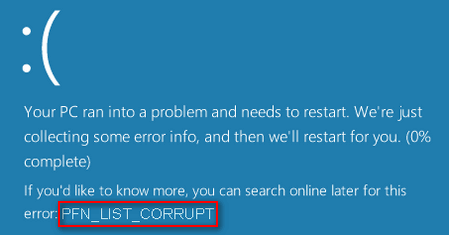
PFN stands for Page Frame Number. The PFN database contains numerous lists that can be used to find the location of all system files. Thus, when the PFN list gets corrupted, your computer fails to deal with any tasks and programs and needs to restart.
Recently I have been getting the PFN_LIST_CORRUPT BSOD. It usually happens when I wake my PC from sleep. Every now and then I'll be using the PC when it occurs but it is not as often. I think it started after the latest Windows update. I have removed my CPU OC, and have it back to default but it still happens. Does anybody know what could be wrong? - KevinBurton4answers.microsoft.com

What Causes PFN List Corrupt
The PFN lists actually stand for the physical memory pages of your Windows system. The system can locate the files directly with the information from the PFN list. When the list is corrupted or a driver passes a bad memory descriptor list due to hardware issues (hard disk bad sectors) or physical problems (file corrupt), you’ll see the stop code PFN list corrupt on a blue screen.
Possible causes:
- RAM corruption
- Damaged hard drive
- Virus or malware attack
- Windows registry corruption
- Corrupted or damaged system files
- Corrupted, outdated, or wrongly configured device drivers
- Etc.
When this error occurs, it can be temporary or permanent. To avoid secondary damage to your files, I highly advise you to get important files off the drive before trying to fix your computer. If you have backups, just skip to resolve the PFN list corrupt error.
Recover Data from PFN_LIST_CORRUPT Windows 10
In some cases, professional third-party software can achieve twice the result with half the error. When you are stuck in BSOD, MiniTool Power Data Recovery is the one to help you recover files.
MiniTool Power Data Recovery is the best data recovery software for Windows users. It fits all Windows systems and offers a clean and safe data recovery environment.
This file recovery software allows you to restore documents, pictures, videos, audio, and other types of files from various situations, including lost/inaccessible partitions, unrecognized external hard drives, formatted USB drives, and so on. Additionally, it is equipped with multiple practical features to help you reduce scan time and locate wanted files quickly.
MiniTool Power Data Recovery FreeClick to Download100%Clean & Safe
How to Recover Data After Successful Reboot
In most cases, you can restart the computer successfully. After this, you’d better check if there are any useful files lost due to the PFN list corrupt error. To get files back securely, MiniTool Power Data Recovery is heartily recommended. Follow the next steps to recover data after PFN_LIST_CORRUPT BSOD.
Step 1: Download and install the software correctly following the on-screen instructions.
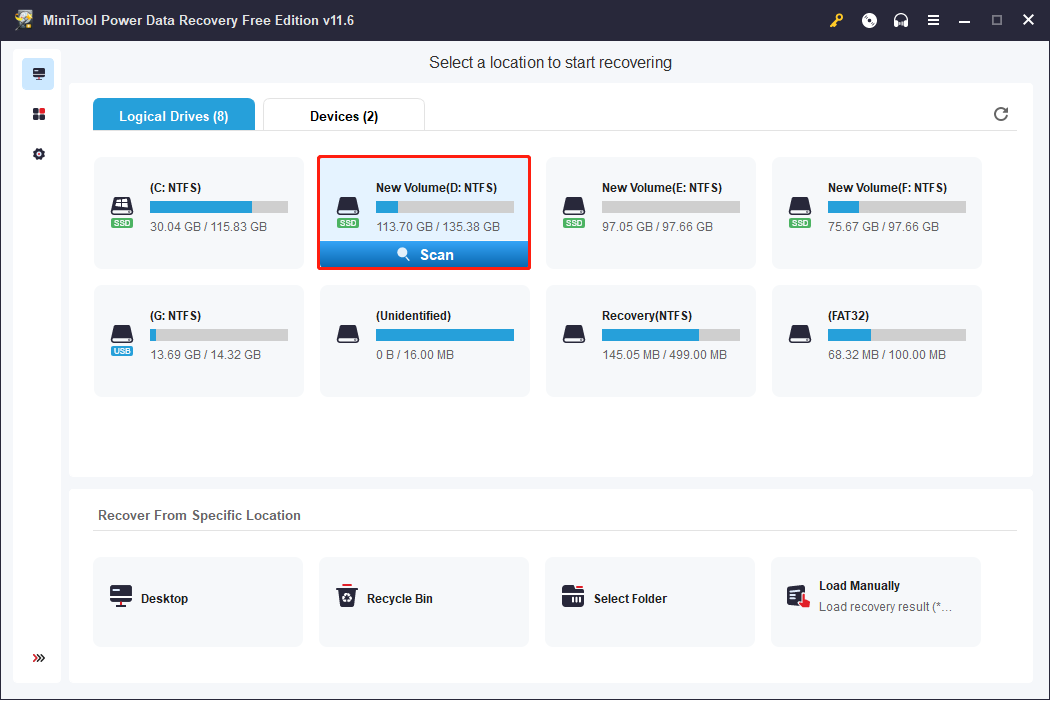
Step 2: Launch the software and you will enter This PC interface by default. You can select a partition where the lost files are stored to scan. Or you can shift to the Devices tab to scan the whole disk at one time.
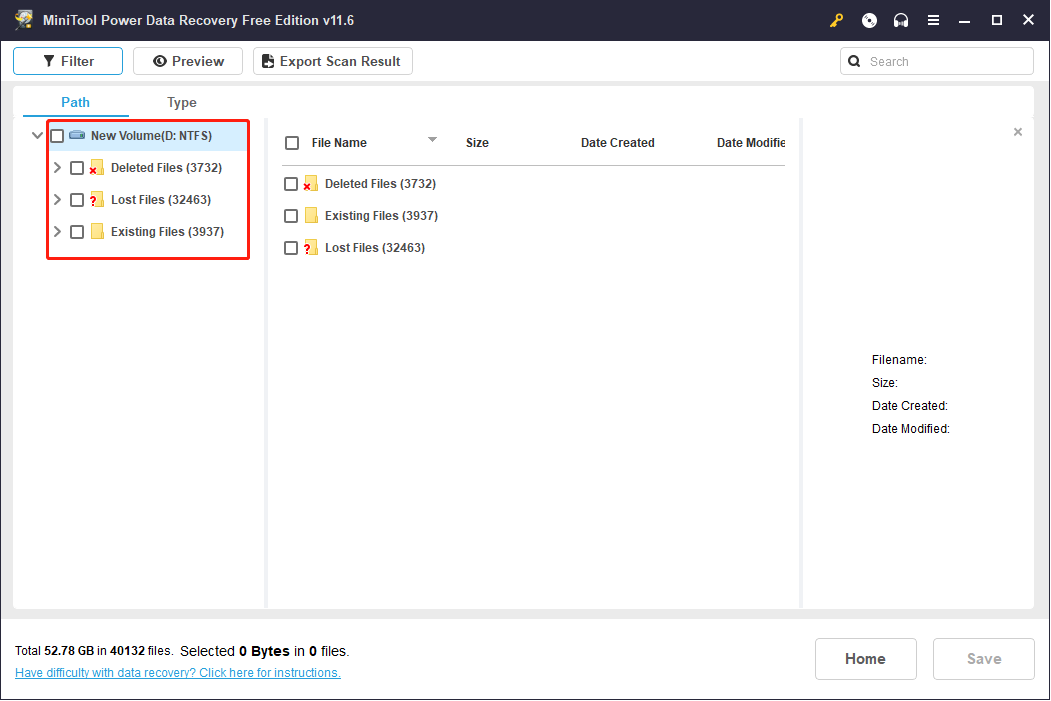
Step 3: The software will start the scanning process. The process will take a few minutes to complete. In order to find all the deleted, lost, and existing files, please do not interrupt the scan process.
When the process is finished, you can browse the file list to find the needed files. The software will show you found files in a hierarchical tree structure. You can expand each folder to find your files.
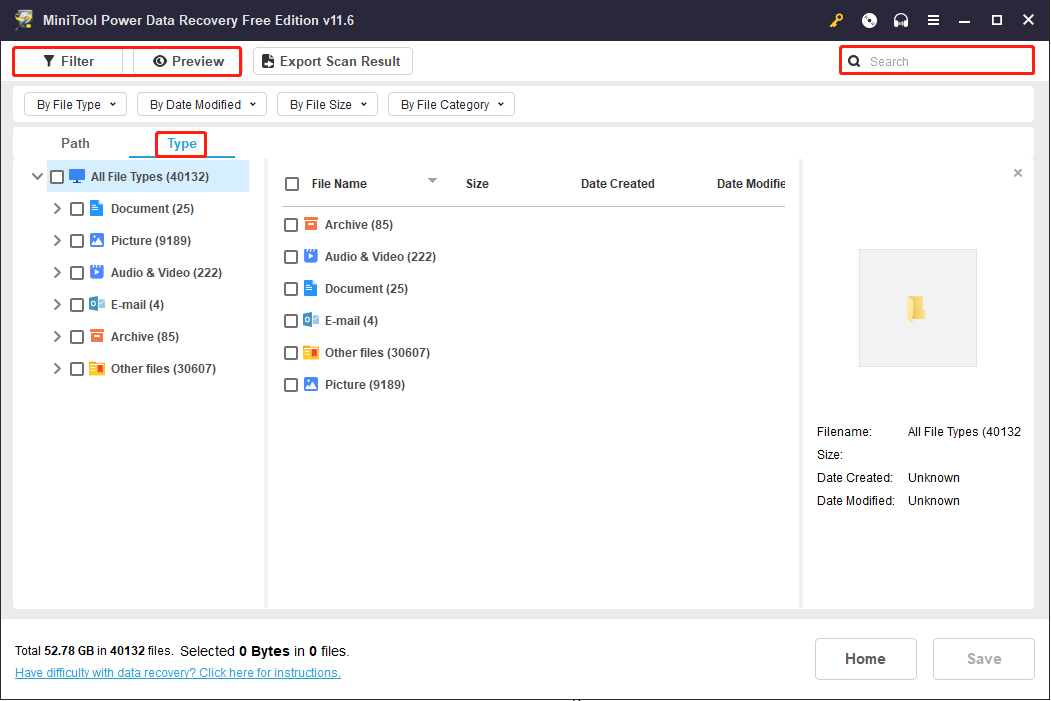
I’d like to introduce you to four practical features to increase the efficiency of finding files.
- Filter: You can set some conditions based on your needs to narrow down the file list on the result page. The file size, file category, file type, and file modified date can be adjusted.
- Type: The Type category list divides all the files into different folders according to their types. You can use it to find a certain type of file.
- Search: When you remember the name of the wanted file, you can type its partial or full name into the search box. All the matched files will be displayed on the interface.
- Preview: To increase the data recovery accuracy, the Preview function works a lot. You can check files, including pictures, documents, videos, and audio, before deciding to save them.
Step 4: Select all the files you require and click on the Save button. You should choose a storage path to save files. In order to restore files successfully, do not save files to the original path.
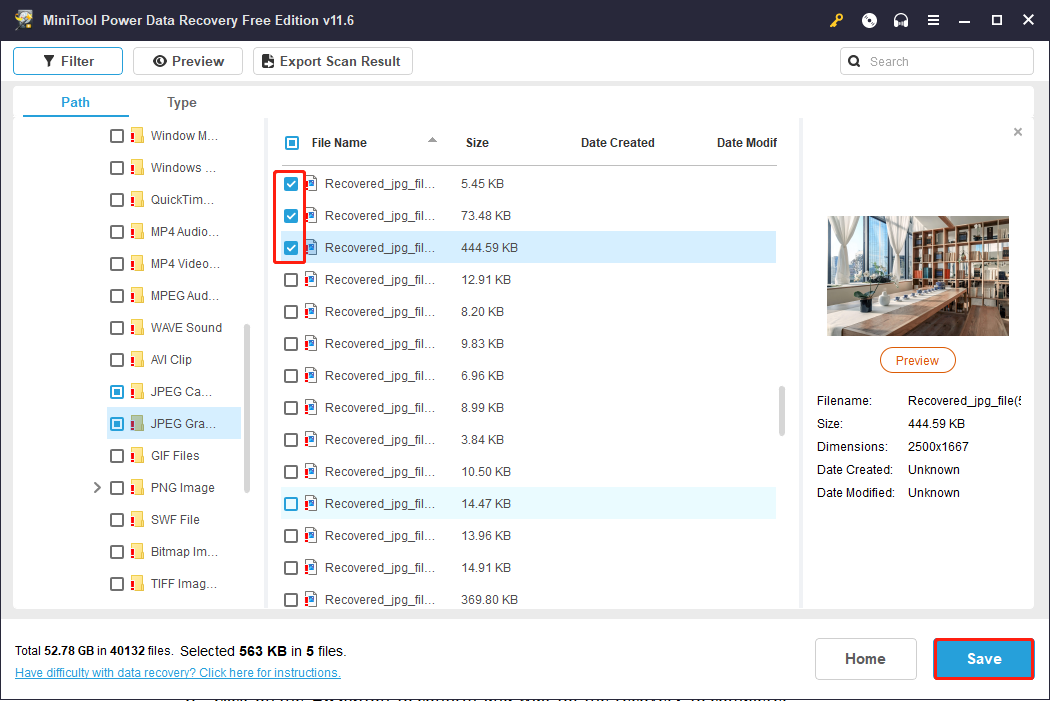
When the data recovery process is finished, you can check the files in the chosen path.

How to Recover Data from PFN LIST CORRUPT BSOD
If you can’t get rid of the PFN_LIST_CORRUPT BSOD error even after restarting, you need to recover files from the computer with a bootable disk. MiniTool Power Data Recovery has a snap-in WinPE Bootable Builder that can be used to create a bootable disk. Then, you can use this created bootable media to boot up the problematic computer and recover files from it.
Stage 1: Create a Bootable Disk
To create a bootable disk, you should prepare a USB drive (the recommended USB capacity is between 4GB and 64GB) or a CD/DVD and a well-performing computer. Here we use a USB drive to create a bootable disk.
step 1: Download and install MiniTool Power Data Recovery on the functioning computer.
MiniTool Power Data Recovery FreeClick to Download100%Clean & Safe
step 2: Connect the USB drive to the computer and launch the software. If run the software first, you need to click on the Refresh button to make the USB drive recognized.
Step 3: Turn to the Utilities interface and click on the Download button under the Power Data Recovery Bootable section.

You will jump to a page. You should choose one edition that contains a snap-in WinPE Bootable Builder.
step 4: After you get an advanced edition, return to the This PC interface on your computer and click on the key icon to register with the key that is sent to you by email.
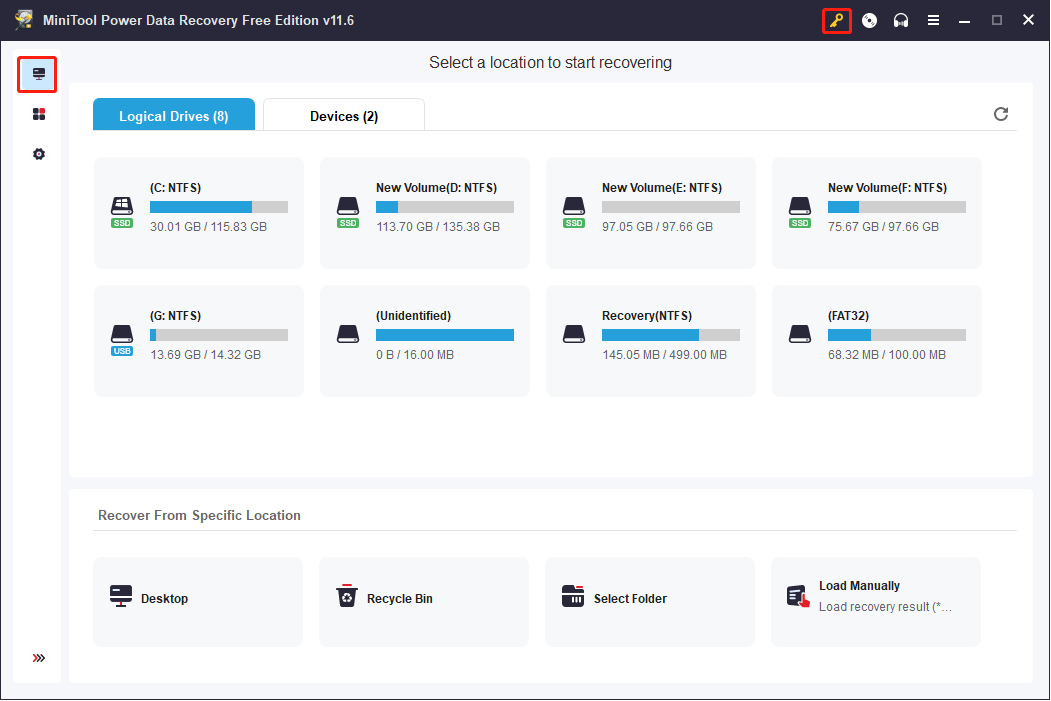
step 5: Click on the disc icon next to the key icon, and then you can follow the on-screen instructions to create a bootable disc.
step 6: When the file preparation process is finished, click on Finish and disconnect the USB drive.
Stage 2: Recover Data from the Problematic PC
Step 1: Connect the bootable disk to the computer.
Step 2: Restart the computer and boot it into the BIOS menu.
Step 3: Change the boot order to make the bootable disk in the first place by using the arrow keys.
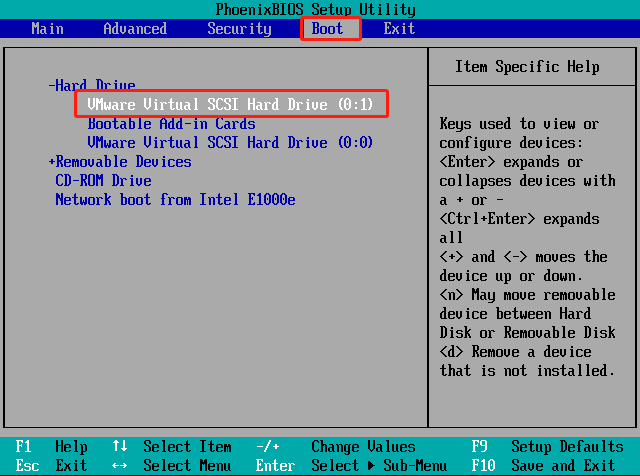
Step 4: Press F10 and Enter in sequence to save the change and exit BIOS.
Step 5: Then, your computer will boot from the created bootable disk and it will open MiniTool Power Data Recovery automatically.
You can just follow the steps in the first situation to restore files with MiniTool Power Data Recovery.
Repair PFN_LIST_CORRUPT Error
When you try to fix the PFN list corrupt error, please make sure that your computer always has a sufficient power supply.
Solution 1: Update Drivers on Windows 10
Outdated or corrupted drivers may be responsible for this problem. Sometimes, updating drivers on your computer helps to resolve the problem.
Step 1: Press Win + X and choose Device Manager from the WinX menu.
Step 2: You can find all the installed drivers on your computer. Find drivers that need to be updated and right-click on them.
Step 3: Choose Update driver from the context menu, then select Search automatically for drivers in the prompt window.
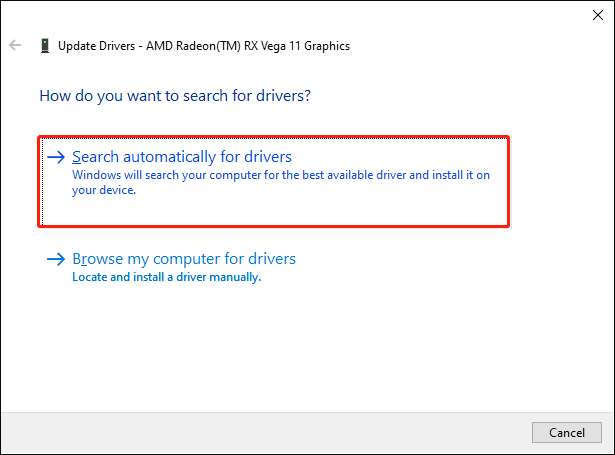
Your computer will find and install the latest drivers for your computer.
Solution 2: Check the RAM with Windows Memory Diagnostic
As mentioned above, you should consider the memory problem when you are getting this BSOD problem. Windows has the built-in tool, Windows Memory Diagnostic, to help you check RAM.
Step 1: Press Win + R to open the Run window.
Step 2: Type mdsched.exe into the box and hit Enter to open Windows Memory Diagnostic.
Step 3: Choose Restart now and check for problems (recommended) to run this tool.
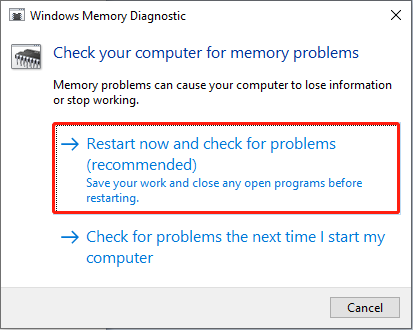
Let the checking progress finish completely by itself.
Solution 3: Fix System or System Files Problems with Command Prompt
#1: Run System File Checker
You can execute the sfc /scannow command line to fix corrupted or missing system files.
Step 1: Press Win + R to open the Run window.
Step 2: Type cmd into the box and press Shift + Ctrl + Enter to run Command Prompt as administrator.
Step 3: Type sfc /scannow and press Enter to execute this command line.

#2: Run Deployment Image Servicing and Management
You can run the DISM command lines to detect and repair problematic system images.
Step 1: Press Win + S and type command prompt into the search box.
Step 2: Choose Run as administrator from the right pane.
Step 3: Type DISM /Online /Cleanup-Image /Restorehealth and hit Enter.

#3: Run the Bootrec Command Lines
Step 1: Restart your computer and press and hold the Shift key to enter the Windows Recovery Environment.
Step 2: Choose Troubleshoot > Advanced Options > Command Prompt.
Step 3: Type the following command lines and hit Enter at the end of each one.
- bootrec.exe /rebuildbcd
- bootrec.exe /fixmbr
- bootrec.exe /fixboot
Solution 4: Uninstall Problematic Software
Some third-party software, including antivirus software, that conflicts with the computer might cause the PFN list corrupt error as well. You can uninstall this problematic software to try to fix the PFN_LIST_CORRUPT problem.
Verdict
The PFN_LIST_CORRUPT is a common error when your computer runs into BSOD. But you can fix this problem easily with this guidance by yourself. Besides, you should take good care of your files especially when the computer becomes inaccessible. Try to recover files with MiniTool Power Data Recovery when necessary.
MiniTool Power Data Recovery FreeClick to Download100%Clean & Safe
If you have any problems with our software, please feel free to let us know via [email protected].
User Comments :