
When an SD card stops working without warning, the consequences may be severe. Photos may be lost, files may become inaccessible, and devices may suddenly fail to recognize the card.
This article focuses on understanding the signs of SD card failure, ensuring data security, and restoring it to normal operation.
SD Card Stops Working: Manifestations & Causes
When your SD card stops working, it’s usually accompanied by the following symptoms:
- Fail to be recognized by a computer or other electronic devices
- Fail to access files
- Display abnormal storage capacity
- Turn into RAW format
- Slow down to extremely low read/write speeds
- Corrupt files or make them inaccessible
- Overheat abnormally
- Show error messages
Why Does the SD Card Stop Working
There are several reasons why an SD card might stop working.
- Card reader or slot malfunction. Poor contact or aging hardware can cause recognition failures.
- File system corruption. Sudden power outages, forced card removal, or interrupted write operations can corrupt the file system.
- Virus or malware infection. Viruses can hide files, corrupt directory structures, or render the card unreadable.
- Compatibility issues. Incompatible formats between different devices or systems can cause the card to malfunction.
- Low-quality or counterfeit cards. Inferior SD cards are prone to problems such as falsely advertised capacity and a short lifespan.
- Frequent full-load writes. Constantly writing the card to full capacity accelerates flash memory wear and leads to performance degradation.
Recover Files When the SD Card Stops Working Suddenly
When your SD card suddenly stops working, the first priority is ensuring data safety. Which SD card data recovery software should you choose?
MiniTool Power Data Recovery is a robust recovery tool that has professional scanning and recovery capabilities for various storage devices. In addition to SD cards, it also supports internal hard drives, external hard drives, USB drives, and CDs/DVDs.
This tool can handle data loss caused by file system corruption, partition loss, disk formatting, and more. Furthermore, MiniTool supports diverse file types, including pictures, videos, and more.
Its interface is simple, allowing you to get started quickly. This free file recovery software gives you a 1 GB free recovery quota.
Download it and start recovering your SD card data.
MiniTool Power Data Recovery FreeClick to Download100%Clean & Safe
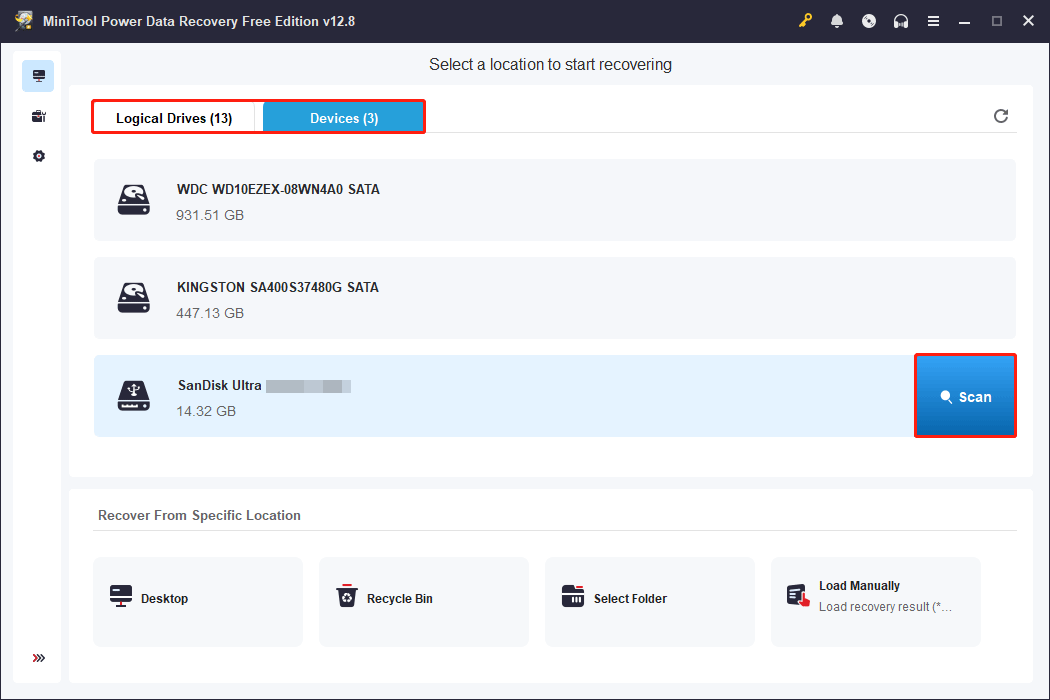
Step 1: Scan the SD card for data
Make sure the SD card is properly connected to your computer, then open MiniTool Power Data Recovery.
Select the target SD card partition under Logical Drives, or select the entire card under Devices. Then, click Scan to scan for data.
Step 2: Find and preview the target files
The scanning time depends on the SD card’s capacity and the extent of damage. Please wait patiently for completion.
After the scan is complete, locate the target files using the following features:
- Path: Display files by original folder structure.
- Type: Categorize files by file type, such as documents, pictures, videos, audios, and so on.
- Filter: Filter items by file type, modification date, file size, and file category.
- Search: Quickly locate the specific file by entering the partial or full filename.
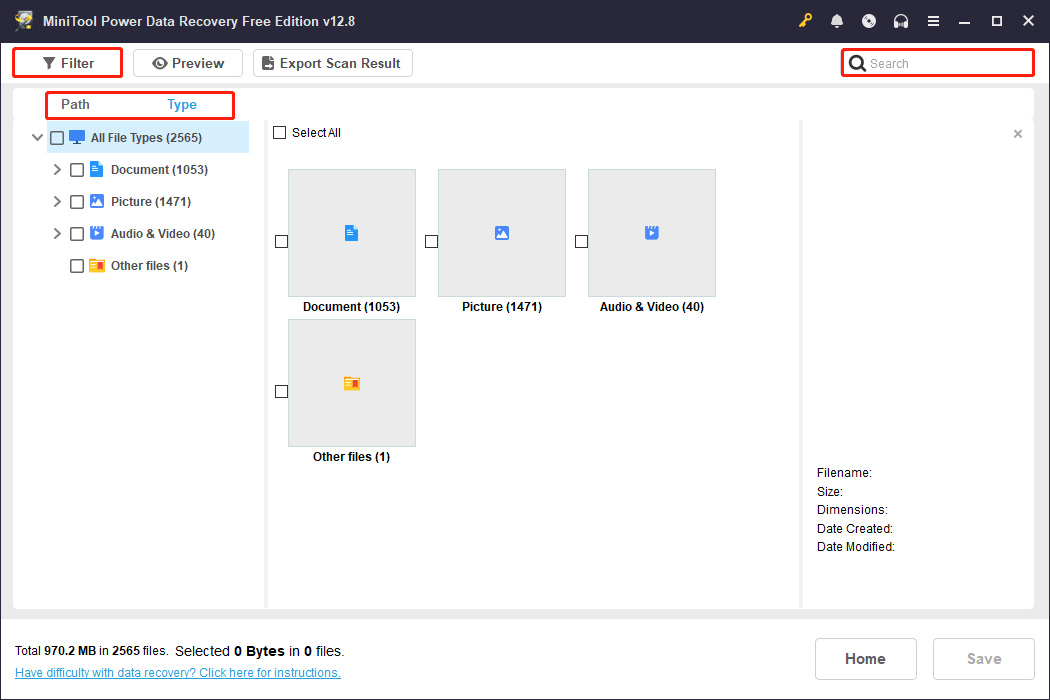
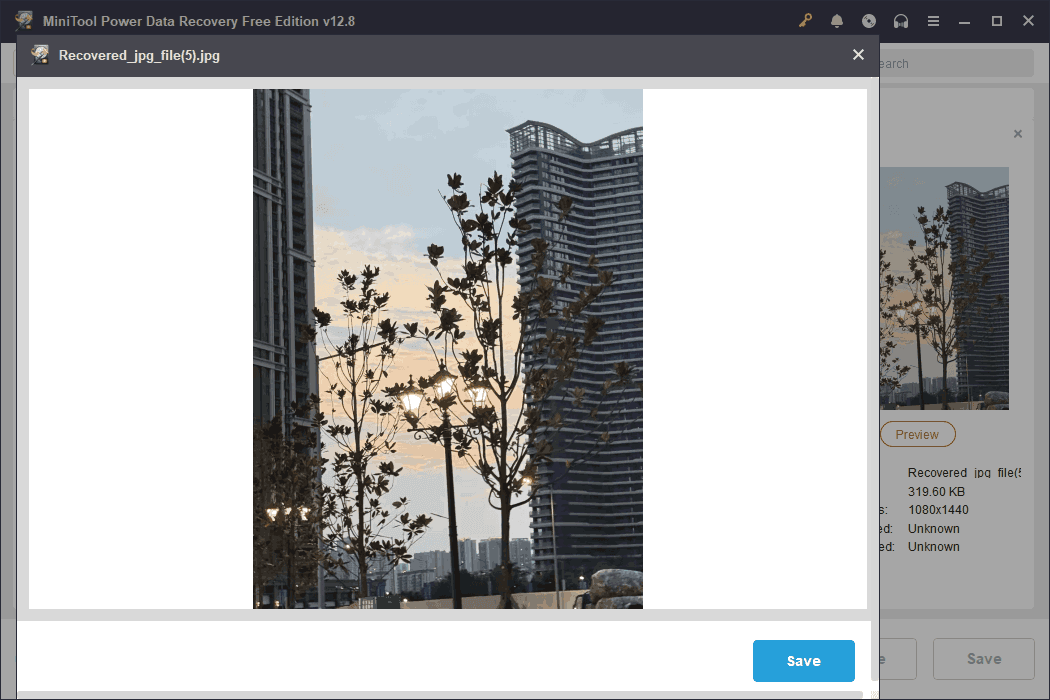
Double-click the files to preview them and confirm if they are intact and correct.
Step 3: Recover the required files
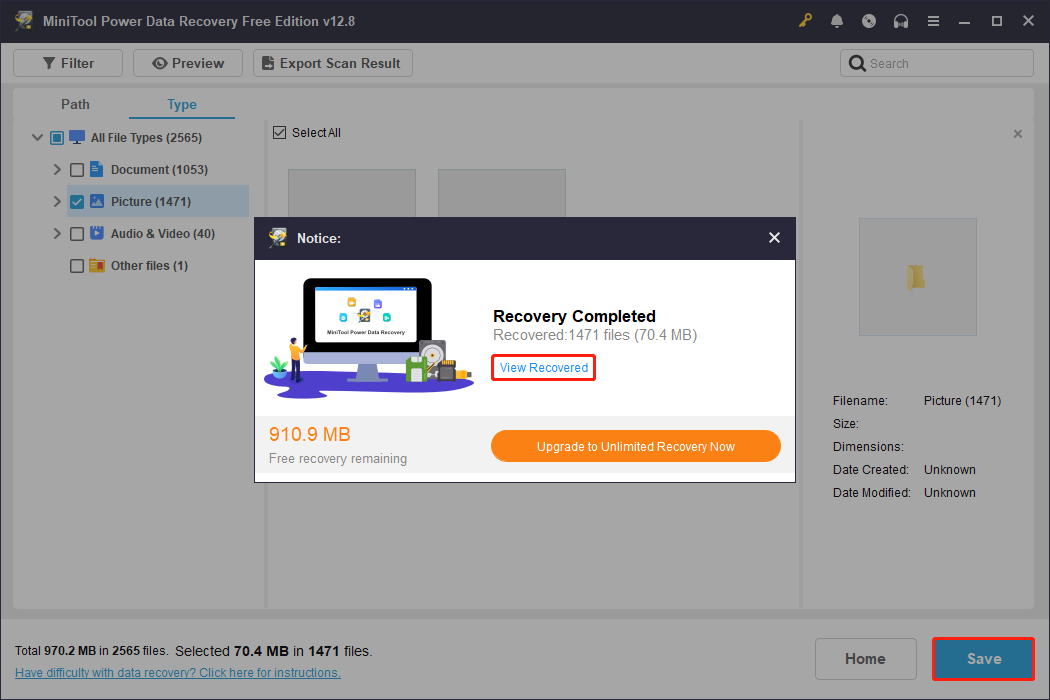
When files are confirmed, select them and click the Save button. In the pop-up window, choose a safe path and click OK to start recovery.
When the Recovery Completed window shows, click the View Recovered button to check them.
After ensuring the SD card data is secure, the next step is to take targeted repair measures.
Fix the Problem of an SD Card Stopping Working
This section introduces a series of practical methods to fix SD card stops working on Windows 10/11. Try them one by one until your card works normally.
Solution 1: Connect the SD Card to Another Computer
When an SD card stops working, try checking it on another computer first. This confirms whether the problem originates from the SD card itself or the device environment.
Remove the SD card, insert it into the card reader, and then connect it to another computer.
If it functions properly, the problem lies with the original computer. If it is still not working, the SD card requires further troubleshooting.
Solution 2: Move the Lock Position to the Middle
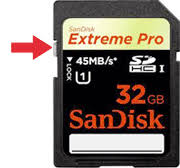
The physical write-protection switch can also affect the normal use of SD cards. The small slider on the side of the SD card is the write-protection lock.
If it’s in the Lock position, the system will refuse to write to the card and may also cause it to malfunction.
Remove the SD card, locate the side slider, and gently push it to the middle or Unlock position. Then reinsert it into your computer or device. This prevents accidental write protection activation.
Source: https://www.sandisk.com/support
If the card still doesn’t work, continue with more advanced methods.
Solution 3: Reset Your BIOS Option
The BIOS controls the initialization of the card reader and external devices. Incorrect BIOS settings may cause the system to fail to detect the SD card.
Resetting the BIOS can restore the standard configuration and increase the likelihood of the system recognizing the SD card.
Step 1: Restart your computer and repeatedly press the setup key (usually F2, F10, Esc, or Del) during startup to enter BIOS.
Step 2: Select Troubleshoot > Advanced options > UEFI Firmware Settings > Restart.
Step 3: In the BIOS/UEFI setup menu, find and select options like Load Setup Defaults or Load Default Options.
Step 4: Then, press F10 to save the settings and restart your computer.
Solution 4: Run the Hardware and Devices Troubleshooter
The system may fail to recognize the card due to misconfiguration or driver conflicts. Running the Hardware and Devices troubleshooter tool can help troubleshoot underlying driver or interface issues.
This tool automatically detects common hardware anomalies and attempts to repair or provide solutions.
Step 1: Press Win + R, type msdt.exe -id DeviceDiagnostic, and then press Enter.
Step 2: In the pop-up window, click Next. The system will automatically scan for hardware and device problems.
Step 3: When the scan ends, select Apply this fix and then click Next to begin the repair process.
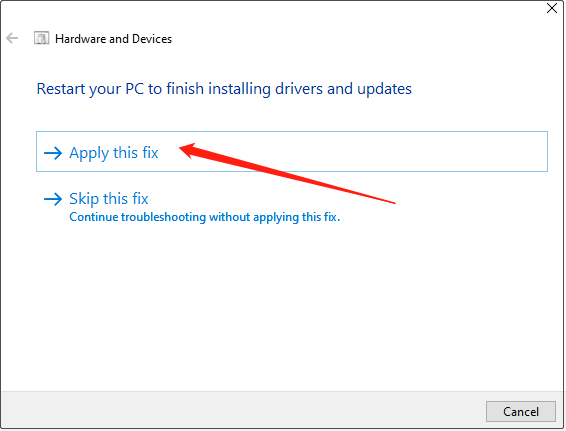
After the repair is complete, restart your system for the changes to take effect.
Solution 5: Change the Drive Letter for the SD Card
Sometimes different devices share or use the same drive letter, causing the SD card to fail to function. Changing the drive letter can help resolve system recognition conflicts.
By modifying the drive letter, the system will reallocate the path, allowing the SD card to be accessed normally.
Step 1: Press Win + X and select Disk Management.
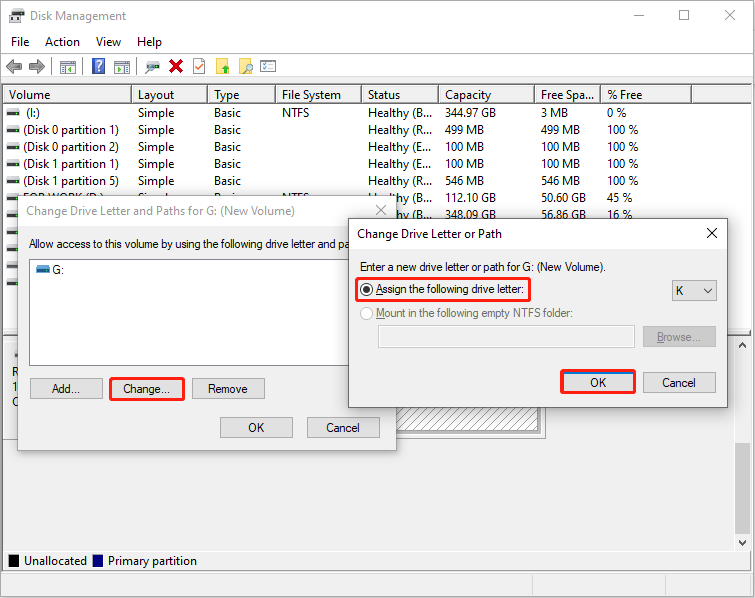
Step 2: Right-click the target disk and select Change Drive Letter and Paths.
Step 3: Click the Change button, select an unused letter from the drop-down menu, and click OK > Yes.
Solution 6: Run the CHKDSK Command
Bad sectors or logical corruption can also cause SD card issues. Running the CHKDSK command can help detect and repair file system errors.
This command scans the disk structure and attempts to repair damaged indexes or allocation tables, thereby restoring readability.
Step 1: Type cmd in the Windows search box, right-click Command Prompt, and choose Run as administrator.
Step 2: Input chkdsk /f /x #: in the prompt window and press Enter. (Replace # with the drive letter of your SD card.)
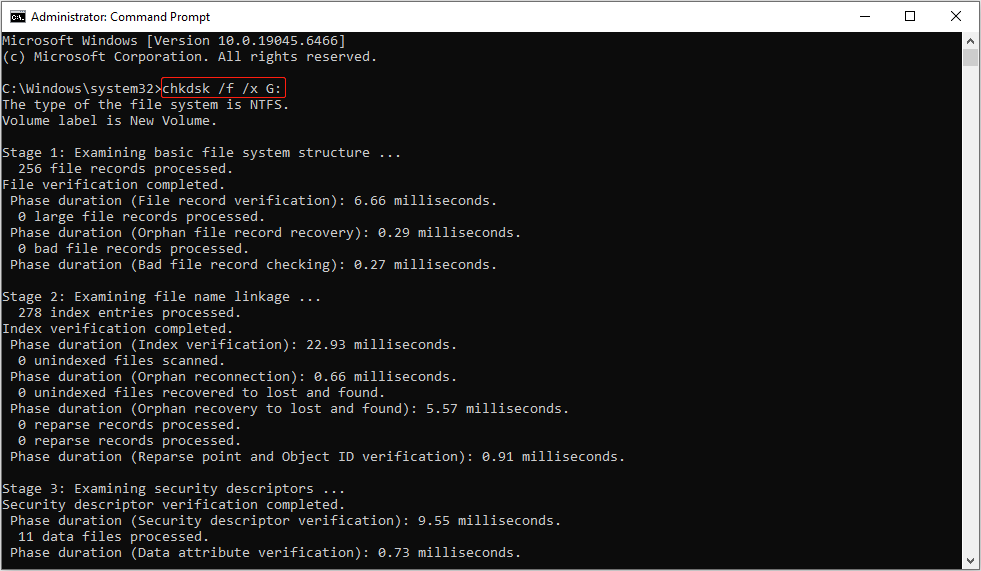
It will automatically fix errors on your SD card.
Solution 7: Update the SD Card Reader Driver
Outdated or incompatible device drivers are one reason why an SD card may stop working. Therefore, try updating the card reader driver to improve compatibility and fix bugs.
Step 1: Right-click the Start button and choose Device Manager.
Step 2: Expand Memory Technology Devices, right-click Genesys Logic PCIE card reader device, and choose Update driver.
Step 3: Select Search automatically for drivers to get any available drivers.
Then, follow the on-screen instructions to complete the whole process.
Solution 8: Uninstall USB Controllers
When an SD card suddenly becomes unusable, uninstalling the USB controller can also help resolve driver conflicts or recognition errors.
After uninstallation, Windows will automatically reinstall these controllers upon restarting. This refreshes the drivers and restores normal communication.
Step 1: Open Device Manager and expand Universal Serial Bus controllers.
Step 2: Right-click your USB host controller and select Uninstall device.
Step 3: Finally, click Uninstall to apply this change.
When the process ends, restart your computer. Windows will automatically install the appropriate USB controller.
Solution 9: Format the Card to Normal
When all other methods fail, formatting the card is the last resort. Formatting can clear erroneous partition information and corrupted file structures, restoring the card to a normal state.
Here are two options for you to format your SD card.
Option 1: Disk Management
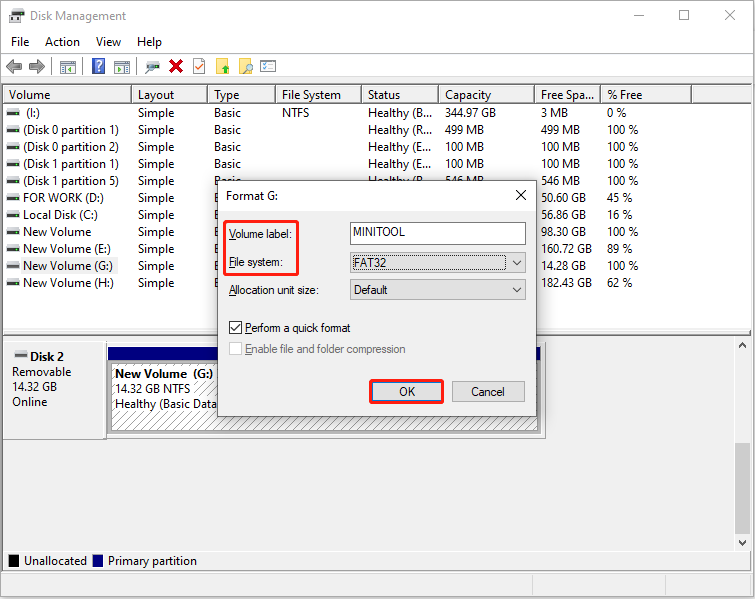
Disk Management is a built-in Windows tool that is safe and reliable. Formatting SD cards through this tool offers high compatibility. It is suitable for quickly restoring SD cards to normal use.
Step 1: Press Win + X and choose Disk Management.
Step 2: Right-click the target disk and choose Format.
Step 3: Set a volume label, choose a file system, and click OK > OK.
Option 2: DiskPart
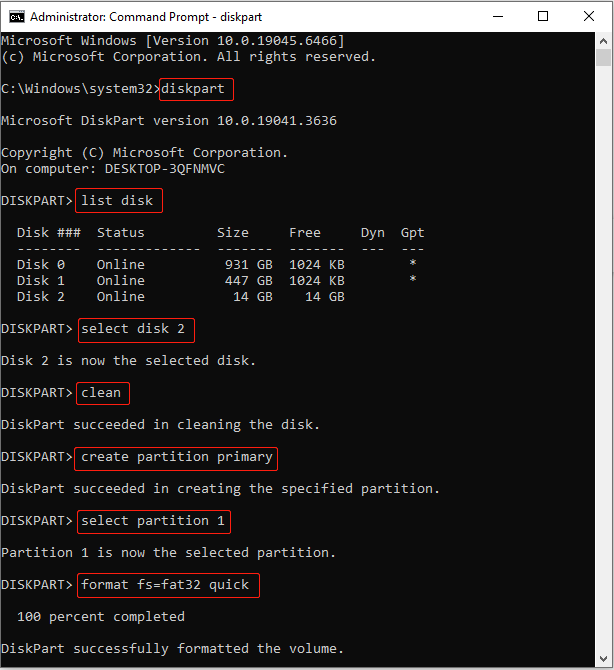
DiskPart is a command-line tool that allows direct manipulation of disk partitions, offering a more thorough approach than a graphical interface.
It can erase the partition information and corrupted file systems, restoring the SD card to its initial state.
Step 1: Open Command Prompt as an administrator.
Step 2: Type diskpart and press Enter to launch the tool.
Step 3: Type the following commands one by one and press Enter after each:
- list disk
- select disk # (replace # with your SD card number)
- clean
- create partition primary
- select partition 1
- format fs=fat32 quick (fat32 can be replaced with ntfs or exfat)
- exit
Solution 10: Seek Professional Help
If ordinary methods fail to resolve the issue, seeking professional help is necessary. You can contact data recovery services or equipment repair centers for testing and repair. They possess specialized tools and experience.
After the SD card returns to normal operation, the last step is to prevent this problem from happening again.
How to Protect Your SD Card in Daily Use
Protecting your SD card during daily use can significantly extend its lifespan and reduce the risk of data loss. Here are some actionable protection methods.
- Eject safely after use. Always use the safe eject function before removing the card, which protects the integrity of the file system.
- Do not frequently switch between multiple devices. Minimize the frequency of switching SD cards between multiple devices to maintain a consistent usage environment.
- Avoid filling up the card. Maintain sufficient free space to avoid excessive wear and tear caused by full-load operation.
- Use a high-quality card reader. Use a reliable card reader to avoid data corruption caused by inferior equipment.
- Back up SD card regularly. SD cards are consumable storage media. Regular backups can minimize the risk of data loss.
Final Thoughts
The problem of “SD card stops working” may seem sudden, but it is often preceded by warning signs.
To fix this issue, first recover data using MiniTool Power Data Recovery. Then, try fixing it by resetting the BIOS, changing the drive letter, running CHKDSK, or performing a format.
Hopefully, this guide will help you find solutions more easily and efficiently when facing storage device problems.
For any questions about the MiniTool product, contact us at [email protected].
User Comments :