
Unlike Black Screen of Death (BSoD), the computer black screen doesn’t show you an error code. Without an error code, you may don’t know the cause of the issue and how to find the solutions. Don’t worry. We have done the jobs for you. We find out some main causes of this problem.
Main Reasons for Windows 10 Black Screen
Many situations can cause this problem. For example:
- The issue can happen after a graphics driver update or during the installation of a Windows feature update that contains a compatibility problem.
- A buggy system update can also cause the issue.
- A hardware-related issue with the display, connection, or video adapter is also a main cause of the issue.
- A peripheral connected to your computer causes the problem.
This problem has many manifestations. For instance, your computer screen is black before signing in to Windows 10. Or, you get a Windows 10 black screen after login.

No matter you have accessed the desktop or not, it is possible to solve the issue. You can just try the methods we introduce to help you out.
Potential Data Loss and Recovery Solutions (Optional)
Before troubleshooting, it is recommended to secure your important files. This step is optional and intended to protect data, but you can also skip directly to the repair methods.
Case 1. If some files are missing after repairing
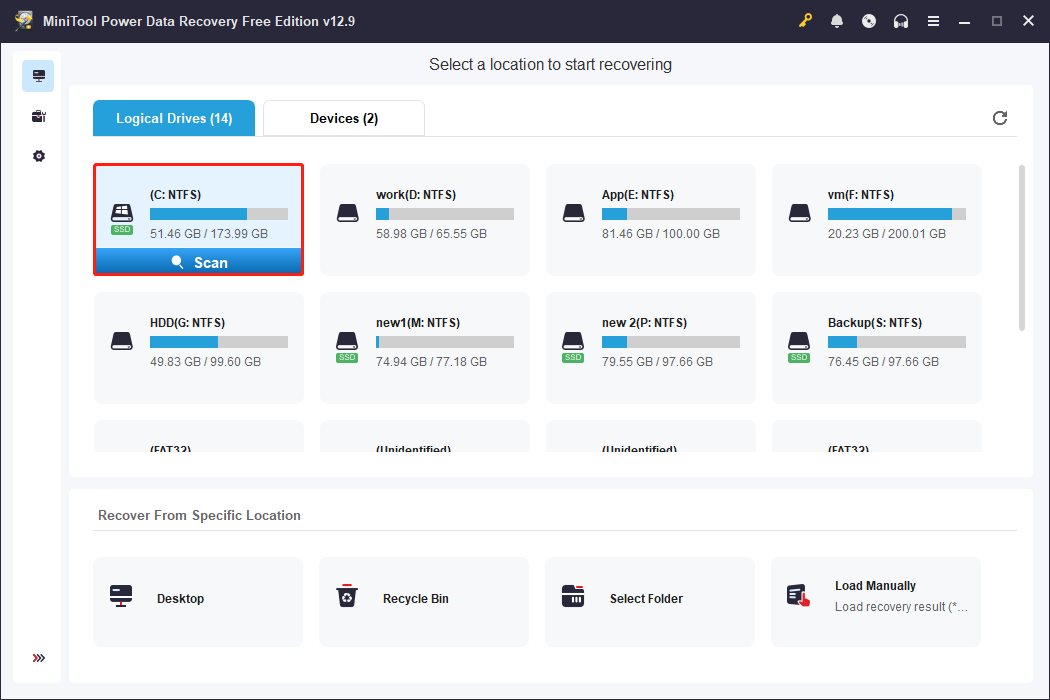
If some files are missing after repairing Windows, you can use MiniTool Power Data Recovery Free to recover up to 1 GB of lost or deleted files. It supports all file types from NTFS, FAT32, and exFAT file systems.
Even if the total data exceeds 1 GB, the Preview feature allows you to verify recoverable files for free before deciding to purchase the full edition.
This software is compatible with all versions of Windows 10 and Windows 11.
Data recovery steps:
- Select the drive where the lost files should exist to scan.
- Find and preview the files.
- Select wanted files and save them.
Case 2. If the system is stuck on a black screen and cannot boot
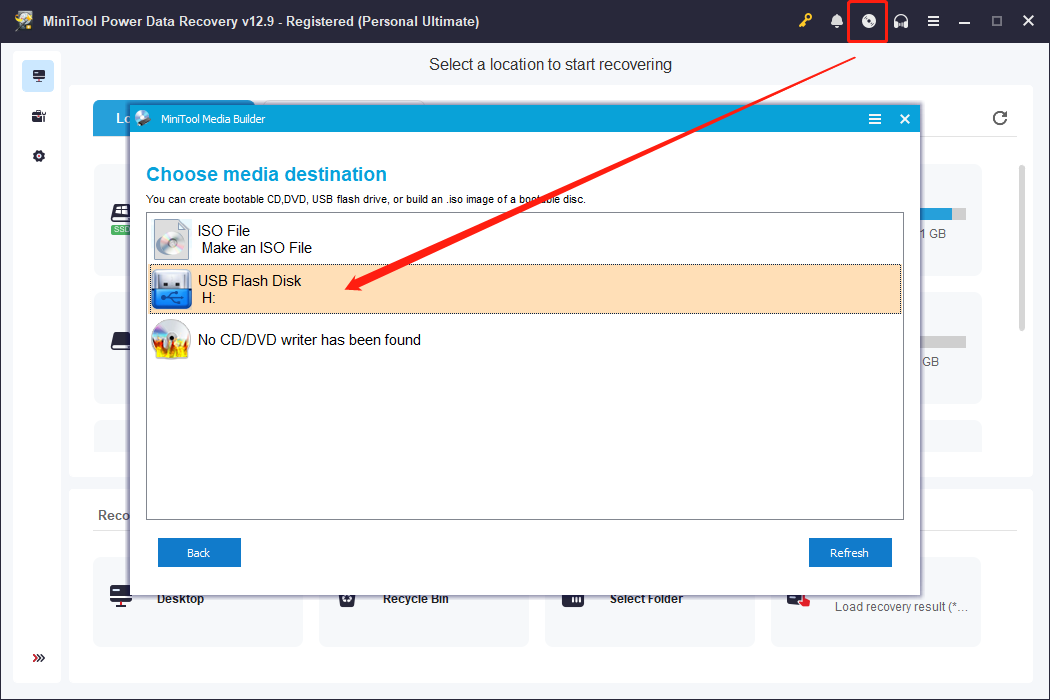
Use MiniTool Power Data Recovery Bootable to start your computer from a bootable USB to rescue files safely.
This tool allows you to recover an unlimited number of files from any internal drive on your computer without booting into Windows.
Recovery steps:
- Create a bootable USB drive.
- Start your computer from the USB drive.
- Scan the disk partition.
- Preview and select required files.
- Save files to a removable drive.
What to Do When Seeing a Black Screen before Signing in to Windows 10?
What if my computer screen is black before signing in to Windows 10? This part will show you some methods that are proved to be effective.
Try These Things if You See Black Screen before Signing in to Windows 10
- Check the connection between the display and your computer
- Detect the display
- Restart your computer
- Disconnect the peripherals
Fix 1: Check the connection between the display and your computer
A black screen before login is often caused by a connection issue between the display and the computer.
Steps:
- Ensure all cables are securely connected and the monitor is powered on.
- Switch video output ports if multiple exist, then move the mouse or press a key to wake the display.
- For systems with discrete and integrated graphics, test the embedded GPU and re-enable the discrete card in BIOS if disabled.
- Adjust external monitor input and brightness, or use laptop function keys to increase brightness.
- Test the monitor or cable on another computer to identify hardware issues.
Fix 2: Detect the display
A black screen Windows 10 can occur if Windows loses connection with the display.
Troubleshooting steps:
- Press Win + Ctrl + Shift + B to restart the video driver.
- On tablets like Surface Pro, press Volume Up + Volume Down three times to wake the screen.
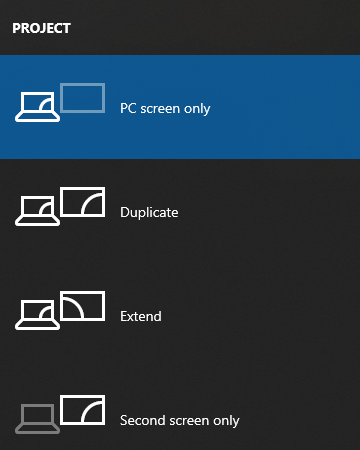
- Press Win + P, then cycle through display modes using P + Enter until the display appears.
Fix 3: Restart your computer
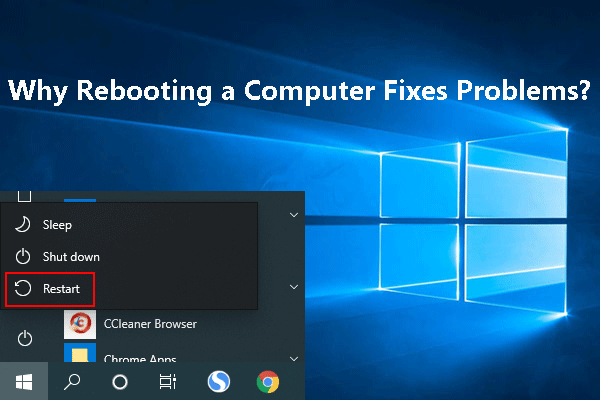
If the screen shows you nothing but only a blank interface, you can force shut down your computer and then reboot it.
- Press and hold the Power button for about 10 seconds and then your computer will shut down.
- Press the Power button again to restart it.
This can remove the temporary errors that may cause Windows 10 black screen.
Fix 4: Disconnect the peripherals
Peripherals can cause a black screen before login.
Troubleshooting steps:
- Disconnect all peripherals, such as printers, cameras, USB drives, and Bluetooth devices.
- Restart the computer.
- If the screen works normally, reconnect peripherals one by one to identify the culprit.
- Remove or troubleshoot the problematic device as needed.
![[FIXED] External Hard Drive Freezes Computer? Get Solutions Here!](https://images.minitool.com/minitool.com/images/uploads/2018/09/external-hard-drive-freezes-computer-thumbnail.jpg)
What to Do When Seeing a Black Screen after Signing in to Windows 10?
If the display shows a black screen after your sign in to Windows 10, you can use the following methods to fix the problem.
Try These Things if You See Black Screen after Signing in to Windows 10
- Restart Windows Explorer
- Disable the AppReadiness service
- Roll back the display adapter driver
- Reinstall the display adapter driver
- Remove third-party anti-virus software
- Perform a system restore
- Uninstall recent Windows updates
- Clean boot your computer
Fix 1: Restart Windows Explorer
- Press Ctrl+Alt+Delete and then select Task Manager. If this keyboard shortcut doesn’t work for you, you can try Ctrl+Shift+Esc.
- Find Windows Explorer in the Processes tab and right-click it. Then, select Restart.
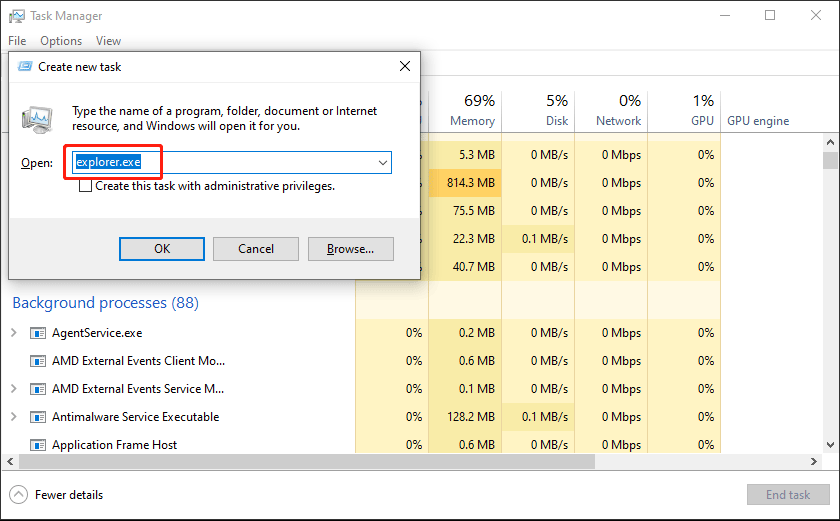
- If the above step doesn’t work, you can go to File > Run new task, type explorer.exe, and click OK to restart it.
Fix 2: Disable the AppReadiness service
To fix a Windows 10 black screen with cursor, disabling the AppReadiness service and restarting the system can help.
Follow the steps below:
- On the black screen, press Ctrl + Alt + Del to bring up the security options menu, then select Task Manager.
- In Task Manager, click File > Run new task.
- Type msc and press Enter.
- Look for the service name AppReadiness and double-click it.
- Set the Startup type to Disabled, then click Apply > OK.
- Click File > Run new task
- Type cmd and press Enter.
- Type shutdown /s /f and press Enter to shut down the system.
- Turn the computer back on, and it should work normally.
Fix 3: Roll back the display adapter driver
If you stumble upon the issue after an update, the change to the display adapter should be the cause. You need to roll back the display adapter driver to have a try.
- Boot your computer into Safe Mode.
- Click Windows search and type device manager.
- Select Device Manager to open it.
- Expand Display adapters.
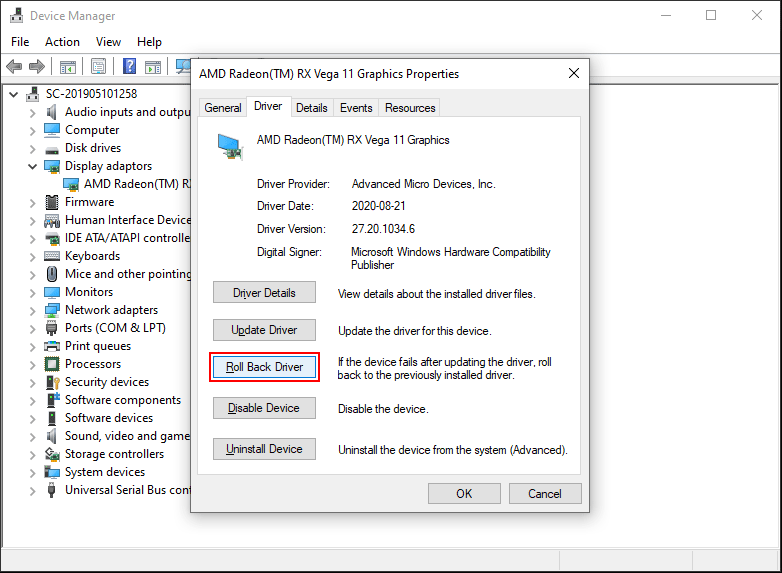
- Right-click the display driver and select Properties.
- Switch to the Driver tab.
- Click the Roll Back Driver button.
- Follow the on-screen guide to finish the job.
Fix 4: Reinstall the display adapter driver
An outdated displayer adapter driver can also cause Windows 10 black screen. Although the system can always automatically install the latest displayer driver, you should try this method when this issue happens.
- Boot your computer into Safe Mode.
- Click Windows search and type device manager.
- Select the first result to open Device Manager.
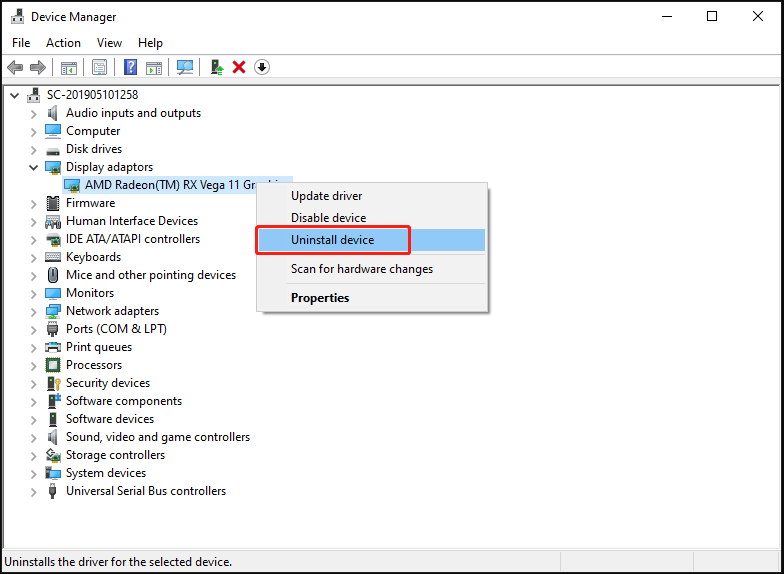
- Find the display adapter driver and right-click it.
- Select Uninstall device.
- Click Uninstall from the pop-up window.
- After the uninstallation, you need to restart your computer. After that, the system will automatically install the latest display driver on your machine.
Fix 5: Remove third-party anti-virus software
If the issue happens after you install third-party anti-virus software, you may need to uninstall the software to have a try.
- Start your computer into Safe Mode.
- Go to Start > Settings > Apps > Apps & features.
- Find the anti-virus software you want to remove and then click the Uninstall button.
- After the uninstallation, you need to restart your machine and check whether the issue is solved.
Fix 6: Perform a system restore
You can also perform a system restore to restore your computer to a state when the screen has no issues. But you need to make sure that there is an available system restore point. If not, this method will not work for you.
Here is a related article about how to create a system restore point and how to perform a system restore: What Is System Restore Point and How to Create It? Look Here!
Fix 7: Uninstall recent Windows updates
If the issue happens after you update your Windows 10, you can uninstall the updates to see whether your computer screen goes back to normal.
- Start your computer in to Safe Mode.
- Go to Start > Settings > Update & Security > Windows Update.
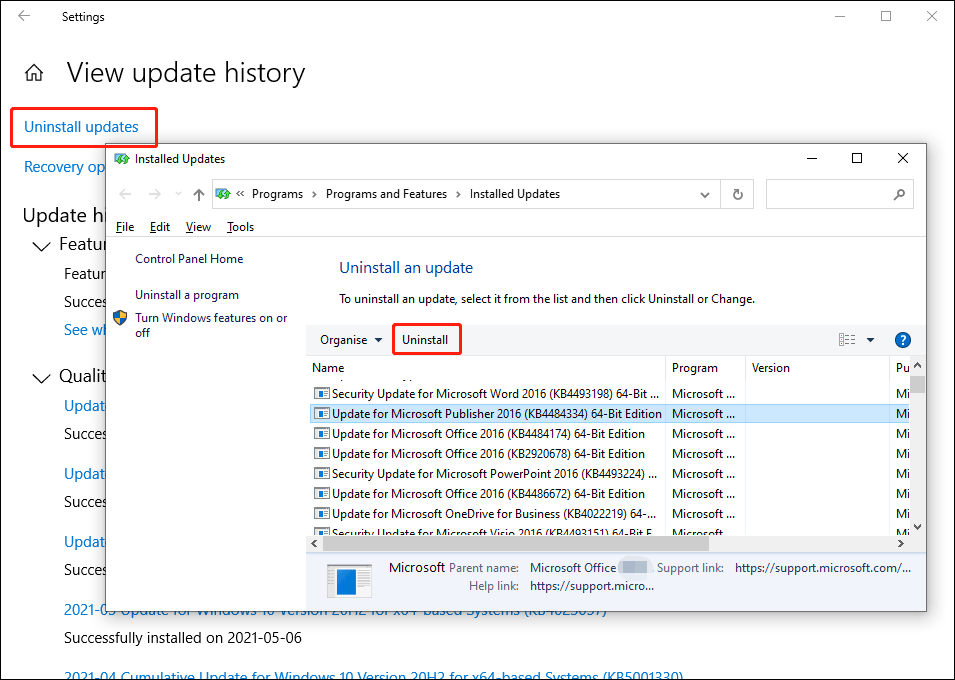
- Click View update history.
- Click Uninstall updates.
- On the pop-up window, you need to select the update you want to remove and select Uninstall.
Fix 8: Clean boot your computer
A computer clean boot makes your computer work in a pure environment. If the black screen issue is caused by a background program, you can use this method to find out the culprit.
- Clean boot your computer.
- If your computer works normally, clean boot works for you. Then, you need to find out which program causes the issue.
- You need to re-enable some services one by one and check when the issue comes back. The last program you enable should be the cause.
Tip: Windows Updates Stuck at Spinning Dots on Startup
When you update your Windows 10, you may see the update process stuck at spinning dots with a black screen. You should not worry about it. The Windows update process will take a while or even hours to finish the job. You should wait patiently until the process ends.
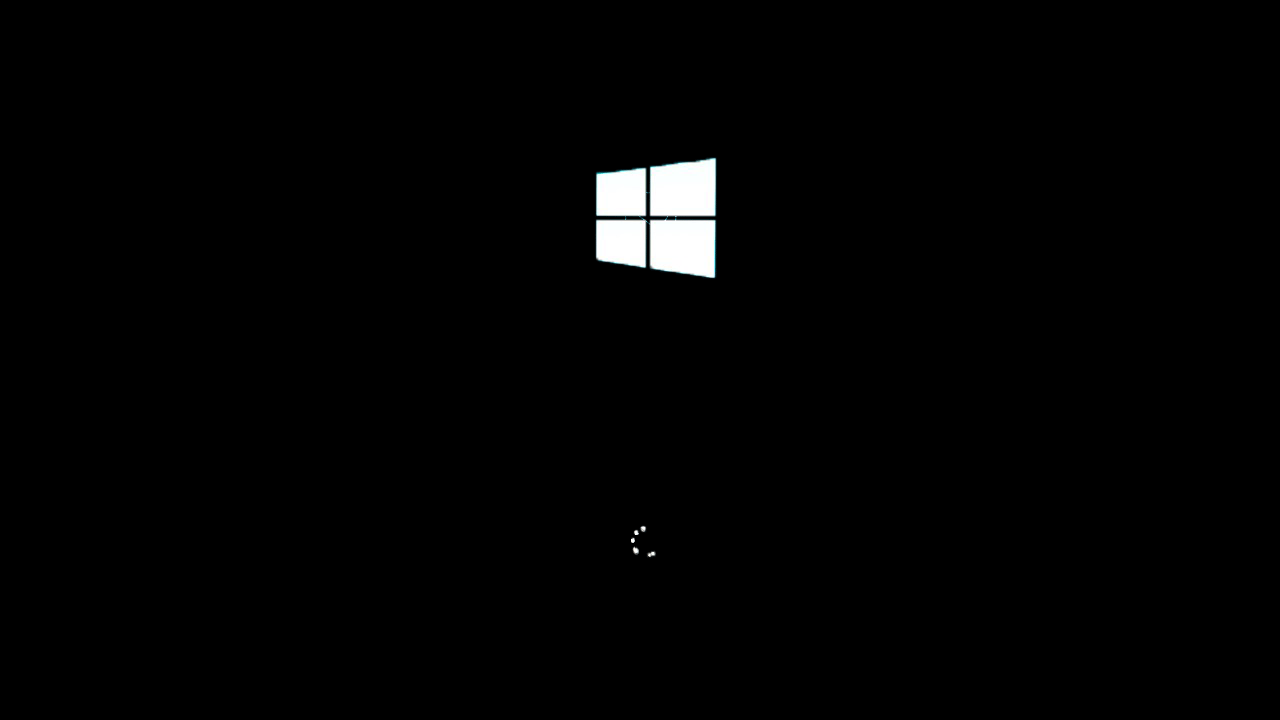
However, if the spinning dots don’t move for a long time, it usually the Windows update encounters issues. You can refer to this post to fix it: 5 Solutions Help Fix Windows 10 Update Stuck on Restarting.
Wrapping Up
What to do when your Windows 10 computer runs into a black screen without any error code? After reading this post, you should know the answer. If you have other related issues, you can let us know in the comments. You can also contact us via [email protected].
Windows 10 Black Screen FAQ
- Remove battery & long-press the Power button (laptops only)
- Update the graphics card drivers
- Log in to a different user account
- Perform a clean boot
- Disable fast startup
- Update your BIOS
- Run Automatic Repair
- Perform System Image Recovery
- Run SFC and DISM
- Reset your PC
You can find the detailed guides in this post: Full Fixes for the “Windows 10 Black Screen with Cursor” Issue.
- Test your monitor
- Check whether your computer has completely restarted
- Verify that the power supply voltage switch is set correctly
- Hard reset your computer
- Clear the BIOS memory
- Reseat the memory modules
- Understand LED lights
- Check hardware
This post shows you more information: 8 Solutions to Fix PC Turns On but No Display.
About The Author

Position: Columnist
Shirley holds a bachelor’s degree in English and has been an editor at the MiniTool Team for many years. She specializes in IT-related content, with a focus on data recovery, file backup, disk management, and other technical topics. She is committed to delivering clear, accurate, and practical solutions to help users resolve common computer issues.
User Comments :