
This MiniTool post explains how to recover data from corrupted SD card. After the data is safe, take action to repair your card. The methods involve using the Error-Checking tool, running CHKDSK, changing a drive letter, and updating the card reader driver. If all fails, try formatting the card.
SD cards are widely used for storing photos, videos, audio, and other types of files. SD card corruption can render data inaccessible or result in permanent loss.
Part 1: SD Card Gets Corrupted – Symptoms and Causes
SD card corruption is not uncommon. Understanding common symptoms and causes can help with data protection and disk repair.
Symptoms of a Corrupted SD Card
Common symptoms of SD card damage include:
- Unreadable card: The device displays messages such as “SD Card Error” or “Please Format” after insertion.
- Files missing: Pictures, videos, or documents suddenly disappear, or folders appear empty.
- Slow read speed: Accessing files becomes abnormally slow, or even freezes.
- Error messages: Messages, such as CRC error or I/O device error, appear.
- Formatting request: The device requires you to reformat the card before you can continue using it.
- Corrupted files: Files appear corrupted or cannot be opened.
- Intermittent recognition: The card may be detected inconsistently.
These symptoms often indicate physical wear and tear, file system errors, or degradation of the storage chip on the SD card.
Next, read on to understand why SD cards can become damaged.
Causes of SD Card Damage
SD card damage is primarily categorized into physical and logical damage. Here are some common causes.
Physical damage:
- Frequent or rough insertion/removal can lead to wear and tear or poor contact.
- External impacts, bending, or drops can damage the internal chip.
File system corruption (logical damage)
- A corrupted file system renders the card unrecognizable.
- Sudden power outages or card removal can interrupt data writing.
- Improper formatting or frequent switching between devices causes corruption.
Bad block/bad sector accumulation
- Similar to hard drives, SD card storage units accumulate bad blocks over time. As bad blocks accumulate, data cannot be written or read, eventually rendering the card unusable.
Virus or malware infection
- Virus infection during use on a computer or mobile phone can corrupt the file directory structure.
- Malware can tamper with or delete data, causing abnormal card performance.
Compatibility issues
- A low-quality card reader may lead to recognition errors.
- Incompatible file system formats may prevent the SD card from being recognized properly.
After knowing possible causes, continue reading to fix the SD card without losing data.
Part 2: How to Recover Data from Corrupted SD Card on Windows
Before repairing your corrupted SD card, it is recommended to recover data from it, as some repair methods may result in permanent data loss.
Extracting data in advance ensures that important files are safely preserved. Here, MiniTool Power Data Recovery is highly recommended due to the following features:
- Multiple SD card corruption scenarios: This tool supports various data loss situations, such as RAW file system, unreadable disk, formatting requests, and partition loss. It can bypass the corrupted file system and scan data from the underlying sectors.
- Powerful recovery function: It can recover almost all file formats, including documents, pictures, videos, audios, and more.
- Strong compatibility: Besides SD card data recovery, the software also supports hard drive recovery, USB flash drive recovery, and other storage devices.
- Safe read-only operation: It performs read-only scanning throughout the process without writing or modifying original data on the card. This prevents secondary damage or overwriting lost files.
- Free recovery capacity: This free data recovery software allows you to recover up to 1 GB of data for free, meeting basic and lightweight recovery needs.
Now, download and install this software to recover data from a corrupted SD card.
MiniTool Power Data Recovery FreeClick to Download100%Clean & Safe
Step 1: Launch the software and scan the disk
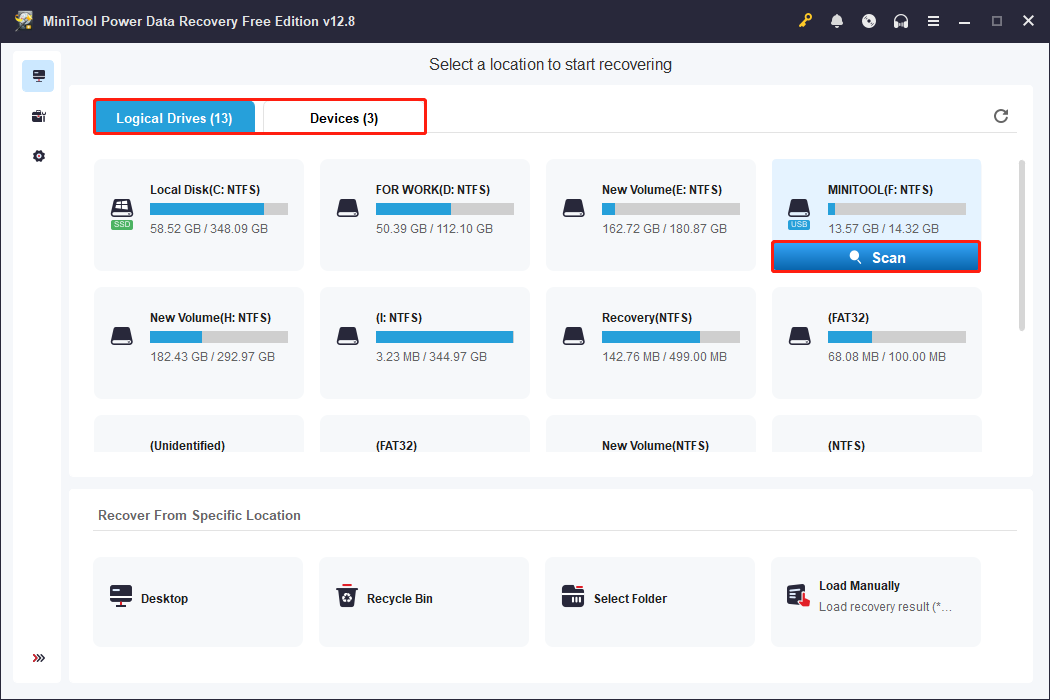
Open MiniTool Power Data Recovery. In the main interface, there are two modules where you can find the target SD card.
- Logical Drives: It lists all disk partitions, including existing partitions, lost partitions, and unallocated spaces.
- Devices: It lists all the disks that are connected to your computer.
Find the target SD card partition or disk and click the Scan icon to scan for data.
Step 2: Find the target files using Path, Type, Filter, and Search
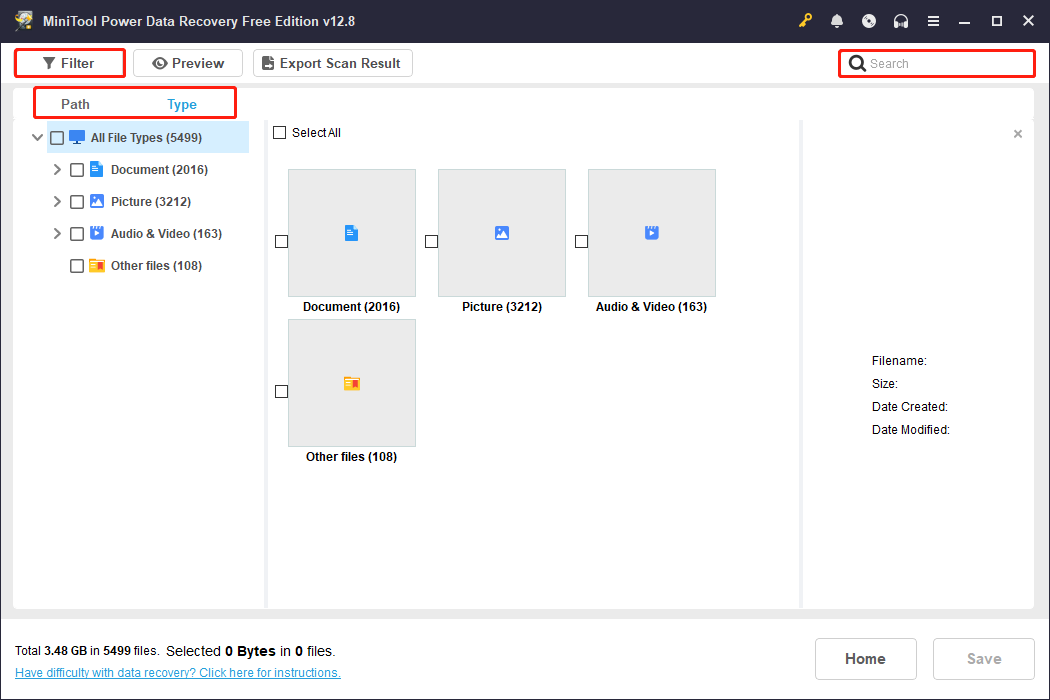
Wait patiently for the process to complete. When files are found, locate them using Path, Type, Filter, and Search.
- Path: Displays scan results by the original folder path, allowing you to quickly locate files just like in File Explorer.
- Type: Automatically categorizes results by file type, making it easy to quickly find documents, pictures, videos, or audios of specific formats.
- Filter: Filters results by file type, modification date, file size, and file category to quickly narrow down the search and pinpoint the target file.
- Search: Allows you to enter the filename in the search box to search for specific files.
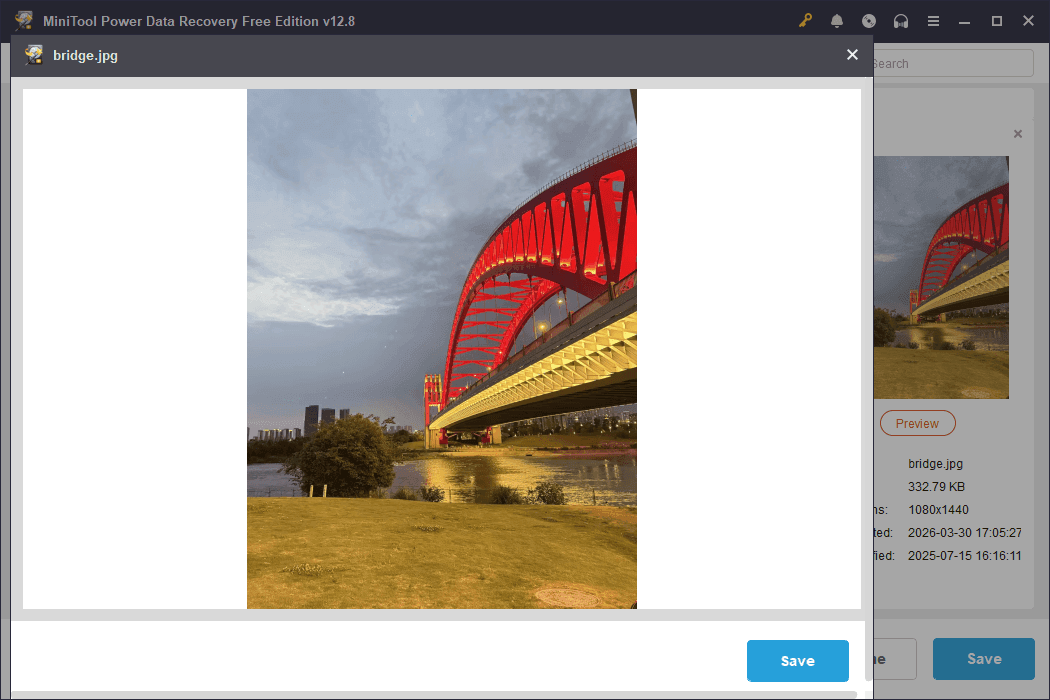
MiniTool features a Preview feature. It allows you to preview file contents before recovery to confirm their integrity and correctness.
Double-click the file you want to check, and a preview window will pop up.
Step 3: Recover the target files to a safe location
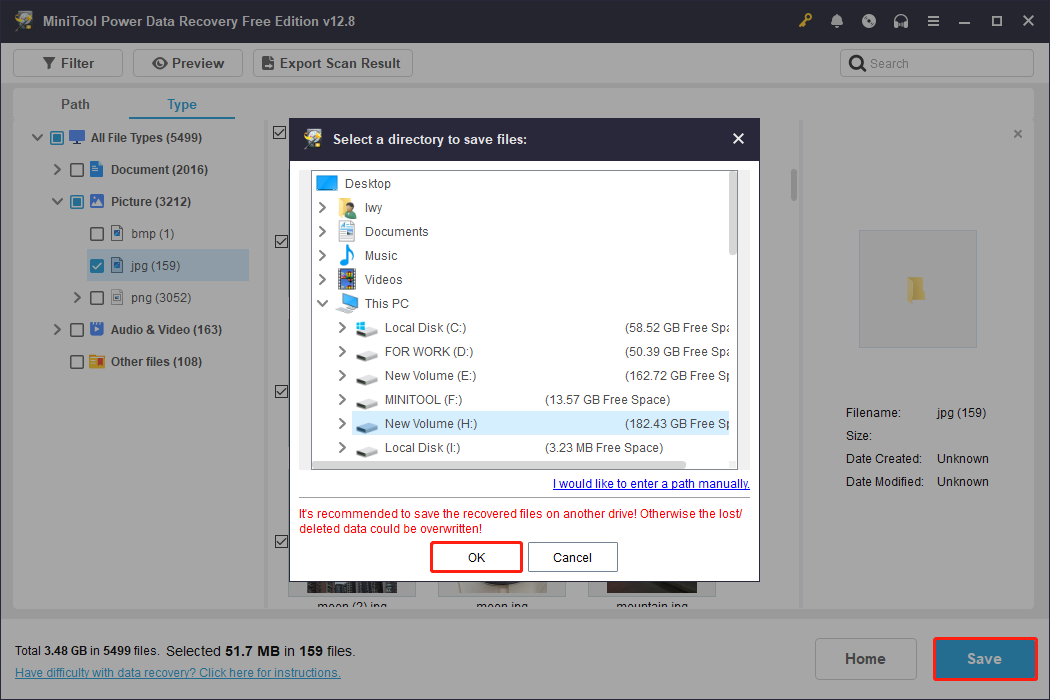
When files are confirmed, check them and click the Save button. In the pop-up window, select a path for the recovered files and click OK to start recovery.
When the Recovery Completed window shows, click the View Recovered button to check your files.
After learning how to recover data from corrupted SD card, the next step is to fix your card.
Part 3: Repair Corrupted SD Card Without Formatting
This section explains how to repair corrupted SD card by using the Error-Checking tool, running CHKDSK, changing the drive letter, and updating the driver.
Method 1: Use the Error-Checking Tool
The Error-Checking tool is a disk check tool with a graphical interface on Windows. It automatically scans and identifies file system errors in the file system.
It’s less risky and simpler to use, making it suitable for minor logical damage. When you encounter an SD card malfunction, this can be your first choice.
Step 1: Press Win + E to open File Explorer.
Step 2: Under This PC, right-click the SD card and choose Properties.
Step 3: Switch to the Tools tab and click the Check button.
Step 4: In the new prompt, click Scan and repair drive.
This tool automatically scans and repairs file system errors, directory corruption, or other logical problems.
If it doesn’t work, continue with the following method.
Method 2: Run the CHKDSK Command
CHKDSK can also detect and repair file system errors and mark bad sectors. This improves disk stability and data readability. CHKDSK is a command-line version and is more powerful than Error-Checking.
Step 1: Type Command Prompt in the Windows search box, right-click the best match, and choose Run as administrator.
Step 2: Input chkdsk /f /x #: and press Enter. (Replace # with the actual drive letter of your SD card.)
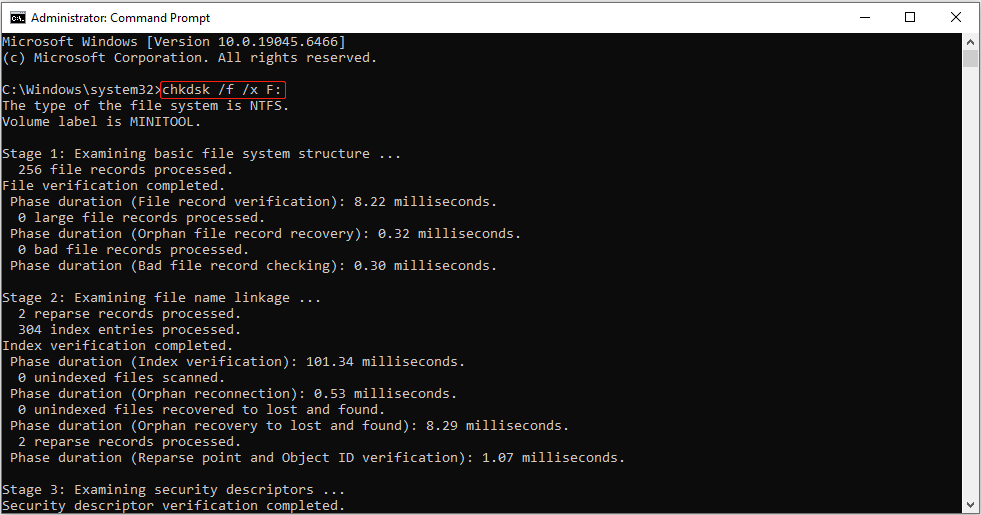
The system will begin scanning and repairing file system errors. Wait for the process to complete, and then confirm whether the repair was successful.
Method 3: Change a Drive Letter
Sometimes the system cannot correctly recognize the current drive letter, causing the SD card to be unreadable or inaccessible.
In this case, try changing to a new drive letter. This can force the system to remount the card, helping resolve drive letter conflicts.
Step 1: Press Win + X and choose Disk Management.
Step 2: Right-click the target disk and choose Change Drive Letter and Paths.
Step 3: Click the Change button, choose a new letter, and click OK > Yes.
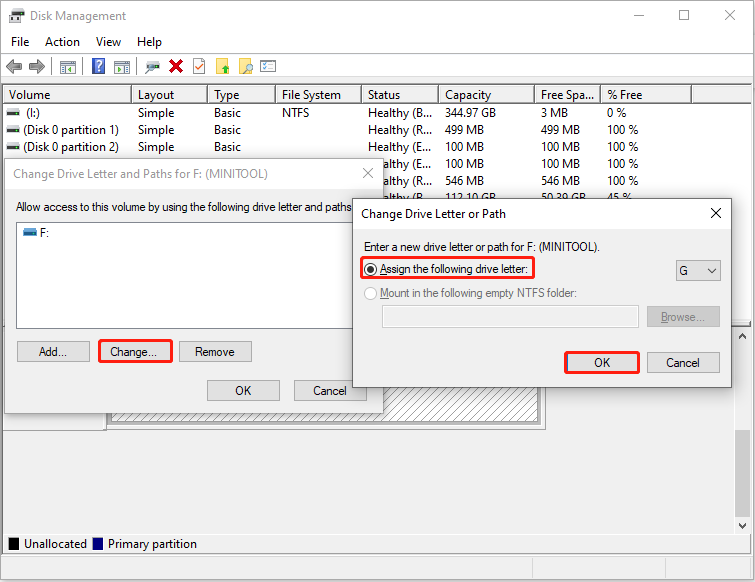
Step 4: Open File Explorer and check if the SD card functions properly.
Method 4: Update the SD Card Reader Driver
If the SD card reader driver is outdated or corrupted, it may cause recognition errors, read/write anomalies, or even prevent access to the card.
Updating the driver can fix compatibility issues and resolve potential system conflicts.
Step 1: Press Win + X and choose Device Manager.
Step 2: Expand Memory Technology Devices, right-click PCIE card reader device, and choose Update driver.
Step 3: In the new window, select Search automatically for drivers.
When any new drivers are found, follow the on-screen instructions to complete the process.
Part 4: Format the SD Card to Normal
When the above repair methods fail, formatting the SD card is often the last resort to restore it to normal.
Formatting can rebuild the file system structure, thereby fixing various problems caused by logical errors or directory corruption.
However, formatting will erase existing files, so data safety must be ensured before proceeding.
Option 1: Format the Disk in Disk Management
Disk Management is a built-in tool for managing disks in Windows. It can visually display disk partitions and status, and provide safe and standardized formatting operations.
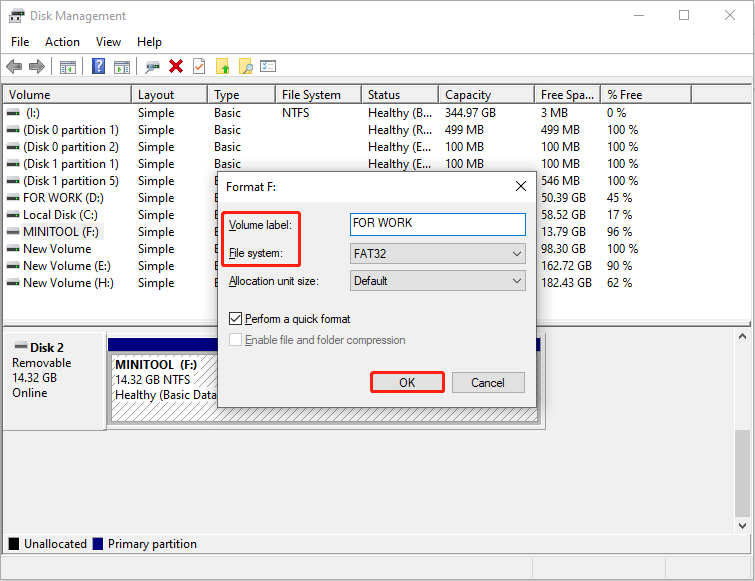
Step 1: Open Disk Management, right-click the target disk, and choose Format.
Step 2: Set a volume label, choose a file system, and click OK > OK to apply the change.
Option 2: Format the SD Card Using the DiskPart Command
DiskPart is a command-line disk management tool provided by Windows. It allows direct control over disk partitions and file systems, offering greater power and flexibility than a graphical interface.
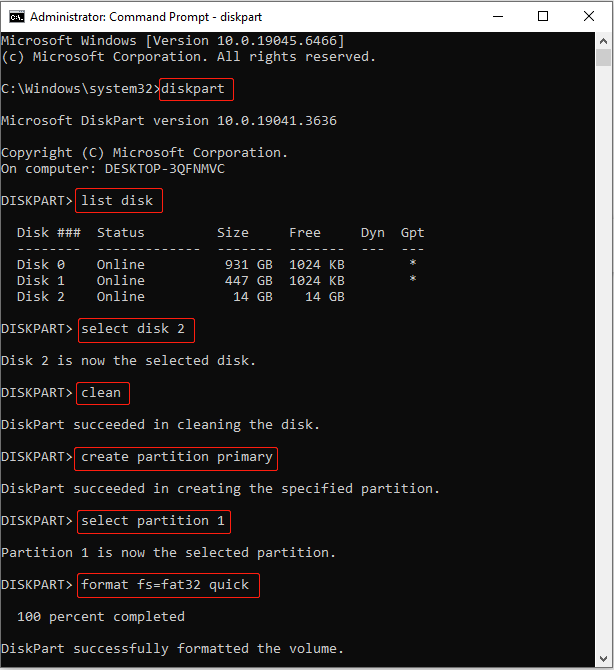
Step 1: Open Command Prompt as an administrator.
Step 2: Type diskpart and press Enter to launch this tool.
Step 3: Type the following commands one by one and press Enter after each:
- list disk
- select disk # (# should be replaced by your SD card number.)
- clean
- create partition primary
- select partition 1
- format fs=fat32 quick (fat32 can be replaced with ntfs or exfat.)
- exit
Option 3: Format the Card with MiniTool Partition Wizard
MiniTool Partition Wizard offers a more intuitive and flexible interface than Windows’ built-in tools. It supports multiple file system options (such as FAT32, exFAT, NTFS) and can handle complex partition management tasks.
Step 1: Download this software, and then launch it.
MiniTool Partition Wizard FreeClick to Download100%Clean & Safe
Step 2: Select the SD card partition and click Format Partition under Disk Management.
Step 3: Type a partition label, choose a file system, and click OK.
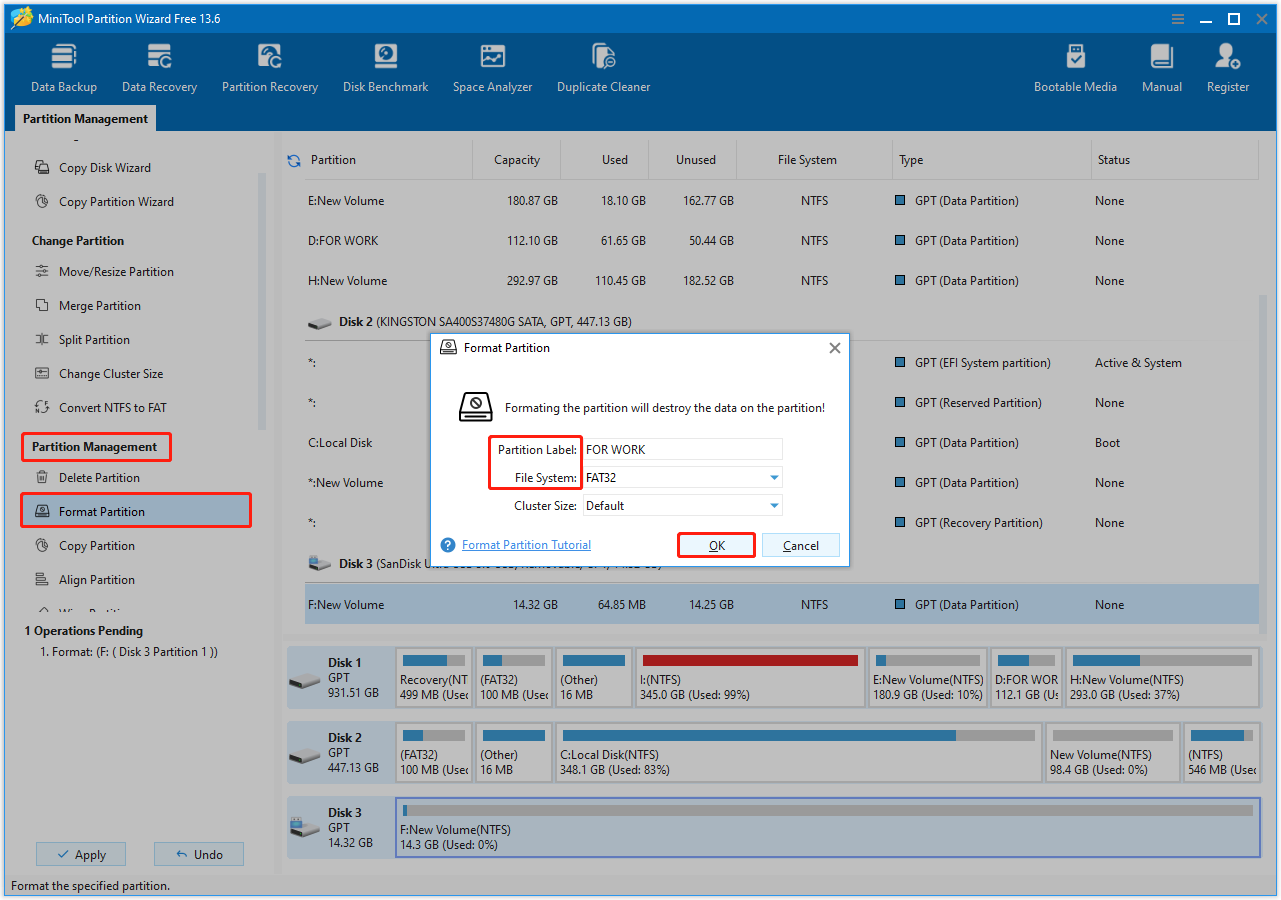
Step 4: Finally, click the Apply button to make the change take effect.
When your SD card gets back to normal, take some measures to avoid corruption in the future.
Part 5: Prevent SD Card Damage and Data Loss
To avoid SD card damage and data loss, consider the following measures:
- Use the card correctly: Avoid frequent insertion and removal; always eject the card safely before removing it.
- Back up SD card regularly: Copy important files to your computer or cloud storage regularly to prevent single points of failure.
- Use reputable products: Choose reliable brands and avoid counterfeit or substandard cards.
- Prevent virus infection: Avoid using the card on untrusted devices and perform regular virus scans.
- Pay attention to the environment: Keep away from high temperatures, humidity, and strong magnetic fields.
- Avoid full utilization: Do not use the card at 100% capacity. Keeping some free space can help reduce fragmentation.
These practices can significantly reduce the risk of SD card damage and ensure data security.
Final Thoughts
Now you should know how to fix a corrupted SD card. First, use MiniTool Power Data Recovery to recover data from it.
You can then try using the Error Checking tool, running CHKDSK, changing the drive letter, or updating the card reader driver to repair the card. If none of the above methods work, try formatting the disk.
For any questions about MiniTool products, contact us at [email protected].
User Comments :