
This MiniTool guide introduces where Windows stores downloaded files and the common reasons for lost download data. Additionally, it covers 6 proven methods to recover deleted downloaded files/folders and 3 fixes for the missing Downloads folder on Windows 11/10.
On Windows, the Downloads folder is the default location for all files obtained from web browsers, email attachments, software installations, and other online transfers.
However, it’s quite common to encounter deleted or lost downloads, or even a missing Downloads folder due to unforeseen circumstances.
Losing these files and the Downloads folder can disrupt workflows, result in the loss of irreplaceable data, or lead to wasted time spent re-downloading large files.
The good news is that most deleted/lost downloaded files and folders are not permanently deleted from your PC; they can be recovered using appropriate methods.
Before trying downloaded file recovery solutions, knowing the default storage locations for downloads is essential, as it helps you target the right recovery method.
Where Does Windows Store Downloaded Files/Folders
Windows has a standardized and user-specific storage path for downloaded files and folders.
>> Default Storage Path of Downloads
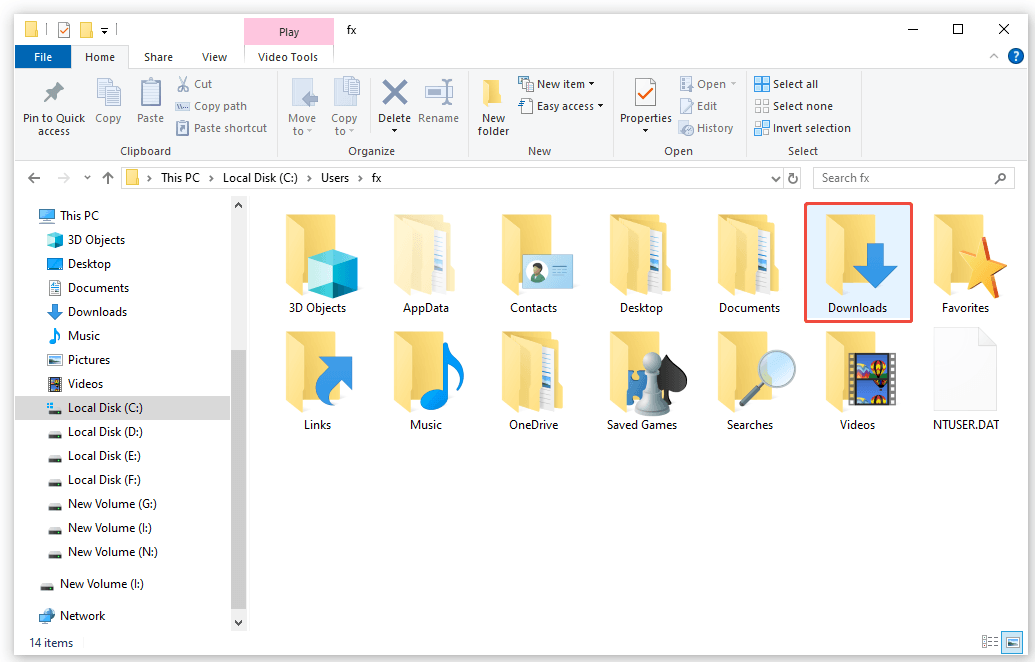
On Windows systems, each user account has a specific Downloads folder as the default save location for downloaded content. The standard file path is:
C:\Users\Username\Downloads
Here are some methods to access the Downloads folder:
- Option 1. Press Win + E to open File Explorer, then click Downloads in the left navigation pane under Quick Access or This PC.
- Option 2. Press Win + R to open the Run dialog, type shell:downloads, and press Enter. This opens the Downloads folder instantly.
- Option 3. Press Win + S, type Downloads in the search bar, and select the Downloads folder from the search results.
>> Special Download Storage Scenarios
In some cases, downloaded files may not be stored in the default Downloads folder:
- Scenario 1. If you manually change the download location in browser/app settings, files will be saved to the custom folder you selected, such as Desktop or Documents.
- Scenario 2. Files downloaded from the Microsoft Store are stored in the hidden C:\Program Files\WindowsApps folder, which requires enabling Hidden items in File Explorer to view.
- Scenario 3. Temporary download files may be stored in cache folders, but they are often auto-deleted after successful downloads.
Understanding storage locations is key to troubleshooting missing downloads, as they are often misplaced rather than deleted.
Sometimes, checking these paths can quickly resolve the issue. If they are really lost or deleted, read on to learn the common reasons for download loss.
Why Do Your Downloaded Files/Folders Get Lost
Below are the most frequent reasons for deleted or missing downloaded files/folders on Windows 11/10:
- Accidental deletion.
- Recycle Bin emptying.
- System or software errors.
- Disk Cleanup and third-party cleaning tools.
- File system corruption.
- Virus or malware infection.
- Accidental folder location changes.
Now, read on to learn how to recover downloaded folders on Windows.
How to Recover Downloaded Files/Folders on Windows
Watch this short video guide:
We’ve listed 6 effective methods in order from easiest to most advanced. Try them one by one to recover deleted downloads.
Method 1. Use Ctrl + Z
To recover deleted downloaded folders/files, using the Undo Delete feature is the quickest solution for recent accidental deletions on Windows.
If you have just deleted a downloaded file or folder and haven’t closed the File Explorer window or taken any other actions, immediately press Ctrl + Z.
This command reverses the last action (deletion) and instantly brings the file/folder back to its original place in the Downloads folder.
Method 2. Check the Recycle Bin
For deleted files, the first place to check is the Recycle Bin. Windows automatically transfers all normally deleted files here, making it easy for you to recover them.
Here’s how to do it:
Step 1. Open the Recycle Bin by double-clicking its icon on your desktop.
Step 2. To quickly locate the deleted downloaded file or folder, use the search bar located in the top-right corner and type its name.
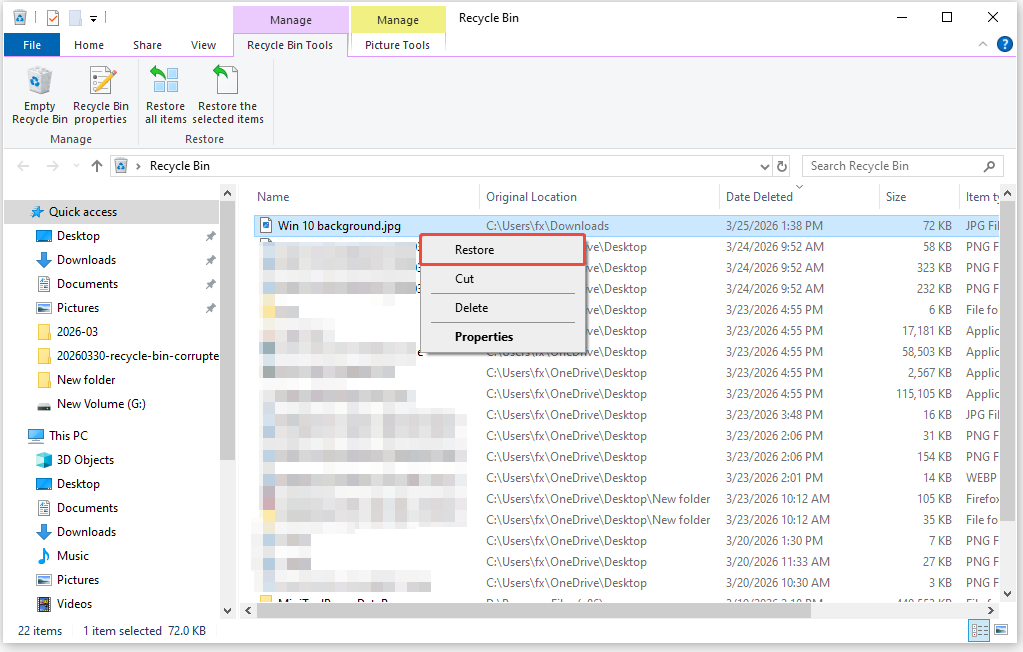
Step 3. If you locate the missing file, simply right-click on it and choose Restore. This will return the files to their original location in the Downloads folder.
Method 3. Use MiniTool Power Data Recovery
MiniTool Power Data Recovery is the best solution to recover deleted or lost downloaded files and folders.
This professional, user-friendly data recovery software is designed for Windows 11/10/8/8.1, offering a high success rate and powerful scanning capabilities.
Here are some key features for this data recovery tool:
- High Recovery Success Rate: Recover deleted, formatted, or corrupted files, even after emptying the Recycle Bin or using Shift + Delete.
- Wide Compatibility: Supports all file types (documents, photos, videos, and more) and Windows file systems (NTFS, FAT32, exFAT, ReFS).
- Preview Before Recovery: Allows you to preview recoverable files to ensure they’re intact before restoring.
- Safe & Read-Only: Operates in read-only mode, ensuring no modification or damage to original data.
- Free Version Available: The free edition recovers up to 1GB of data.
Download and install the free data recovery software on your PC to recover deleted downloads.
MiniTool Power Data Recovery FreeClick to Download100%Clean & Safe
Follow the breakdown to perform the downloaded file/folder recovery:
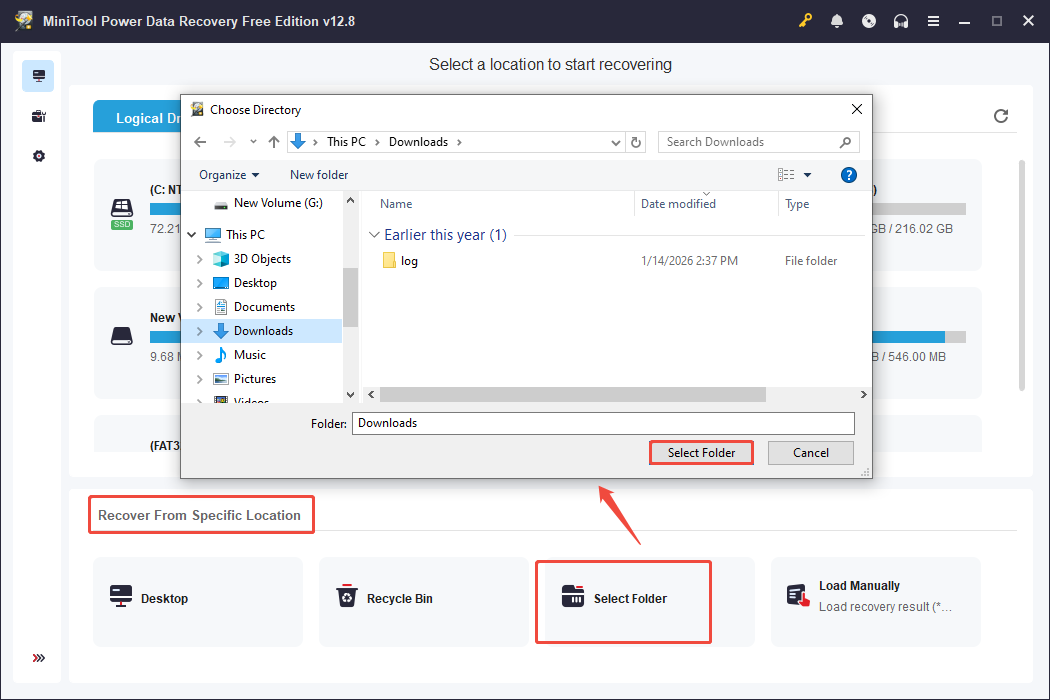
Step 1. Launch MiniTool Power Data Recovery to access its main interface. Navigate to the Recover From Specific Location section, choose Select Folder, and click on Browse.
In the pop-up window, choose the Downloads folder and click the Select Folder button.
Step 2. After the scanning process is complete, you will be located at the Path tab. Expand the Deleted Files and Lost Files folders to locate your files.
Additionally, switch to the Type tab to search for files based on their type.
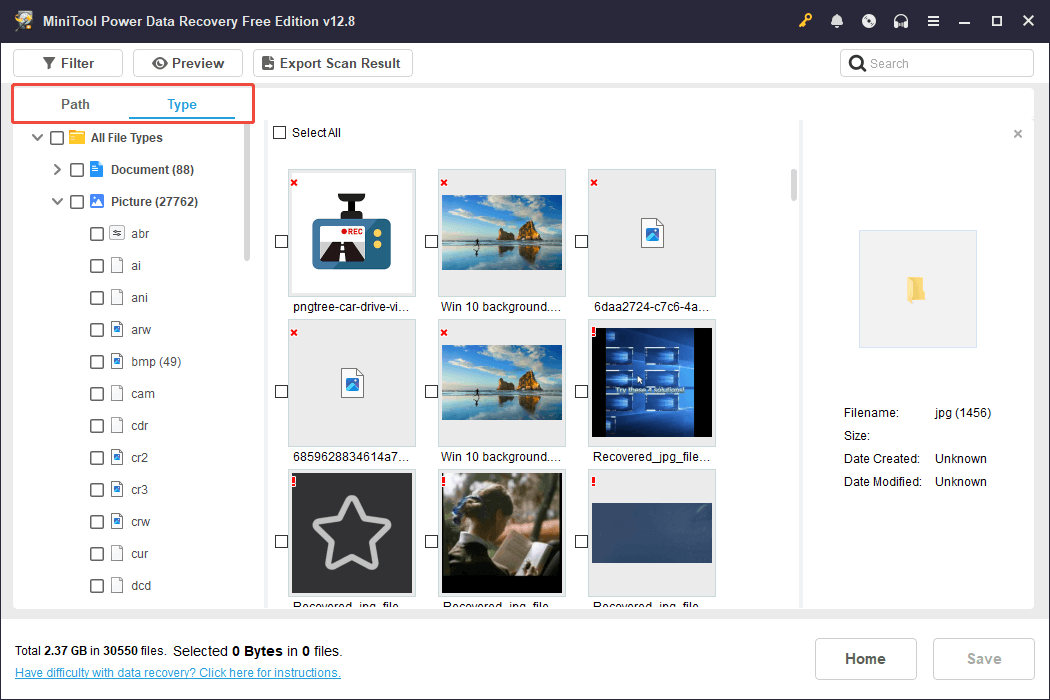
Furthermore, this software features a Filter option that enables you to narrow down files by file size, file type, date modified, and file category.
To find a specific file, enter its name or keywords in the search bar and press Enter.
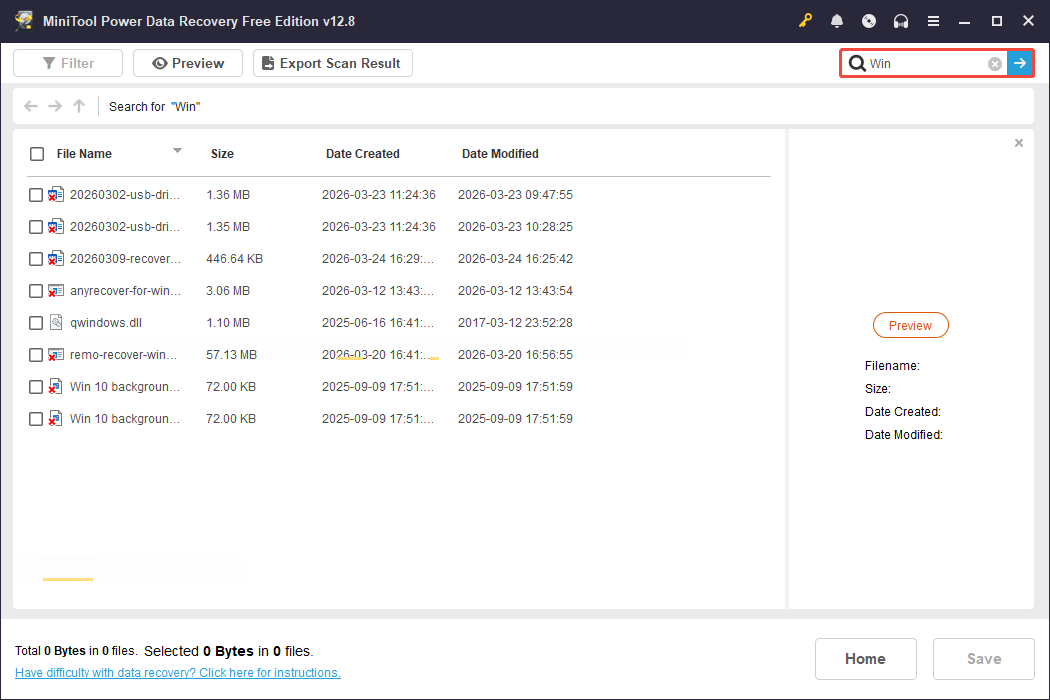
To preview the file, simply double-click on it.

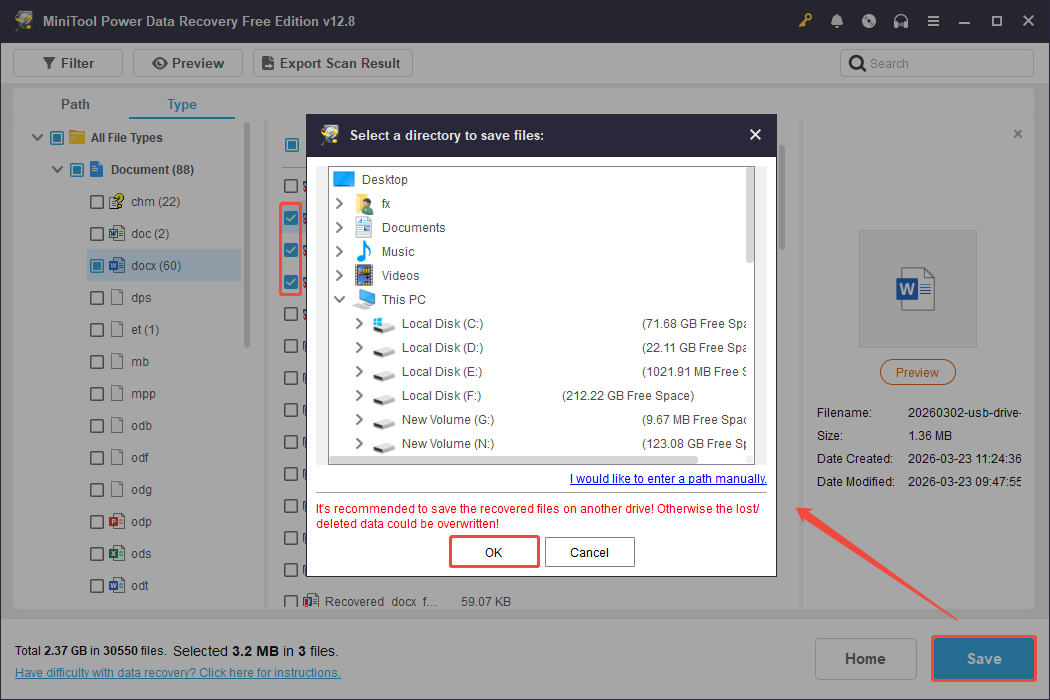
Step 3. After verification, select the desired files, click on the Save button, and choose a secure location to save the recovered files.
Method 4. Restore Previous Versions
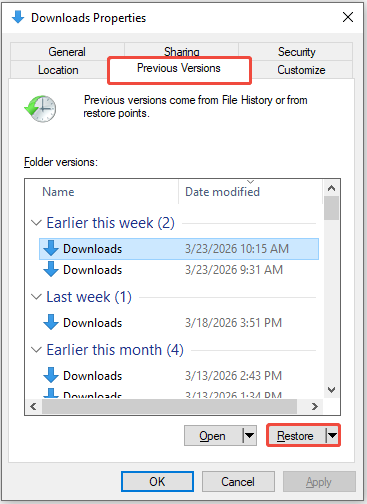
Previous Versions is a built-in Windows feature that creates backup copies of files and folders using File History or System Restore points.
This feature is ideal for recovering deleted or lost downloaded files/folders. Follow these steps to do it:
Step 1. Press Win + E to open File Explorer and go to the Downloads folder (typically C:\Users\ Username) or other folders you have set to store downloads.
Step 2. Right-click on the Downloads folder or the target folder and choose Properties from the context menu.
Step 3. Navigate to the Previous Versions tab. Windows will display all available backup versions of that folder.
Step 4. Select the most recent version from before the files were lost and click Restore.
Method 5. Check Cloud Storage
If you sync your Downloads folder to cloud storage services like OneDrive or Google Drive, deleted files may still be in the cloud’s trash or archive.
Here’s how to recover downloads from the cloud storage:
Step 1. Access your cloud storage application or its online portal.
Step 2. Go to the Trash/Recycle Bin section of the cloud service.
Step 3. Find the deleted downloads, select them, and click Restore to bring them back to their original location on the cloud.
Tip: Use MiniTool ShadowMaker for file and folder backup.
If you’re looking for reliable Windows backup software, consider MiniTool ShadowMaker.
This backup tool enables you to protect your files, folders, partitions, disks, and entire systems on a Windows machine.
The trial edition allows you to access all features of this software for free for a period of 30 days.
MiniTool ShadowMaker TrialClick to Download100%Clean & Safe
Method 6. Use Windows File Recovery
Microsoft offers a free and command-line data recovery tool called Windows File Recovery, available for download from the Microsoft Store.
It is designed to recover deleted images, videos, documents, and more on Windows by using the Winfr command along with recovery mode and file-related parameters.
To use Windows File Recovery, first download it from the Microsoft Store.
After installing, open Windows File Recovery and run the command in this format:
winfr source-drive: destination-drive: [/mode] [/switches]
- source-drive: The drive from which you wish to recover files.
- destination-drive: The location where the restored files will be stored.
- [/mode]: This indicates recovery mode, with the default being regular mode for intact NTFS drives. The extensive mode is a thorough option for all file systems.
- [/switches]: This signifies optional parameters for enhanced control, such as specifying the file name, file path, and more.
For example, to recover the JPG files from the C drive’s Downloads folder to the D drive with the regular mode:
winfr C: D: /regular /n Users\fx\Downloads\*.jpg
When the Continue? (y/n) prompt appears, press Y to start.
Replace D: with the letter of the drive used to save the recovered files. Replace fx with your username.
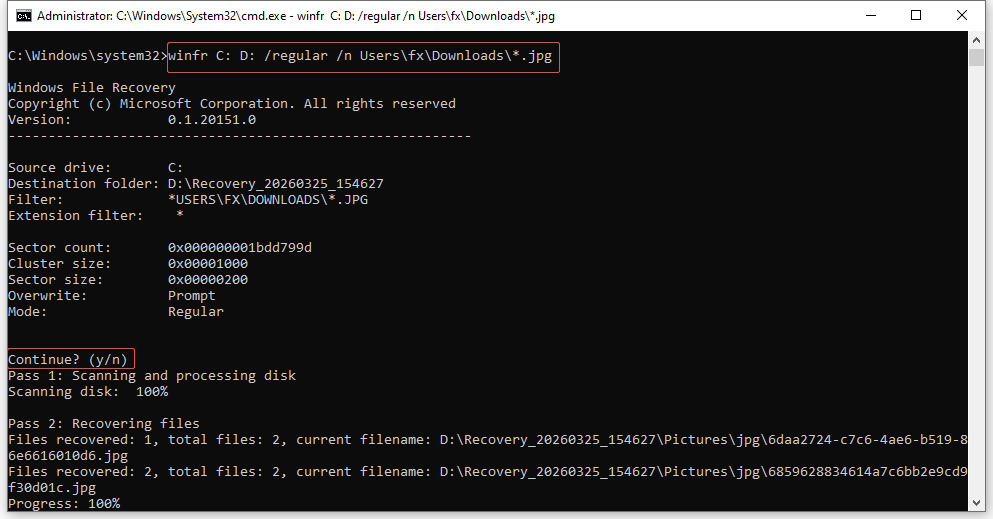
For more commands to recover files in other scenarios, refer to Microsoft’s Windows File Recovery guide.

How to Recover the Downloads Folder on Windows
In some cases, the entire Downloads folder disappears instead of the individual downloaded files.
Below are 3 targeted fixes to restore the missing Downloads folder on Windows.
Fix 1. Recreate the Downloads Folder
If the Downloads folder is completely deleted, you can create it again manually:
Step 1. Launch File Explorer and go to C:\Users\Username.
Step 2. Right-click the space within the folder and choose New > Folder.
Step 3. Name the new folder as Downloads and press Enter.
Restart your computer. Windows may identify the new folder as the default Downloads location, allowing browsers and apps to save future downloads there.
Fix 2. Restore Default Location
If the Downloads folder location has been changed, the default path will no longer be accessible.
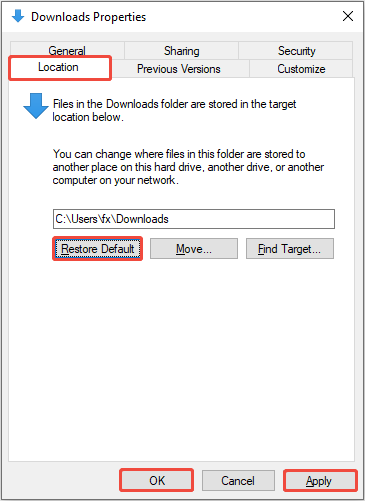
In this case, consider restoring the Downloads folder to its default location:
Step 1. Press Win + E to launch File Explorer, then find and right-click on the Downloads folder and choose Properties.
Step 2. Navigate to the Location tab, click the Restore Default button, and then select Apply > OK.
Fix 3. Check Registry
In rare cases, a corrupted Windows Registry may lead to the disappearance of the Downloads folder. Try using the Registry Editor to fix this issue:
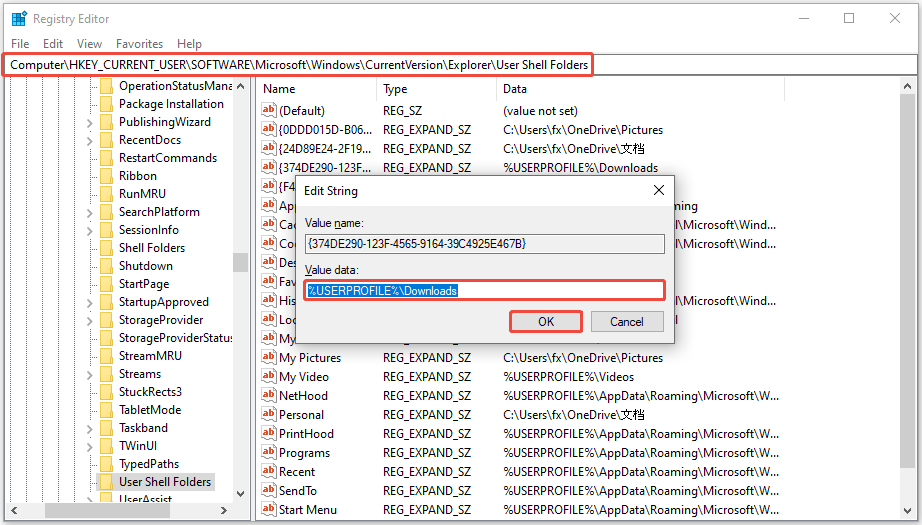
Step 1. Press Win + R to open the Run dialog box, type regedit, and press Enter to launch the Registry Editor.
Step 2. Go to the following path:
HKEY_CURRENT_USER\SOFTWARE\Microsoft\Windows\CurrentVersion\Explorer\User Shell Folders
Step 3. Locate the {374DE290-123F-4565-9164-39C4925E467B} entry in the right-hand pane; double-click it and change its value data to %USERPROFILE%\Downloads. Click OK to save.
If you have the {7D83EE9B-2244-4E70-B1F5-5393042AF1E4} entry, also change its value data to %USERPROFILE%\Downloads.
Step 4. Exit the Registry Editor and restart your computer. This will restore the Downloads folder.
Bottom Line
To recover deleted downloaded files or folders, start with quick fixes like Ctrl + Z or the Recycle Bin, and turn to professional tools for permanent data loss.
This guide also includes three practical fixes to resolve the missing Downloads folder issue on Windows 11/10.
If you have any concerns or questions about MiniTool Power Data Recovery, please feel free to send an email to [email protected].
User Comments :