
A corrupted Kingston pen drive can become inaccessible due to file system errors, driver issues, or physical damage. This guide explains common symptoms and causes, and provides step-by-step solutions to fix the drive using Kingston USB drive repair tools.
Quick Answer:
A corrupted Kingston pen drive can usually be fixed by changing the drive letter, updating or reinstalling USB drivers, running CHKDSK, or cleaning. If the drive is not physically damaged, data can often be recovered using free data recovery software.
Section 1: Kingston Pen Drive Is Corrupted—Signs and Reasons
A corrupted Kingston pen drive can become partially or completely inaccessible due to file system errors, hardware issues, or system conflicts. In many cases, the drive may still be detected by Windows but cannot be opened normally.
Signs Your Kingston Pen Drive Is Corrupted
A Kingston USB flash drive is likely corrupted if you observe one or more of the following symptoms:
- The drive is visible in Disk Management but cannot be opened
- Windows prompts: “You need to format the disk before you can use it”
- Files and folders show strange characters or unreadable names
- The drive becomes extremely slow or unresponsive
- Error message appears: “The volume does not contain a recognized file system”
- CHKDSK fails with: “Cannot open volume for direct access”
- The drive only shows in Disk Management but not File Explorer
- …
What Causes a USB Flash Drive to Become Corrupted
In summary, there are mainly 8 types of reasons for causing corruption on a Kingston pen drive.
- NAND memory wear: the NAND flash memory failed due to long use time.
- USB driver issues: the driver of the Kingston flash drive is missing or conflicting with others.
- Broken USB connector: the connector used to connect the Kingston drive and computer is damaged.
- Virus attack: the Kingston flash drive can easily get corrupted when it is attacked by a virus.
- Program/OS crash: the programs running on the drive are damaged somehow, resulting in data corruption.
- Insufficient/unstable power supply: if the power supply of your Kingston drive is not enough or unstable, it will cause damage to it.
- Human error: if you use or eject the Kingston pen drive improperly, damage will also be brought.
- Physical damage: if the pen drive has an oil/water stain or if it fell to the ground, it may be broken physically and cause irreversible failure.
Section 2: How to Recover Data Before Repairing Kingston USB Drive
Before attempting any repair, it is critical to prioritize data recovery, because some repair methods permanently erase data.
A corrupted USB flash drive usually still contains recoverable data even if it is not accessible in Windows Explorer.
To recover data from a corrupted USB drive, a professional data recovery tool is required to perform a low-level scan of the drive, bypassing the damaged file system.
MiniTool Power Data Recovery is designed for this type of logical corruption. It supports common USB corruption scenarios, including:
- File system corruption
- Partition loss
- “Drive needs to be formatted” error
- USB not accessible in File Explorer
The free edition of this software supports preview of documents, images, videos, and audio files and is capable of recovering 1 GB of files for free.
MiniTool Power Data Recovery FreeClick to Download100%Clean & Safe
Connect the Kingston pen drive to your computer and launch the software to start data recovery.
Step 1. Select the targeted partition to scan. If you are not sure which is the aimed one, you can shift to the Devices tab and choose the whole disk to scan.
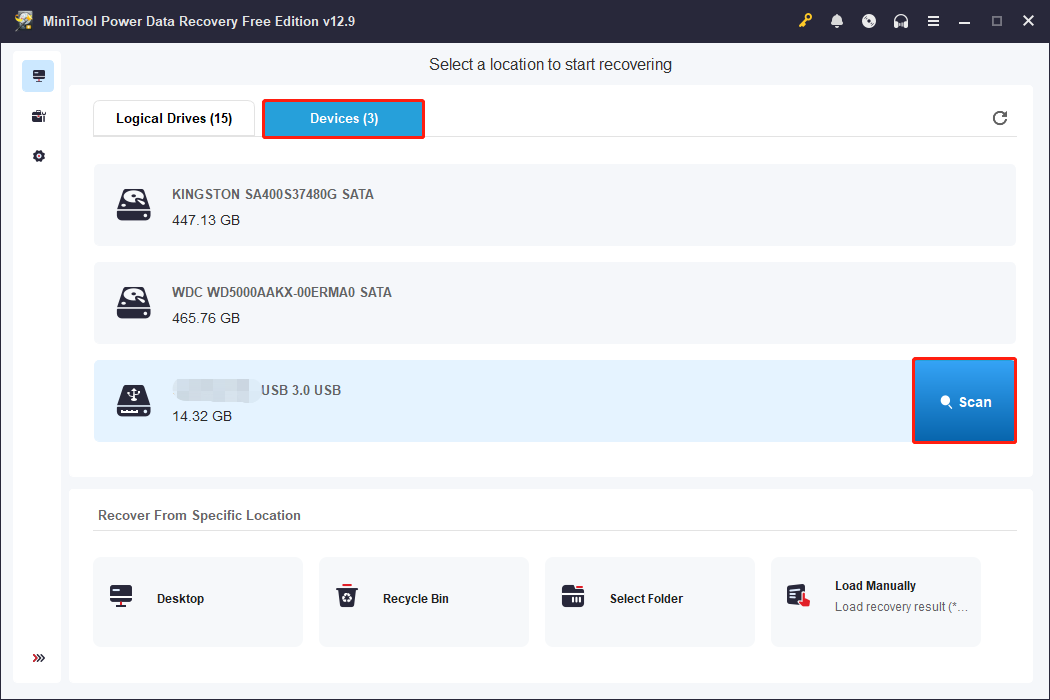
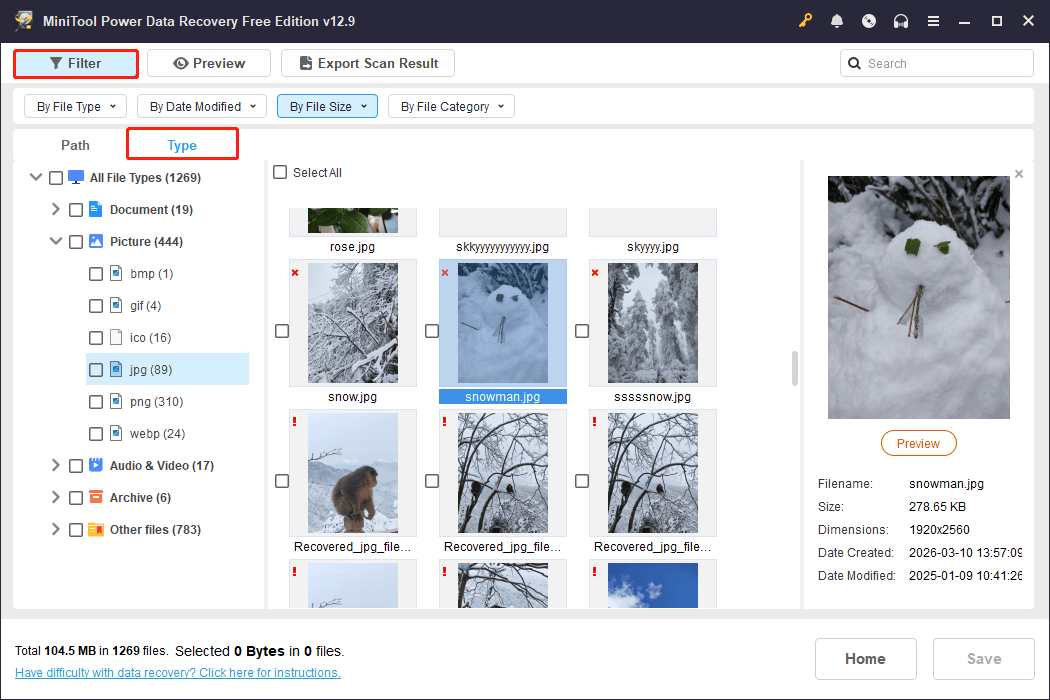
Step 2. Wait patiently until the scan process is finished. Then, you can browse the result page to find the wanted files.
You can use Filter and Type features to narrow down file range by setting conditions like file category, file size, and so on. Besides, you can preview the chosen file, including photos, slides, notes, and videos.
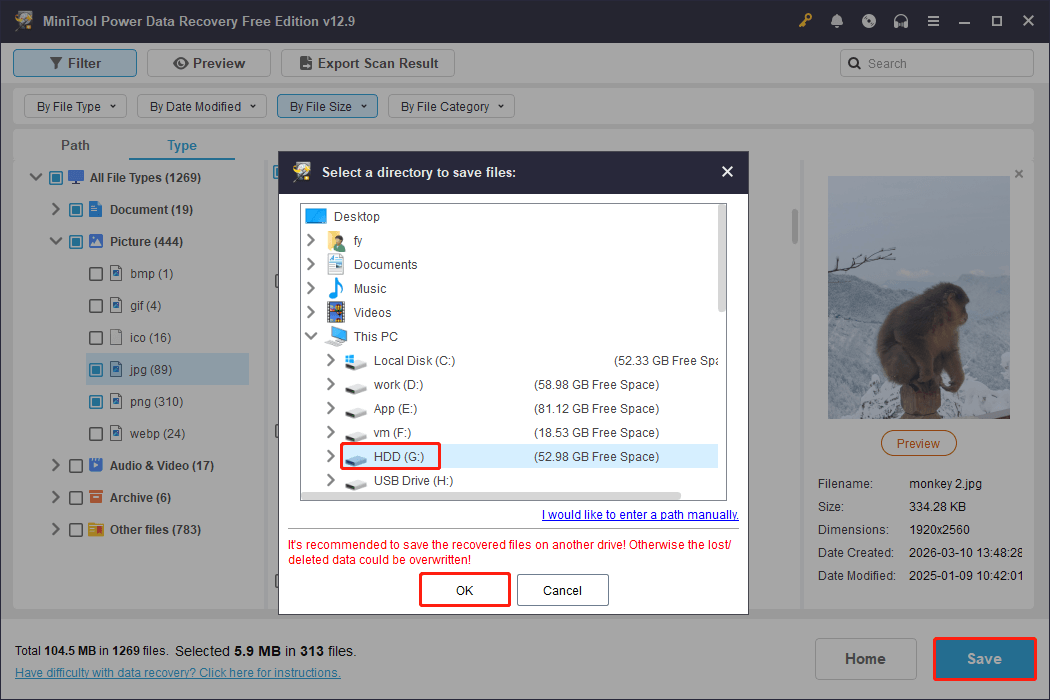
Step 3. Check the files you need and click the Save button. Then choose an appropriate path to save your files and click OK to confirm.
Since the free edition only allows 1GB of recovery capacity, if you need to recover more data, you can get a full edition, which provides unlimited capacity for recovery. MiniTool Power Data Recovery gives Personal and Business editions.
Section 3: How to Fix Corrupted Kingston Pen Drive
Method 1: Try Another USB Port or Computer
A bad USB port may cause your Kingston pen drive to become corrupted. When you find your pen drive is not detected by your computer, you can plug it into another USB port. You can also change an idle computer to see if this issue is caused by your computer issue.
Method 2: Change the Drive Letter
Sometimes, your Kingston pen drive can’t open files due to the conflict of drive letters. If your pen drive has the same drive letter as other existing partition, the problem may occur. You can change the drive letter to solve this problem.
Step 1: Press Win + X and select Disk Management from the context menu.
Step 2: Right-click on your Kingston pen drive and select Change drive letter and paths from the context menu.
Step 3: Choose Change in the pop-up window.
Step 4: Change the drive letter from the drop-down list.
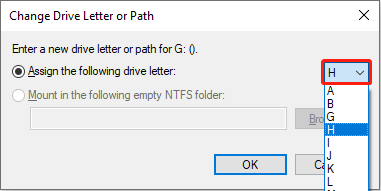
Step 5: Click OK to save the change.
Method 3: Update or Uninstall the Drivers
If the driver connecting your pen drive with the computer gets damaged, your pen drive can’t be recognized as well. You can uninstall or update the driver to fix corrupted Kingston pen drive.
Step 1: Press Win + X and select Device Manager from the context menu.
Step 2: Expand the Disk drives.
Step 3: Find the USB driver and right-click on it.
You can choose Update driver or Uninstall device based on your needs.
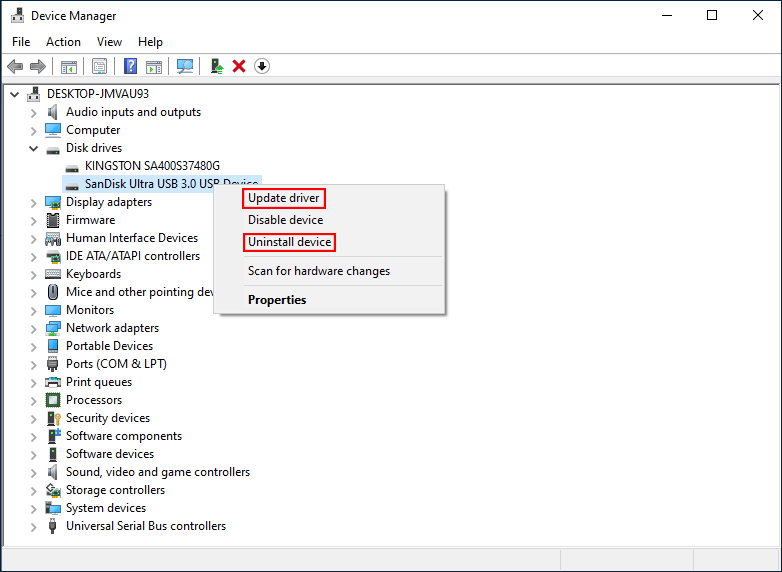
- If you select Update driver, please select Search automatically for drivers in the popup window. Then, finish the next steps with the instructions.
- If you select Uninstall devices, please click on Uninstall again to confirm. Then, replug your Kingston pen drive to the computer. The driver will reinstall automatically.
Method 4: Perform CHKDSK Command
If your Kingston pen drive gets corrupted because of a logical error, you can use the CHKDSK command to check. CHKDSK is a useful command to check the system file integrity and find a bad sector in your disk. It can be used to repair corrupted drives except those caused by physical errors.
Step 1: Press Win + R to open the Run window.
Step 2: Type cmd in the text box and press Shift + Ctrl + Enter to run Command Prompt as administrator.
Step 3: Type chkdsk x: /f and hit Enter.
Please change the letter x to the drive letter of your Kingston pen drive.
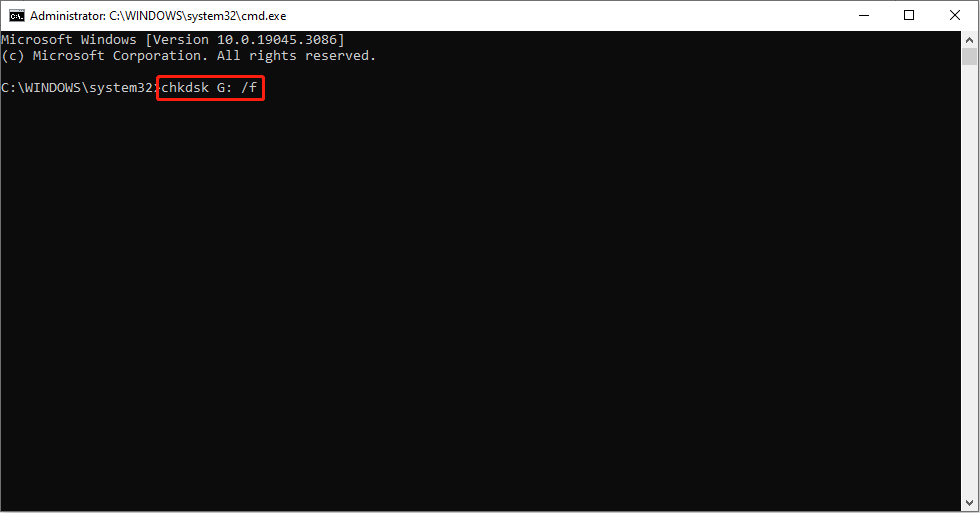
Wait for the process to end, then you can check if it repairs Kingston USB flash drive successfully.
Method 5: Format the Drive
If the Kingston pen drive remains inaccessible after trying the previous troubleshooting methods, the file system is likely severely corrupted. In this case, formatting becomes the final option to restore the drive to a usable state.
However, formatting will erase all existing data on the USB flash drive. Make sure rescue your files before formatting.
Once important files have been safely backed up, the drive can be formatted using one of the methods below.
Way 1: Format with Disk Management
Step 1: Press Win + X and select Disk Management from the context menu.
Step 2: Right-click on the Kingston drive and choose Format.
Step 3: Change the Volume label if you want, choose a File system, and keep the Allocation unit size unchanged.
Step 4: Check Perform a quick format.
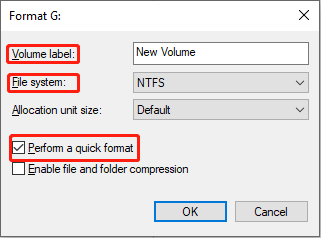
Step 5: Click OK to confirm the change, then wait for the process to finish.
Way 2: Format via Windows File Explorer
Step 1: Press Win + E to open File Explorer.
Step 2: Choose your Kingston pen drive in the right pane.
Step 3: Right-click on it and choose Format from the context menu.
Step 4: Change the File system according to your needs, keep Allocation unit size the same, and check Quick Format.
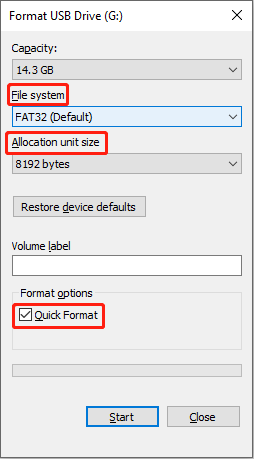
Step 5: Click Start.
How to fix when your File Explorer is not responding or stops working?
Way 3: Format with MiniTool Partition Wizard
MiniTool Partition Wizard is a free disk manager that can format a corrupted Kingston pen drive when Windows built-in tools fail to complete the process.
Compared with Disk Management, it provides broader file system support, such as NTFS, FAT32, and exFAT.
Step 1. Download, install, and run MiniTool Partition Wizard.
MiniTool Partition Wizard FreeClick to Download100%Clean & Safe
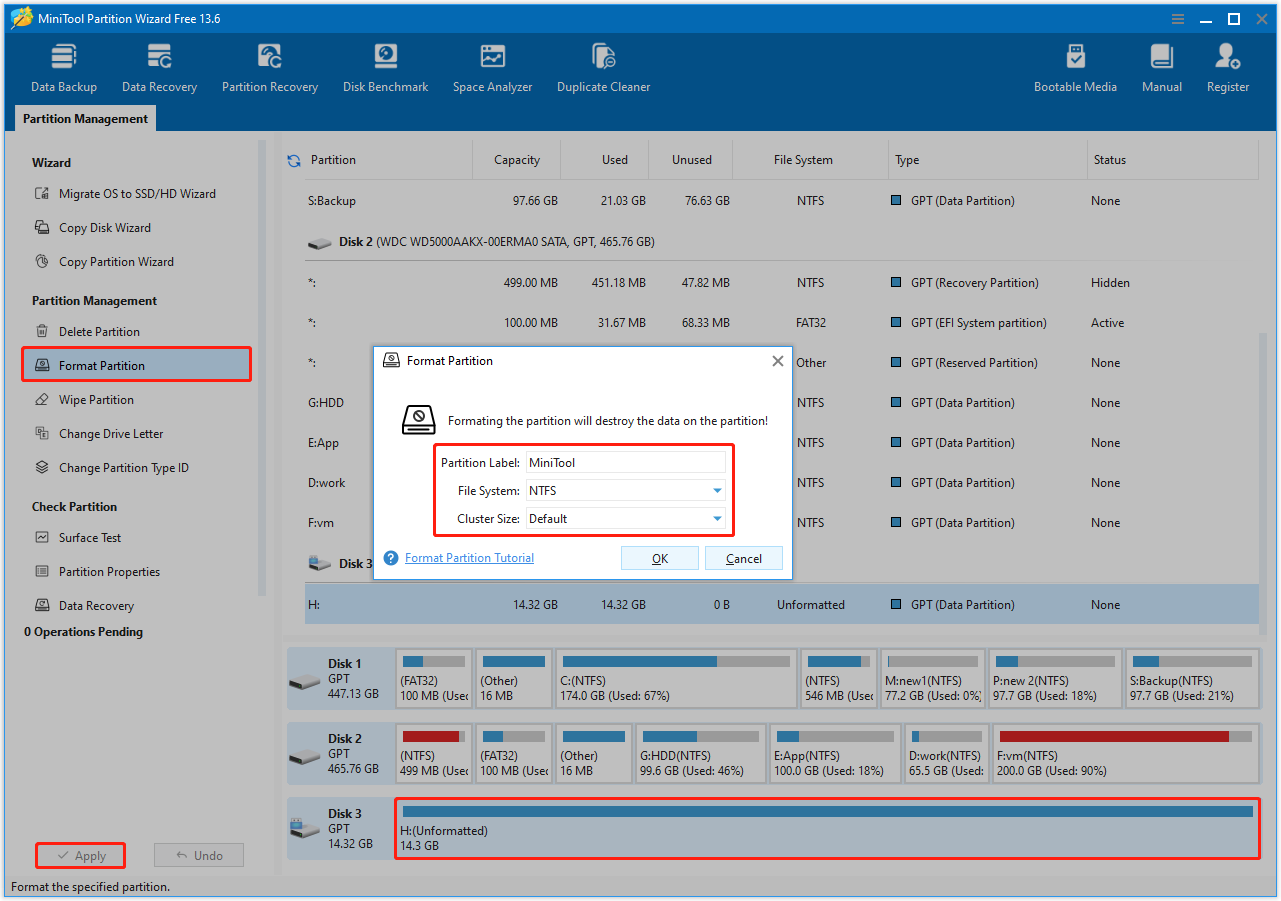
Step 2. Select the corrupted partition of the Kingston drive and choose Format Partition.
Step 3. Set Partition label, File system, and Cluster size based on your needs.
Step 4. Finally, back to the main interface, and click Apply to confirm.
Section 4: Verdict
Although devices like Kingston are portable in daily use, they easily get corrupted due to various reasons. Hope this passage can help you fix corrupted Kingston pen drives. Additionally, you can use MiniTool Power Data Recovery to rescue your data from the corrupted device.
Any questions about MiniTool products are welcome to share via [email protected].
About The Author

Position: Columnist
Shirley holds a bachelor’s degree in English and has been an editor at the MiniTool Team for many years. She specializes in IT-related content, with a focus on data recovery, file backup, disk management, and other technical topics. She is committed to delivering clear, accurate, and practical solutions to help users resolve common computer issues.
User Comments :