
Recycle Bin is usually located on the Windows desktop in the upper-left corner. If you cannot find it there, you can access it using Windows Search, File Explorer, Run, or PowerShell. If the Recycle Bin icon disappears from the desktop, follow this MiniTool guide to change desktop icon settings.
Quick Answer:
Methods | Steps |
Open Recycle Bin using Search | Press Win + S, type Recycle Bin, then press Enter. |
Open Recycle Bin from File Explorer | Press Win + E, type Recycle Bin into the address bar, and press Enter. |
Access Recycle Bin using Run | Press Win + R, enter explorer.exe shell:RecycleBinFolder, then press Enter. |
Access Recycle Bin via PowerShell | Open PowerShell, type start shell:RecycleBinFolder, and press Enter. |
If the Recycle Bin icon is missing from the desktop, you can still open it through Windows Search, File Explorer, Run, or PowerShell. This guide explains how to find Recycle Bin in Windows 11/10 step by step.
How to Find Recycle Bin in Windows 10/11?
How to find Recycle Bin? How to open Recycle Bin? There are different ways:
Method 1: Open Recycle Bin using Search
Step 1: Click on the search icon/box on the taskbar or press Win + S to open the Windows search window.
Step 2: Type recycle bin and press Enter. The Recycle Bin should open.
Method 2: Open Recycle Bin from File Explorer
Step 1: Press Win + E to open File Explorer.
Step 2: Type recycle bin into the address bar at the top.
Step 3: Press Enter and the Recycle Bin will be opened immediately.
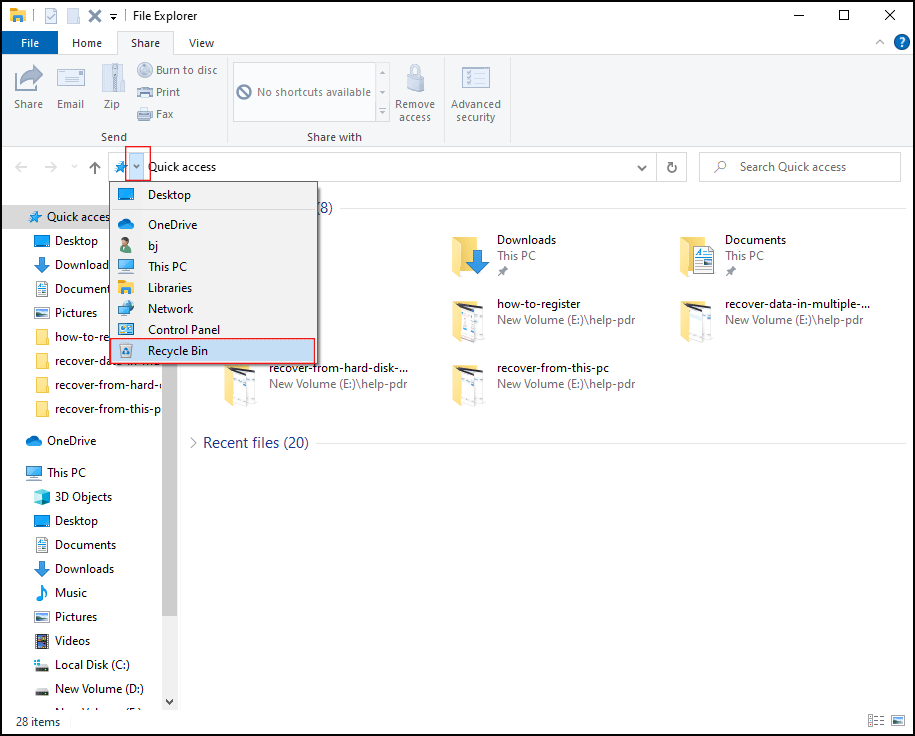
You can also click on the arrow before Quick access and select Recycle Bin from the drop-down list.
Method 3: Access Recycle Bin using Run
Step 1: Press Win + R to open the Run window.
Step 2: Type explorer.exe shell:RecycleBinFolder.
Step 3: Click on the OK button or press Enter.
You can also type shell:desktop into the textbox in the Run dialog and click Enter to open the desktop in File Explorer. Then, browse the items and locate Recycle Bin > double click on the Recycle Bin icon or right-click on it & select Open/Open in new window.
Method 4: Open Recycle Bin from PowerShell
Step 1: Press Win + X to open the WinX menu.
Step 2: Select Windows PowerShell in Windows 10 or Windows Terminal in Windows 11.
Step 3: Type start shell:RecycleBinFolder and press Enter.
How to Pin Recycle Bin to Quick Access, Start, or Taskbar
If you want to find Recycle Bin quickly, you can pin it to the Start menu, taskbar, or Quick access in File Explorer. Then we will put forward detailed steps about how to add Recycle Bin as a shortcut in these places.
How to pin Recycle Bin to Quick access in File Explorer
Step 1: Press Win + E to open the File Explorer.
Step 2: Press and hold the Recycle Bin icon and drag & drop it to Quick access in the File Explorer.
Step 3: When seeing the message “Pin to Quick access”, you create success.
You can add Recycle Bin to other locations in File Explorer, please read this article to know how to make it: How to Add the Recycle Bin to File Explorer in Windows 10.
How to pin Recycle Bin to the Start menu:
It is simple to pin Recycle Bin to the Start menu:
You just need to right-click on Recycle Bin and select Pin to Start.
Then, you can find Recycle Bin at the bottom left on the Start menu.
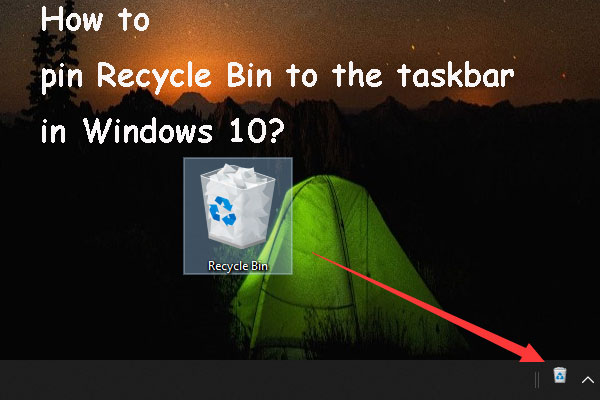
How to pin Recycle Bin to the taskbar on Windows 10:
Step 1: Right-click on your taskbar and uncheck the Lock the taskbar choice.
Step 2: Right-click on the blank section on your desktop to create a new folder.
Step 3: Drag the Recycle Bin icon into this folder and rename it as Recycle Bin.
Step 4: Right-click on the taskbar and select Toolbars > New toolbar.
Step 5: Navigate to the created Recycle Bin folder and click Select Folder.
Step 6: The Recycle Bin shortcut can be found on the taskbar.
Then, you can right-click on the Recycle Bin shortcut and click Show Text & Show title to uncheck them to show only the Recycle Bin icon on the taskbar.
Recycle Bin Icon Missing from Windows Desktop
Sometimes you may find the Recycle Bin icon disappeared from the desktop. Where is Recycle Bin? Here we collect several situations when the Recycle Bin disappears from the desktop on Windows 10/11, and give you solutions for these situations.
Situation 1: All Desktop Icons Disappeared.
Step 1: Right-click on any blank section.
Step 2: Select the View option from the context menu.
Step 3: If there’s no checkmark in front of the Show desktop icons option, please click on it to add one.
Step 4: Your desktop icons will be back at once.
Situation 2: Only the Recycle Bin Desktop Icon Disappeared.
Step 1: Press Win + I to open the Settings window.
Step 2: Select Personalization or right-click on a blank area on the desktop and select Personalize.
Step 3: Navigate to the Themes > Related Settings > Desktop icon settings.
Step 4: Check whether the Recycle Bin option is chosen. If not, please click on it and then click on the OK button.

Open the Desktop Icon Settings window and uncheck the Recycle Bin can help you hide the Recycle Bin desktop icon again.
Situation 3: In Windows Tablet Mode in Windows 10
Tablet mode is a feature of Windows 10 that can switch your device experience from tablet mode to desktop mode and vice versa. However, when your computer is in Tablet Mode, app icons on your desktop will disappear and the display is different from the desktop mode. Therefore, you can go to check by these steps:
Step 1: Press Win + I to open the Settings window.
Step 2: Navigate to Settings > System > Tablet > Change additional tablet settings.
Step 3: Look for the Hide app icons on the taskbar and Automatically hide the taskbar options and make sure these 2 options are turned off.
How Can You Recover Deleted Files from Recycle Bin on Windows 10/11?
If you delete your files by accident, don’t worry because you can retrieve them from Recycle Bin.
How to Recover Deleted Data from Recycle Bin
Step 1: Open Recycle Bin.
Step 2: Restore deleted files (images, documents, photos, videos, etc.).
- Select the items you want to recover, right-click on them, and select Restore.
- Select the items you want to recover and drag & drop them to the location where you want them to be.
But if you have emptied Recycle Bin or your computer encounters a virus attack or other problems, you may need help from a third-party tool.

How to Recover Deleted/Lost Data Not in Recycle Bin
If deleted files are not in the Recycle Bin, they may have been permanently removed using Shift + Delete. In this case, data recovery software may help restore lost files.
Data recovery tools such as MiniTool Power Data Recovery are also efficient in the following scenarios:
- Files deleted from external hard drives, USB flash drives, or SD cards
- The Recycle Bin has been emptied
- Large files were deleted without being moved to the Recycle Bin
- Recycle Bin settings configured to bypass deleted items
- Files removed using Command Prompt, antivirus software, or disk cleanup tools
- Files lost after a system crash or unexpected shutdown
To evaluate recovery performance, I tested the process on my own Windows PC.
Test Environment
- Operating system: Windows 10 22H2
- Device: Desktop computer
- Storage drive: Internal HDD
- File system: NTFS
- Software edition: MiniTool Power Data Recovery Free
MiniTool Power Data Recovery FreeClick to Download100%Clean & Safe
Data Loss Scenario
To simulate a data loss situation, I performed the following steps:
- Created a folder (0428-TEST) containing documents, videos, photos, and compressed files.
- Deleted files normally.
- Emptied the Recycle Bin.
- Permanently deleted files using Shift + Delete.
Afterward, I launched MiniTool Power Data Recovery Free and started the recovery process.
Recovery Test Process
Step 1. Select the location to scan
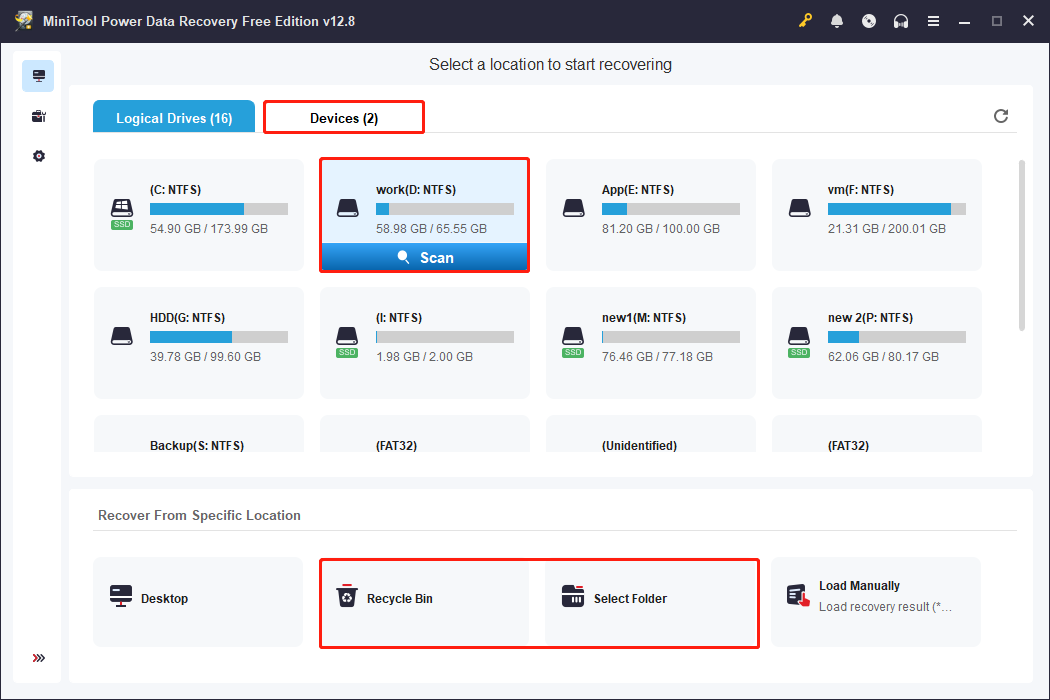
On the main interface of the recovery software, you should choose a scan location based on how the files were deleted.
Scan option | When to scan | Advantages | Limitations |
Recycle Bin | The Recycle Bin was emptied | Fast scan | Only suitable for files moved to the Recycle Bin |
Specific location | You know the exact folder where the deleted files were stored | Fast scan | May not find files if the folder structure is damaged |
Original partition | Files were permanently deleted using Shift + Delete | Balances scan scope and result relevance | May not locate files if the wrong partition is selected |
Entire disk | You are unsure which partition originally contained the deleted files | Covers all partitions in one scan | Longest scan time |
Step 2. Preview and select the required files
After the scan completes, browse the listed files by Path or Type and find the files you want to recover. You can use Filter to filter files by file type, modification date, file size, and file category or use Search to search for files by file name.
For example, I entered 0428-TEST in the search box to quickly locate the test folder.
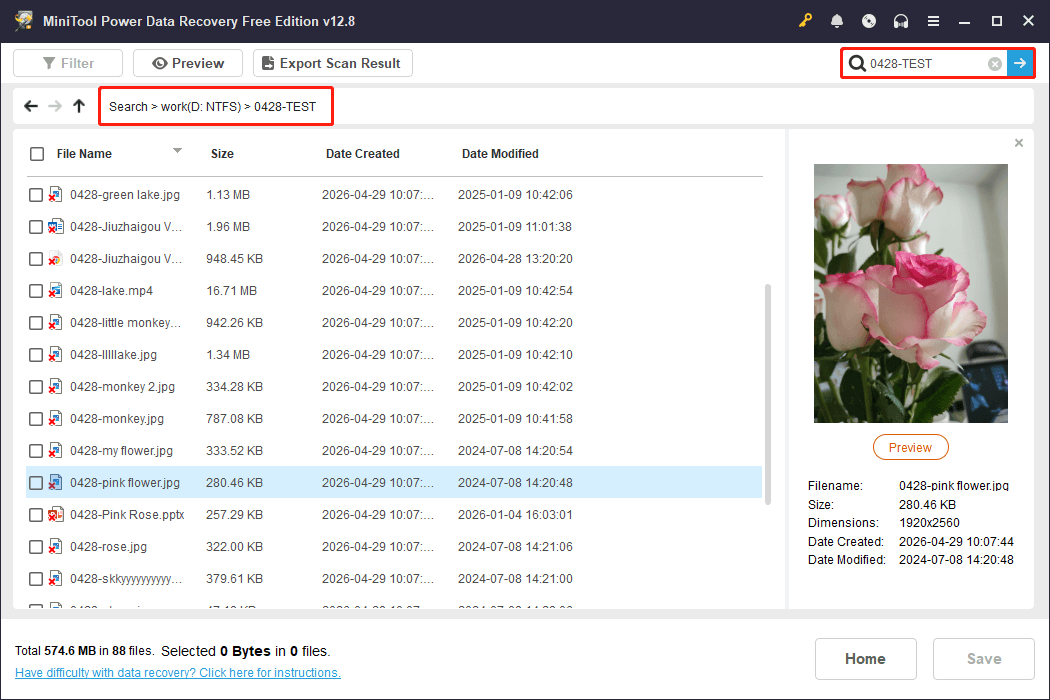
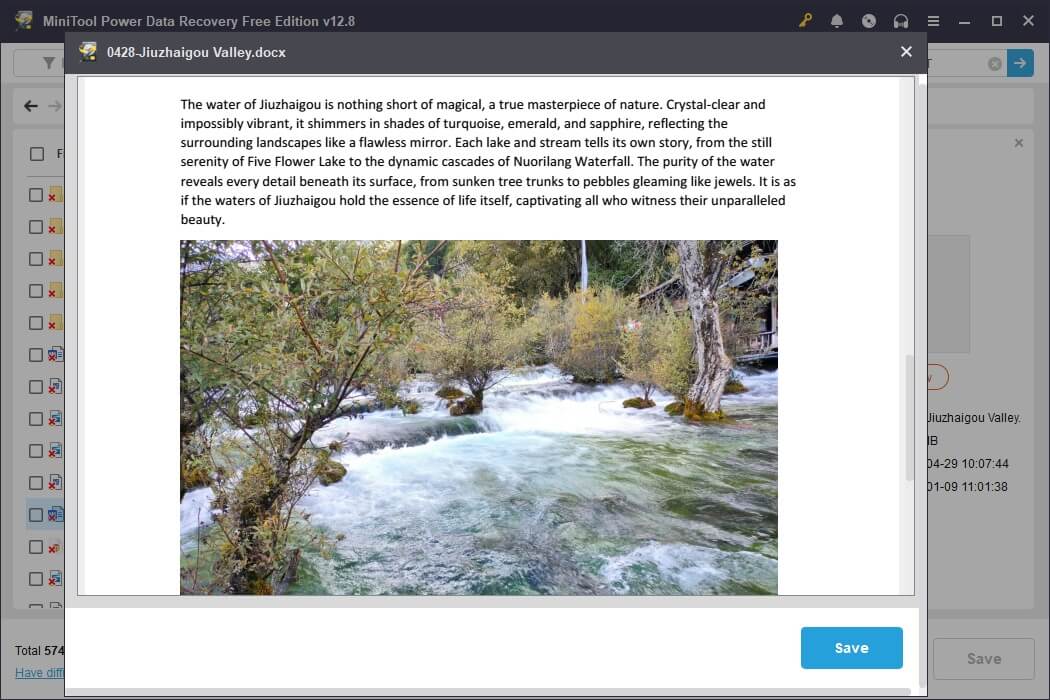
Before recovery, you can double-click files to confirm the file contents. Most types of files that are not corrupted can be previewed.
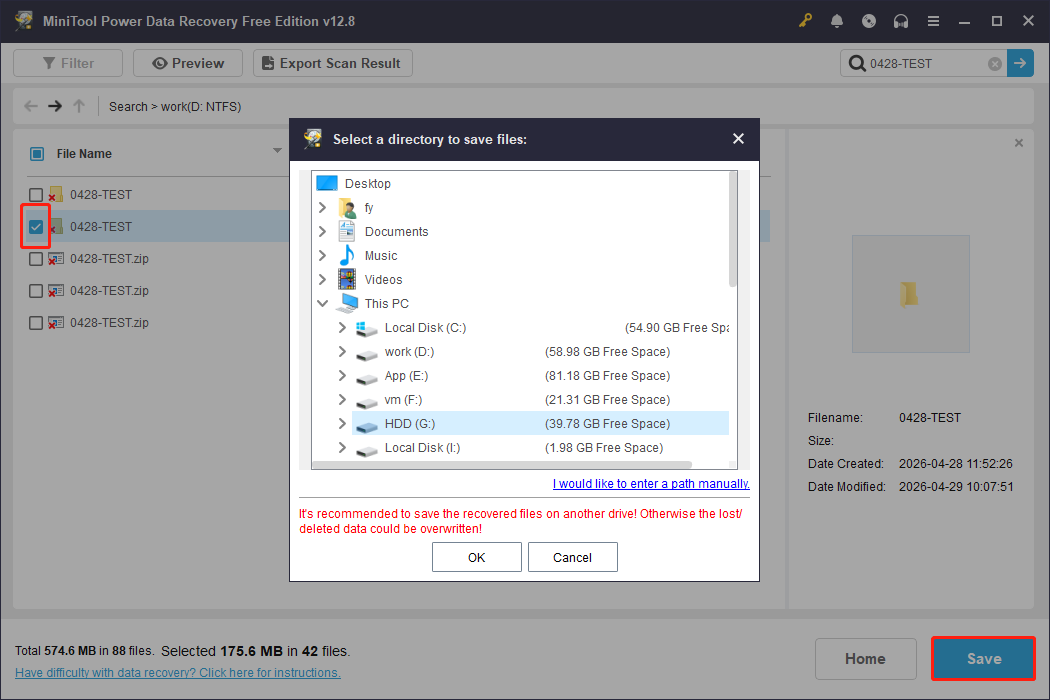
Step 3. Save desired files
Finally, click Save and choose a secure location to store the selected files and folders. Avoid saving recovered data to the same drive where the files were lost, as this may overwrite recoverable data and reduce recovery success.
My Conclusion
In this test, the software was able to identify all deleted files from the 0428-TEST folder after normal deletion, Recycle Bin cleanup, and Shift + Delete.
However, for files deleted from an SSD after the Recycle Bin has been emptied, recovery may only be possible if the TRIM feature is disabled.
Final Words
Recycle Bin is a very important unit in Windows 10/11; it’s used to keep your deleted items for a while unless you may need to restore them someday. This post shows you several ways to find Recycle Bin on Windows 10/11, and how to recover deleted data from Recycle Bin or using MiniTool Power Data Recovery on Windows 10/11. Welcome to tell us your questions in the comment area or via [email protected].
About The Author

Position: Columnist
Shirley holds a bachelor’s degree in English and has been an editor at the MiniTool Team for many years. She specializes in IT-related content, with a focus on data recovery, file backup, disk management, and other technical topics. She is committed to delivering clear, accurate, and practical solutions to help users resolve common computer issues.
User Comments :