
Is your iPhone keeping restarting randomly or stuck in a restart loop? This guide explains why your iPhone keeps rebooting and provides 9 proven solutions to restore the normal functionality of your iPhone. If your iPhone cannot turn on after restarting repeatedly, PhoneRescue for iOS can help recover lost data.
My iPhone Keeps Restarting
“My iPhone has been restarting itself at random times while using the past week. This is happening twice daily. Is anyone else able to shed any reason why this is happening?”discussions.apple.com
Based on a survey, iPhone restarting randomly usually happens in these scenarios: update to the latest iOS system, charge your iOS device, plug in a headphone, or connect your iPhone to the computer.
iPhone keeps turning off and restarting is generally caused by bad updates, malware attacks, unstable drivers, and hardware issues.
What should you do when you find that your iPhone keeps crashing and restarting? Several feasible tips are offered below to help you fix this issue.
How to Fix iPhone Keeps Restarting
Typically, there are two main scenarios of “iPhone keeps restarting”. One is that the iPhone restarts intermittently, such as restarting every few minutes/seconds. And the other is that the iPhone is continuously stuck in a restart loop (iPhone is completely unusable). Here, we will discuss the corresponding solutions from these two aspects.
Case 1: iPhone Keeps Rebooting but Remains Functional
Solution 1: Update Apps to the Latest Version
Some users reported that the old versions of the applications can be responsible for the “iPhone keeps crashing and restarting” issue. Hence, you can update the iPhone apps to the latest version to fix it.
Step 1. Open the App Store.
Step 2. Tap the profile icon located at the top of the screen.
Step 3. Scroll down to see all pending updates. To update an individual application, tap Update next to it. To update all the installed apps, tap Update All.
Solution 2: Check and Remove Faulty Apps
If your iPhone keeps restarting after you have downloaded an app, then there is a good chance that the problem is caused by that particular app. If updating the app doesn’t fix the problem, uninstall the faulty app to see if the issue has been repaired.
Solution 3: Update to the Latest iOS Version
The new iOS version released by Apple will fix many iPhone problems, such as “iTunes could not connect to this iPhone”.
So, if your iPhone keeps restarting itself, consider updating your iOS system to the latest version.
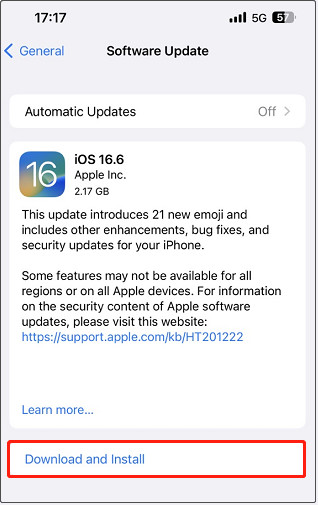
To update your iPhone iOS, go to Settings > General > Software Update and check if there is an update available. If yes, tap Download and Install or Install Now.
Solution 4: Reset All Settings
If all the above solutions fail to solve the “iPhone keeps rebooting” issue, then there might be something wrong with your iPhone’s system settings. The next thing you should do is to reset all iPhone settings.
Here are the steps to reset all settings:
Step 1. Open Settings > General > Transfer or Reset iPhone > Reset.
Step 2. If you are prompted for a password, just do as told. Then tap Reset All Settings to reset the network settings, location settings, privacy settings, etc.
The methods above apply when your iPhone keeps restarting but remains functional. However, if your iPhone continues to restart and eventually cannot be powered on, the situation requires a different approach. See solutions in Case 2.
Case 2: iPhone Stuck in Restart Loop
Solution 1: Force Restart the iPhone
A force restart is an effective way to resolve many iPhone startup problems. To fix the iPhone restart loop, you can follow this page to force restart your iPhone.
After you force restart the iPhone, check if the trouble of “iPhone keeps crashing and restarting” has been fixed.
Solution 2: Pull out Your SIM Card
Occasionally, an issue with the iPhone’s connection to the wireless carrier can cause the iPhone to go into a reboot loop. Your SIM card connects your iPhone to your wireless carrier; therefore, another way to fix your iPhone keeps restarting is to remove the SIM card.
Solution 3: Clean iPhone’s Charging Port
As mentioned before, when charging or plugging in a headphone, the iPhone may keep rebooting. In this case, cleaning the lightning port of your iPhone will be a useful solution since the lint or dust in the port can result in charging connection problems. Just do this using a toothpick or a small needle.
Solution 4: Restore Your iPhone in Recovery Mode
When facing the matter of “iPhone keeps restarting”, you can try to restore your iPhone in recovery mode. To do that, you need to install the latest iTunes on a PC or Mac first of all. For a detailed guide, please refer to this page: Restore the iPhone in recovery mode.
Solution 5: Check for Hardware Issues
iPhone keeps restarting may also be caused by hardware failure, such as a damaged battery. To solve hardware problems, you may need to seek help from Apple’s after-sales service or take your iPhone to a third-party repair point for repairs.
Recover Lost Data From Unbootable iPhone
When your iPhone keeps restarting and cannot boot into the system, you may lose access to important files stored on the device. If you do not have an available iCloud or iTunes backup, you can try using an iPhone data recovery tool to look for recoverable data.
PhoneRescue for iOS can scan your iPhone and search for recoverable files when the device is inaccessible. It allows you to preview found data before recovery, including photos, videos, messages, contacts, and other important files.
Phone Rescue for iOS (Windows)Click to Download100%Clean & Safe
Phone Rescue for iOS (Mac)Click to Download100%Clean & Safe
Steps to Recover Data from an iPhone That Won’t Turn On
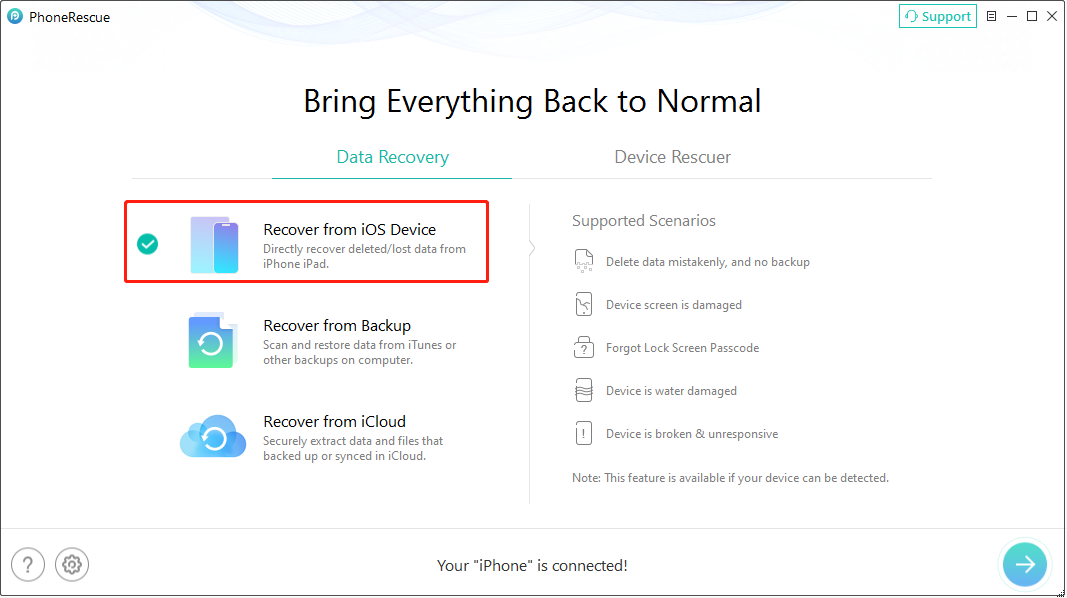
Step 1. Connect your iPhone to the computer
Connect the iPhone experiencing the restart loop to your computer using a USB cable. Launch PhoneRescue for iOS and select Recover from iOS Device from the main interface.
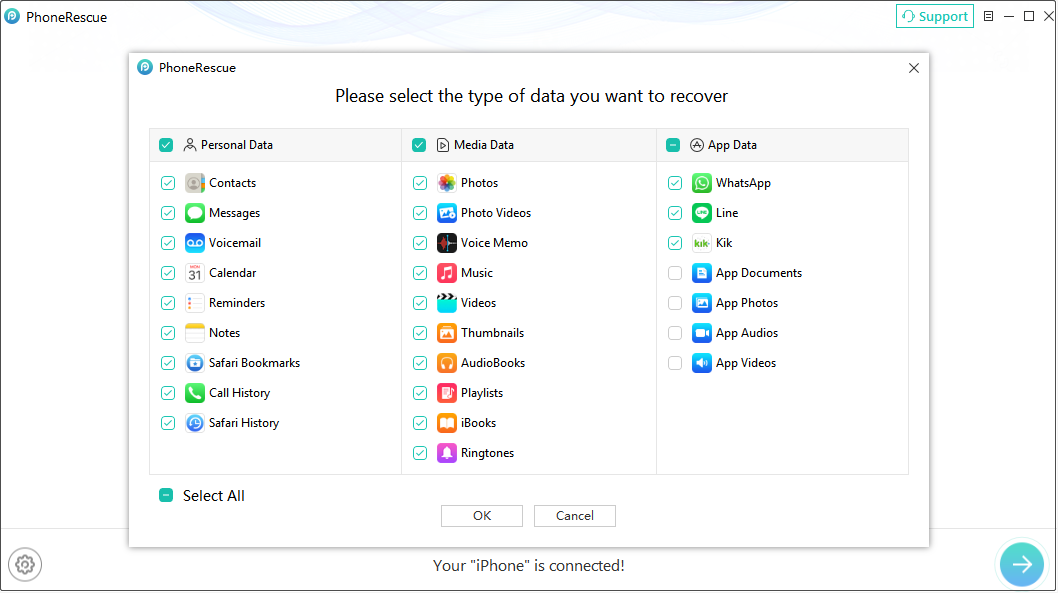
Step 2. Select data types to scan
Select the types of data you want to recover and continue. The iOS data recovery software will analyze your iPhone and scan for recoverable files.
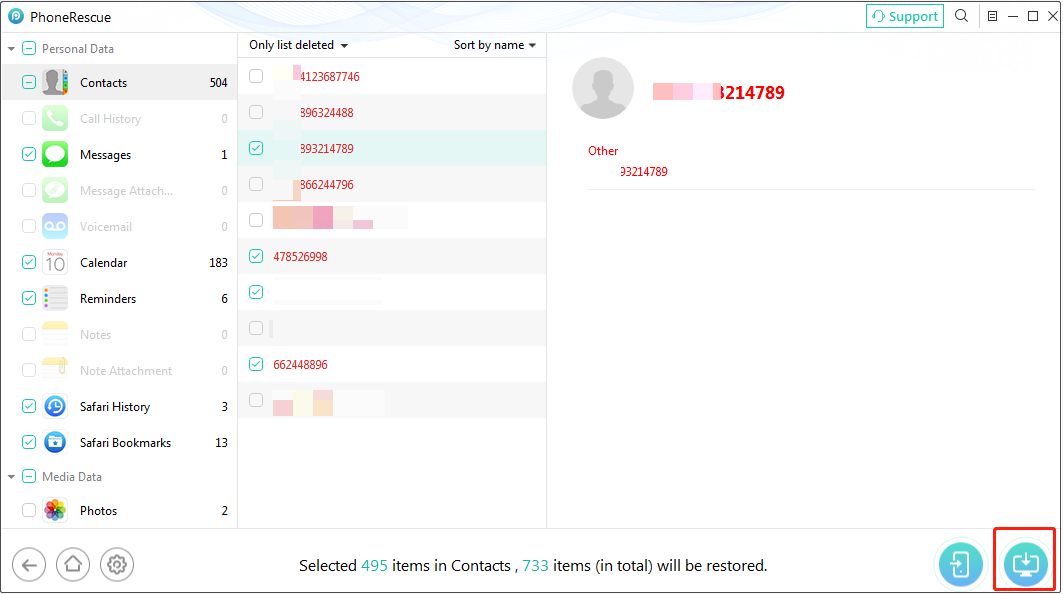
Step 3. Preview and recover files
Once the scan is complete, preview the detected files, select the items you want to recover, and click Restore to computer to save them.
In addition to recovering data directly from an iPhone, PhoneRescue for iOS also supports recovering specific files from iTunes and iCloud backups.
You can preview the available backup data and select only the files you need instead of restoring the entire backup.

Bottom Line
The methods mentioned above cover the most common causes of iPhone restarting issues. Try the solutions that match your situation, and your iPhone should return to normal operation in most cases.
iPhone Keeps Restarting FAQ
1. Update all the apps to the latest version.
2. Check and remove faulty apps.
3. Update to the latest iOS version.
4. Reset all iPhone settings.
5. Force restart your iPhone.
6. Remove your SIM card.
7. Clean iPhone’s charging port.
8. Restore your iPhone in recovery mode.
About The Author

Position: Columnist
Shirley holds a bachelor’s degree in English and has been an editor at the MiniTool Team for many years. She specializes in IT-related content, with a focus on data recovery, file backup, disk management, and other technical topics. She is committed to delivering clear, accurate, and practical solutions to help users resolve common computer issues.
User Comments :