
iPhone Stuck on Apple Logo and Its Common Causes
Is your iPhone stuck on the white Apple logo screen of death and can’t power on? An iPhone stuck on Apple logo (sometimes, we call it the white Apple, or white Apple screen of death) is a common problem that most iPhone users have ever met.
When iPhone is stuck in the Apple logo, it equates to a toy without batteries. At this time, you can do nothing with it. You can’t call anybody, and you can’t text or take pictures with it. It becomes useless.

Today, we are going to introduce the solutions to iPhone stuck on Apple logo. Here, before solving the white Apple screen of death issue, we had better know its common causes which can help us to solve it and prevent it from happening again.
What causes the iPhone stuck on Apple logo?
1. Jailbreak Error: A jailbreak is a process of eliminating hardware limitations on your iOS device and performing root access so that you can download themes and applications that are not available in the Apple store.
Therefore, when you jailbreak your iPhone, it may get stuck on Apple logo because files were not correctly modified.
2. Corrupted Files From iCloud or iTunes Backup: When you try to restore your backup files from iCloud or iTunes, you may meet the problem of a “white Apple screen of death” if there are some corrupted files.
3. iOS Update Failed: A failed iOS update may also lead to the “iPhone stuck on Apple logo” issue.
Sometimes, when updating your Apple iPhone/iPad/iPod Touch, you may find that something interrupts your device or iTunes from completing the task and your device spontaneously reboots and never boots past the white Apple logo on black background.
4. Hardware Failure: This issue is often caused by the loose or failing cable that connects the iPhone’s motherboard and screen.
How to Recover Files After an iPhone Stuck on Apple Logo Issue
Method 1. Recover Data Directly from iPhone Without Backup
When an iPhone gets stuck on the Apple logo, you may not be able to access the device normally or check whether a backup exists. If you do not have an iTunes or iCloud backup, you can try recovering data directly from the iPhone.
PhoneRescue for iOS can scan your iPhone and search for recoverable data stored on the device. If the data has not been overwritten, you may be able to preview and recover it.
This iPhone recovery tool is compatible with iOS devices running iOS 5 and later. It supports the recovery of various types of data, including media files, personal information, and app data.
Phone Rescue for iOS (Windows)Click to Download100%Clean & Safe
Phone Rescue for iOS (Mac)Click to Download100%Clean & Safe
Steps to recover data directly from iPhone:
Step 1. Connect your iPhone and select the scan module
Connect your iPhone to your computer using a USB cable. Then launch PhoneRescue for iOS and select Recover from iOS Device from the main interface.
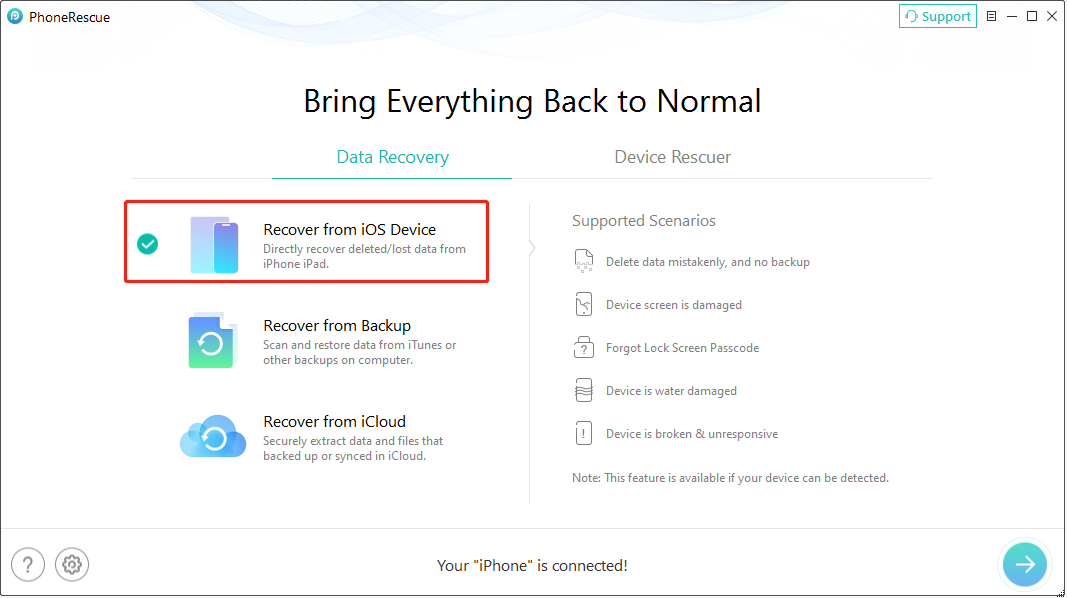
Step 2. Select data types to scan
Choose the types of data you want to recover. The software will analyze your iPhone and search for available recoverable files.
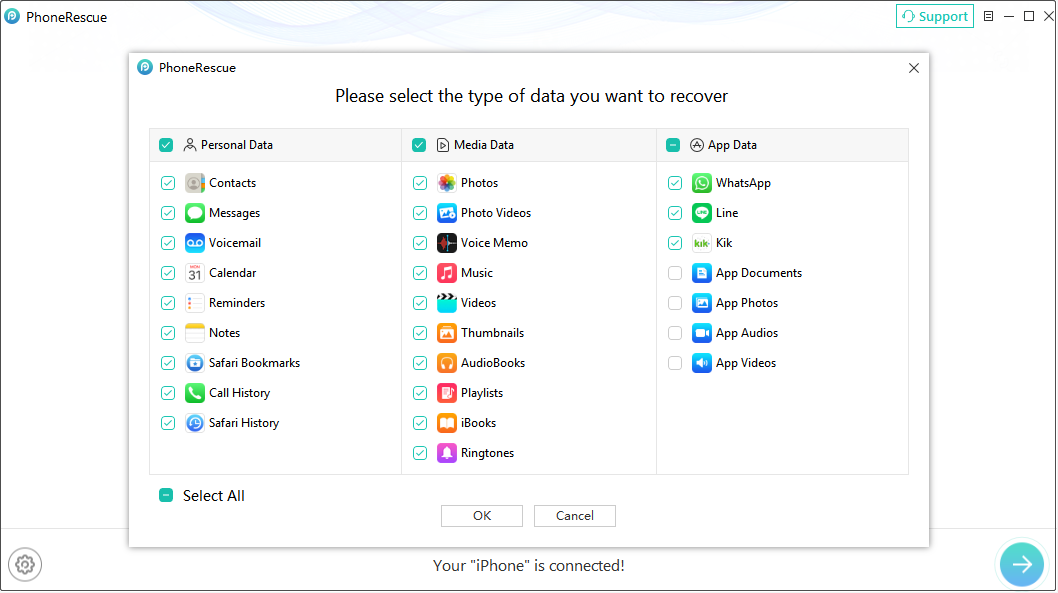
Step 3. Preview and recover data
After the scan is complete, preview the found files and select the items you need. Click Restore to computer to save the recovered data.
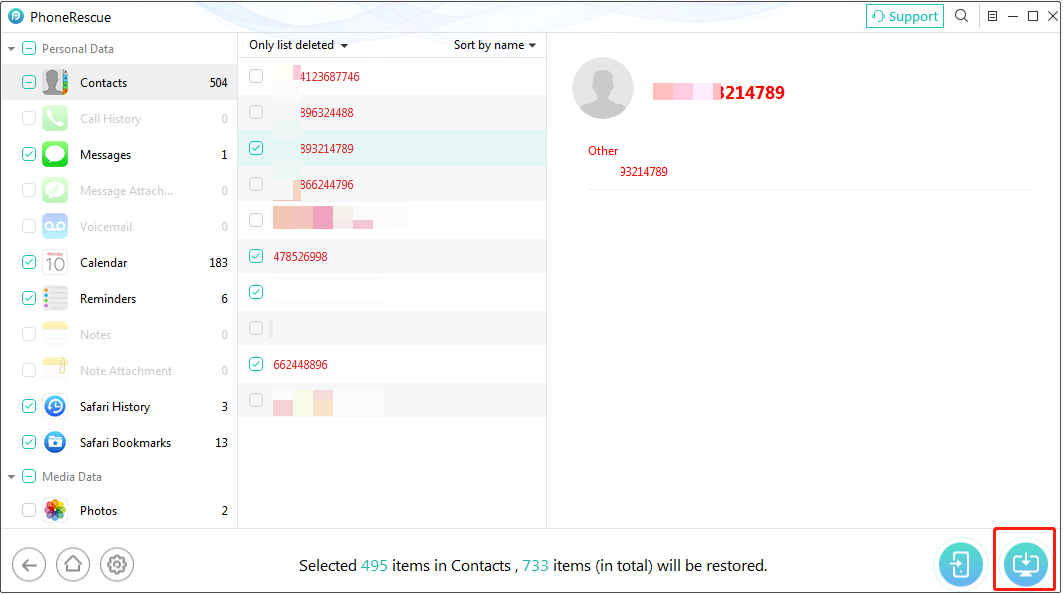
Method 2. Recover Data from iTunes Backup
If you previously backed up your iPhone using iTunes, you may be able to recover your data from an existing backup.
Apple provides a built-in restore option, but it only supports restoring the entire backup. This means you cannot choose individual files, and the current data on your iPhone may be replaced by the backup content.
Restore iPhone from iTunes backup:
- Connect your iPhone to the computer where the backup was created.
- Open iTunes.
- Select your iPhone and choose Restore Backup.
- Select the backup you need and start the restoration.
If you do not want to restore the entire backup, you can use PhoneRescue for iOS to extract specific files from an iTunes backup.
Recover selected data from iTunes backup with PhoneRescue:
- Open PhoneRescue for iOS and select Recover from Backup.
- Choose the iTunes backup you need based on its creation date.
- Select the data types you want to scan and start the process.
- Preview the results and click Restore to computer to save the files.
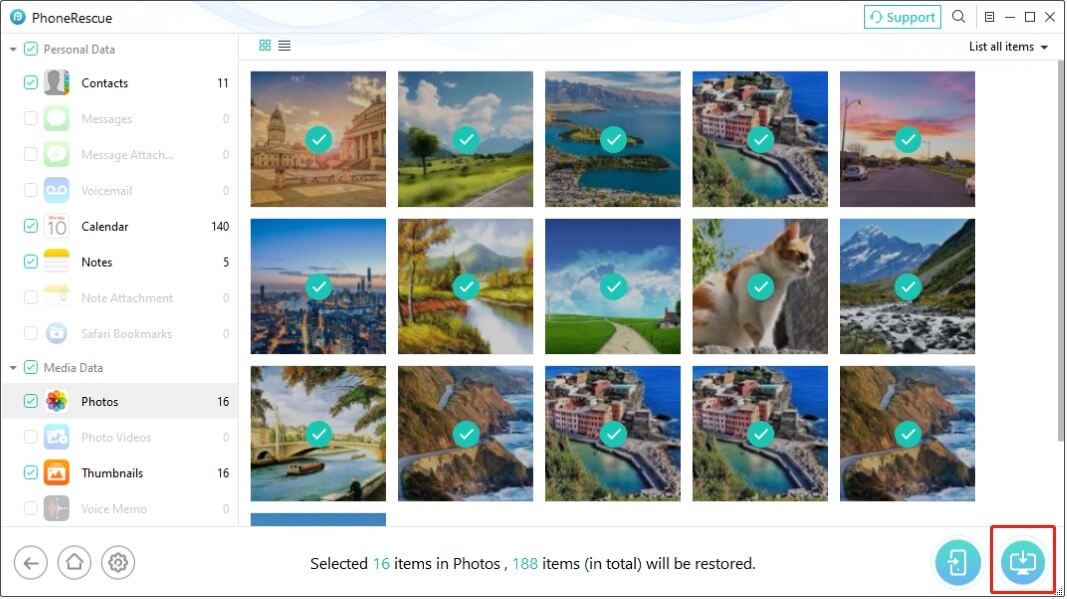
Method 3. Recover Data from iCloud Backup
If iCloud Backup was enabled before your iPhone became stuck on the Apple logo, you can try restoring your data from an available iCloud backup.
Apple’s official method requires a complete device restore and does not allow you to recover only specific files.
Restore iPhone from iCloud backup:
- Erase all content and settings on your iPhone.
- During setup, choose From iCloud Backup on the Transfer Your Apps & Data
- Sign in with your Apple ID and select the backup you want to restore.
If you want to recover specific files without erasing your iPhone, you can use PhoneRescue for iOS to scan an iCloud backup and extract selected data.
Recover selected data from iCloud backup with PhoneRescue:
- Choose Recover from iCloud in PhoneRescue for iOS.
- Sign in with your Apple ID and select an iCloud backup.
- Download and scan the backup.
- Select the files you need and restore them to your computer.
How to Fix iPhone Stuck on Apple Logo
Fix 1: Force Restart Your iPhone
The simplest method to fix the “iPhone stuck on Apple logo” is to perform a hard reset of your iPhone.
You can follow the corresponding steps based on your different iOS models:
For Phone 14, iPhone 14 Pro, iPhone 14 Pro Max, and iPhone 14 Plus:
1. Press and quickly release the Volume Up button.
2. Press and quickly release the Volume Down button.
3. Press and hold the Power/Lock button until you see the Apple logo.
For iPhone 8, iPhone SE (2nd generation and later), iPhone X, iPhone 11, iPhone 12, or iPhone 13:
1. Press and quickly release the Volume Up button.
2. Press and quickly release the Volume Down button.
3. Press and hold the Side button. When the Apple logo appears, release the Side button.
For iPhone 7:
1. Press and hold both the Volume Down button and the Sleep/Wake button at the same time.
2. When the Apple logo appears, release both buttons.
For iPhone 6s or iPhone SE (1st generation):
1. Press and hold both the Sleep/Wake button and the Home button at the same time.
2. When the Apple logo appears, release both buttons.
However, for most users, this method doesn’t work, so you can try to restore your Apple devices to factory settings to get rid of this issue.
Fix 2: Reinstall iOS
In some situations, as iPhone is stuck on the Apple logo when you update your iOS, you can deal with it by reinstalling the iOS. You can follow the steps below.
Warning: Reinstalling iOS on your iPhone deletes all your information and settings. You should use iTunes to back up your device before reinstalling it.
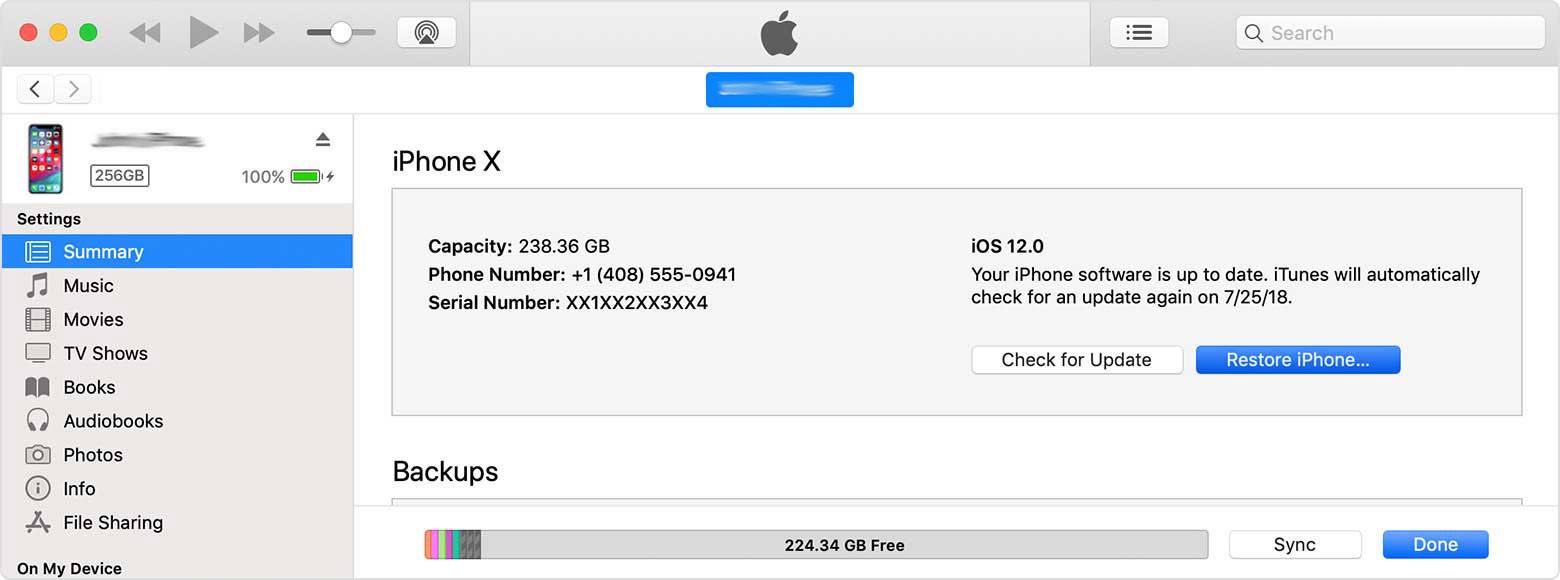
Step 1: Connect your iPhone to your PC using a USB cable, and then launch the iTunes app on your computer.
Step 2: Click the Devices button, and then click the name of your iPhone.
Step 3: Click Restore, and then follow the onscreen instructions to complete reinstalling the iOS.
Fix 3: Do a DFU Restore
Device Firmware Upgrade (DFU) is a mechanism to upgrade the firmware of a USB device with an improved version provided by the manufacturer, which can fix firmware bugs to a certain extent. Therefore, it is also a way worth trying to fix the “iPhone stuck on Apple logo” error. Here we take iPhone 14 for example.
Note: iPhone display should remain black without any Apple logo or other icons during this process.
Step 1. Connect your iPhone to your computer, and then open iTunes.
Step 2. Press and quickly release the Volume Up button.
Step 3. Press and quickly release the Volume Down button.
Step 4. Press and hold the Side button for 10 seconds.
Step 5. Keep holding the Side button and then press the Volume Down button for 5 seconds.
Step 6. Release the Side button but keep pressing the Volume Down button for 10 more seconds.
Step 7. Follow the prompts on your computer to finish the whole process.
Fix 4: Perform a Factory Restore
Factory resetting, in general, is the most effective method to fix the white Apple screen of death issue. But this method will erase all of the data off your iPhone. You can follow the steps below to fix the white screen problem.
1. Connect your iPhone USB Cable to a Dock Connector (do not connect to your computer now).
2. Press the Home button and connect the other end of the USB cable to your PC.
3. Then, iTunes will automatically start and iPhone can be kept in recovery mode.
Now, you can easily boot your iPhone into recovery mode and your iPhone will be restored in a few minutes.
How to Avoid an iPhone Stuck on Apple Logo Issue
Although you have a way to fix iPhone stuck on Apple logo and recover data from white Apple iPhone/iPad/iPod Touch, you had better pay attention to some details to avoid getting an iPhone white Apple screen of death.
1. Take care of your iOS device.
2. Use a protective case with extended edges to prevent direct contact of the iPhone with the surface that it may fall on.
3. Do not use your device for a long time since extra stress on the battery and other hardware resources of the iOS device may cause the iPhone stuck on Apple logo.
4. Shut down your iPhone once a month and then turn it on after several seconds. If your iPhone keeps running for quite a long period, the chances of the iPhone being stuck on Apple logo will increase.
5. Update your iOS devices to the latest iOS version to prevent the iPhone White Screen of Death.
6. Think twice before jailbreaking. Although jailbreaking iPhone or iPad will give you the ability to add non-Apple free applications and functions onto the device, it may cause your iPhone stuck into the Apple logo. Even if you need to jailbreak it, please back up all desired data in advance.
Conclusion
In a word, this post not only shows you how to fix an iPhone stuck on Apple logo issue but also explains how to recover data from an iPhone/iPad/iPod touch with a white Apple screen of death.
Should you have any questions, please leave a message in the following comment zone. We will get back to you soon.
iPhone Stuck on Apple Logo FAQ
If your iPhone is stuck on white the Apple logo screen of death, you cannot power on your iPhone. In other words, your iPhone has a problem starting up. You can fix iPhone stuck on Apple logo by hard reset.
- Force restarting it
- Reinstall iOS.
- Do a DFU restore.
- Restore iPhone to factory settings.
- Recover lost files.
- Connect the iPhone USB Cable to a Dock Connector.
- Press the Home button and connect the other end of the USB cable to your PC.
- iTunes will automatically start.
- Boot your iPhone into recovery mode and your iPhone will be restored in a few minutes.
- Jailbreak
- iOS update
- Corrupted Files From iCloud or iTunes Backup
- Hardware
About The Author

Position: Columnist
Shirley holds a bachelor’s degree in English and has been an editor at the MiniTool Team for many years. She specializes in IT-related content, with a focus on data recovery, file backup, disk management, and other technical topics. She is committed to delivering clear, accurate, and practical solutions to help users resolve common computer issues.
User Comments :