
When your computer has a problem, you can enter Safe Mode or perform a Clean Boot to resolve the issue. But which should you use: clean boot or safe mode?
Now, let’s look at the differences between clean boot and safe mode and how to operate them.
What Are Clean Boot and Safe Mode?
Clean boot and safe mode are both diagnostic environments that troubleshoot Windows problems by minimizing active processes.
What Is Safe Mode?
Safe Mode is a special diagnostic mode in Windows designed to help you fix problems related to corrupted hardware drivers or the operating system.
When a computer boots into Safe Mode, Windows loads only the minimum necessary drivers, services, and system components to start the operating system and display a functional desktop.
It removes almost all functionality, including unnecessary Microsoft services, high-resolution graphics drivers, and sound.
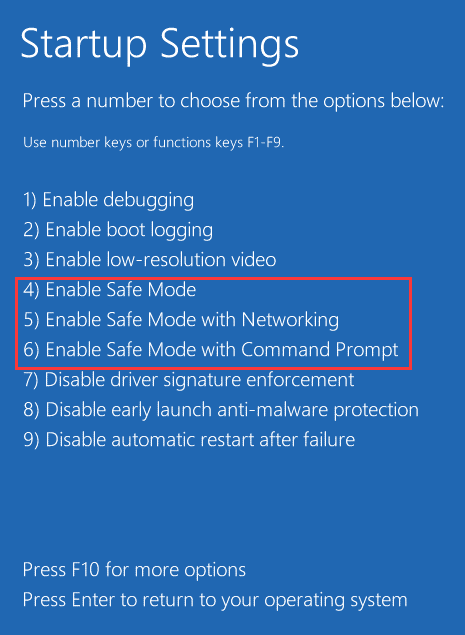
In standard Safe Mode, the system uses basic generic display drivers, resulting in a lower screen resolution. Audio, printer, and advanced peripheral drivers are disabled, and network connectivity is unavailable unless “Safe Mode with Networking” is selected.
The third mode is “Safe Mode with Command Prompt,” which replaces the graphical desktop with a command-line interface for advanced text-based troubleshooting.
The primary goal of Safe Mode is not to identify minor software conflicts, but to restore essential system functionality for emergency repairs.
In Safe Mode, you can uninstall or roll back problematic drivers that are causing the Blue Screen of Death (BSOD), run built-in repair utilities (such as SFC and DISM) to repair corrupted system files, and perform a system restore to return to a previous stable state.
How to enter Safe Mode on Windows 10/11 via Settings? The steps are as follows:
Step 1. Enter Windows RE.
- In Windows 10, go to Settings > Update & Security > Recovery, click Restart now under Advanced startup.
- In Windows 11, go to Settings > System > Recovery, click Restart now next to Advanced startup.
Step 2. Then click Troubleshoot > Advanced options > Startup Settings > Restart.
Step 3. You can see three options to enter Safe Mode. Just press F4, F5, and F6 based on your needs.
What Is Clean Boot?
Clean Boot is another diagnostic mode that disables all startup programs and third-party software to help you troubleshoot various errors.
A Clean Boot does not disable any Windows processes or services. It only targets applications or programs that you have installed.
Clean Boot is a user-configurable troubleshooting state that disables all non-Microsoft startup programs and services, loading only the necessary Windows components.
This means the screen will maintain its normal resolution, full network connectivity, audio, peripheral support, and all native Windows features. But interference from third-party tools will be eliminated.
Performing a clean boot is especially useful for identifying background applications or services that are causing the problem.
How to start Windows in Clean Boot mode? Here is the guide:
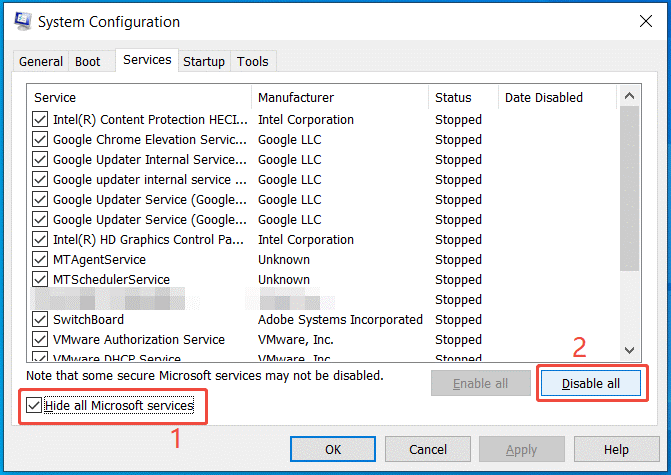
Step 1. Type system configuration in the search bar and choose the best match to open System Configuration.
Step 2. Disable non-Microsoft services.
- Go to the Services tab.
- Check Hide all Microsoft services.
- Click Disable all.
Step 3. Disable startup programs.
- Switch to the Startup tab.
- Click Open Task Manager.
- Choose each enabled startup item and click Disable.
- Close Task Manager.
Step 4. Return to the System Configuration window and click Apply > OK. Then click Restart.
Clean Boot VS Safe Mode: Features
While both are diagnostic modes, they differ in their purpose and other aspects. The following table compares Safe Mode vs Clean Boot in detail:
| Feature | Safe Mode | Clean Boot |
| Purpose | Troubleshoot problems with core Windows components or drivers. | Resolves software conflicts from third-party applications and services. |
| Loaded Components | Only the most essential, generic drivers and services. | All standard Microsoft services and drivers. |
| Appearance | It provides a basic user interface at a low resolution and displays “Safe Mode” in the corner of the screen. | It looks like a normal Windows environment, except with fewer programs running in the background. |
| Control | Automatic (Windows decides what runs) | Manual (You choose services to disable) |
| Access | Accessible during startup, even if Windows won’t load. | Manually configured using msconfig when in a normal startup. |
Clean Boot VS Safe Mode: When to Use
When to use Safe Mode or Clean Boot? The choice between the two depends on where the failure occurred and which component is faulty.
If the problem feels like a Windows or hardware problem, use Safe Mode. If it feels like a third-party app problem, use Clean Boot mode.
Below are specific scenarios for choosing which mode to use.
When to Use Safe Mode
When Windows experiences boot-level or core system failures, Safe Mode should be the preferred troubleshooting step. Common scenarios include:
- Windows fails to start: You can’t get to your desktop or the login screen.
- Blue Screen of Death (BSOD): The computer crashes immediately after loading, displaying a blue error screen.
- Driver failure: After a driver update, the screen flickers or hardware (such as the keyboard) stops working.
- Uninstallation problems: A program refuses to uninstall because its files are “currently in use” by a background process.
When to Use Clean Boot
When Windows boots successfully but experiences software-related instability, Clean Boot is the best option. Key scenarios include:
- Specific software crashes: Games or office applications unexpectedly close, but Windows itself continues to run.
- Slow startup/poor performance: The computer runs slowly after logging in, and you want to see which background application (such as Steam or Spotify) is using too many resources.
- Error messages on desktop: You get a message like “Application Error” after the desktop loads.
- Update failures: Windows updates or software installers repeatedly fail due to conflicts with your antivirus software or firewall.
When troubleshooting with Clean Boot, use the half-split method to identify the problematic service or startup app.
Re-enable half of the disabled items, restart, and test for the issue. Repeat this process until you isolate the single conflicting program. Once the culprit is found, users can update, reinstall, or uninstall the software to resolve the conflict.
Bottom Line
Windows clean boot vs safe mode: what’s the difference? They are Windows troubleshooting tools, but they differ in some aspects. By reading this guide, you may know the difference between them.
User Comments :