
Microsoft allows users to enable dark mode in Windows 10 easily whenever they want to turn down the lights. What about Windows 11? Does Windows 11 have dark mode? How to enable dark mode on Windows 11? Or how to disable the dark mode when you don’t need it anymore? All these questions will be answered here.
Dark Mode on Windows 11
As you know, Windows 10 and many apps offer a dark mode to help users change the background color to black directly. In the past few years, there are more and more programs, tools, and systems which add the dark mode to its user interface. For instance, the latest Microsoft Windows operating system (Windows 11) also includes the dark mode. How to enable dark mode on Windows 11? What if you want to turn off the dark mode sometimes? The detailed methods and steps to enable/disable dark mode Windows 11 will be given later on this page.
Mighty data recovery tool for Windows:
MiniTool Power Data Recovery TrialClick to Download100%Clean & Safe
What Is a Dark Mode
In short, dark mode is a mode used frequently in apps, browsers, systems, and mobile devices to help users change the background color to black so as to turn down the lights. Dark mode may also be known as dark theme, black mode, night mode, etc.
Why do you need to turn down the lights? There are the common benefits of using dark mode Windows 11:
- Prolong the battery life of your computer.
- Protect your eyes from bright light in dark environments.
- The black appearance looks cool and amazing.
Well, you may also need to avoid dark mode sometimes. For instance, you’re using a device in direct sunlight.
How to Enable Dark Mode on Windows 11
Here is a video guide:
Way 1. Enable Dark Color Mode
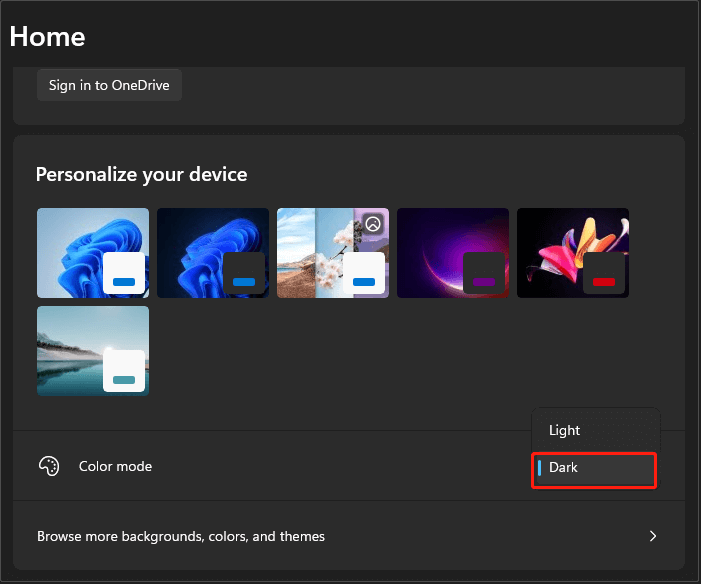
You can turn on dark mode from two places in the Settings app. One is from the main Home page for quick access. The other is from the Personalization settings, where you can also change other color options.
From the Home page:
Step 1. Press Windows + I to open Settings.
Step 2. On the Home page, scroll down to find the Color mode option. Then select the Dark option from the drop-down menu.
From Personalization settings:
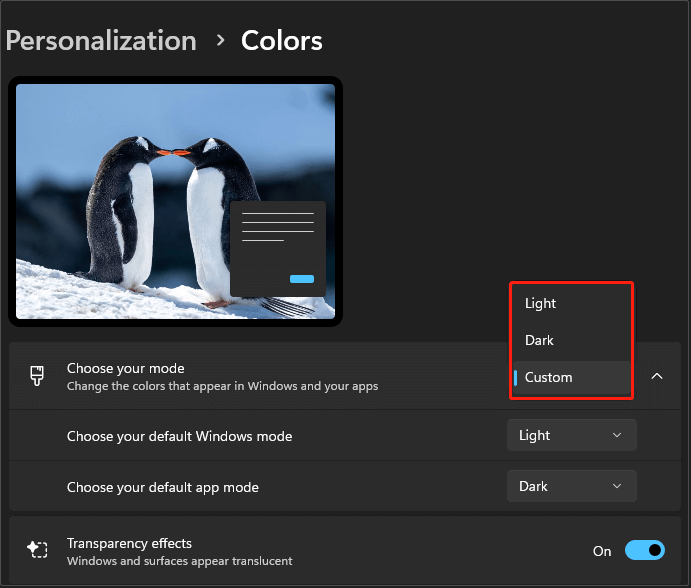
Alternatively, you can turn on dark mode from the Personalization page.
This way is similar to using the Home page, but it also gives you a Custom option. With this option, you can set dark mode for apps and light mode for Windows, or vice versa.
Here is how to enable dark mode from Personalization:
Step 1. Press Windows + I to open Settings.
Step 2. Go to Personalization.
Step 3. Click Colors.
Step 4. Now you can select Dark in the Choose your mode section to enable dark mode.
If you choose Custom, two additional options appear, and you can set them up separately:
- Choose your default Windows mode
- Choose your default app mode
Way 2. Set Contrast Themes
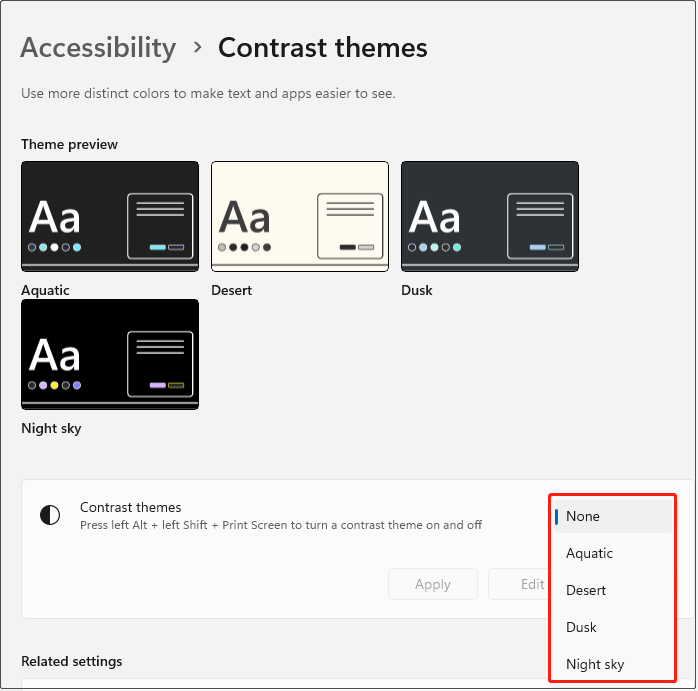
If you want a more contrasty interface, you can use a contrast theme. This is another way to enable dark mode in Windows 11. Contrast themes can make text and interface elements easier to see.
Windows 11 includes several built-in dark contrast options, such as:
- Aquatic: a dark theme with blue highlights.
- Desert: a dark theme with yellowish accents.
- Dusk: a dark theme with purple tones.
- Night sky: a dark theme with strong black and white contrast.
Here is how to set up contrast themes:
Step 1. In Settings, go to Accessibility.
Step 2. Select the Contrast themes option.
Step 3. Now you can select one of the options in the drop-down menu next to Contrast themes, and click Apply.
How to Disable Dark Mode on Windows 11
You can disable dark mode from the Home or Personalization page in Settings.
From the Home page:
Step 1. Open Settings.
Step 2. On the Home page, select the Light option in the Color mode section.
From Personalization settings:
Step 1. Open Settings.
Step 2. Go to Personalization > Colors.
Step 3. In the Choose your mode section, select Light.
Bottom Line
To sum up, you can enable and disable dark mode from Windows 11 Settings. You can do this either by changing the color mode or by using contrast themes.
User Comments :