
If your computer experiences internet keeps disconnecting issue, check what causes this issue and how to fix internet keeps disconnecting on Windows 10. For other possible problems on your Windows computer, MiniTool software provides free data recovery, hard drive partition management, system backup and restore and many other solutions for you.
If your internet keeps disconnecting and connecting, you can check the possible solutions below to help you fix the internet keeps disconnecting issue on Windows 10.
Possible Causes of Internet Keeps Disconnecting Windows 10
The internet keeps disconnecting problem might be caused by hardware or software issues.
- Loss cable, outdated/broken router/modem model.
- The WiFi signal is not sufficient.
- Your network is overloaded.
- IP address conflict.
- Corrupt Windows system files.
- Outdated network adapter drivers.

Fix Internet Keeps Disconnecting Windows 10 with 5 Tips
You can try the following tips to fix internet keeps disconnecting Windows 10.
Tip 1. Restart Modem and Router
You can turn off your modem/router, pull out the network cable and wait for a few minutes. Then you can plug in the cable and turn on your modem/router again.
Tip 2. Move Computer Closer to WiFi Router
You can bring your computer closer to the WiFi router or hotspot to see if the internet keeps disconnecting problem still exists.

Tip 3. Update Network Adapter Driver and WiFi Router Firmware
To update your WiFi router firmware, you can go to the router manufacturer website to download the latest firmware.
To update network adapter driver, you can follow the instructions below.
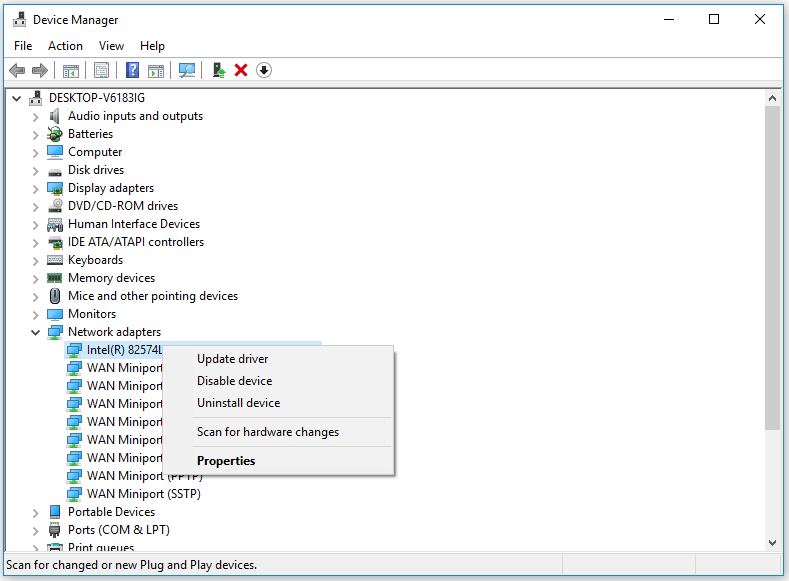
- You can press Windows + X at the same time and select Device Manager to open Device Manager on Windows 10.
- Expand Network adapters category, and right-click your network adapter. You can select Update driver to update the network adapter driver.
- You can also select Uninstall device to uninstall the network adapter, then restart your computer to let Windows reinstall the network adapter driver. This can sometimes fix the corrupted device driver.

Tip 4. Flush DNS
You can also try to flush DNS to see if it can fix internet keeps disconnecting problem on Windows 10.
You can press Windows + R to open Windows Run dialog, type cmd, and press Ctrl + Shift + Enter to open elevated Command Prompt in your Windows 10 computer.
Then you can type the following ipconfig commands. You should hit Enter button to execute each command.
- ipconfig /flushdns
- ipconfig /release
- ipconfig /renew
Tip 5. Repair Possible Corrupted System Files
Internet/WiFi keeps disconnecting problem may be also caused by corrupted system files in your Windows system. The corrupted system files may be caused by malware or virus.
You can firstly run an anti-virus scan with Windows Defender or your installed third-party antivirus software.
After that, you can further use Windows built-in SFC (System File Checker) to detect and repair possible corrupted system files for you.
To repair Windows 10 corrupted system files with SFC, you still need to access Windows Command Prompt at first. Press Windows + R, type cmd, and press Ctrl + Shift + Enter to open Command Prompt.
Then you can type the command sfc /scannow in Command Prompt, and hit Enter to let Windows System File Checker utility find and repair corrupted system files for you.
Tip 6. Contact Internet Provider
If the internet connection is still unstable, you may contact your internet provider for help. If your modem, router or network card is defective, you can change a new modem, router or network card.

User Comments :