
After installing Windows 10 KB5009543 or Windows 11 KB5009566 on your computer, you may discover that your VPN connection is broken. Microsoft has addressed this issue and given a fix to this issue. Now, you can find more details from this MiniTool post.
Microsoft Addresses Windows Update VPN Problem
Windows 10 KB5009543 is the first Patch Tuesday update for Windows 10 21H2, 21H1, and 20H2 in the year 2022. Windows 11 KB5009566 is the first Patch Tuesday update for Windows 11. These two Windows updates contain some bug fixes and improvements. But at the same time, some users reported that these two updates break their VPN connection. This is a VPN bug.

When you try to connect to a VPN on your computer, the attempt may fail with an error message as follows:
Can’t connect to VPN. The L2TP connection attempt failed because the security layer encountered a processing error during initial negotiations with the remote computer.
This issue mainly affects the built-in Windows VPN client when connecting to Ubiquiti Client-to-Site VPN, SonicWall, Cisco Meraki, and WatchGuard Firewalls.
Microsoft has noticed this VPN problem and released a fix to this issue on January 17, 2022. “Microsoft is releasing Out-of-band (OOB) updates today, January 18, 2022, for some versions of Windows.” Microsoft has reported the fix like this. The company also said: “This update addresses issues related to VPN connectivity, Windows Server Domain Controllers restarting, Virtual Machines start failures, and ReFS-formatted removable media failing to mount.”
The Fix to Windows Update VPN Problem
Previously, there was no official fix from Microsoft. When Windows update breaks VPN connections, many users choose to uninstall the Windows update they just installed. Now, Microsoft releases some OOB updates to fix the VPN connection issue.
You can get all of these OOB updates from Microsoft Update Catalog. Besides, some of them are released as optional updates in Windows Update. Since they are optional updates, your system will not automatically get them. You need to go to Windows Update in the Settings app to manually check for updates.
The following two updates are not available in Windows Update. You need to download them from Microsoft Update Catalog:

The following updates are available in both Windows Update and Microsoft Update Catalog:
- Windows 11, version 21H1 (original release): KB5010795
- Windows Server 2022: KB5010796
- Windows 10, version 21H2: KB5010793
- Windows 10, version 21H1: KB5010793
- Windows 10, version 20H2, Windows Server, version 20H2: KB5010793
- Windows 10, version 20H1, Windows Server, version 20H1: KB5010793
- Windows 10, version 1909, Windows Server, version 1909: KB5010792
- Windows Server 2019: KB5010791 (this update is released on 1/18/22)
- Windows 10, version 1607, Windows Server 2016: KB5010790
- Windows 10, version 1507: KB5010789
- Windows 7 SP1: KB5010798
- Windows Server 2008 SP2: KB5010799
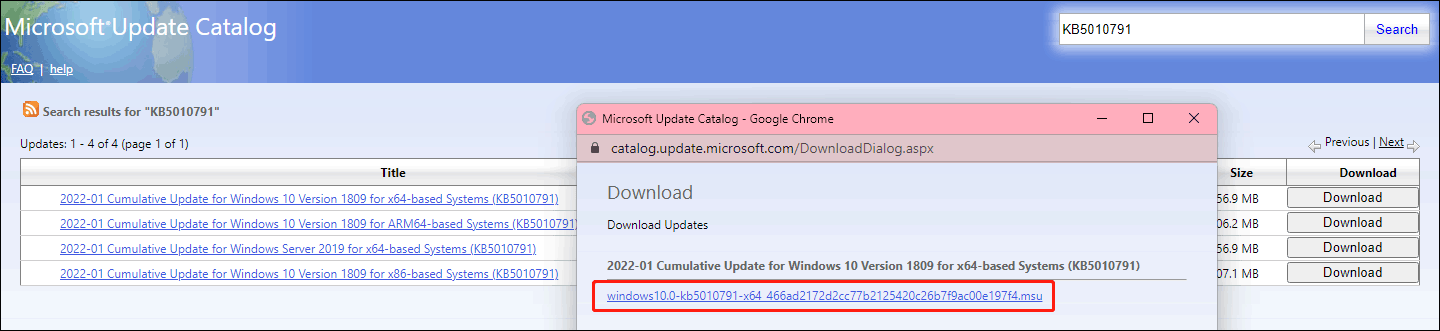
After going to the main page of Microsoft Update Catalog, you can type your needed update to the search box and click Search or press Enter to enter the update download page.

You will find multiple versions. So, you need to select a proper version according to the Windows version you are using. Then, you can click the corresponding download button to call out the download page.
If you are using Microsoft Edge, you can click the link to directly download the update on your computer. If you are using another web browser, you need to copy and paste the link to the address bar for downloading.
After installing the corresponding update, you should be able to connect to your VPN successfully.
Recommendation
You should be careful if you decide to install a Windows update on your PC because an update may delete your files unexpectedly. If this data loss issue happens to you, you can use MiniTool Power Data Recovery, a professional data recovery software, to get them back.
MiniTool Power Data Recovery TrialClick to Download100%Clean & Safe

Bottom Line
If you can’t use your VPN connection, you can check if you have installed Windows 10 KB5009543 or Windows 11 KB9566 on your computer. If yes, the update should be the cause. You can try the updates mentioned in this post to fix the issue.
About The Author

Position: Columnist
Stella has been working in MiniTool Software as an English Editor for more than 8 years. Her articles mainly cover the fields of data recovery including storage media data recovery, phone data recovery, and photo recovery, videos download, partition management, and video & audio format conversions.
User Comments :