
Free Way to Recover Deleted/Lost Files from Windows 10/11
Here we introduce a free method to help you easily recover deleted or lost files from Windows 10/11 computers or other storage devices.
MiniTool Power Data Recovery is a professional data recovery software designed for Windows.
It can restore any deleted or lost data, such as files, images, videos, emails, and more, from a Windows PC or laptop, USB, SD, external hard drive, SSD, and other devices.
This data recovery application helps you tackle several situations of data loss. It can recover permanently deleted files, retrieve data from a corrupted or formatted hard drive, and more.
It is a free and safe program that boasts a very user-friendly interface.
Download and install MiniTool Power Data Recovery on your Windows computer, and see below for instructions on how to restore deleted or lost data.
MiniTool Power Data Recovery FreeClick to Download100%Clean & Safe
- Launch MiniTool Power Data Recovery to open its main interface.
- In the primary UI, choose the drive you wish to scan and click on Scan. If you’re unsure which drive to select, you can click the Devices tab to choose the entire disk or device and then click Scan.
- Allow the software to complete the scanning process. Once finished, prereview the scan results to see the files. Locate and select the files you want, then click the Save button to designate a new location for the recovered files.
If you want to check all installed applications on your Windows 10/11 computer, you can use the Shell:AppsFolder command. Check how to use Shell:AppsFolder to view the Applications folder in File Explorer below.
How to Use Shell:AppsFolder to View All Apps on Windows 10/11
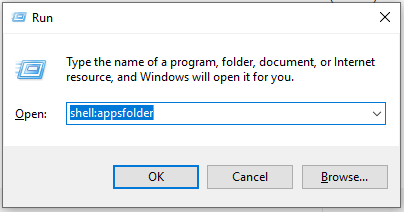
You can press Windows + R to open the Windows Run dialog, type shell:appsfolder in Run and press Enter to quickly open the Applications folder on Windows 10/11.
The Applications folder includes all traditional desktop applications and universal Windows apps. If you want, you can right-click on any app in the Applications folder and select Create Shortcut to create a desktop shortcut for the app. If you can’t create a shortcut for an app from the Start menu, you can try this way to easily create a shortcut.
How to Create a Shell:AppsFolder Shortcut on Windows 10/11
You can create a Shell:AppsFolder shortcut to easily open the Applications folder to view all apps on your Windows 10/11 computer.
- You can right-click on the Desktop and select New -> Shortcut.
- In the Create Shortcut window, type Explorer Shell:AppsFolder and click Next.
- Type a name for the shortcut like Apps or Applications and click Finish to create a shortcut for the Windows Applications folder.
- Then you can double-click on the Shell:AppsFolder shortcut to open the Applications folder to view all apps in your system.
User Comments :