
It is widely admitted that Windows Sysinternals is a great and useful tool in your system. Some people may have heard of it. So, what is the Windows Sysinternals used for? This article on MiniTool Website will tell you what the Sysinternals can do for you and the way to download it.
Windows Sysinternals Overview
What is Windows Sysinternals?
Sysinternals is used to provide free tools for Winternals, a company that was primarily focused on system restoration and data protection, to resolve many of the problems that engineers face on the job. Therefore, those tools that were put together are called Sysinternals and are allowed for free download, including the source code for some of them.
Since 2006, Microsoft has directly purchased and acquired the program and kept it free and available for download as either a complete package or individually.
To be simply clarified, Windows Sysinternals is designed to provide technical resources and utilities to manage, diagnose, troubleshoot, and monitor your Windows system, which has been well received by the IT professional community.
Sysinternals Suite includes a number of free system tools, including Process Explorer, FileMon, RegMon, etc. With a great understanding of the Windows system and these tools, the daily diagnosis and troubleshooting ability will be greatly improved.
Sysinternals utilities can be downloaded as an all-in-one package called Sysinternals Suite, or individually from the Sysinternals website, and now Sysinternals Suite is available in the Microsoft Store and Windows Package Manager (Winget).
In the next part, you can learn some methods to download Sysinternals.
Related article: Top 5 Windows Task Manager Alternatives [Pick One Now]
Windows Sysinternals Download
Sysinternals Download from Microsoft
1. Microsoft Website
you can go to the Sysinternals Utilities Index page to download Sysinternals Suite or download individual tools as you need. Here is the way.
Step 1: Open your browser and go to the Sysinternals Utilities Index page where you can see all utilities you need.
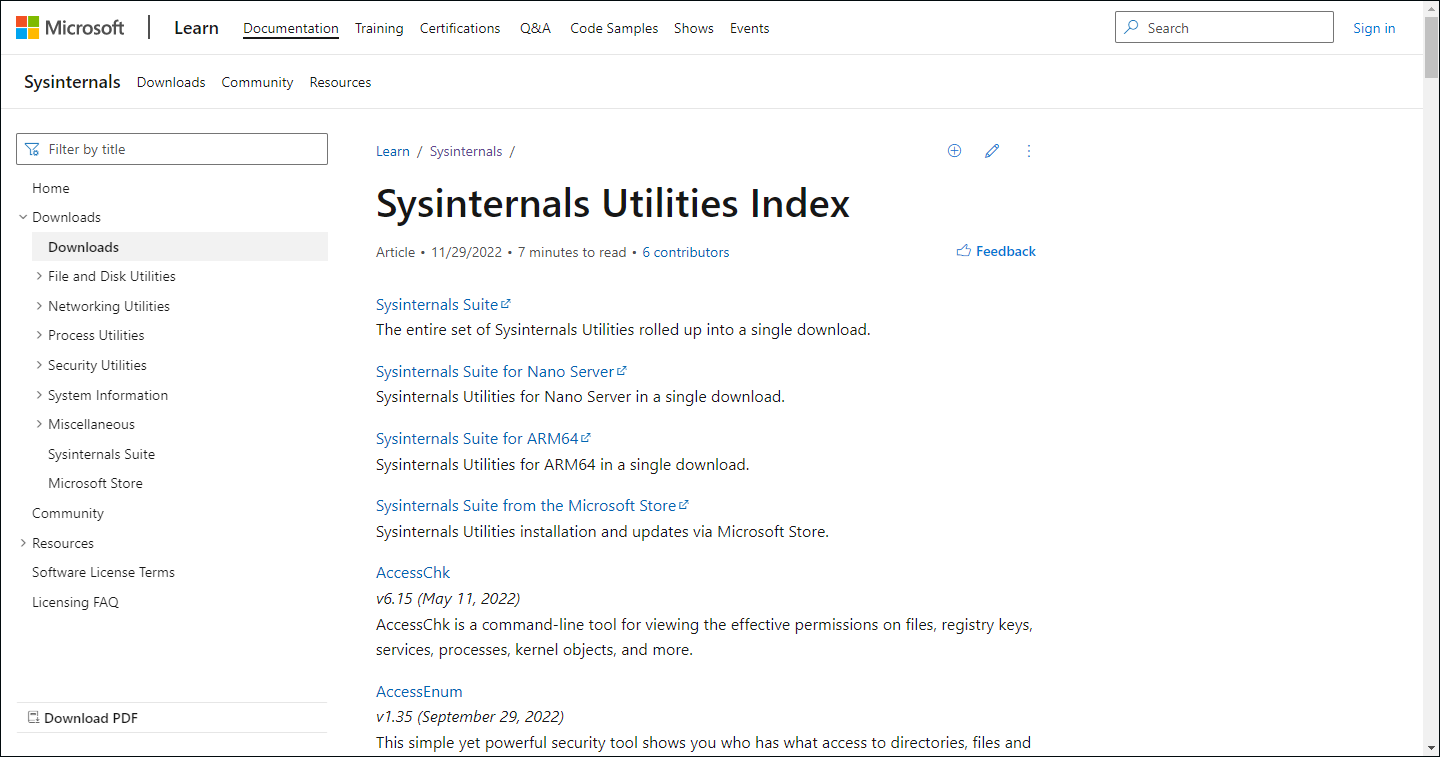
Step 2: Choose the suite you need and it will start downloading.
Step 3: Once it finishes, right-click on the zip folder in your Downloads folder in File Explorer and choose Extract All.
Step 4: In the next window, choose your destination folder and click Extract. And then you are allowed to use these tools.
Note: Some tools require you to run them as an administrator before use.

2. Microsoft Store
You can directly go to the Microsoft Store to download the Sysinternals Suite.
Step 1: Open your Microsoft Store on your computer and search for Sysinternals.
Step 2: Then open Sysinternals Suite and click the Get button.

The approximate size of Sysinternals Suite is around 63.5 MB and you need to wait for a moment until the download finishes.

Sysinternals Download from Sysinternals Live
Another method to download Sysinternals is via Sysinternals Live. This is a service provided by Microsoft that enables you to execute Sysinternals tools directly by entering the tool’s Sysinternals Live path into the Run dialog.
Step 1: Open your browser and go to the Sysinternals Live page where you can view the entire Microsoft Sysinternals Live tools directory.
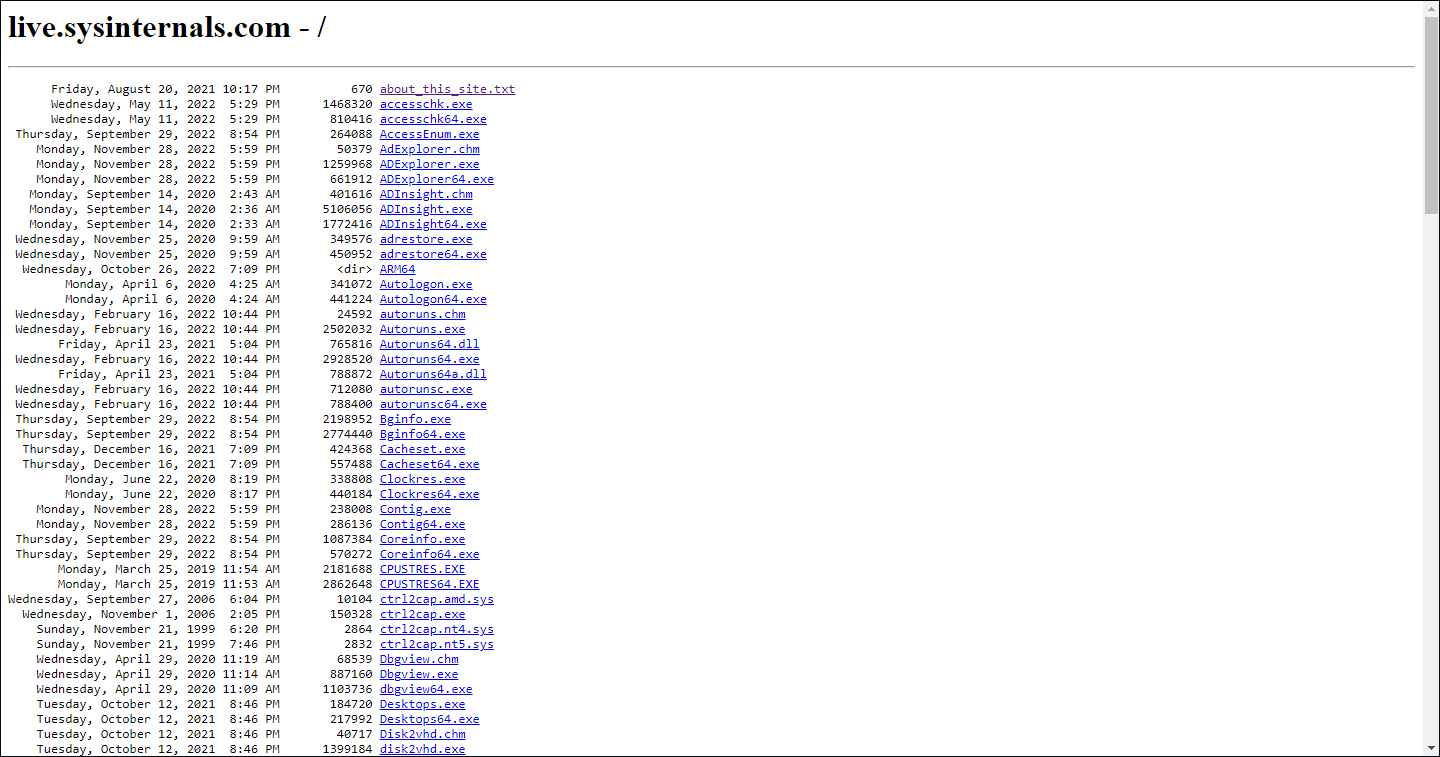
Note: If you are not familiar with Microsoft Windows Sysinternals, it is highly recommended that you visit the Sysinternals introduction website where all tools will be introduced.
Step 2: Choose the tool you need and download it.
Step 3: After the download, open your Run dialog box by pressing the Win + R keys and input the location: \\live.sysinternals.com\tools\<toolname> to enter.
For example, if you downloaded an accesschk.exe file, just input the location as \\live.sysinternals.com\tools\accesschk.exe to enter.
Step 4: Then a security warning will pop out and you need to click Run to continue the process.
Bottom Line:
Windows Sysinternals can give you a lot more control over your PC and this guide can help you better use this tool. Hope this article can help resolve your question.
User Comments :