
External hard drives have become an important extension of storage capacity. They are commonly used to store work documents, family photos, game libraries, and important backups.
However, they are not indefinitely durable. A frequently asked question is: How long do external hard drives last? The answer is not straightforward, as it depends on technical factors, brand quality, usage patterns, and environmental conditions.
This article will examine the lifespan of external hard drives, the factors affecting their lifespan, and measures to extend their lifespan.
How Long Do External Hard Drives Last?
Generally, most external hard drives are designed for a lifespan of 3 to 5 years. However, their lifespan varies greatly, primarily due to various factors, including the hard drive’s internal technology (HDD vs SSD), manufacturing quality, usage habits, environmental conditions, and maintenance.
#1. Hard Drive Technology
The first and most significant factor determining an external hard drive’s lifespan is its technology. Modern external drives primarily come in two varieties: Hard Disk Drives (HDDs) and Solid-State Drives (SSDs).
These two technologies operate on fundamentally different principles. It can lead to distinct differences in durability, failure modes, and overall longevity.
- HDDs have moving mechanical parts (spinning platters and read/write heads). They are subject to physical wear and tear, especially if moved or bumped during operation. This makes them more fragile and typically results in a shorter lifespan (3-5 years in regular use).
- SSDs use NAND flash memory and have no moving parts, making them more durable and less susceptible to physical shock. Their lifespan (10 years or more) is measured by the two terminologies (TBW and DWPD) before the flash cells wear out.
#2. Brand and Quality
Not all external hard drives are of the same quality. The build quality varies significantly between brands and price points.
Reputable manufacturers like Western Digital (WD), Seagate, Toshiba, and Samsung invest in higher-quality components, stricter quality control, and superior design, resulting in more durable hard drives.
Inexpensive, non-branded external hard drives often cut corners on components. While their low price may seem attractive, they typically have shorter lifespans and higher failure rates.
#3. Usage Patterns
How you use your external hard drive directly affects its lifespan. Two key factors are particularly prominent: usage frequency and intensity.
- Usage frequency: Hard drives that are used daily wear out faster than those used occasionally. Constant read/write operations generate heat and stress components.
- Usage intensity: High-load work puts more stress on a hard drive than light use.
Another crucial usage factor is properly ejecting the external hard drive. Removing the hard drive while transferring data or writing files can lead to data corruption and physical damage.
#4. Environmental Conditions
The external environment plays a crucial role.
- High temperature: Overheating is a major enemy of electronic components. Hard drives operating at temperatures above 45°C will have their lifespan significantly shortened.
- Physical shock: External hard drives are portable and more susceptible to drops and physical damage, which can lead to drive failure.
- Dust and humidity: The electronic components on the circuit board of an external hard drive are exposed. Therefore, high humidity can cause corrosion, and dust can obstruct ventilation.
#5. Power Supply Stability
External hard drives rely on USB ports or external power adapters for power. Unstable power supplies can significantly shorten their lifespan.
For USB-powered hard drives, the quality of the USB port’s power output is crucial. Some older or low-quality USB ports provide unstable voltage, which can cause hard drives to malfunction during data transfer. This not only leads to data corruption but also puts stress on the hard drive’s internal circuitry over time.
For hard drives using external power adapters, power surges or outages are major risks. A sudden voltage spike can burn out the hard drive’s controller board, while an unexpected power outage during a write operation can damage the hard drive platters or the storage cells of an SSD.
How to Prolong External Hard Drives Lifespan?
While you can’t make an external hard drive last forever, you can extend its lifespan through the following maintenance measures:
Tip 1. Handle with Care
- Handle with care: Avoid dropping, shaking, or bumping the hard drive, especially while it is running.
- Stable surface: Always place it on a stable, flat surface to prevent internal damage.
- Moisture protection: Store in a dust-free environment, away from extreme temperatures, humidity, and strong magnetic fields.
- Static electricity: Use an anti-static bag to prevent electrostatic discharge. Avoid contact with synthetic materials during handling.
Tip 2. Usage and Power Management
- Power off: When not in use, disconnect and unplug the power cord to reduce runtime and wear.
- Safe eject: Before removing the hardware, always use the “Safely Remove Hardware” or “Eject” option to eject the external hard drive, preventing data corruption.
- Power protection: Use a surge protector to protect against voltage spikes.
- Keep cool: Ensure your computer is well-ventilated, as overheating can damage components.
- Avoid intensive tasks: Use the external hard drive for file storage and backup. Avoid running applications or games directly from the external hard drive.
Tip 3. Maintain Hard Drive Health
#1. Run Regular Disk Checks
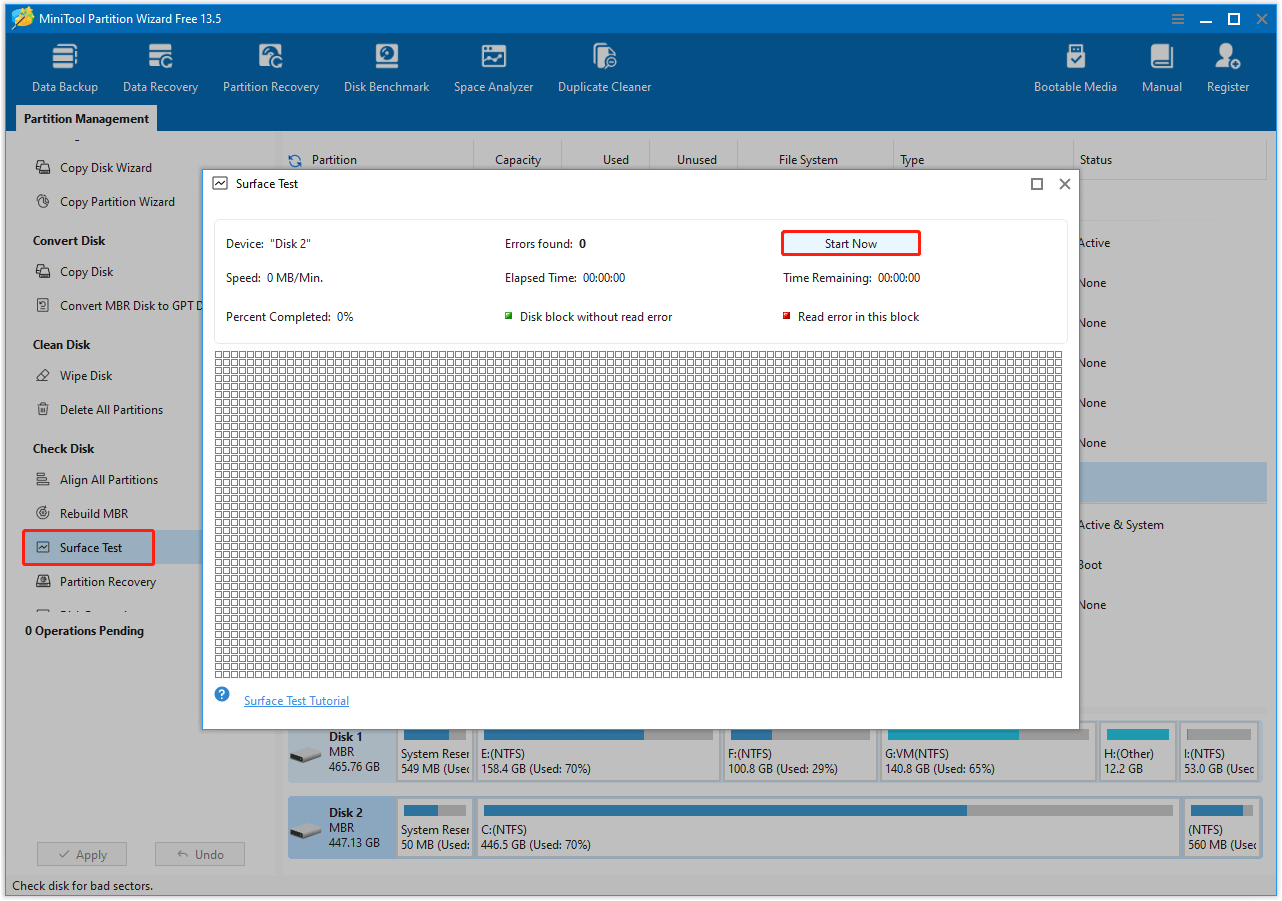
To get a clear overview of the health of your external hard drive, you can try MiniTool Partition Wizard. Its Surface Test function scans the disk and marks bad sectors in red.
MiniTool Partition Wizard FreeClick to Download100%Clean & Safe
- Connect the external hard drive to your computer via a SATA/NVMe to USB adapter.
- On its main interface, right-click the external hard drive and select Surface Test.
- In the pop-up window, click the Start Now button.
- The bad sectors will be marked as red blocks. If there are too many bad sectors, you need to replace the hard drive.
#2. Optimize External Hard Drives
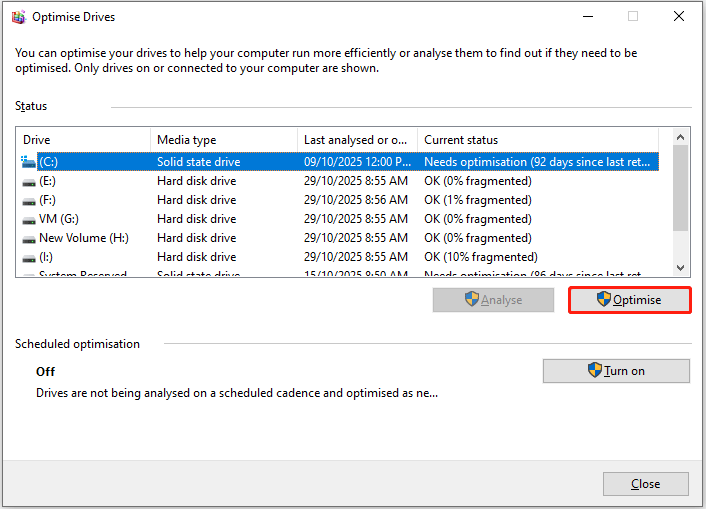
For external hard drives, performing regular defragmentation for HDDs and TRIM for SSDs can improve performance and lifespan. The steps are as follows:
- In File Explorer, right-click the external hard drive and select Properties.
- Go to the Tools tab, click Optimize.
- On the Optimize Drives window, choose the external drive and then click Optimise. For HDD, it performs defragmentation; for SSD, it performs TRIM.
#3. Keep Sufficient Free Space
Avoid completely overloading your external hard drive, as this can put strain on it and impact performance. Aim to leave about 20% of space free.
So, you can delete unnecessary and duplicate files to keep the drive efficient and reduce read/write stress.
Hard drives can fail unexpectedly even after maintenance. Always back up at least one copy of important data, ideally following a 3-2-1 strategy (3 copies of data, stored on 2 different types of media, with 1 copy stored off-site). This strategy protects against drive failure, theft, natural disasters, and other data loss risks.
Signs of External Hard Drive Failure
Recognizing early warning signs can help you back up your data before the drive fails. Look out for these red flags.
- Abnormal noise: For external hard drives, clicking, scraping, or buzzing sounds are warning signs.
- Overheating: Overheating is a common precursor to hard drive failure. If your hard drive feels excessively hot (even after short periods of use), it may indicate poor ventilation or a faulty component.
- Physical damage: Visible damage to the hard drive casing, USB port, or cable (e.g., bent connectors, worn wires) increases the risk of internal damage.
- Performance degradation: A sudden drop in data transfer speeds or slower file access times may indicate component failure or NAND flash memory wear.
- Frequent errors: Error messages such as “Drive not recognized” or “Access denied” usually indicate logical errors or impending hardware failure.
- Bad sectors: If your computer repeatedly reports bad sectors during disk checks, the hard drive is likely failing.
- Data corruption or loss: Missing files, unreadable files, or garbled text are clear signs of hard drive failure.
- Unstable connections: Even with reliable cables and ports, the hard drive frequently disconnects and reconnects on its own.
If you notice any of the above signs, stop using the hard drive immediately and clone the data to another storage device. Continuing to use a faulty hard drive increases the risk of losing all data.
How to clone data from an external hard drive to another drive? Here, I recommend that you try the professional software, MiniTool Partition Wizard.
It can copy all partitions and data from one disk to another. All partition data on the target disk can be used normally.
MiniTool Partition Wizard DemoClick to Download100%Clean & Safe
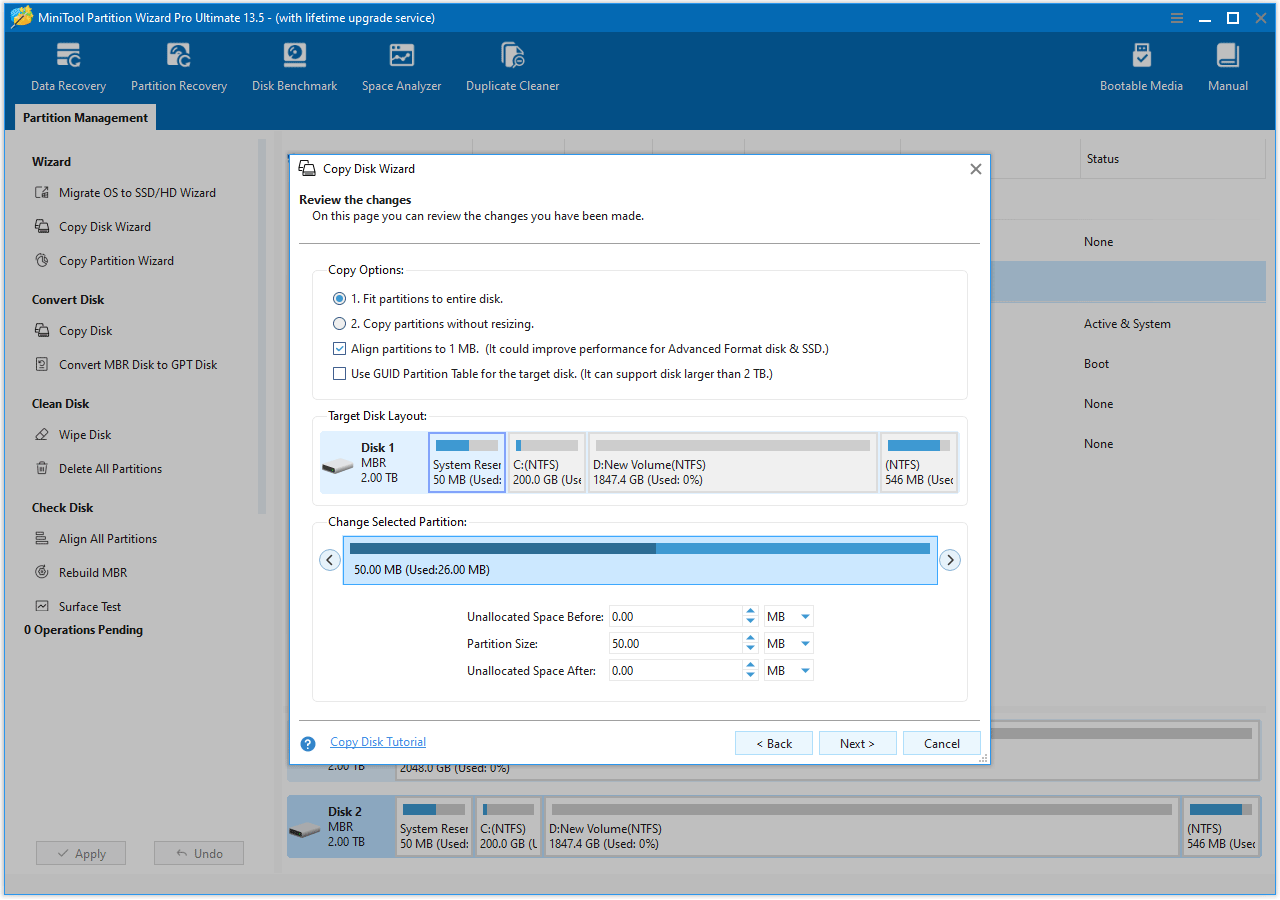
- On the main interface, right-click the external hard drive and select Copy.
- Then select the target disk to copy the source content to and click Next.
- Select whether to fit partitions to the entire disk or copy partitions without resizing, and click Next.
- Read the NOTE information and click Finish.
- Finally, click Apply to start the cloning process.
How Long Do External Hard Drives Last FAQ
An unpowered external SSD can typically retain data for 1 to 3 years. But data degradation can begin in as little as a few months to a year, depending on temperature. While they are durable, SSDs require periodic power to maintain the electrical charge in their NAND cells.
However, they require proper maintenance and regular refresh, as data can deteriorate over time, or the drive may become unreadable.
Bottom Line
External hard drives are essential for expanding storage, but their lifespan is limited. How long does an external hard drive last? The average lifespan of an external hard drive is 3 to 5 years.
However, actual lifespan can be affected by factors such as technology type, manufacturing quality, usage habits, environmental conditions, and maintenance methods.
If you have any questions or suggestions on how to use MiniTool Partition Wizard, do not hesitate to contact us via [email protected]. We’ll reply to you as soon as possible.
User Comments :