
While both refer to portable computing devices, they do have some subtle differences, especially in design philosophy and purpose.
What exactly is the difference between laptop and notebook? The following will explain from several aspects.
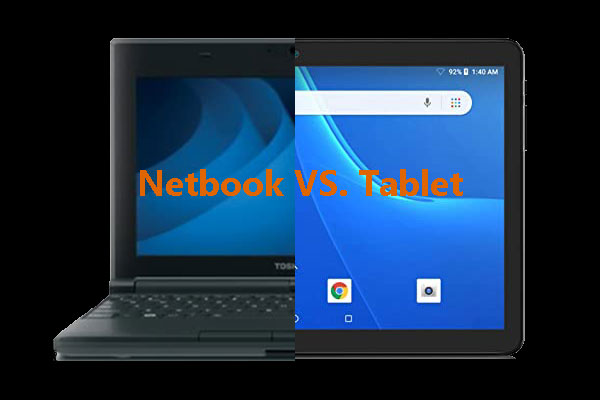
Introduction to Notebook and Laptop
To learn “What’s the difference between a laptop and a notebook,” you need to first know their definitions.
What Is a Notebook?
A notebook is a portable computing device designed with a focus on thinness, lightness, compactness, and portability.
It typically refers to a small (usually 11 to 14 inches) computer with a sleek form factor, designed specifically for portability.
The most prominent feature of a notebook is its slim profile, allowing it to easily fit into a backpack or briefcase for easy carrying.
What Is a Laptop?
A laptop is a portable computing device designed to provide near-desktop computer functionality and performance while maintaining excellent mobility.
It is characterized by its ability to be easily placed on the lap or other surfaces, offering a more flexible way of operation.
Compared to thinner and lighter devices, laptops typically feature larger screens (generally 13 to 17 inches) to provide richer display effects and greater multitasking capabilities.
Notebook VS Laptop: What’s the Difference?
Notebook computer VS laptop: what’s the difference? Many people may wonder about this question.
The following content will explore the difference between laptop and notebook, focusing on their portability, performance, price, and intended use.
Below is a comparison table of the features of laptop and notebook.
| Features | Laptop | Notebook |
| Display size | Larger screen (13-17 inches) | Screens are usually smaller (11-14 inches) |
| Portability | Relatively heavy, convenient for daily use, but not suitable for long-term carrying | Thin and portable, suitable for long-term carrying |
| Operating system | Windows | Windows, ChromeOS |
| Storage capacity | Large storage space, supporting higher-capacity hard drives or solid-state drives | High storage |
| Design and build | Various designs, larger and heavier, often focused on durability | Simple and thin design, focusing on lightness and appearance |
| Connectivity | Multiple ports (USB, HDMI, SD card slot, etc.) | Multiple ports (USB, HDMI) |
| Input method | Physical keyboard and touchpad | Physical keyboard and touchpad |
Here’s a more detailed look at the “laptop” and “notebook” information.
1. Size and Portability
The most significant difference between laptops and notebooks lies in their size. Laptops are typically larger and heavier, with screens generally ranging from 13 to 17 inches and weighing between 1.5 kg and 3 kg.
Notebooks, on the other hand, are designed to be more portable and compact, with screen sizes between 11 and 14 inches and a weight generally between 1 kg and 1.5 kg.
This makes notebooks more portable, making them an ideal choice for frequent travelers or those who need to carry their devices around constantly.
2. Connectivity and Ports
Laptops typically come with more ports, such as USB ports, HDMI ports, and Ethernet ports, making them more suitable for connecting external devices, such as monitors and printers.
Due to the size limitations of notebooks, they have fewer ports, possibly only basic interfaces such as USB-C, a headphone jack, and an SD card slot.
3. Battery Life
Because of their larger size, laptops can house bigger batteries, typically leading to longer battery life.
However, this can vary depending on the specific model and how the device is used. Some notebooks, designed for maximum portability, may offer battery life that even exceeds certain laptop models.
4. Storage
Laptops typically offer more storage and memory options, usually equipped with larger-capacity hard drives or solid-state drives (SSDs). It is suitable for tasks requiring significant storage, such as video editing and design work.
Notebooks generally have smaller storage capacities, but are sufficient for everyday office work and entertainment needs.
5. Performance
Compared to notebooks, laptops generally offer higher performance.
This is because laptops typically come equipped with more powerful Intel Core i7/i9 or AMD Ryzen 7/9 processors, and sometimes a dedicated graphics card.
Notebooks, on the other hand, generally use Intel Core i3/i5 or AMD Ryzen 3/5 series processors. They primarily rely on integrated graphics, which are not suitable for high-performance graphics processing.
Notebook VS Laptop: Which One Should You Choose?
When choosing between a Notebook and a Laptop, consider the following key factors:
- Portability: If you frequently need to carry your device when out and about or traveling, a lightweight notebook may be the ideal choice.
- Screen size preference: If you prefer a large screen for work or entertainment, the larger screen of a laptop may better suit your needs.
- Battery life: Consider how long you want your device to last on a full charge. You can choose a notebook with longer battery life or a high-performance laptop.
- Performance requirements: If you frequently do video editing, gaming, etc., the more powerful performance of a laptop may be more suitable for you.
- Budget: Notebooks are generally more affordable, making them suitable for users with limited budgets.
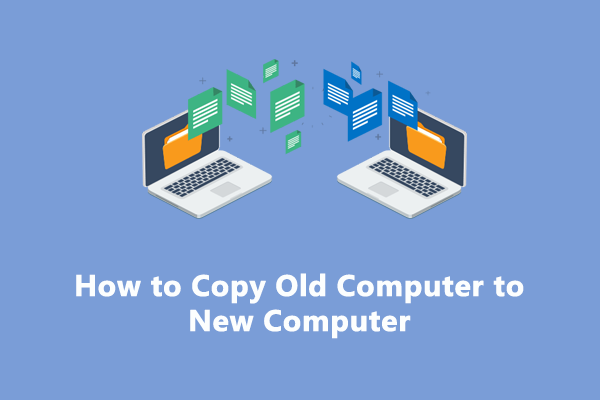
Whether you’re buying a new notebook or laptop, you’ll need to consider how to migrate your data from your old computer to the new one.
Before upgrading, you can back up all important data to the cloud, an external hard drive, or other storage media.
This makes migrating your data to your new computer much easier.
How to Manage Your New Laptop or Notebook?
After purchasing a new laptop or notebook, besides routine setup, efficiently managing the device’s storage space is equally crucial.
If you find a partition running out of space, resizing or extending disk partitions will greatly improve your computer’s user experience.
MiniTool Partition Wizard is an excellent tool for this. It’s a powerful and free partition software. With its Move/Resize and Extend functions, you can better manage your hard drive and solve storage space problems.
Let’s explore how to use these features to optimize your hard drive management via MiniTool Partition Wizard.
MiniTool Partition Wizard FreeClick to Download100%Clean & Safe
#1. Move/Resize Partition
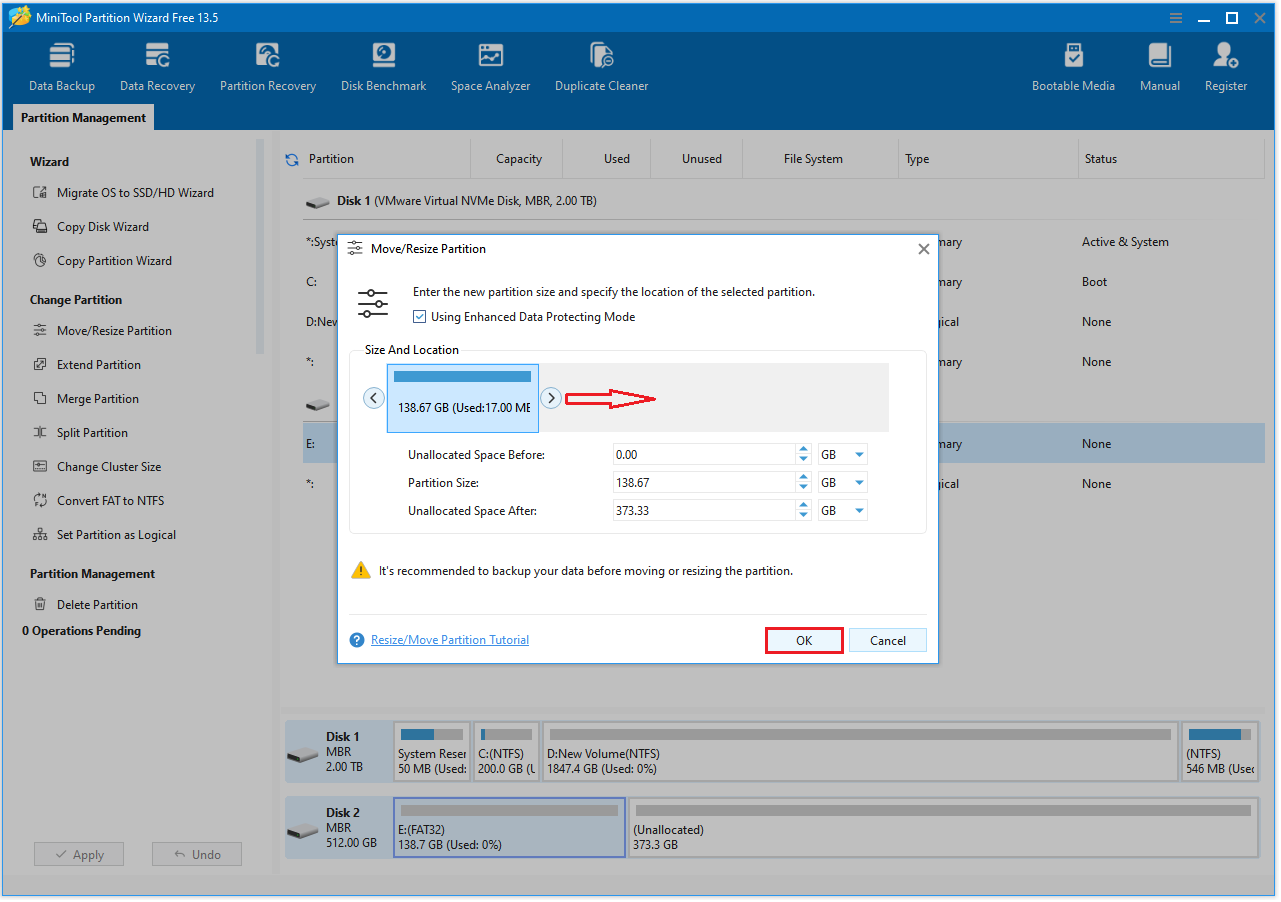
If the target partition has unallocated space on its left and right sides, the Move/Resize function can be used to expand the disk partition.
- Launch MiniTool Partition Wizard to its main interface.
- Right-click the partition and select Move/Resize.
- In the new pop-up window, move the arrow to the right to occupy the unallocated space. Then select OK. The “Using Enhanced Data Protecting Mode” is checked by default, which protects your data in the event of a sudden power outage.
- Click Apply to complete the disk partition expansion.
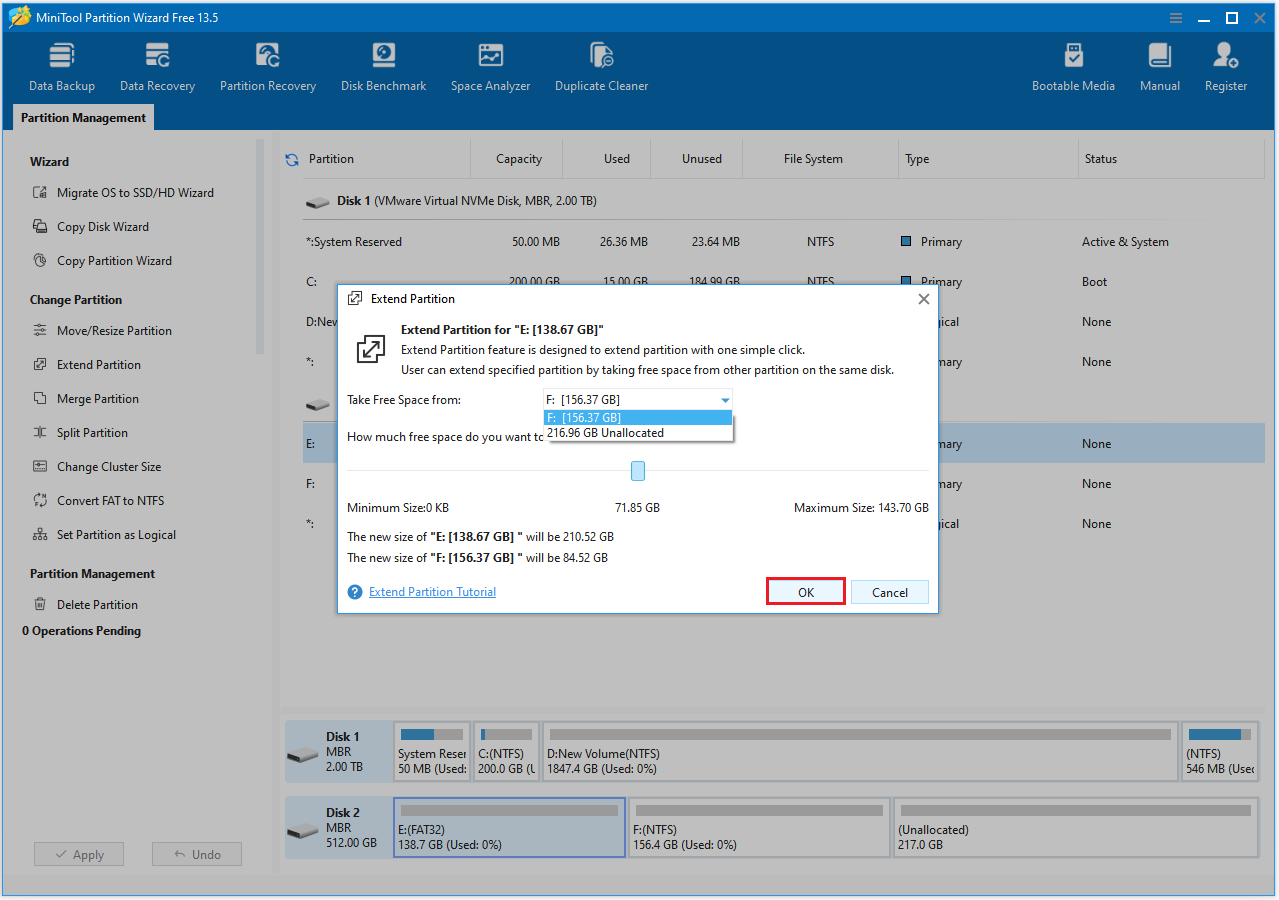
#2. Extend Partition
This feature expands a partition by utilizing free space from other existing partitions or unallocated space on the same disk.
- Launch MiniTool Partition Wizard to its main interface. Then right-click the partition and select Extend.
- Click the down arrow from “Take Free Space From” and select the partition to get expansion space. You can drag the sliding handle to decide how much of the available space it takes up. Then click OK.
- Click the Apply button to perform all changes.
Click to tweet: what’s the difference between a laptop and a notebook? If you’re still looking for the answer, then this article is exactly what you need. It summarizes the main differences between a laptop and a notebook.
Notebook VS Laptop FAQ
However, if your work involves demanding software (like 3D rendering or heavy multitasking), a laptop may be necessary.
In contrast, notebooks are smaller and have a more compact cooling design, which may lead to overheating issues.
Bottom Line
Notebook VS laptop: what’s the difference? After reviewing the differences between the two, outlined in this post, you can make an informed decision based on your needs (primary use, battery life, budget, portability, etc.). Simply pick the one that best fits your situation.
If you have any questions or suggestions while using MiniTool Partition Wizard, contact us via [email protected] for further assistance.
User Comments :