Computers will not boot when the MBR is broken. MBR could be damaged due to various attack, mistaken operation, or sudden power failure. Once MBR is damaged, users may encounter boot problems such as MBR error 3 and see Windows black screen as follow:
- Error loading operating system
- Operating System not found
- Invalid partition table
- Missing Operating System
- No bootable medium found! System halted
- Reboot and select proper boot device
To Solve these problems, you need to use bootable partition manager, which can boot computer and perform partitioning operations like fix MBR without loading Windows OS.
MiniTool Partition Wizard is highly recommended since it comes with the bootable media builder and brings no damage to data.
How to Fix MBR Windows 10/8/7 Without Installation Disk?
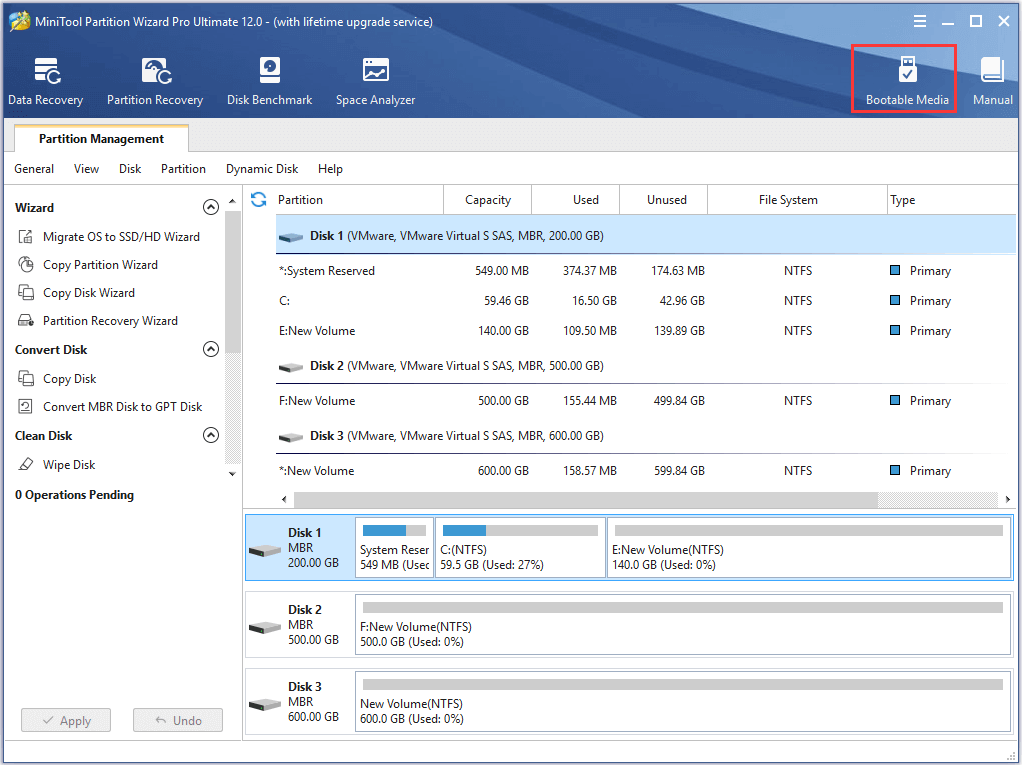
Step 1. Download, install, and click the Bootable Media icon on the top right to run MiniTool Bootable Media Builder.
Step 2. Create a bootable disc of Partition Wizard
Method 1: Create Boot CD/DVD Using Bootable Media Builder
Step 1. Prepare a recordable CD/DVD disc and insert it into your CD/DVD burner.
Step 2. Launch "Bootable Media Builder" from MiniTool software to the main interface.
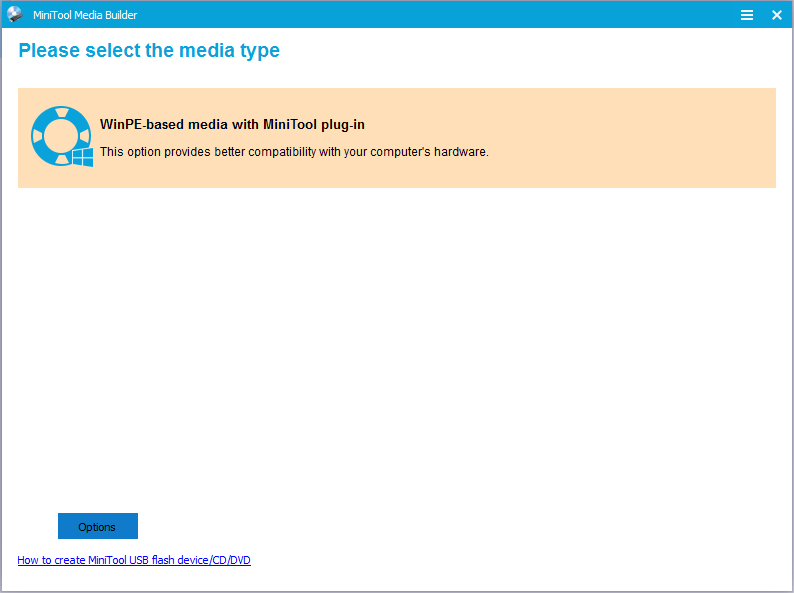
Step 3. Select "WinPE-based media with MiniTool plug-in" to continue.
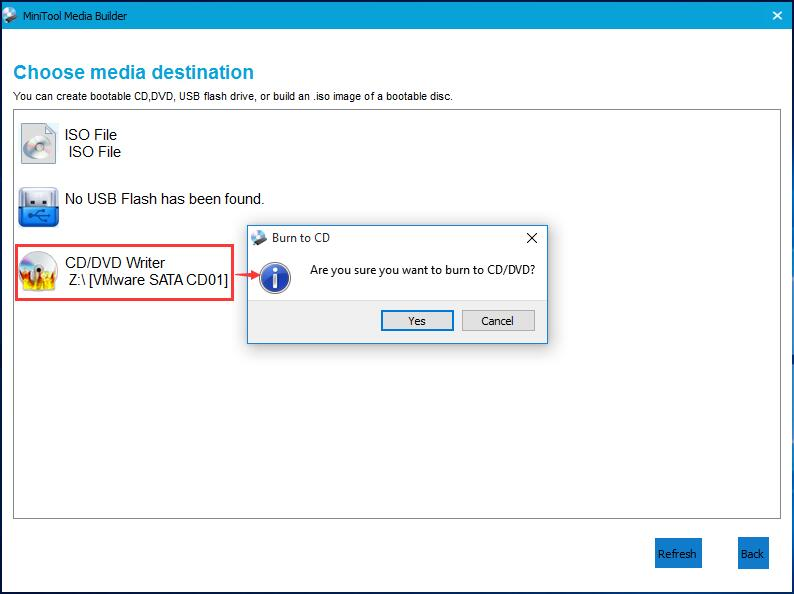
Step 4. To build a Boot CD/DVD Disc, please check "CD/DVD Writer" option and select the correct CD/DVD if there are many. Then click "Yes" to confirm that you want to burn the CD/DVD.
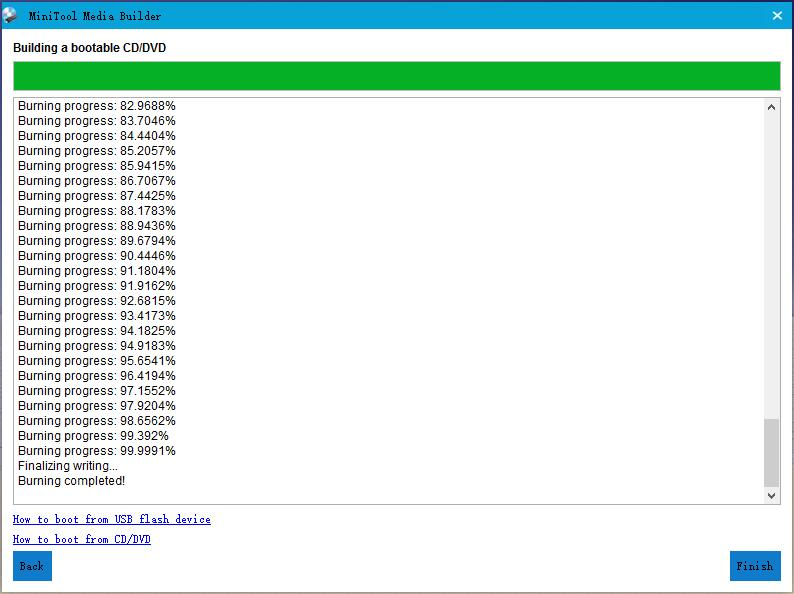
Step 5. Please wait patiently while MiniTool Bootable Media Builder is generating boot files on the CD/DVD disc. Finally, click "Finish" after successful burning.
Method 2: Build Boot Flash Drive Using Bootable Media Builder
Step 1. Prepare a USB flash drive and connect it to computer.
Step 2. Launch "Bootable Media Builder" from MiniTool software to the main interface.
Step 3. Select "WinPE-based media with MiniTool plug-in" to continue
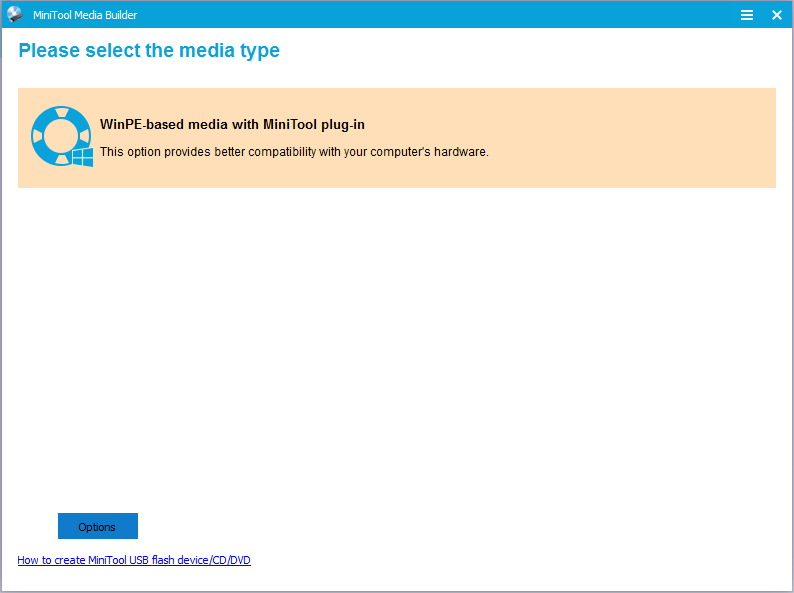
Step 4. To build a Boot Flash Drive, please check "USB Flash Drive" option and select the correct USB flash drive if there are many. Then click "Yes" to confirm that you want to burn the boot flash drive.
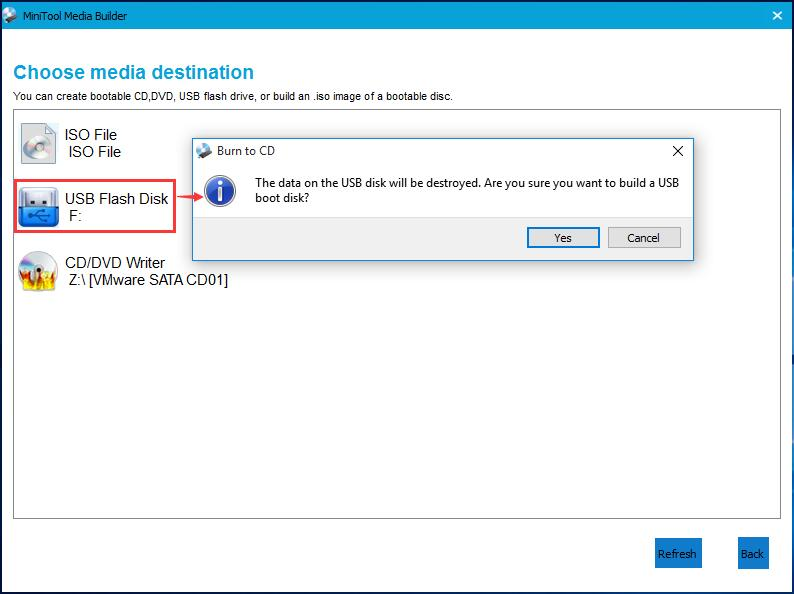
Step 5. Please wait patiently while MiniTool Bootable Media Builder is generating boot files on the flash drive. Finally, click "Finish" after successful burning.
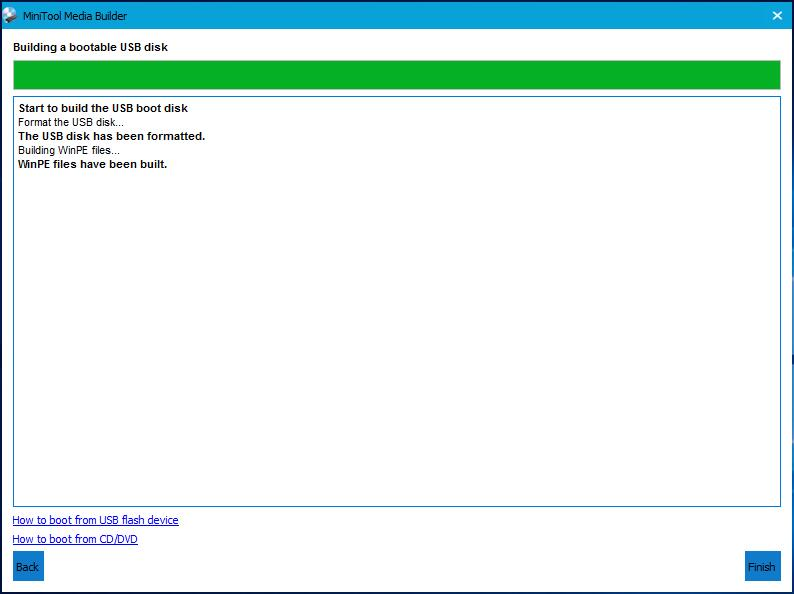
Step 3. Boot computer from the bootable disc, Please choose the first option Partition Wizard to enter the main interface of MiniTool Partition Wizard.
Step 4. Select the system disk which is suffering MBR damage and click Rebuild MBR from the left panel.
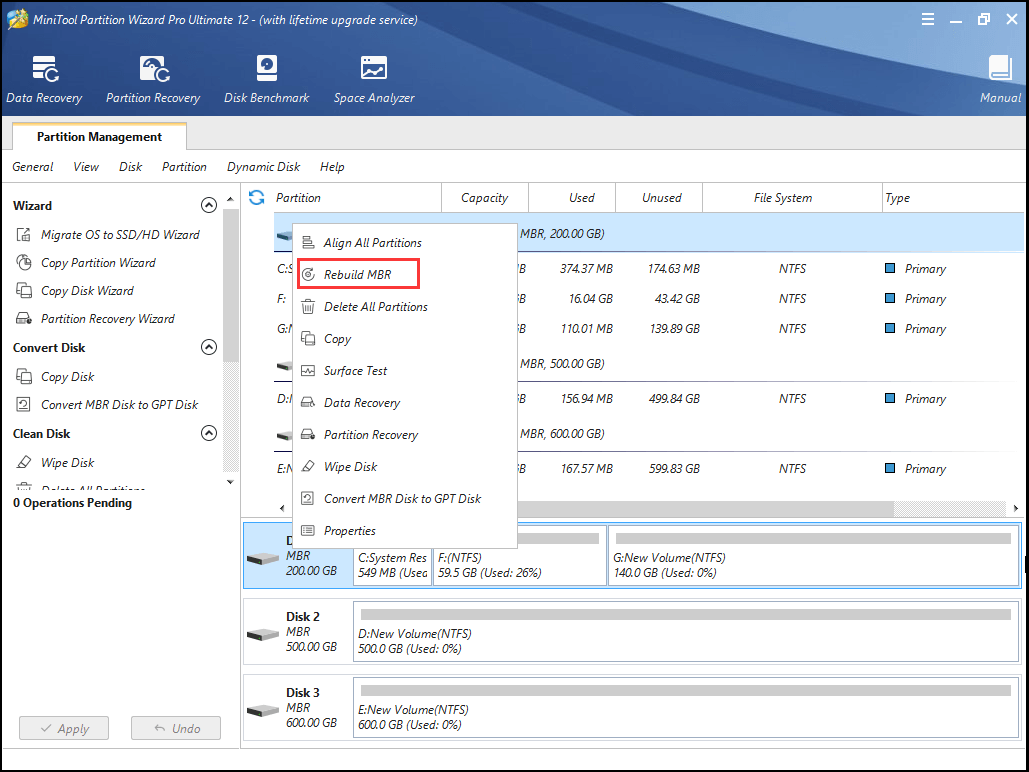
Step 5. Click "Apply" to start fixing MBR.
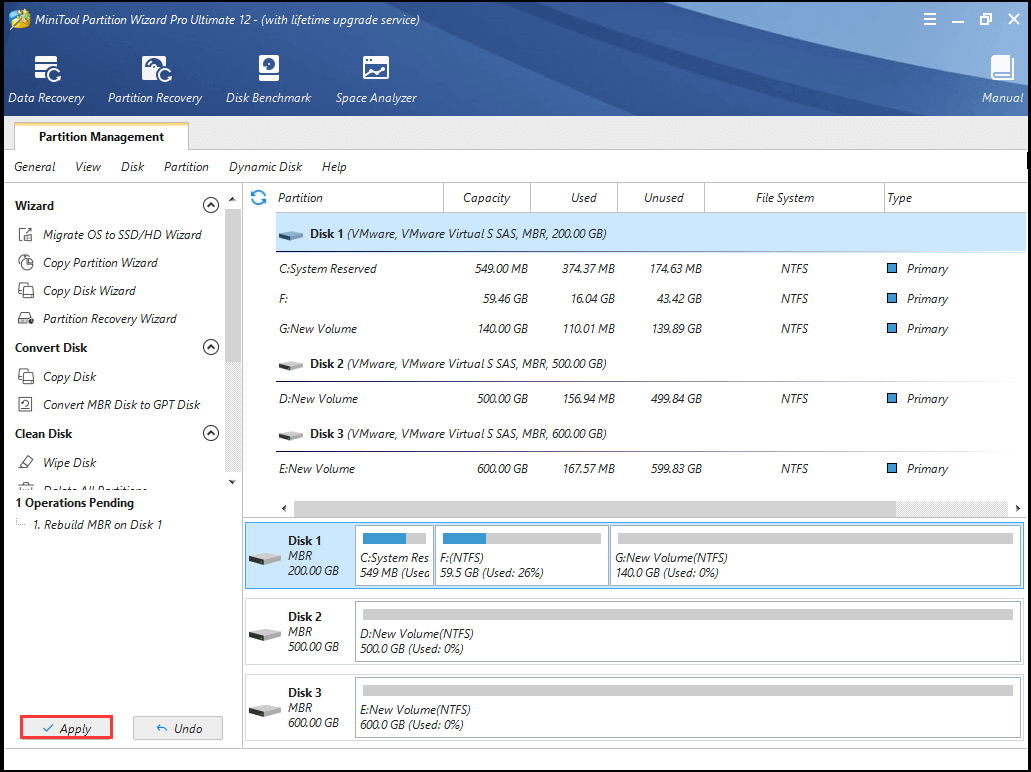
After the application is completed, please shut down the program, take out bootable disk, and boot computer from local disk. Then, Windows should be bootable again.
Features of MiniTool Partition Wizard 12
-

Fix MBR
Computers will not boot when the MBR is broken, Fix MBR on Windows 10/8/7 Without Installation CD, DVD or USB Disk.
-

Recover Lost Partition
Recover lost partitions due to wrong deletion, wrong diskpart clean, virus infection, system upgrade and more.
-

Repair/Fix RAW Drive
Once your disk becomes RAW, it is not allowed to access the target partition. Repair/Fix RAW Drive Without Data Loss for Windows 10/8/7/External Hard Drive.
-

Convert Dynamic Disk to Basic
Convert dynamic disk to basic disk to support full Windows OS, and to install Windows on other partitions.
-

Convert File System
Convert NTFS to FAT or convert FAT to NTFS without formatting to support early Windows OS or to store large files.
-

Bootable Media Builder
Enable to create bootable CD/DVD, bootable USB flash drive, or build an .iso image of a bootable disc.
 Supported operating systems
- Windows 10
- Windows Vista
- Windows 8
- Windows 7
 Supported file systems
- FAT12/16/32
- NTFS
- Ext2/3/4
- exFAT
 Supported Storage Devices
- Support UEFI/EFI boot.
- Support MBR disk and GPT disk.
- All storage devices recognized by Windows, such as RAID, etc.
- Traditional hard disk drives, solid-state drives (SSD), SSHD, etc.
- External hard drives, USB drives, SD cards, and other removable media.