
Why Your iPhone Call History Is Missing
iPhone call history contains all your outbound calls, inbound calls, and missed calls on your iPhone, which is a part of your privacy. The leakage of call history may get you into trouble.
For example, fraudulent money transactions as well as other illegal activities could take place under your name. So, you may delete your iPhone call history regularly to guarantee your privacy.
Or perhaps the situation is different: you lost call history after an iOS upgrade; or your iPhone got stuck on the Apple logo, and you have to restore it to factory settings to make it go back to normal; Maybe the situation is even worse: your iPhone got lost or water damaged.
So, what is the chain reaction after an iPhone call history is missing?
Perhaps you forgot to check the call history on your iPhone and save some important numbers to the Contacts app.
At this moment, a lot of questions come to mind: Is it possible to see the deleted call history on my iPhone? Can I recover deleted call history on my iPhone?
Of course, the answer is YES. The next section is about the two solutions to recover deleted call history on iPhone.
Solution 1: Restore iPhone Call History from the Previous iCloud or iTunes Backup
If you have an iCloud or computer backup that was created before your call history disappeared, you can try to restore the missing call logs from the backup.
Apple provides official methods for restoring an iPhone from an iCloud or iTunes backup. However, these methods generally restore the backup to your iPhone as a whole rather than allowing you to select only Call History. Therefore, the current data on your iPhone may be replaced by the data stored in the backup.
If you don’t mind restoring the entire backup, you can use Apple’s official recovery methods below. If you only want to recover call history without replacing your current iPhone data, use iOS data recovery software.
Option 1. Restore Call History from an iCloud Backup
If you have an iCloud backup that contains the call history you need, you can restore your iPhone from that backup.
Before restoring an iCloud backup, Apple requires you to erase the iPhone if it has already been set up. Make sure you have backed up any important current data before erasing your iPhone. Otherwise, the data currently stored on the device may be lost.
Step 1. Go to Settings > General > Transfer or Reset iPhone > Erase All Content and Settings.
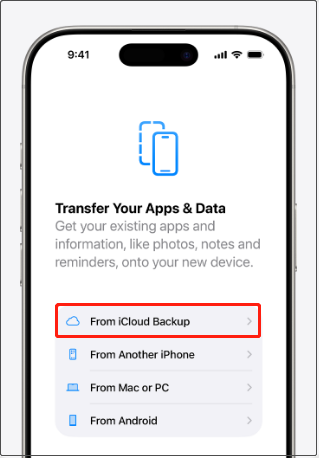
Step 2. Follow the on-screen instructions to erase the device. After the iPhone restarts, follow the setup instructions until you reach the Transfer Your Apps & Data screen.
Step 3. Choose From iCloud Backup, sign in to your Apple account, and follow the screen prompts to restore your call history.
Option 2. Restore Call History from an iTunes Backup
If you have an iTunes or Finder backup stored on your computer, you can restore your iPhone from that backup.
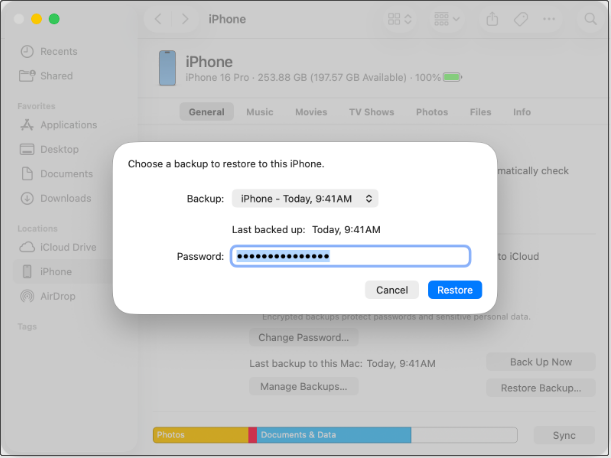
Step 1. Connect your iPhone to the computer with a USB cable. Next, open iTunes or Finder and select your iPhone.
Step 2. Select Restore Backup.
Step 3. Select the appropriate backup and restore it.
Option 3. Recover Call History from a Backup with PhoneRescue for iOS
The official Apple methods above are useful when you want to restore an entire backup. However, they are not ideal if you only need a few deleted call records because restoring the backup can replace the current data on your iPhone.
In this situation, PhoneRescue for iOS provides a more selective approach. It is an iOS data recovery tool that can recover data from an iPhone, an iTunes backup, or an iCloud backup.
The Recover from Backup and Recover from iCloud modes allow you to select specific data types, such as Call History, and scan the available backup instead of restoring the entire backup to the device.
Phone Rescue for iOS (Windows)Click to Download100%Clean & Safe
Phone Rescue for iOS (Mac)Click to Download100%Clean & Safe
Recover Call History from an iTunes Backup
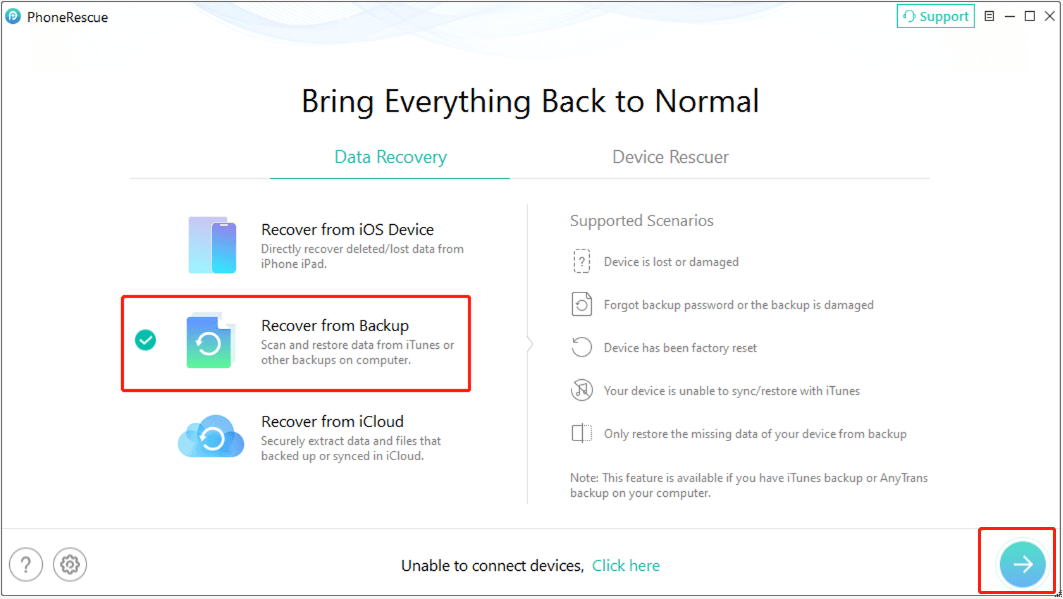
Step 1. Launch PhoneRescue for iOS on your computer, select Recover from Backup, and click the Arrow button to continue.
Step 2. Choose the iTunes backup that was created before the call history disappeared. Then select the appropriate scanning option and continue.
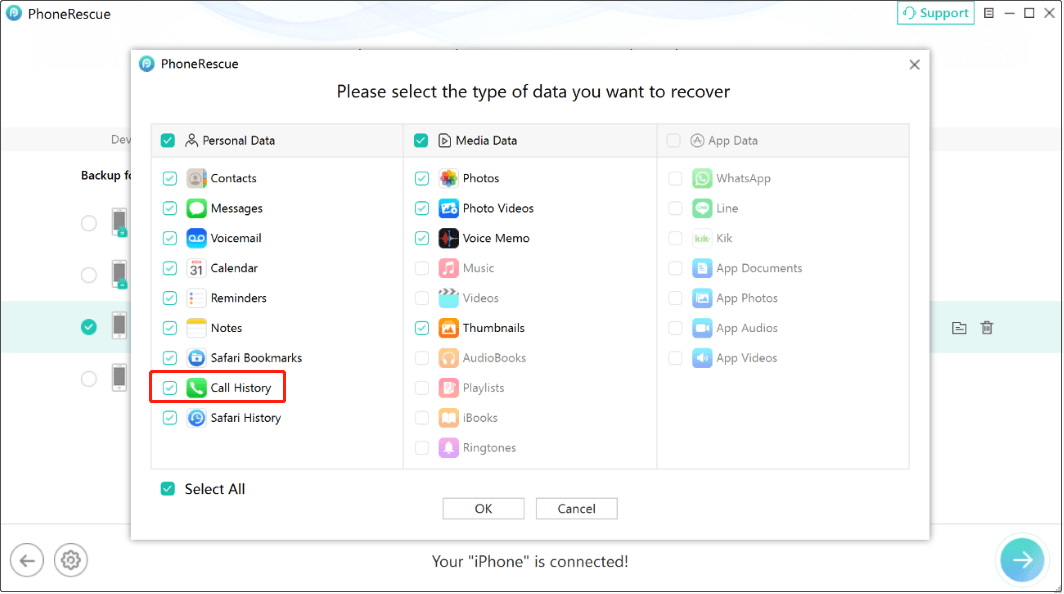
Step 3. Select Call History from the available data types and start scanning the backup.
Step 4. After the scan is complete, browse the available call records. Select the call history you want to recover and follow the on-screen instructions to save it.
Recover Call History from an iCloud Backup:
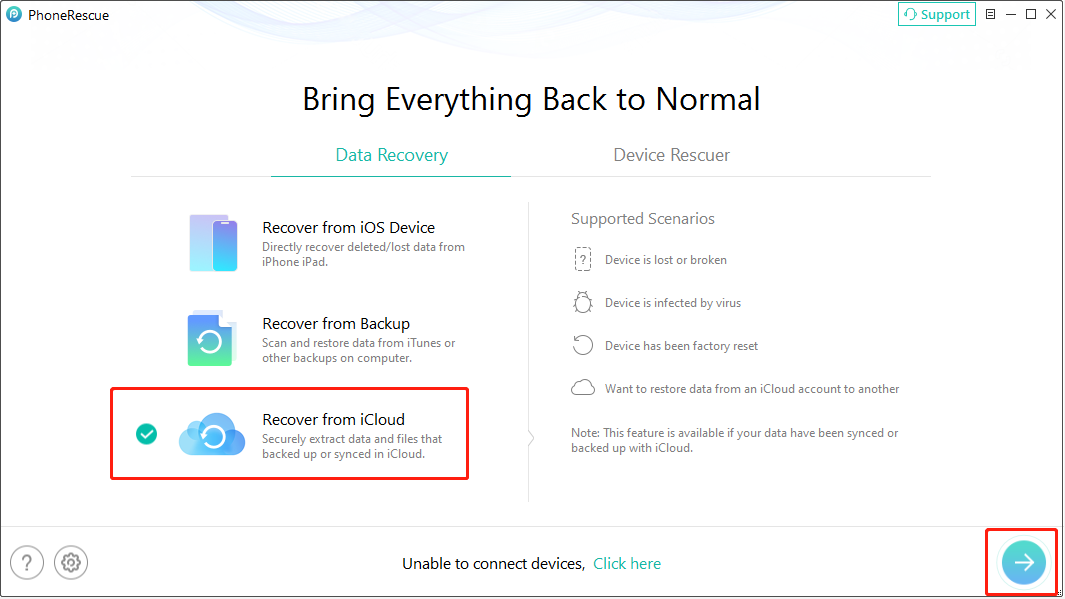
Step 1. Launch PhoneRescue for iOS and select Recover from iCloud.
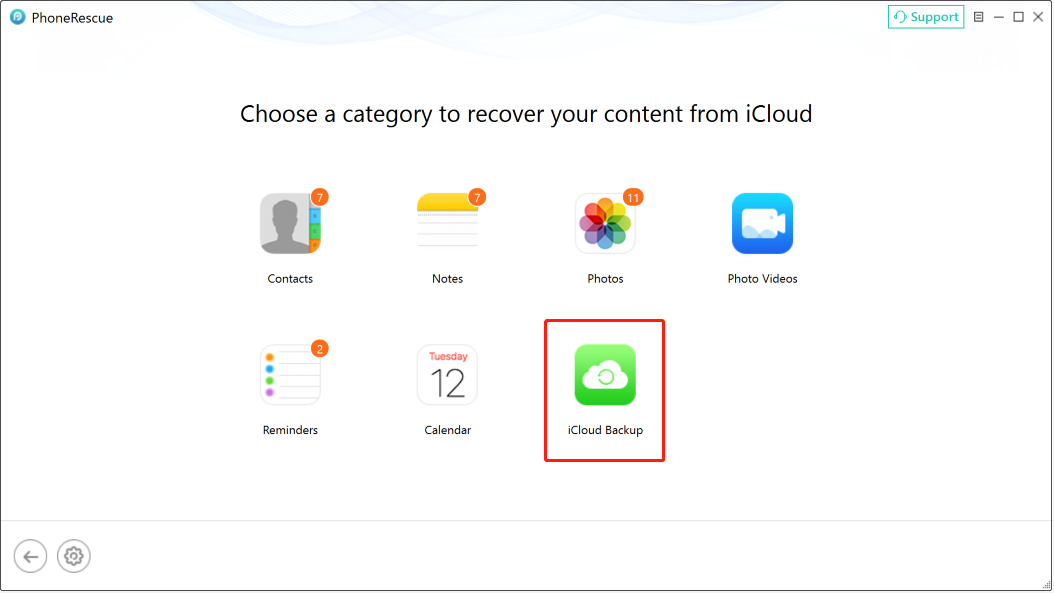
Step 2. Sign in with the Apple Account associated with the iCloud data and select the iCloud Backup option to continue.
Step 3. Choose the iCloud backup containing the lost call history and download it. Then choose an option to scan your backup.
Step 4. Check the call history you need, and recover it to your computer.
Solution 2: Recover Deleted Call History on iPhone Without Backup
If you don’t have an available iCloud or iTunes backup, you can try to recover deleted call history directly from your iPhone with PhoneRescue for iOS.
When you don’t have a suitable backup, you can use Recover from iOS Device to scan your iPhone for recoverable data. In addition to call history, PhoneRescue for iOS supports various other types of iOS data recovery.
Before starting the recovery, avoid using the iPhone unnecessarily. New data and other operations may affect the recoverability of deleted data. The sooner you attempt the recovery, the better your chances may be.
How to Recover Deleted Call History on iPhone Without Backup:
Step 1. Launch the recovery program and connect your iPhone to the computer using a USB cable. Make sure you have the newest version of iTunes installed to help detect your device.
After your iPhone is detected, select Recover from iOS Device and click the Arrow button to continue.
Step 2. PhoneRescue for iOS will display the types of data it can scan. Select Call History and click OK to start scanning your iPhone.
The software will then analyze the device and search for recoverable call records.
Step 3. Wait for the scanning process to finish. Once the results are displayed, find the call history you want to recover.
How to see deleted calls on iPhone more easily?
To find deleted records more easily, select Only list deleted to hide existing data, or enter keywords in the search box to locate specific call records.
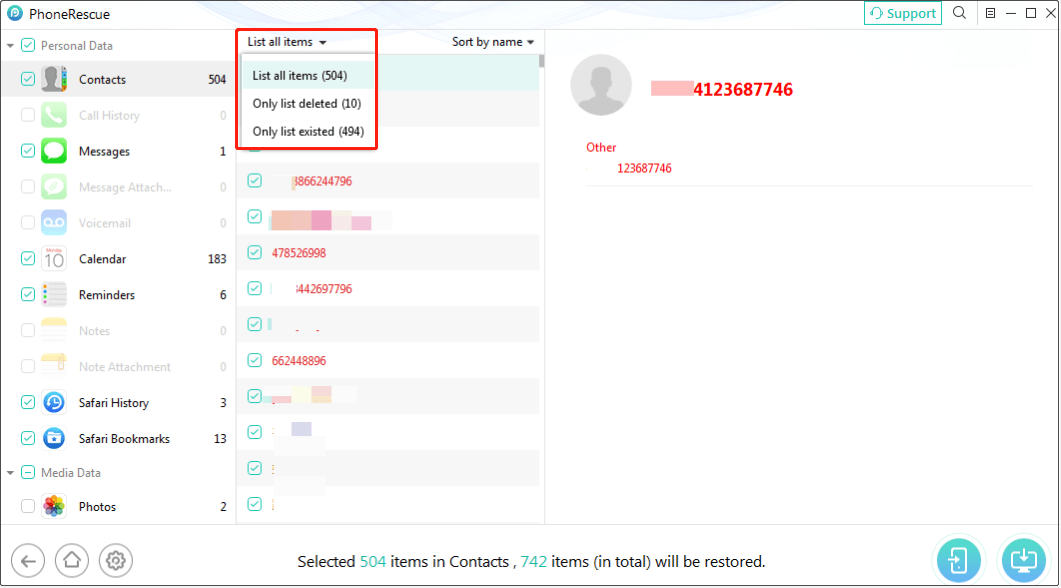
Step 4. Select the desired call records and click the recovery button to save them to your computer.
Data recovery software cannot guarantee that every deleted call record can be recovered. The recovery result depends on whether the deleted data remains available on the device and other technical factors.
The Importance of Making a Backup of Your iPhone Data
Data loss is quite a common issue nowadays. Fortunately, some cloud backup services and backup programs are designed to protect your data. For iPhone users, the two proposed backup methods are iCloud backup and iTunes backup. When your iOS data gets lost, you can recover it from the backup files with the help of a third-party program.
To protect your data, we recommend that you read this post, How to back up your iPhone, iPad, and iPod touch, to make backup files now.
Bottom Line
Two useful solutions to recover deleted call history on iPhone are introduced in this post. By comparison, you can see that performing iPhone call history recovery for free with PhoneRescue for iOS is easier and more flexible.
Why not try this program to get your deleted iPhone call history back?
How to Recover Deleted Call History on iPhone FAQ
About The Author

Position: Columnist
Shirley holds a bachelor’s degree in English and has been an editor at the MiniTool Team for many years. She specializes in IT-related content, with a focus on data recovery, file backup, disk management, and other technical topics. She is committed to delivering clear, accurate, and practical solutions to help users resolve common computer issues.
User Comments :