
The best lightweight backup software for Windows includes MiniTool ShadowMaker, FreeFileSync, AutoBackup Utility, Hasleo Backup Suite, and Veeam Agent for Microsoft Windows. These tools can provide backup protection while keeping RAM and CPU usage low on computers.
To protect files without slowing down the PC, it is essential to choose backup software with low CPU usage, instead of an enterprise-level tool packed with complicated features.
Some programs consume excessive system resources, such as CPU, RAM, or disk, and run unnecessary background services. This is why users use lightweight backup tools in Windows 11 and Windows 10.
They can provide strong protection without sacrificing performance, whether users perform basic backups or make scheduled backups.
What Makes Backup Software Lightweight
An excellent lightweight backup solution usually focuses on:
- Simple interfaces
- Fast backup and restore speed
- Low CPU and RAM usage
- Automatic backup
- Minimal background activity
- Versatile storage options (external hard drives, USB flash drives, NAS storage, or cloud services)
Before choosing a lightweight backup tool, consider those factors.
How We Test These Backup Tools
To evaluate the best lightweight backup software for Windows 10 and Windows 11, we focus on some factors:
- Installation size
- Backup speed
- Ease of use
- System resource usage during backup
- Backup destination flexibility
- The scheduled backup feature
The following backup software with low CPU usage has been tested on Windows 10 with an SSD and an HDD installed.
#1. MiniTool ShadowMaker: Full-Featured Protection
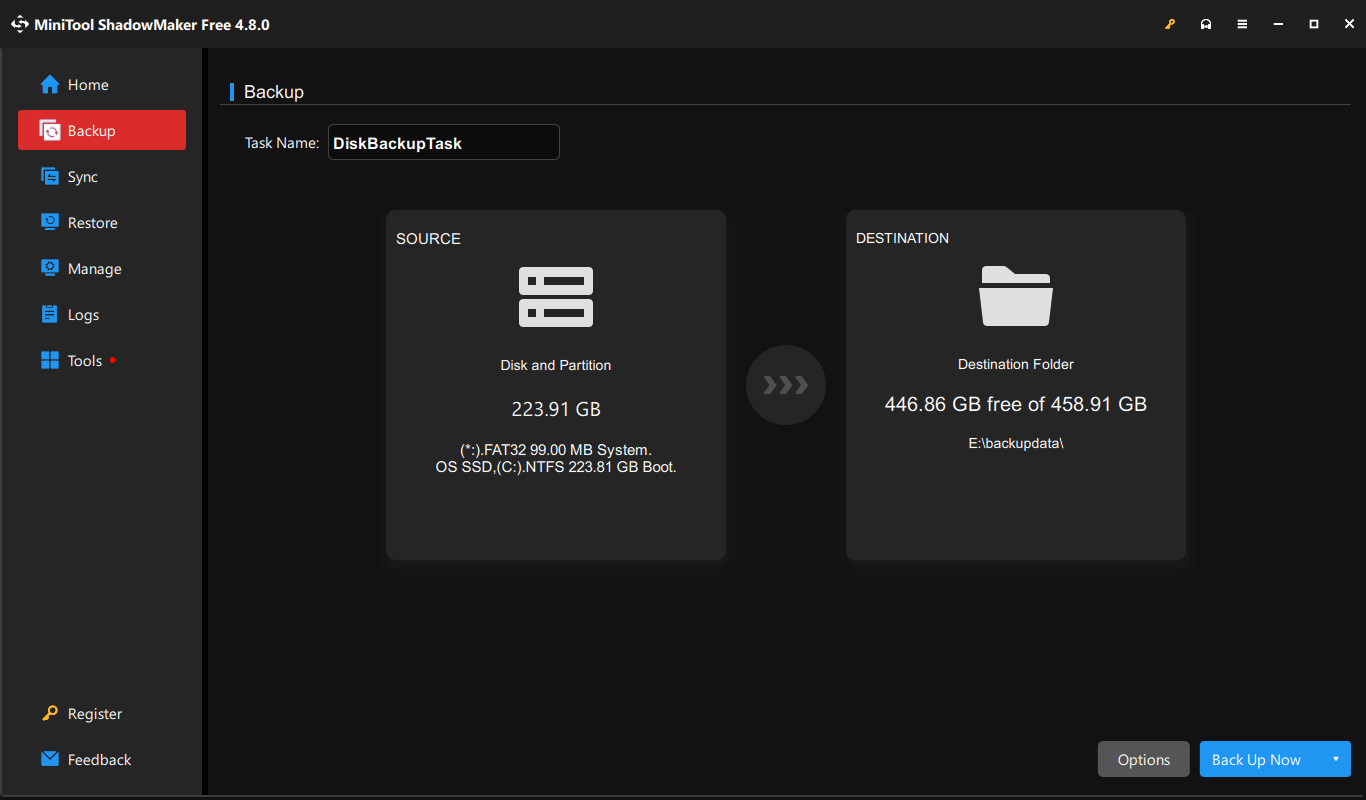
MiniTool ShadowMaker, designed for Windows users, provides full-featured protection. Unlike many bulky enterprise-oriented tools, it combines lightweight performance with powerful backup features.
The software features a clean and intuitive interface that includes backup, file sync, and disk cloning features for both beginners and advanced users.
Key Features
- Backs up files, folders, disks, and partitions, and creates system image backups for disaster recovery.
- Sets a plan to create automatic file backups, for example, daily, weekly, monthly, and on an event.
- Make backups for only changed data, namely incremental or differential backups, to save time and storage.
- Supports restoring Windows to a PC with dissimilar hardware without compatibility issues.
- Generates bootable media for disaster recovery, even when Windows fails to boot.
- Secures backup images with encryption (up to AES-256) to prevent unauthorized access.
- Stores backups to external hard drives, USB flash drives, NAS devices, or a shared folder.
Pros and Cons
| Pros | Cons |
| 1. Clean and modern interface. 2. Fast backup speed. 3. Low system resource usage. 4. Flexible scheduling options. 5. Bootable rescue media creation. | 1. Requires paid editions to unlock advanced features, such as full/differential backup scheme and encryption. 2. No cloud backup. |
Personal Experience
When using MiniTool ShadowMaker, the first noticeable thing is its clean and intuitive interface. It is clearly arranged, making it a practical backup option for beginners.
During our test, this backup software uses relatively low resources while still maintaining fast backup performance, even when running automatic backups in the background.
When running multiple programs at the same time, users can back up files to an external drive smoothly.
However, it does not provide built-in cloud backup storage, which may be a limitation for users who prefer storing backups online for off-site data protection.
#2. FreeFileSync: High-Speed File Sync
FreeFileSync is a free, open-source file sync tool available for Linux, macOS, and Windows. It automatically identifies the source and target folders, scans for the differences, and then syncs the changed data.
Without copying every file every time, this lightweight backup software can significantly save time and storage space. It can be a viable choice for everyday file protection due to robust sync performance.
Key Features
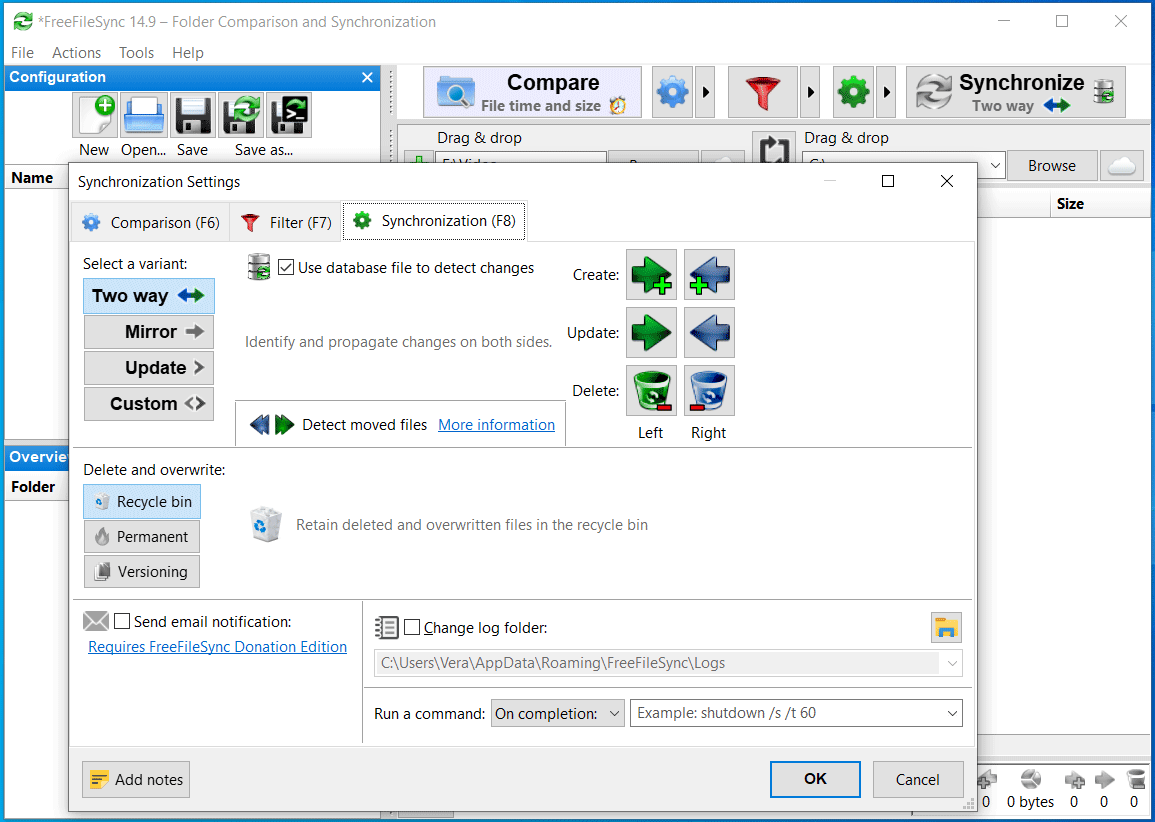
- Supports two-way sync to intelligently track changes on both sides.
- Creates a mirror backup of the source folder.
- Copies new and updates files to the destination folder.
- Allows users to customize sync settings.
- Supports moving files to a user-defined folder without overwriting files to avoid data loss by mistake.
- Uses an internal database to detect the changed files and update them on the destination.
- Provides real-time and automated sync via the bundled RealTimeSync utility.
- Syncs folders to a local drive, Google Drive, SFTP, and FTP.
Pros and Cons
| Pros | Cons |
| 1. Offers multiple synchronization modes. 2. Fully supports Windows, macOS, and Linux. 3. Delivers fast sync speed. 4. Uses low resource usage. 5. Is free and open-source. | 1. No built-in scheduler. 2. Relatively technical user interface. 3. No system image backup. |
Personal Experience
The installer of FreeFileSync is lightweight, only 20.9MB (Windows version), and the installation process is fast.
After launching this sync tool, the interface feels somewhat technical, making it less friendly for beginners. However, the synchronization process is efficient once configured.
Noticeably, FreeFileSync offers multiple sync modes, including Two-Way, Mirror, Update, and Custom, creating backups of important files.
The software uses less CPU and memory, even when transferring many files. Overall, it delivers resource-efficient performance without affecting system responsiveness.
#3. AutoBackup Utility: Hassle-Free Automatic Backup
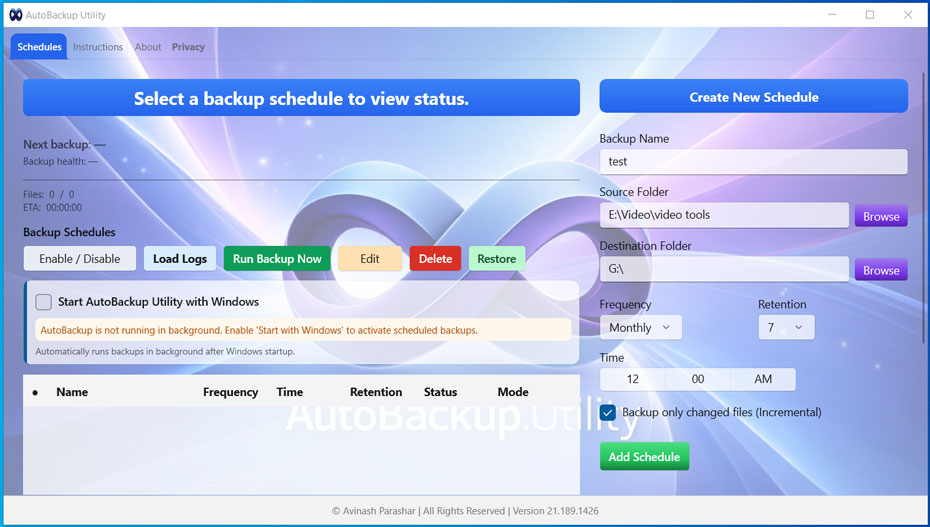
AutoBackup Utility is a simple, lightweight automatic backup tool for Windows that helps back up files and folders to a local drive. It can automatically run backups in the background after Windows startup if enabling the Start with Windows option.
It can be a reliable option for users who are looking for an easy backup solution with minimal setup and maintenance.
Key Features
- Sets schedule plans to run automatic backups, such as daily, weekly, and monthly.
- Offers an option to back up only changed files since the last backup (incremental).
- Creates a success or error log entry for each backup and automatically cleans old logs based on the retention policy.
- Always keep backups on local hard drives, without relying on cloud services.
- Runs in the background without requiring manual intervention, protecting critical data even when dealing with work.
Pros and Cons
| Pros | Cons |
| 1. Is time-saving, with no manual intervention. 2. Provides lightweight installation. 3. Works well on low-end PCs. 4. Allows for a quick setup process, easy for beginners. | 1. Lack of cloud backup. 2. Limited advanced features. 3. Basic user interface design. |
Personal Experience
AutoBackup Utility is a lightweight backup software that has a streamlined and clutter-free user interface. Users can set up automatic backup tasks within a few minutes, without requiring complex configurations.
During testing, it runs silently in the background with low CPU and RAM usage. Although it lacks advanced features such as system image backup, this utility is practical for users who only need basic automatic file protection.
#4. Hasleo Backup Suite: Comprehensive Backup Solution
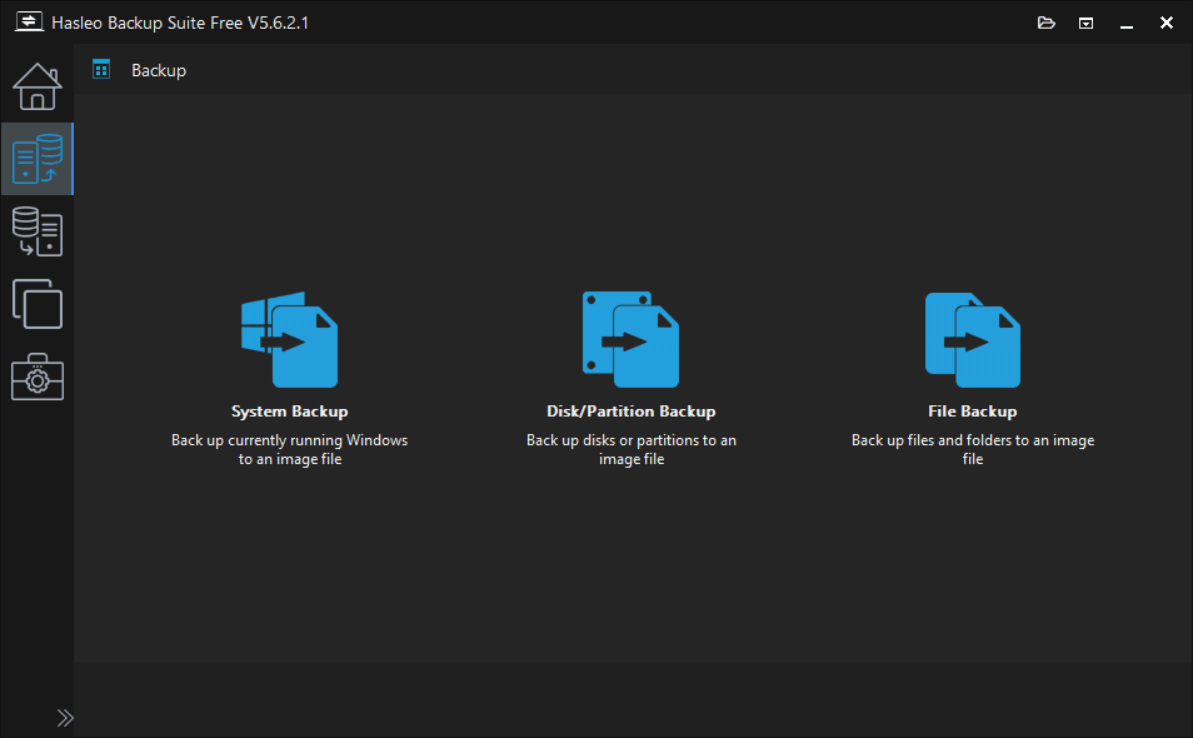
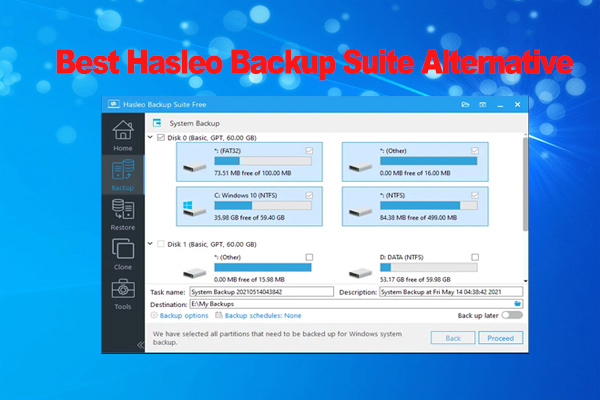
Hasleo Backup Suite is a free, comprehensive backup solution that helps backup and restore the system & files, and clone a drive. It is widely recognized for its intuitive interface, all-in-one features, and a completely free license.
It can be a lightweight tool since it uses low CPU usage during backup/recovery/cloning, helping minimize the impact on overall system performance.
Key Features
- Creates a system image and backs up specific files/folders, the entire drive, and individual partitions.
- Encrypts backup image files with AES-256 to stop unauthorized access, ransomware attacks, and data theft.
- Automatically runs backups based on specific events or on a daily, weekly, or monthly schedule.
- Only backs up changed data using the incremental/differential backup option to save space and time.
- Sets image retention policy to delete old backups to free up storage.
- Creates an emergency disk to restore the system and data in WinPE.
- Stores backups to local drives and network shared paths.
Pros and Cons
| Pros | Cons |
| 1. Offers a clean and beginner-friendly interface. 2. Provides flexible backup options. 3. Is completely free. | 1. No cloud support. 2. Relatively basic interface design. |
Personal Experience
The interface of Hasleo Backup Suite is clean for quick navigation, but some advanced options may require additional learning for first-time users.
During backup, CPU usage remains low, helping maintain stable system performance.
With fast backup and restore speeds and a completely free license, Hasleo Backup Suite can be a practical choice for daily backup needs.
#5. Veeam Agent for Microsoft Windows: Efficient System Protection
Veeam Agent for Microsoft Windows can be an efficient backup software with low CPU usage, providing reliable system protection for home users and businesses. It is designed to back up Windows-based desktops, laptops, and tablets.
With this lightweight tool, users can take full control of Windows backup and recovery.
Key Features
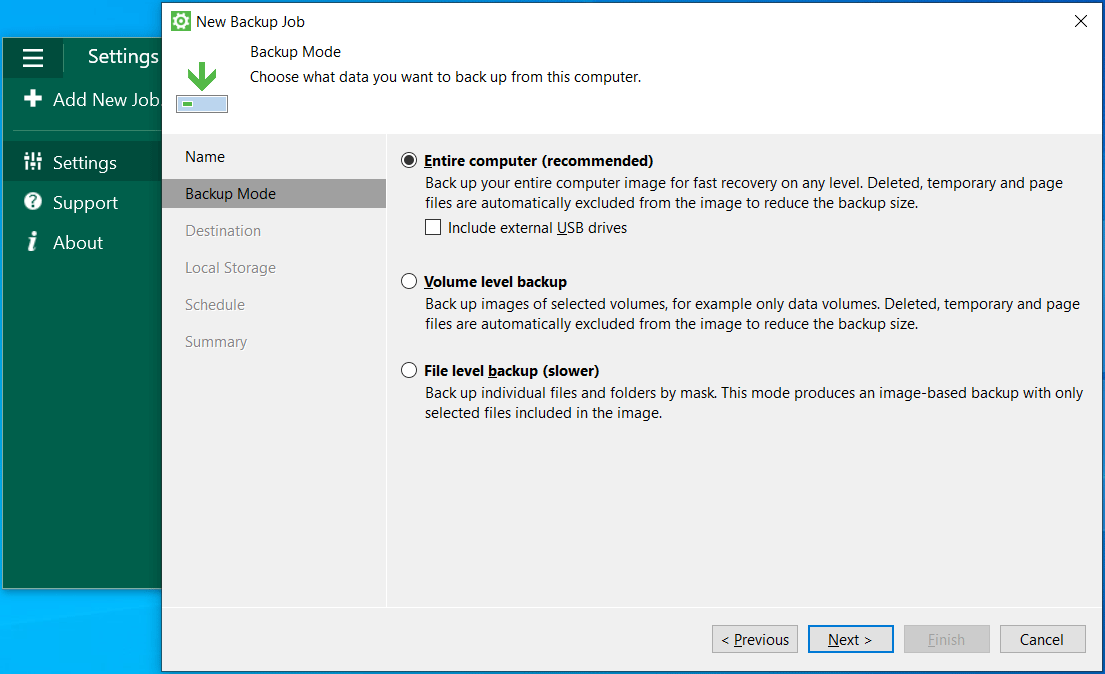
- Provides multiple backup modes, including entire computer, volume-level (selected partitions), and file-level (individual files/folders).
- Backs up a computer to a USB/Firewire/eSATA external hard drive, an SMB share on a NAS device, a regular file server, or a repository managed by a Veeam Backup & Replication server.
- Creates active full backups periodically (weekly/monthly).
- Schedules automatic backups every day, on weekdays or on customized days.
Pros and Cons
| Pros | Cons |
| 1. Offers full protection for files, partitions, disks, and systems. 2. Supports restoring single files, folders, or volumes. 3. Includes Veeam Recovery Media. | 1. The free edition is quite limited, as it does not support multiple jobs. 2. The interface may feel technical for beginners. 3. Advanced features are not supported, such as differential backup. |
Personal Experience
When using Veeam Agent for Microsoft Windows, the interface may not be friendly for beginners, requiring a complicated setup for a backup job.
However, once configured, this tool can run reliably to create image-based backups. The CPU usage stays low while running backup operations. It can be a recommended lightweight backup solution for reliable Windows system protection.
Comparison Table: Best Backup Software with Low CPU Usage
| Software | Resource Usage | Backup Type | Best for | Main Limitation |
| MiniTool ShadowMaker | Low | System, file, folder, disk, and partition | Daily backups and disk cloning | No cloud integration |
| FreeFileSync | Very low | Folder | Fast folder synchronization | No system image backup |
| AutoBackup Utility | Extremely low | Folder | Simple automatic backups | Limited advanced features |
| Hasleo Backup Suite | Low | System, file, folder, disk, and partition | System imaging backup/recovery and disk cloning | Basic interface design |
| Veeam Agent for Microsoft Windows | Low to moderate | System, file, folder, disk, and partition | Workstation protection | Single backup job limitation in the free edition |
When Use Lightweight Backup Tool
For users who need to protect files and systems without affecting the system performance, lightweight backup software is a practical choice. Compared to enterprise backup tools, the software uses less CPU and memory.
Use such a backup program when:
- Having limited hardware resources.
- Wanting to run backups in the background.
- Regularly backing up files to an external hard drive.
- Using older Windows laptops or desktops.
Conclusion
This post lists the 5 best lightweight backup software for Windows 10 and Windows 11, and each tool has its key features, pros, and cons.
To create system image backups, use MiniTool ShadowMaker and Hasleo Backup Suite. For file sync, try FreeFileSync. For simple automatic backups of important files, AutoBackup Utility is recommended. To protect workstations, consider Veeam Agent for Microsoft Windows.
Lightweight Backup Software FAQ
About The Author

Position: Columnist
Vera has been working at the MiniTool Team for over 10 years as a technical editor and content writer. She mainly focuses on disk and partition management, data recovery, Windows backup and restore, and PC troubleshooting. Through in-depth software testing and hands-on experience, she has helped users solve a wide range of computer problems and better protect their data on Windows devices.
User Comments :