
Why Files Become Hidden on USB Drive or SD Card
- Hidden attribute
- Virus/malware infection
- File system errors
Files on USB drives or SD cards can become hidden for several reasons. The most common cause is a change in file attributes, where the system marks files as “hidden” or “system protected”.
Another frequent cause is malware infection. Some viruses intentionally hide original files and replace them with shortcuts or empty folders.
In other cases, file system corruption or incomplete writes during transfer can also make files temporarily invisible or permanently lost.
Understanding the cause helps determine whether you should simply unhide files or perform deeper recovery steps.
How to Show Hidden Files and Folders in a USB Flash Drive or SD Card
The 3 methods introduced below can help you show hidden files and folders in a USB flash drive. As for how to find hidden files on an SD card, you can use the same three ways since they also apply to revealing hidden files on a memory card.
Method 1. Show Hidden Files in USB Using the Attrib Command
The Attrib command is one of the most reliable approaches to restoring hidden files, especially when malware has modified file attributes.
Step 1. Connect your USB drive or SD card to the computer.
Step 2. Type cmd in the Windows search box, right-click Command Prompt, and choose Run as administrator.
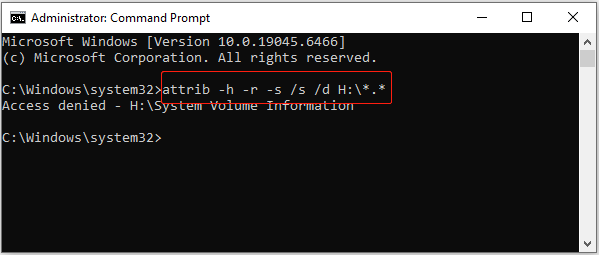
Step 3. In Command Prompt, type the following command and press Enter:
attrib -h -r -s /s /d X:\*.*
Replace X: with your USB or SD card drive letter.
- attrib: changes file attributes
- -h: removes hidden attribute
- -r: removes read-only attribute
- -s: removes system attribute
- /s: applies to all files in the current folder and subfolders
- /d: includes folders as well
- X:*.*: targets all files and folders on drive X:
Method 2: Unhide Files in USB or SD Card with File Explorer
The second way you can try to view hidden files in USB or SD card is to use Windows File Explorer. Check the detailed steps below.
Step 1. Open File Explorer and open the USB drive or SD card.
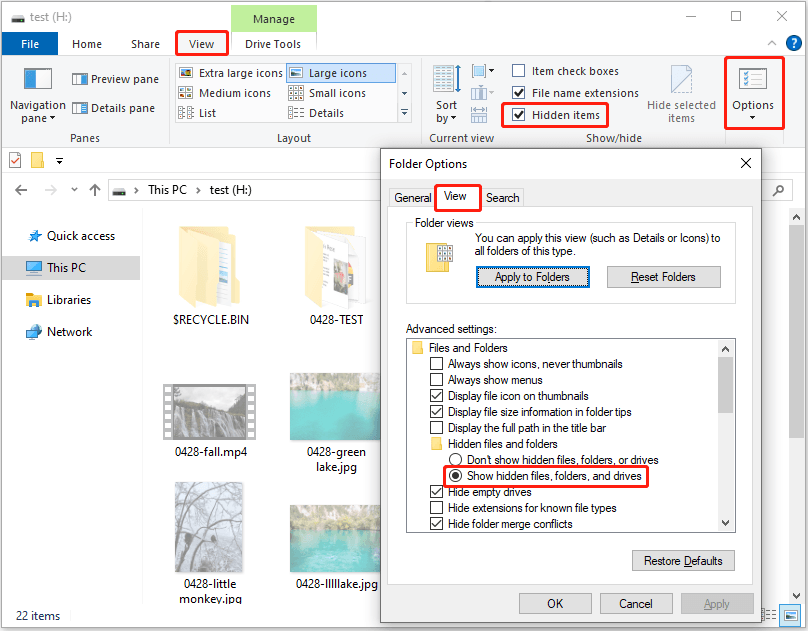
Step 2. Go to the View tab at the top and select the Hidden items option. The hidden files should show up.
Alternatively, you can show hidden files by changing folder options.
Step 1. Click the Options button on the menu bar.
Step 2. Go to the View tab and select Show hidden files, folders, and drives.
Step 3. Click Apply > OK.
Method 3: Show Hidden Files in USB through Control Panel
The third way to unveil hidden files in USB or SD card is using the Control Panel. You can follow the steps below.
Step 1. Press Windows + R to open Windows Run, type control panel in the Run box, and press Enter to open the Control Panel.
Step 2. In the Control Panel window, click Appearance and Personalization > Show hidden files and folders.
Step 3. Find Show hidden files, folders, and drives and enable this option.
How to Recover Hidden Files from USB or SD Card on Windows
If files still do not appear after enabling hidden items, the files may have been lost rather than hidden. In such cases, data recovery tools become necessary.
Data recovery software can scan the drive at a low level to locate lost or deleted data. These tools usually support:
- Scanning USB drives, SD cards, HDDs, SSDs, external hard drives, CDs/DVDs
- Recovering lost, deleted, or inaccessible documents, photos, videos, audio, emails, archives, and more
- Recovering data lost due to accidental deletion, virus infection, disk formatting, and file system corruption
For example, MiniTool Power Data Recovery Free is such a tool that supports previewing files and recovering 1 GB of data for free.
MiniTool Power Data Recovery FreeClick to Download100%Clean & Safe
Step 1. Scan the USB Drive or SD Card
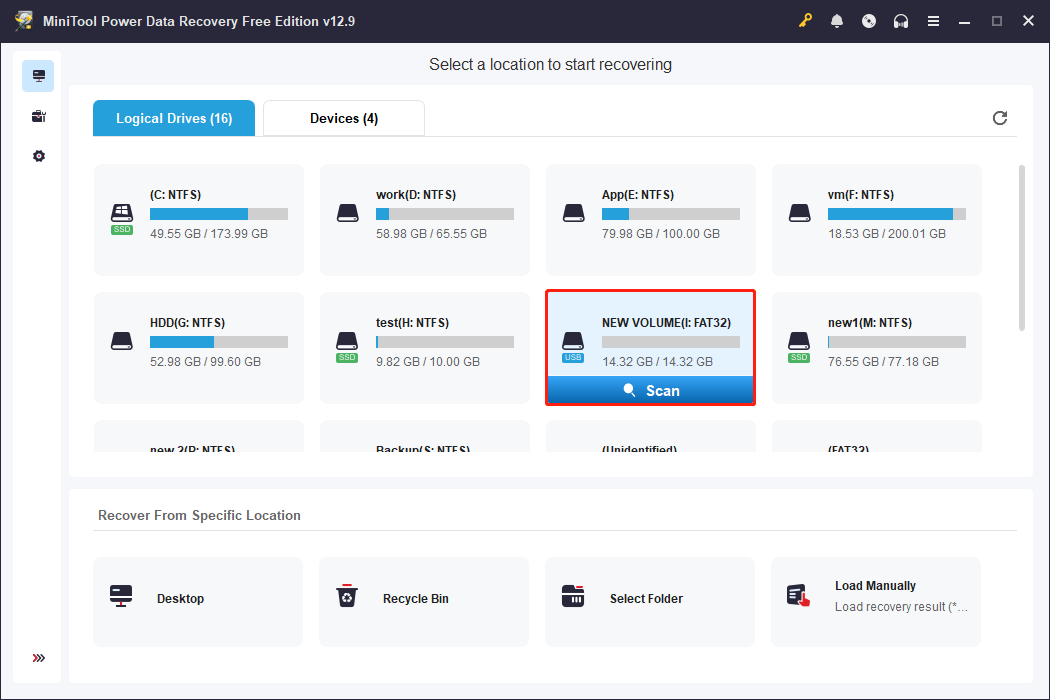
Connect the USB drive or SD card to your computer and open the data recovery tool. The first step is selecting the drive and clicking Scan.
The software reads the storage device sector by sector and recovers lost folder structures or files that no longer appear in File Explorer.
During scanning, do not interrupt the process to get the best scan results.
Step 2. Locate and Preview Your Files
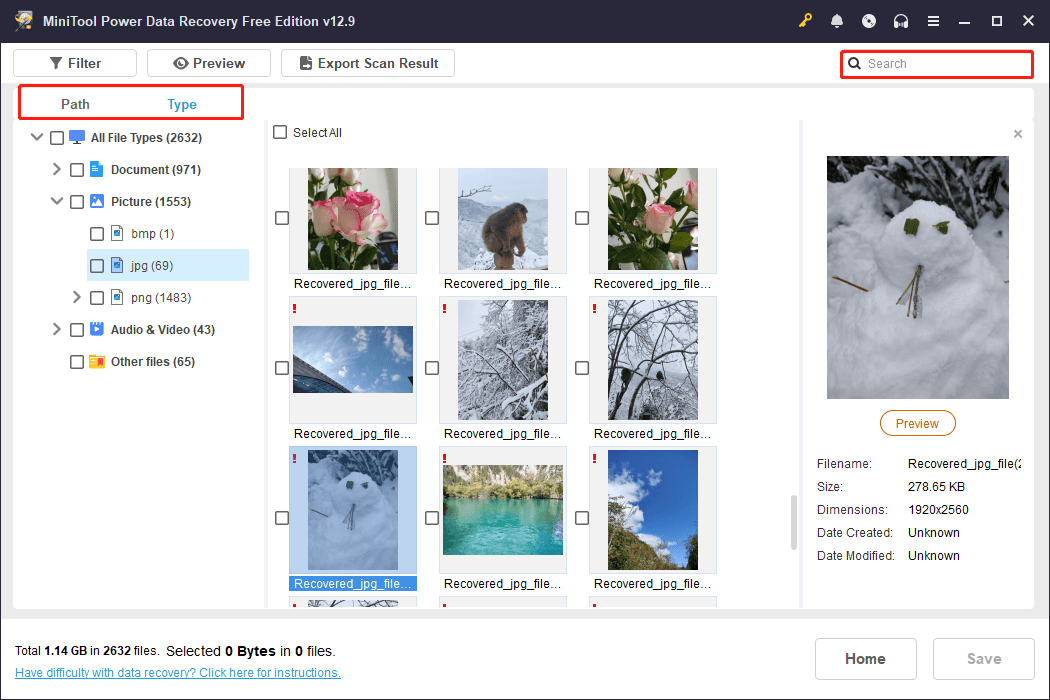
After scanning, find the files you want to recover according to file path or type. You can search for a specific file by using its file name.
Do not rely on file names alone. Some files may still open and be recoverable if the file names are corrupted. Double-click them to preview.
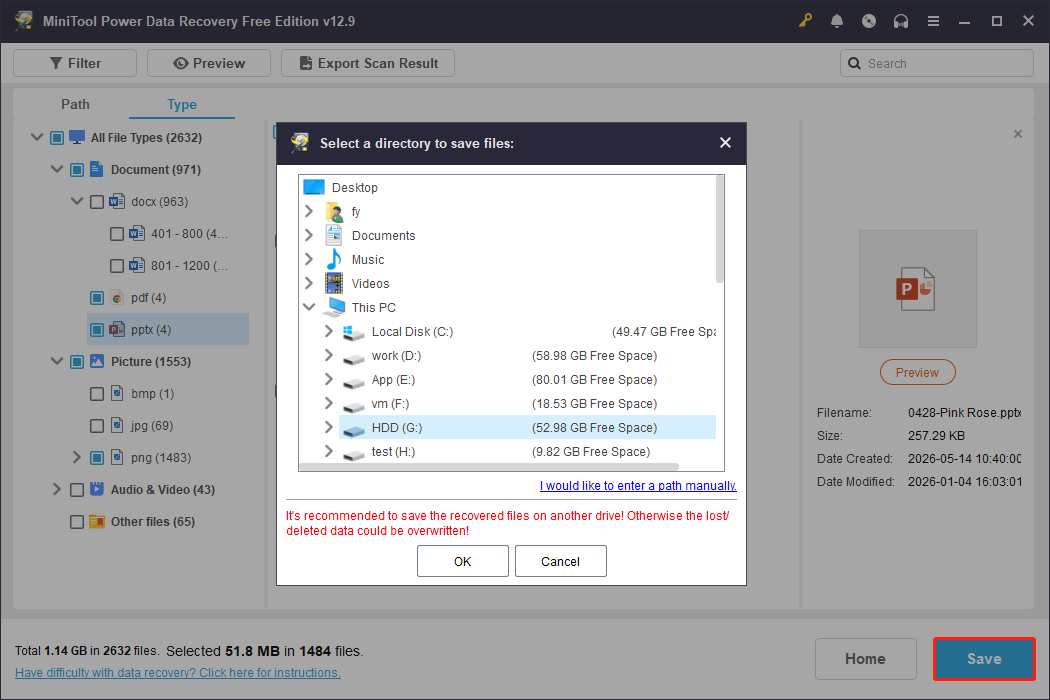
Step 3. Save Required Files
Once you confirm the files are usable, select them and save them. The most important rule here is: never save recovered files back to the same USB drive or SD card.
Always choose a separate location on your computer, such as a dedicated folder on the desktop or another internal drive.
How to Fix Files Being Hidden on USB Drive or SD Card
After recovering hidden files, the next steps focus on actual repair methods that can restore access to the drive itself.
This prevents files stored on the drive from being automatically missing or hidden.
Fix 1. Remove Viruses
Applicable case: files hidden or replaced by shortcuts, or files reappear and disappear again
If your USB drive suddenly shows shortcut files or empty folders, malware is often the cause. Some viruses modify file attributes and continuously re-hide files even after you restore them manually.
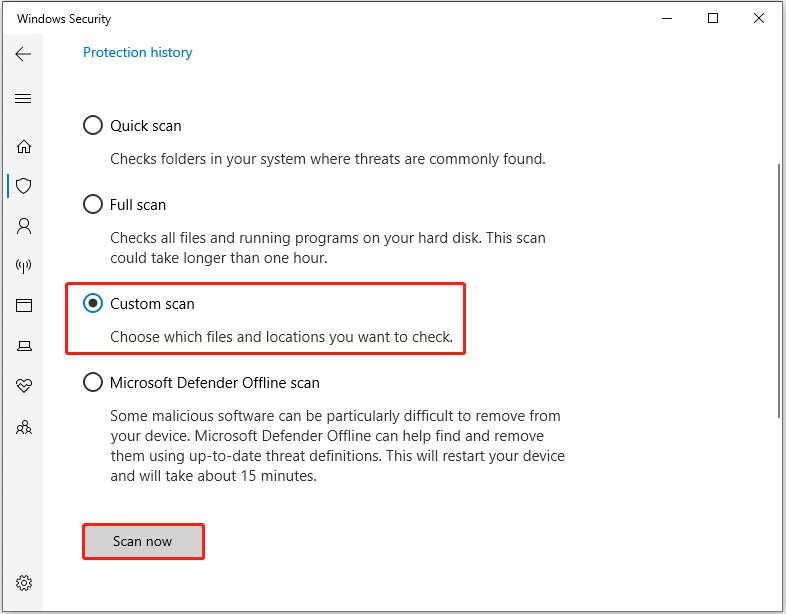
Fix it by running a full virus scan using Windows Defender:
Step 1. Open Settings and select Update & Security.
Step 2. Click Windows Security > Virus & threat protection > Scan options. Select Custom scan, click Scan now, and choose the target USB drive or SD card to scan.
Fix 2. Run CHKDSK to Repair File System Errors
Applicable case: files not visible after unhide attempts, drive shows errors, or slow response
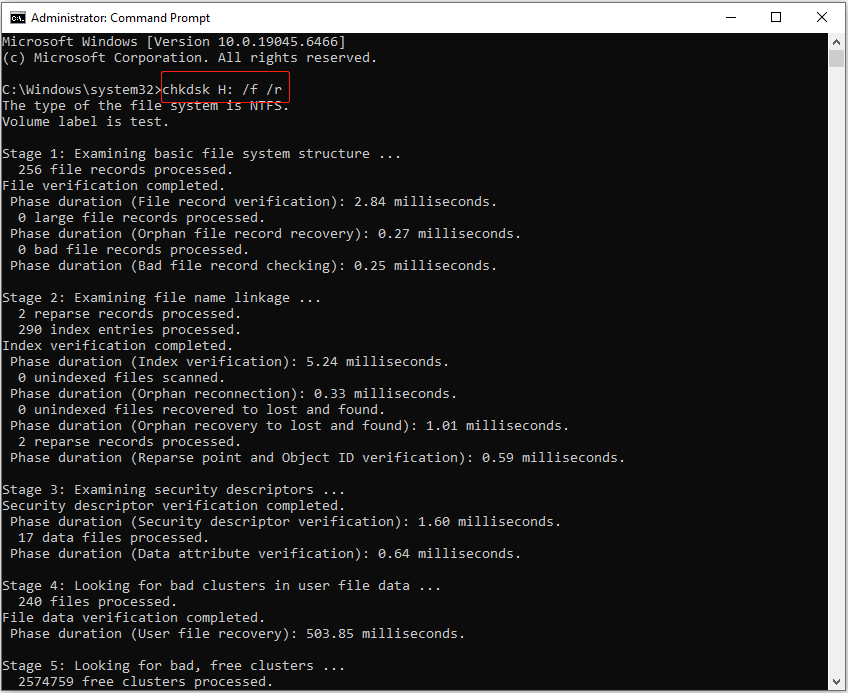
If the USB or SD card has file system corruption, Windows may fail to display existing files correctly. In this case, you can open Command Prompt as an administrator and run CHKDSK to repair logical errors:
chkdsk X: /f /r
Replace X: with your drive letter.
Fix 3. Format the USB Drive or SD Card
Applicable case: files keep being hidden or deleted
Formatting is the last option which restore the drive to a usable state when other methods fail.
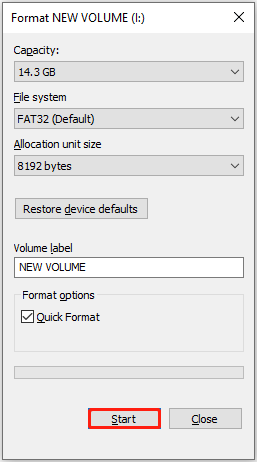
Before formatting, confirm whether important data has already been recovered. If yes, format the USB drive:
Step 1. Right-click the USB drive or SD card in File Explorer and select Format.
Step 2. Set up the volume label and file system, and start the formatting process.
Conclusion
In this post, we provide 3 methods to help you show hidden files and folders in USB and SD cards, introduce how to recover hidden files on USB or SD card with MiniTool Power Data Recovery, as well as give some possible fixes to help you solve SD card files not showing up.
Should you have other problems about how to recover data with MiniTool Power Data Recovery, please contact [email protected].
Show/Recover Hidden Files on USB FAQ
If the drive shows shortcut files or empty folders, it often indicates that files are still present but have been hidden by malware.
If the drive fails to open properly or shows errors, it is more likely that the issue is related to file system problems.
About The Author

Position: Columnist
Shirley holds a bachelor’s degree in English and has been an editor at the MiniTool Team for many years. She specializes in IT-related content, with a focus on data recovery, file backup, disk management, and other technical topics. She is committed to delivering clear, accurate, and practical solutions to help users resolve common computer issues.
User Comments :