
Do you receive error 0x800f0825 Permanent package cannot be uninstalled when removing an update manually from Control Panel or Command Prompt? If so, please read through this post on MiniTool Website to get more feasible solutions.
Windows Update 0x800f0825
It is important to install the latest Windows update because it can make the computer safer and make the performance smoother. However, Windows might install a corrupted update package when updating the system. Uninstalling this update might be effective but infeasible due to a component cleanup.
The complete error message reads:
0x800f0825 – CBS_E_CANNOT_UNINSTALL – Package cannot be uninstalled.
If you are one such user, let’s explore the solutions in detail together.
Preparations Before Performing a Windows Update
Theoretically, updating your Windows 10/11 will preserve the files, settings, and apps on your computer. However, like any other process, updating Windows can also cause some problems. Some Windows users reported that their files disappear after updating Windows.
As a result, you had better make adequate preparation to avoid such data loss accidents. To protect your data, it is strongly recommended to back up your files with a reliable backup software – MiniTool ShadowMaker before performing a Windows update. This tool is aimed to satisfy your needs on backing up files, folders, systems, partitions, and disks on Windows system. Follow these steps to make a backup of your files:
Step 1. Launch this tool and go to the Backup page.
MiniTool ShadowMaker TrialClick to Download100%Clean & Safe
Step 2. In this section, you can choose the backup source and destination.
- Backup source – go to SOURCE > Folders and Files.
- Backup destination – go to DESTINATION.
Step 3. Press Back Up Now to start the backup task in no time.

Also see: How to Back up Windows to Safeguard Your Computer? Try MiniTool!
How to Fix Windows Update 0x800f0825?
Fix 1: Download and Install Windows Update Manually
Whenever there comes a Windows update, Microsoft will also upload the corresponding package on the official website. To fix 0x800f0825 Windows 10, you can try downloading and installing the relevant update patch manually.
Step 1. Go to the Microsoft Update Catalog page.
Step 2. In the search box, type the KB number to show all the available updates.
Step 3. Find the update you need according to the Windows version you are currently using and hit Download.
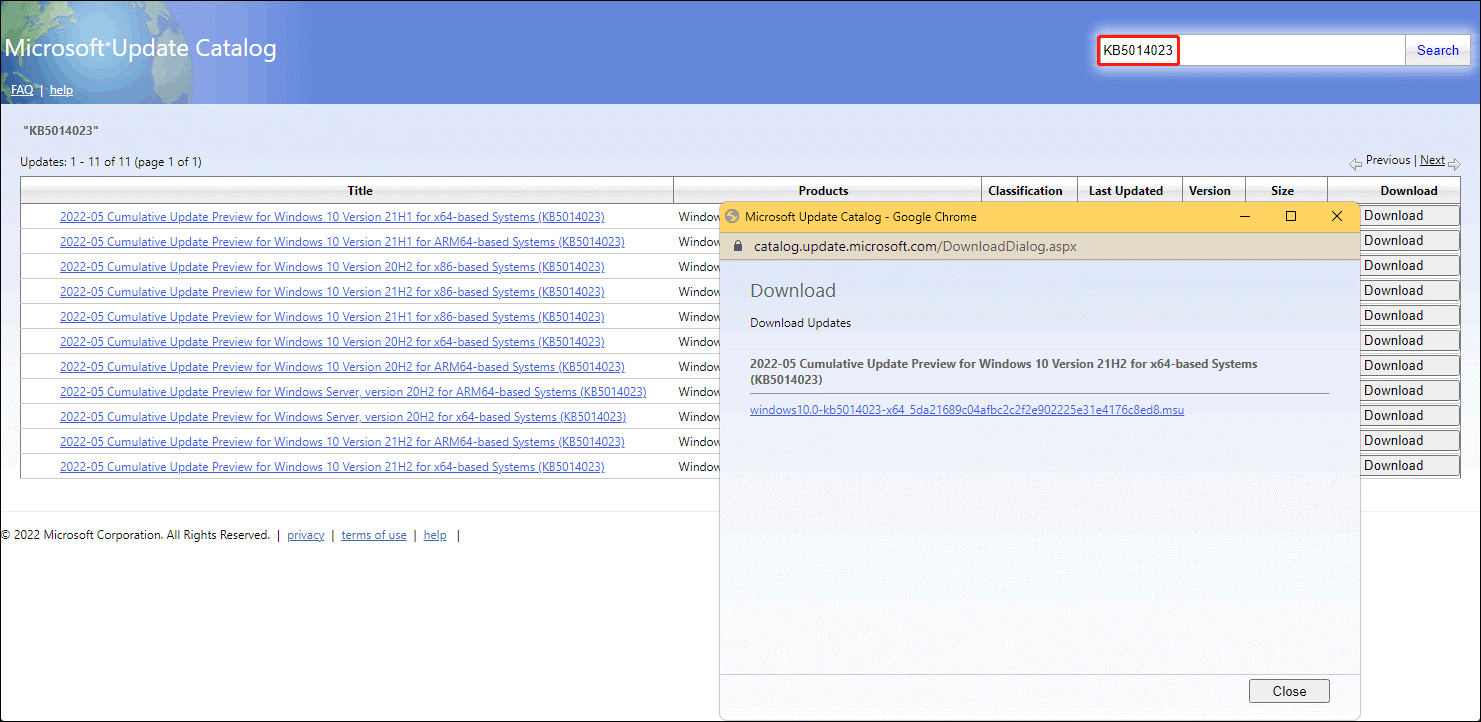
Step 4. You will be prompted by a download link. Hit it to download the offline installer.
Step 5. Open the installer to install the optional update on your computer.
Fix 2: Run Windows Update Troubleshooter
Since Windows update 0x800f0825 is related to Windows update, you can run the Windows Update troubleshooter to see if it does the trick.
Step 1. Type settings in the search bar and hit Enter to open Windows Settings.
Step 2. In the setting menu, choose Update & Security > Troubleshoot > Additional troubleshooters.
Step 3. Scroll down to find Windows Update, hit it and press Run the troubleshooter. Then the troubleshooter will either fix Windows update error 0x800f0825 or provide you with some suggestions.
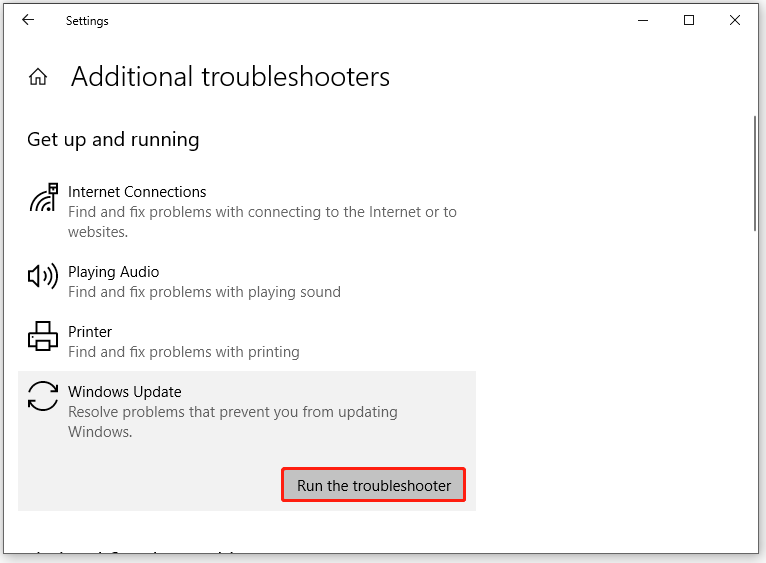
Step 4. Hit Apply this fix and reboot your computer.
![[Full Guide] How to Fix Windows Update Troubleshooter Not Working](https://images.minitool.com/minitool.com/images/uploads/2023/03/windows-update-troubleshooter-not-working-thumbnail.png)
Fix 3: Clear SoftwareDistribution and Catroot2 Folder
The SoftwareDistribution and Catroot folders contain all the relevant information about Windows updates. When the size of the two folders is too big, it will trigger some issues including error 0x800f0825.
Step 1. Press Win + R to open the Run box.
Step 2. Type services.msc and hit OK.
Step 3. Find the following services and right-click on them one by one to select Stop.
- Windows Update
- Background Intelligent Transfer Service
- Cryptographic Services

Step 4. Open File Explorer > navigate to the following locations > delete all the contents inside it:
C:\Windows\SoftwareDistribution
C:\Windows\System32\Catroot2
Step 5. After all the contents in the SoftwareDistribution and Catroot2 folders are deleted, reboot your computer to see if Windows update 0x800f0825 persists.
Fix 4: Perform System Restore
Performing a system restore can also help you to get rid of DISM remove package 0x800f0825. Follow these steps to revert your system back to a state where everything was running smoothly.
Step 1. Type system restore in the search bar to locate Create a restore point and hit it.
Step 2. Under System Properties, hit System Restore > Next.
Step 3. In the System Restore window, choose one of the recent restore point and hit Next.
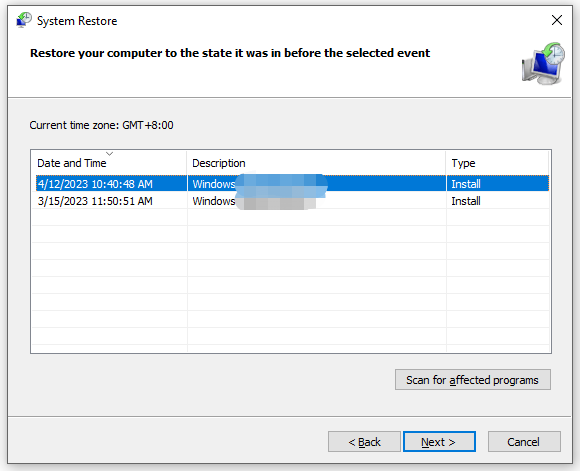
Step 4. After the restoring process is done, hit Finish and restart your system.
Fix 5: Reset this PC
If everything fails and error 0x800f0825 Windows 10 is still there, the last option is to reset your PC.
Step 1. Press Win + I to open Settings.
Step 2. Go to Update & Security > Recovery > Get started under Reset this PC.
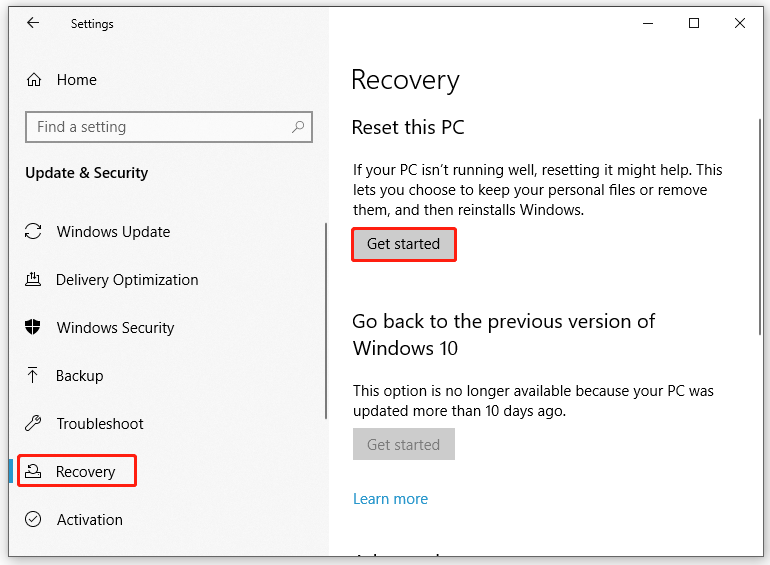
Step 3. There are two options for you – Keep my files and Remove everything. Choose either of them and follow the guidelines on the screen to reset your PC.
User Comments :